

Basic Fixes
- Force quit and relaunch Instagram: You can force quit and relaunch the app to give it a fresh start, especially if it has been running in the background for some time.
- Switch from mobile data to Wi-Fi: You can do this to improve your internet speeds.
- Update Instagram: Installing an updated version will help remove any bugs in the current version causing this issue.
Fix 1: Check Activity Status
If the Activity Status has been turned off, you can’t see whether the user is active on Instagram. It also prevents the typing indicator from showing in the chat window.
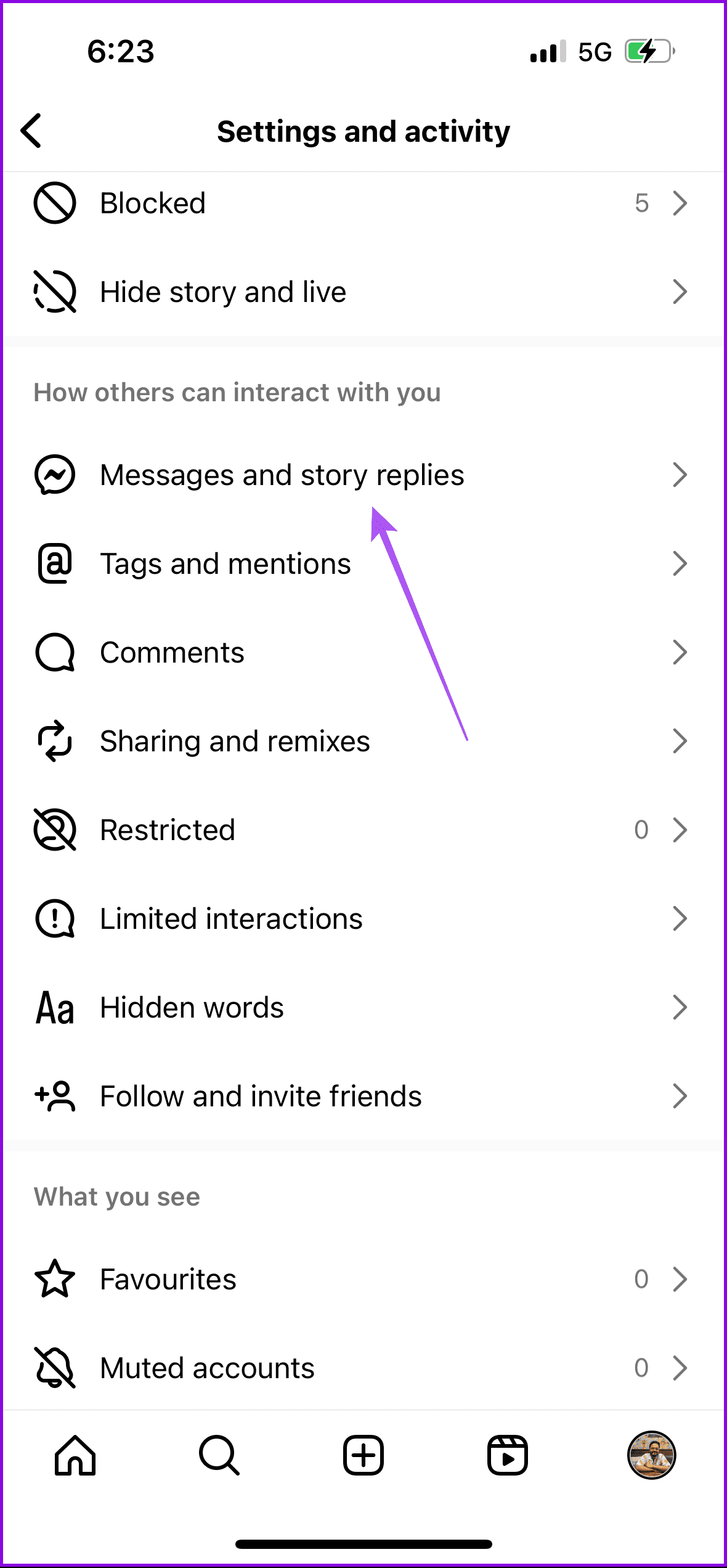
Step 1: Go to your profile and tap the hamburger menu icon at the top-right corner. Then, select Settings and activity.
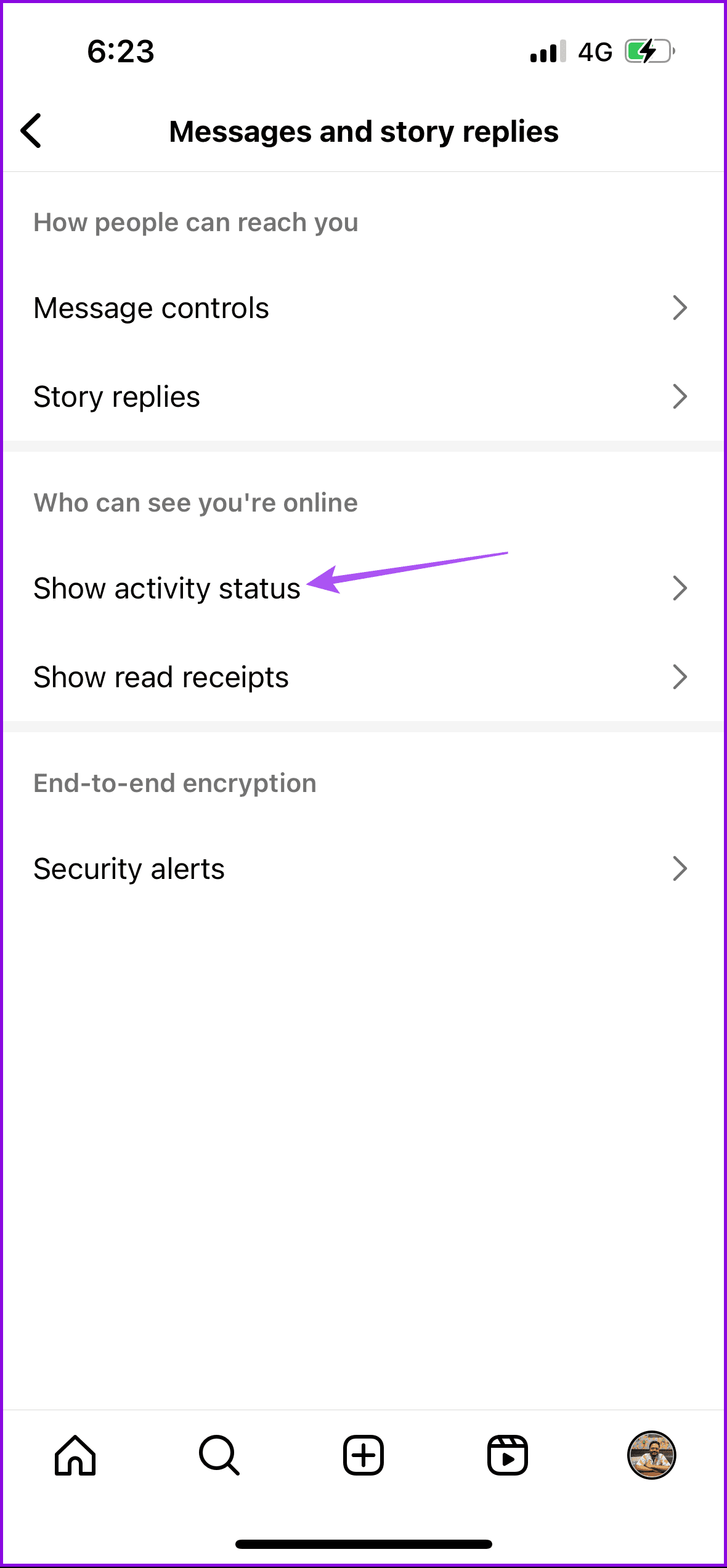
Step 2: Tap on Messages and story replies > Show activity status.
Step 3: Enable the toggle for Show Activity Status.
Fix 2: Disable Less Mobile Data Usage
Being outdoors requires using mobile data, and that is why you should disable the option of Less Mobile Data Usage in the Instagram app.
Step 1: Go to your Instagram profile > open Settings and activity.
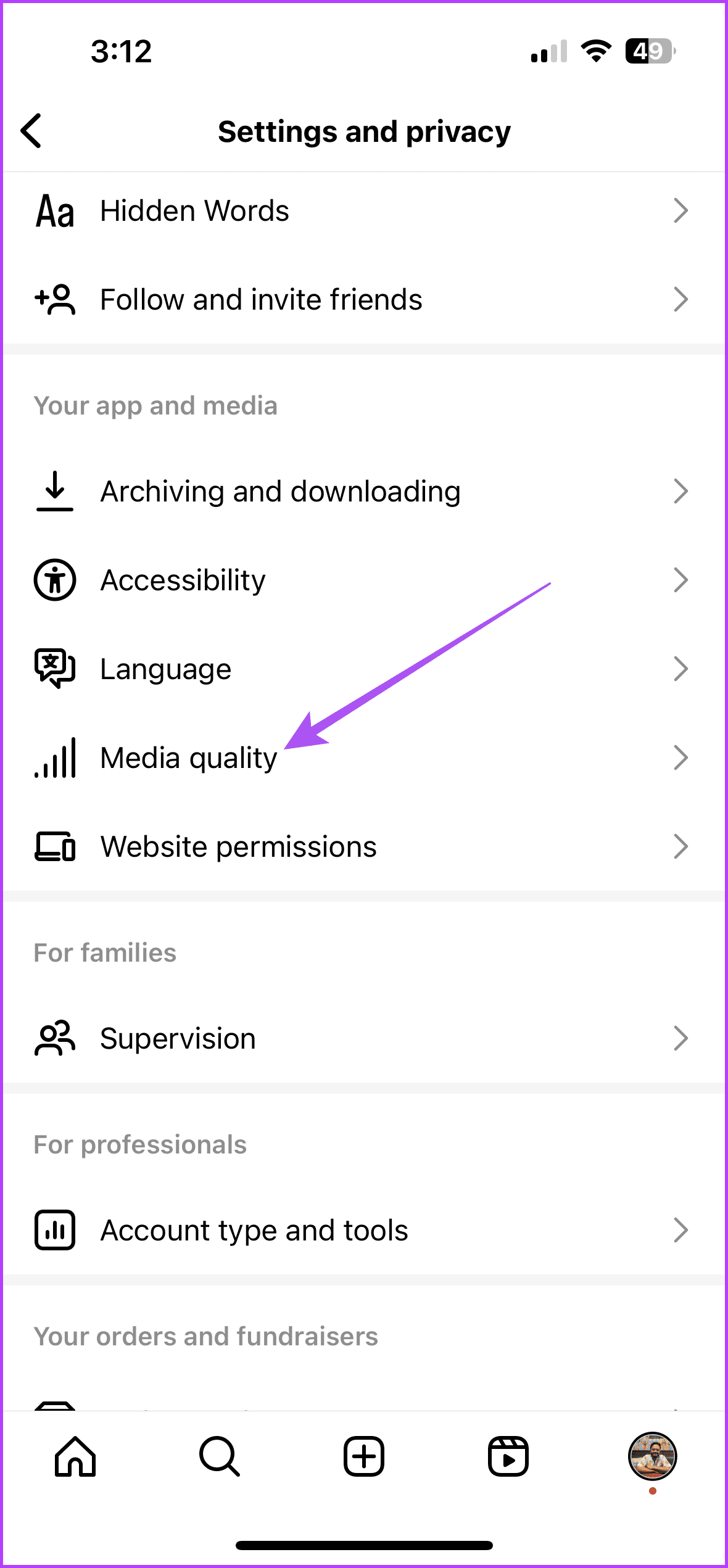
Step 2: Scroll down and tap on Media quality > disable the toggle for Use less mobile data.

Step 3: Return to Instagram’s home screen and chat with a friend to see if this fixes the problem.
Fix 3: Enable Background App Refresh (iPhone)
Background App Refresh ensures that your app’s activity is updated while it runs in the background, and you switch to a different app.
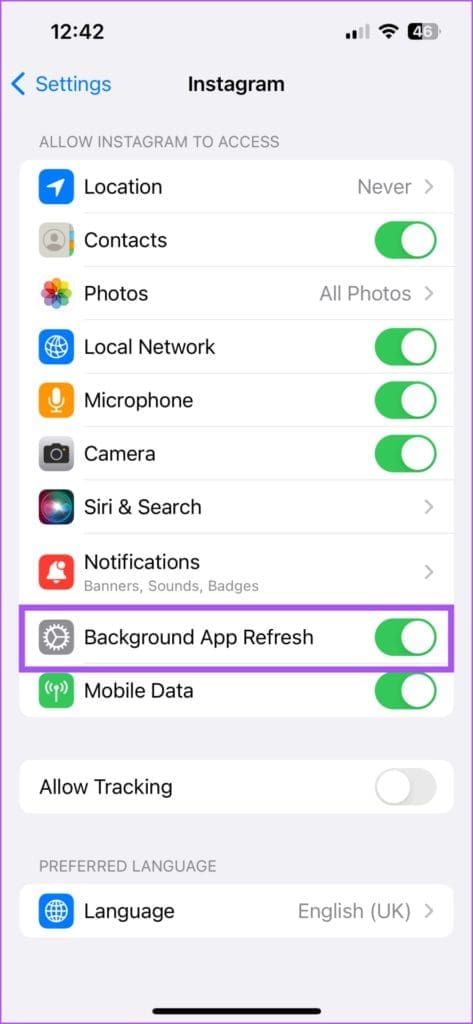
Step 1: Open the Settings app on your iPhone > scroll down and tap on Instagram.
Step 2: Enable the toggle for Background App Refresh.
Step 3: Close Settings and open Instagram to check if this fixes the problem.
Was this helpful?
Last updated on 10 June, 2024
Read Next
 5 Ways to Fix Microsoft Teams Delay When Typing
Fix 1: Close Background Apps Microsoft Teams may sometimes cause high CPU and memory usage, which could easily lead to lag problems.
5 Ways to Fix Microsoft Teams Delay When Typing
Fix 1: Close Background Apps Microsoft Teams may sometimes cause high CPU and memory usage, which could easily lead to lag problems.
 6 Sites to Test Typing Speed and Improve Accuracy
1.
6 Sites to Test Typing Speed and Improve Accuracy
1.
 How to Change Typing Language in WhatsApp on Android and iPhone
On iPhone Method 1: On Apple Keyboard Follow these steps to type in another language in WhatsApp on iPhone using the Apple keyboard: Step 1: Open a WhatsApp chat so
How to Change Typing Language in WhatsApp on Android and iPhone
On iPhone Method 1: On Apple Keyboard Follow these steps to type in another language in WhatsApp on iPhone using the Apple keyboard: Step 1: Open a WhatsApp chat so
 How to Turn Off Typing Notification on Snapchat
When Does Snapchat Say Someone Is Typing?
How to Turn Off Typing Notification on Snapchat
When Does Snapchat Say Someone Is Typing?
 How to Use Voice Typing on Google Docs on Mobile and Desktop
While Google Docs is primarily geared toward drafting formal letters, invites, meeting notes, and table of contents, you can also use it to jot down ideas or as a journal.
How to Use Voice Typing on Google Docs on Mobile and Desktop
While Google Docs is primarily geared toward drafting formal letters, invites, meeting notes, and table of contents, you can also use it to jot down ideas or as a journal.
 Top 4 Ways to Fix Google Docs Voice Typing Not Working
Voice Typing is one of the many hidden features of Google Docs that people are yet to use regularly.
Top 4 Ways to Fix Google Docs Voice Typing Not Working
Voice Typing is one of the many hidden features of Google Docs that people are yet to use regularly.
 3 Ways to Fix Keyboard Typing Multiple Letters in Windows 11/10
Basic Fixes Clean keyboard: Over time, your keyboard might gather small dust particles under the keys.
3 Ways to Fix Keyboard Typing Multiple Letters in Windows 11/10
Basic Fixes Clean keyboard: Over time, your keyboard might gather small dust particles under the keys.
 6 Ways to Fix Keyboard Typing Lag on Android
Basic Fixes: Let your phone cool down: After a long gaming season or extensive video recording, your Android phone might feel warm to touch on the sides.
6 Ways to Fix Keyboard Typing Lag on Android
Basic Fixes: Let your phone cool down: After a long gaming season or extensive video recording, your Android phone might feel warm to touch on the sides.
The article above may contain affiliate links which help support Guiding Tech. The content remains unbiased and authentic and will never affect our editorial integrity.

