Try Basic Fixes
- Try a different user profile: Sometimes a show or movie may fail to load on one user profile. That’s the time to sneak into your partner’s Netflix profile. Simply tap the user profile icon, select a different profile, and see if that helps.
- Watch Netflix on another device: Try watching Netflix on a different device to see if the error persists. If it does, there might be an issue on Netflix’s end, and you’ll need to wait for the company to resolve it.
Fix 1: Sign Out of All Devices
If changing your user profile didn’t help with the error of your Netflix not playing some titles, try to sign out of all devices. Netflix allows you to sign out from all devices. This means that every device where your Netflix is logged in would be signed out.
On Computer
Step 1: Open the Netflix website on your computer.
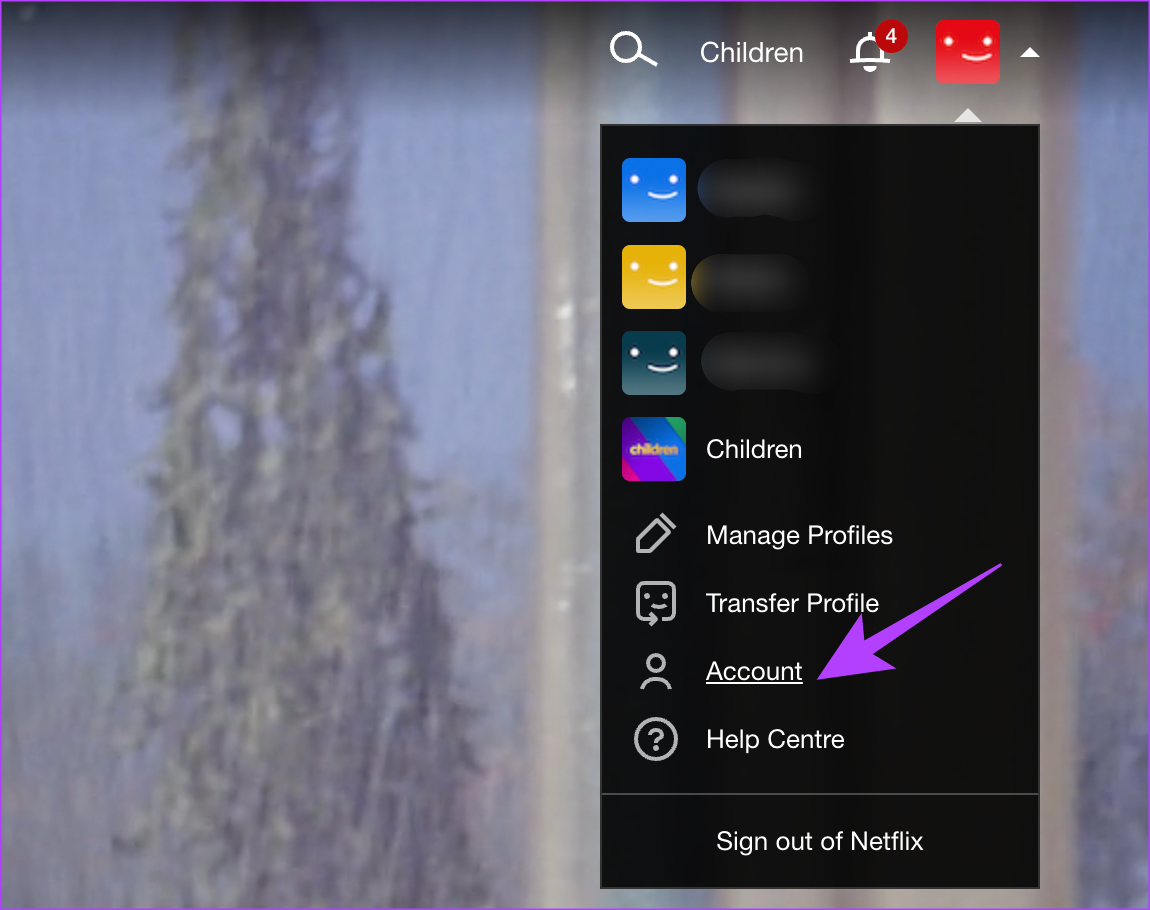
Step 2: Click on your profile in the top-right corner of the website or app. Then, select the Account option.
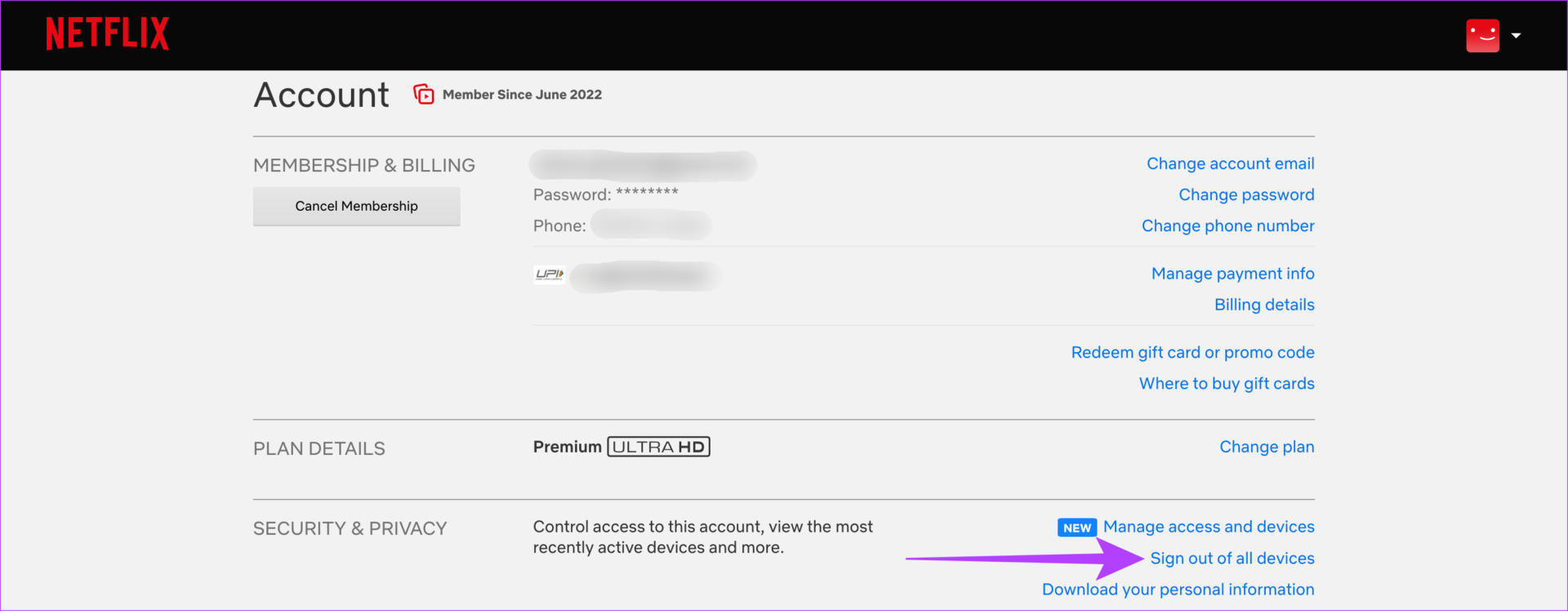
Step 3: Click Sign out of all devices and confirm your selection.
On Netflix Mobile App
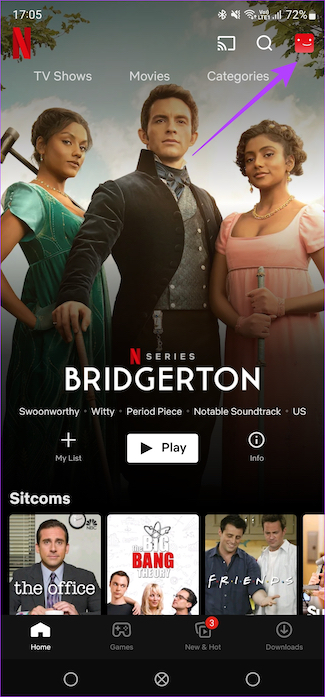
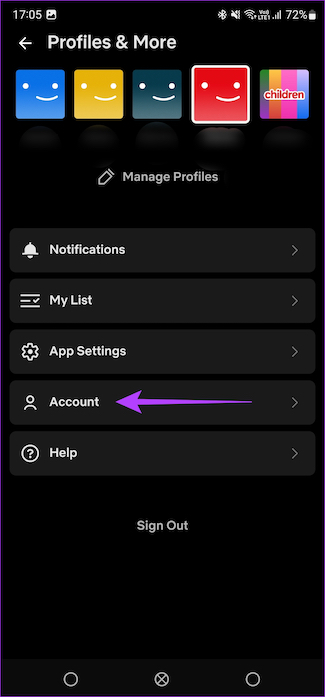
Step 1: Open the Netflix app on your phone. Tap the profile icon in the top-right corner and select Account.
Step 2: Scroll down and select Sign out of all devices.

Fix 2: Uninstall and Reinstall Netflix
Apps frequently experience glitches. In such situations, it is a sound decision to uninstall and reinstall the app on your phone or TV.
On iPhone
Step 1: Tap and hold on to the Netflix icon on your iPhone and select the Remove App option.
Step 2: Then, tap on Delete App to uninstall it from your iPhone.
Step 3: Reinstall the Netflix app from the App Store.


On Android
Step 1: Find the Netflix app in your phone’s app drawer and long-press on it to bring up the contextual menu.
Step 2: Select Uninstall and tap OK to confirm.
Step 3: Reinstall the Netflix app from the Play Store.


On Android TV
Step 1: Head to the Settings menu on your TV.

Step 2: Navigate to the Apps section.

Step 3: Select the Netflix app.
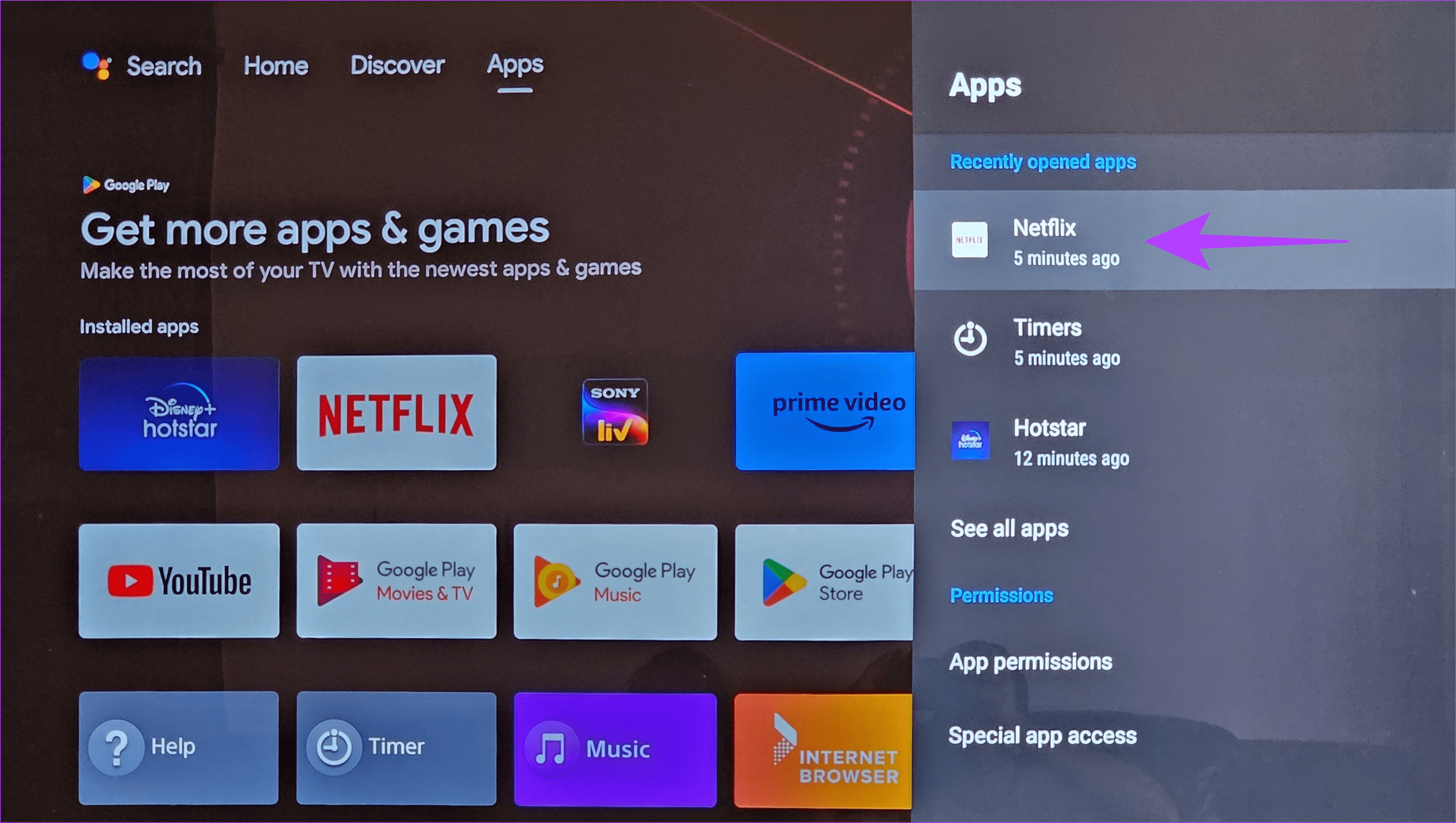
Step 4: Scroll down and select Uninstall updates. This will uninstall the latest version of Netflix from your TV.

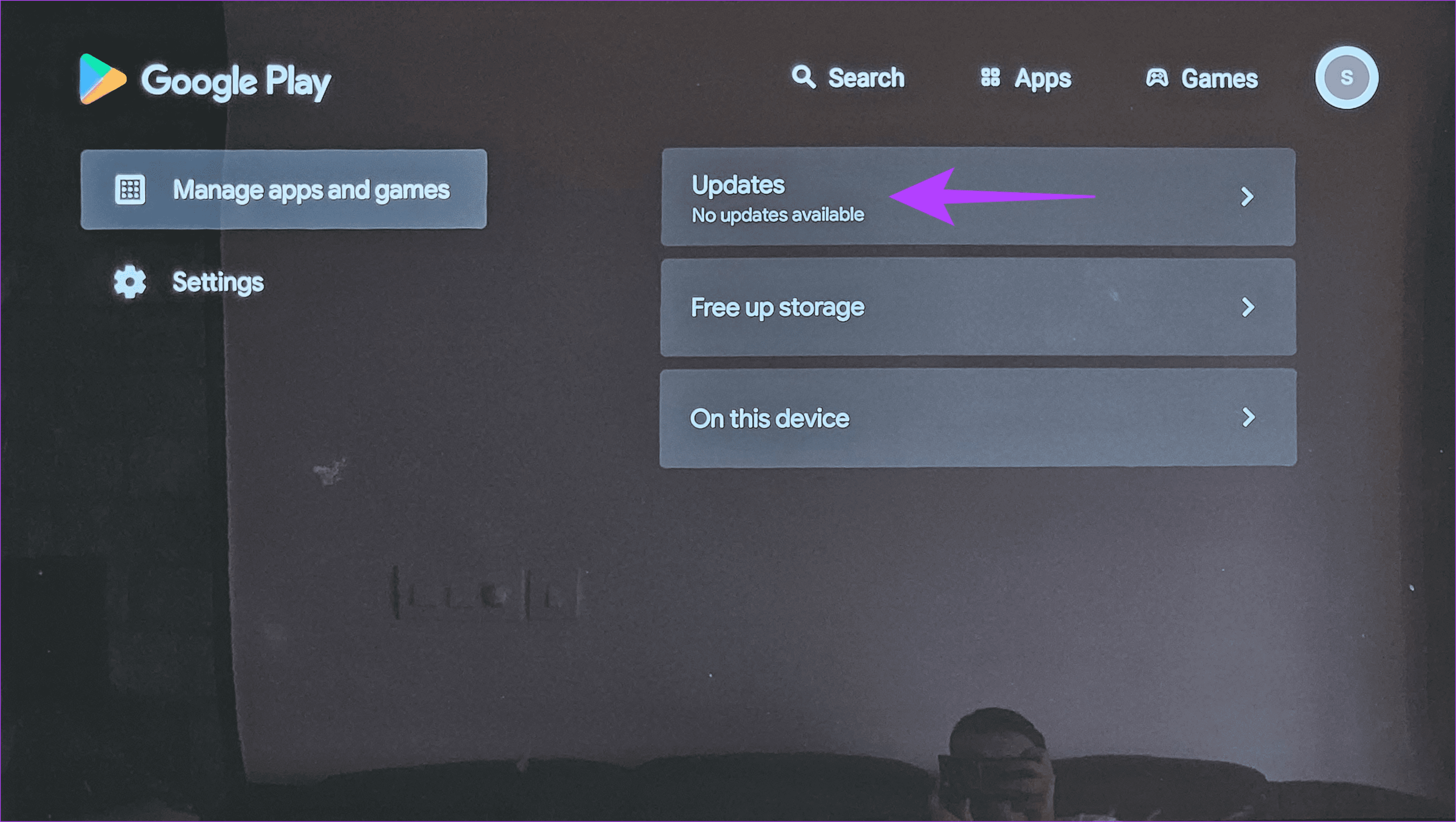
Step 5: Now, open the Google Play Store app on your TV.

Step 6: Head to the Apps section.
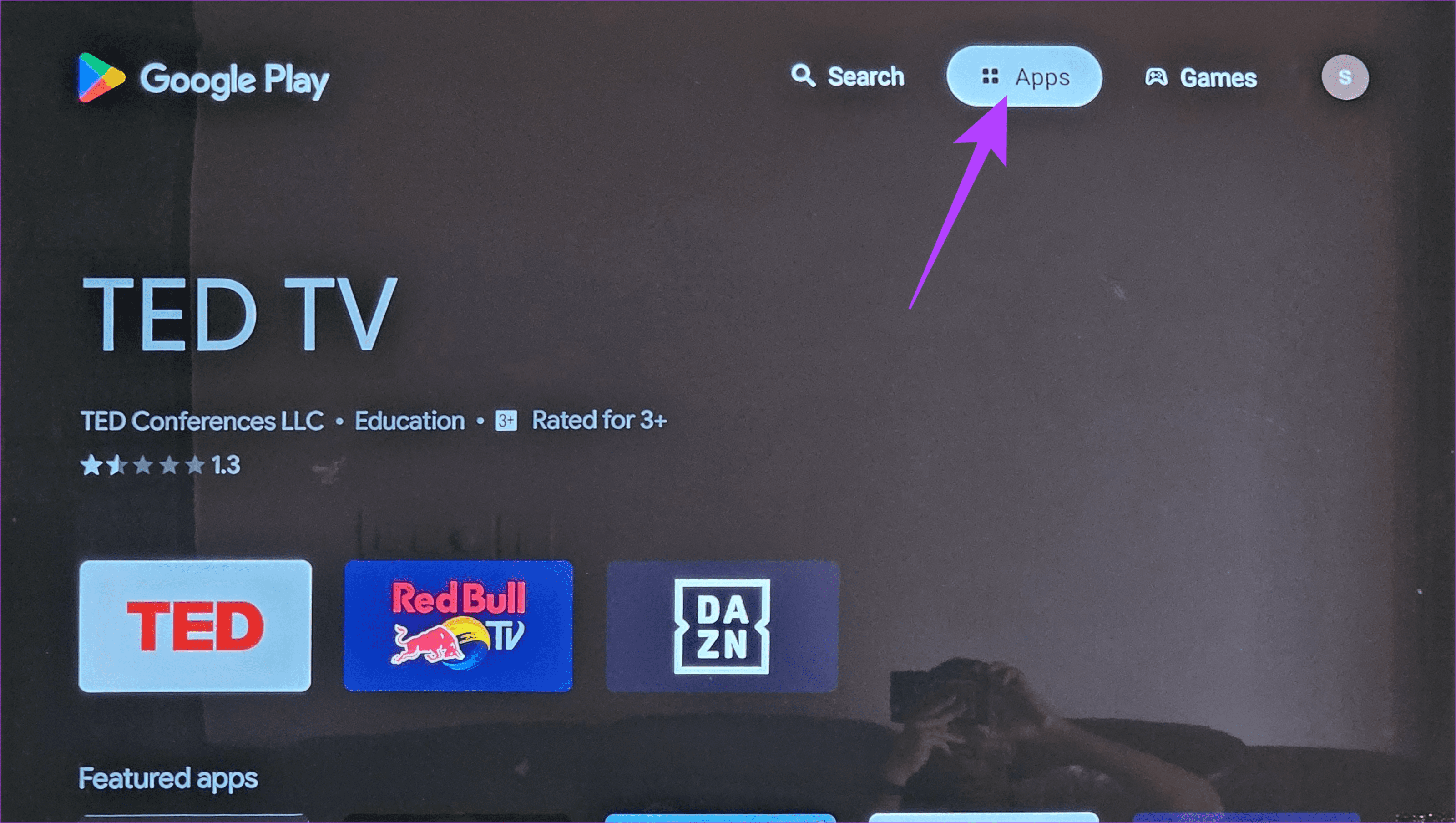
Step 7: Go to the Manage apps and games section. You will see an update for the Netflix app here. Hit the Update button, and you’re good to go.
Fix 3: Check if Your Subscription Is Active
If nothing else works, make sure your Netflix subscription hasn’t expired. Here’s how to check.
Step 1: Open Netflix on your phone or computer. Then, select the user profile in the top-right corner.
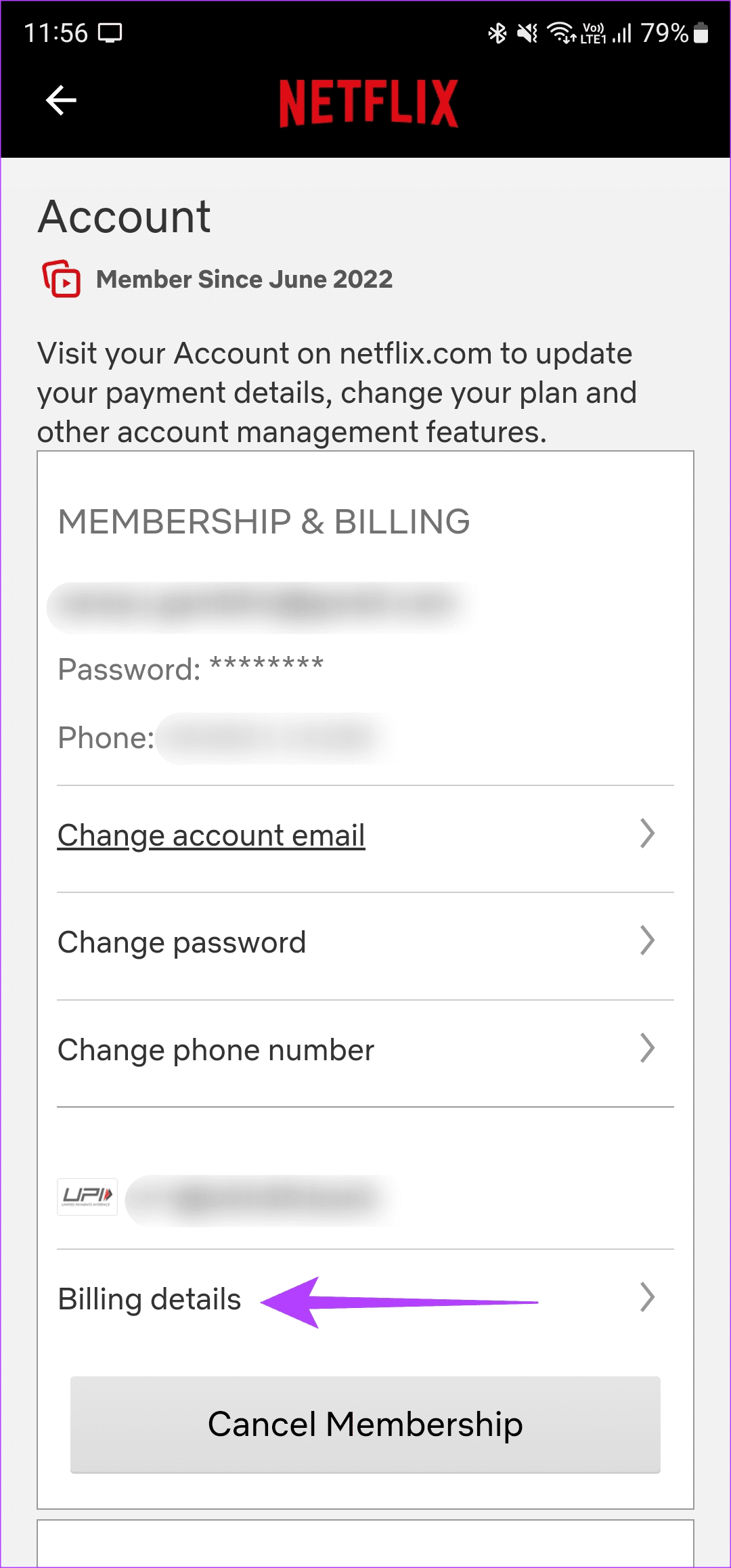
Step 2: Tap on the Account option.
Step 3: You should now be able to access membership details. Head to the Billing details section to see when was the last time you paid for the subscription.

Was this helpful?
Last updated on 03 September, 2024
Read Next
 3 Apps That Translate Foreign Languages Instantly Using Camera App
Technology has made sci-fi fantasies come true.
3 Apps That Translate Foreign Languages Instantly Using Camera App
Technology has made sci-fi fantasies come true.
 Netflix Standard vs. Premium: Which Netflix Plan Is Best for You
Netflix Subscription Plans At a Glance While Netflix provides three plans in total, the Standard and Premium plans take the cake.
Netflix Standard vs. Premium: Which Netflix Plan Is Best for You
Netflix Subscription Plans At a Glance While Netflix provides three plans in total, the Standard and Premium plans take the cake.
 7 Best Lawyer Shows on Netflix You Must Watch
Courtroom dramas can be a gripping tale of facts, lies, and deceit all mixed up into one.
7 Best Lawyer Shows on Netflix You Must Watch
Courtroom dramas can be a gripping tale of facts, lies, and deceit all mixed up into one.
 How to View and Reset Netflix Watch History
How to Delete Watch History on Netflix On Mobile and Desktop Step 1: Open the Accounts page on Netflix.
How to View and Reset Netflix Watch History
How to Delete Watch History on Netflix On Mobile and Desktop Step 1: Open the Accounts page on Netflix.
 3 Ways to Fix Monitor Goes Black While Watching Netflix
Basic Fixes Disable G-SYNC in NVIDIA Control Panel: If your monitor is flickering or the screen goes black, disable G-SYNC in NVIDIA Control Panel.
3 Ways to Fix Monitor Goes Black While Watching Netflix
Basic Fixes Disable G-SYNC in NVIDIA Control Panel: If your monitor is flickering or the screen goes black, disable G-SYNC in NVIDIA Control Panel.
 5 Ways to Fix Netflix Streaming in Low Quality on Android and iPhone
Common Fixes Check internet speed - I recommend at least 5Mbps to stream Netflix in high definition (HD) and a minimum of 25Mbps for Ultra HD and 4K video quality.
5 Ways to Fix Netflix Streaming in Low Quality on Android and iPhone
Common Fixes Check internet speed - I recommend at least 5Mbps to stream Netflix in high definition (HD) and a minimum of 25Mbps for Ultra HD and 4K video quality.
 3 Ways to Fix Error NW-2-5 on Netflix
What Does Netflix Error NW-2-5 Mean?
3 Ways to Fix Error NW-2-5 on Netflix
What Does Netflix Error NW-2-5 Mean?
 3 Ways to Fix Continue Watching Not Showing on Netflix
Basic Fix: Scroll through the Netflix homepage: In all the other content Netflix pushes you to watch, it may happen so that the continue-watching pane may have been shifted underneath.
3 Ways to Fix Continue Watching Not Showing on Netflix
Basic Fix: Scroll through the Netflix homepage: In all the other content Netflix pushes you to watch, it may happen so that the continue-watching pane may have been shifted underneath.
The article above may contain affiliate links which help support Guiding Tech. The content remains unbiased and authentic and will never affect our editorial integrity.