Basic Fixes:
- Double-check if the Snap or Story has sound: We recommend checking if the Snap or Story you’re viewing has sound. To do this, you can try playing it on a different device or use the Snapchat web app on your desktop to see if you can hear the sound.
- Check device volume: If your device’s volume is set to mute or too low, it can cause Snapchat to mute all sounds. To check, go to the volume settings on your Android or iPhone and ensure the volume is set to maximum.
- Restart Snapchat: Forcing the Snapchat app to close will also close all the subsequent app functions. Once you reopen the app, these features and functions will reload. This can help fix any temporary bugs or glitches.
- Turn off Bluetooth: If your device connects to a Bluetooth device, it will reroute the audio through it. This might cause issues when recording or playing audio on Snapchat. So, disable Bluetooth on your phone to prevent such issues.
- Check for app updates: Software-related issues can also cause the sound to not work properly when using Snapchat. So, check and ensure the Snapchat app is up-to-date on your phone.
Fix 1: Check Snapchat App Permissions
If Snapchat does not have adequate permissions, it might lead to issues like Snapchat not recording audio. In this case, you can check and see if all the relevant permissions have been granted. Follow the below steps to do it.
On iPhone
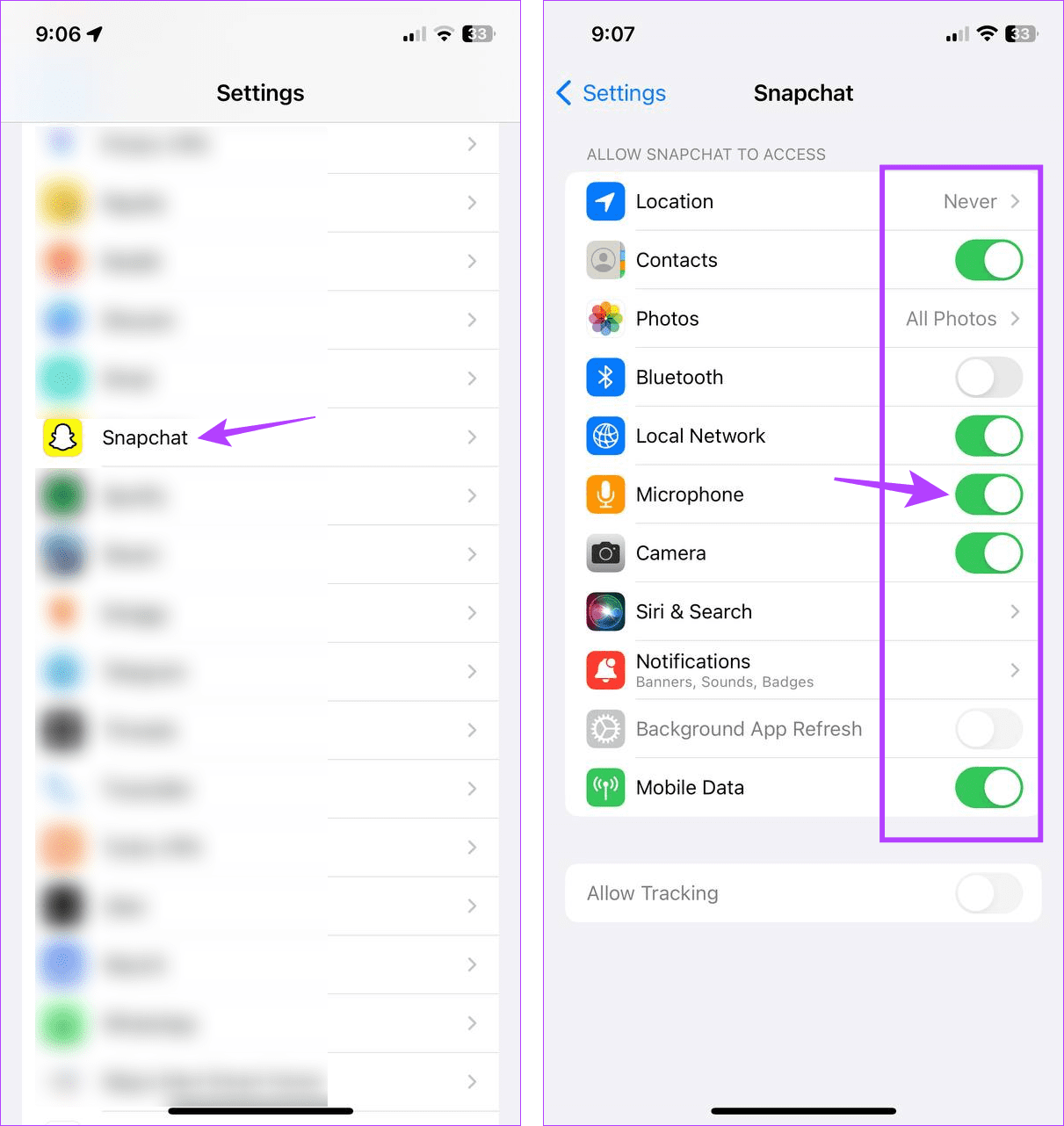
Step 1: Open Settings and tap on Snapchat. Enable the toggle for Microphone and other relevant permissions.
On Android
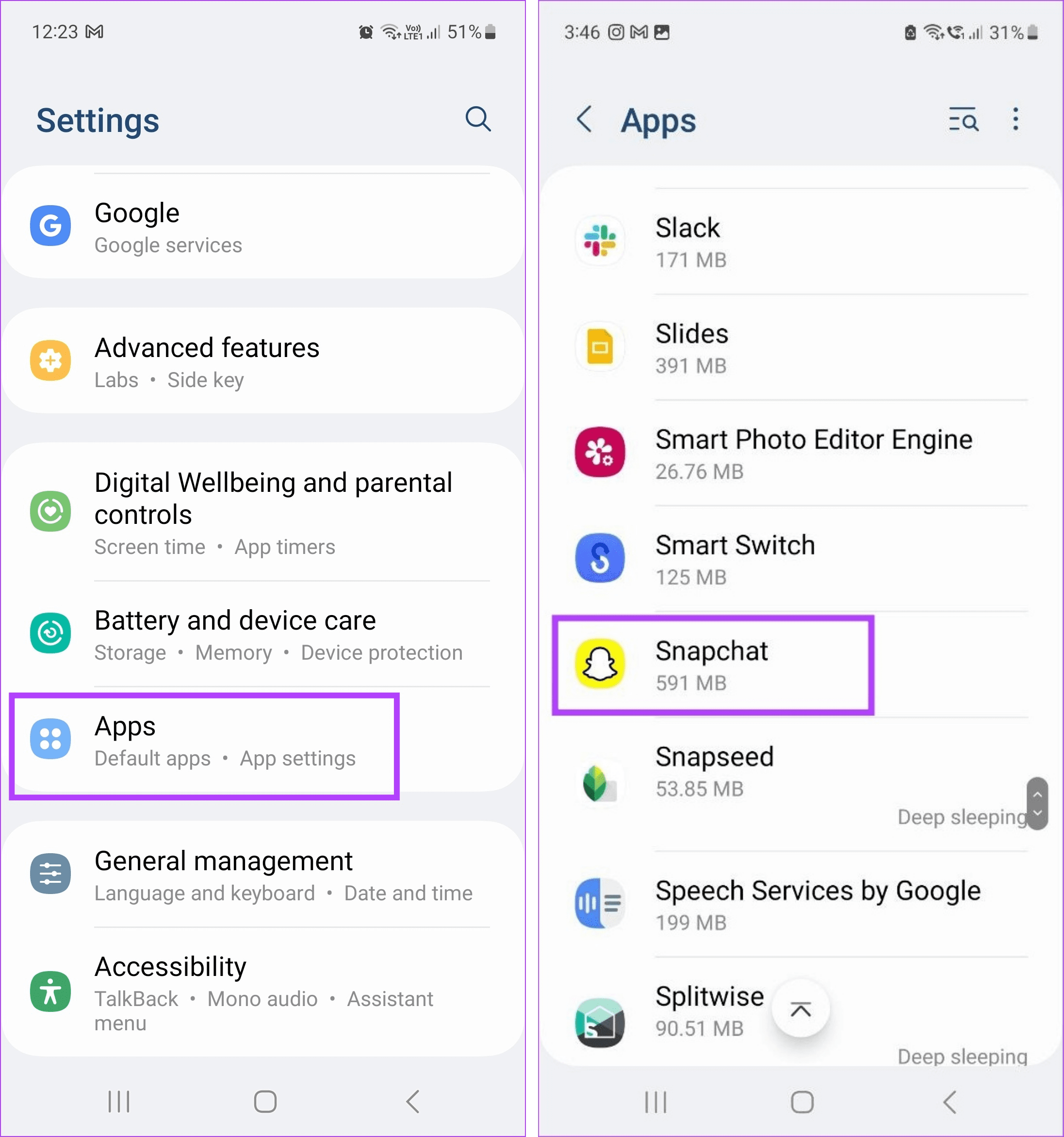
Step 1: Open Settings and tap on Apps. Tap on Snapchat.
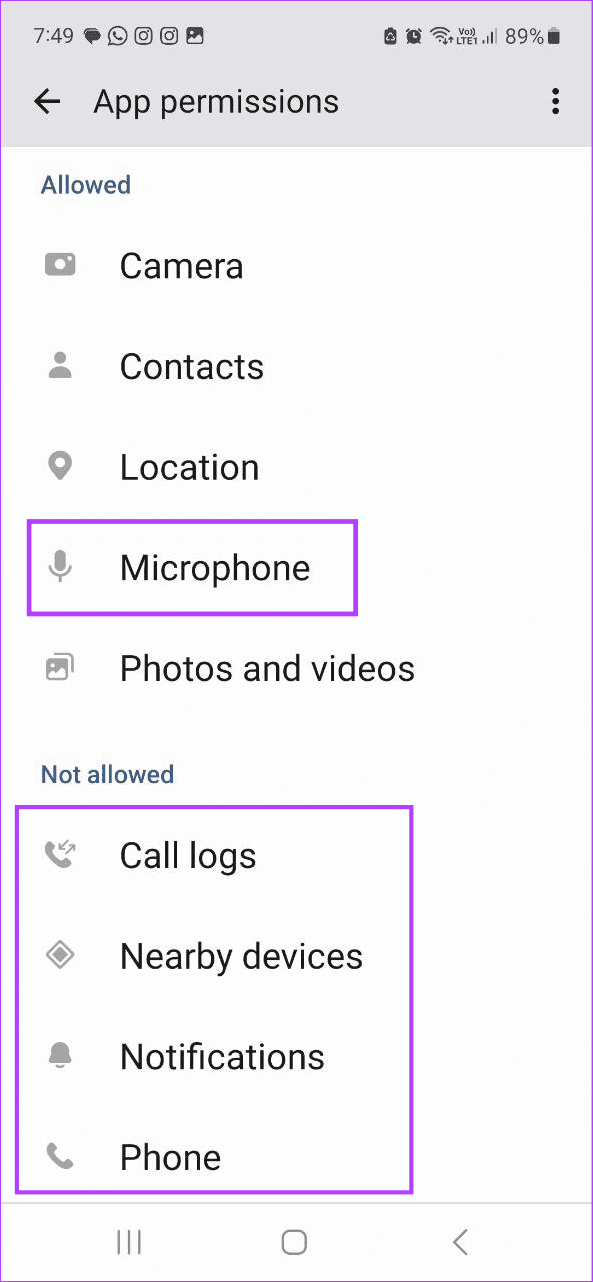
Step 2: Go to Permissions and ensure Microphone permission is enabled.
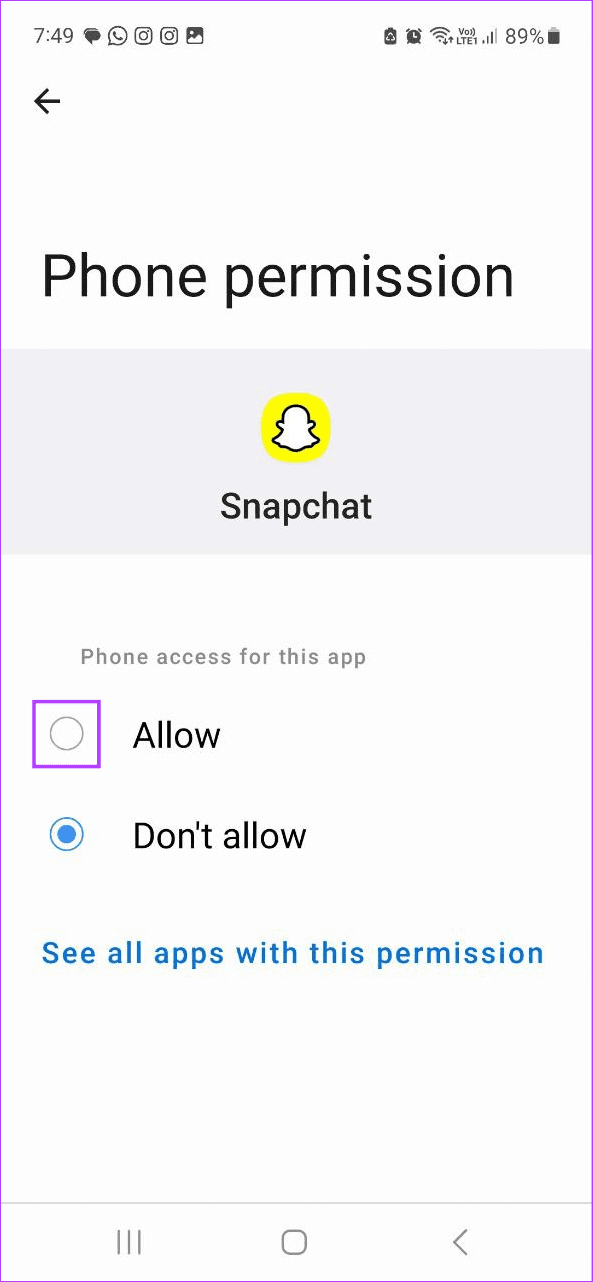
Step 3: Then, go to the Not allowed section and tap on the relevant permission. Select Allow. Do this for all permissions.

Fix 2: Clear Cache for Snapchat
Like websites, apps also use cache to decrease loading time. However, as time passes, this cache keeps increasing in size. This might slow down the app and even affect its functions. When this happens, clear the cache for Snapchat and see if this fixes the issue. Here’s how to do it.
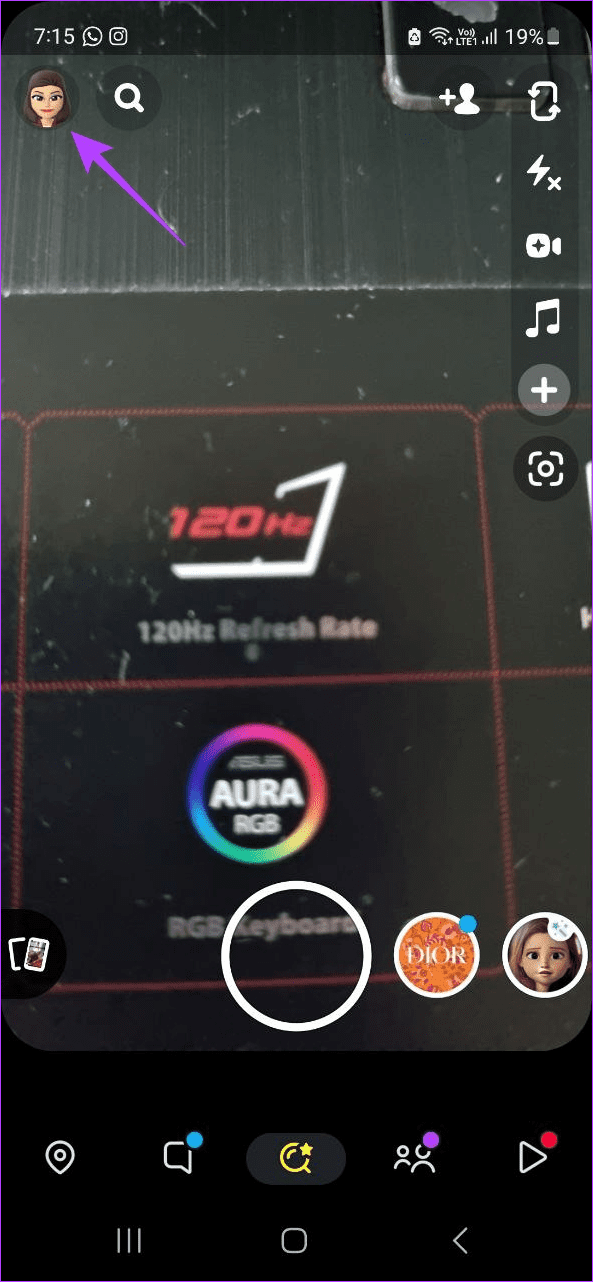
Step 1: Open Snapchat and tap your bitmoji icon. Tap the cogwheel icon.
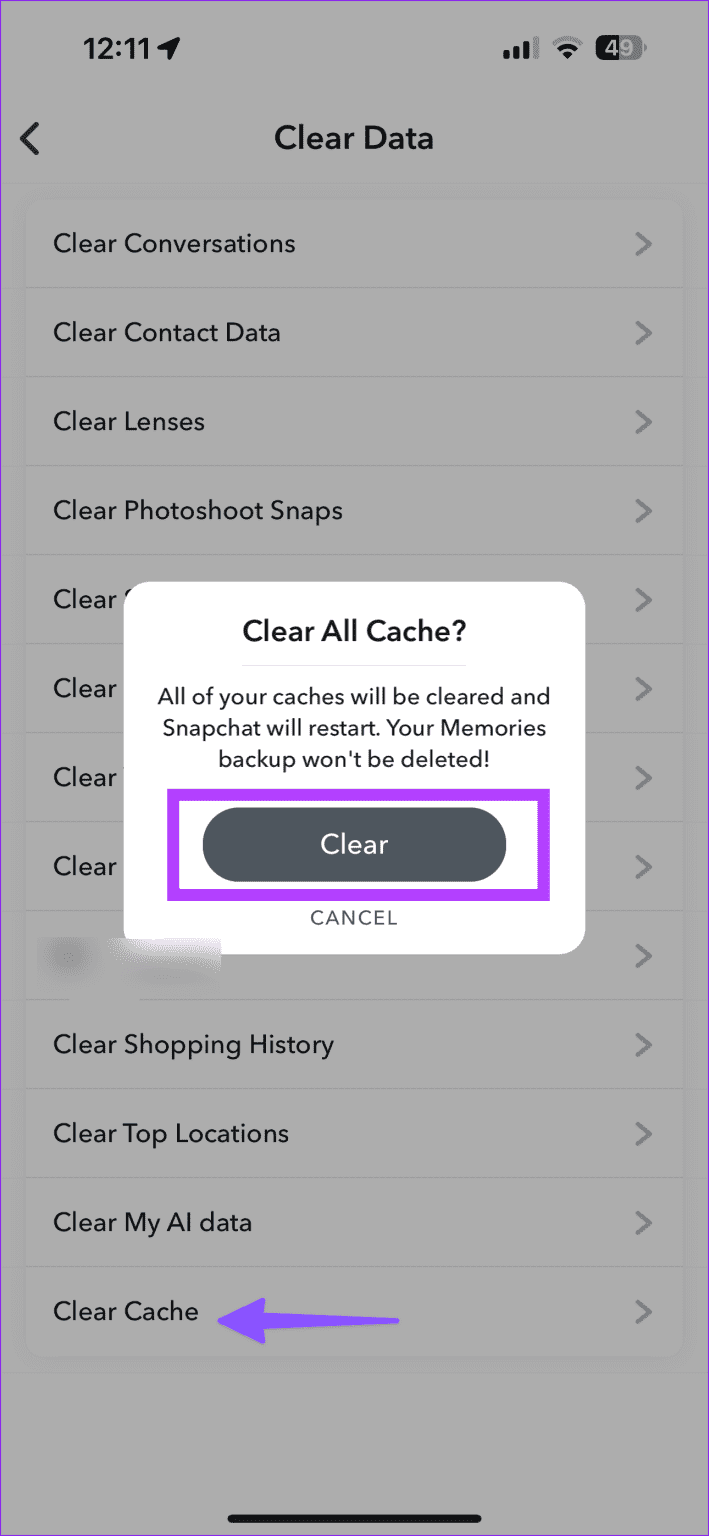
Step 2: Scroll down and tap on Clear Cache. Confirm when prompted.

Fix 3: Reinstall Snapchat
Uninstalling Snapchat will allow you to get rid of all app settings and data. So, if a setting or function prevents Snapchat from working properly, it will be deleted from your device. Now, reinstall the app. This may resolve the sound not working on the Snapchat app issue. Here’s how to do it.
On iPhone
Step 1: Long-press the Snapchat app and tap on Remove App. Tap on Delete App.

Wait for the Snapchat app to finish uninstalling. Then, go to the App Store and reinstall the Snapchat app. Set it up and try playing something to check.
On Android
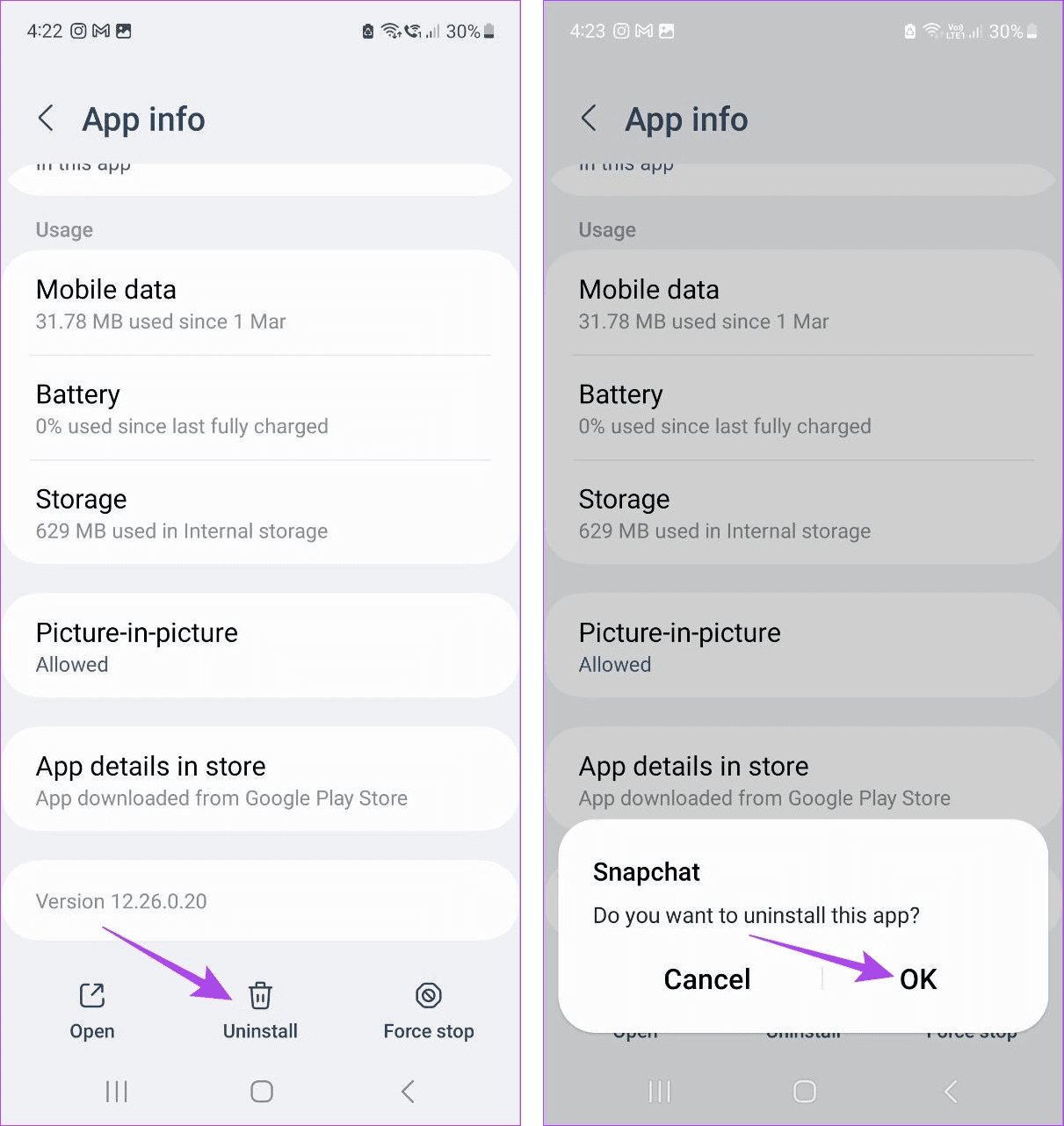
Step 1: Open Settings and tap on Apps. Scroll down and tap on Snapchat.
Step 2: Tap on Uninstall. Tap on OK to confirm. Wait for Snapchat to uninstall.
Then, go to the Google Play Store and reinstall Snapchat. Open Snapchat, log in again, and try opening a Story or Snap to check if the sound is working as expected.
Was this helpful?
Last updated on 20 July, 2024
Read Next
 5 Ways to Fix Snapchat Notification Sound Not Working
Basic Fixes Disable the silent profile: Press the Volume Up physical button on your Android phone and tap the sound profile icon to disable the silent mode.
5 Ways to Fix Snapchat Notification Sound Not Working
Basic Fixes Disable the silent profile: Press the Volume Up physical button on your Android phone and tap the sound profile icon to disable the silent mode.
 4 Ways to Fix Snapchat My AI Not Working or Showing on Mobile App
Why Can’t I Add My AI on Snapchat?
4 Ways to Fix Snapchat My AI Not Working or Showing on Mobile App
Why Can’t I Add My AI on Snapchat?
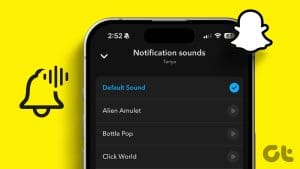 How to Change Snapchat Notification Sound
Change Snapchat Notification Sound on iPhone The default alert sound on your iPhone is used for Snapchat notifications.
How to Change Snapchat Notification Sound
Change Snapchat Notification Sound on iPhone The default alert sound on your iPhone is used for Snapchat notifications.
 5 Ways to Fix Sound Recorder App Not Working on Windows 11
Common Fixes Reboot Windows: Press the Windows key, click the Power button at the bottom right of the Windows search menu, and select Restart.
5 Ways to Fix Sound Recorder App Not Working on Windows 11
Common Fixes Reboot Windows: Press the Windows key, click the Power button at the bottom right of the Windows search menu, and select Restart.
 4 Ways to Fix No Sound on Reddit Videos in App and Browser
For Windows and Mac Fix 1: Mute and Unmute Videos Open a video on Reddit that plays no sound and hover your mouse at the bottom right of the post.
4 Ways to Fix No Sound on Reddit Videos in App and Browser
For Windows and Mac Fix 1: Mute and Unmute Videos Open a video on Reddit that plays no sound and hover your mouse at the bottom right of the post.
 5 Ways to Fix Bad Sound Quality on Spotify Mobile App
Basic Fixes Check Your Spotify Plan: Using a free version of Spotify does not offer the best audio quality.
5 Ways to Fix Bad Sound Quality on Spotify Mobile App
Basic Fixes Check Your Spotify Plan: Using a free version of Spotify does not offer the best audio quality.
 3 Ways to Fix Sound Not Working on YouTube
Basic Fixes Check the volume level and unmute the tab: Ensure you haven't accidentally muted your phone or computer's volume.
3 Ways to Fix Sound Not Working on YouTube
Basic Fixes Check the volume level and unmute the tab: Ensure you haven't accidentally muted your phone or computer's volume.
 4 Ways to Fix Facebook Messenger Notification Sound Not Working
Try Basic Fixes Close the Messenger app on your computer: If you have the Messenger app open on your computer, notifications may appear there instead of on your phone, and
4 Ways to Fix Facebook Messenger Notification Sound Not Working
Try Basic Fixes Close the Messenger app on your computer: If you have the Messenger app open on your computer, notifications may appear there instead of on your phone, and
The article above may contain affiliate links which help support Guiding Tech. The content remains unbiased and authentic and will never affect our editorial integrity.