

Try Basic Fixes
- Close Roblox completely and reopen it: Sometimes, apps and games on your Windows PC may experience problems while opening, causing them to become unresponsive. In most cases, closing and reopening the app can resolve these issues.
- Check Roblox server status: Roblox can experience server problems at times, which may prevent it from launching or cause it to crash. Roblox has a dedicated service status page that you can visit to get real-time information about any server outages.
Fix 1: Allow Roblox Through the Windows Firewall
Even if your PC has an active internet connection, Roblox may not use it if Windows Firewall is blocking it. To fix this, allow Roblox to run through the Windows Firewall using these steps:
Step 1: Press the Windows key + S to open the search menu > type allow an app through Windows Firewall > press Enter.

Step 2: Click Change settings.
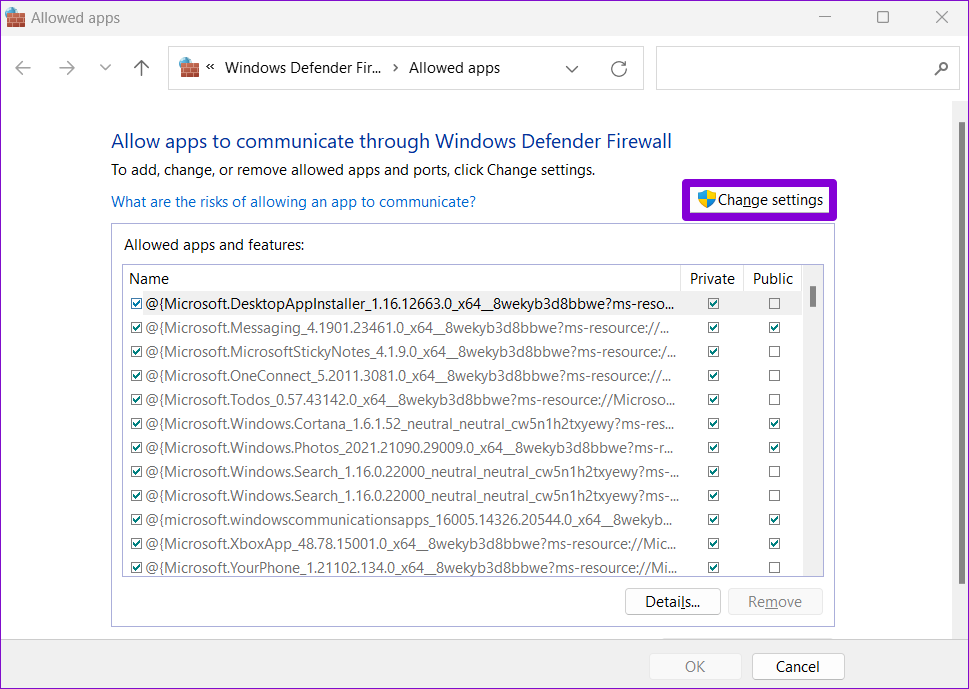
Step 3: Locate Roblox and select the Private and Public checkboxes next to it. Then, click OK.

Fix 2: Correct System Date and Time
Having your Windows PC set to an incorrect date or time could prevent Roblox from communicating with the servers, resulting in such issues. To avoid this, enable the automatic date and time feature on Windows.
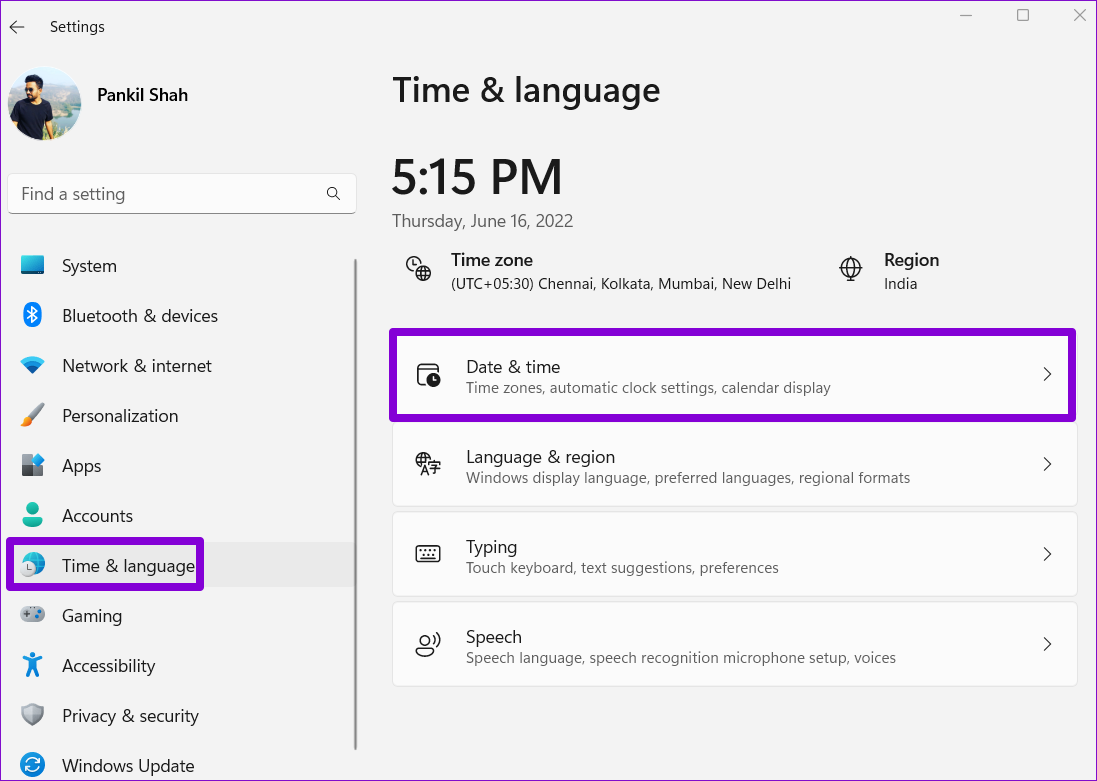
Step 1: Press the Windows + I keyboard shortcut to open the Settings app. In the Time & language tab, select Date & time.
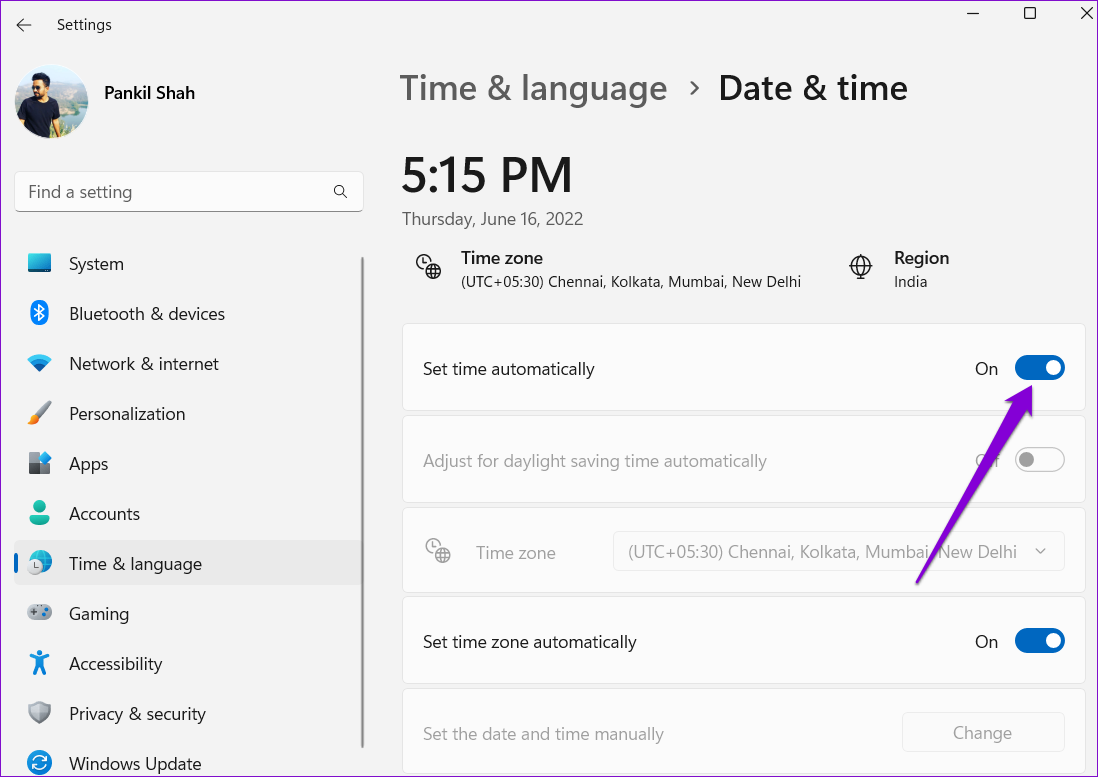
Step 2: Enable the toggle for Set time automatically.
Fix 3: Turn Off Proxy Settings
Another reason Roblox won’t open or close unexpectedly is if there’s a problem with the proxy settings on Windows. To check for this possibility, try turning off any proxy settings on Windows and see if that works.
Step 1: Press the Windows + I keyboard shortcut to launch the Settings app. In the Network & internet tab, click on Proxy.

Step 2: Turn off any proxy settings.

Fix 4: Repair or Reset Roblox
Windows 10 and 11 include a handy app repair feature that can help resolve common issues with your apps. You can try using it to repair Roblox and see if that gets it to work.
Step 1: Press the Windows + S keyboard shortcut to open the search menu. Type Roblox in the box and select App settings.

Step 2: Click the Repair button. Once the process is complete, a checkmark should appear next to it.

If the issue remains, try resetting Roblox from the same menu. This will erase all the app data, removing any problematic files and allowing Roblox to run smoothly.

Fix 5: Close Browser Cache and Cookies
Are you having trouble opening Roblox from your browser? That could happen if the existing browser cache has become corrupted or inaccessible. You can try purging the browser data to see if that restores your ability to open Roblox from your browser.
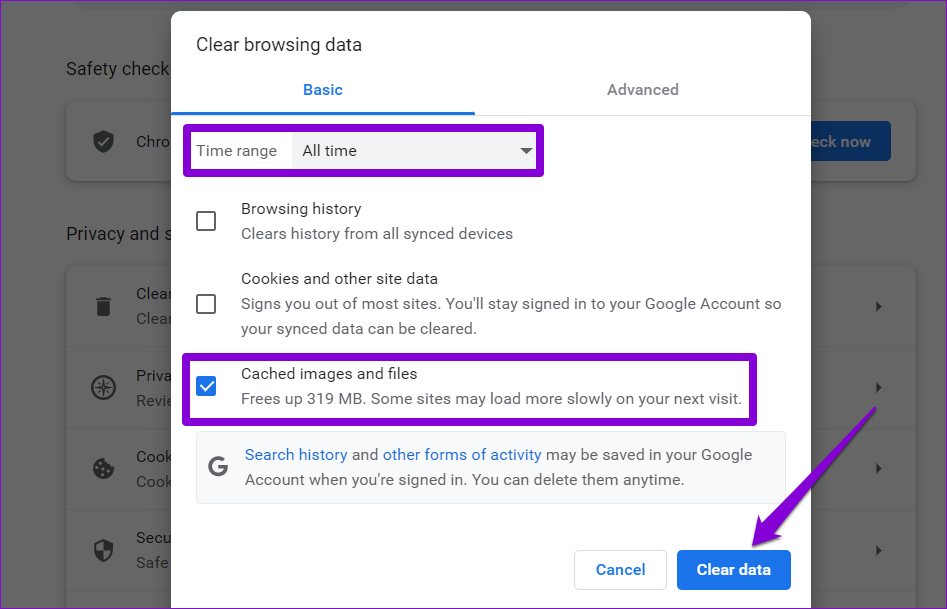
Step 1: In Chrome or Edge, press the Ctrl + Shift + Delete keyboard shortcut to open the Clear browsing data panel.
Step 2: Under the Time range option, select All time from the drop-down menu.
Step 3: Check the box for Cached images and files and hit Clear data.
If clearing browsing data proves ineffective, try opening Roblox on a different browser. This should help you determine if the issue is specific to the browser you are currently using.
Was this helpful?
Last updated on 01 August, 2024
5 Comments
Leave a Reply
Read Next
 3 Ways to Fix Zoom Not Launching on Windows 11 and 10
Preliminary Fixes Restart PC: Refreshing system processes and clearing temporary glitches can resolve the Zoom not launching issue.
3 Ways to Fix Zoom Not Launching on Windows 11 and 10
Preliminary Fixes Restart PC: Refreshing system processes and clearing temporary glitches can resolve the Zoom not launching issue.
 5 Ways to Fix Startup Programs Not Launching on Windows 10 or 11
Try Basic Fixes Install Windows updates: A buggy or outdated Windows build could cause such issues.
5 Ways to Fix Startup Programs Not Launching on Windows 10 or 11
Try Basic Fixes Install Windows updates: A buggy or outdated Windows build could cause such issues.
 6 Ways to Fix Steam Games Not Launching on Windows 11
Basic Fixes Restart the Steam Client: Before starting the Steam client, close it using the Task Manager.
6 Ways to Fix Steam Games Not Launching on Windows 11
Basic Fixes Restart the Steam Client: Before starting the Steam client, close it using the Task Manager.
 7 Best Ways to Fix Valorant Not Launching on Windows 11
Valorant is a popular free-to-play battle royale game for Windows.
7 Best Ways to Fix Valorant Not Launching on Windows 11
Valorant is a popular free-to-play battle royale game for Windows.
 5 Ways to Fix Rocket League Not Launching in Windows 11
Fix 1: Restart Your Computer Step 1: Press the Windows key to open the Start menu.
5 Ways to Fix Rocket League Not Launching in Windows 11
Fix 1: Restart Your Computer Step 1: Press the Windows key to open the Start menu.
 4 Ways to Fix for NSIS ‘Error Launching Installer’ in Windows
Basic Fixes Download the installer file again: A partially downloaded or corrupt installer file can cause an installer integrity check failure.
4 Ways to Fix for NSIS ‘Error Launching Installer’ in Windows
Basic Fixes Download the installer file again: A partially downloaded or corrupt installer file can cause an installer integrity check failure.
 3 Fixes for Roblox Not Updating on Windows
Try Basic Fixes Check if Roblox is down: At times, server-related issues can prevent Robox from launching or updating on your Windows PC.
3 Fixes for Roblox Not Updating on Windows
Try Basic Fixes Check if Roblox is down: At times, server-related issues can prevent Robox from launching or updating on your Windows PC.
 5 Fixes for Roblox Installer Not Working on Windows
Fix 1: Try Launching Roblox From the AppData Folder The Roblox installation process on Windows can sometimes become stuck for various reasons, making it seem like the installer is not
5 Fixes for Roblox Installer Not Working on Windows
Fix 1: Try Launching Roblox From the AppData Folder The Roblox installation process on Windows can sometimes become stuck for various reasons, making it seem like the installer is not
The article above may contain affiliate links which help support Guiding Tech. The content remains unbiased and authentic and will never affect our editorial integrity.

roblox still won’t work. article is up to date, so article is completely fine.
wait so is it roblox itself??? i tried everything from updating my computer to deleting data, to closing tabs and restarting and shutting down my computer. i even deleted the app and redownloaded it. is the app shut down or anything?
same! it worked on my old laptop perfectly always launching and then today i get a new laptop and suddenly it wont even open the damn app/launcher
MY ROBLOX CAN’T LAUNCH AND I’VE BEEN WAITING FOR 5 MONTHS!!!!!!!!!!!!!!!!!!!!!!!!!!!!!!!!
That’s exactly what happened to me!