Try Basic Fixes
- Use an administrator account: In most cases, the “A required privilege is not held by the client” error occurs due to a lack of necessary permissions. Ensure your user account has administrative privileges, and then run the program triggering the error as an administrator.
- Scan for malware: The presence of malware can also cause Windows to show such errors. Hence, scan your PC using Windows Defender or a third-party antivirus program.
Fix 1: Modify Sharing Permissions for the Drive
If you are getting this error when saving or moving files to a specific drive, try changing the sharing permissions for that drive. Here’s how to do it.
Step 1: Press the Windows key + E to open File Explorer. Navigate to This PC > right-click on the problematic drive, and select Properties.

Step 2: Switch to the Sharing tab and click the Advanced Sharing button.

Step 3: Check the Share this folder box and click the Permissions button.

Step 4: Check the Full Control box > hit Apply > OK.

Fix 2: Take Ownership of the System Drive
At times, the “A required privilege is not held by the client” error may appear at boot or while running an installer on your Windows 10 or 11 PC. If that’s the case, you can try taking ownership of the system drive using these steps:
Step 1: Press the Windows key + E to open File Explorer > navigate to This PC > right-click on the C: drive > select Properties.
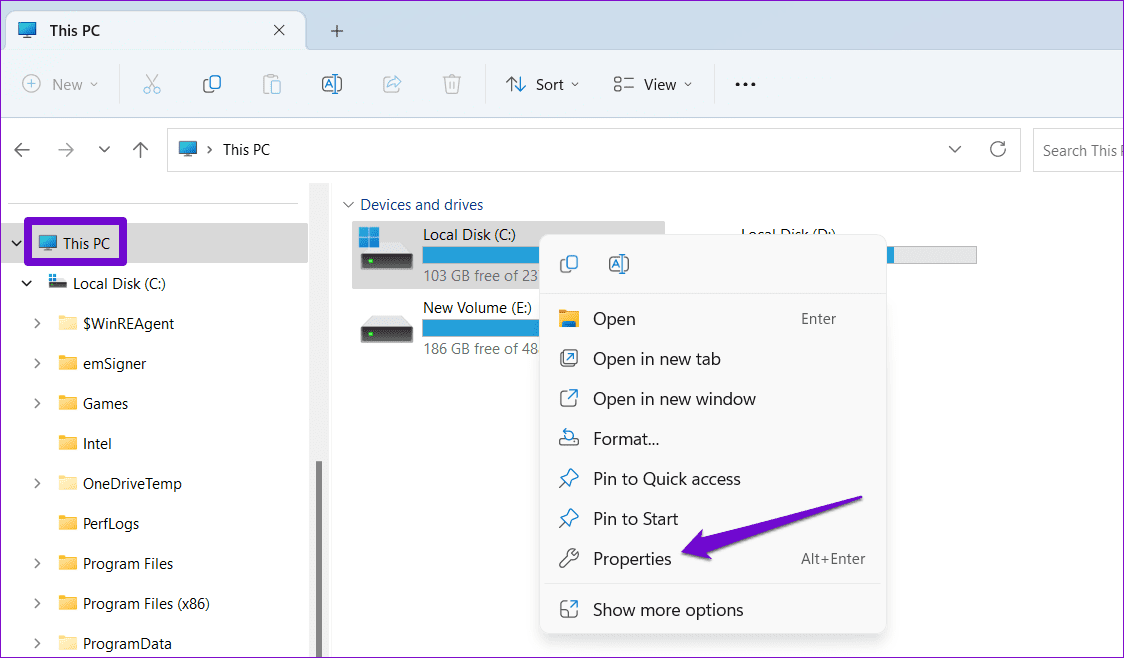
Step 2: Go to the Security tab and click on Advanced.

Step 3: Click the Change permissions button.
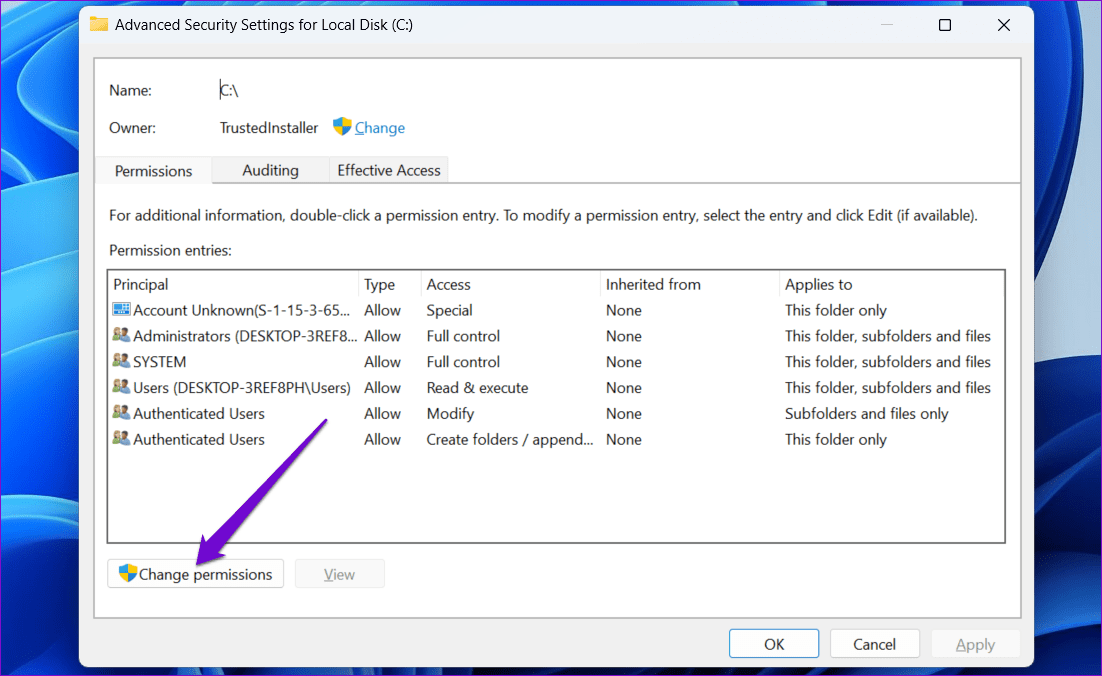
Step 4: Select your account from the list > click Edit.

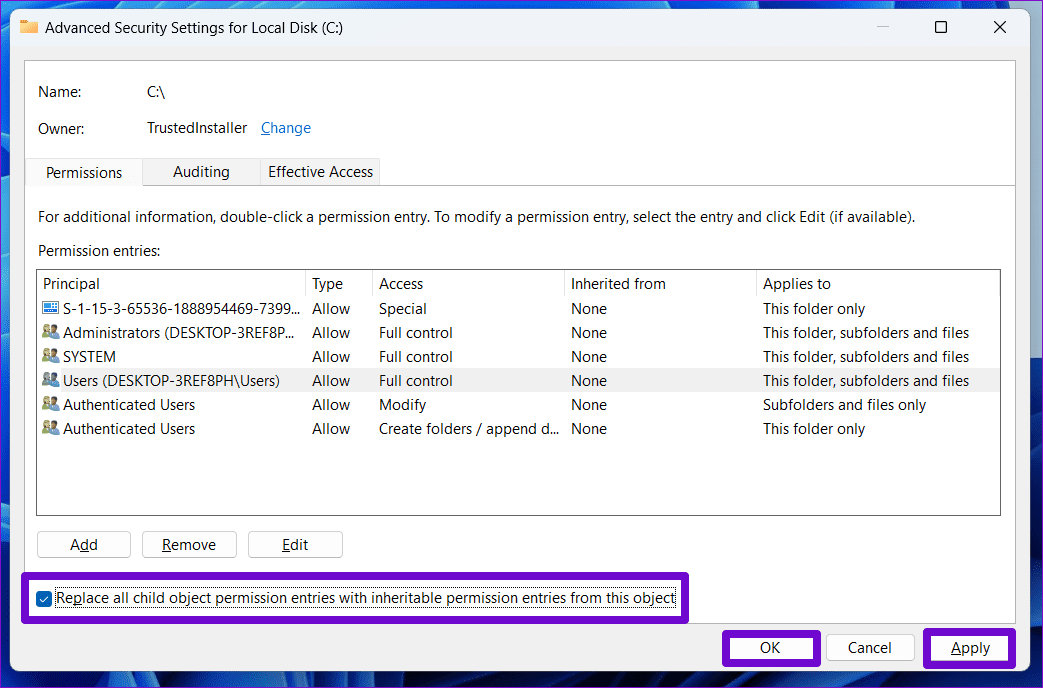
Step 5: Check the Full control option > click OK.

Step 6: Check the box for Replace all child object permission entries with inheritable permission entries from this object > hit Apply > OK.
Fix 3: Modify the Local Security Policy
Several users on a Microsoft Community post reported fixing this particular error by modifying a security policy. To do this, you must access the Local Security Policy app, which is available on Windows 11 Pro, Enterprise, and Education editions.
Note: If you’re using Windows Home, proceed to the Registry Editor method in the following section.
Step 1: Press the Windows key + R to launch the Run dialog box. Type secpol.msc in the text box and hit OK.
Step 2: In the Local Security Policy window, use the left pane to navigate to the following folder.
Security Settings\Local Policies\Security Options
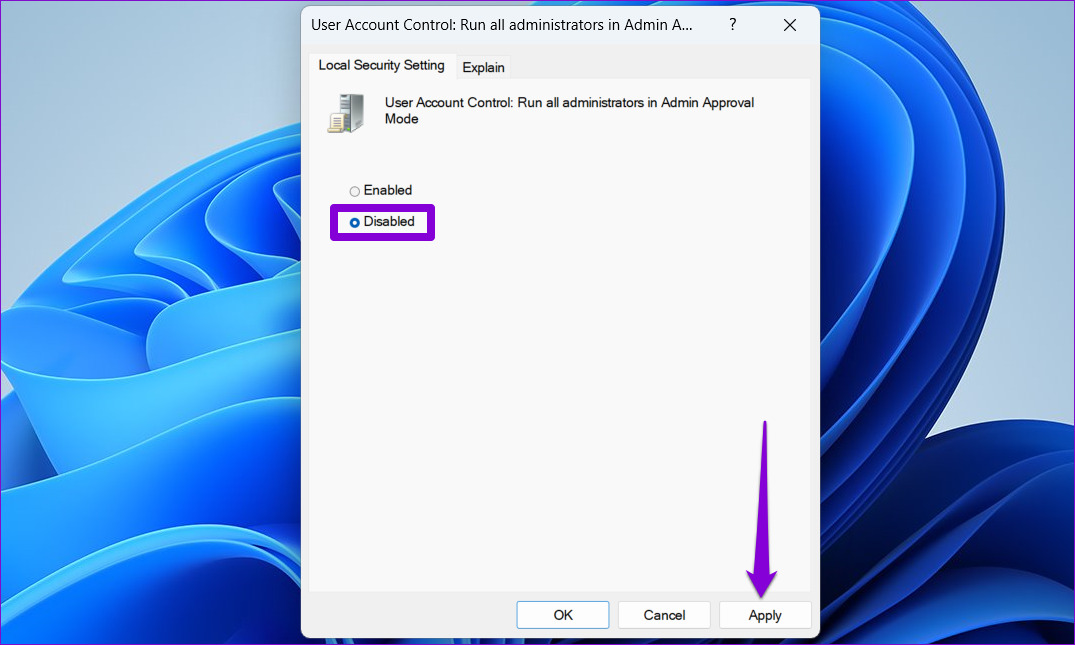
Step 3: Double-click the User Account Control: Run all administrators in Admin Approval Mode entry in the right pane.
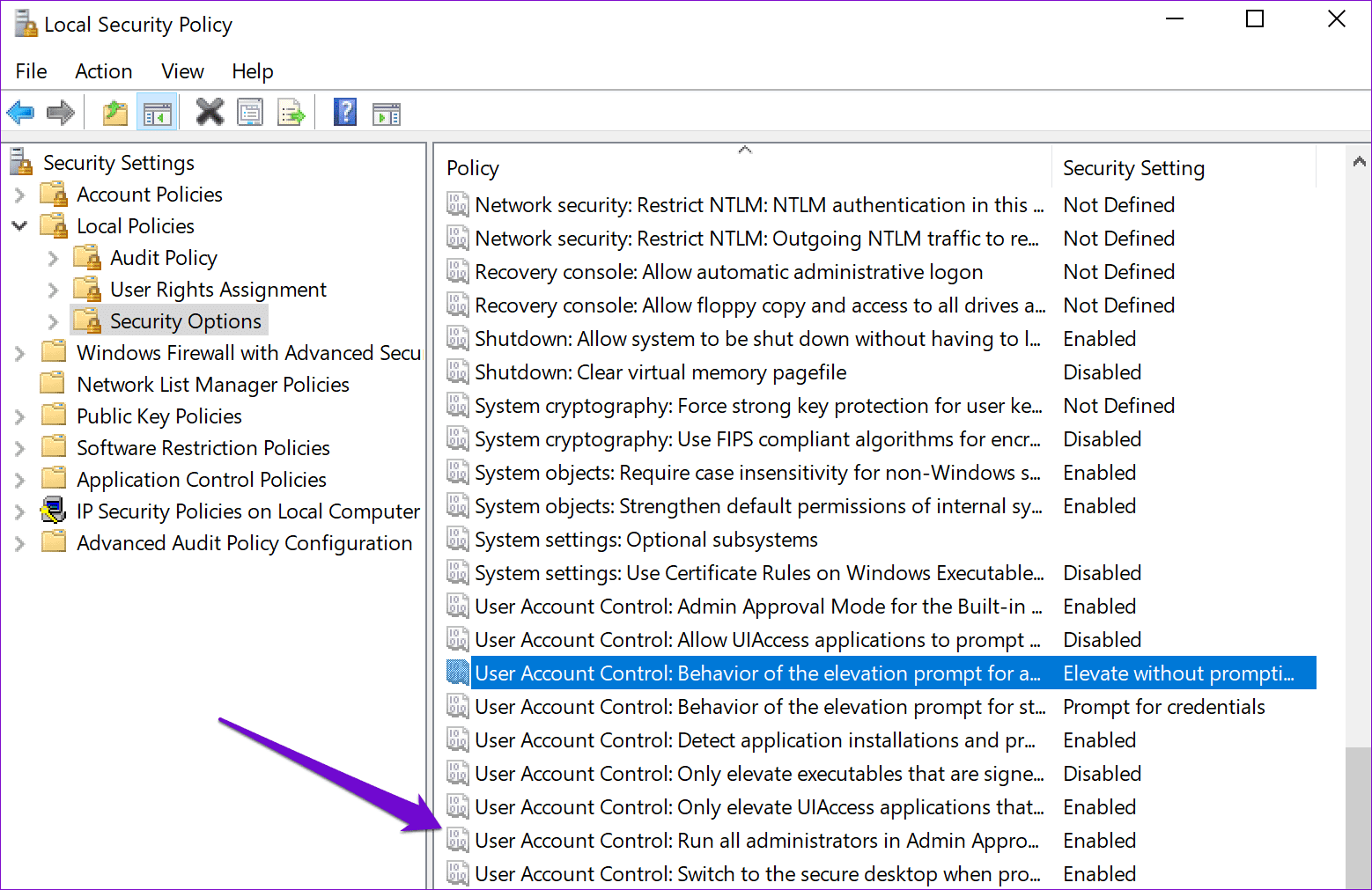
Step 4: Select Disabled and hit Apply.
Fix 4: Edit Registry Files
If you don’t have access to the Local Security Policy, modify a registry entry to apply the changes and resolve the “A required privilege is not held by the client” error. Here’s how:
Step 1: Click the search icon on the taskbar to access the search menu. Type regedit in the box > select Run as administrator.

Step 2: Copy and paste the following path in the address bar at the top and press Enter.
Computer\HKEY_LOCAL_MACHINE\SOFTWARE\Microsoft\Windows\CurrentVersion\Policies\System
Step 3: Double-click the EnableLUA entry in the right pane. Enter 0 (zero) in the Value data field and hit OK.

Exit the Registry Editor window and restart your PC to apply the changes.
Fix 5: Use the Command Prompt to Copy the File
Are you getting the “A required privilege is not held by the client” error only while copying files on your Windows PC? If so, use Command Prompt to copy and move the file to another location using these steps:
Step 1: Right-click on the Start icon > select Terminal (Admin) from the list.

Step 2: Run the following command to copy a file from one location to another.
copy Source Destination
Replace Source in the above command with the path of the file you want to copy and Destination with the location where you want to copy the file. For instance, if you wanted to copy the Object.pdf file from C:\ drive to D:\ drive, you would enter this command:
copy C:\Object.pdf D:\

Was this helpful?
Last updated on 14 August, 2024
Read Next
 Top 5 Ways to Fix a D3D11-Compatible GPU is Required to Run the Engine Error on Windows 11
Preliminary Fixes Update DirectX: Updating DirectX can resolve compatibility issues and errors related to the D3D11 GPU.
Top 5 Ways to Fix a D3D11-Compatible GPU is Required to Run the Engine Error on Windows 11
Preliminary Fixes Update DirectX: Updating DirectX can resolve compatibility issues and errors related to the D3D11 GPU.
 3 Ways to Fix Feedback Required Error on Instagram
Basic Fixes Check network connection: Ensure there’s no problem with your Wi-Fi or cellular network.
3 Ways to Fix Feedback Required Error on Instagram
Basic Fixes Check network connection: Ensure there’s no problem with your Wi-Fi or cellular network.
 4 Ways to Fix “Verification Required” on App Store
Basic Fixes Check internet connection: Using the App Store to explore the library and download the apps without any problem requires a stable network connection Sign out and sign into
4 Ways to Fix “Verification Required” on App Store
Basic Fixes Check internet connection: Using the App Store to explore the library and download the apps without any problem requires a stable network connection Sign out and sign into
 5 Fixes for “Word Experienced an Error Trying to Open the File” Error in Windows
Fix 1: Unblock Your Word File Microsoft Word may fail to open a document if it has been altered by third-party software.
5 Fixes for “Word Experienced an Error Trying to Open the File” Error in Windows
Fix 1: Unblock Your Word File Microsoft Word may fail to open a document if it has been altered by third-party software.
 7 Best Fixes for Windows Update Error 0x800f081f in Windows 11
Microsoft regularly releases Windows updates to introduce new features and fix known issues.
7 Best Fixes for Windows Update Error 0x800f081f in Windows 11
Microsoft regularly releases Windows updates to introduce new features and fix known issues.
 5 Fixes for the “Outlook Data File Has Reached the Maximum Size” Error in Windows
Fix 1: Compact the Microsoft Outlook Data File Compacting your Outlook data file removes unused space and purges redundant information from the data file, effectively reducing its size.
5 Fixes for the “Outlook Data File Has Reached the Maximum Size” Error in Windows
Fix 1: Compact the Microsoft Outlook Data File Compacting your Outlook data file removes unused space and purges redundant information from the data file, effectively reducing its size.
 5 Fixes for “Unspecified Error” When Copying Files or Folders in Windows
Fix 1: Check the Destination Drive Format Are you attempting to copy a file to an external drive that uses a non-NTFS format?
5 Fixes for “Unspecified Error” When Copying Files or Folders in Windows
Fix 1: Check the Destination Drive Format Are you attempting to copy a file to an external drive that uses a non-NTFS format?
 5 Fixes for “Not All of the Updates Were Successfully Uninstalled” Error on Windows
Fix 1: Use the DISM Tool to Remove the Update Deployment Image Servicing and Management (or DISM) is a useful tool for fixing corrupt system files on your PC.
5 Fixes for “Not All of the Updates Were Successfully Uninstalled” Error on Windows
Fix 1: Use the DISM Tool to Remove the Update Deployment Image Servicing and Management (or DISM) is a useful tool for fixing corrupt system files on your PC.
The article above may contain affiliate links which help support Guiding Tech. The content remains unbiased and authentic and will never affect our editorial integrity.