


Preliminary Fixes
- Update DirectX: Updating DirectX can resolve compatibility issues and errors related to the D3D11 GPU. Follow our guide on how to update DirectX on Windows 11.
- Update GPU Drivers: Outdated or corrupt GPU drivers can cause the D3D11-Compatible GPU Required error. Updating your GPU drivers improves overall system stability.
Fix 1: Terminate the Game Launcher and Restart
Step 1: Press the Control + Shift + Esc keyboard shortcut to launch the Task Manager.
Step 2: Right-click on the game launcher application and select the End task option.

Step 3: Close the Task Manager window.
Step 4: Open the game and check if you face the same issue.
Fix 2: Check Your GPU’s DirectX Version
DirectX 12 is the latest version supported by not-so-old graphics cards. But if you have a very old PC or laptop with an integrated or discrete GPU that doesn’t support DirectX 11, you will encounter the D3D11-compatible GPU error message. Since your hardware doesn’t have these features, you cannot run any game that needs DirectX 11 or a newer version.
To verify this, you can use the DXdiag utility to check the DirectX version supported by your onboard or discrete GPU. If it only supports DirectX 10 or lower versions, you will have to upgrade your GPU to play modern games like Fortnite that have DirectX 11 as a minimum requirement.
Fix 3: Run the Game Using the Discrete GPU
Step 1: Press the Windows + I keyword shortcut to launch the Settings app.
Step 2: Navigate to the Display section. Then click on the Graphics option.

Step 3: Scroll down to the Custom settings for the application section. Locate the game in the list and click on the arrow icon.

Step 4: Go to the GPU Preference option and click to expand the drop-down option. Click on the High-Performance option.

Step 5: Close the Settings app.
Games and apps need the Visual C++ Runtime libraries to work on Windows OS. If the existing installation is corrupt, you can repair it without uninstalling the complete package; continue reading.
Fix 4: Repair Visual C++ Redistributables
Step 1: Press the Windows key, type appwiz.cpl, and press Enter.
Step 2: Find the Visual C++ Redistributable in the list of installed programs. Right-click on it and select the Change option.
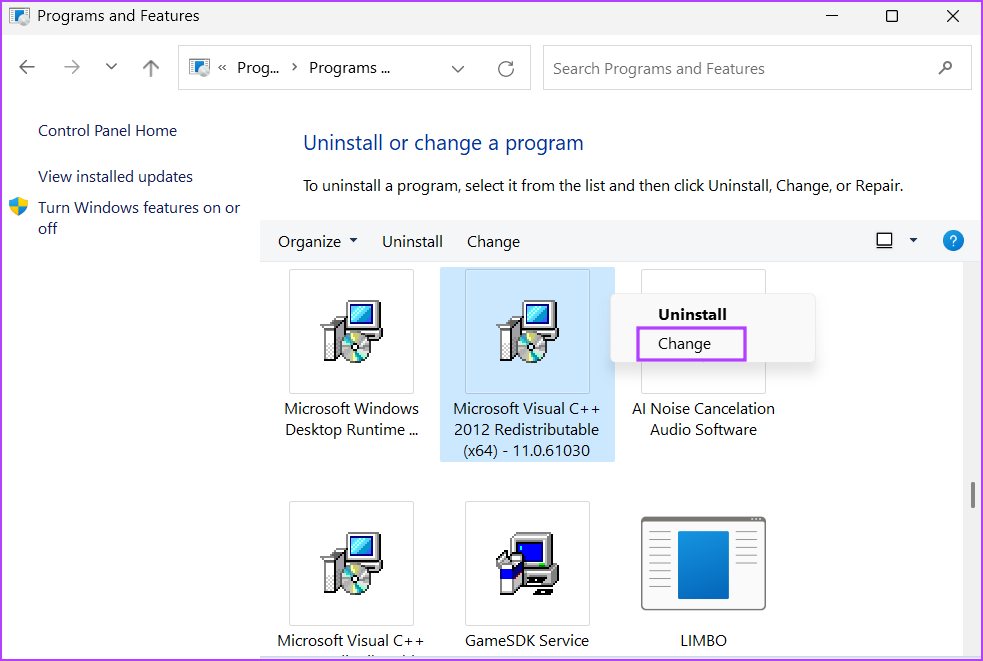
Step 3: Click on the Repair button.

Step 4: User Account Control will open. Click on the Yes button.
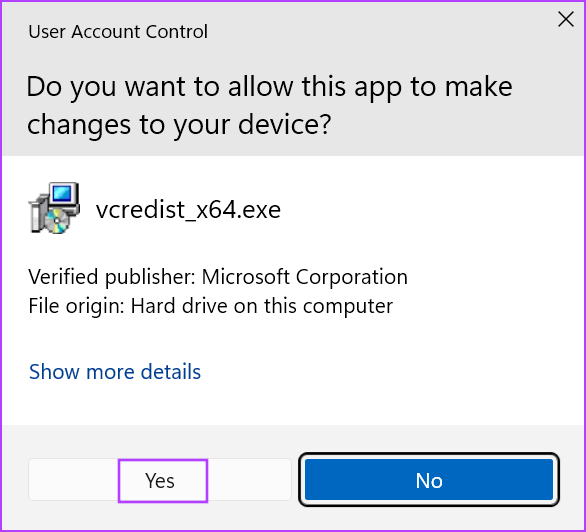
Step 5: Wait for the utility to repair the Visual C++ Redistributable installation. Once done, click on the Close button.
Step 6: Restart your system.
Fix 5: Force the Game To Use DirectX 11
Using a game launcher app like the Epic Games Launcher or Steam, you can manually configure the game to run with DirectX 11. Repeat the following steps to enable DirectX 11 in Epic Games Launcher:
Step 1: Open the Epic Games Launcher and click on the Profile icon. Then click on the Settings option.

Step 2: Scroll down and find the MANAGE GAMES section. Click on the game name to expand its settings.
Step 3: Click on the Additional Command Line Arguments checkbox. Type d3d11 in the text box.

Step 4: Go to the top bar and click on Back button. Close the Epic Games Launcher.

Step 5: Restart the game and check if the error code reappears.
That’s it. This should fix the D3D11-compatible GPU required to run the engine error once and for all.
Was this helpful?
Last updated on 29 July, 2024
1 Comment
Leave a Reply
Read Next
 5 Fixes for “A Required Privilege Is Not Held by the Client” Error on Windows
Try Basic Fixes Use an administrator account: In most cases, the "A required privilege is not held by the client" error occurs due to a lack of necessary permissions.
5 Fixes for “A Required Privilege Is Not Held by the Client” Error on Windows
Try Basic Fixes Use an administrator account: In most cases, the "A required privilege is not held by the client" error occurs due to a lack of necessary permissions.
 3 Ways to Fix Feedback Required Error on Instagram
Basic Fixes Check network connection: Ensure there’s no problem with your Wi-Fi or cellular network.
3 Ways to Fix Feedback Required Error on Instagram
Basic Fixes Check network connection: Ensure there’s no problem with your Wi-Fi or cellular network.
 4 Ways to Fix “Verification Required” on App Store
Basic Fixes Check internet connection: Using the App Store to explore the library and download the apps without any problem requires a stable network connection Sign out and sign into
4 Ways to Fix “Verification Required” on App Store
Basic Fixes Check internet connection: Using the App Store to explore the library and download the apps without any problem requires a stable network connection Sign out and sign into
 How to Fix ‘This File Isn’t Compatible With QuickTime Player’ Error
Why Am I seeing 'This File Isn’t Compatible With QuickTime Player' Error The infamous macOS video player error can pop up from time to time.
How to Fix ‘This File Isn’t Compatible With QuickTime Player’ Error
Why Am I seeing 'This File Isn’t Compatible With QuickTime Player' Error The infamous macOS video player error can pop up from time to time.
 3 Ways to Fix Google Chrome Search Engine Changing to Bing
Why Is Chrome Searching With Bing?
3 Ways to Fix Google Chrome Search Engine Changing to Bing
Why Is Chrome Searching With Bing?
 5 Ways to Check GPU Health on Windows
https://youtu.be/JGwJ-_hIzfg Method 1: Using Task Manager The Windows Task Manager can help you in checking GPU health.
5 Ways to Check GPU Health on Windows
https://youtu.be/JGwJ-_hIzfg Method 1: Using Task Manager The Windows Task Manager can help you in checking GPU health.
 4 Ways to Fix Microsoft Edge Search Engine Changing to Yahoo
Basic Fixes: Check for browser updates: Browser bugs can randomly change the search engine.
4 Ways to Fix Microsoft Edge Search Engine Changing to Yahoo
Basic Fixes: Check for browser updates: Browser bugs can randomly change the search engine.
 4 Ways to Fix ‘Your Device Isn’t Compatible With This Version’ on Android
Fix 1: Update Android Version The app you are trying to download may not be compatible with an older version of Android OS.
4 Ways to Fix ‘Your Device Isn’t Compatible With This Version’ on Android
Fix 1: Update Android Version The app you are trying to download may not be compatible with an older version of Android OS.
The article above may contain affiliate links which help support Guiding Tech. The content remains unbiased and authentic and will never affect our editorial integrity.

i followed all of the instructions and it still doesn’t work??