Basic Fixes
- Check network connection: Playing Prime Video in high definition or the best resolution requires an optimum internet speed.
- Check Amazon Prime Video servers: If Prime Video doesn’t play in HD despite a good internet connection, check if Amazon Prime’s servers are facing downtime.
- Use Prime Video App: Use the Prime Video app on your Windows PC or Mac for an improved experience.
Fix 1: Check Playback Settings
If Prime Video doesn’t play in HD, check if you have enabled high-resolution playback within the settings.
Step 1: Click on the Settings icon on the player window.

Step 2: You will now get a list of video quality options in the drop-down menu. Select Best to ensure Prime Video plays the video in the best resolution.

Also Read: How to turn off subtitles on Prime Video
Fix 2: Sign Out of Prime Video and Sign Back In
Another way to fix this problem is by signing out and back into Amazon Prime Video.
Step 1: Open Amazon Prime Video on any browser > tap on your username.
Step 2: Click on Sign Out.

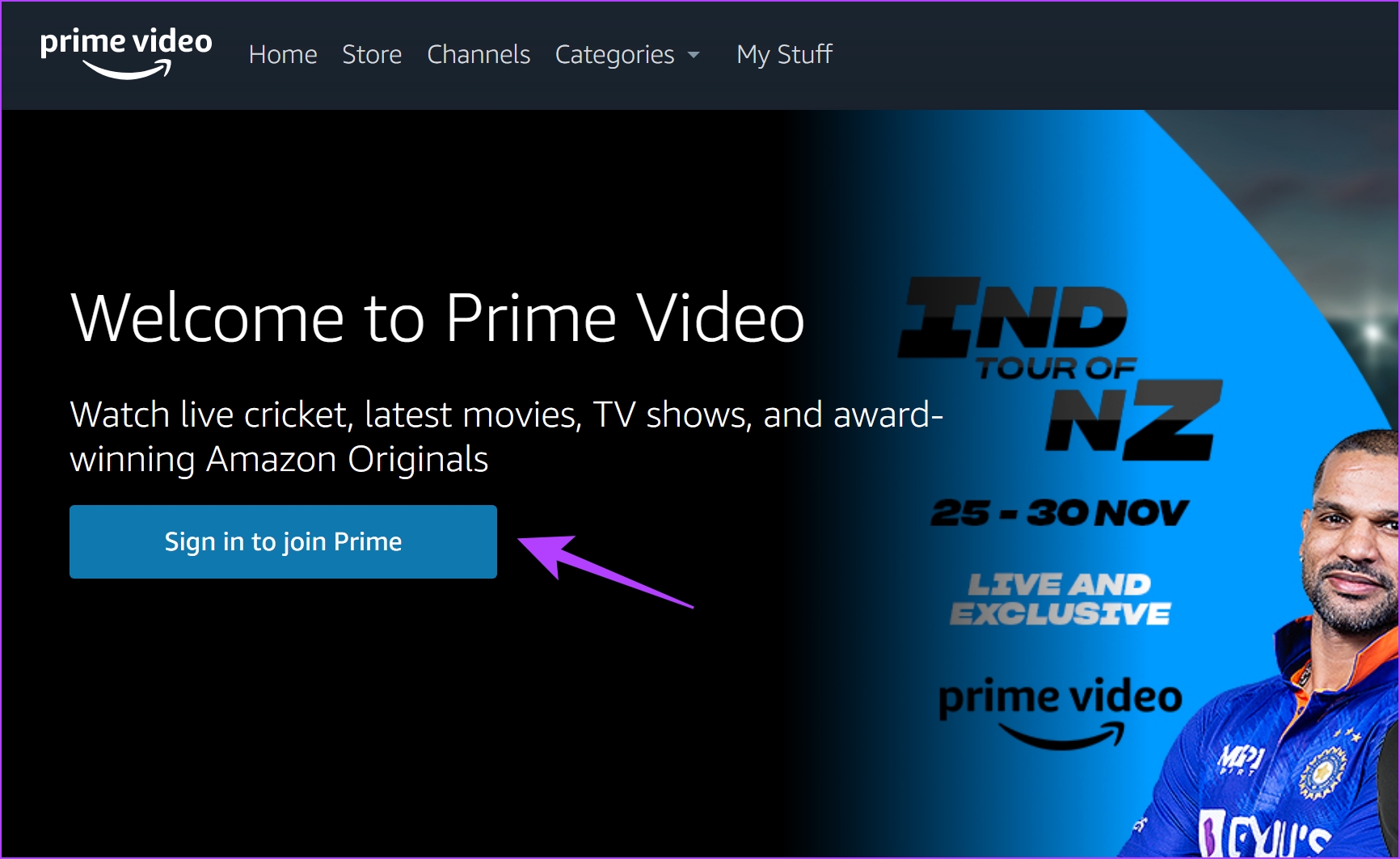
Step 3: Now, click on Sign in to join Prime > enter your credentials > click on Sign In.
Fix 3: Clear Browser Cache
Accumulation of cache and junk files on your web browser can cause issues with media playback.
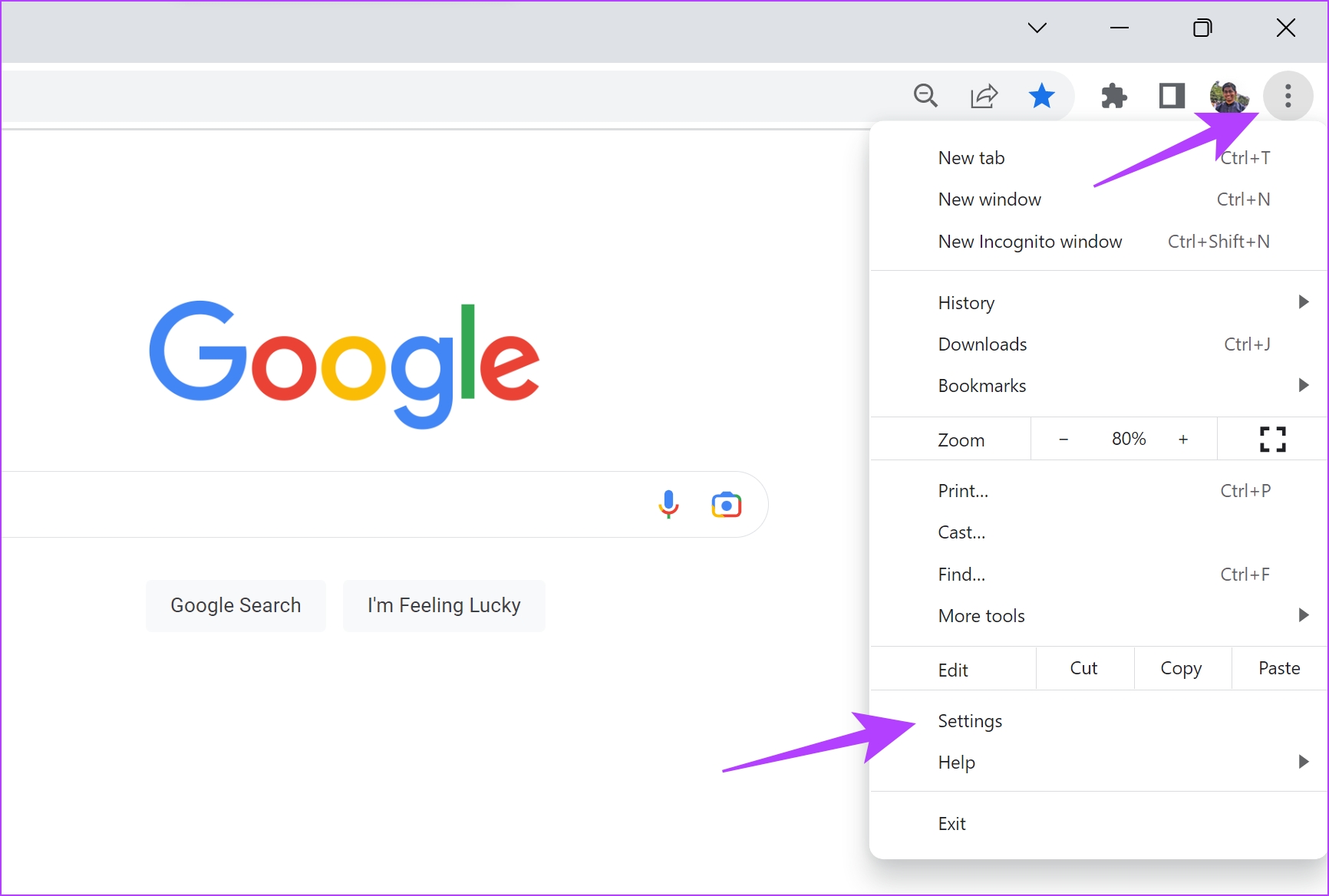
Step 1: Click on the three dots icon in the toolbar > click on Settings.
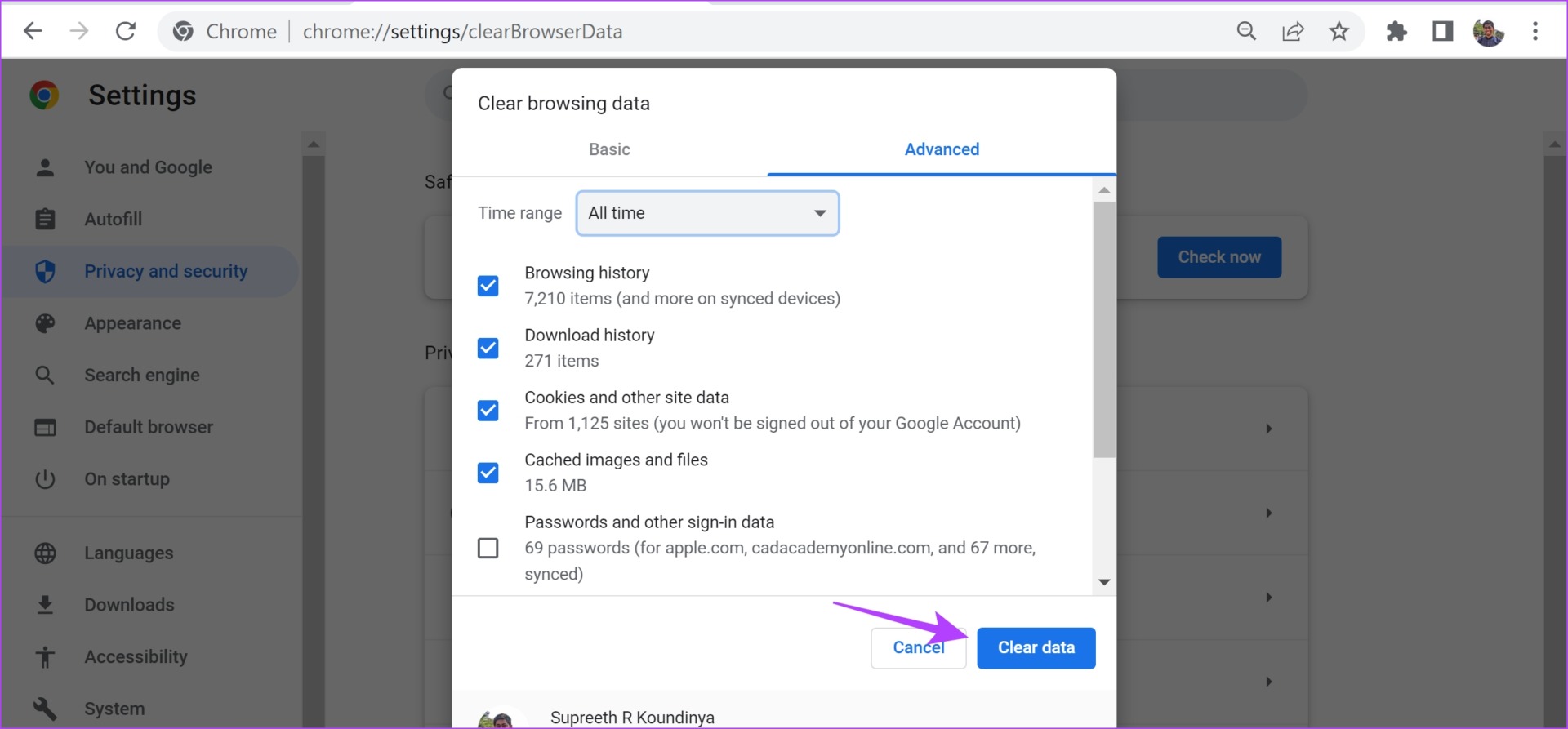
Step 2: Click on Privacy and Security > select Clear browsing data.

Step 3: Click on Time Range drop-down > select All Time. This will help you clear the stored data and cache of Chrome from when you started using it.
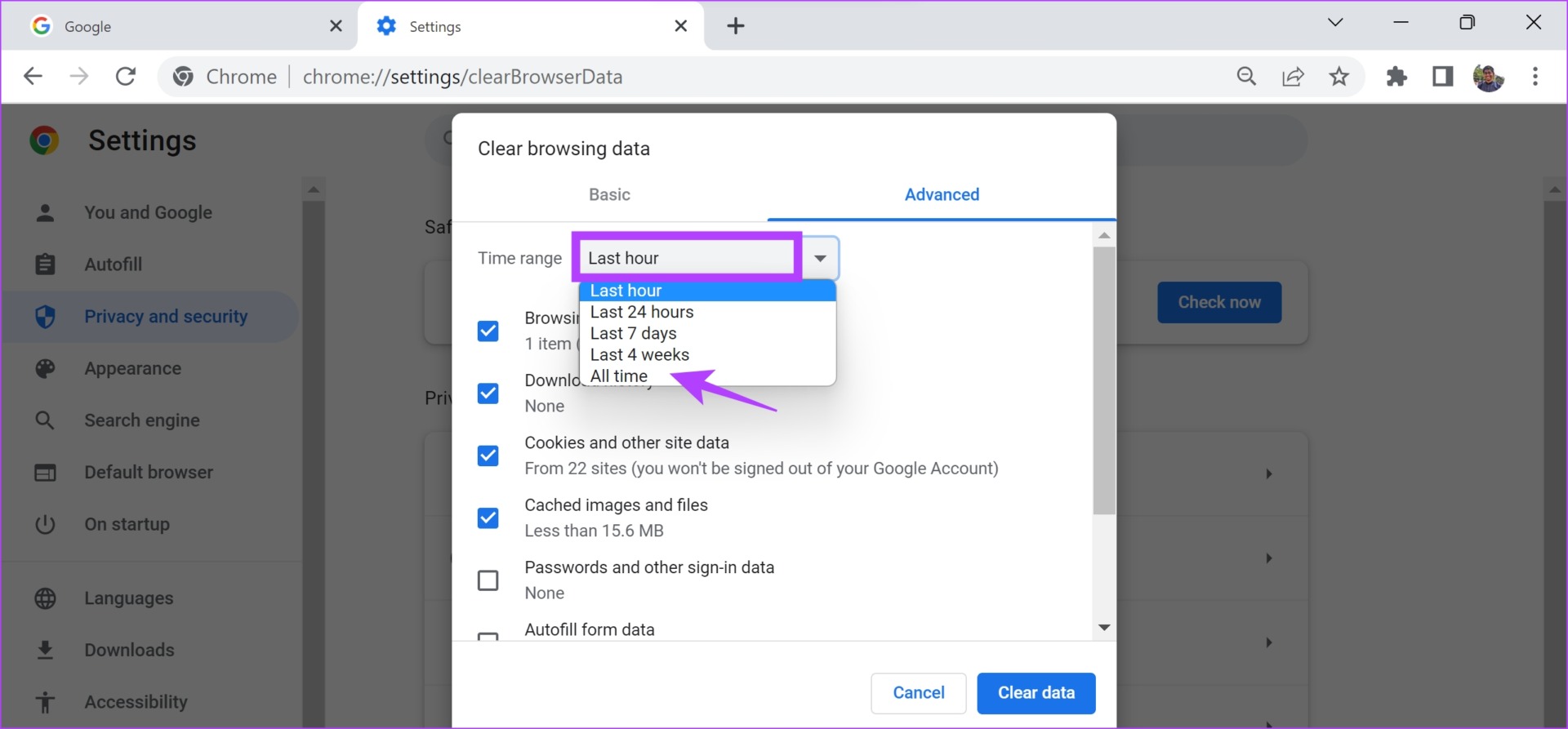
Step 6: You will now see a list of what is being cleared. Select what you want to delete and click on Clear data.
Fix 4: Enable Hardware Acceleration
Hardware Acceleration is a process in which hardware resources are used on your system to run the software and accelerate the task. We recommend turning it on since it results in better performance.
Enable Hardware Acceleration on Chrome
Step 1: Tap on the three dots icon in the toolbar > select Settings.
Step 2: Click on System in the sidebar.
Step 3: Turn on the toggle for Use hardware acceleration when available.

Enable Hardware Acceleration on Firefox
Step 1: Click on the hamburger menu icon on the Firefox toolbar > Settings.
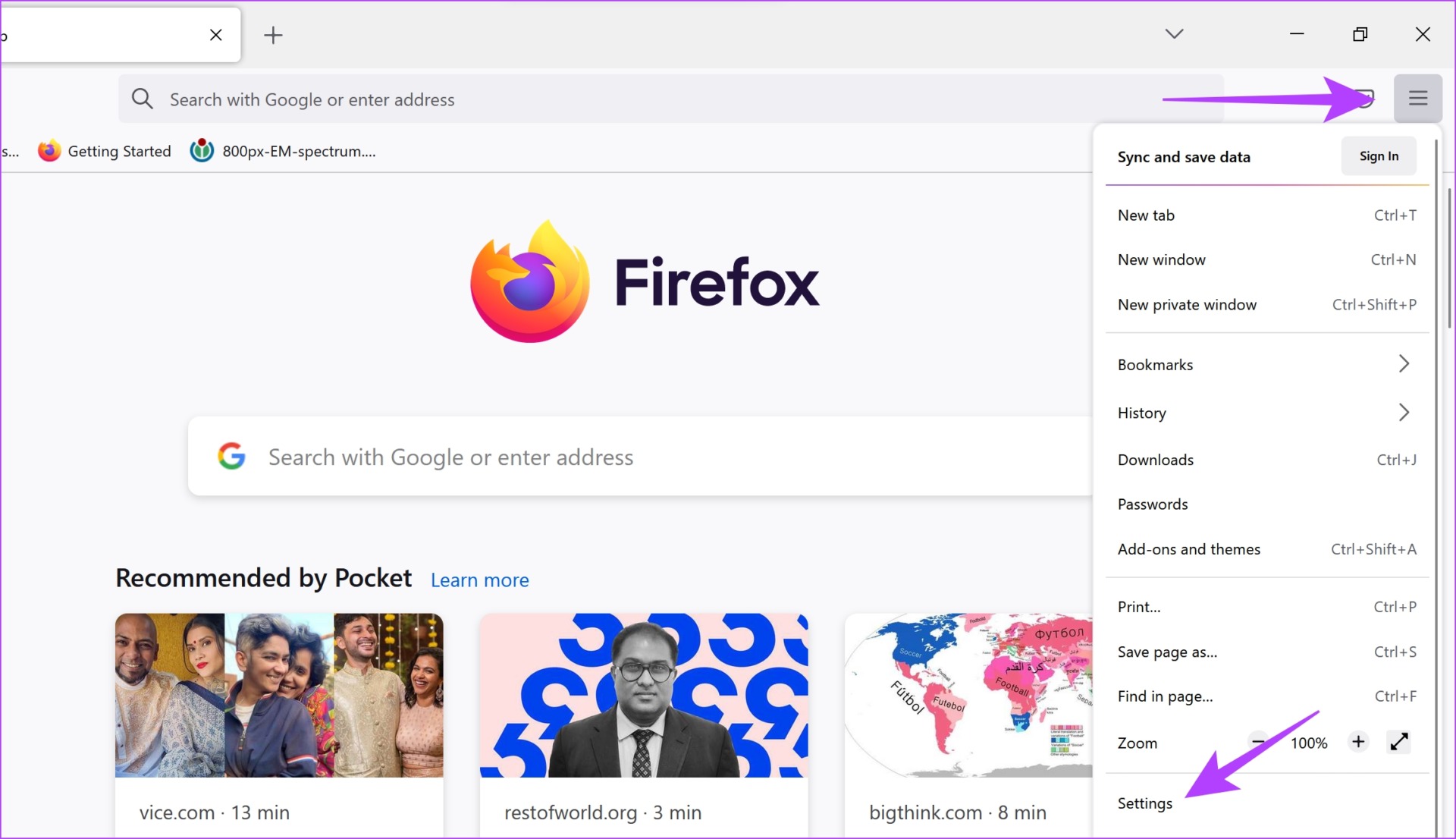
Step 2: Scroll down to Performance > uncheck Use recommended performance settings > check the box for Use hardware acceleration when available.

Fix 5: Update Display Drivers
If your PC’s display driver is outdated, update it to play HD videos on applications like Amazon Prime.
Step 1: Open Device Manager from the start menu.
Step 2: Click on Display adapters.

Step 3: Right-click on the display driver > tap on Update driver.

Step 4: Click on Search automatically for drivers. If there are new versions, follow the on-screen instructions to update the drivers.

Also Read: How to change Prime Video account on Firestick, TV, and mobile
Was this helpful?
Last updated on 12 August, 2024
Read Next
 5 Ways to Fix Video Unavailable in Amazon Prime Video
Basic Fixes Check network connection: Playing Prime without any problems requires an optimum internet speed.
5 Ways to Fix Video Unavailable in Amazon Prime Video
Basic Fixes Check network connection: Playing Prime without any problems requires an optimum internet speed.
 How to Turn Off Auto Play on Amazon Prime Video
Method 1: How to Turn Off Auto Play on Prime Video on the Web Step 1: Open Prime Video in a browser on your computer and sign in with your Amazon
How to Turn Off Auto Play on Amazon Prime Video
Method 1: How to Turn Off Auto Play on Prime Video on the Web Step 1: Open Prime Video in a browser on your computer and sign in with your Amazon
 3 Ways to Fix Amazon Prime Video App Not Working on Mac
Basic Fixes Check internet connection: The speed of the internet connection should be optimal to watch content of the highest quality on Prime Video.
3 Ways to Fix Amazon Prime Video App Not Working on Mac
Basic Fixes Check internet connection: The speed of the internet connection should be optimal to watch content of the highest quality on Prime Video.
 Amazon Prime Video – How to Fix Error Code 5004 or 5005
What Does Amazon Prime Video Error 5004 or 5005 Mean?
Amazon Prime Video – How to Fix Error Code 5004 or 5005
What Does Amazon Prime Video Error 5004 or 5005 Mean?
 4 Ways to Fix Amazon Prime Video Not Downloading Movies on iPhone
Basic Fixes Restart Prime Video: If there's any bug preventing you from downloading content, restarting your iPhone and the Prime Video app will help.
4 Ways to Fix Amazon Prime Video Not Downloading Movies on iPhone
Basic Fixes Restart Prime Video: If there's any bug preventing you from downloading content, restarting your iPhone and the Prime Video app will help.
 5 Ways to Fix the Black Screen Issue in Amazon Prime Video on Windows
Try Basic Fixes Temporarily disable your VPN connection: Although VPNs are great for maintaining privacy, they can often cause problems with streaming services such as Prime Video, especially if you
5 Ways to Fix the Black Screen Issue in Amazon Prime Video on Windows
Try Basic Fixes Temporarily disable your VPN connection: Although VPNs are great for maintaining privacy, they can often cause problems with streaming services such as Prime Video, especially if you
 5 Ways to Fix Amazon Prime Video Not Working on Apple TV
Basic Fixes Check Amazon Prime subscription status: You can visit your Amazon account on a desktop browser to check your subscription status.
5 Ways to Fix Amazon Prime Video Not Working on Apple TV
Basic Fixes Check Amazon Prime subscription status: You can visit your Amazon account on a desktop browser to check your subscription status.
 3 Ways to Fix Amazon Prime Video Not Working on iPhone and iPad
Basic Fixes: Check your internet connection: The app may not load properly if you access Prime Video on a sketchy internet connection.
3 Ways to Fix Amazon Prime Video Not Working on iPhone and iPad
Basic Fixes: Check your internet connection: The app may not load properly if you access Prime Video on a sketchy internet connection.
The article above may contain affiliate links which help support Guiding Tech. The content remains unbiased and authentic and will never affect our editorial integrity.