What Does Netflix Error NW-2-5 Mean?
It indicates that an existing network issue stopped your device from accessing Netflix. This can happen due to one of the following reasons:
- Unstable network or slow internet connection.
- An outdated Netflix app.
- Incorrect network configurations.
- Your Internet Service Provider (ISP) has blocked Netflix.
Common Fixes
- Connect to a good internet connection: I recommend at least 5Mbps for HD and 25Mbps for Ultra HD/4K video playback on Netflix.
- Update or reinstall the Netflix app: Open your device’s app store (e.g. Google Play Store, Apple App Store), search Netflix, and select Update. Alternatively, uninstall the app and install it to start afresh.
- Restart your device and router: Reboot your device, unplug the router, wait a few seconds, and plug it back in. You can also reboot your router from its admin page.
- Contact your ISP: Ask your Internet Service Provider to unblock Netflix on your network.
Fix 1: Tweak DNS Configuration
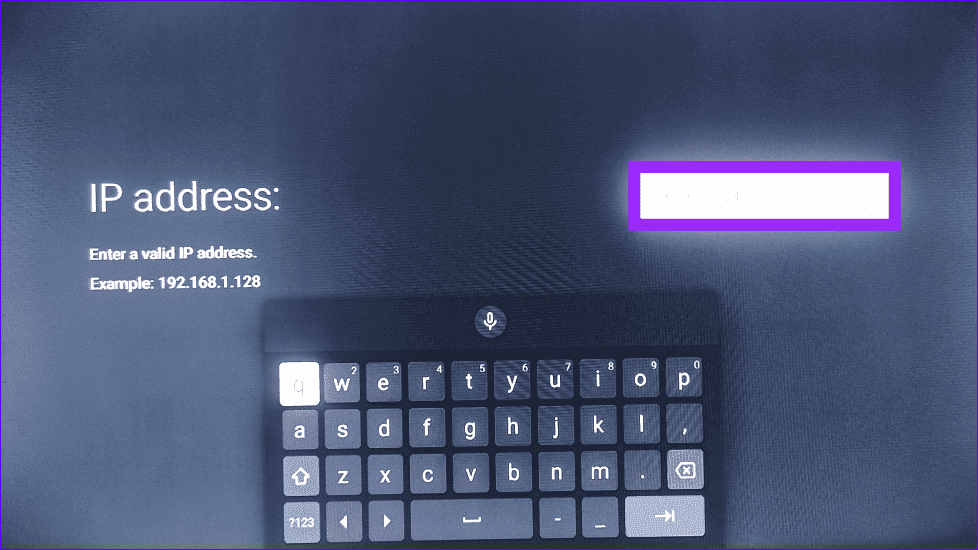
Incorrect device DNS settings may cause a network issue, resulting in the Netflix NW-2-5 error. To resolve the issue, set the DNS configuration manually to public DNS servers (e.g. Google, Cloudflare). Let’s configure it on a TV for demonstration.
Step 1: Tap the Gear icon at the top right to open the Android TV Settings.
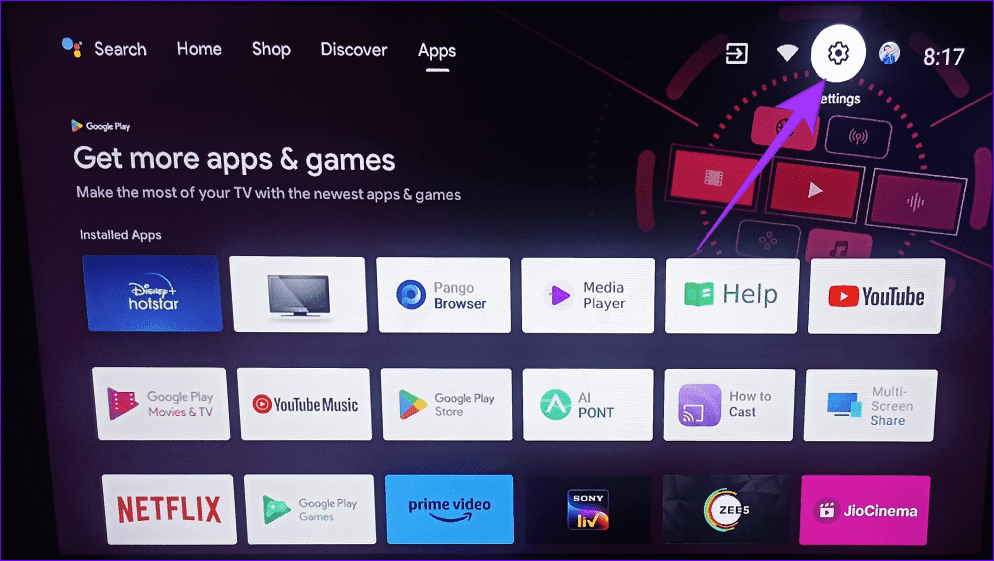
Step 2: Select Network & internet and scroll down to configure IP settings.


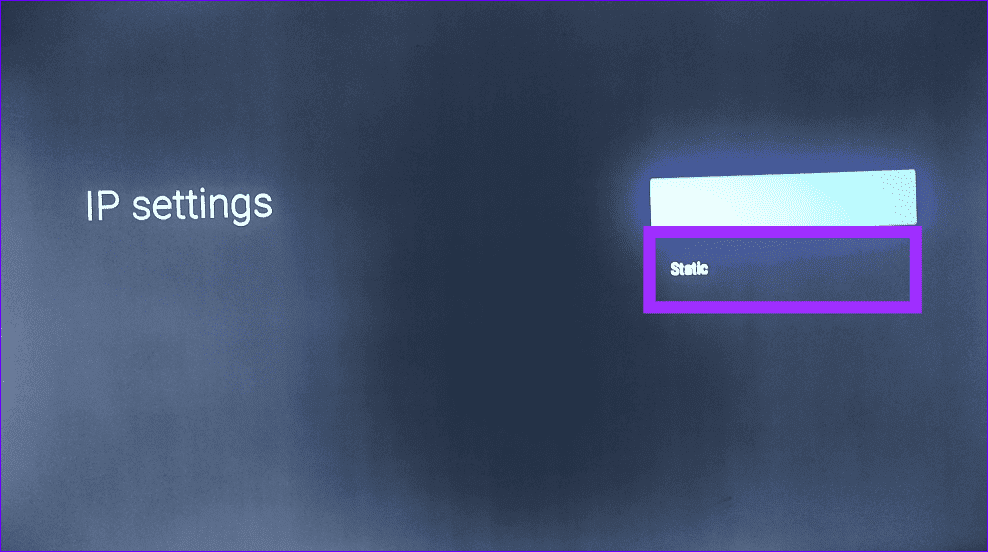
Step 3: Switch IP settings to Static and type 8.8.8.8 or 8.8.4.4 for Google DNS. Alternatively, you can set the Cloudflare DNS by entering 1.1.1.1 or 1.0.0.1. Reopen the Netflix app.
Fix 2: Verify Your Network Can Play Netflix
Streaming Netflix on a public network like metro stations, cafes, etc., often results in the NW-2-5 error as their network has data usage restrictions.
Switch to a private network or contact the network administrator to resume watching your favorite Netflix show.
Fix 3: Boost Your Wi-Fi Signal
Lastly, you can follow the tips below to boost your Wi-Fi signal and remove network issues that cause the NW-2-5 error on Netflix.
- Use your device close to your router.
- Update your router’s firmware.
- If you have a dual-band router, switch to the 5GHz band instead of using the 2.4GHz band to get faster speeds and more range.
- Cut off other connected devices.
- Replace the router’s antenna with a stronger one.
- Purchase a Wi-Fi repeater or extender to boost the Wi-Fi signal.
Was this helpful?
Last updated on 09 July, 2024
Read Next
 Netflix Standard vs. Premium: Which Netflix Plan Is Best for You
Netflix Subscription Plans At a Glance While Netflix provides three plans in total, the Standard and Premium plans take the cake.
Netflix Standard vs. Premium: Which Netflix Plan Is Best for You
Netflix Subscription Plans At a Glance While Netflix provides three plans in total, the Standard and Premium plans take the cake.
 How to Fix Netflix Subtitles Not Working or Missing Error
Basic Fixes Check internet connection: Check whether your internet connection is stable.
How to Fix Netflix Subtitles Not Working or Missing Error
Basic Fixes Check internet connection: Check whether your internet connection is stable.
 Top 4 Ways to Fix Netflix T1 Error on Windows 10
Picture this - you've just launched the Netflix app on your Windows 10 computer to watch a new episode of your favorite show.
Top 4 Ways to Fix Netflix T1 Error on Windows 10
Picture this - you've just launched the Netflix app on your Windows 10 computer to watch a new episode of your favorite show.
 7 Ways to Fix Netflix Black Screen With Sound Issues on Mobile and Desktop
Fix 1: Disable Extensions (Windows and macOS) While third-party extensions can help you watch Netflix with friends or enhance your experience in many ways, they can also interfere with Netflix's
7 Ways to Fix Netflix Black Screen With Sound Issues on Mobile and Desktop
Fix 1: Disable Extensions (Windows and macOS) While third-party extensions can help you watch Netflix with friends or enhance your experience in many ways, they can also interfere with Netflix's
 3 Ways to Fix Monitor Goes Black While Watching Netflix
Basic Fixes Disable G-SYNC in NVIDIA Control Panel: If your monitor is flickering or the screen goes black, disable G-SYNC in NVIDIA Control Panel.
3 Ways to Fix Monitor Goes Black While Watching Netflix
Basic Fixes Disable G-SYNC in NVIDIA Control Panel: If your monitor is flickering or the screen goes black, disable G-SYNC in NVIDIA Control Panel.
 Why Does Netflix Keep Logging Me Out and 3 Ways to Fix It
Why Netflix Logged You Out Automatically There are a few reasons why Netflix asks for sign-in every time you open the service.
Why Does Netflix Keep Logging Me Out and 3 Ways to Fix It
Why Netflix Logged You Out Automatically There are a few reasons why Netflix asks for sign-in every time you open the service.
 3 Ways to Fix “This Title Is Not Available to Watch Instantly” on Netflix
Try Basic Fixes Try a different user profile: Sometimes a show or movie may fail to load on one user profile.
3 Ways to Fix “This Title Is Not Available to Watch Instantly” on Netflix
Try Basic Fixes Try a different user profile: Sometimes a show or movie may fail to load on one user profile.
 3 Ways to Fix Netflix Keeps Freezing on Your Phone
Basic Fixes: Close and restart all background apps: Background apps can end up hogging system resources, causing the Netflix app not to work as expected.
3 Ways to Fix Netflix Keeps Freezing on Your Phone
Basic Fixes: Close and restart all background apps: Background apps can end up hogging system resources, causing the Netflix app not to work as expected.
The article above may contain affiliate links which help support Guiding Tech. The content remains unbiased and authentic and will never affect our editorial integrity.