Common Fixes
- Force close and reopen Microsoft Teams: Press the Ctrl + Shift + Esc shortcut to open Task Manager. Select Processes from the left sidebar > right-click Microsoft Teams > select End task. Reopen the app.
- Run Microsoft Teams as an administrator: Press the Windows key, search Microsoft Teams, and click Run as administrator.
- Disable VPN: Open your VPN app on Windows 11 and click on Disconnect to disable the active connection.
- Update or reinstall Microsoft Teams: Open the Microsoft Store, search the Microsoft Teams app, and click Update (if available). Alternatively, uninstall the app from Windows settings and reinstall it.
Fix 1: Clear the Microsoft Teams Cache
Corrupt app cache files are a common reason for the blank white screen error in Microsoft Teams on Windows 11. Delete them manually and relaunch the Teams app.
Step 1: Close the Microsoft Teams app and press the Windows + R shortcut to open the Run dialog.
Step 2: Copy-paste the following path in the box and press Enter to open the file directory containing all its cache files.
%appdata%MicrosoftTeams
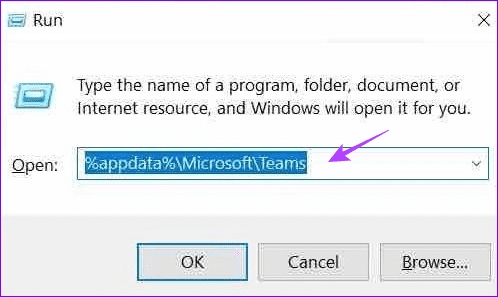
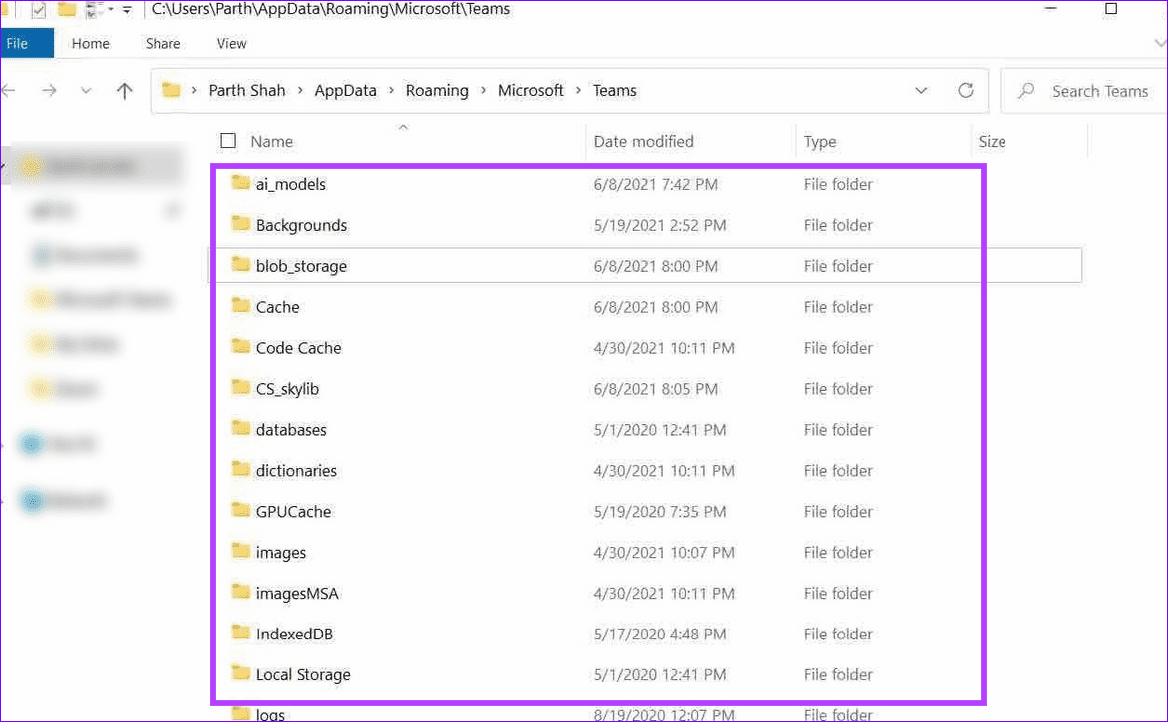
Step 3: Select all files and folders using the Ctrl + A hotkey and press Delete on your keyboard to clear them. Reopen the Microsoft Teams app.
Fix 2: Launch Microsoft Teams With Disabled GPU Acceleration
GPU acceleration in Microsoft Teams aims to enhance the app’s performance but can sometimes create a blank white screen error at launch. To fix it, open the app with disabled GPU acceleration.
Step 1: Open the Run dialog using the Windows + R shortcut and copy-paste the following command.
C:\Users\<user name>\AppData\Local\Microsoft\Teams\current\Teams.exe --disable-gpu
Step 2: Replace <user name> in the above command with your system’s username and press Enter to launch Microsoft Teams with disabled GPU acceleration. Your command should look like this:
C:\Users\Mysystem\AppData\Local\Microsoft\Teams\current\Teams.exe --disable-gpu

Fix 3: Manually Update the Edge WebView2 Framework
Another underlying culprit behind the blank white screen error in Microsoft Teams is an outdated Edge WebView2 framework on your Windows 11 system. To fix it, update it manually and reopen the Teams app.
Step 1: Visit the Microsoft Edge WebView2 page, scroll down to the Evergreen Bootstrapper section, and click on Download.

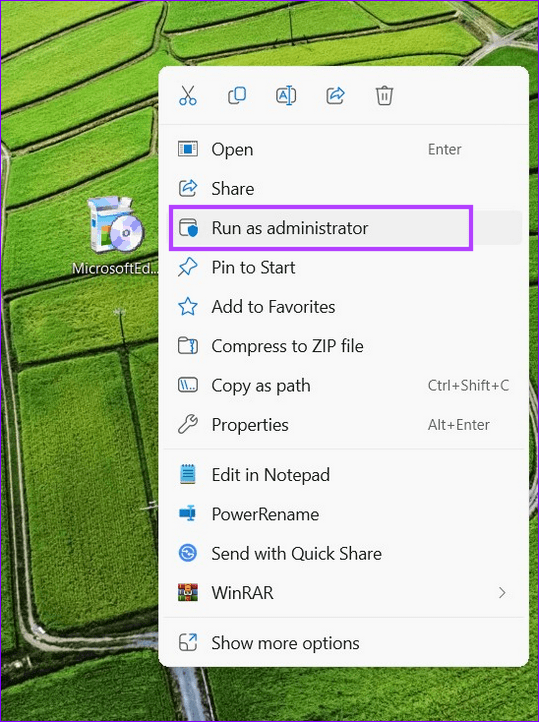
Step 2: Right-click on the executable installer file and select Run as administrator.
Step 3: Follow the on-screen instructions to update the Edge WebView2 framework and relaunch the Microsoft Teams app after completing it.
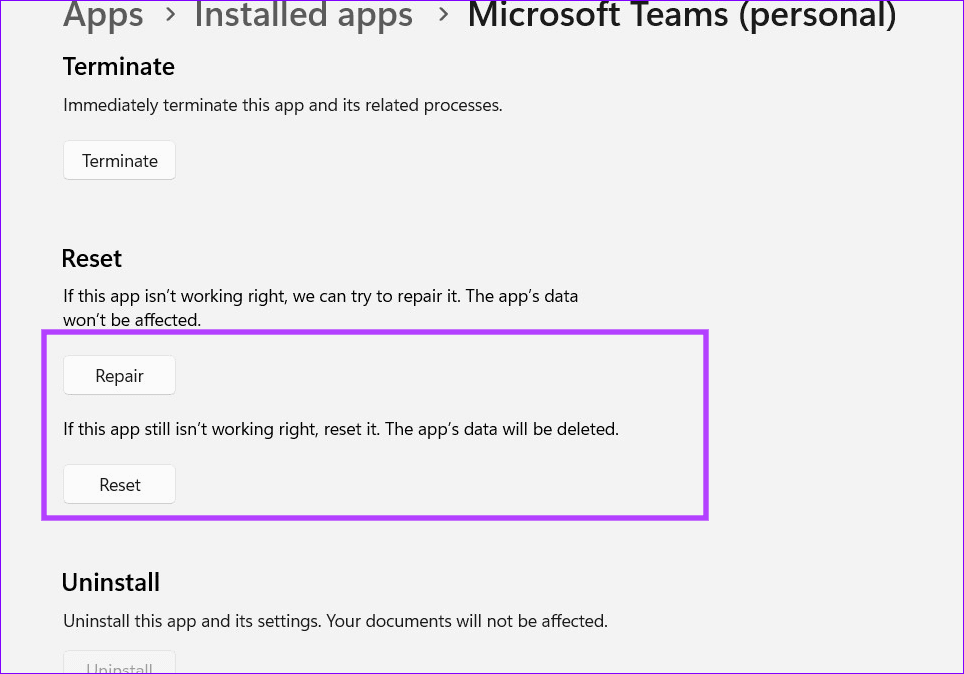
Fix 4: Repair or Reset the Microsoft Teams App
Lastly, you can repair or reset the Microsoft Teams app using Windows Settings to restore its normal functioning.
Step 1: Press the Windows key > search Microsoft Teams > right-click it to open its App settings.
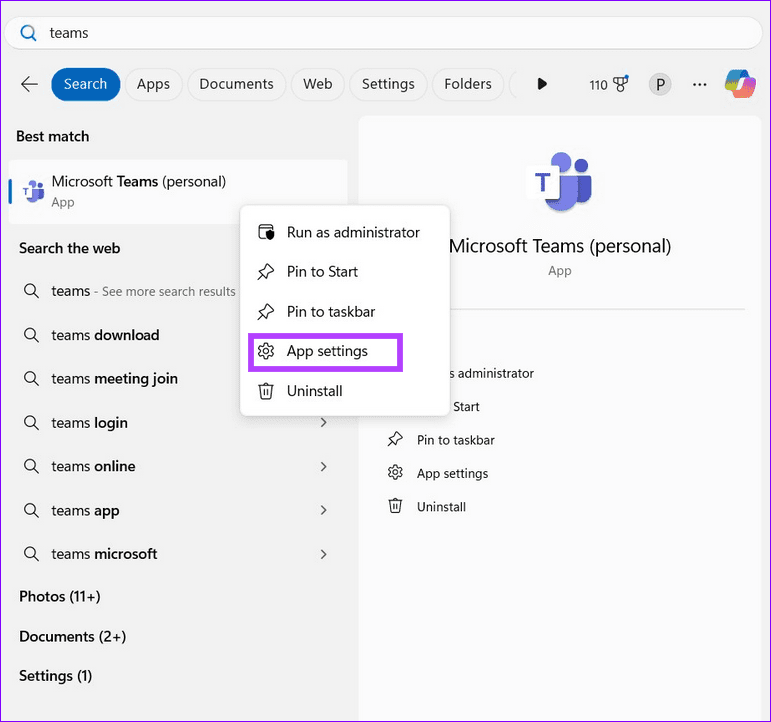
Step 2: Scroll down and click Repair. If the issue persists, select Reset to restore the app to its default settings.
Was this helpful?
Last updated on 11 July, 2024
Read Next
 Top 9 Ways to Fix Microsoft Excel Opening a Blank Document
Microsoft Excel remains an integral part of many businesses and enterprises.
Top 9 Ways to Fix Microsoft Excel Opening a Blank Document
Microsoft Excel remains an integral part of many businesses and enterprises.
 Why Is My YouTube Home Screen Blank and How to Fix It
Why Is Your YouTube Homepage Blank Here are a few of the reasons your YouTube homepage is currently blank: Watch History is off for the selected YouTube account.
Why Is My YouTube Home Screen Blank and How to Fix It
Why Is Your YouTube Homepage Blank Here are a few of the reasons your YouTube homepage is currently blank: Watch History is off for the selected YouTube account.
 4 Fixes for Microsoft Teams Screen Sharing Not Working on Windows 11
https://youtu.be/Wm3ds6ia05A Preliminary Fixes Internet connection: Sharing your screen on Teams requires high-speed internet connectivity.
4 Fixes for Microsoft Teams Screen Sharing Not Working on Windows 11
https://youtu.be/Wm3ds6ia05A Preliminary Fixes Internet connection: Sharing your screen on Teams requires high-speed internet connectivity.
 7 Best Ways to Fix Microsoft Teams Won’t Share Screen
Microsoft Teams has come a long way since its inception, and they keep adding new features to their product all the time.
7 Best Ways to Fix Microsoft Teams Won’t Share Screen
Microsoft Teams has come a long way since its inception, and they keep adding new features to their product all the time.
 8 Ways to Fix Microsoft Teams Black Screen Issues
Work productivity applications are indispensable in the post-COVID era.
8 Ways to Fix Microsoft Teams Black Screen Issues
Work productivity applications are indispensable in the post-COVID era.
 5 Ways to Fix Google Chrome Showing Untitled Blank Page
Basic Fixes: Close and restart Chrome: Temporary browser glitches can cause Chrome to show an untitled blank page.
5 Ways to Fix Google Chrome Showing Untitled Blank Page
Basic Fixes: Close and restart Chrome: Temporary browser glitches can cause Chrome to show an untitled blank page.
 2 Ways to Fix Microsoft Teams Notifications Not Working on Windows 11/10
Preliminary Fixes Turn off Battery Saver: To ensure Microsoft Teams notifications work properly on Windows 11/10, turning off Battery Saver is essential.
2 Ways to Fix Microsoft Teams Notifications Not Working on Windows 11/10
Preliminary Fixes Turn off Battery Saver: To ensure Microsoft Teams notifications work properly on Windows 11/10, turning off Battery Saver is essential.
 4 Ways to Fix Microsoft Teams Keeps Asking to Sign in on Windows 10/11
Fix 1: Clear Teams Cache Microsoft Teams collects cache in the background to improve loading times and the overall app experience.
4 Ways to Fix Microsoft Teams Keeps Asking to Sign in on Windows 10/11
Fix 1: Clear Teams Cache Microsoft Teams collects cache in the background to improve loading times and the overall app experience.
The article above may contain affiliate links which help support Guiding Tech. The content remains unbiased and authentic and will never affect our editorial integrity.