


Basic Fixes
- Clean keyboard: Over time, your keyboard might gather small dust particles under the keys. You can use a blower or compressed air to clean it.
- Scan PC with Windows Security: Some malicious or corrupted files on your Windows machine might interfere with keyboard functions. Do a quick security check on your PC.
- Check keyboard language settings: Windows automatically detects the device’s default input language. It’s always advisable to check the keyboard’s language settings. To do so, go to Settings > Time & language > Typing > Advanced keyboard settings > choose your preferred language.
Fix 1: Update Keyboard Drivers
Outdated keyboard drivers can affect the keyboard performance, and sometimes, you might end up with the keyboard typing multiple letters on Windows 11/10.
Step 1: Press the Windows key on your keyboard > type Device Manager > click Open. Expand the Keyboards menu and right-click on your keyboard name. Select Update Driver.

Once this is done, the OS will scan and install the latest keyboard drivers from the web. This should fix the issue.
Also Read: Fixes for keyboard shortcuts not working in Microsoft Excel for Windows
Fix 2: Adjust Keyboard Repeat Delay
Windows offers a native way to customize some keyboard settings. For example, you can change the key repeat delay from short to long and fix the keyboard by typing multiple letters on Windows 11/10.
Step 1: Press the Windows key on your keyboard > type Keyboard > click on it. In the Character repeat menu, you will find the Repeat delay option.
Step 2: Move the slider from Short to Long. Finally, hit OK and restart the PC.

Here, you are essentially delaying the time between repeated keystrokes on the OS. This will result in fewer multiple-letter typing on Windows 11 and 10.
Also Read: How to open the on-screen keyboard in Windows 11
Fix 3: Uninstall Logitech GHub
If you use a Logitech keyboard, it may be causing your keyboard troubles. Uninstalling it completely can be a solution. Here’s how to go about it:
Step 1: Press the Windows key on your keyboard and type Settings. Click to open it. Once done, go to Apps and select Installed apps.
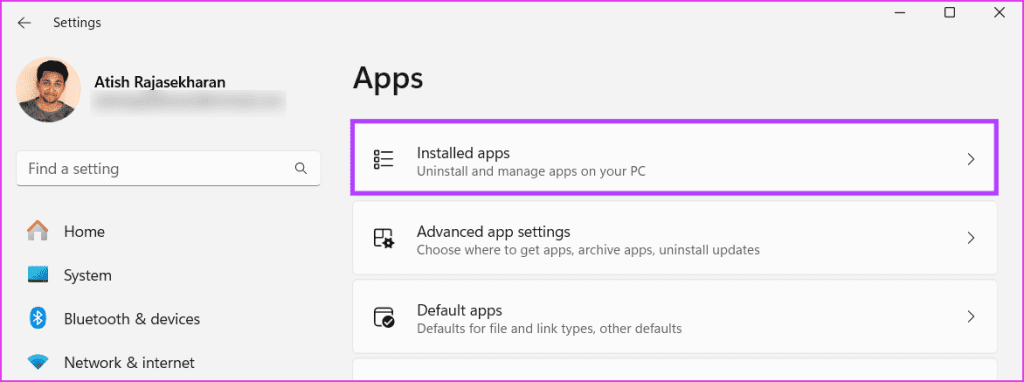
Step 2: In the search bar, type Logitech G Hub. Click on the three vertical dots > select Uninstall > follow the on-screen prompts to complete the uninstallation.

If the issue persists, the keyboard most likely has a hardware problem. So, consider contacting your keyboard manufacturer or replacing the keyboard.
Was this helpful?
Last updated on 04 September, 2024
1 Comment
Leave a Reply
Read Next
 5 Ways to Fix Keyboard Auto-Typing on Windows
Note: The steps executed in this article are on Windows 11.
5 Ways to Fix Keyboard Auto-Typing on Windows
Note: The steps executed in this article are on Windows 11.
 3 Fixes for Keyboard Typing Wrong Characters in Windows 11
Basic Fixes: Check for faults and replace the bad keyboard: Ensure the keyboard is not faulty.
3 Fixes for Keyboard Typing Wrong Characters in Windows 11
Basic Fixes: Check for faults and replace the bad keyboard: Ensure the keyboard is not faulty.
 6 Ways to Fix Keyboard Typing Lag on Android
Basic Fixes: Let your phone cool down: After a long gaming season or extensive video recording, your Android phone might feel warm to touch on the sides.
6 Ways to Fix Keyboard Typing Lag on Android
Basic Fixes: Let your phone cool down: After a long gaming season or extensive video recording, your Android phone might feel warm to touch on the sides.
 Top 4 Ways to Fix Google Docs Voice Typing Not Working
Voice Typing is one of the many hidden features of Google Docs that people are yet to use regularly.
Top 4 Ways to Fix Google Docs Voice Typing Not Working
Voice Typing is one of the many hidden features of Google Docs that people are yet to use regularly.
 5 Ways to Fix Microsoft Teams Delay When Typing
Fix 1: Close Background Apps Microsoft Teams may sometimes cause high CPU and memory usage, which could easily lead to lag problems.
5 Ways to Fix Microsoft Teams Delay When Typing
Fix 1: Close Background Apps Microsoft Teams may sometimes cause high CPU and memory usage, which could easily lead to lag problems.
 How to Fix Typing Indicator Not Showing on Instagram
Basic Fixes Force quit and relaunch Instagram: You can force quit and relaunch the app to give it a fresh start, especially if it has been running in the background
How to Fix Typing Indicator Not Showing on Instagram
Basic Fixes Force quit and relaunch Instagram: You can force quit and relaunch the app to give it a fresh start, especially if it has been running in the background
 How to Hide Android On-Screen Keyboard When Using External Keyboard
Google understands that multiple users connect physical keyboards to their Android devices.
How to Hide Android On-Screen Keyboard When Using External Keyboard
Google understands that multiple users connect physical keyboards to their Android devices.
 How to Use Voice Typing on Google Docs on Mobile and Desktop
While Google Docs is primarily geared toward drafting formal letters, invites, meeting notes, and table of contents, you can also use it to jot down ideas or as a journal.
How to Use Voice Typing on Google Docs on Mobile and Desktop
While Google Docs is primarily geared toward drafting formal letters, invites, meeting notes, and table of contents, you can also use it to jot down ideas or as a journal.
The article above may contain affiliate links which help support Guiding Tech. The content remains unbiased and authentic and will never affect our editorial integrity.

I installed another keyboard, it works fine
I also installed this board on another device and it works fine.
window 7