Basic Fixes
- Disable VPN: An active VPN connection may change your location to show incorrect weather app data. Head to iPhone Settings > General > VPN & Device Management, and disconnect the VPN.
- Change the Weather app temperature unit: The Weather app data won’t look accurate if you’ve picked an incorrect temperature unit. Switch it from iPhone Settings > Weather > Temperature Unit.
- Update or reinstall the Weather app: Head to the Apple App Store, search Weather, and tap Update (if available). Alternatively, long-tap the Weather app icon and select Remove app, followed by reinstalling it from the App Store.
- Update iOS: Open the Settings app, select General, and tap Software Update. Select Install to update iOS to the latest version.
Fix 1: Adjust Location Services for the Weather App
The iPhone Weather app may not show accurate data without continuous access to location services. Head to your device settings to check and enable it at all times.
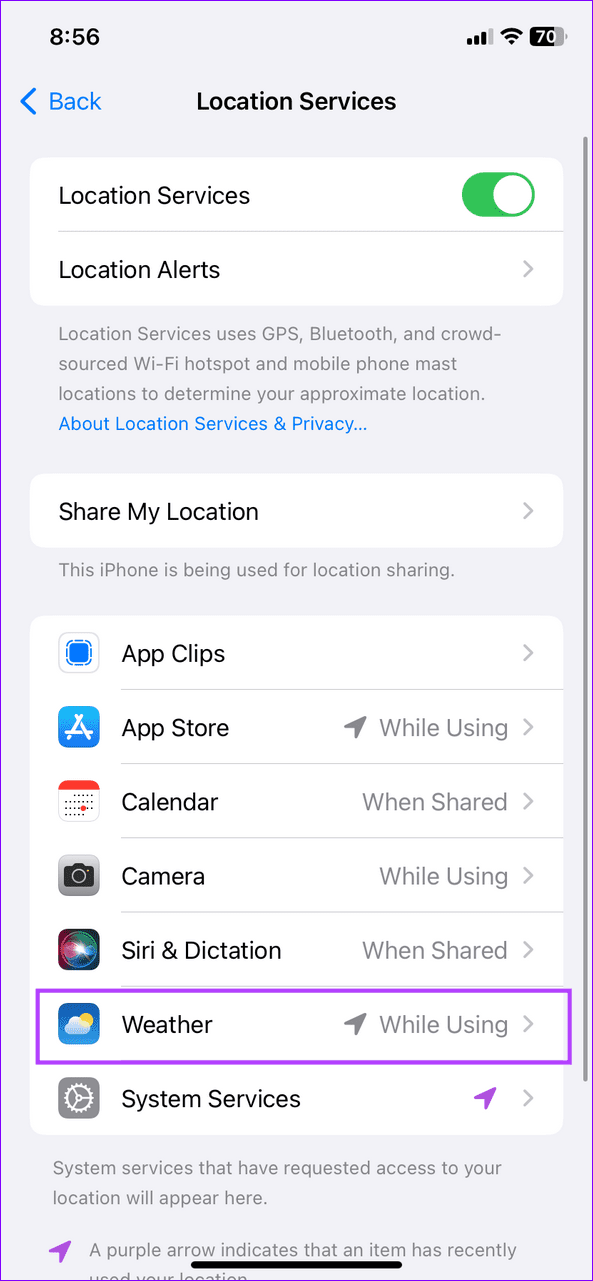
Step 1: Open the Settings app, select Privacy & Security, and tap Location Services.


Step 2: Select Weather and set ‘Allow Location Access’ to Always.

Fix 2: Turn on Precise Location for Weather
If the Weather app on your iPhone isn’t picking your correct location, enable its ‘Precise Location’ feature to track your exact location for delivering accurate weather information.
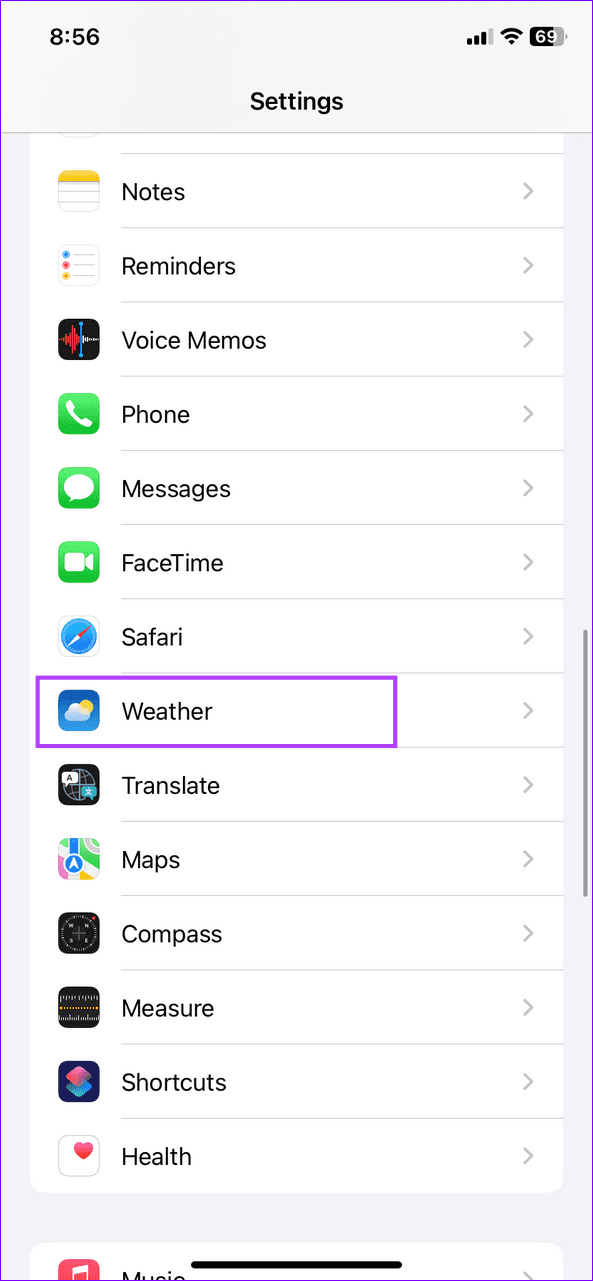
Step 1: Open iPhone Settings, select Weather, and tap Location.
Step 2: Toggle on Precise Location to enable it.


Fix 3: Reset Network Settings
Lastly, incorrect network settings can malfunction the iPhone Weather app to show inaccurate data. Reset them manually to restore the normal functioning.
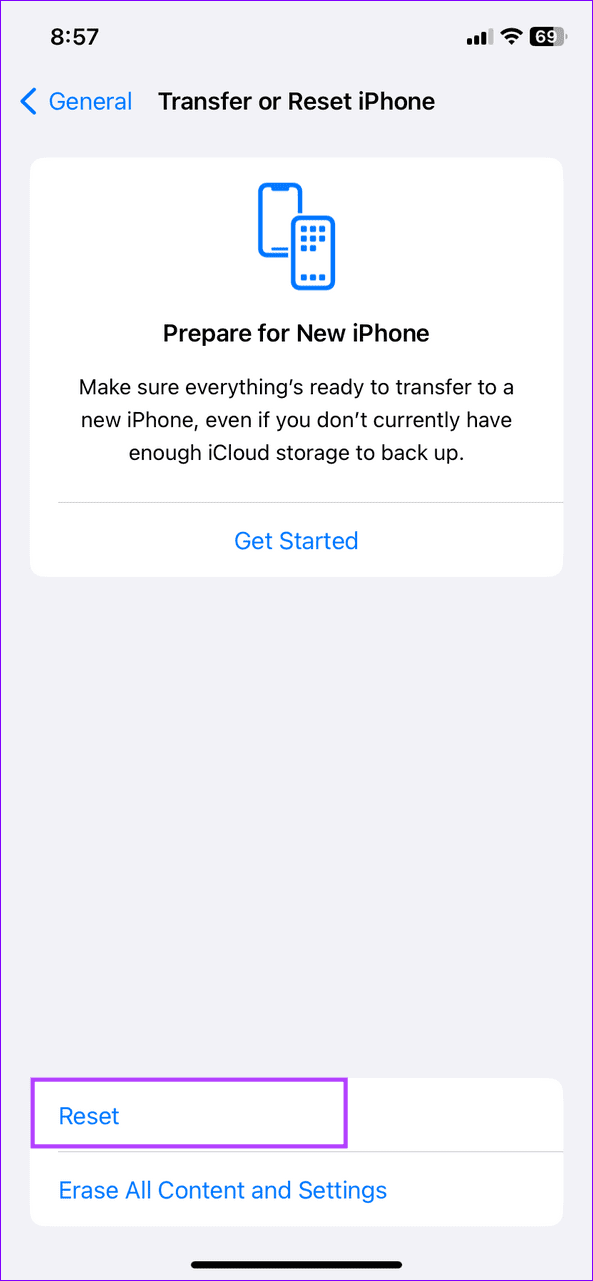
Step 1: Select General under iPhone settings and tap Transfer or Reset iPhone.
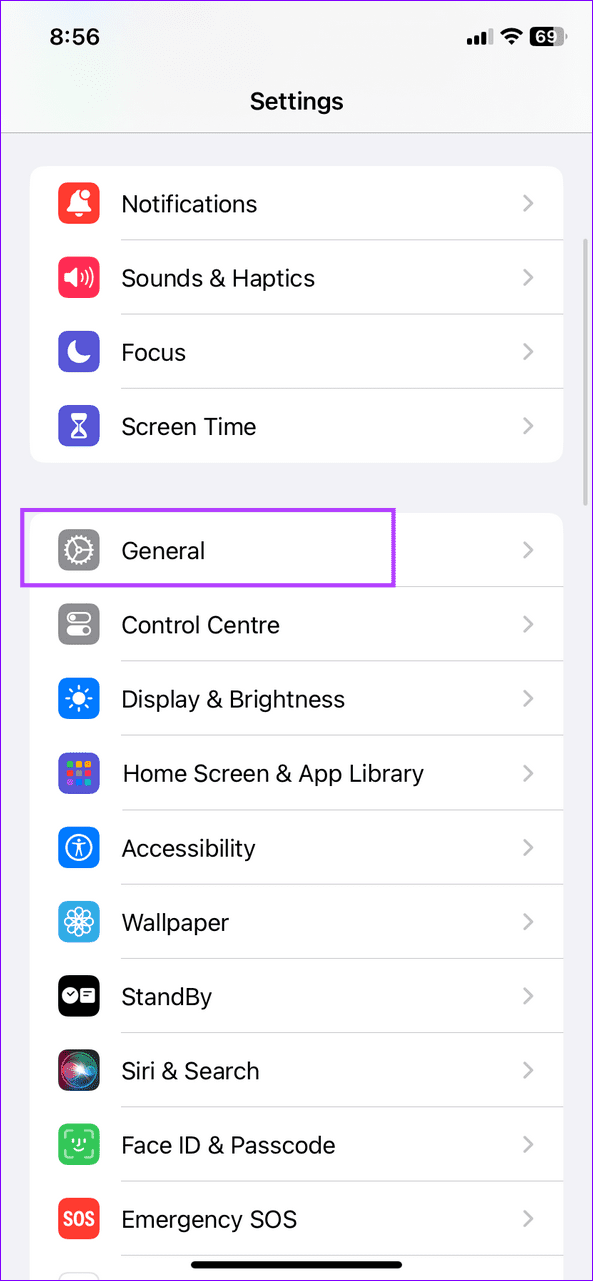

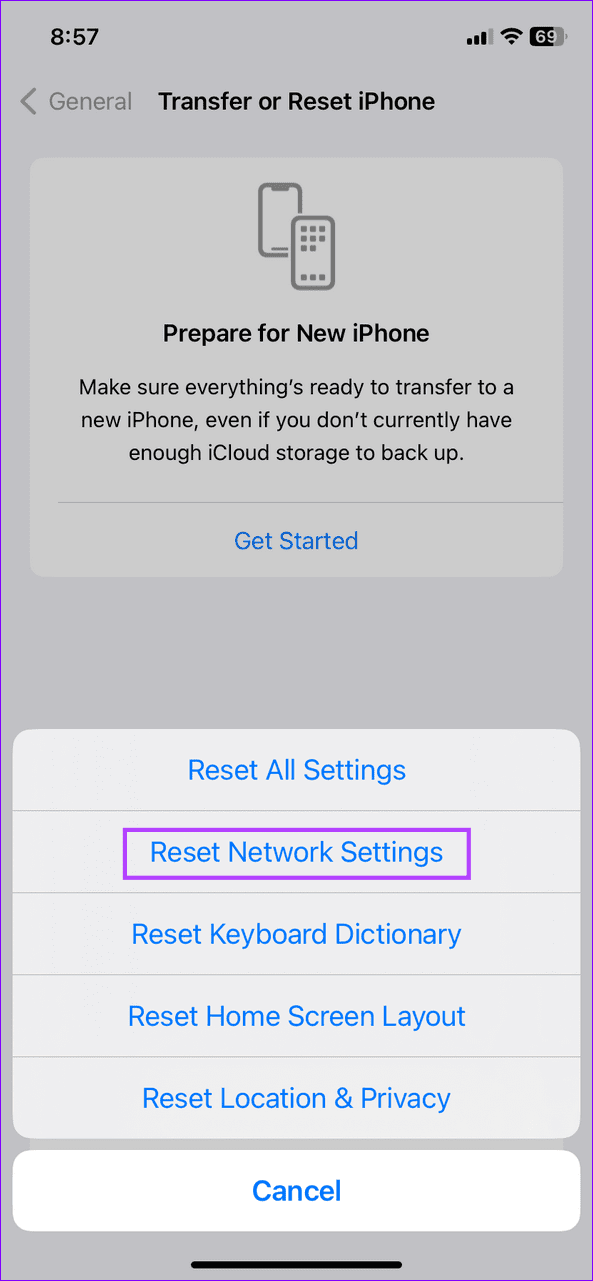
Step 2: Tap Reset and select Reset Network Settings. Enter your device passcode when prompted to confirm it.
Was this helpful?
Last updated on 16 July, 2024
Read Next
 3 Ways to Fix Apple Weather App Not Working on iPhone
Basic Fixes: Check the Apple system status page: Before starting, it is worth checking Apple's System Status.
3 Ways to Fix Apple Weather App Not Working on iPhone
Basic Fixes: Check the Apple system status page: Before starting, it is worth checking Apple's System Status.
 How to Use Apple Weather App on iPhone
How to Navigate and Read Apple Weather App Apple offers a pre-installed Weather app on iPhone.
How to Use Apple Weather App on iPhone
How to Navigate and Read Apple Weather App Apple offers a pre-installed Weather app on iPhone.
 6 Best Weather Widget Apps for iPhone
iOS 14 update brings much-needed customization options for iPhone users.
6 Best Weather Widget Apps for iPhone
iOS 14 update brings much-needed customization options for iPhone users.
 How to Change Weather Location on iPhone, iPad, or Apple Watch
If you own an iPhone or an Apple Watch, you probably know how convenient it is to check the weather forecast on these devices.
How to Change Weather Location on iPhone, iPad, or Apple Watch
If you own an iPhone or an Apple Watch, you probably know how convenient it is to check the weather forecast on these devices.
 4 Fixes for Location Not Updating in Weather App on Samsung Galaxy Phones
Basic Fixes Switch to 5G: To get the most accurate weather data, we suggest switching to 5G network on your Samsung phone.
4 Fixes for Location Not Updating in Weather App on Samsung Galaxy Phones
Basic Fixes Switch to 5G: To get the most accurate weather data, we suggest switching to 5G network on your Samsung phone.
 How to Add Date, Time and Weather to Your Phone’s Home Screen
How to Show Date, Time, and Weather on iPhone Home Screen You can do so, in the following two ways.
How to Add Date, Time and Weather to Your Phone’s Home Screen
How to Show Date, Time, and Weather on iPhone Home Screen You can do so, in the following two ways.
 4 Fixes for Apple Watch Weather Not Showing or Updating
Basic Fixes Check Apple Watch connectivity: Ensure your Apple Watch is connected to Wi-Fi and your iPhone via Bluetooth.
4 Fixes for Apple Watch Weather Not Showing or Updating
Basic Fixes Check Apple Watch connectivity: Ensure your Apple Watch is connected to Wi-Fi and your iPhone via Bluetooth.
 4 Fixes for Weather Widget Not Updating on Android
Basic Fixes Disable data saver: Open Settings > Network and internet > Disable Data saver.
4 Fixes for Weather Widget Not Updating on Android
Basic Fixes Disable data saver: Open Settings > Network and internet > Disable Data saver.
The article above may contain affiliate links which help support Guiding Tech. The content remains unbiased and authentic and will never affect our editorial integrity.