Try Basic Fixes
- Disable Low Power Mode: Is the Auto-Lock setting grayed out on your iPhone? That could happen if you have enabled Low Power Mode on your iPhone. To turn it off, open the Settings app and tap on Battery. Then, turn off the toggle next to Low Power Mode.
- Install iOS updates: It’s always a good idea to keep your iPhone updated to the latest iOS version. If the problem you encounter is due to a bug, installing the latest iOS updates will help.
Fix 1: Check Auto-Lock Settings
Another thing you should do is ensure that the Auto-Lock feature is enabled on your iPhone. Here’s how to do it.
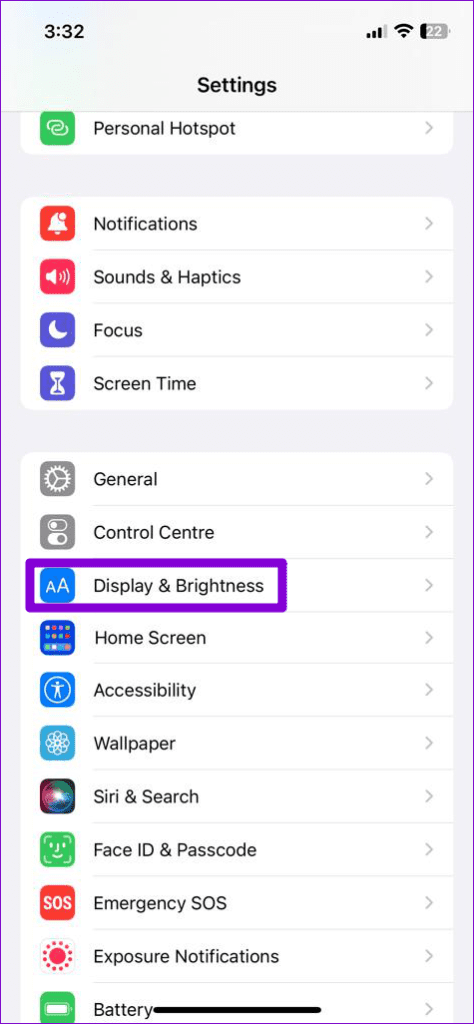
Step 1: Open the Settings app and scroll down to tap on Display & Brightness.
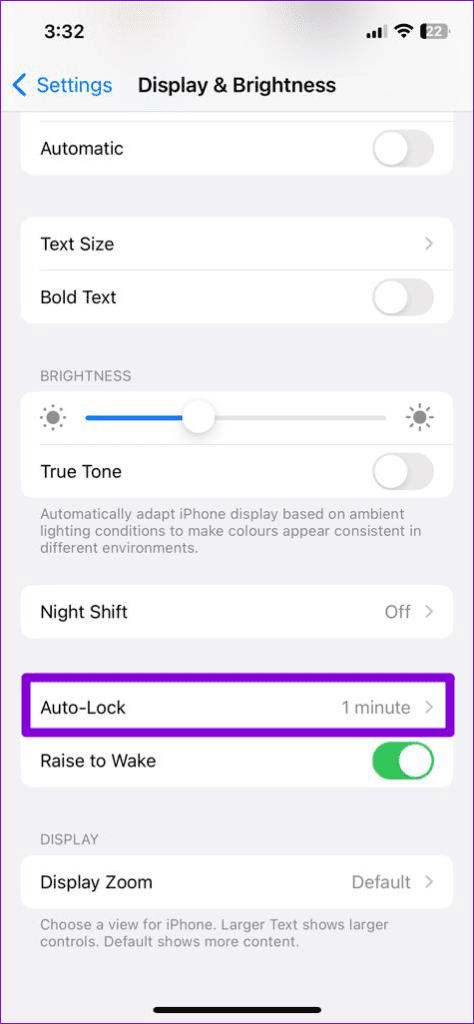
Step 2: Tap on Auto-Lock and select your preferred duration from the following menu.

Fix 2: Turn Off AssistiveTouch
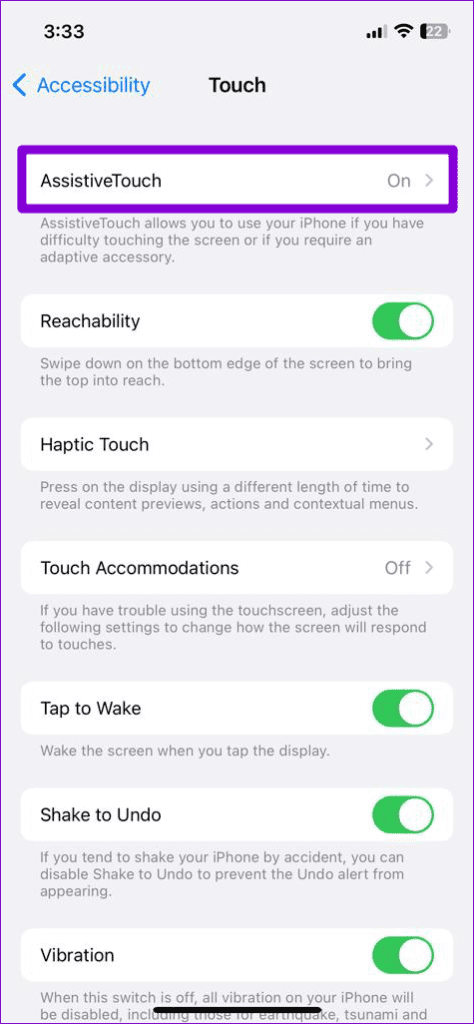
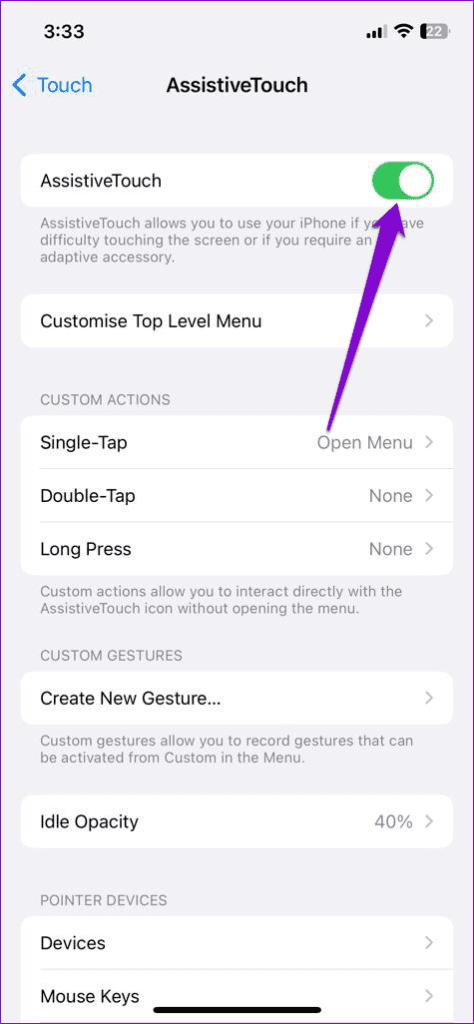
AssistiveTouch is a useful accessibility feature on your iPhone that lets you perform several potent tasks quickly. However, this feature can sometimes interfere with your iPhone’s ability to automatically lock the screen after inactivity. You can try turning this feature off to see if that helps.
Step 1: Open the Settings app on your iPhone.
Step 2: Tap on Accessibility and select Touch from the following screen.
Step 3: Tap on AssistiveTouch and turn the toggle off in the following menu.
Fix 3: Turn off Attention-Aware Features
Attention-Aware features on your iPhone use your front camera and sensors to detect when you are looking at the device. When enabled, these features can prevent the screen from dimming or the device from auto-locking when you are looking at the screen. This can give the impression that the Auto-Lock feature is not working on your iPhone.
To avoid any confusion, disable Attention Aware features on your iPhone using these steps:
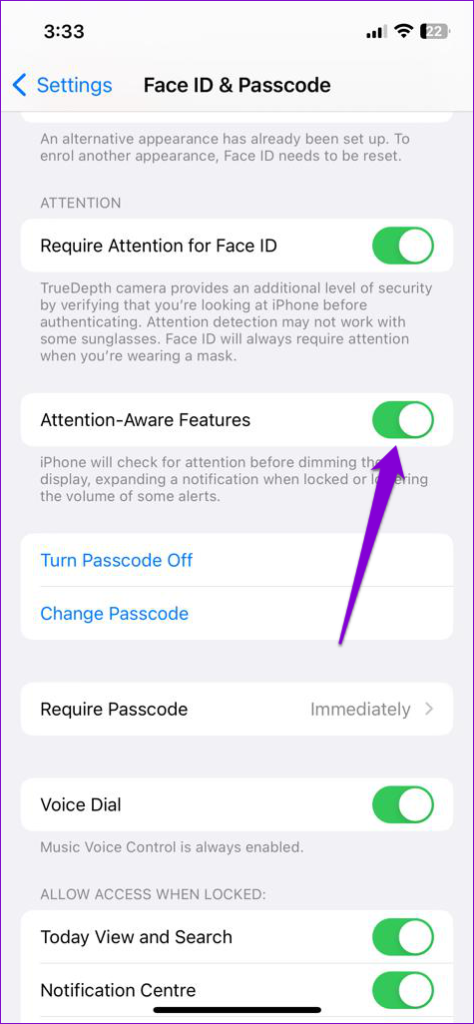
Step 1: Open the Settings app and scroll down to tap on Face ID & Passcode.
Step 2: Turn off the toggle for Attention-Aware Features.

Fix 4: Set Up the Passcode Again
If the problem persists, try disabling the passcode feature and setting it up again. Several users on the Apple forums reported fixing the issue with this trick, so you can give this method a shot.
Step 1: Open the Settings app on your iPhone.
Step 2: Scroll down to tap on Face ID & Passcode and enter your device passcode.
Step 3: Choose the Turn Passcode Off option and enter your passcode to confirm.
Step 4: Restart your iPhone, open the Settings app again, and head to Face ID & Passcode. Select Turn Passcode On and set up your passcode again.


Fix 5: Reset All Settings
Finally, if none of the above tips help, try resetting all the settings on your iPhone. This won’t affect your personal data, but it will restore all custom settings back to their default values.
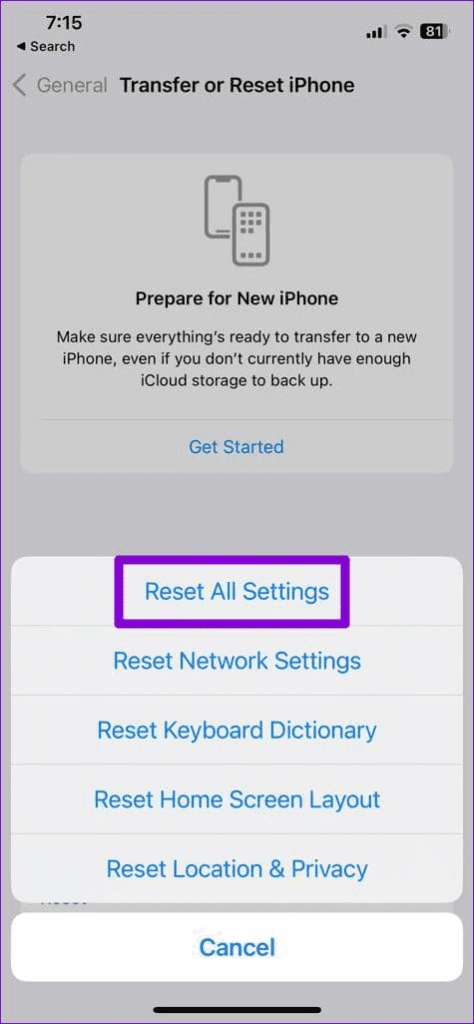
Step 1: Open the Settings app and go to General > Transfer or Reset iPhone.
Step 2: Tap on Reset and select Reset All Settings from the resulting menu.


Was this helpful?
Last updated on 03 September, 2024
Read Next
 3 Ways to Turn off Auto-Lock in Windows
Method 1: Turn Off Auto Lock Using Power and Sleep Settings Here's how you can modify your power and sleep settings on your Windows PC, and turn off auto lock.
3 Ways to Turn off Auto-Lock in Windows
Method 1: Turn Off Auto Lock Using Power and Sleep Settings Here's how you can modify your power and sleep settings on your Windows PC, and turn off auto lock.
 2 Ways to Fix Auto Rotate Not Working on iPhone
https://youtu.be/S_vIJ_3hn1s Try Basic Fixes Turn off the screen rotation lock: Ensure that the rotation lock is turned off on your iPhone: swipe down from the top right > tap the
2 Ways to Fix Auto Rotate Not Working on iPhone
https://youtu.be/S_vIJ_3hn1s Try Basic Fixes Turn off the screen rotation lock: Ensure that the rotation lock is turned off on your iPhone: swipe down from the top right > tap the
 3 Ways to Fix Auto Brightness Not Working on iPhone
Try Basic Fixes Remove the screen protector: Your iPhone uses the built-in ambient light sensor to detect your current lighting conditions and adjust the brightness accordingly.
3 Ways to Fix Auto Brightness Not Working on iPhone
Try Basic Fixes Remove the screen protector: Your iPhone uses the built-in ambient light sensor to detect your current lighting conditions and adjust the brightness accordingly.
 4 Fixes for Lock Screen Photo Shuffle Not Working on iPhone
Try Basic Fixes Force reboot your iPhone: If your iPhone becomes stuck on the loading or processing icon when you tap the Photo Shuffle option, it might be a minor
4 Fixes for Lock Screen Photo Shuffle Not Working on iPhone
Try Basic Fixes Force reboot your iPhone: If your iPhone becomes stuck on the loading or processing icon when you tap the Photo Shuffle option, it might be a minor
 5 Ways to Fix Lock Screen Notifications Not Showing on iPhone
https://youtu.be/GN5fvmB2-8I Try Basic Fixes Disable Low Power Mode and Low Data Mode: Enabling battery restrictions on your iPhone can stop notifications from working.
5 Ways to Fix Lock Screen Notifications Not Showing on iPhone
https://youtu.be/GN5fvmB2-8I Try Basic Fixes Disable Low Power Mode and Low Data Mode: Enabling battery restrictions on your iPhone can stop notifications from working.
 3 Ways to Fix iPhone Lock/Wake Screen Delay
https://youtu.be/94mfnn8hCSw Why Is There a Delay When Locking or Waking up Your iPhone If you have mapped a double/triple click shortcut to the power button of your iPhone, and when
3 Ways to Fix iPhone Lock/Wake Screen Delay
https://youtu.be/94mfnn8hCSw Why Is There a Delay When Locking or Waking up Your iPhone If you have mapped a double/triple click shortcut to the power button of your iPhone, and when
 5 Ways to Fix Blurry Home or Lock Screen Wallpaper on iPhone
Fix 1: Check if the Wallpaper Resolution Fits Your iPhone's Screen If you have downloaded a wallpaper, check its resolution and ensure that it matches the screen resolution of your
5 Ways to Fix Blurry Home or Lock Screen Wallpaper on iPhone
Fix 1: Check if the Wallpaper Resolution Fits Your iPhone's Screen If you have downloaded a wallpaper, check its resolution and ensure that it matches the screen resolution of your
 4 Ways to Fix Dynamic Lock Not Working on Windows 11
Basic Fixes Re-pair your Bluetooth device: Press the Windows + I shortcut to open the Settings app, select Bluetooth & devices from the left sidebar, and click Devices.
4 Ways to Fix Dynamic Lock Not Working on Windows 11
Basic Fixes Re-pair your Bluetooth device: Press the Windows + I shortcut to open the Settings app, select Bluetooth & devices from the left sidebar, and click Devices.
The article above may contain affiliate links which help support Guiding Tech. The content remains unbiased and authentic and will never affect our editorial integrity.