Basic Fixes:
- Close and restart the relevant app: Tap on the text field within the app to access the on-screen keyboard. However, if the iPad keyboard isn’t popping up, close and reopen the app and try again.
- Restart your iPad: Rebooting your iPad quickly fixes common software glitches on it. Do this if you can’t use the keyboard in multiple apps on your iPad.
- Check for iPadOS updates: A software glitch can cause issues with your iPad keyboard. So, you must install the latest iPadOS updates on your iPad and try using the keyboard again.
Fix 1: Remove Any External Keyboard
If you enable Bluetooth on your iPad, it may connect to a previously connected external keyboard. If so, the on-screen keyboard may not show up on your iPad. In this case, you can remove any such keyboards from the Bluetooth menu and try using the iPad keyboard again. Here’s how to do it.
Step 1: Open the Settings app and go to Bluetooth. Tap the info menu beside the relevant keyboard.
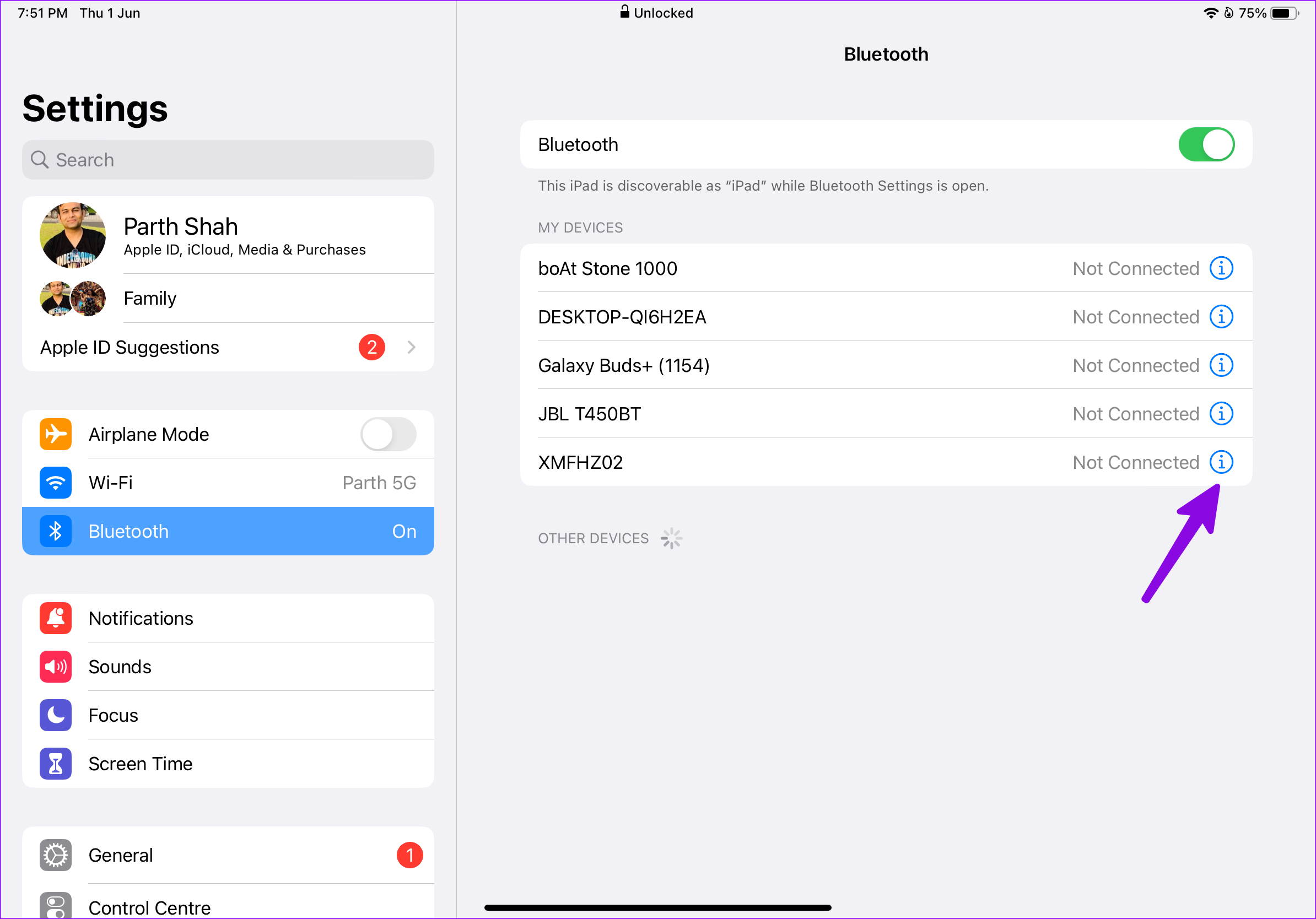
Step 2: Here, tap on Forget This Device to remove this device from your iPad.

Fix 2: Manually Select the On-Screen Keyboard
If you’re using a Bluetooth keyboard with your iPad and want to use the on-screen keyboard instead, you must manually switch to the on-screen keyboard. This should make the keyboard appear on your iPad’s screen. Follow the below steps to do it.
Step 1: In the relevant application, tap the keyboard icon at the bottom.

Step 2: Tap on Show Keyboard to make the on-screen keyboard appear on your iPad.

Also Read: How to fix swipe swipe keyboard not working on iPhone and iPad
Fix 3: Disable Third-Party Keyboards
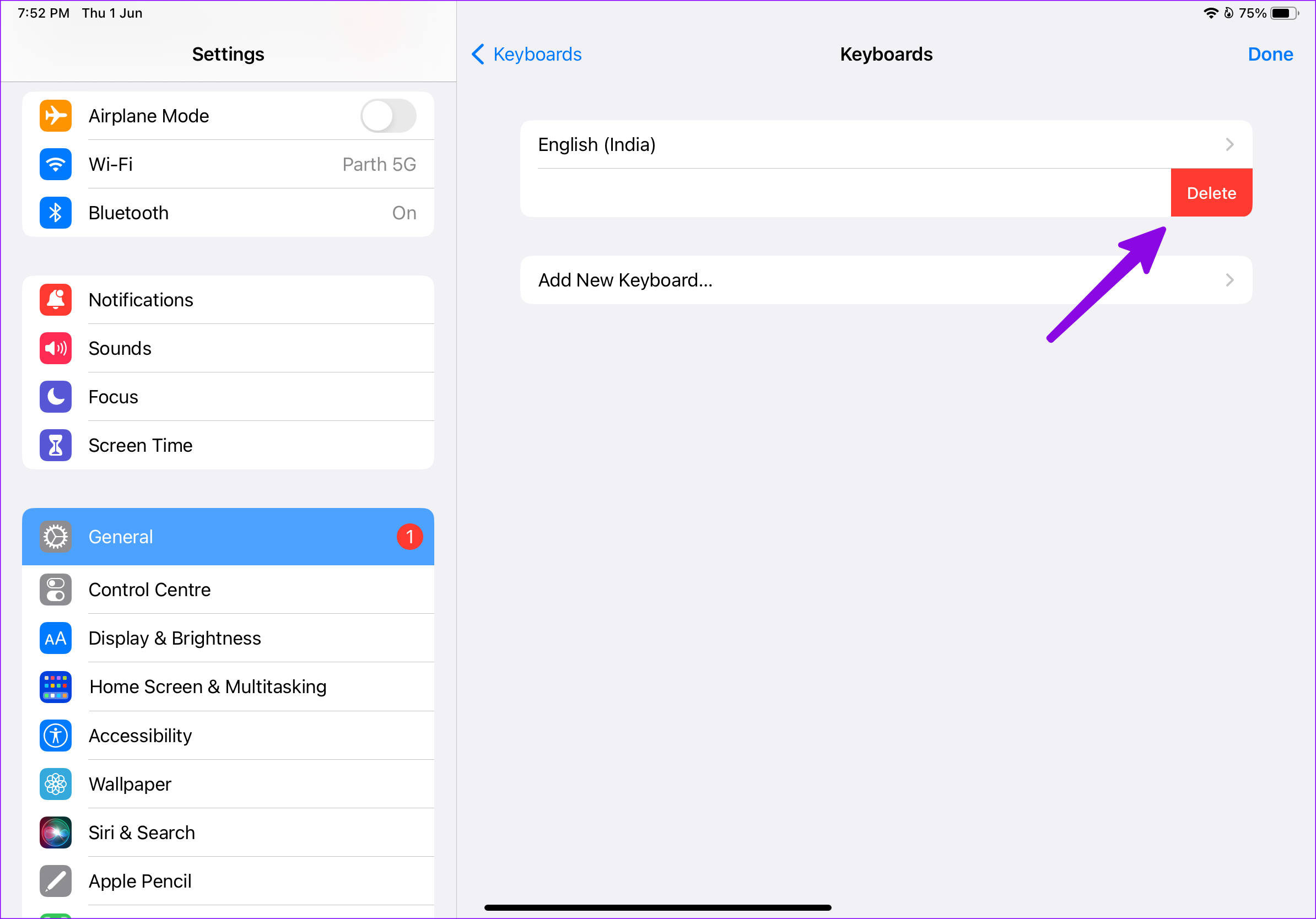
iPadOS supports Gboard, SwiftKey, and other third-party keyboard apps from the App Store. Using one of such apps may create issues with the stock keyboard. When this happens, disable or remove third-party keyboard apps from your iPad. Here’s how to do it.
Step 1: Open the Settings app > tap on General > select Keyboard.

Step 2: Tap on Keyboards and swipe left on the keyboard you want to remove. Tap on Delete.
Note: Repeat these steps to delete any other keyboard app from your iPad.
Fix 4: Reset the Keyboard Dictionary
Your iPad keyboard remembers your frequently used words and phrases. Sometimes, a large or corrupt keyboard dictionary leads to issues like the keyboard not showing up. iPadOS lets you reset keyboard settings, which is a handy trick to fix keyboard problems on your iPad. Here’s how to do it.
Step 1: Open the Settings app > tap on General > Transfer or Reset iPad.
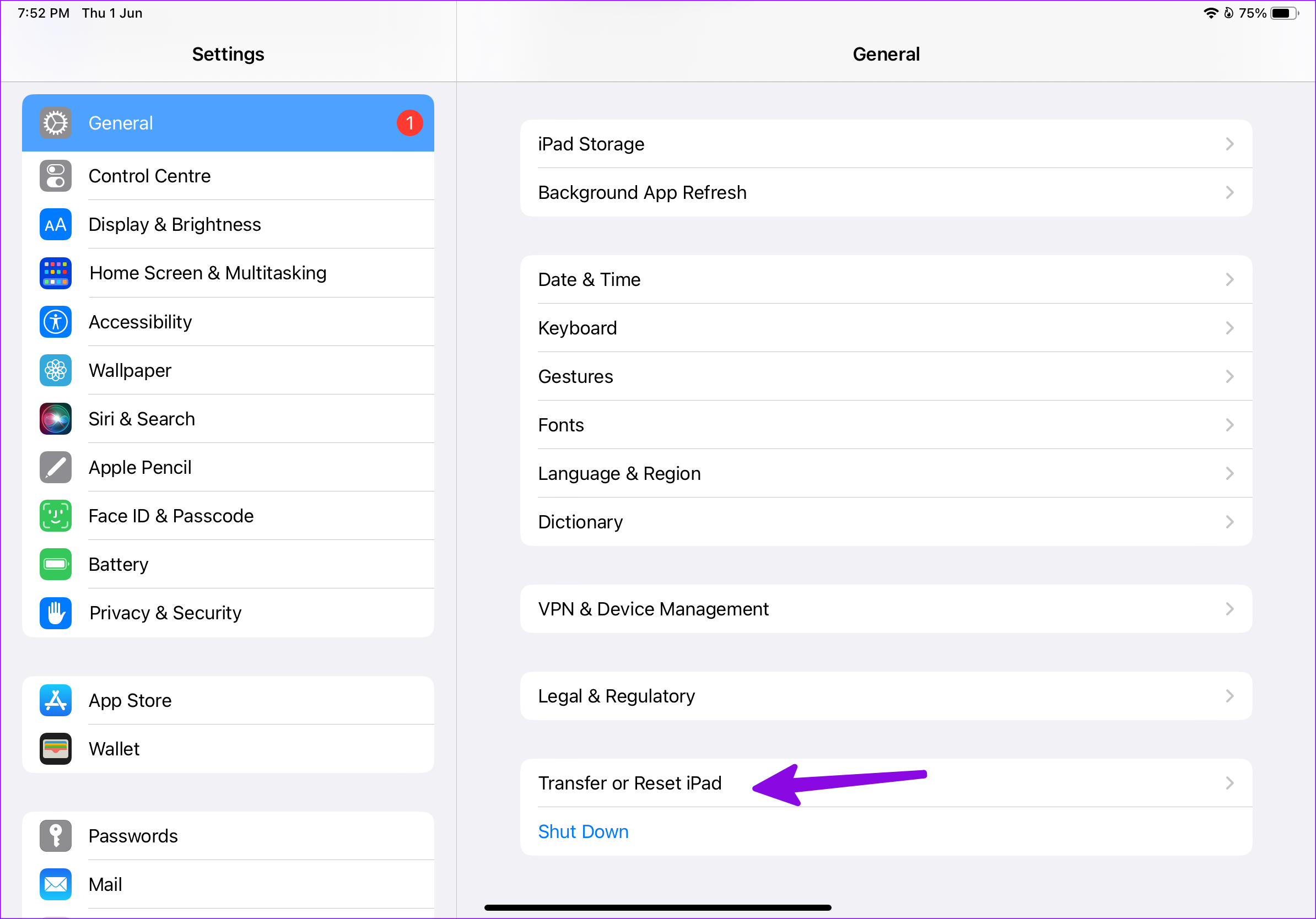
Step 2: Tap on Reset. From the options, tap on Reset Keyboard Dictionary. Follow the on-screen instructions to finish the reset process.

Alternative: Use a Macbook Keyboard for iPad
As a part of the Universal Control add-on, you can use your MacBook’s keyboard with your iPad. To do this, use the same Apple account on both devices, enable Bluetooth and Wi-Fi, and tweak relevant options. Once done, follow the steps below to use your MacBook’s keyboard with your iPad.
Step 1: Click on the Control Center icon at the top-right corner to expand the Display menu.

Step 2: From the options, select your iPad.

This should let you control your iPad with your MacBook. Use this method if you still face issues using your iPad’s keyboard or prefer the bigger keyboard layout.
Was this helpful?
Last updated on 20 May, 2024
Read Next
 8 Ways to Fix iPhone Keyboard Not Showing Up
Common Fixes Force restart your iPhone: Press and quickly release the volume up, followed by the volume down button.
8 Ways to Fix iPhone Keyboard Not Showing Up
Common Fixes Force restart your iPhone: Press and quickly release the volume up, followed by the volume down button.
 11 Best Ways to Fix Android Keyboard Not Showing Error
Does your Android phone keyboard fail to show up when you want to type in an important message or email?
11 Best Ways to Fix Android Keyboard Not Showing Error
Does your Android phone keyboard fail to show up when you want to type in an important message or email?
 4 Ways to Fix iPhone Calls Not Showing up on iPad
Basic Fixes: Connect to the same Wi-Fi network: For Apple Continuity to work flawlessly, you’ll need to connect your iPhone and iPad to the same Wi-Fi connection. Open the Control Center on
4 Ways to Fix iPhone Calls Not Showing up on iPad
Basic Fixes: Connect to the same Wi-Fi network: For Apple Continuity to work flawlessly, you’ll need to connect your iPhone and iPad to the same Wi-Fi connection. Open the Control Center on
 Top 9 Ways to Fix External Drive Not Showing Up on iPhone and iPad
With the introduction of the iPhone 15 series, both the iPhone and iPad lineup now sport a USB-C port.
Top 9 Ways to Fix External Drive Not Showing Up on iPhone and iPad
With the introduction of the iPhone 15 series, both the iPhone and iPad lineup now sport a USB-C port.
 How to Hide Android On-Screen Keyboard When Using External Keyboard
Google understands that multiple users connect physical keyboards to their Android devices.
How to Hide Android On-Screen Keyboard When Using External Keyboard
Google understands that multiple users connect physical keyboards to their Android devices.
 3 Fixes for Swipe Keyboard (Quickpath) Not Working on iPhone and iPad
Fix 1: Enable Slide to Type on iPhone You might have accidentally disabled the slide-to-type function on your iPhone.
3 Fixes for Swipe Keyboard (Quickpath) Not Working on iPhone and iPad
Fix 1: Enable Slide to Type on iPhone You might have accidentally disabled the slide-to-type function on your iPhone.
 6 Best iPad 9th Generation Keyboard Cases
The entry-level 9th generation iPad with its A13 Bionic chipset, 10.2-inch retina display, and iPadOS 15 is the best affordable iPad that Apple has ever launched.
6 Best iPad 9th Generation Keyboard Cases
The entry-level 9th generation iPad with its A13 Bionic chipset, 10.2-inch retina display, and iPadOS 15 is the best affordable iPad that Apple has ever launched.
 6 Best Keyboard Cases for Apple iPad Air 5th Generation
Apple's iPad Air is now more powerful than ever before.
6 Best Keyboard Cases for Apple iPad Air 5th Generation
Apple's iPad Air is now more powerful than ever before.
The article above may contain affiliate links which help support Guiding Tech. The content remains unbiased and authentic and will never affect our editorial integrity.