Preliminary Fixes
- Restart Instagram: Sometimes, a simple restart can resolve many app-related issues. Restarting Instagram can refresh its processes and potentially fix the problem.
- Some Music Tracks May Not Be Available: Not all music tracks are available on Instagram due to licensing restrictions. This might be why certain songs are not showing up in your Notes.
- Update Instagram: Using an outdated version of Instagram can cause various issues, including problems with features like Instagram Notes. Updating the app to the latest version can resolve these issues.
- Reinstall Instagram: Reinstalling the app can clear any corrupted data and provide a fresh start.
Method 1: Clear Instagram Cache
Instagram collects cache to improve app performance and overall fluidity. When it collects a corrupt cache, you may face issues with basic features.
Android
Step 1: Long press on the Instagram app and tap on App info option.
Step 2: Select Storage and cache. Then, tap Clear cache button.


iPhone
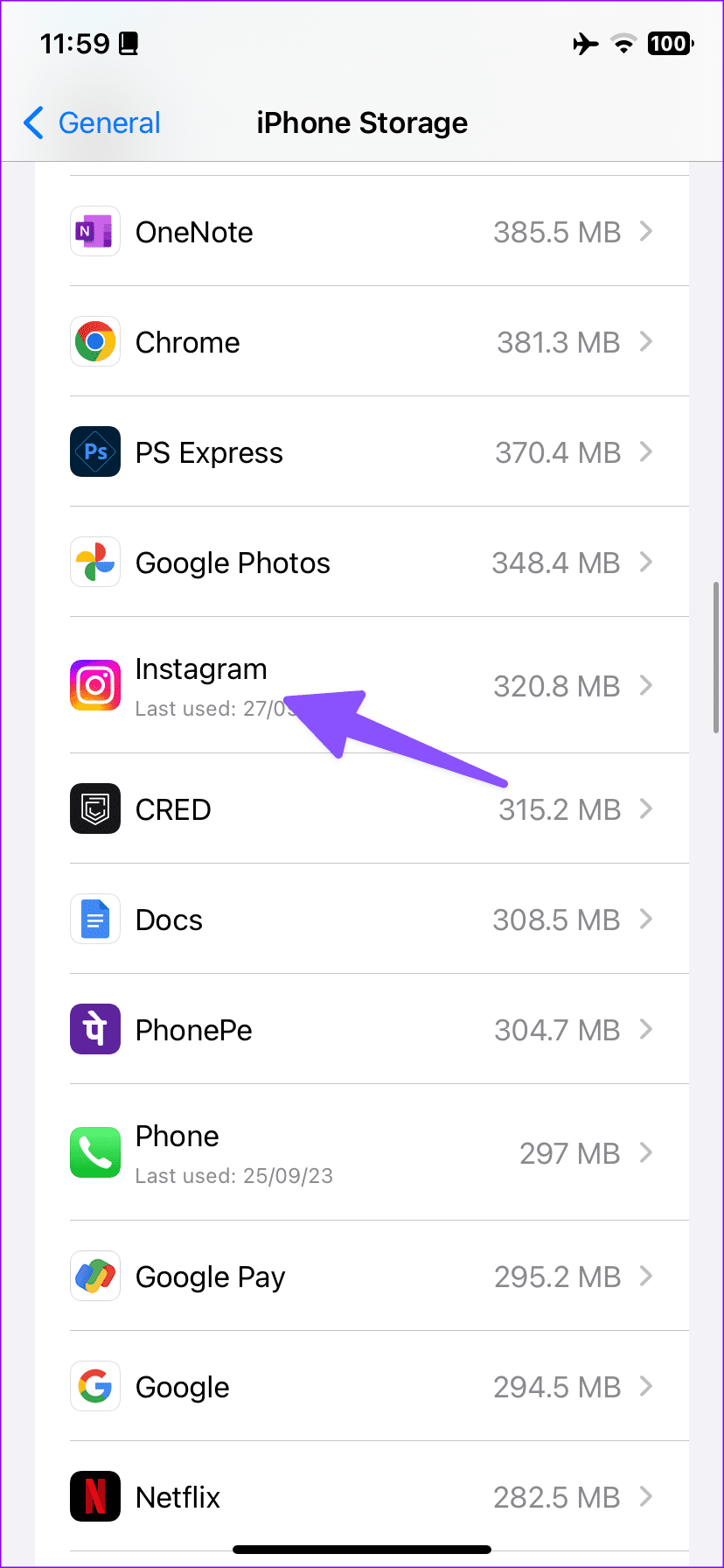
Step 1: Open the Settings app and tap General.
Step 2: Select iPhone Storage.


Step 3: Now, tap on Instagram.
Step 4: Select Offload App and tap Delete App.
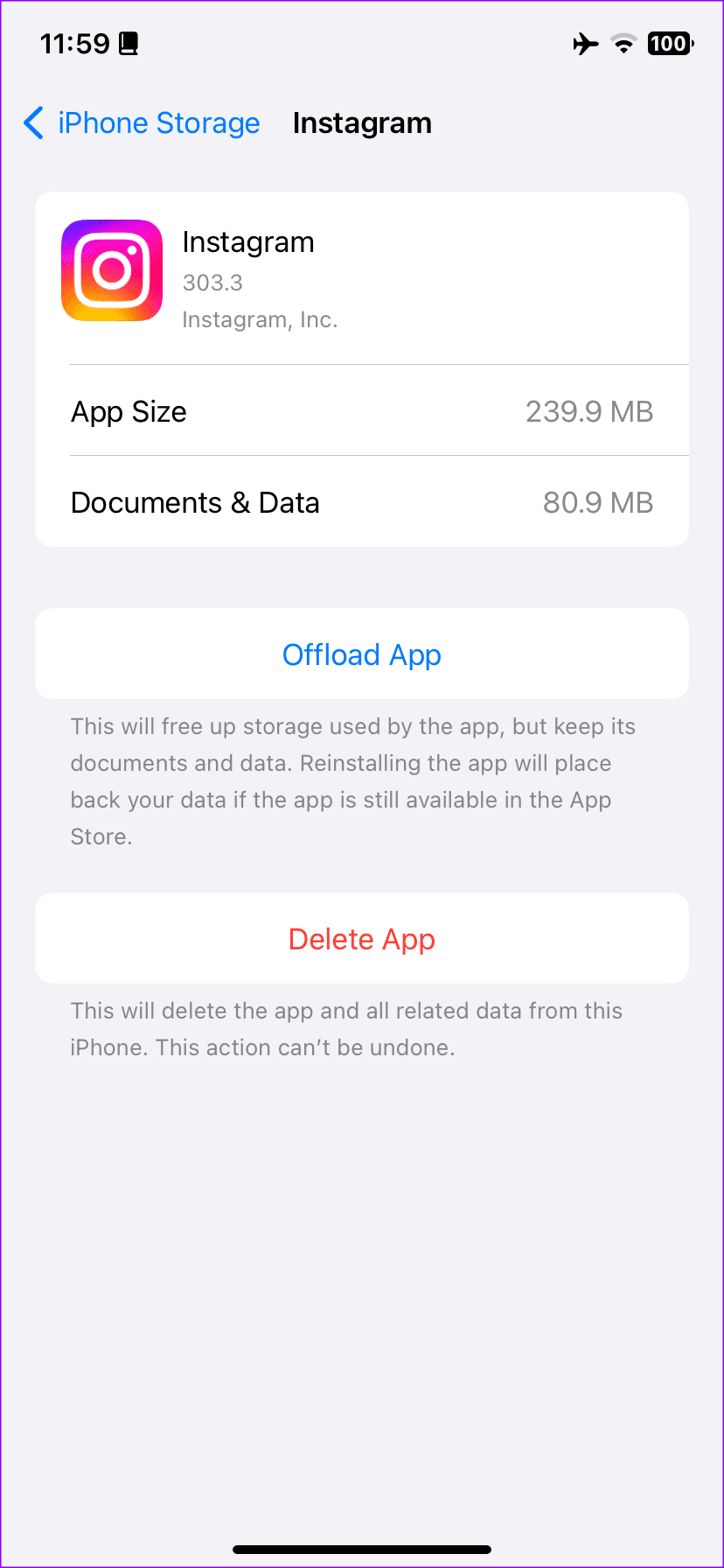
Download Instagram from the App Store and sign in with your account details. Check our dedicated post on the implications of clearing the Instagram cache.
Method 2: Authenticate your Account Again
Instagram music notes may become unavailable due to incorrect account details. You should log out from your Instagram account and log in again.
Step 1: Launch Instagram and tap the Profile icon at the bottom-right corner.
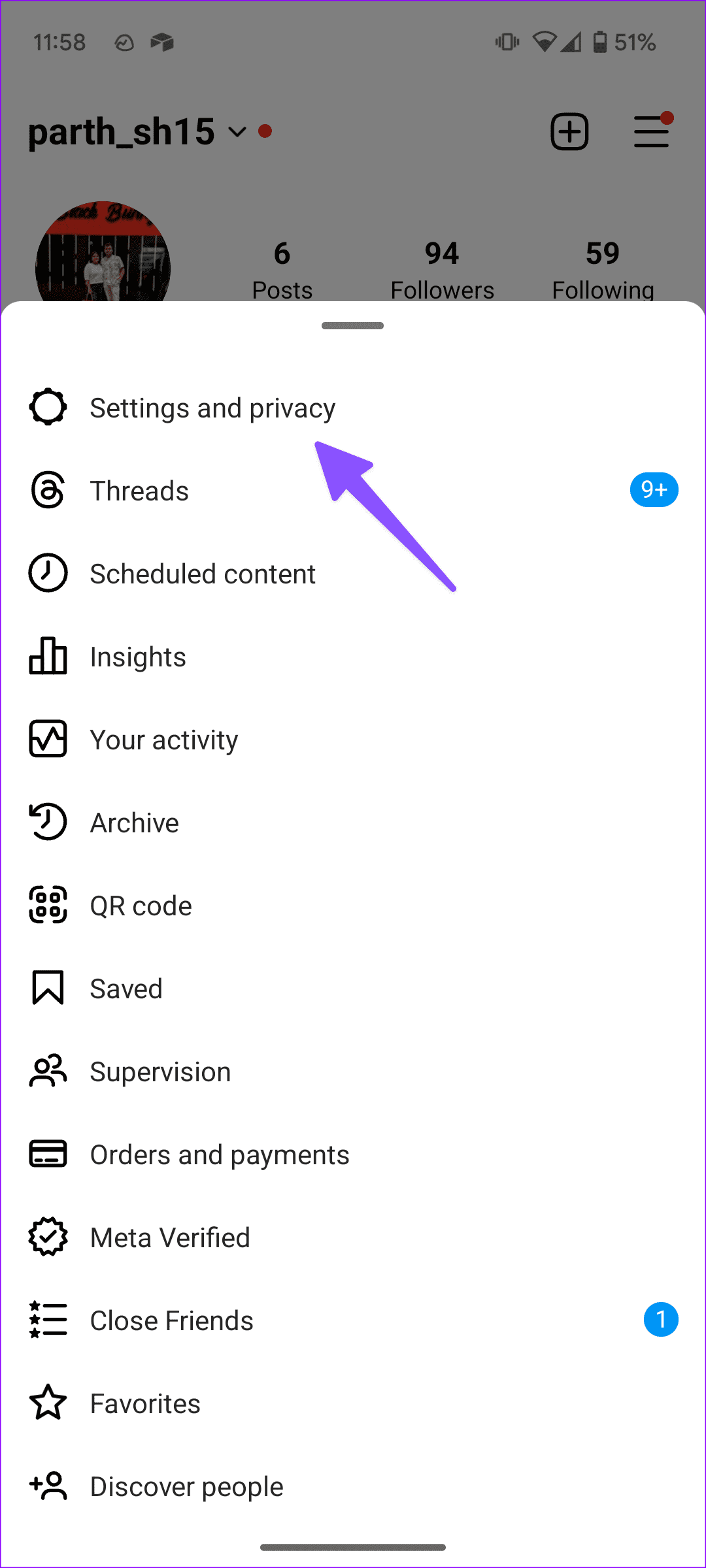
Step 2: Tap the hamburger menu and open Settings and privacy.
Step 3: Log out of your account and sign back in using account details.

Method 3: Your Account Is Shadowbanned
A shadowban is basically a silent restriction on your account that is put in when you abuse Instagram with too many likes, posts, comments, and messages. Once enabled, Instagram limits your post’s reach by hiding it from everyone else’s feeds, hashtags, and the Explore page.
If you suspect a shadowban, take a break from using suspicious hashtags and posting too frequently. Review Instagram’s Community Guidelines and focus on creating high-quality content. After a week or two of clean activity, your account should return to normal visibility.
When none of the tricks work, try using your Instagram account on another device and see if the music option shows up in the notes.
Was this helpful?
Last updated on 21 July, 2024
Read Next
 2 Ways to Fix Instagram Notes Not Showing
https://youtu.be/SaW3mPotaI8 Why Can't You See Notes on Instagram?
2 Ways to Fix Instagram Notes Not Showing
https://youtu.be/SaW3mPotaI8 Why Can't You See Notes on Instagram?
 8 Ways to Fix Add Music to Instagram Post Not Showing
Adding music enhances the vibe of an Instagram post.
8 Ways to Fix Add Music to Instagram Post Not Showing
Adding music enhances the vibe of an Instagram post.
 3 Ways to Transfer Playlists From YouTube Music to Apple Music
There are three services you can use to perform the transfer based on your preferences.
3 Ways to Transfer Playlists From YouTube Music to Apple Music
There are three services you can use to perform the transfer based on your preferences.
 4 Ways to Fix Instagram Not Showing Profile Picture
Basic Fixes Check internet connectivity: Ensure your device is connected to a Wi-Fi network or cellular data with good signal strength and an active plan.
4 Ways to Fix Instagram Not Showing Profile Picture
Basic Fixes Check internet connectivity: Ensure your device is connected to a Wi-Fi network or cellular data with good signal strength and an active plan.
 3 Ways to Fix Instagram Comments Not Showing on Android and iPhone
Try Basic Fixes Check Instagram’s server status: Server-side glitches could prevent Instagram from loading properly or display strange errors.
3 Ways to Fix Instagram Comments Not Showing on Android and iPhone
Try Basic Fixes Check Instagram’s server status: Server-side glitches could prevent Instagram from loading properly or display strange errors.
 How to Fix “Invite Collaborator” Not Showing on Instagram
Basic Fixes Avoid scheduling your post: Instagram can prevent users from scheduling their content if they have added someone as a collaborator.
How to Fix “Invite Collaborator” Not Showing on Instagram
Basic Fixes Avoid scheduling your post: Instagram can prevent users from scheduling their content if they have added someone as a collaborator.
 3 Ways to Fix Instagram Not Showing Last Active
Why Can't You See if Someone is Active on Instagram Not following each other: While you have the option to communicate in Instagram DM with anyone once they approve your
3 Ways to Fix Instagram Not Showing Last Active
Why Can't You See if Someone is Active on Instagram Not following each other: While you have the option to communicate in Instagram DM with anyone once they approve your
 3 Ways to Fix Downloaded Songs Not Showing on Apple Music
Basic Fixes Check internal storage: Your iPhone needs more internal storage to store downloaded songs.
3 Ways to Fix Downloaded Songs Not Showing on Apple Music
Basic Fixes Check internal storage: Your iPhone needs more internal storage to store downloaded songs.
The article above may contain affiliate links which help support Guiding Tech. The content remains unbiased and authentic and will never affect our editorial integrity.