Why Can’t You See if Someone is Active on Instagram
- Not following each other: While you have the option to communicate in Instagram DM with anyone once they approve your request, both of you should follow each other to see the Instagram active status.
- You haven’t communicated with them in DM: Instagram will only show the active status of an account once you start having a conversation with the person.
- Active Status limits you to the recent 25 chats: Even if you maintain contact to know their last seen, you can only view the active status of your last 25 conversations.
- Activity Status is disabled: If you or the other person has disabled active status on Instagram, you can’t view it.
- You have been restricted: If a user restricts you on Instagram, you can’t view their Activity Status.
- You are blocked: The other person might have blocked you on Instagram, hence restricting you from viewing the Activity status.
Basic Fixes
- Check if Instagram is down: Check if Instagram is facing downtime. If yes, wait for the platform to restore services.
- Check network connectivity: Ensure there are no problems with network connectivity on your device.
- Update Instagram: Update Instagram to the latest version on your Android or iOS device for a bug-free experience.
Fix 1: Enable Activity Status
If you have turned off Activity Status on Instagram, you can’t view someone else’s last seen either.
Step 1: Open the Instagram app and tap profile from the bottom right.
Step 2: Tap the hamburger icon in the top right corner.

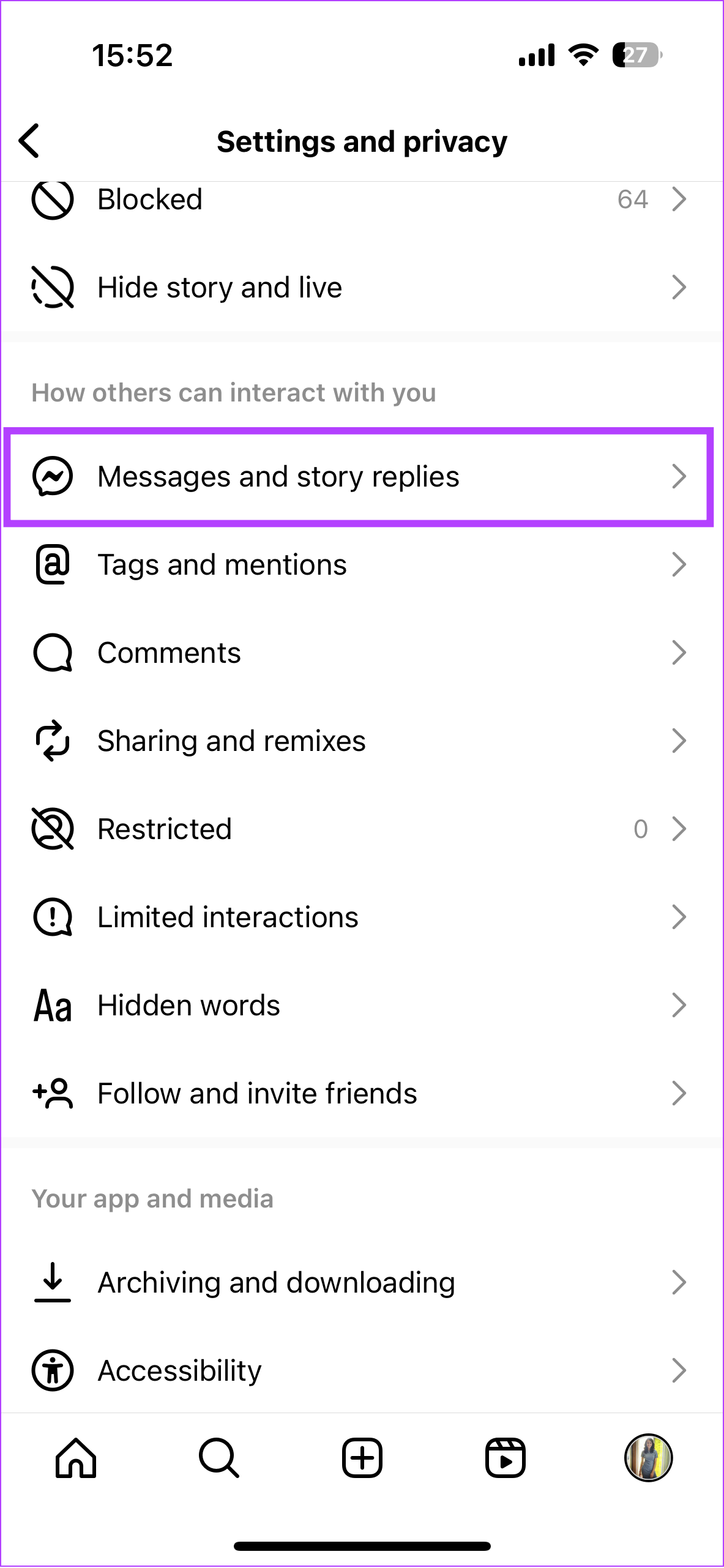
Step 3: Scroll down and select Messages and story replies.
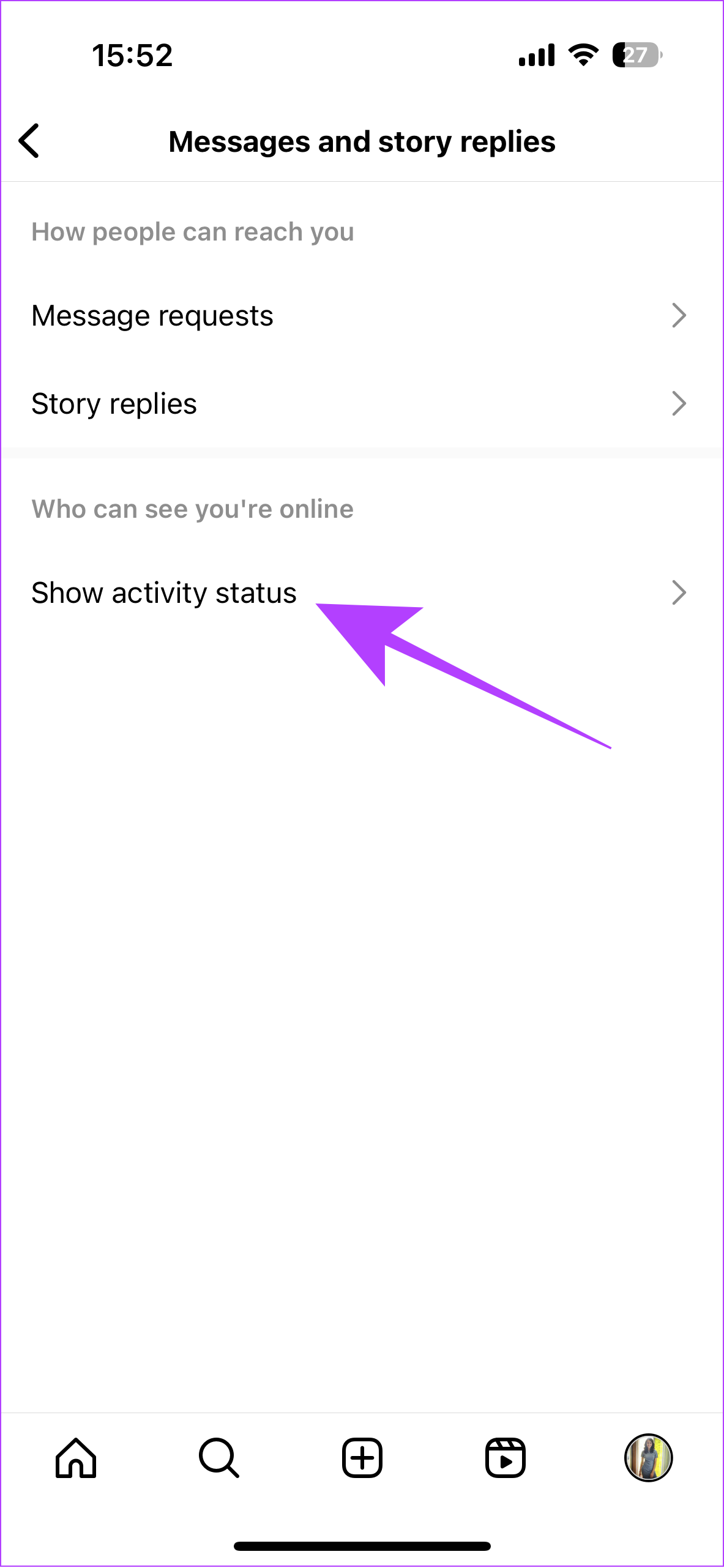
Step 5: Tap Show activity status.
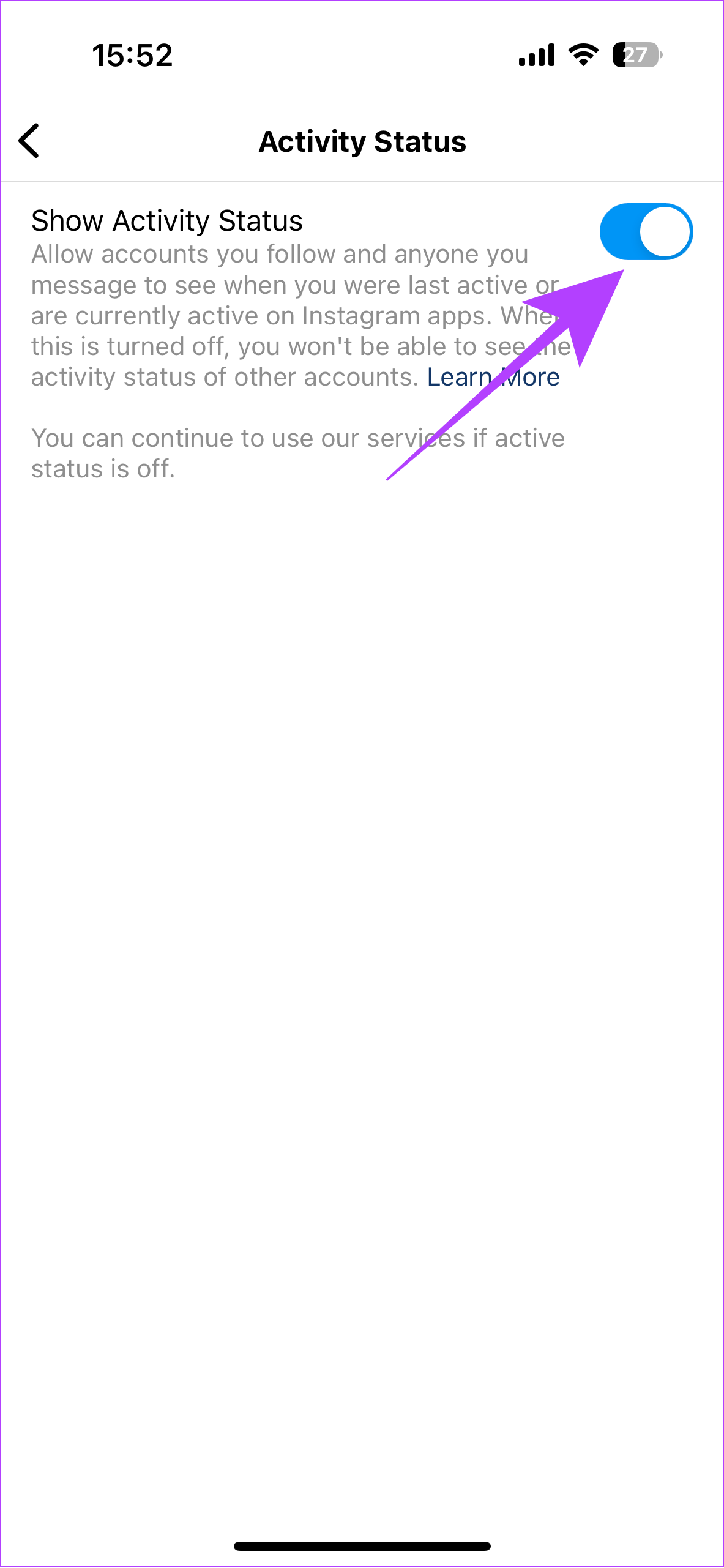
Step 6: Toggle on Show Activity Status.
Fix 2: Clear Cache
Clearing cache and junk files may resolve the issue with active status. You can check our guide on what happens when you clear your cache on Instagram for a better understanding.
On Android
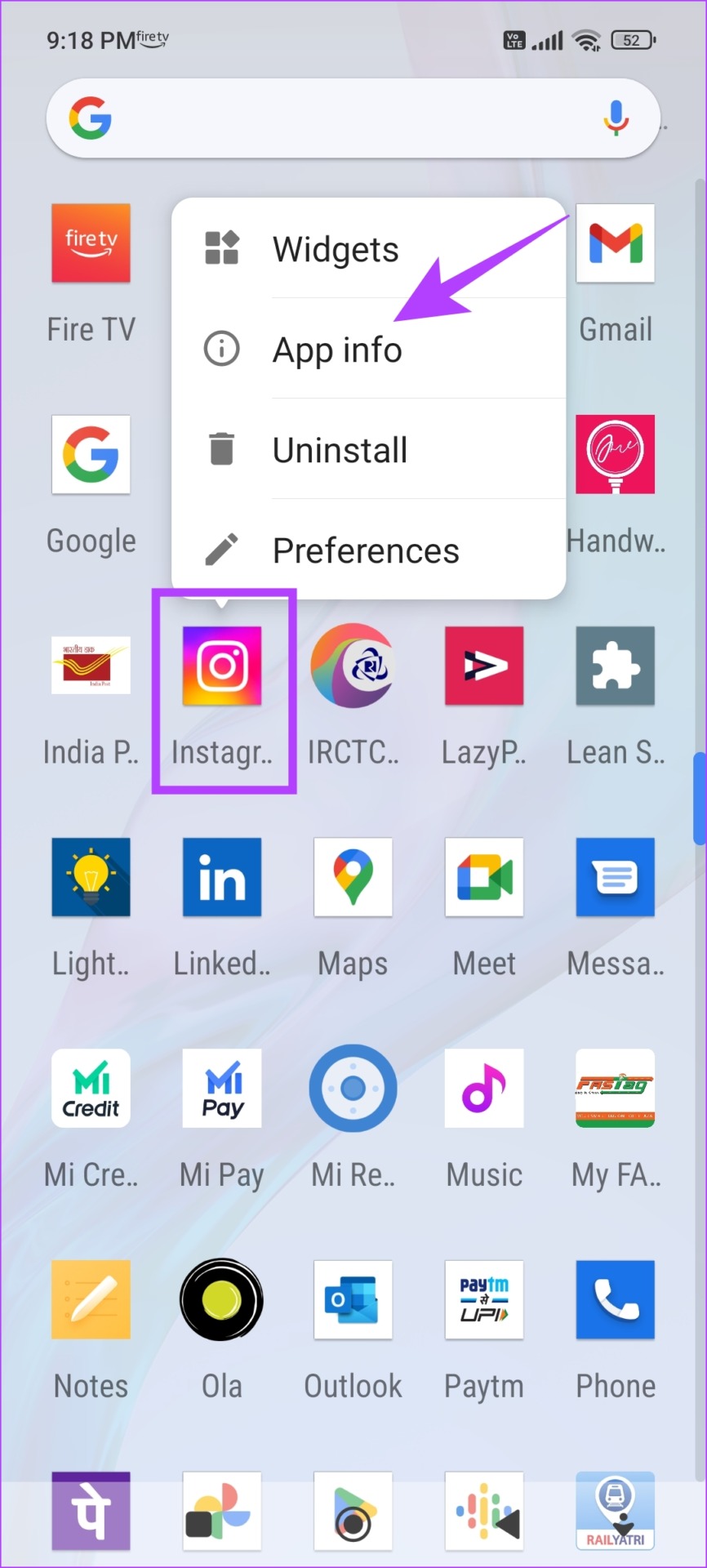
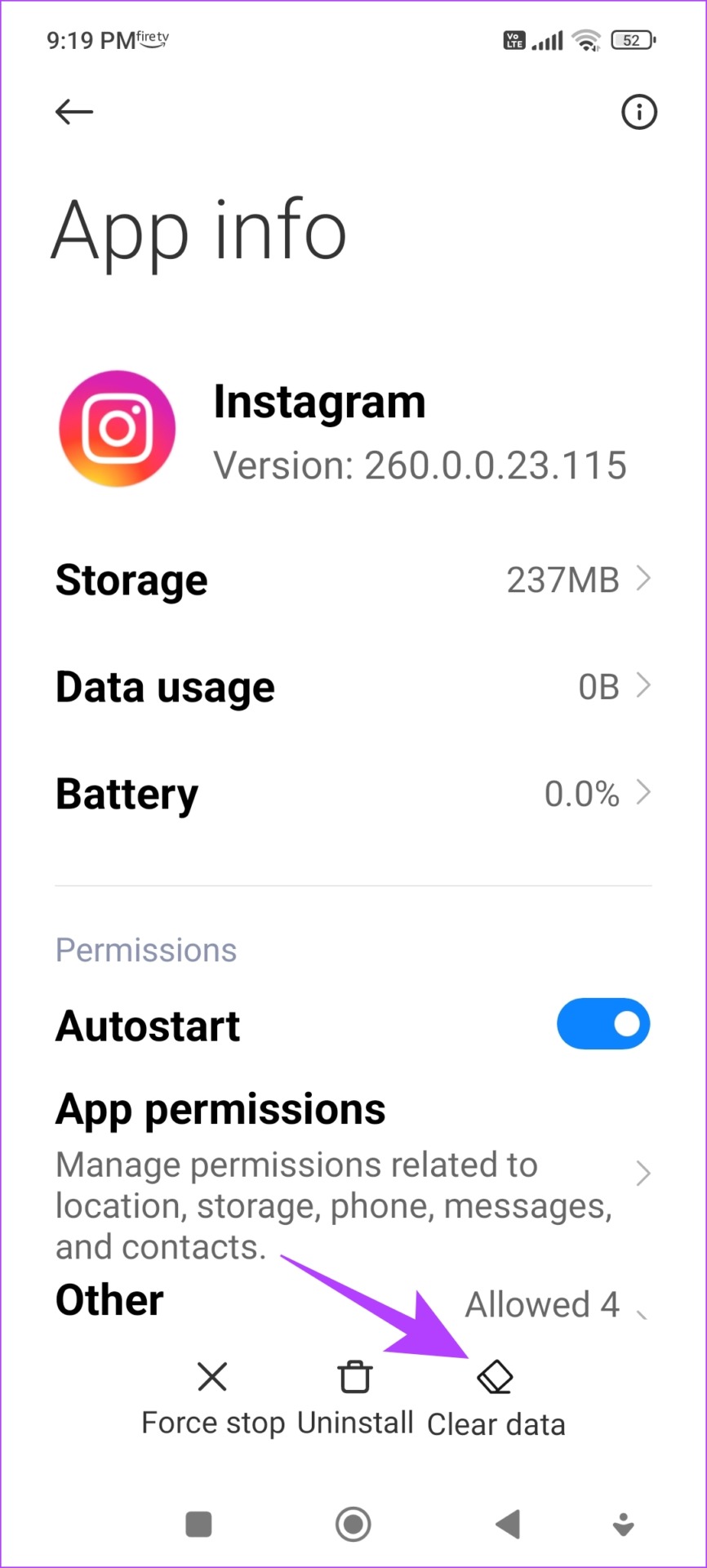
Step 1: Long-press the Instagram app on the home screen and tap on App info. Tap on Clear Data.
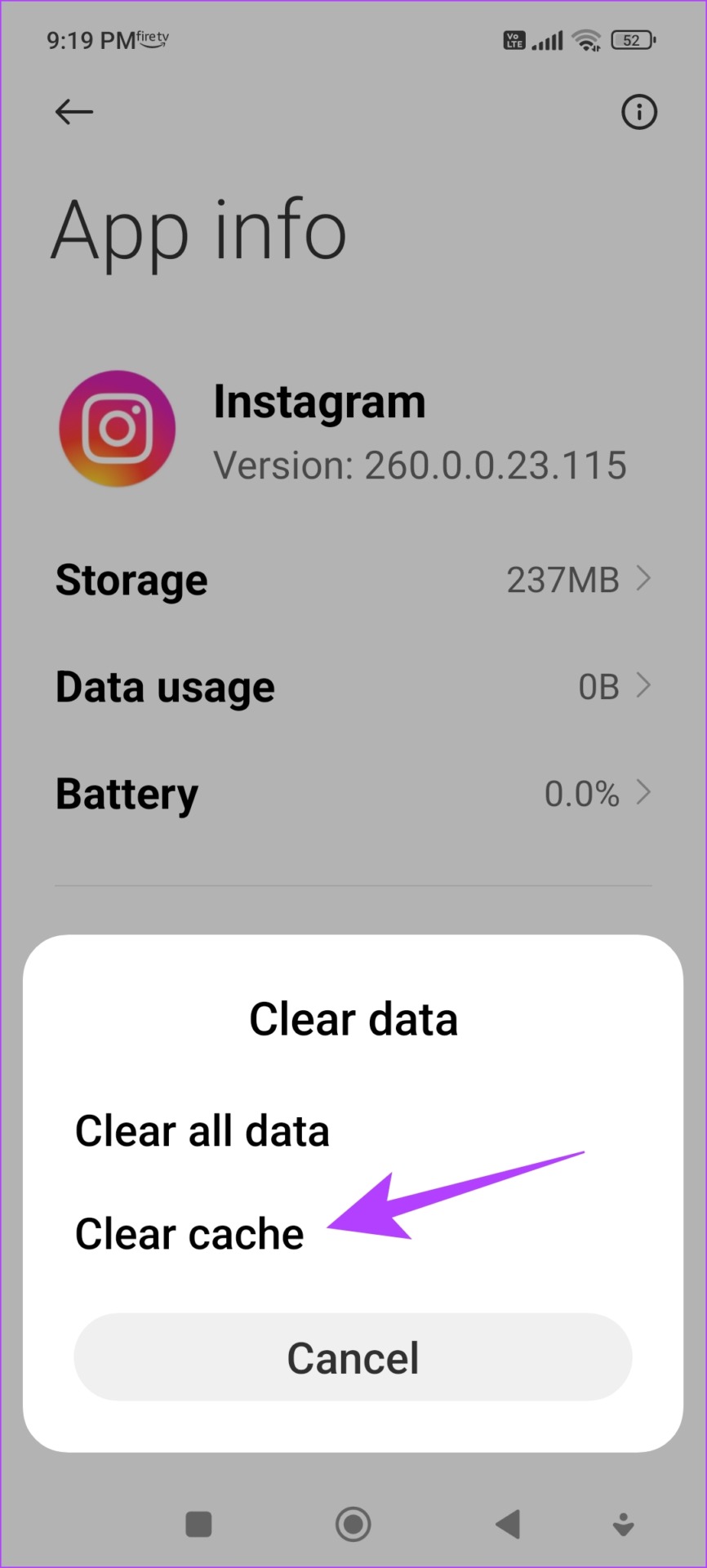
Step 2: Tap on Clear cache and select OK to confirm.
On iPhone
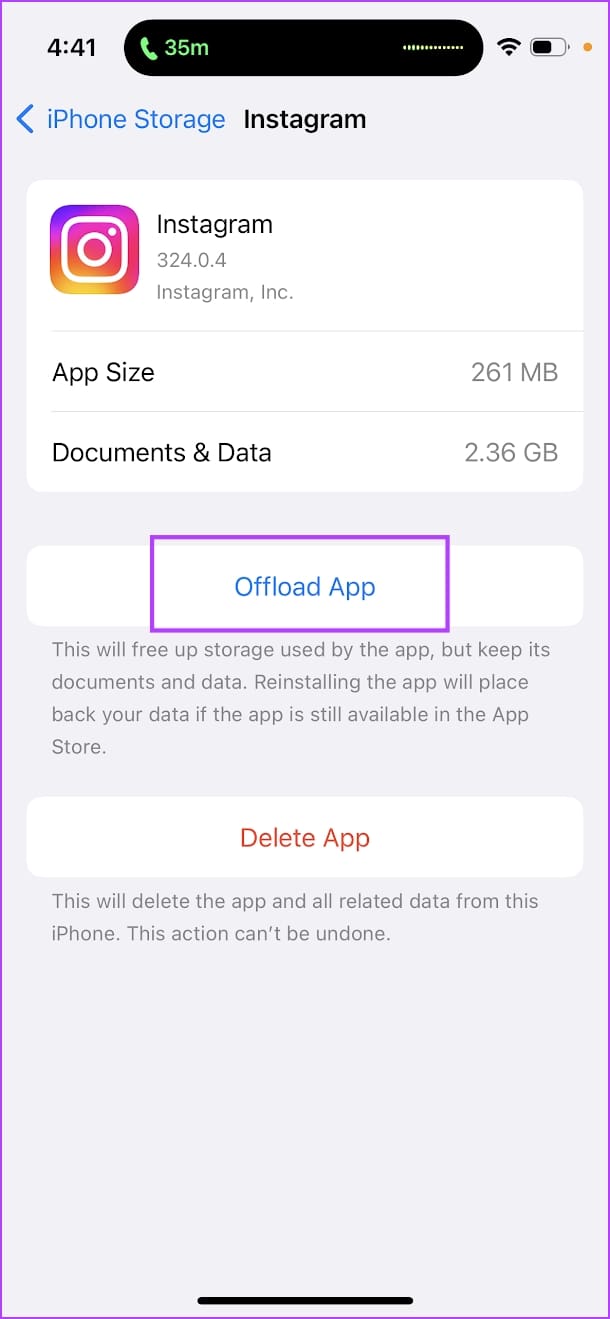
Offloading an application on your iPhone removes temporary data, including cache and junk files.
Step 1: Open the Settings app. Go to General -> iPhone Storage.
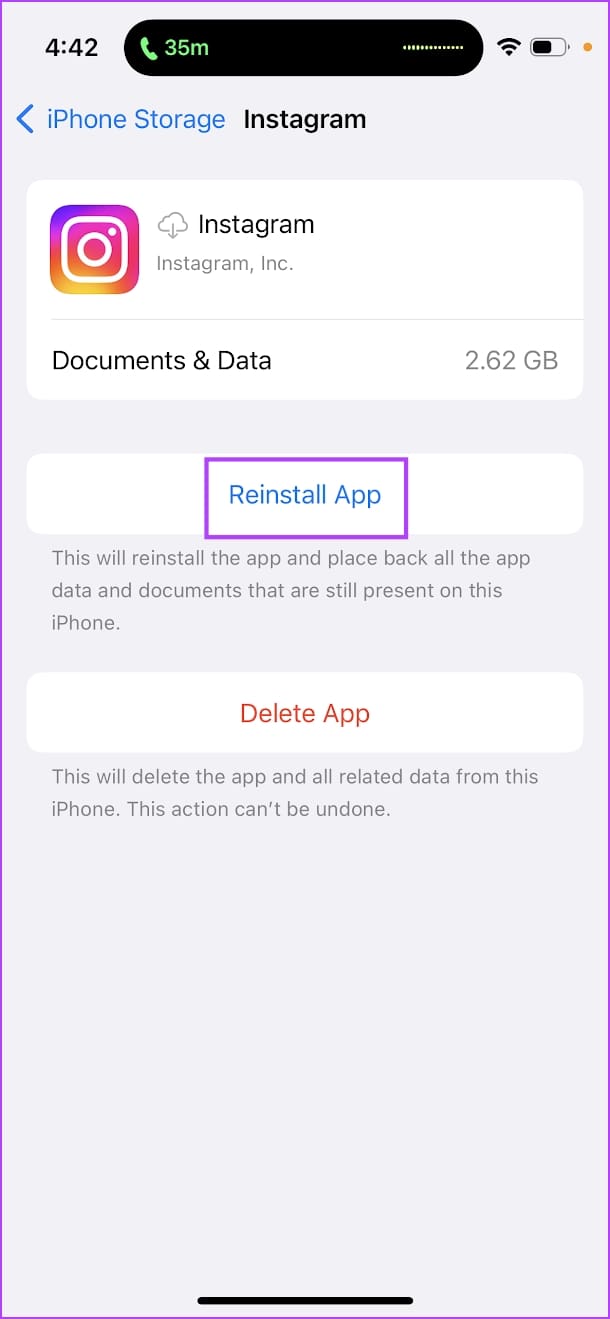
Step 2: Scroll down and select Instagram from the list. Select Offload App. Wait for the offloading to complete, then tap on the Reinstall App option.
Fix 3: Log Out and Login to Instagram
Once you sign out of Instagram and log in again, there is a good chance that the issue will be resolved.
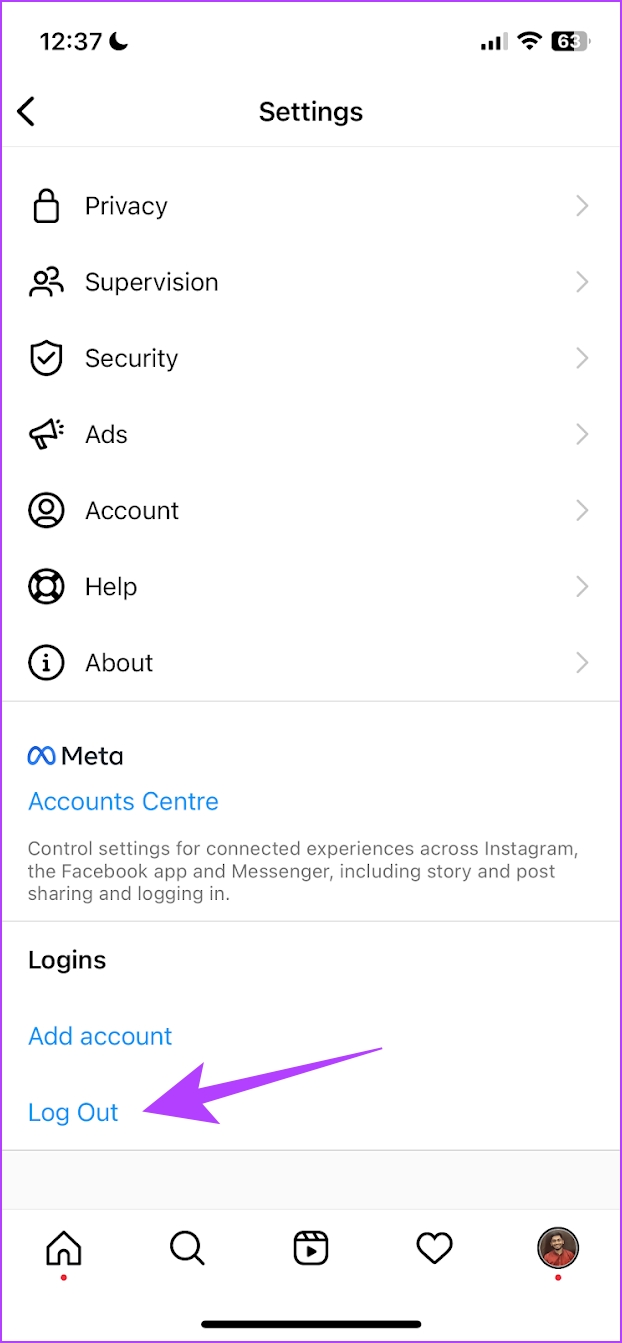
Step 1: Open the Instagram app and go to the Profile tab. Tap on the menu button and select Settings.
Step 2: Tap on Log Out. Once you log out, sign in to your account.


If none of the above methods work, try contacting Instagram’s support for assistance.
Was this helpful?
Last updated on 24 July, 2024
Read Next
 Top 4 Ways to Fix Facebook Messenger Not Showing Active Status
https://youtu.be/BQ7VyEtSDlI Preliminary Fixes The Person Has Disabled Active Status: If the person whose active status you’re trying to see has disabled their active status, you won't be able to see
Top 4 Ways to Fix Facebook Messenger Not Showing Active Status
https://youtu.be/BQ7VyEtSDlI Preliminary Fixes The Person Has Disabled Active Status: If the person whose active status you’re trying to see has disabled their active status, you won't be able to see
 How to Turn Off Active Status on Instagram
Instagram is easily one of the most-used apps at the moment.
How to Turn Off Active Status on Instagram
Instagram is easily one of the most-used apps at the moment.
 How to Keep Slack Status Active All the Time
Things to Know Before Setting Your Slack Status Your Slack status stays active as long as you keep using your device.
How to Keep Slack Status Active All the Time
Things to Know Before Setting Your Slack Status Your Slack status stays active as long as you keep using your device.
 How to Turn Off Active Status on Facebook
What Happens When You Turn Off Active Status on Facebook?
How to Turn Off Active Status on Facebook
What Happens When You Turn Off Active Status on Facebook?
 How to Hide Active Status From Someone on Facebook Messenger
Hide Active Status From a Particular Person on Messenger Although Facebook offers native Messenger apps on iOS, Android, Windows, and Mac, the ability to hide active status from one person
How to Hide Active Status From Someone on Facebook Messenger
Hide Active Status From a Particular Person on Messenger Although Facebook offers native Messenger apps on iOS, Android, Windows, and Mac, the ability to hide active status from one person
 Can You See When Someone Was Last Active on Snapchat
Snapchat has made a name for itself through its short-form content-sharing features.
Can You See When Someone Was Last Active on Snapchat
Snapchat has made a name for itself through its short-form content-sharing features.
 3 Ways to Fix Instagram Comments Not Showing on Android and iPhone
Try Basic Fixes Check Instagram’s server status: Server-side glitches could prevent Instagram from loading properly or display strange errors.
3 Ways to Fix Instagram Comments Not Showing on Android and iPhone
Try Basic Fixes Check Instagram’s server status: Server-side glitches could prevent Instagram from loading properly or display strange errors.
 8 Ways to Fix Add Music to Instagram Post Not Showing
Adding music enhances the vibe of an Instagram post.
8 Ways to Fix Add Music to Instagram Post Not Showing
Adding music enhances the vibe of an Instagram post.
The article above may contain affiliate links which help support Guiding Tech. The content remains unbiased and authentic and will never affect our editorial integrity.