Try Basic Fixes
- Check Instagram’s server status: Server-side glitches could prevent Instagram from loading properly or display strange errors. You can visit Downdetector to check if Instagram is facing an outage.
- Update the app: Using an outdated version of the Instagram app can also cause such issues. Hence, it’s best to update the Instagram app from Play Store or App Store.
Fix 1: Check the Blocked Commenters List
On Instagram, you can prevent specific people from commenting on your posts. If you’ve accidentally added a friend to the Blocked Commenters list, their comments won’t be visible to anyone else except for them. Here’s what you can do to unblock comments from a user on Instagram.
Step 1: Open the Instagram app and switch to the profile tab.
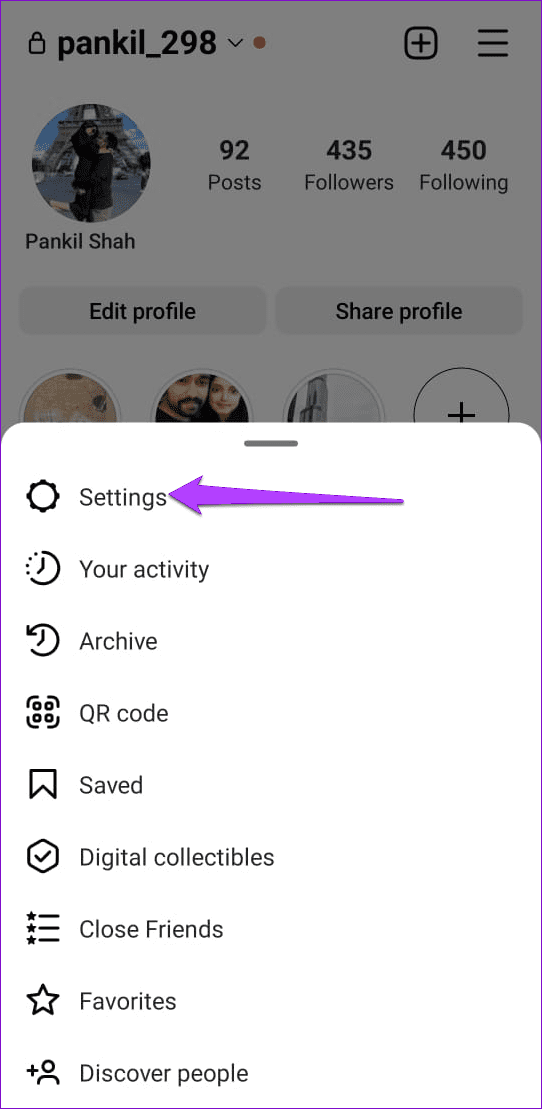
Step 2: Tap the menu icon (three horizontal lines) at the top right corner and select Settings.

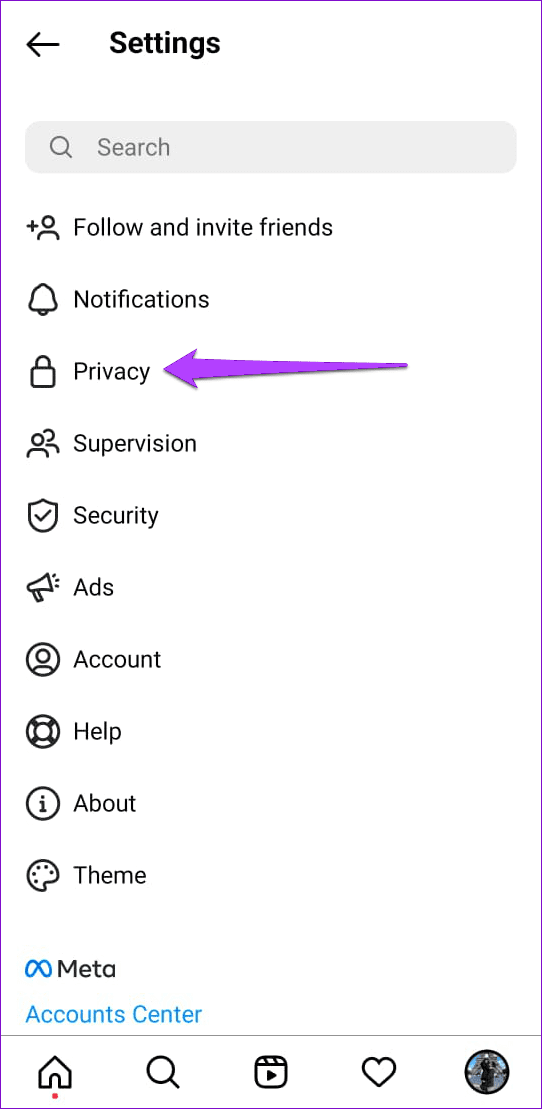
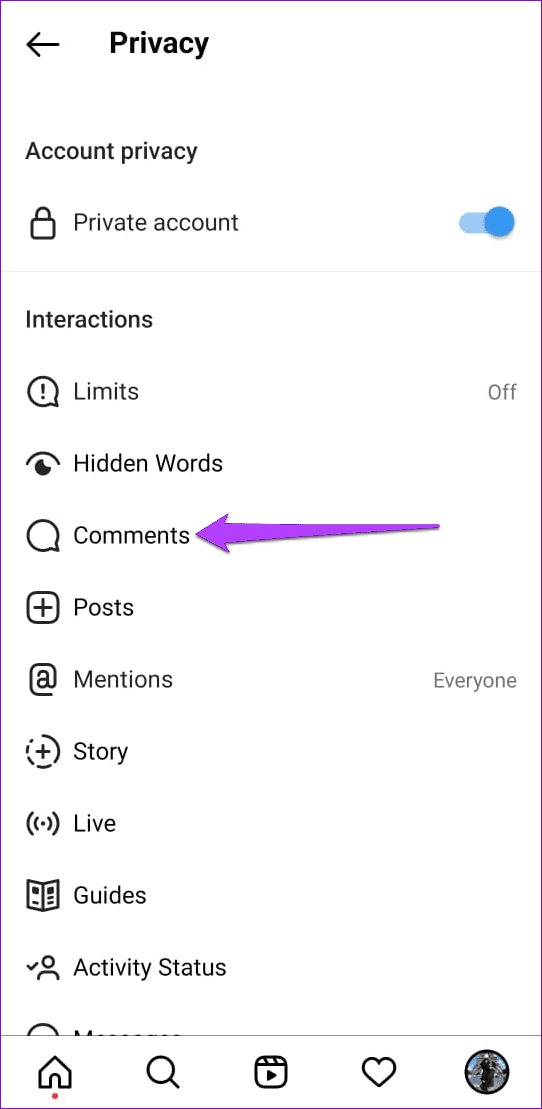
Step 3: Go to Privacy > select Comments from the following menu.
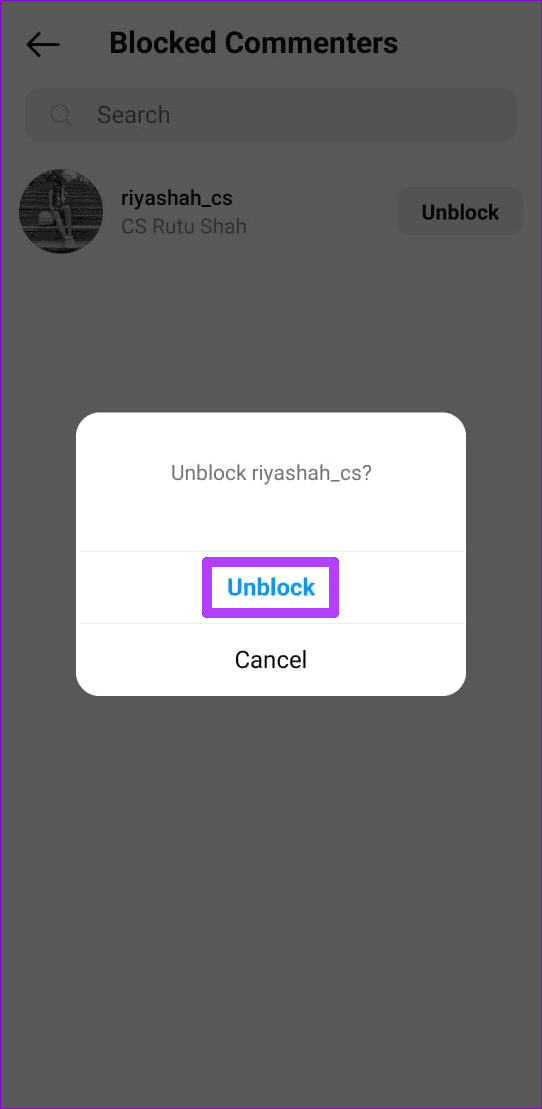
Step 4: Tap on Block Comments From > tap on Unblock next to your friend’s username > select Unblock when prompted.


Fix 2: Sign Out and Sign Back In
At times, authentication issues with your Instagram account could prevent the app from loading correctly. An easy way to fix such issues is to sign out of your account and sign back in. Here are the steps for the same.
Step 1: Open the Instagram app and navigate to the profile tab.
Step 2: Tap on the hamburger icon (three horizontal bars) at the top right corner and select Settings.
Step 3: Scroll down to tap on Log out.
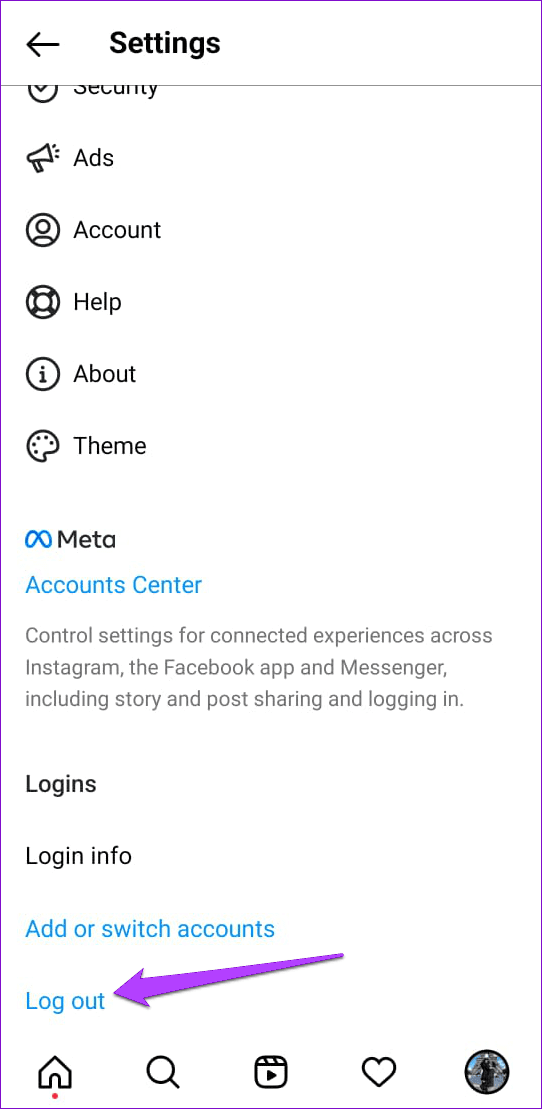
Restart the Instagram app and sign back into your account. Then, see if the comments section loads correctly.
Fix 3: Clear App Cache (Android)
Instagram saves cache files on your Android to reduce data usage and improve its overall performance. However, outdated cache data can cause problems sometimes. Thankfully, getting rid of the Instagram app cache on your Android is simple.
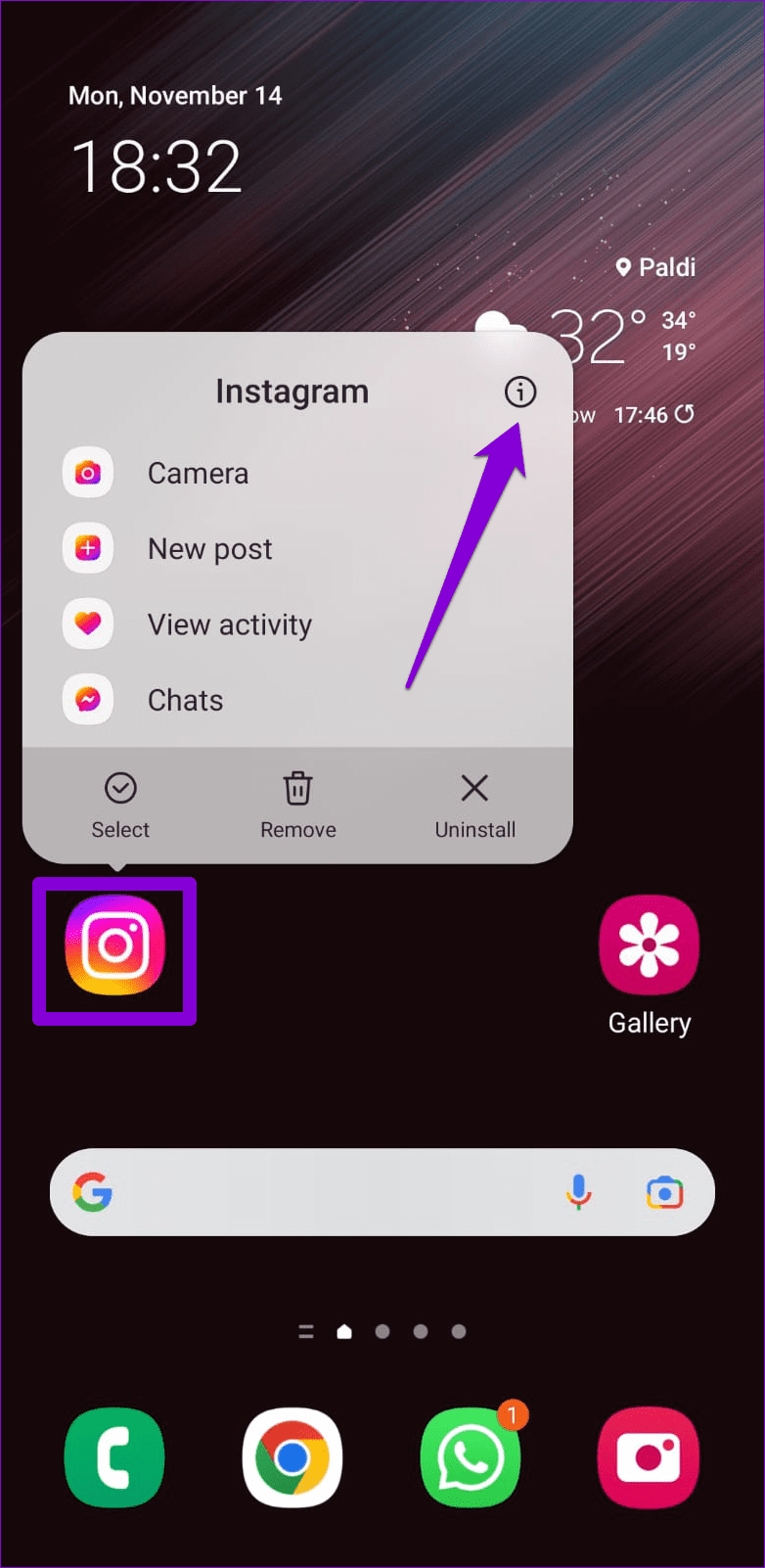
Step 1: Long-press on the Instagram app icon and tap on the info icon.
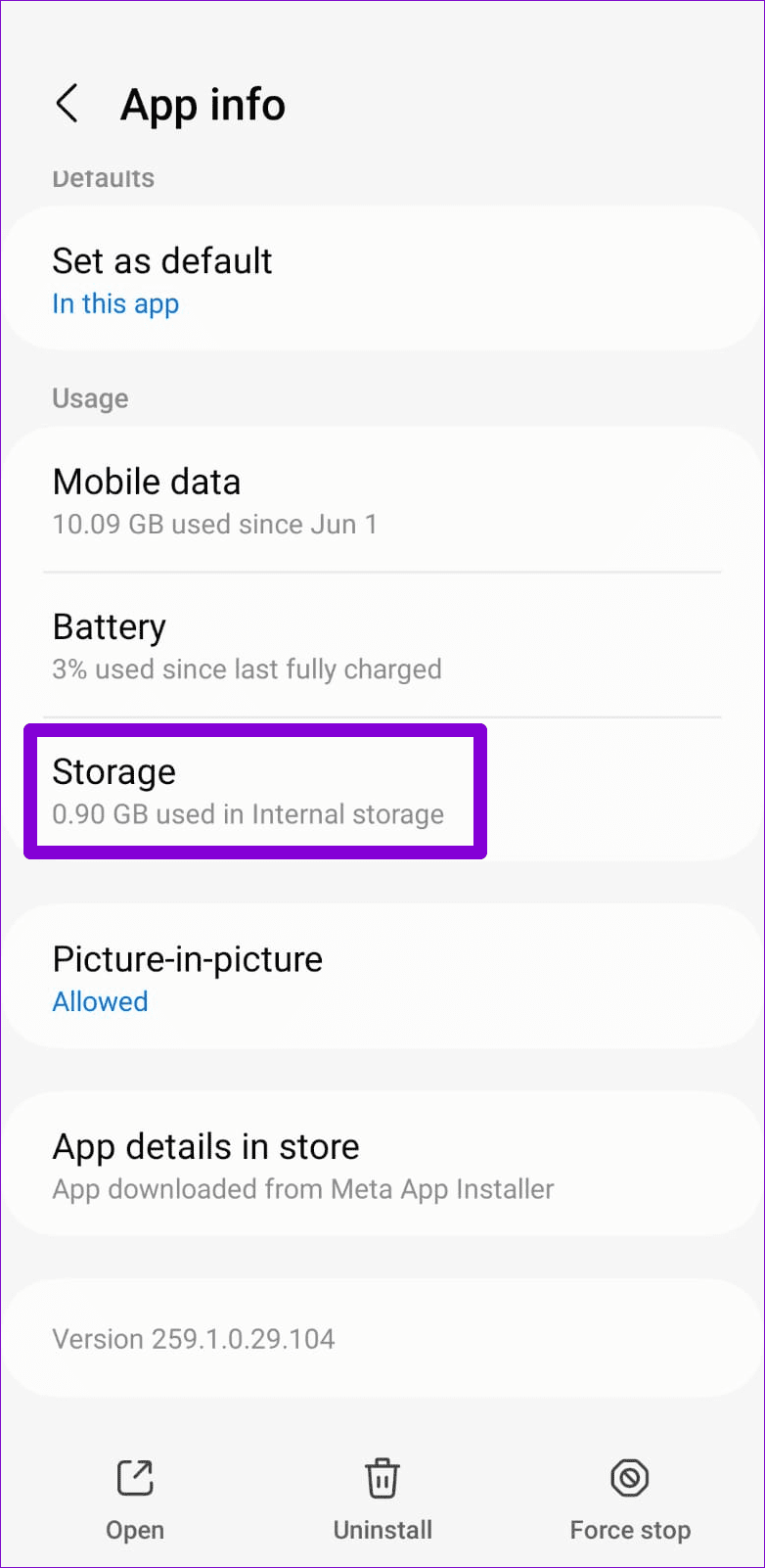
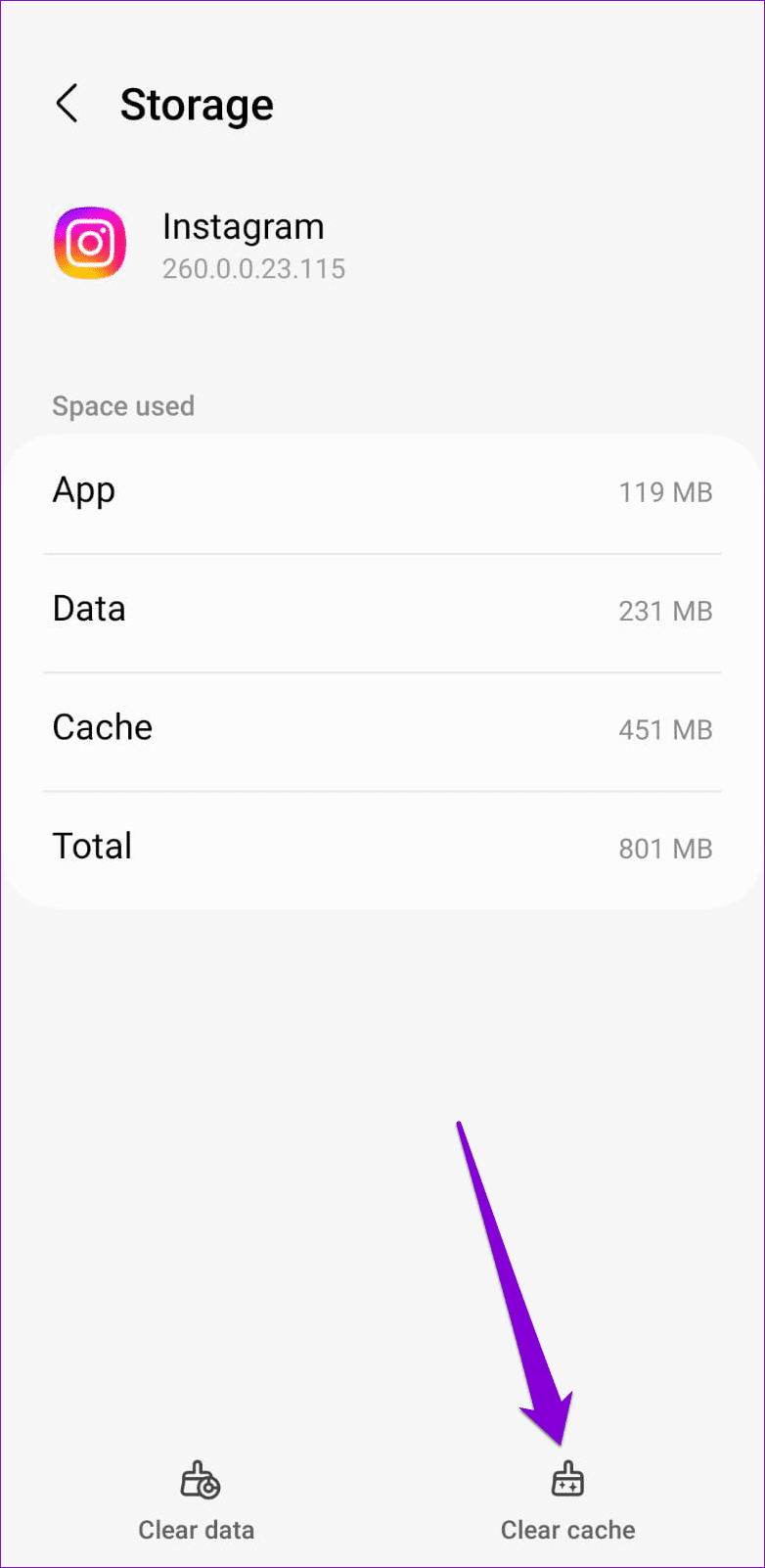
Step 2: Go to Storage > tap Clear cache.
Was this helpful?
Last updated on 22 April, 2024
Read Next
 3 Ways to Fix YouTube Comments Not Showing on iPhone and Android
Basic Fixes Check if YouTube is down: You can check YouTube's server status on Downdetector to know if it is facing downtime.
3 Ways to Fix YouTube Comments Not Showing on iPhone and Android
Basic Fixes Check if YouTube is down: You can check YouTube's server status on Downdetector to know if it is facing downtime.
 3 Ways to Fix Facebook Comments Not Loading on Android and iPhone
Try Basic Fixes Check Facebook's server status: It’s not uncommon for Facebook servers to experience problems.
3 Ways to Fix Facebook Comments Not Loading on Android and iPhone
Try Basic Fixes Check Facebook's server status: It’s not uncommon for Facebook servers to experience problems.
 How to Download Instagram Comments Easily
Whether you are a regular Instagram user, brand promoter and marketer, or maybe you are an influencer, you may need to download Instagram comments.
How to Download Instagram Comments Easily
Whether you are a regular Instagram user, brand promoter and marketer, or maybe you are an influencer, you may need to download Instagram comments.
 How to Share Comments on Instagram Story
Instagram stories are an easy way to share updates with your followers quickly.
How to Share Comments on Instagram Story
Instagram stories are an easy way to share updates with your followers quickly.
 What Happens When You Hide Comments on Facebook
How to Hide Comments on Facebook When you come across your comment or someone's comment on your update, select the three-dot menu next to the comment and pick the Hide
What Happens When You Hide Comments on Facebook
How to Hide Comments on Facebook When you come across your comment or someone's comment on your update, select the three-dot menu next to the comment and pick the Hide
 How to Delete All Reddit Comments and Posts on Web Browser
How to Permanently Delete Reddit Comments and Posts Individually We'll show you how to delete a Reddit post or a comment individually, then proceed to delete all Reddit posts at
How to Delete All Reddit Comments and Posts on Web Browser
How to Permanently Delete Reddit Comments and Posts Individually We'll show you how to delete a Reddit post or a comment individually, then proceed to delete all Reddit posts at
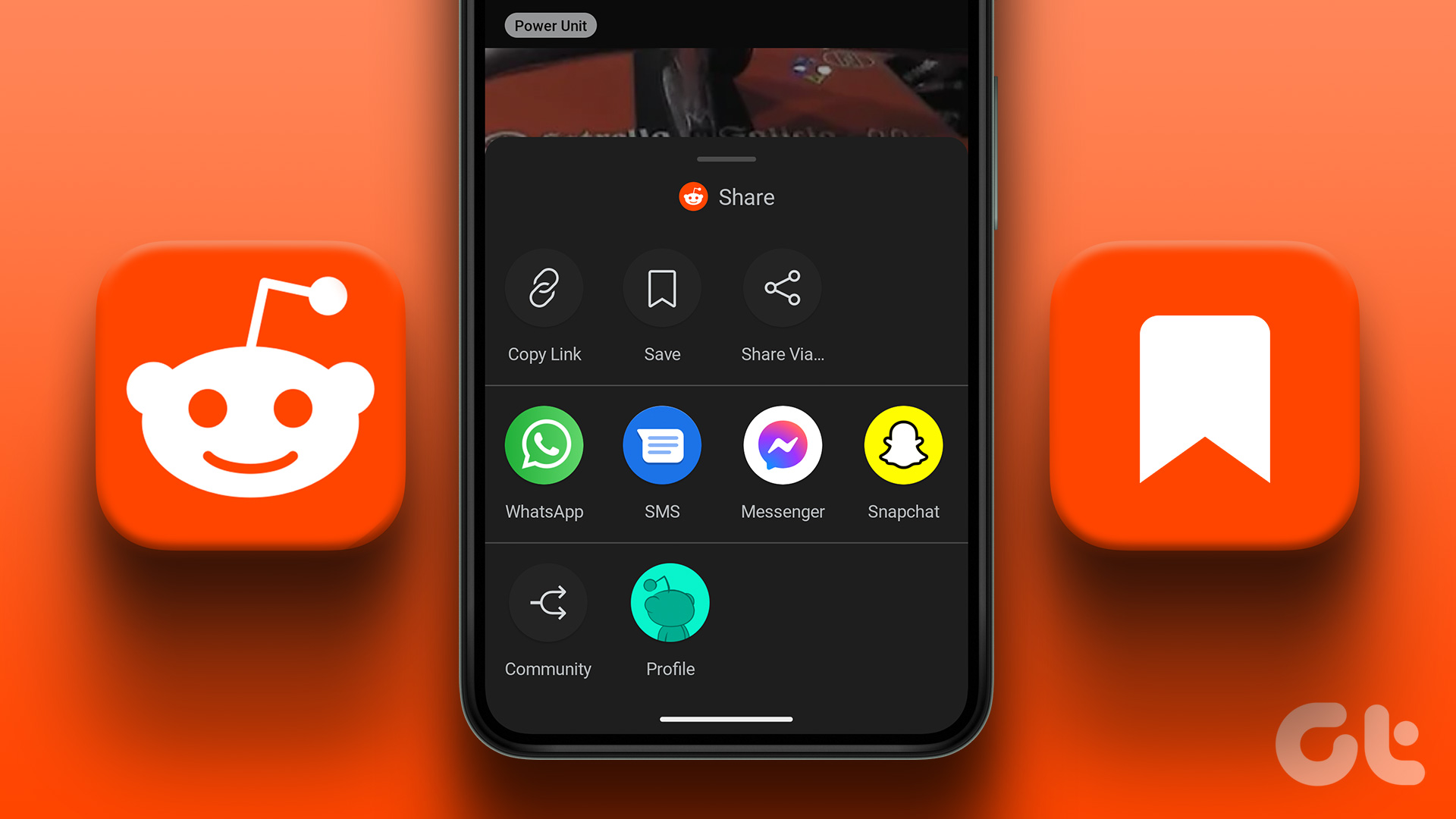 How to See Saved Posts and Comments on Reddit (PC and Mobile)
How to Save Reddit Posts and Comments On iOS and Android Step 1: Tap on the Share button below the post you want to save.
How to See Saved Posts and Comments on Reddit (PC and Mobile)
How to Save Reddit Posts and Comments On iOS and Android Step 1: Tap on the Share button below the post you want to save.
 How to Change the Author Name for Comments in Adobe Acrobat
Method 1.
How to Change the Author Name for Comments in Adobe Acrobat
Method 1.
The article above may contain affiliate links which help support Guiding Tech. The content remains unbiased and authentic and will never affect our editorial integrity.