Basic Fixes
- Verify your payment info: Make sure you’ve entered the correct payment details for your purchase in the Google Play Store. Also, verify that you have sufficient funds to cover the cost of the app/service you’re trying to buy.
- Switch between Wi-Fi and mobile data: An existing network issue can create errors in completing a Google Play purchase. Switch between Wi-Fi and mobile data and retry making the purchase.
- Try a different payment method: Google Play may sometimes throw the ‘Your transaction can’t be completed’ error if there’s an issue with your selected payment method. Try a different payment method to complete the purchase.
- Check the Google Play country: The app/service you’re trying to purchase may not be available in your region. Change your country in the Google Play Store and retry to complete the purchase.
- Use a Google Play gift card: If you’re unable to use any payment method in the Google Play Store, buy a Google Play gift card and redeem it to purchase the app/service.
- Disable VPN: Open the VPN app on your Android phone and tap Disconnect to disable the active connection. Reopen the Google Play Store and retry making the purchase.
Fix 1: Remove and Add Your Payment Method
If your payment type is unsupported, remove it from the Google Play Store and add an accepted payment type. Further, removing and re-adding your current payment method should resolve all payment issues.
Step 1: Open the Google Play Store, tap your profile icon at the top right, and select Payments and subscriptions.

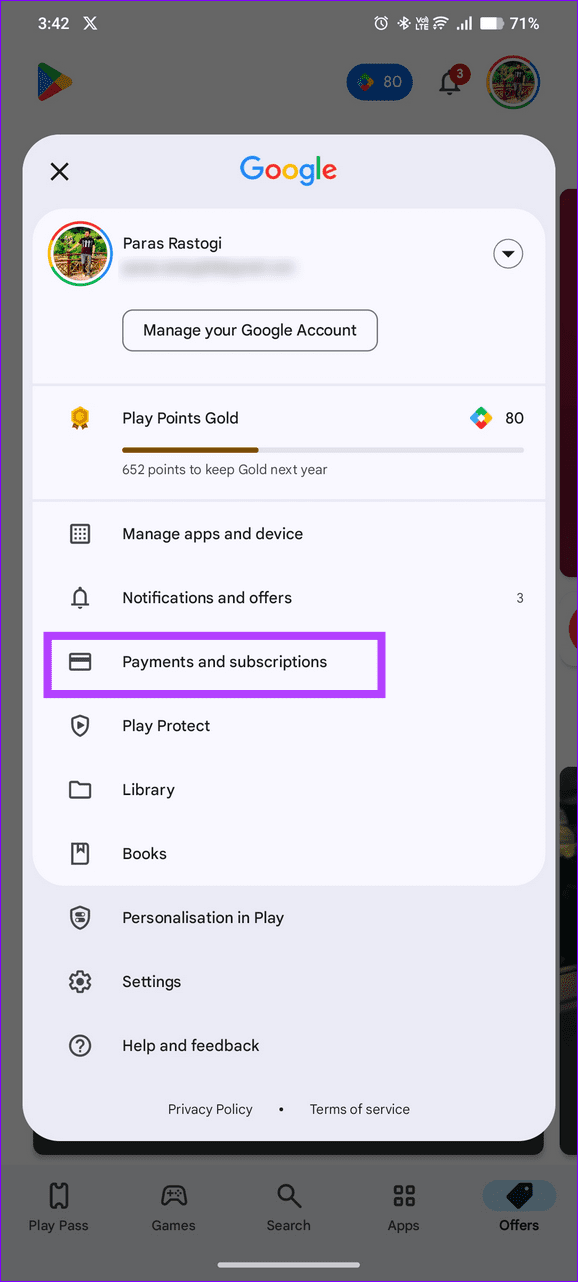
Step 2: Select Payment methods and tap More payment settings.


Step 3: Tap Remove under your preferred payment method and hit Remove to confirm deleting it. Once removed, add new payment details from Payments and subscriptions > Payment methods.


Fix 2: Reinstall the Android App
Google Play Store may show the ‘Your transaction can’t be completed’ error during an in-app purchase due to the app glitch. Force close and reopen the app to fix it.
If the error persists, long-tap the app icon and select Uninstall to remove it. Head to the Google Play Store to install the app afresh and retry doing the in-app purchase.
Fix 3: Clear the Google Play Store Cache
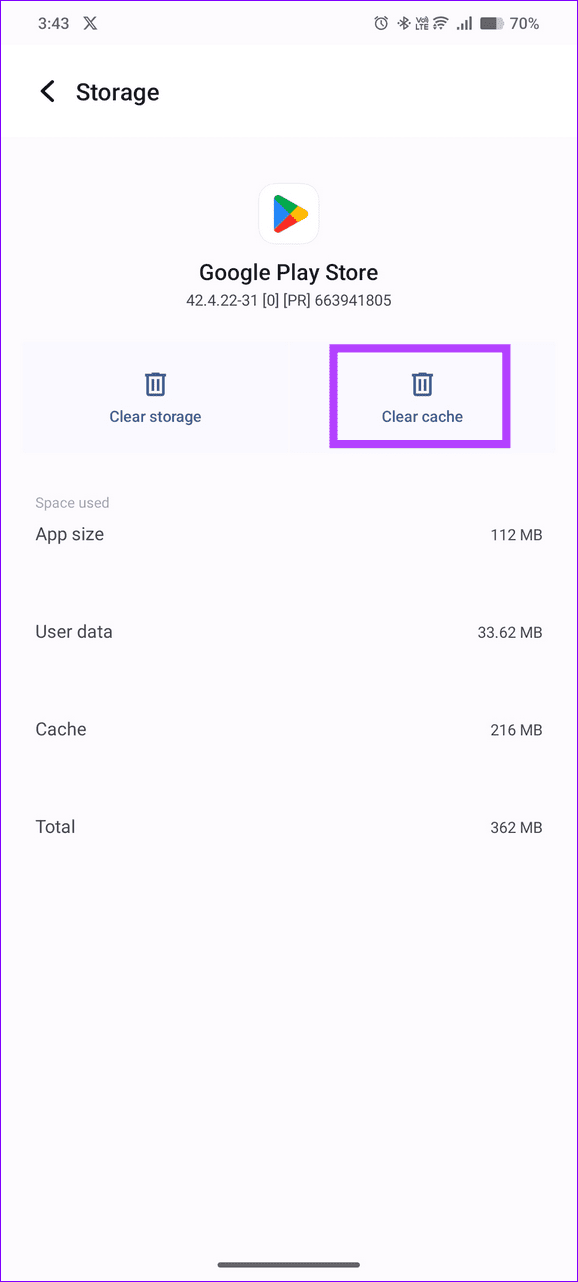
A corrupt Google Play Store cache may prevent you from completing a transaction. Clear all cache files manually from its App info and retry purchasing the app/service.
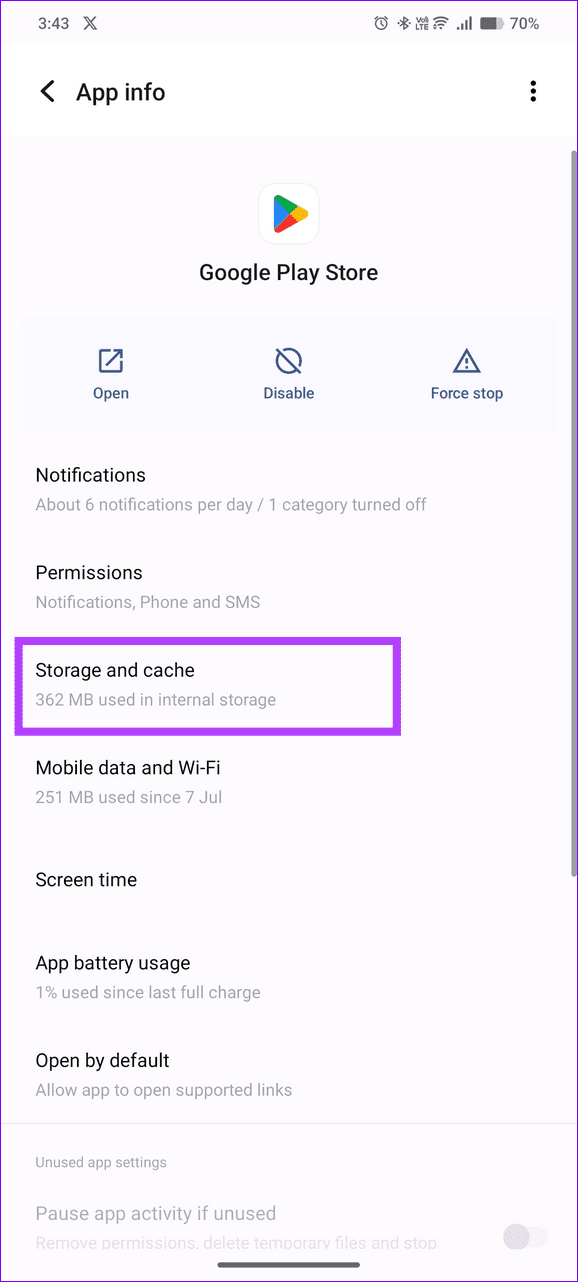
Long-tap the Google Play Store icon and select App info. Tap Storage and cache, and select Clear cache.

Fix 4: Uninstall Updates From Google Play Store and Google Play Services and Reinstall
A buggy Google Play Store or Google Play Services update can malfunction its payment process. Uninstall them manually and update the Google Play Store to restore normalcy.
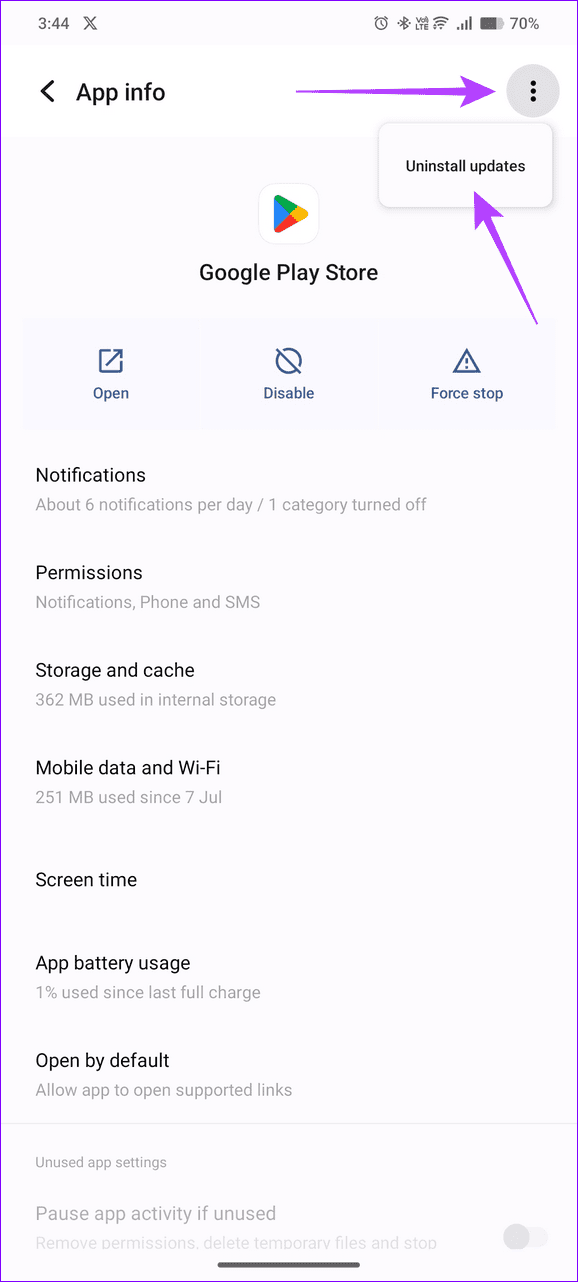
Step 1: Open Android Settings, select Apps, and tap Google Play Store under the installed apps list.


Step 2: Tap the vertical three-dot menu at the top right and select Uninstall updates.
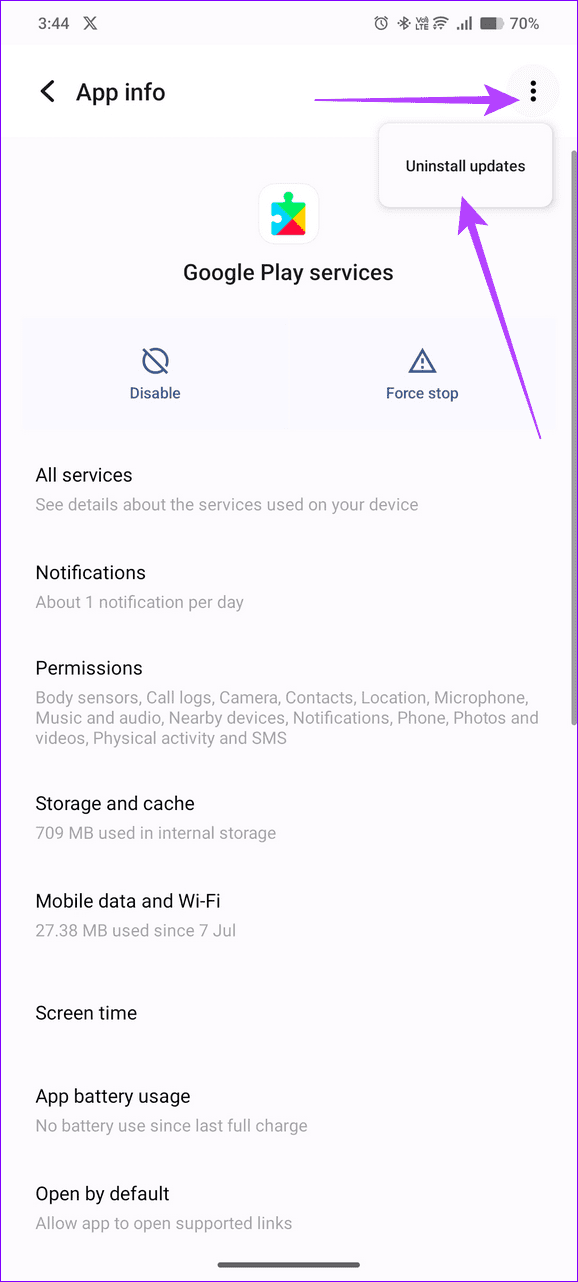
Step 3: Similarly, select Google Play services, tap its three-dot menu at the top right, and select Uninstall updates.
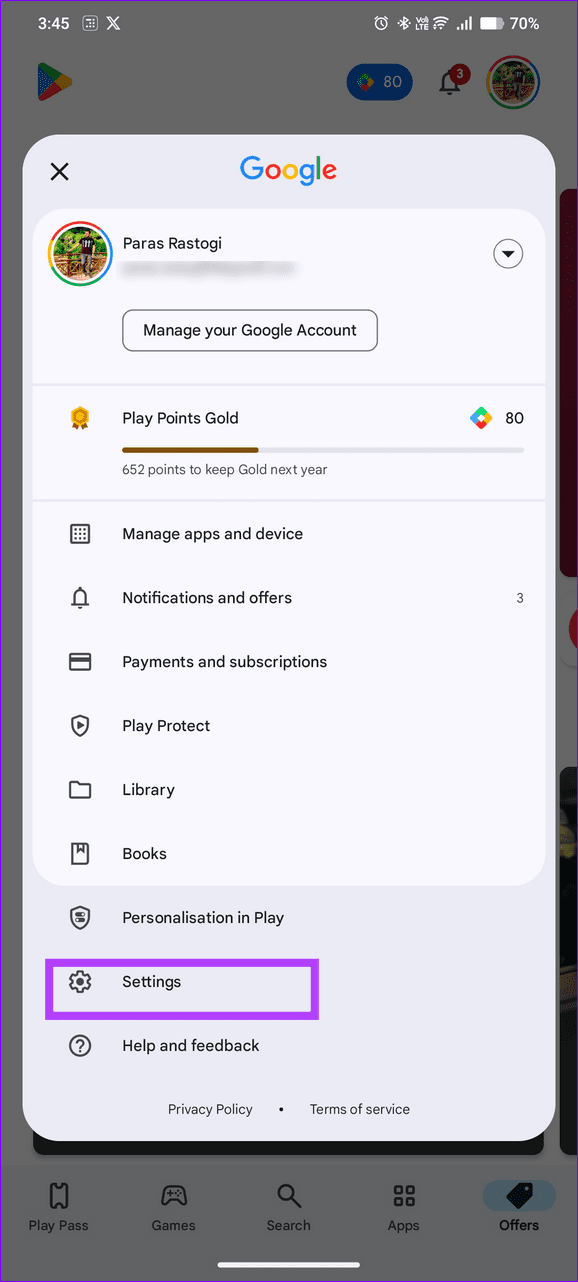
Step 4: Finally, open Google Play Store Settings from your profile icon, select About, and tap Update Play store to reinstall new app updates.

Was this helpful?
Last updated on 01 September, 2024
Read Next
 6 Ways to Fix Pending Purchase (Transaction) Error on Steam
Fix 1: Wait for the Transaction to Complete There might be a delay in transferring funds from your bank to Steam.
6 Ways to Fix Pending Purchase (Transaction) Error on Steam
Fix 1: Wait for the Transaction to Complete There might be a delay in transferring funds from your bank to Steam.
 How to Fix “Your Call Cannot Be Completed as Dialed” Error
https://youtu.be/FbTy5xz3xO4 Basic Fixes: Restart your device: If you've been frequently facing issues when placing calls, hold down the power button and restart your device.
How to Fix “Your Call Cannot Be Completed as Dialed” Error
https://youtu.be/FbTy5xz3xO4 Basic Fixes: Restart your device: If you've been frequently facing issues when placing calls, hold down the power button and restart your device.
 6 Ways to Fix Google Play Store Has Stopped Error on Android
Common Fixes Restart the device: Long-press the physical Power button and select Restart in the power menu.
6 Ways to Fix Google Play Store Has Stopped Error on Android
Common Fixes Restart the device: Long-press the physical Power button and select Restart in the power menu.
 4 Ways to Fix Google Play Won’t Let Me Sign in Error
Basic Fixes Check network connection: If your internet connection isn't stable or is facing a problem, you can't log in to Play Store.
4 Ways to Fix Google Play Won’t Let Me Sign in Error
Basic Fixes Check network connection: If your internet connection isn't stable or is facing a problem, you can't log in to Play Store.
 5 Ways to Fix Error Checking for Updates in the Google Play Store
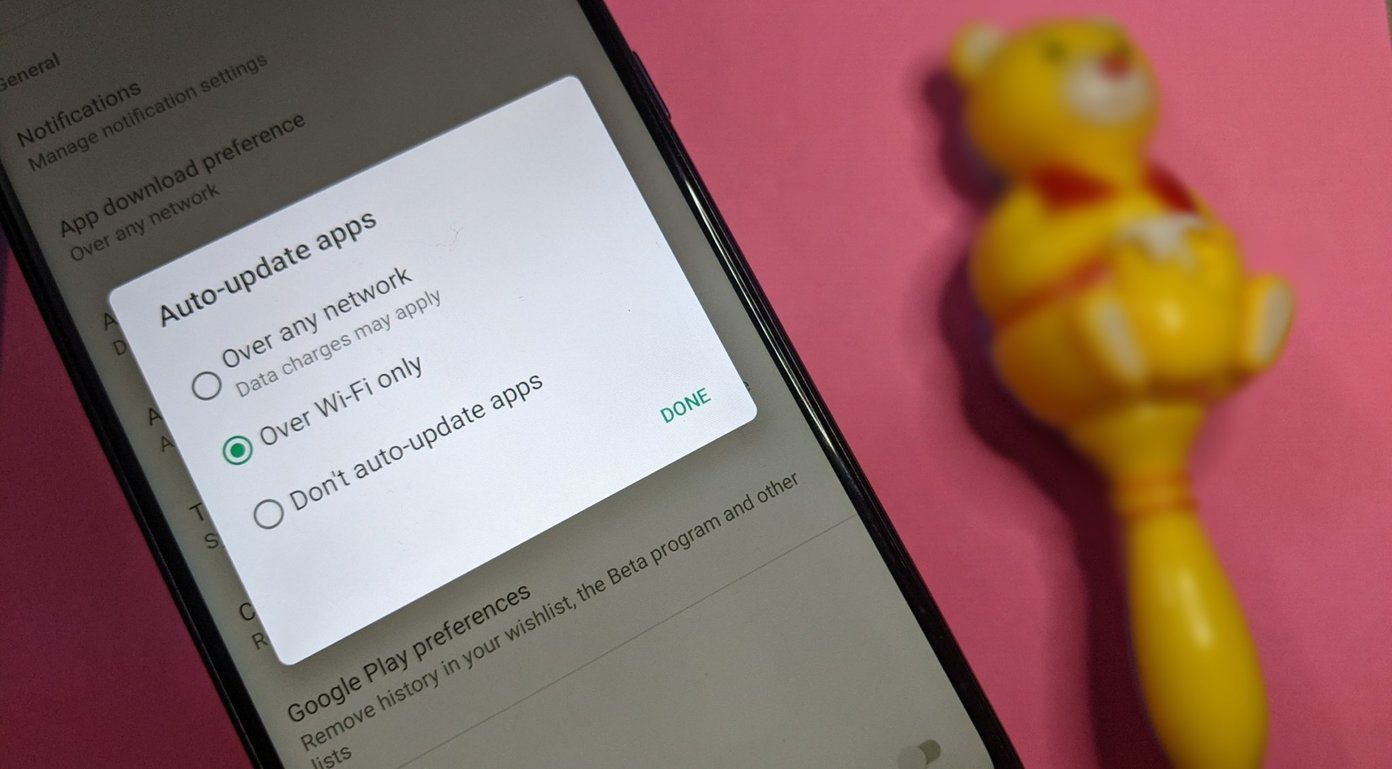
Basic Fixes Check the app update preference: If you can't update apps manually, check the app update preference to automate it.
5 Ways to Fix Error Checking for Updates in the Google Play Store
Basic Fixes Check the app update preference: If you can't update apps manually, check the app update preference to automate it.
 5 Ways to Fix Google Play Store ‘No Connection’ Error
Basic Ways: Restart your phone: Restarting your Android phone will help restart all device services, eliminating any temporary glitches that might be erroring out the Google Play Store app.
5 Ways to Fix Google Play Store ‘No Connection’ Error
Basic Ways: Restart your phone: Restarting your Android phone will help restart all device services, eliminating any temporary glitches that might be erroring out the Google Play Store app.
 6 Ways to Fix ‘Something Went Wrong’ Error in Play Store
Basic Fixes Restart Play Store: Long tap on the Play Store app, select App Info, and tap on Force Stop.
6 Ways to Fix ‘Something Went Wrong’ Error in Play Store
Basic Fixes Restart Play Store: Long tap on the Play Store app, select App Info, and tap on Force Stop.
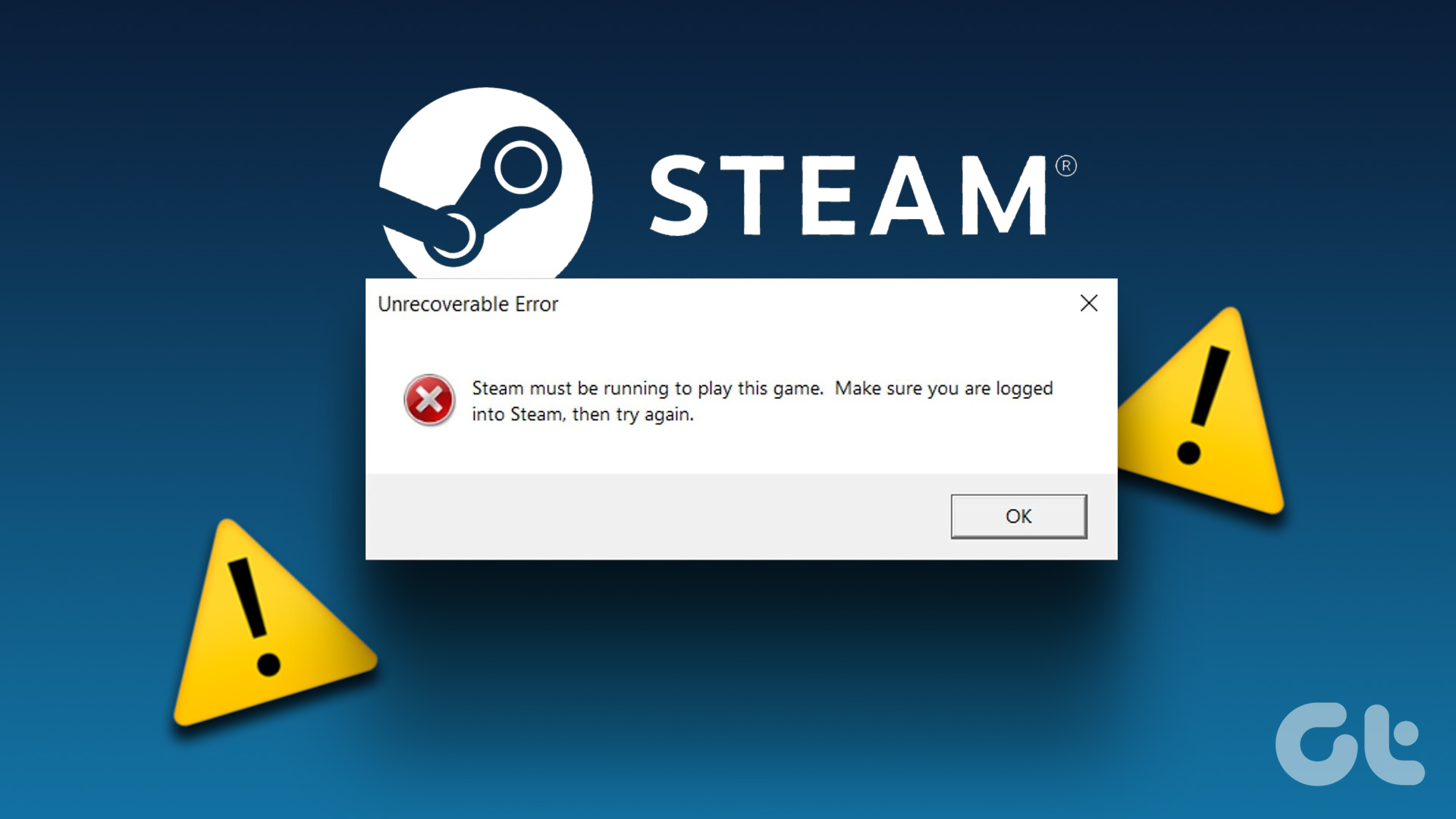 3 Ways to Fix “Steam Must be Running to Play This Game” Error
Basic Fixes: Ensure Steam is installed on your computer: If you play Steam games, ensure the client is installed on your computer.
3 Ways to Fix “Steam Must be Running to Play This Game” Error
Basic Fixes: Ensure Steam is installed on your computer: If you play Steam games, ensure the client is installed on your computer.
The article above may contain affiliate links which help support Guiding Tech. The content remains unbiased and authentic and will never affect our editorial integrity.