Basic Ways:
- Restart your phone: Restarting your Android phone will help restart all device services, eliminating any temporary glitches that might be erroring out the Google Play Store app.
- Enable and disable Airplane mode: You can enable Airplane mode to turn off all device communications and other network services. Then, disable it to turn network services back on and see if this fixes the issue.
- Disable VPN: When you connect to an active VPN network, your phone may detect an unusual IP location, stopping you from accessing apps like Play Store. So, disable the VPN and try again.
- Clear Google Play services cache: Corrupt Google Play services cache can also lead to a buggy Google Play Store experience. When this happens, clear the app cache and check again.
Fix 1: Update Google Play Store and Play Services
If you’re repeatedly getting the ‘no connection’ error in Play Store, check and install the latest app updates for the Google Play Store on your Android phone and check again. Here’s how.
Step 1: Launch the Play Store. Tap on your profile picture at the top and select Settings.
Step 2: Expand About and tap Update Play Store to install the newest build.


You can also use Google Play Store to update Google Play services to the latest version. Then, check again.
Fix 2: Re-Sync Your Google Account
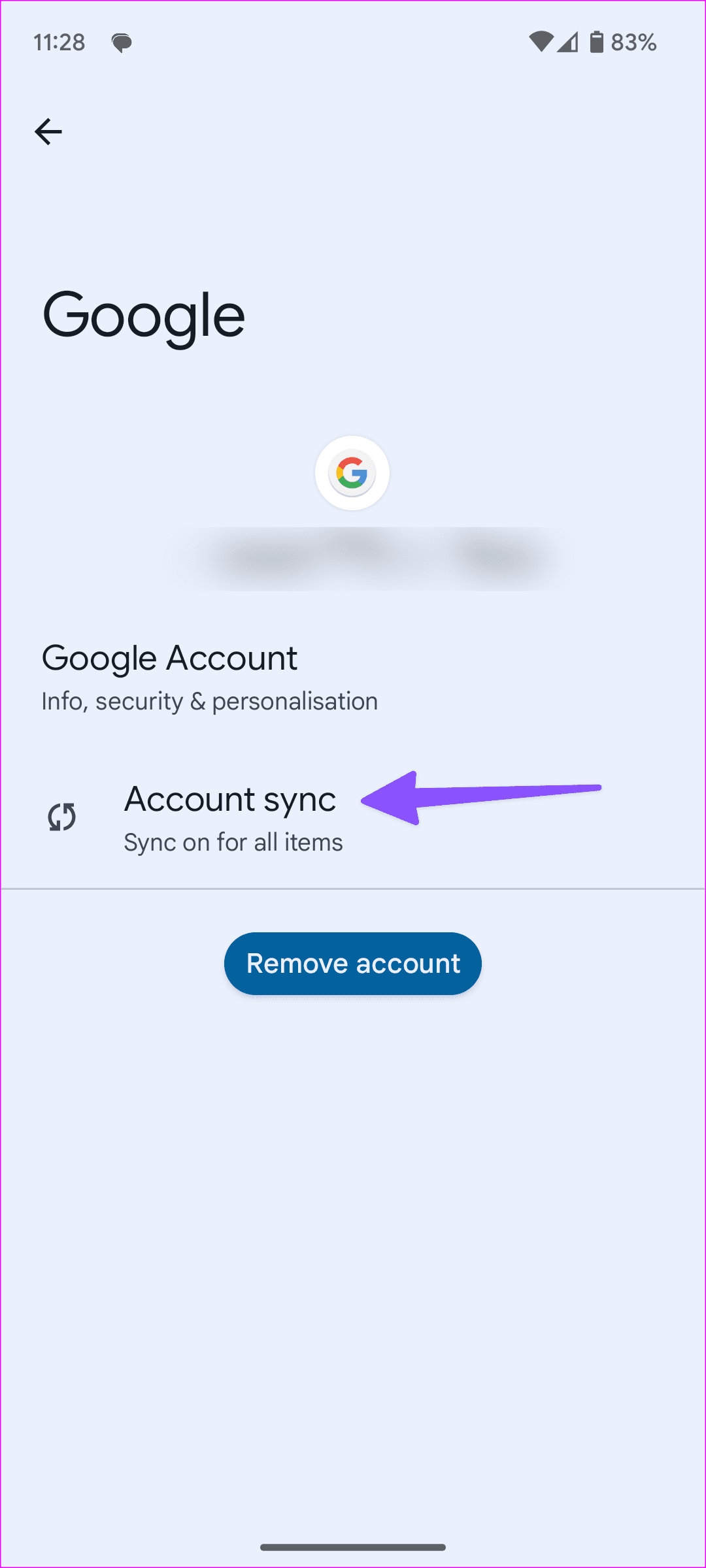
You can sync your Google account manually. This can help you access the Play Store again, especially if there were issues with the previous data sync. Follow the below steps to do it.
Step 1: Open Settings > select Passwords and accounts > select your Google account.


Step 2: Tap Account Sync > tap the three vertical dots menu at the top-right corner > select Sync now.

Fix 3: Give Data Permission to Google Play Services
If Google Play Services doesn’t have relevant data permissions, the app may experience connectivity issues. So, use the below steps to enable the relevant permissions.
Step 1: Open Settings and select Apps. Select See all apps and tap on Google Play services.


Step 2: Tap Mobile data and Wi-Fi. Then, enable the Background data and Unrestricted data usage toggles.


Fix 4: Set Date and Time to Automatic
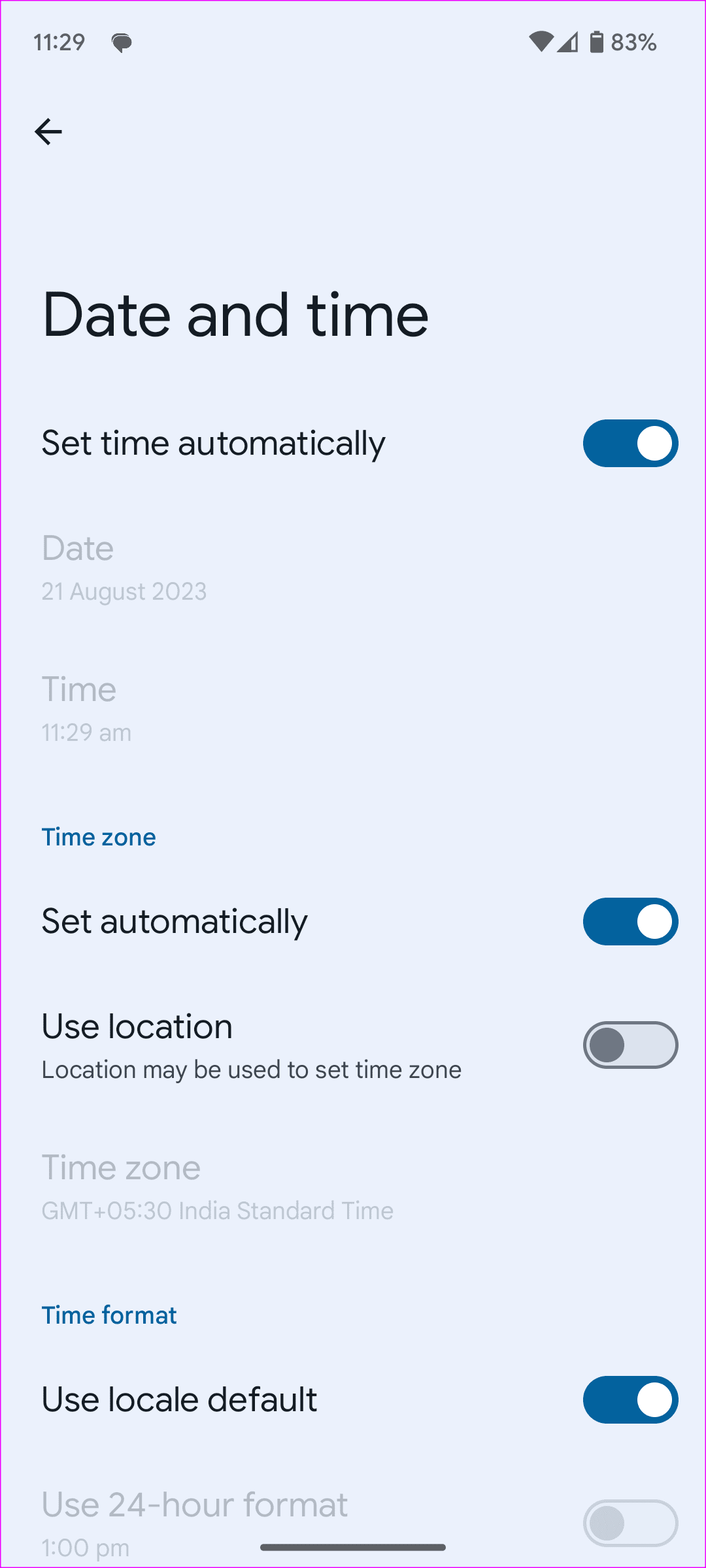
Incorrect date and time settings on your Android phone can interfere with default apps. To avoid this, set date and time details to update automatically on your Android phone. Here’s how.
Step 1: Open Settings and tap on System.
Step 2: Select Date and time and enable the Set time automatically toggle.


Fix 5: Reset Network Settings
Incorrect network settings on your Android phone can cause issues with the Play Store. You should reset network settings and try your luck again. Here’s how to do it.
Step 1: Open Settings and tap on General management. Then, tap on Reset.

Step 2: Tap on Reset network settings and confirm the same.

Wait for the reset process to finish. Once done, open Google Play Store again and check if the issue has been fixed on your Android device.
Was this helpful?
Last updated on 27 June, 2024
Read Next
 6 Ways to Fix Google Play Store Has Stopped Error on Android
Common Fixes Restart the device: Long-press the physical Power button and select Restart in the power menu.
6 Ways to Fix Google Play Store Has Stopped Error on Android
Common Fixes Restart the device: Long-press the physical Power button and select Restart in the power menu.
 5 Ways to Fix Error Checking for Updates in the Google Play Store
Basic Fixes Check the app update preference: If you can't update apps manually, check the app update preference to automate it.
5 Ways to Fix Error Checking for Updates in the Google Play Store
Basic Fixes Check the app update preference: If you can't update apps manually, check the app update preference to automate it.
 6 Ways to Fix ‘Something Went Wrong’ Error in Play Store
Basic Fixes Restart Play Store: Long tap on the Play Store app, select App Info, and tap on Force Stop.
6 Ways to Fix ‘Something Went Wrong’ Error in Play Store
Basic Fixes Restart Play Store: Long tap on the Play Store app, select App Info, and tap on Force Stop.
 4 Ways to Fix “Account Not in This Store” Error in App Store for iPhone
Try Basic Fixes Disable VPN: The 'Account Not In This Store' error may be appearing due to a VPN connection.
4 Ways to Fix “Account Not in This Store” Error in App Store for iPhone
Try Basic Fixes Disable VPN: The 'Account Not In This Store' error may be appearing due to a VPN connection.
 5 Ways to Fix Google Play Store White Screen Problem
Basic Fixes Restart Play Store: Tap and hold the Play Store app, select App Info, and tap on Force Stop.
5 Ways to Fix Google Play Store White Screen Problem
Basic Fixes Restart Play Store: Tap and hold the Play Store app, select App Info, and tap on Force Stop.
 6 Fixes for Google Play Store Not Working on Samsung Galaxy Phones or Tablets
Try Basic Fixes Free up storage space: The Google Play Store may not download or update apps on your Samsung device if there is not enough storage space.
6 Fixes for Google Play Store Not Working on Samsung Galaxy Phones or Tablets
Try Basic Fixes Free up storage space: The Google Play Store may not download or update apps on your Samsung device if there is not enough storage space.
 7 Ways to Fix Google Play Store Not Showing Installed Apps
Fix 1: Turn Off Parental Controls on Play Store Parental control on Play Store allows you to prevent unauthorized transactions and hide inappropriate apps on Play Store.
7 Ways to Fix Google Play Store Not Showing Installed Apps
Fix 1: Turn Off Parental Controls on Play Store Parental control on Play Store allows you to prevent unauthorized transactions and hide inappropriate apps on Play Store.
 4 Ways to Fix Google Play Store Won’t Connect to the Internet
Try Basic Fixes Toggle airplane mode: Turning airplane mode on and off is an easy way to refresh all the network connections on your Android.
4 Ways to Fix Google Play Store Won’t Connect to the Internet
Try Basic Fixes Toggle airplane mode: Turning airplane mode on and off is an easy way to refresh all the network connections on your Android.
The article above may contain affiliate links which help support Guiding Tech. The content remains unbiased and authentic and will never affect our editorial integrity.