Basic Fixes
- Check your network connection: Ensure your device has a good internet connection. I recommend an internet speed of at least 3 Mbps to load messages properly in the Facebook Messenger app.
- Check the Facebook server status: Visit Downdetector to check an active Facebook server outage.
- Sign out and log back in: Tap the Hamburger menu in the Facebook app at the top right, select Settings & privacy > Settings, and open Activity log under Your Activity. Select Security and login information, tap ‘Where you’re logged in’, and select the three-dot menu next to a login > Log out.
- Update or reinstall the Messenger app: Open the Google Play Store or Apple App Store, search Messenger, and tap Update. Alternatively, uninstall the app on your phone and install it afresh.
Fix 1: Check Messages Through the Product Listing Page
If you can’t find the message of your product’s potential buyer in the Marketplace tab under Messenger, the easiest way to locate it is to go through your product listing page in the Facebook app. Here’s how:
Step 1: Open the Facebook app, select Marketplace, and tap your account profile at the top right corner.
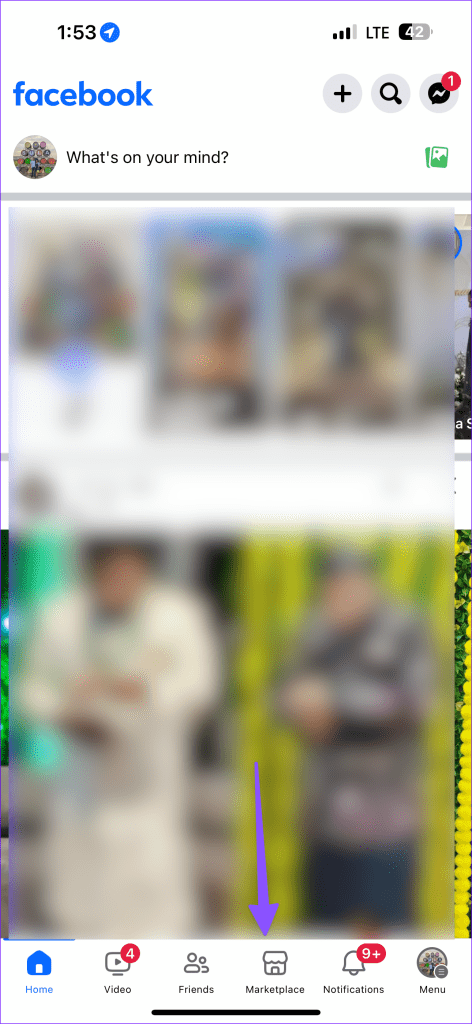
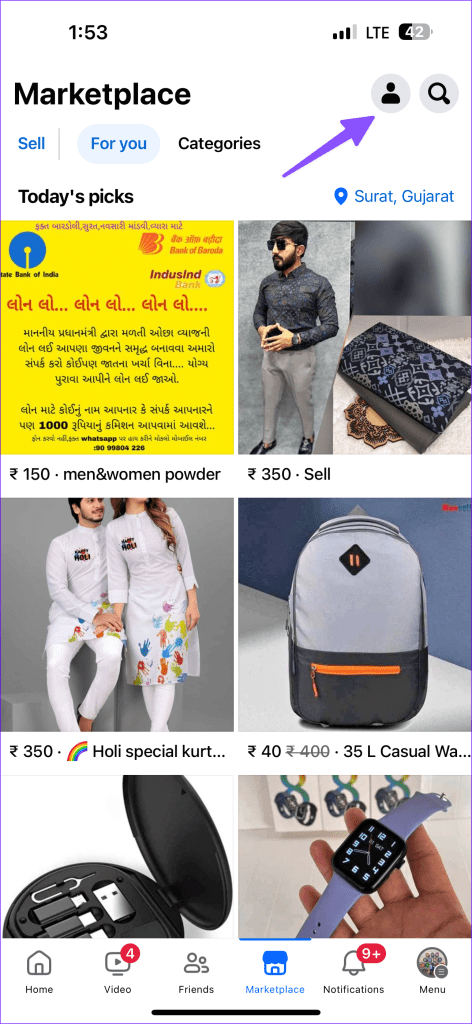
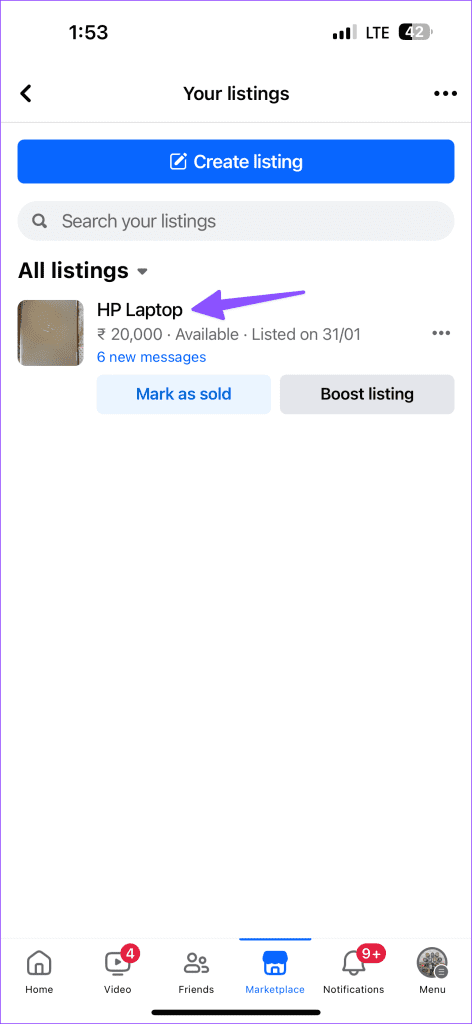
Step 2: Select Your listings under ‘Selling’ and tap your product listing.
Step 3: Scroll down to locate Chats and select your desired conversation to open it.


Fix 2: Check Archived Messages
If you’ve unknowingly archived a Marketplace message in the Messenger app, it won’t show in your Inbox among other messages. Head to the Archive section in the Messenger app to check and restore them.
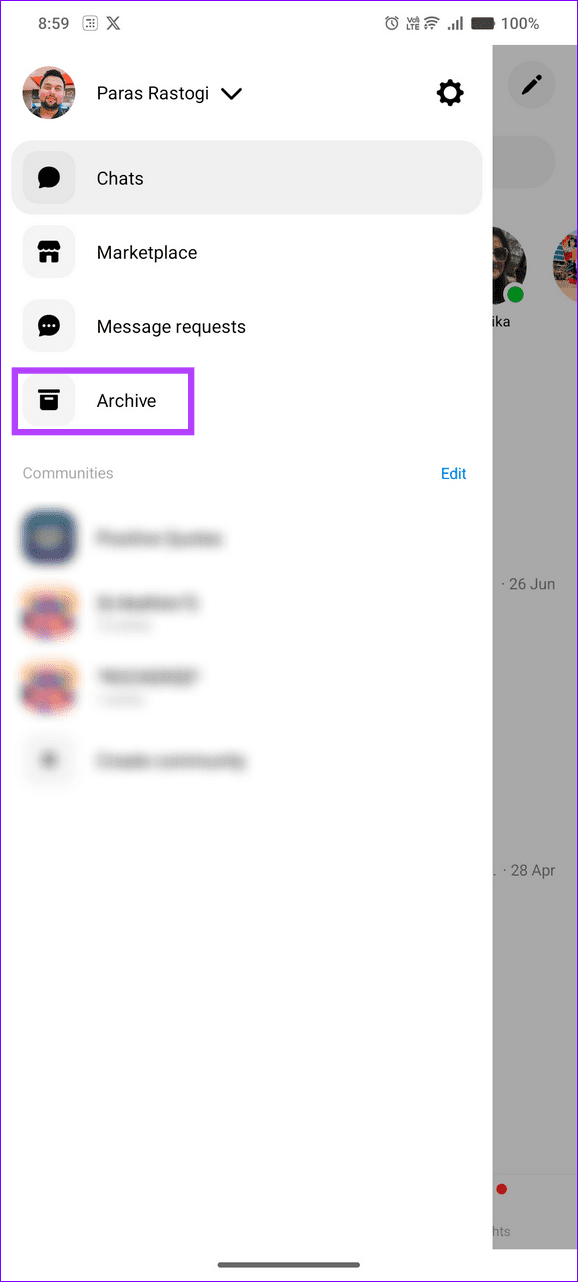
Step 1: Open the Messenger app, tap the Hamburger menu at the top left, and select Archive.
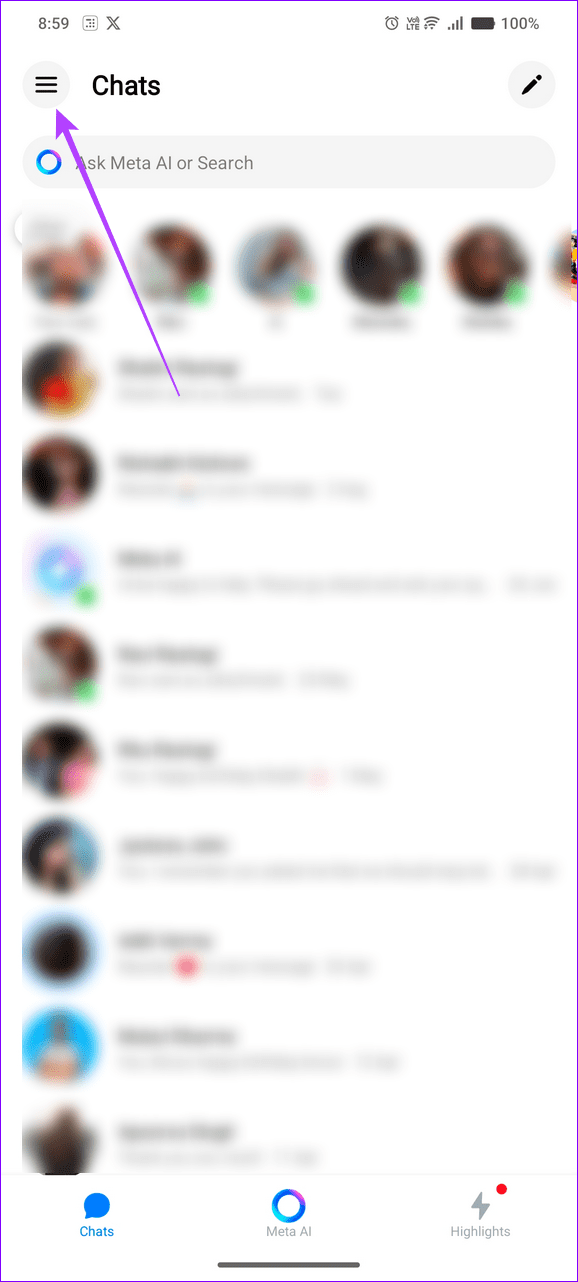
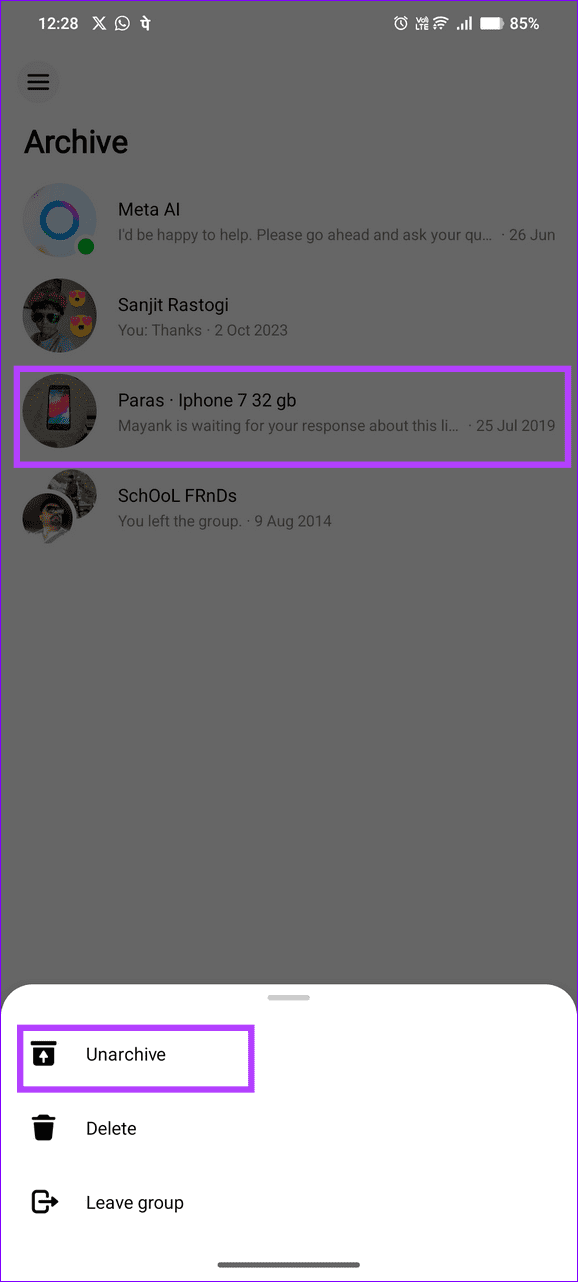
Step 2: Tap your desired Marketplace conversation to open it. To unarchive it, long-tap a conversation and select Unarchive.


Fix 3: Clear the Facebook Messenger App Cache (Android)
A corrupt app cache can malfunction the Messenger app on Android, creating issues in loading Marketplace messages. Clear it manually to restore normalcy.
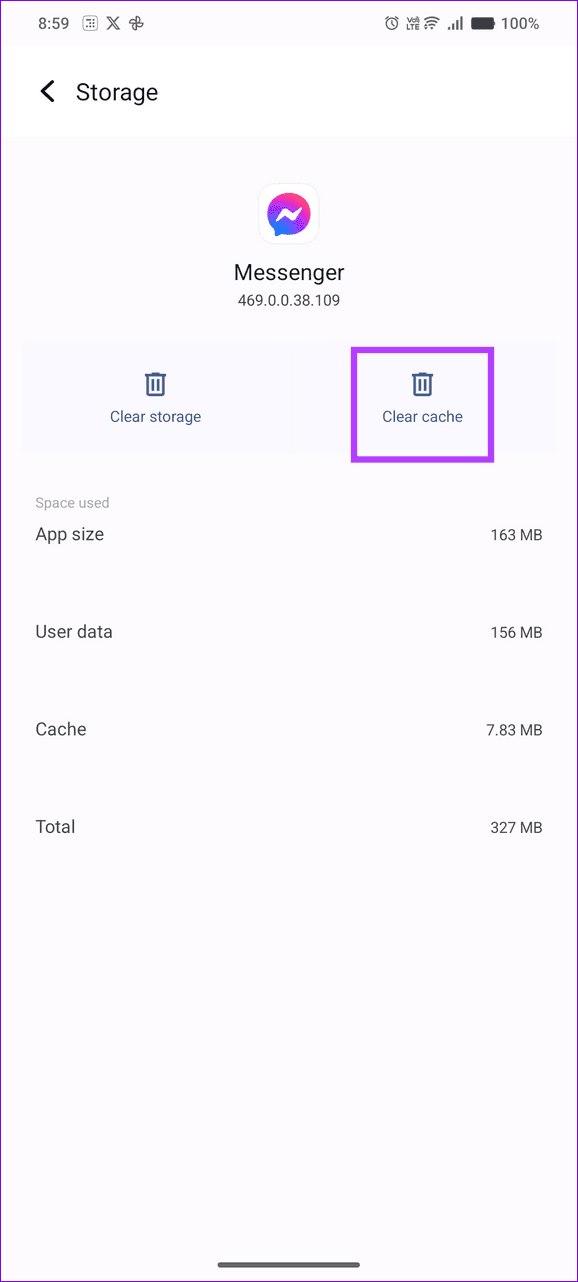
Long-tap the Messenger app icon to open App info, select Storage and cache, and tap Clear cache. Reopen the Messenger app to locate Marketplace messages.


Fix 4: Offload the Messenger App (iOS)
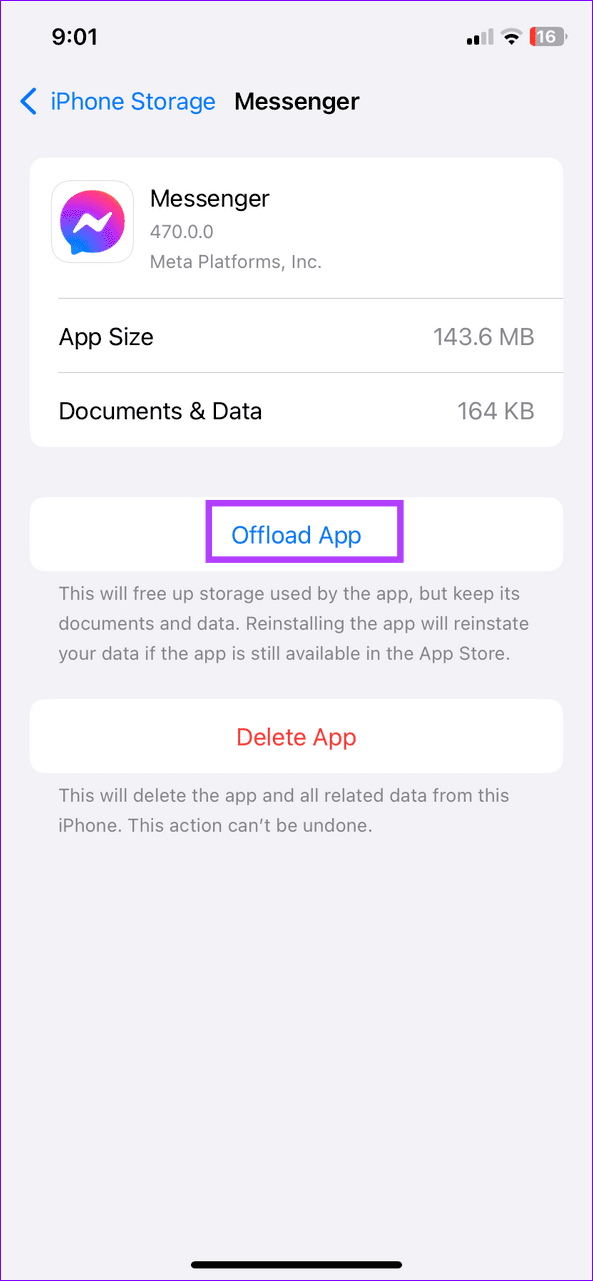
Unlike Android, iOS doesn’t allow clearing the Facebook Messenger app cache manually. Instead, offload the Messenger app and reinstall it to fix Marketplace messages not showing up in your Inbox.
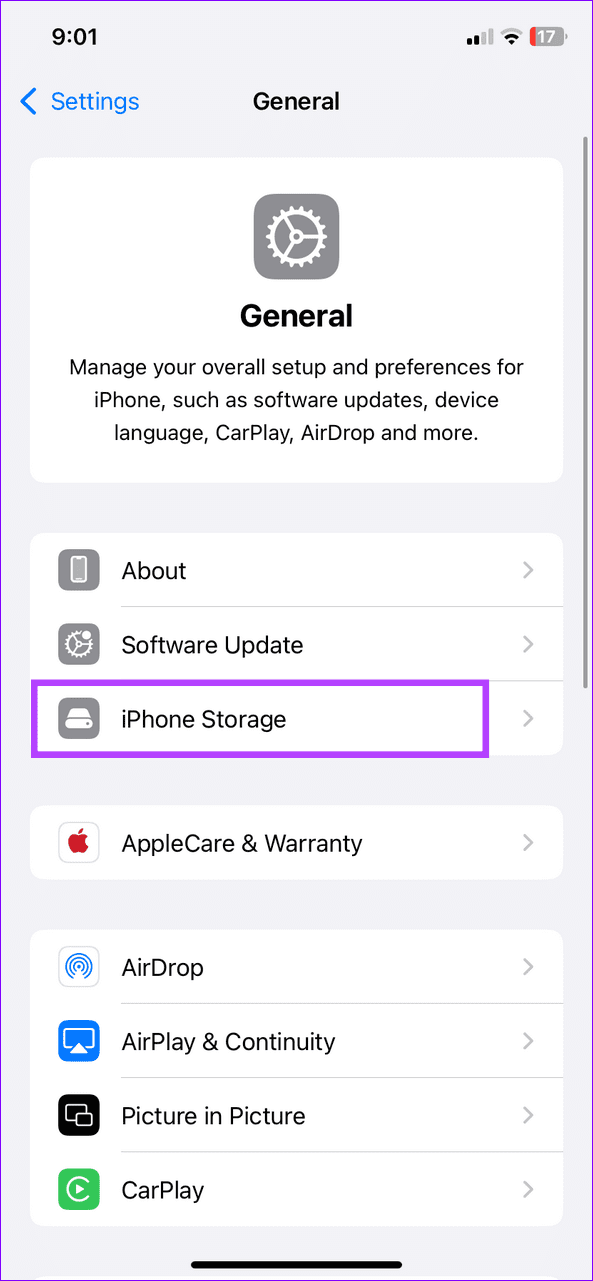
Step 1: Open iPhone Settings, select General, and tap iPhone Storage.

Step 2: Select Messenger, and tap Offload App. Reinstall it from the Apple App Store and check your desired Marketplace messages.

Was this helpful?
Last updated on 08 August, 2024
Read Next
 3 Ways to Fix Can’t Send Messages on Facebook Marketplace
Fix 1: Wait It Out Facebook Marketplace limits the number of messages one can send daily to reduce spam and unsolicited activities.
3 Ways to Fix Can’t Send Messages on Facebook Marketplace
Fix 1: Wait It Out Facebook Marketplace limits the number of messages one can send daily to reduce spam and unsolicited activities.
 Top 4 Ways to Fix Facebook Marketplace Not Showing All Listings
Preliminary Fixes Check the Network Connection: A stable and reliable internet connection is crucial for loading all content on Facebook Marketplace.
Top 4 Ways to Fix Facebook Marketplace Not Showing All Listings
Preliminary Fixes Check the Network Connection: A stable and reliable internet connection is crucial for loading all content on Facebook Marketplace.
 Top 4 Ways to Fix Facebook Messenger Not Showing Messages
Preliminary Fixes Check Messages Requests in Hidden Inbox: Sometimes, messages from people who are not on your friends list may not appear in your main inbox.
Top 4 Ways to Fix Facebook Messenger Not Showing Messages
Preliminary Fixes Check Messages Requests in Hidden Inbox: Sometimes, messages from people who are not on your friends list may not appear in your main inbox.
 5 Ways to Fix Facebook Marketplace Not Working
Why Facebook Marketplace May Not Be Available for You?
5 Ways to Fix Facebook Marketplace Not Working
Why Facebook Marketplace May Not Be Available for You?
 How to Get Rid of Facebook Marketplace Limit Reached Problem
Why Is Facebook Limiting My Account on Marketplace Like most e-commerce platforms, Facebook Marketplace has strict guidelines and rules to follow.
How to Get Rid of Facebook Marketplace Limit Reached Problem
Why Is Facebook Limiting My Account on Marketplace Like most e-commerce platforms, Facebook Marketplace has strict guidelines and rules to follow.
 What Happens When You Accept An Offer on Facebook Marketplace
Facebook Marketplace is an excellent platform to find local items in your area.
What Happens When You Accept An Offer on Facebook Marketplace
Facebook Marketplace is an excellent platform to find local items in your area.
 How to Report and Avoid Scammers on Facebook Marketplace
Facebook Marketplace – the company’s e-commerce platform, has over one billion users.
How to Report and Avoid Scammers on Facebook Marketplace
Facebook Marketplace – the company’s e-commerce platform, has over one billion users.
 10 Common Facebook Marketplace Scams and How to Avoid Them
Besides being a popular social media platform, Facebook is also a great place to buy and sell things, thanks to Facebook Marketplace.
10 Common Facebook Marketplace Scams and How to Avoid Them
Besides being a popular social media platform, Facebook is also a great place to buy and sell things, thanks to Facebook Marketplace.
The article above may contain affiliate links which help support Guiding Tech. The content remains unbiased and authentic and will never affect our editorial integrity.