

Basic Fixes:
- Restart Windows device: Restarting your device can help fix any minor software issue that might be preventing the Backspace or Enter key from working on Windows after the latest system boot.
- Check for Windows updates: Certain Windows updates are vital for the smooth functioning of your system. So, if you’ve been facing keyboard issues on your device, it might be worth checking if your device is up-to-date.
Fix 1: Turn off Sticky Keys
Sticky Keys might end up interfering with the regular functioning of your keyboard. To fix this, press the Shift key consecutively 5 times. At the last press, there would be a loud final beep after which the Sticky Keys icon will disappear from the taskbar. This will turn off Sticky Keys.
Fix 2: Run Keyboard Troubleshooter
Windows has native troubleshooting options available for fixing issues like the keyboard not working properly. Once launched, the troubleshooting app will scan Windows for any issues and suggest possible solutions. Here’s how to do it.
Step 1: Use the Windows + I key to open Settings and click on System. Click on Troubleshoot.

Step 2: Here, click on Other troubleshooters.

Step 3: Go to Keyboard and click on Run.
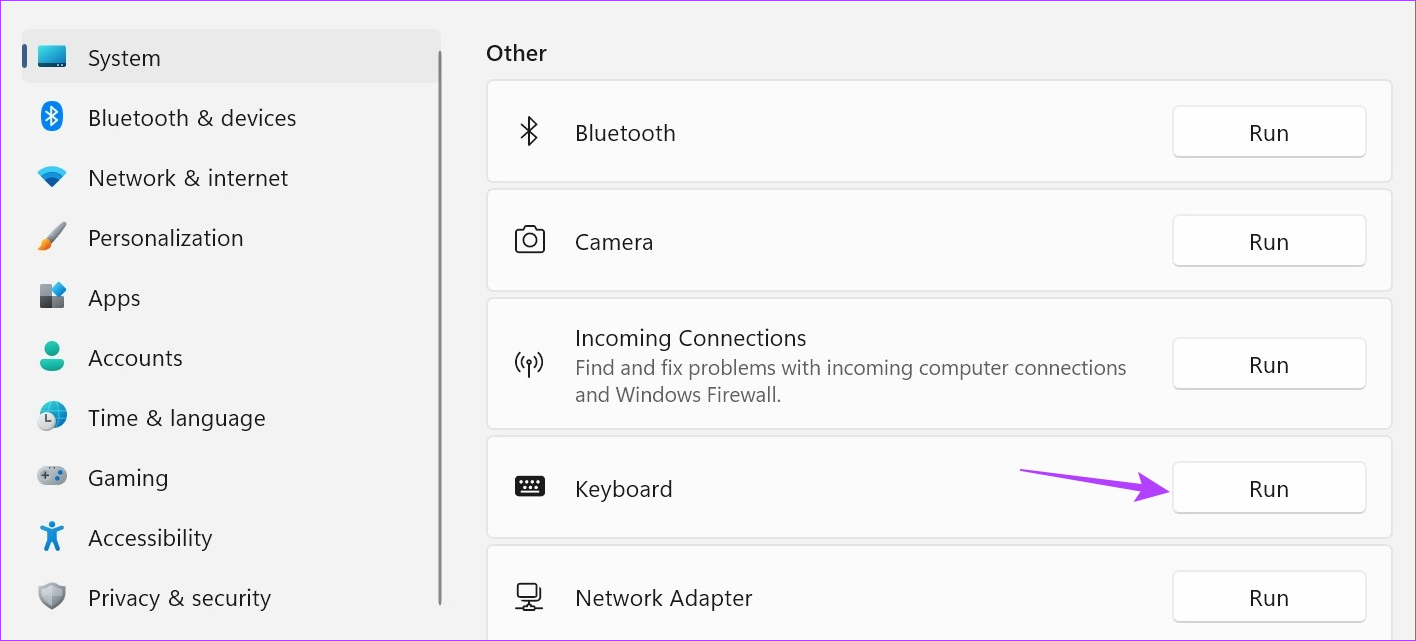
Wait for the troubleshooter to finish scanning from issues. Then, follow the on-screen instructions to fix the issue of the Backspace or Enter key not working on Windows 11.
Fix 3: Run System File Checker
The System File Checker helps scan your entire system for any issues relating to system files being missing or damaged. After the scan is done, it will show the issue and possible ways of fixing it. Follow the below steps to run the scan.
Tip: If you’ve been having issues using the Enter key, open the On-Screen Keyboard and use it to execute the commands.
Step 1: Open the Command Prompt with administrator privileges. Type the following command and press Enter to execute.
SFC /scannow
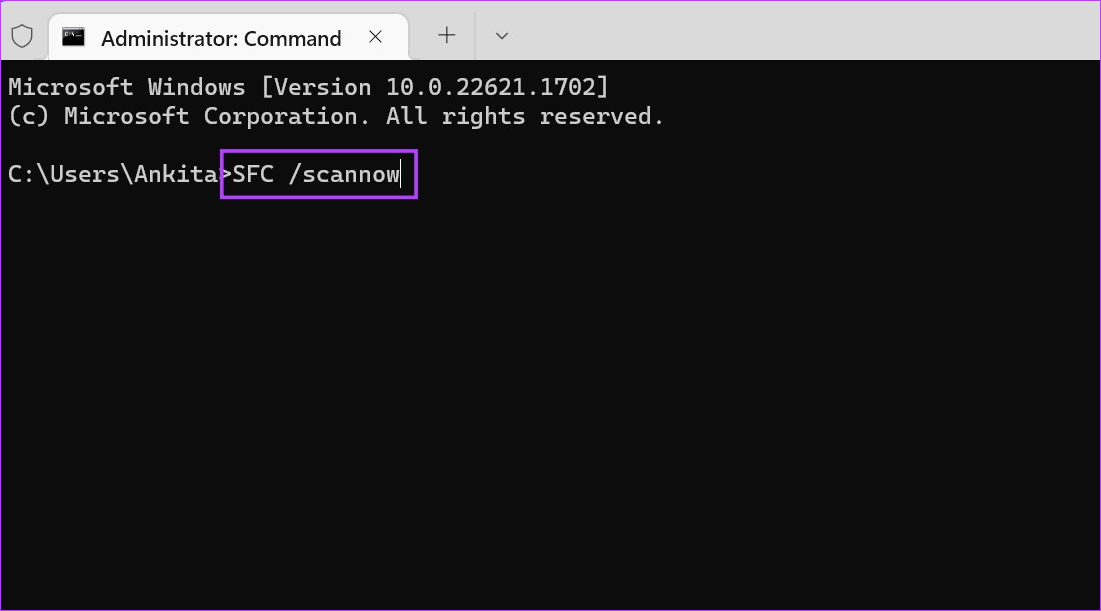
Once the scan finishes, follow the on-screen instructions to fix the problem and try using the relevant keyboard keys again.
Fix 4: Reinstall the Keyboard Driver
You can uninstall and reinstall the keyboard driver on Windows 11. This will help install a new copy of the driver. Go for this fix if the Backspace or Enter key is still not working on Windows 11. Follow the below steps to do it.
Step 1: Open Device Manager and click on Keyboards. Right-click on the keyboard driver.
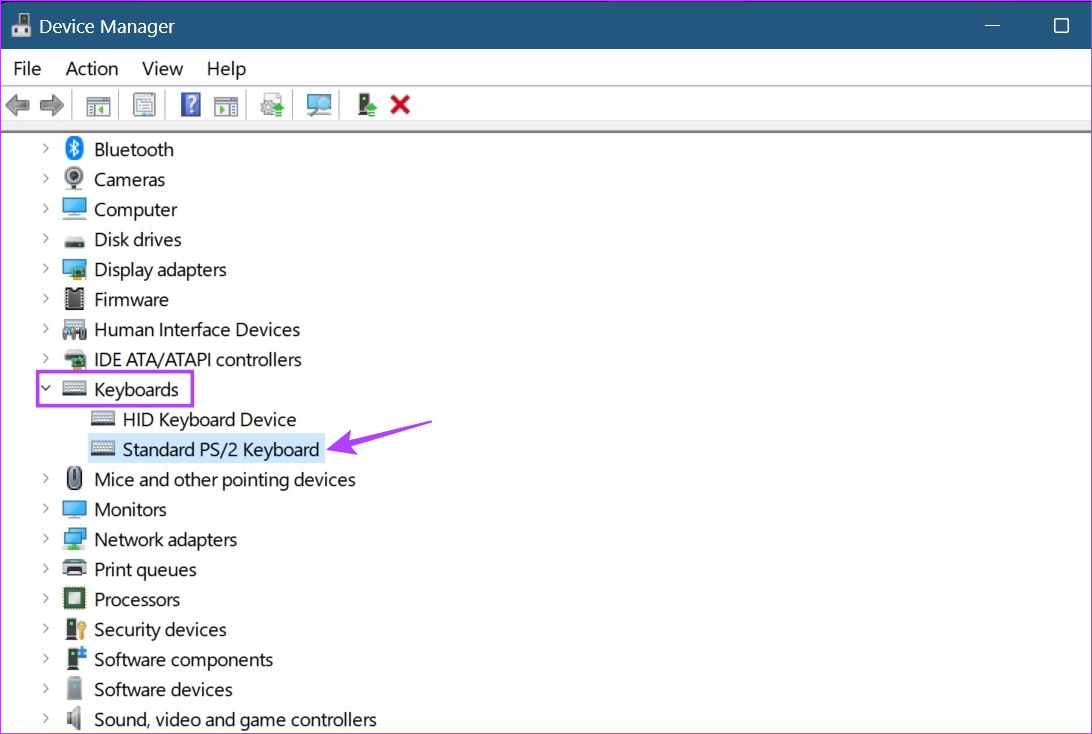
Step 2: Click on Uninstall device and confirm when prompted.

Once done, restart your device to reinstall the keyboard driver. Then, check if the Backspace and Enter keys are working as expected.
Fix 5: Reset Windows 11
Resetting your device is an effective way to fix most of the software-based issues on Windows 11. This will delete any errant update or setting on your laptop that might be causing issues when using the Enter or Backspace key. Here’s how to do it.
Step 1: Open Settings and click on System. Click on Recovery.

Step 2: Go to Reset this PC and click on Reset PC.
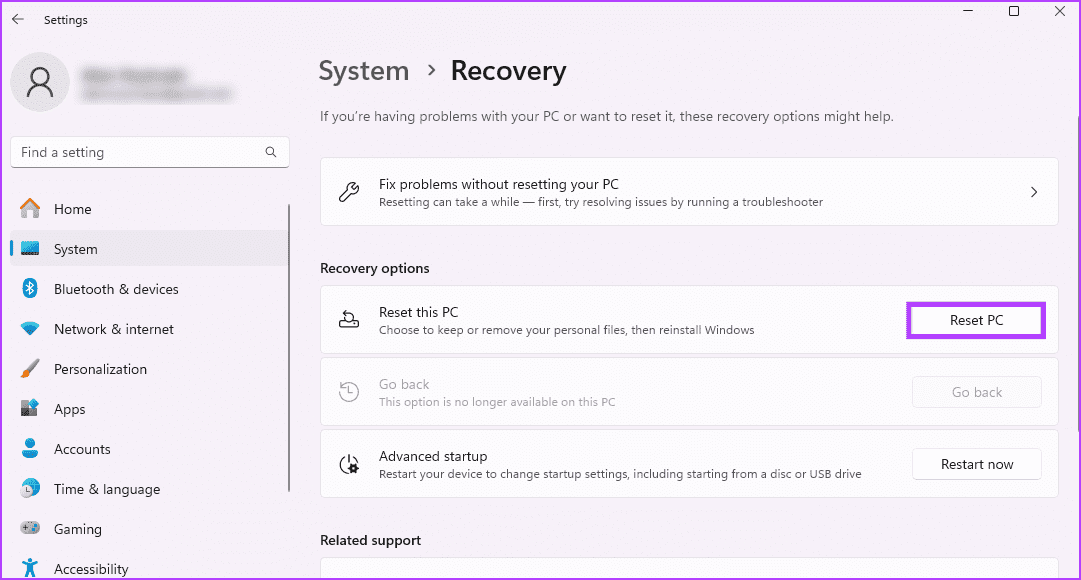
Step 3: Select Keep my files to keep your data but delete all settings and apps.

Finish the reset process and set up your Windows PC. Then, try using the relevant keyboard keys to check if the issue has been resolved.
FAQs
Yes, if your keyboard has sustained physical damage or if the keys themselves are missing on the keyboard, they might not work as expected. When this happens, consider going for a new keyboard.
Yes, you can remap the keys on Windows 11 by installing the Microsoft Powertoys app. Then, use it to remap the keyboard keys in Windows 11.
Was this helpful?
Last updated on 07 August, 2024
1 Comment
Leave a Reply
Read Next
 Top 7 Ways to Fix Windows Key Not Working on Windows 10
Windows 10 operating system is full of keyboard shortcuts.
Top 7 Ways to Fix Windows Key Not Working on Windows 10
Windows 10 operating system is full of keyboard shortcuts.
 7 Ways to Fix Windows Key Not Working in Windows 11
Basic Fixes Check for physical damage: There might be physical damage or dirt buildup on your keyboard.
7 Ways to Fix Windows Key Not Working in Windows 11
Basic Fixes Check for physical damage: There might be physical damage or dirt buildup on your keyboard.
 4 Ways to Fix Tab Key Not Working on Windows 11
Try These Fixes First Restart your computer: The Issue can occur due to a temporary bug or glitch on your computer.
4 Ways to Fix Tab Key Not Working on Windows 11
Try These Fixes First Restart your computer: The Issue can occur due to a temporary bug or glitch on your computer.
 4 Fixes When the Windows 11 Activation Key Is Not Working
Basic Fixes: Confirm the OS is running an updated Windows 11: You may use the built-in Winver utility to check your OS version and update status.
4 Fixes When the Windows 11 Activation Key Is Not Working
Basic Fixes: Confirm the OS is running an updated Windows 11: You may use the built-in Winver utility to check your OS version and update status.
 3 Quick Ways to Find Product Key on Windows 10 or Windows 11
1.
3 Quick Ways to Find Product Key on Windows 10 or Windows 11
1.
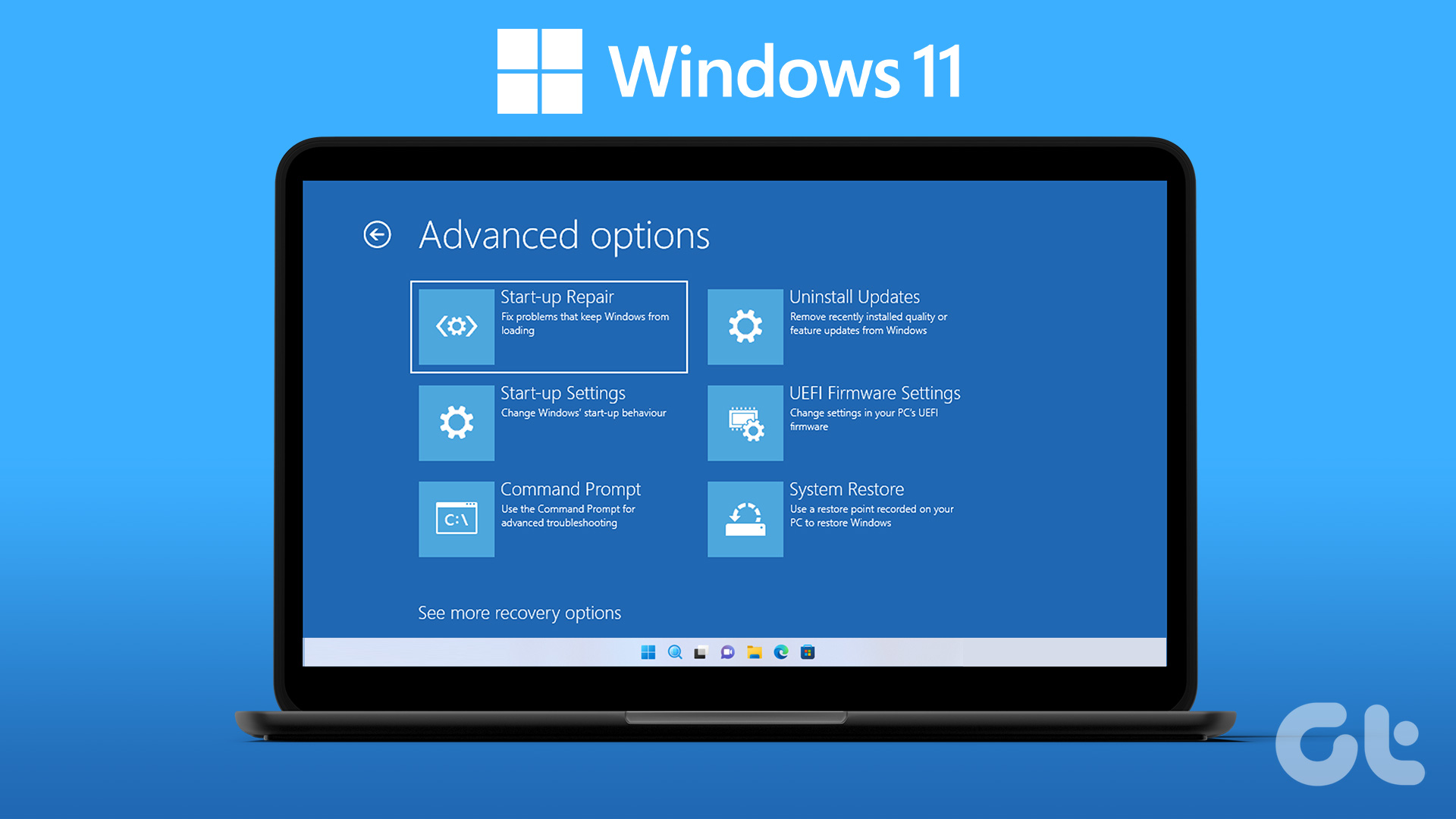 How to Enter BIOS on Windows 10 and 11 PC Without Restarting
What Is BIOS and How Does It Work?
How to Enter BIOS on Windows 10 and 11 PC Without Restarting
What Is BIOS and How Does It Work?
 The List of All Excel Function Key (F1 to F12) Shortcuts
F1 Shortcuts Shortcut KeyActionF1Opens the Excel Help task pane.Ctrl+F1Hide/Unhide the taskbar.Alt+F1Create a chart from data in the current range.Ctrl+Shift+F1Hide/Unhide ribbon and taskbar.Alt+Shift+F1Create a new worksheet.
The List of All Excel Function Key (F1 to F12) Shortcuts
F1 Shortcuts Shortcut KeyActionF1Opens the Excel Help task pane.Ctrl+F1Hide/Unhide the taskbar.Alt+F1Create a chart from data in the current range.Ctrl+Shift+F1Hide/Unhide ribbon and taskbar.Alt+Shift+F1Create a new worksheet.
 What Is Contact Key Verification in iMessage and How to Use It
There is no need to worry about whether your messages are reaching the right person.
What Is Contact Key Verification in iMessage and How to Use It
There is no need to worry about whether your messages are reaching the right person.
The article above may contain affiliate links which help support Guiding Tech. The content remains unbiased and authentic and will never affect our editorial integrity.

Thank you!…
I can now use my ENTER Key.
Fix #3 worked like a charm.