

Try Basic Fixes
- Temporarily disable your VPN connection: Although VPNs are great for maintaining privacy, they can often cause problems with streaming services such as Prime Video, especially if you switch servers frequently. If you use a VPN connection, disable it momentarily to check if that fixes the black screen issue.
- Check Amazon Prime server status: Another thing you should do is check if Prime Video servers are experiencing any outages. For that, visit Downdetector. If there’s a widespread outage, your only option is to wait for the company to fix the issue from their end.
- Update the app: The Prime Video app on your PC may be old or buggy, so videos are playing, but there’s no picture. You can open the Microsoft Store app on your PC to check if a newer version of the Prime Video app is available.
Fix 1: Sign Out and Sign Back Into the App
Authentication issues with your Amazon account can also result in such abnormalities. So, signing out of your account and signing back in can help resolve these issues. In the Prime Video app, click on your name at the bottom-left corner and select Sign Out.

Sign in with your Amazon account details and check if you still get a black screen.
Fix 2: Disable Hardware Acceleration (for Browsers)
Are you experiencing the black screen issue while using Prime Video in your web browser? That could happen if the hardware acceleration feature is not working correctly. You can disable the feature on your browser temporarily to see if that helps.
To disable hardware acceleration in Chrome, type chrome://settings/system in the address bar at the top and press Enter. Then, turn off the toggle for Use hardware acceleration when available.

To disable hardware acceleration in Edge, type edge://settings/system in the URL bar at the top and press Enter. Turn off the toggle for Use hardware acceleration when available.

Fix 3: Clear Browser Cache
If disabling hardware acceleration does not help, there might be an issue with the existing browser cache data. You can eliminate this data to see if that fixes the problem.
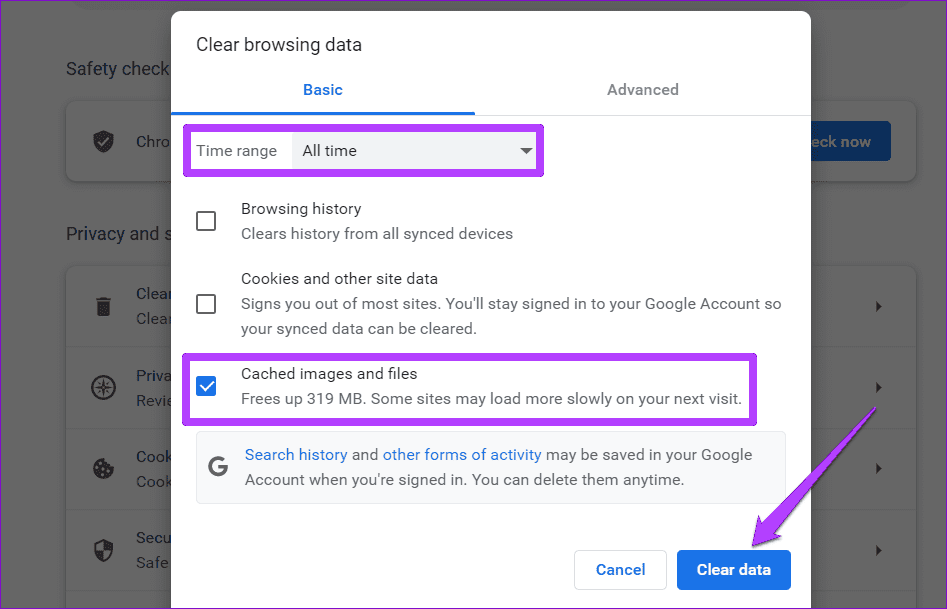
To clear the browser cache in Google Chrome or Microsoft Edge, press the Ctrl + Shift + Delete shortcut on your keyboard to open the Clear browsing data panel.
Use the drop-down next to Time range to select All time. Check the box for Cached images and files and click the Clear data button.
Fix 4: Repair or Reset the App
If the black screen issue in Prime Video is limited to its desktop app, use the app repair feature in Windows to fix it. Here’s how.
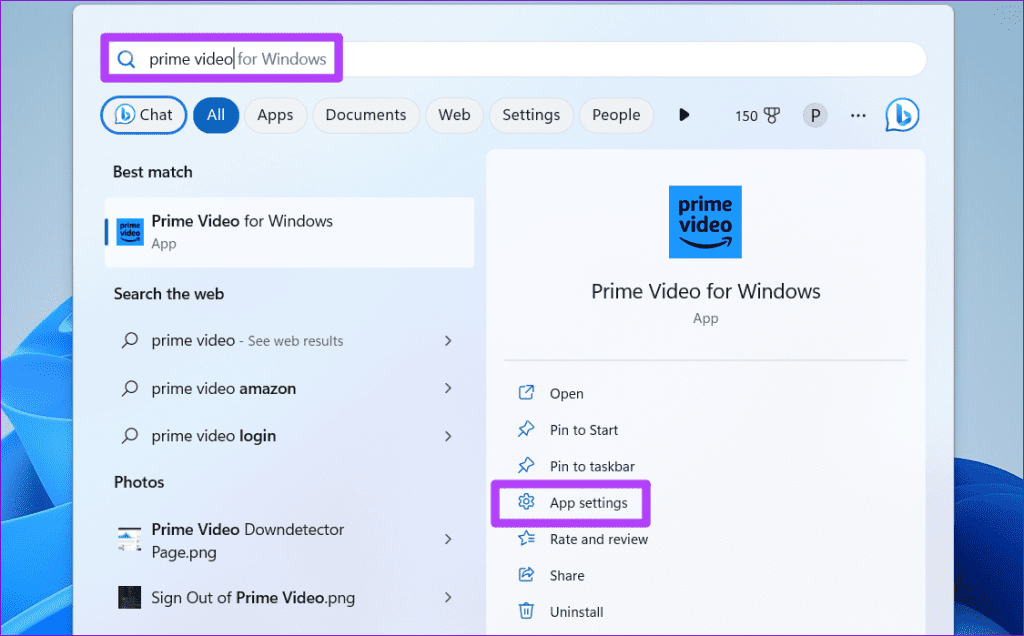
Step 1: Press the Windows key + S shortcut to open the search menu. Type prime video, and select App settings from the right pane.
Step 2: Scroll down and click on Repair.

If the issue persists, try resetting the app to default by clicking the Reset button.
Fix 5: Update Display Drivers
Finally, if none of the above fixes work or if you experience a similar issue with other streaming apps as well, your PC’s display drivers may be malfunctioning. So, try updating the display drivers on Windows by following the steps below.
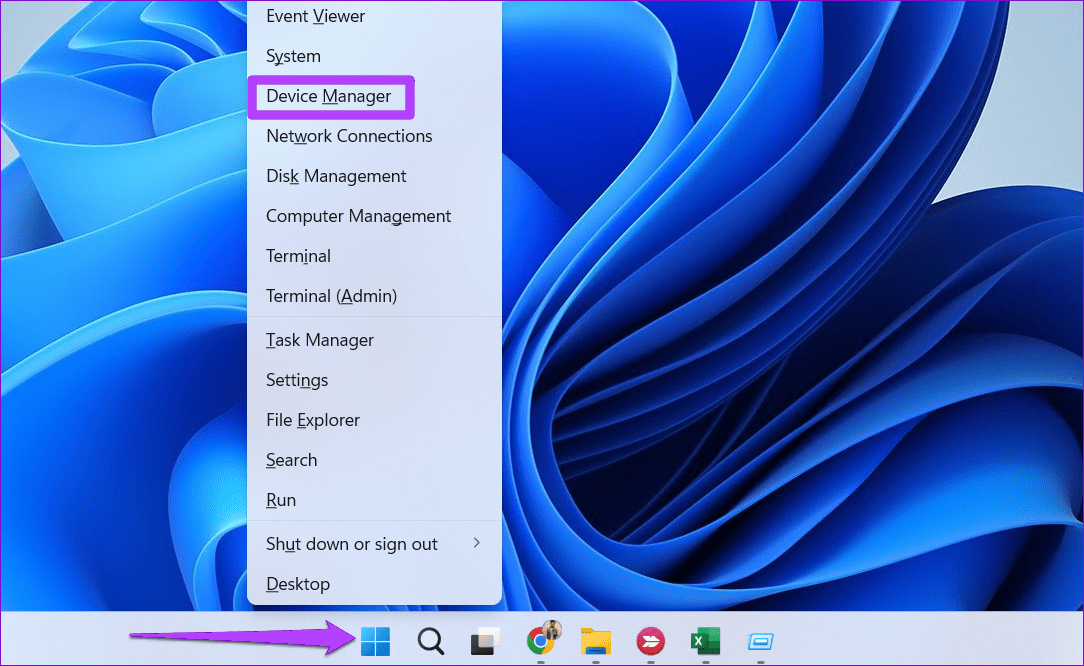
Step 1: Right-click on the Start icon > select Device Manager.
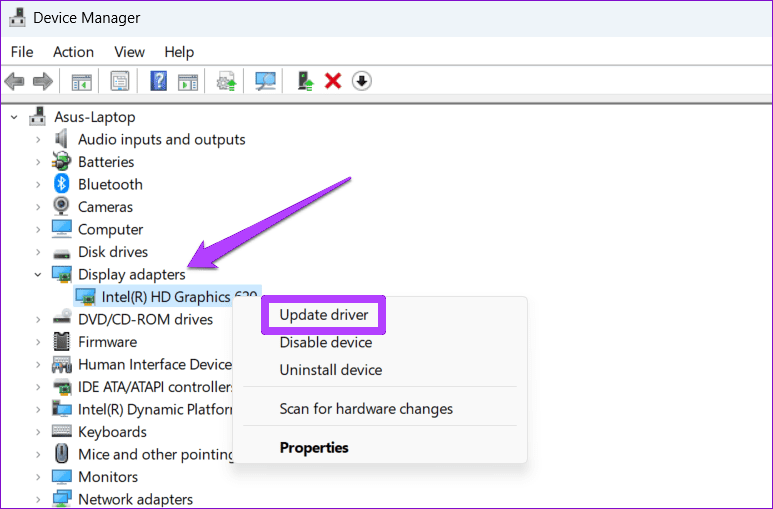
Step 2: Double-click on Display adapters to expand it. Right-click on your driver and select Update driver.
After updating the drivers, restart your PC and check if the issue is still there.
Was this helpful?
Last updated on 31 July, 2024
1 Comment
Leave a Reply
Read Next
 3 Fixes for Black Screen With Sound in Amazon Prime Video on Mac
Basic Fixes Use Safari to play HDR content: The Safari browser on Mac supports 4K Ultra HD playback in Dolby Vision HDR for streaming platforms.
3 Fixes for Black Screen With Sound in Amazon Prime Video on Mac
Basic Fixes Use Safari to play HDR content: The Safari browser on Mac supports 4K Ultra HD playback in Dolby Vision HDR for streaming platforms.
 5 Ways to Fix Video Unavailable in Amazon Prime Video
Basic Fixes Check network connection: Playing Prime without any problems requires an optimum internet speed.
5 Ways to Fix Video Unavailable in Amazon Prime Video
Basic Fixes Check network connection: Playing Prime without any problems requires an optimum internet speed.
 4 Fixes for Amazon Prime Video App Not Working on Windows 11
Basic Fixes: Check device limit: You can use Prime Video to stream content on up to three devices using your account.
4 Fixes for Amazon Prime Video App Not Working on Windows 11
Basic Fixes: Check device limit: You can use Prime Video to stream content on up to three devices using your account.
 3 Ways to Fix Amazon Prime Video App Not Working on Mac
Basic Fixes Check internet connection: The speed of the internet connection should be optimal to watch content of the highest quality on Prime Video.
3 Ways to Fix Amazon Prime Video App Not Working on Mac
Basic Fixes Check internet connection: The speed of the internet connection should be optimal to watch content of the highest quality on Prime Video.
 4 Ways to Fix Amazon Prime Video Not Downloading Movies on iPhone
Basic Fixes Restart Prime Video: If there's any bug preventing you from downloading content, restarting your iPhone and the Prime Video app will help.
4 Ways to Fix Amazon Prime Video Not Downloading Movies on iPhone
Basic Fixes Restart Prime Video: If there's any bug preventing you from downloading content, restarting your iPhone and the Prime Video app will help.
 5 Ways to Fix Amazon Prime Video Doesn’t Play in HD on Browser
Basic Fixes Check network connection: Playing Prime Video in high definition or the best resolution requires an optimum internet speed.
5 Ways to Fix Amazon Prime Video Doesn’t Play in HD on Browser
Basic Fixes Check network connection: Playing Prime Video in high definition or the best resolution requires an optimum internet speed.
 5 Ways to Fix Amazon Prime Video Not Working on Apple TV
Basic Fixes Check Amazon Prime subscription status: You can visit your Amazon account on a desktop browser to check your subscription status.
5 Ways to Fix Amazon Prime Video Not Working on Apple TV
Basic Fixes Check Amazon Prime subscription status: You can visit your Amazon account on a desktop browser to check your subscription status.
 3 Ways to Fix Amazon Prime Video Not Working on iPhone and iPad
Basic Fixes: Check your internet connection: The app may not load properly if you access Prime Video on a sketchy internet connection.
3 Ways to Fix Amazon Prime Video Not Working on iPhone and iPad
Basic Fixes: Check your internet connection: The app may not load properly if you access Prime Video on a sketchy internet connection.
The article above may contain affiliate links which help support Guiding Tech. The content remains unbiased and authentic and will never affect our editorial integrity.


Hi Pankil,
Thanks a lot for helping me fix my black screen in Prime Videos. Disabled Hardware Acceleration and it sprung to life.
Very grateful for your expertise and the effort that you’ve made in sharing this useful and very well written article.
God bless You.
RSM
Dr RS Mehta
MS (Orthopaedics)