


Method 1: Check Image Properties on Windows
If you are using a Windows PC, here’s how you can easily find the location of an image using the Photos app.
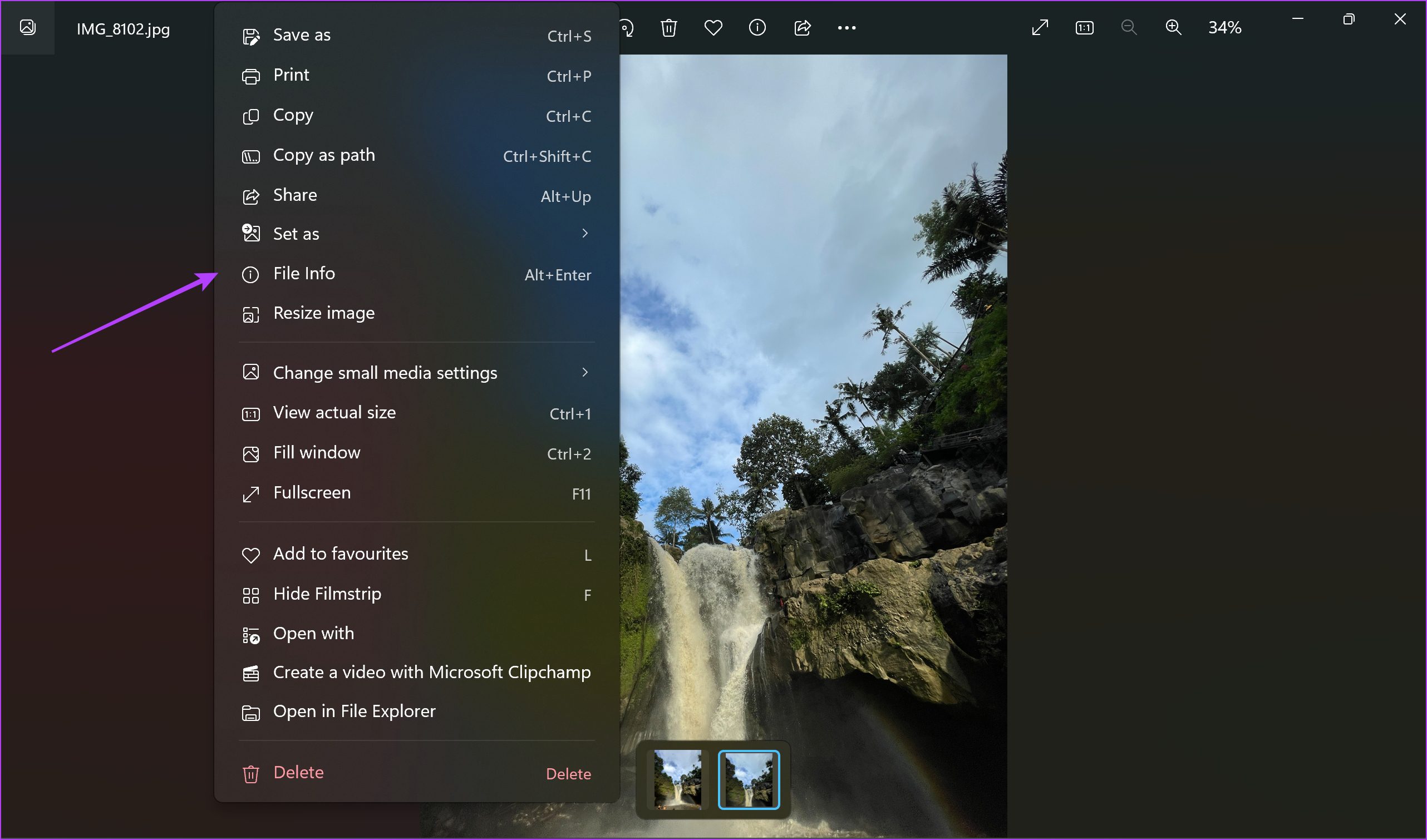
Step 1: Open the image on the Photos app. Right-click and select File info.
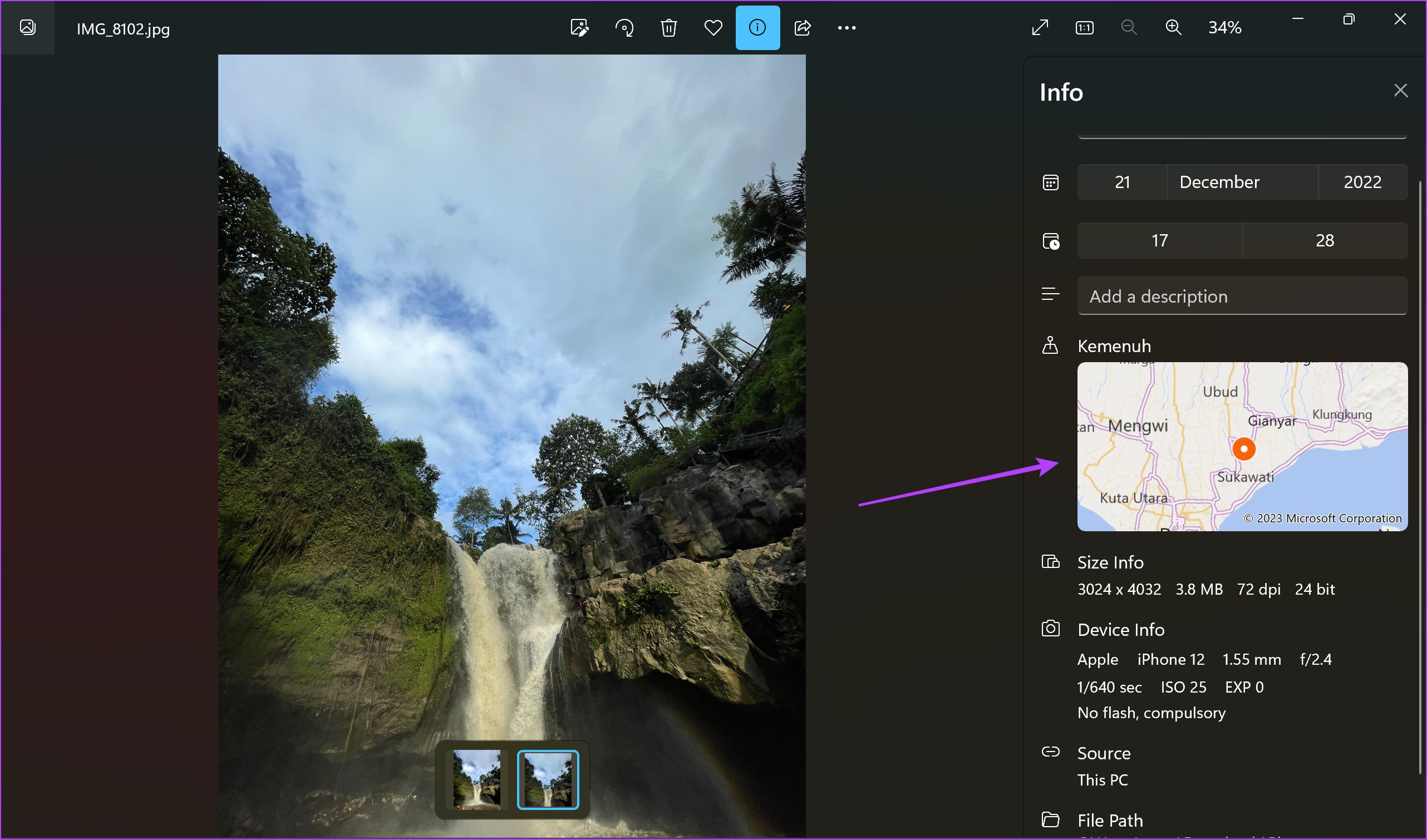
Step 2: Scroll down on the sidebar that appears, and you will be able to see the location information.
Method 2: Find the Picture Location on a Mac
Here’s how you can easily open up an image on your Macbook and find the location of the photo.
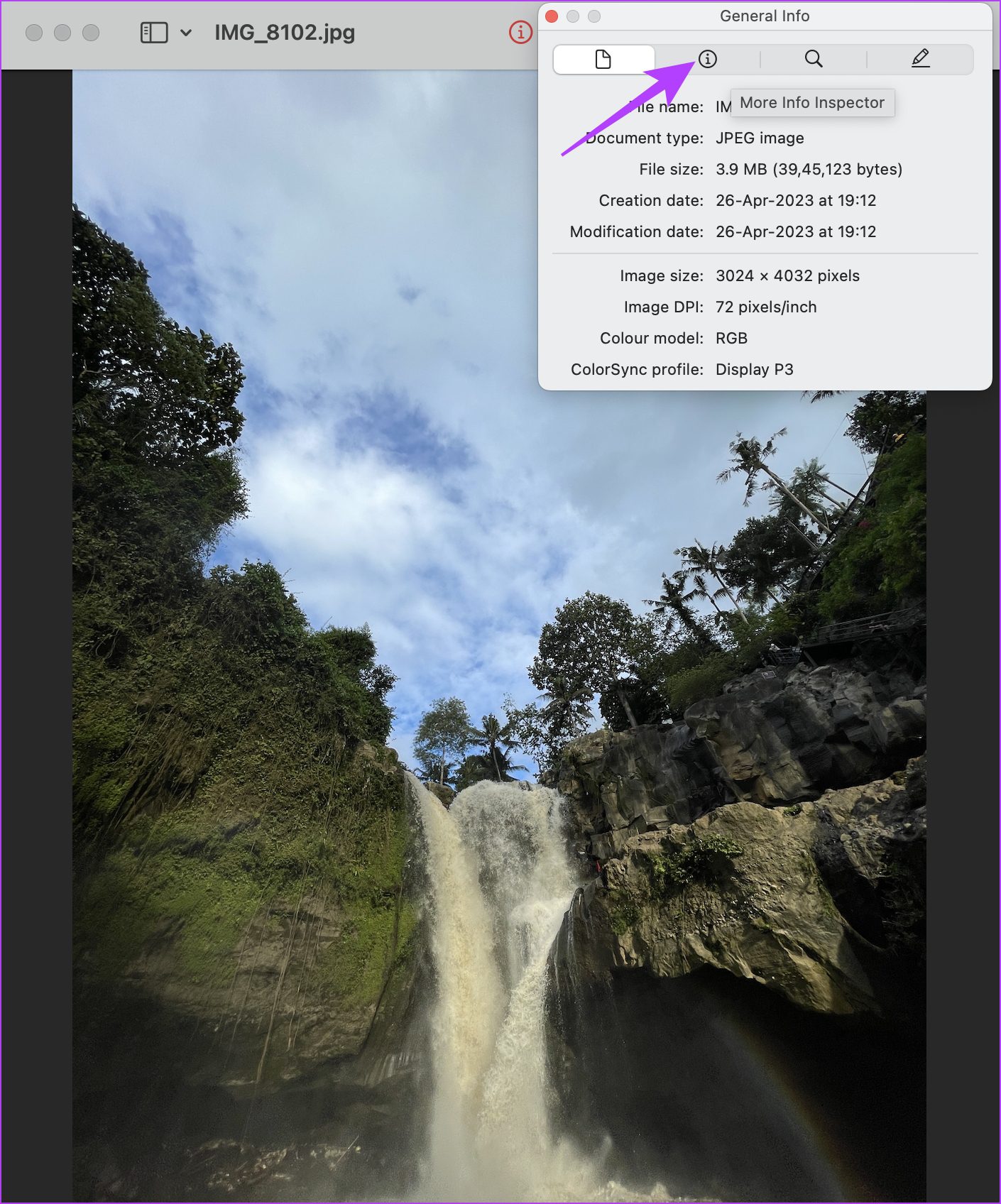
Step 1: Open the image and click on the information button.

Step 3: Click on the information button on the General Info menu toolbar.
Step 2: Click on the GPS button in the toolbar.

There you go – this shows you the location of the image.

Method 3: Find the Location of the Photo on iPhone and Android
If you are viewing the image on a smartphone, you can easily see the location of a photo using the photo information option. It is available on both iPhone and Android.
If you are using an iPhone, you can just tap on the Info button to see the location of the picture.


If you are using an Android device, you can use Google Photos to view the location of a photo. Tap on the three dots icon and scroll down to find the location of the photo.


Method 4: Reverse Image Search on Google
This may or may not work but it is still worth a try. Google image search is pretty powerful.
You can visit Google Images and select Search by Images. So when you load an image by dragging it into the search bar, Google will try and guess the location.
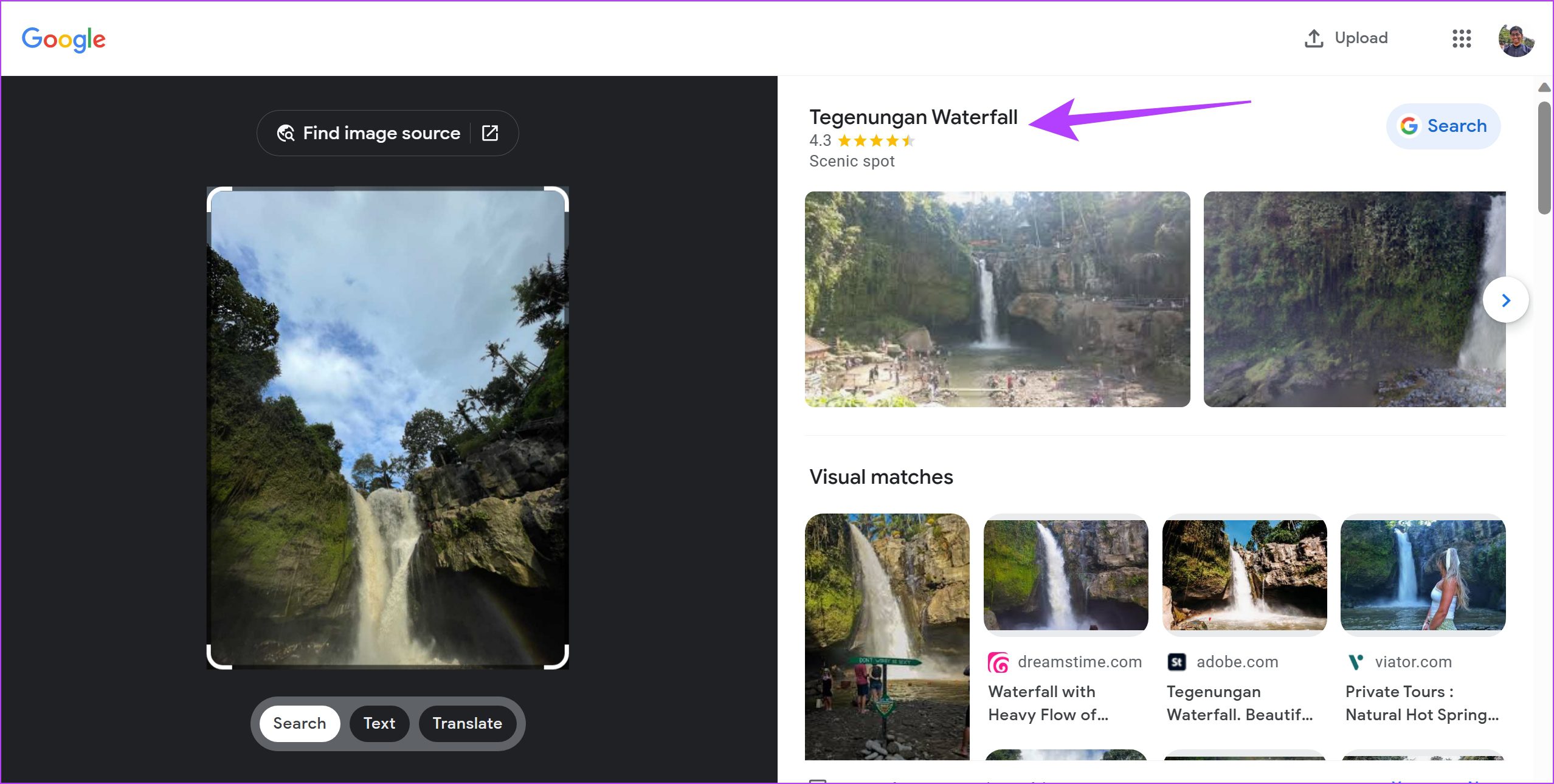
Since most of us are already using Google daily, this is the fastest way to find locations from photos easily. But it is also the least accurate, which is why we will discuss some other solutions too.
Method 5: Use Third-Party Apps
1. Photo Location: Simple Tool to Identify Location From Photo Online
Photo Location is a simple-looking site that will help you find the location of the photo quickly.
Step 1: Visit Photo Location on a web browser.
Just drag and drop the image to the upload area. If the EXIF data contains the location, you will see the latitude and longitude details along with the street address.
Below that, the address of the location in the image will be plotted on a Google Map.

2. Pic2Map: Detailed Information of the Location of a Picture
Step 1: Open Pic2Map on a web browser.
Step 2: You can drag and drop the image or select the file location to upload the image. Once you do, it will show you the photo’s location and address along with an interactive map.
Pic2Map will also collect additional data from the photo, like the make and model of the device, ISO speed, focal length, shutter speed, GPS info, and so on.

3. Where is the Picture: Another Reliable Tool to Check a Photo’s Location
Step 1: Open Where Is the Picture in a web browser:
Step 2: Once you select your image in the upload area, the site will show you the location of the image.

Also Read: 5 ways to reduce photo size on Windows
Was this helpful?
Last updated on 25 July, 2024
1 Comment
Leave a Reply
Read Next
 How to Add Photo Cutout Sticker to Another Photo on iPhone
Method 1: Using Markup Editor In this method, first, you need to add the sticker to the sticker gallery.
How to Add Photo Cutout Sticker to Another Photo on iPhone
Method 1: Using Markup Editor In this method, first, you need to add the sticker to the sticker gallery.
 5 Ways to Fix WhatsApp Live Location Not Updating on Android and iPhone
Try Basic Fixes Update WhatsApp: An outdated app version can also cause performance issues, especially if you haven't updated it in a long time.
5 Ways to Fix WhatsApp Live Location Not Updating on Android and iPhone
Try Basic Fixes Update WhatsApp: An outdated app version can also cause performance issues, especially if you haven't updated it in a long time.
 4 Ways to Fix Instagram Location Not Working on iPhone and Android
Basic Fixes Disable airplane mode: Disable airplane mode on your phone to capture your GPS location so that apps can use it.
4 Ways to Fix Instagram Location Not Working on iPhone and Android
Basic Fixes Disable airplane mode: Disable airplane mode on your phone to capture your GPS location so that apps can use it.
 How to Disable or Enable Location Permission for Google Chrome
How to Disable or Enable Location in Chrome for Windows or macOS Step 1: Open Google Chrome on your PC.
How to Disable or Enable Location Permission for Google Chrome
How to Disable or Enable Location in Chrome for Windows or macOS Step 1: Open Google Chrome on your PC.
 How to Change or Fake Location in Chrome, Edge, and Firefox
Method 1: Use a VPN to Fake Your Location in Chrome, Edge, and Firefox VPN makes your private network truly private when you connect to its servers.
How to Change or Fake Location in Chrome, Edge, and Firefox
Method 1: Use a VPN to Fake Your Location in Chrome, Edge, and Firefox VPN makes your private network truly private when you connect to its servers.
 Where Are Steam Games Stored and How to Change Their Location
Where Does Steam Install Games?
Where Are Steam Games Stored and How to Change Their Location
Where Does Steam Install Games?
 How to Add a Location or Missing Address in Google Maps
Over the past few years, navigation apps such as Google Maps have become an important part of our lives.
How to Add a Location or Missing Address in Google Maps
Over the past few years, navigation apps such as Google Maps have become an important part of our lives.
 How to Find Someone’s Location by Phone Number on Google Maps
Google Maps is more than just a navigation app.
How to Find Someone’s Location by Phone Number on Google Maps
Google Maps is more than just a navigation app.
The article above may contain affiliate links which help support Guiding Tech. The content remains unbiased and authentic and will never affect our editorial integrity.


Hi Try our service at picarta.ai
We use AI to estimate the GPS location