What Is Mouse Acceleration?
When mouse acceleration is enabled, the cursor travels further with faster mouse movements. This feature comes in handy in confined spaces or for quick tasks like office work, programming, or browsing. It allows the cursor to cover more ground without extensive physical mouse movement, thereby aiding in efficiency for various activities on your PC.
Why Should You Turn Off Mouse Acceleration on Windows?
Disabling mouse acceleration is crucial for precision-demanding tasks like gaming. For example, when playing an FPS game, the mouse acceleration causes faster cursor movements with the smallest of gestures, potentially decreasing the aiming accuracy, especially in close-range combat. As a gamer, you can benefit from turning it off to aim and play faster, thereby enhancing the gameplay.
Also Read: Best FPS gaming mouse: Wired and wireless
Turn Off Windows Mouse Acceleration: Disable Enhance Pointer Precision
Windows doesn’t exactly call it Mouse Acceleration. Instead, it is known as Pointer Precision and is embedded in the Control Panel of almost every Windows PC.
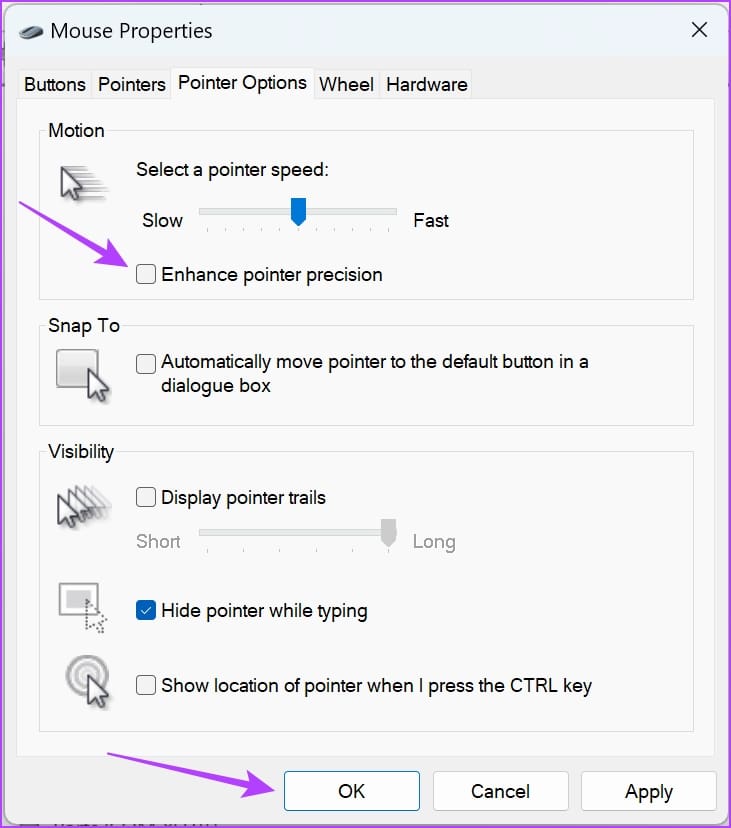
Step 1: Open the Settings app on your Windows PC. Tap on Bluetooth and Devices > select Mouse.

Step 2: Select Additional Mouse Settings.

Step 3: Uncheck the box for Enhance pointer precision and click on OK.
Also Read: How to fix mouse keeps clicking on its own on Windows 11
Was this helpful?
Last updated on 02 August, 2024
Read Next
 Top 3 Touch Mouse Alternatives to Apple’s Magic Mouse
The Magic Mouse is useful for plenty of people, but some can get annoyed by its poor ergonomics.
Top 3 Touch Mouse Alternatives to Apple’s Magic Mouse
The Magic Mouse is useful for plenty of people, but some can get annoyed by its poor ergonomics.
 How to Disable Mouse and Keyboard From Waking Up Your Windows 11 PC
Method 1: Disable Option to Wakeup From Power Management We can use the Windows Device Manager to prevent the keyboard, mouse, and touchpad from waking up your laptop or PC.
How to Disable Mouse and Keyboard From Waking Up Your Windows 11 PC
Method 1: Disable Option to Wakeup From Power Management We can use the Windows Device Manager to prevent the keyboard, mouse, and touchpad from waking up your laptop or PC.
 How to Enable or Disable Mouse Click Sound on Windows 11
Enable the Mouse Click Sound on Windows 11 If you're tired of your default mouse or trackpad click sound, setting a custom sound will enhance your navigation experience.
How to Enable or Disable Mouse Click Sound on Windows 11
Enable the Mouse Click Sound on Windows 11 If you're tired of your default mouse or trackpad click sound, setting a custom sound will enhance your navigation experience.
 3 Ways to Fix Mouse Keeps Scrolling Automatically Windows 10 and Windows 11
https://youtu.be/1UZ3PWNr-lE Try Basic Fixes Disconnect and reconnect the mouse: Unplug your mouse cable or wireless adapter from your computer and reconnect it to a different port.
3 Ways to Fix Mouse Keeps Scrolling Automatically Windows 10 and Windows 11
https://youtu.be/1UZ3PWNr-lE Try Basic Fixes Disconnect and reconnect the mouse: Unplug your mouse cable or wireless adapter from your computer and reconnect it to a different port.
 6 Ways to Fix Mouse Cursor Moving on Its Own in Windows
Basic Fixes Change old mouse pads: If a portion of your mousepad has faded and lost the coarseness needed to hold the mouse in place, it can make your mouse
6 Ways to Fix Mouse Cursor Moving on Its Own in Windows
Basic Fixes Change old mouse pads: If a portion of your mousepad has faded and lost the coarseness needed to hold the mouse in place, it can make your mouse
 Top 8 Ways to Fix Mouse Lag on Windows 11
A mouse that often stutters or lags can result in an unpleasant computing experience.
Top 8 Ways to Fix Mouse Lag on Windows 11
A mouse that often stutters or lags can result in an unpleasant computing experience.
 How to Customize the Mouse Cursor on Windows 11
How to Change the Color and Size of the Mouse Cursor There are a few default cursor options in Windows 11 if you want to change the way the mouse
How to Customize the Mouse Cursor on Windows 11
How to Change the Color and Size of the Mouse Cursor There are a few default cursor options in Windows 11 if you want to change the way the mouse
 5 Ways to Fix Mouse Cursor Not Showing on Windows 11
https://youtu.be/99YOYxqJPQ0 Fix 1: Clean the Trackpad or the Bottom Surface of the Mouse Sometimes, the dirt accumulated on your laptop’s trackpad may hinder the cursor’s movement.
5 Ways to Fix Mouse Cursor Not Showing on Windows 11
https://youtu.be/99YOYxqJPQ0 Fix 1: Clean the Trackpad or the Bottom Surface of the Mouse Sometimes, the dirt accumulated on your laptop’s trackpad may hinder the cursor’s movement.
The article above may contain affiliate links which help support Guiding Tech. The content remains unbiased and authentic and will never affect our editorial integrity.