Change Instagram Notification Sound on iPhone
Unfortunately, iOS doesn’t allow you to change the notification sound for individual apps. So, when you change the notification sound on Instagram on iPhone, it will be reflected with all other apps.
Step 1: Open Settings app > go to Sounds & Haptics.
Step 2: Now, select Text Tone.
Step 3: Choose the sound of your choice from the next page.


Once done, you will hear the new sound when receiving a notification.
Change Instagram Notification Sound on Android
Note: Depending on the device you use and the Android version it’s running on, the steps to change Instagram notification sound on Android might differ.
Here’s how you can set custom notification sounds for Instagram on Android:
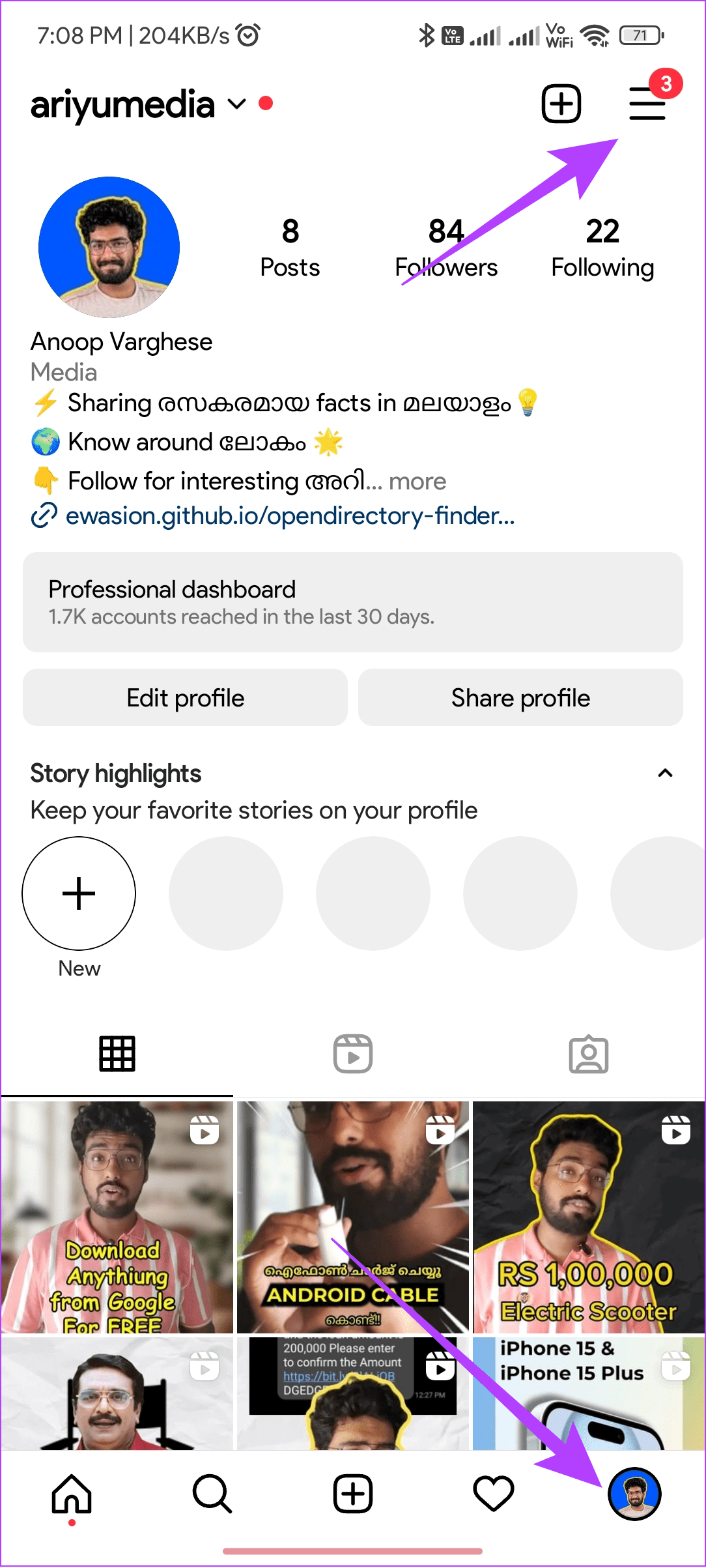
Step 1: Open the Instagram app > tap on your profile icon at the bottom.
Step 2: Tap on the hamburger menu at the top right > select Notifications.
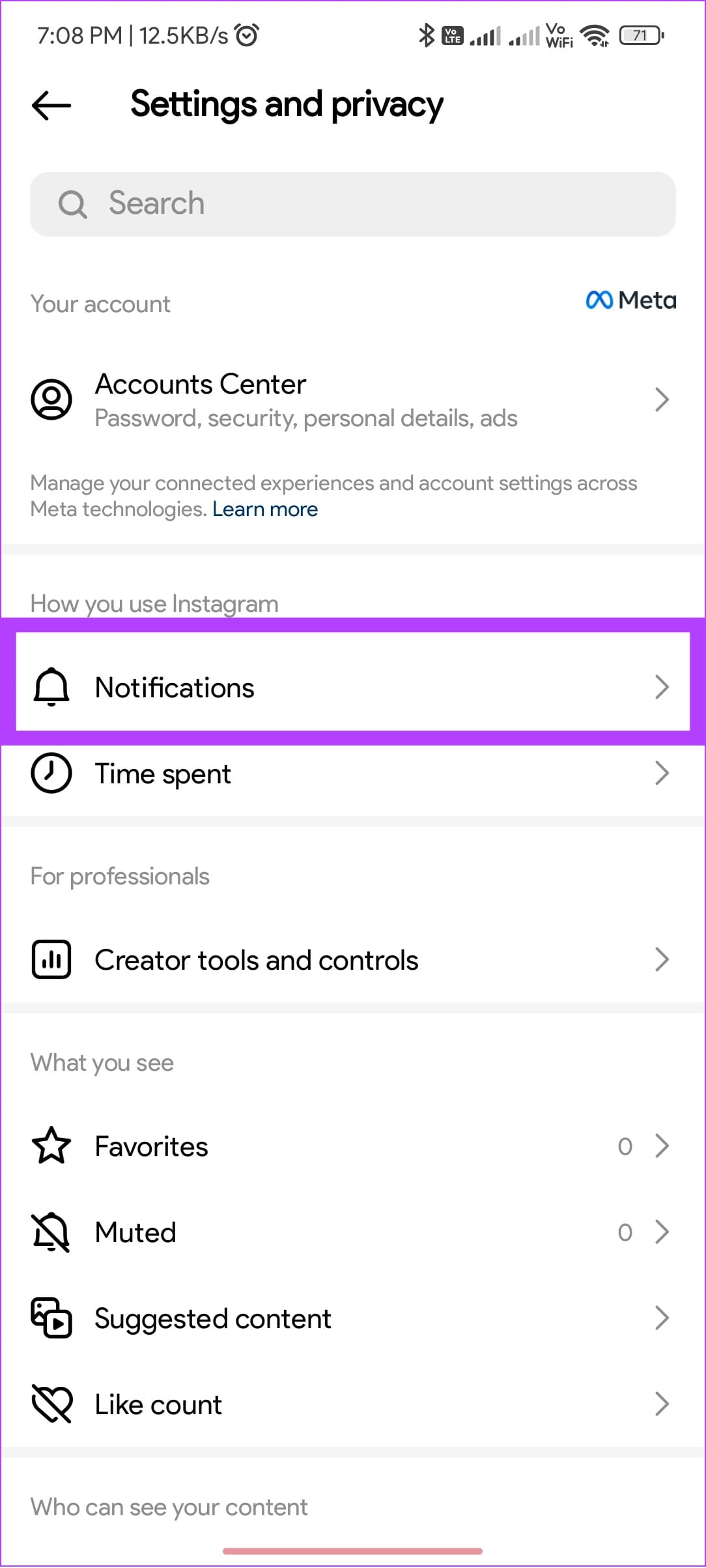
Step 3: Next, tap Posts, stories and comments.
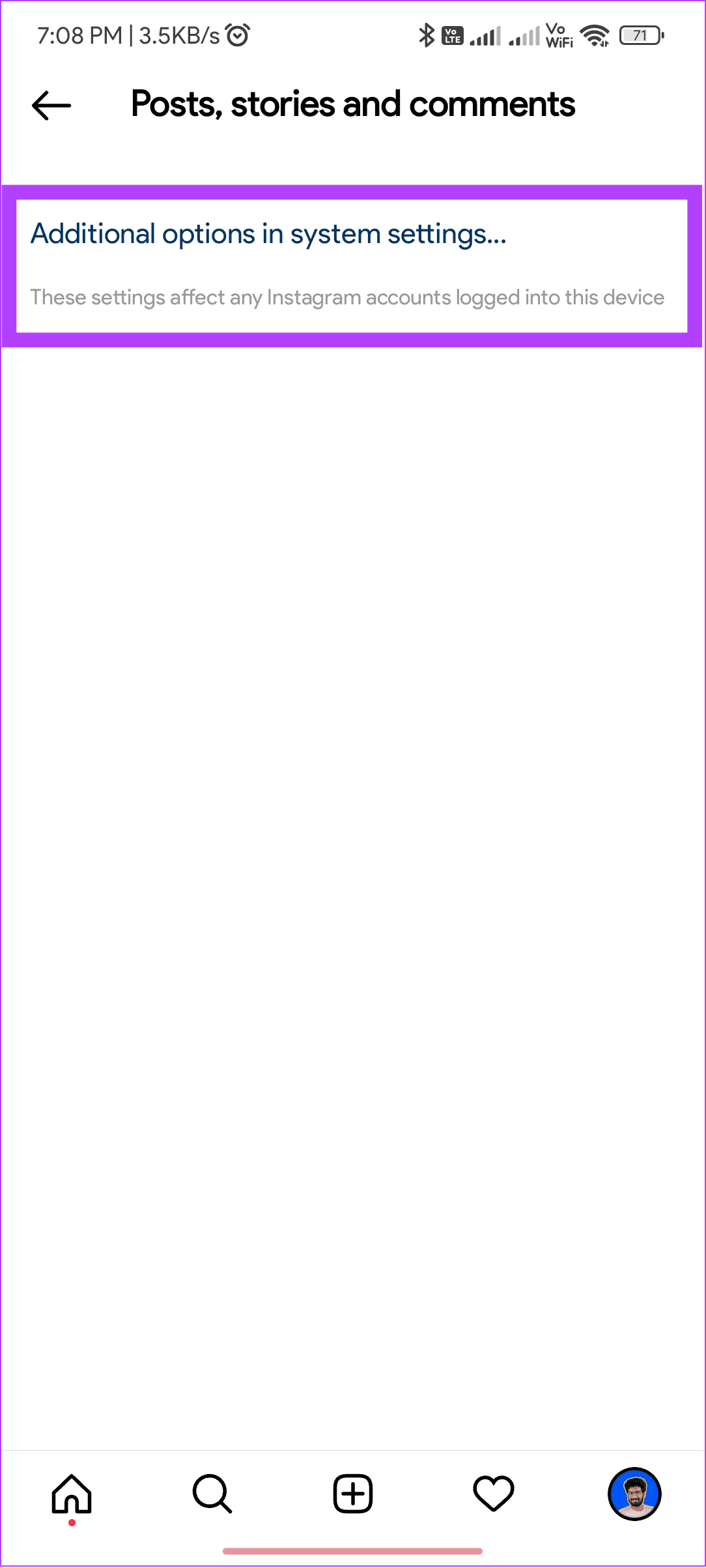
Step 4: Scroll down and tap Additional options in system settings. You will be redirected to the settings page.

Step 5: Here, choose the notification type of your choice (we are choosing Instagram Direct).
Step 6: Choose Sound and select the one you prefer.
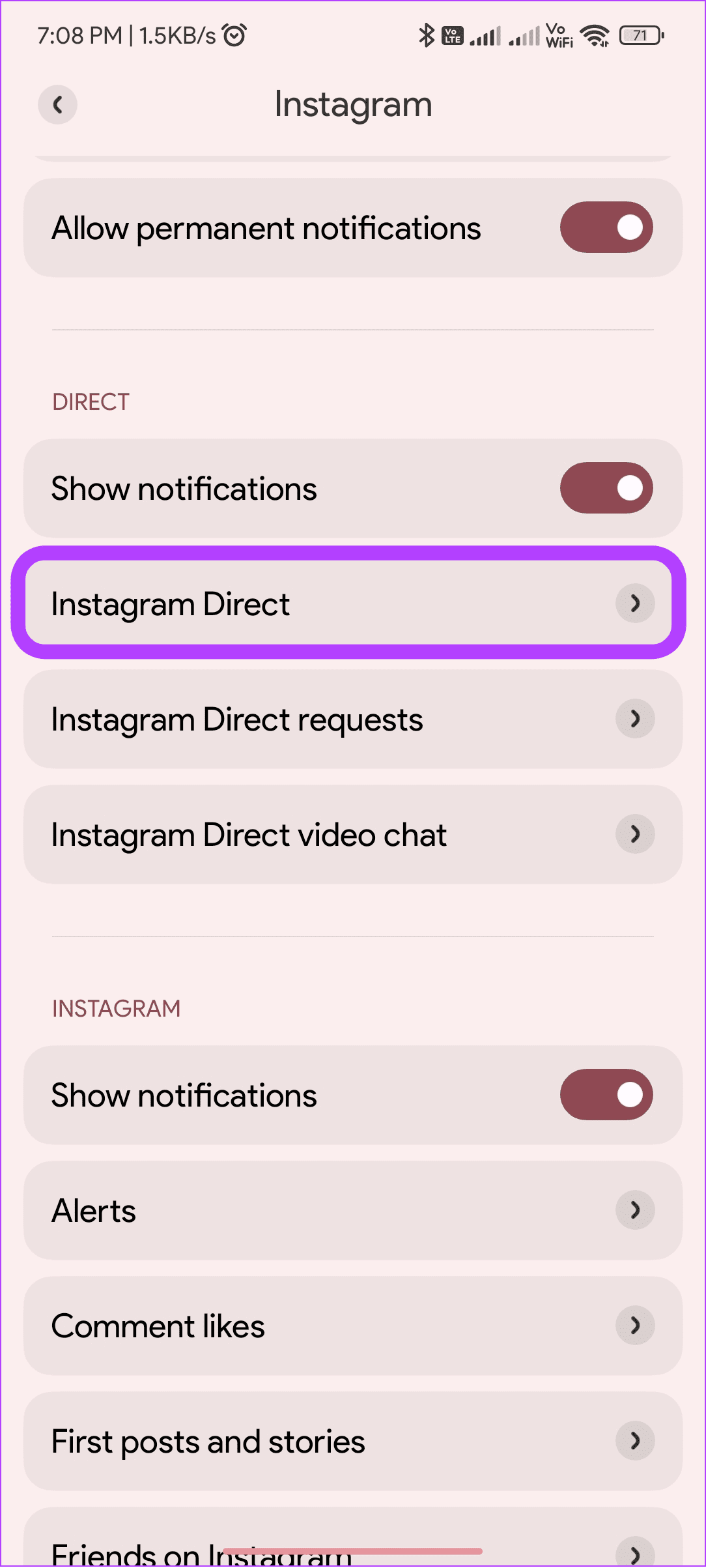


You can also access the Instagram notification page from the Settings app. Navigate to Settings → Apps → Manage apps → Instagram and tap Notifications. Now, follow the steps 5 and 6 as mentioned above.
Also read: Set different notifications sounds for different apps on Android phones
Was this helpful?
Last updated on 10 July, 2024
Read Next
 How to Change Zoom App Ringtone and Notification Sound
How to Change Zoom Incoming Call Ringtone on Android, iPhone, and iPad If you use Zoom daily, you might be bored of its same ringtone or notification sound.
How to Change Zoom App Ringtone and Notification Sound
How to Change Zoom Incoming Call Ringtone on Android, iPhone, and iPad If you use Zoom daily, you might be bored of its same ringtone or notification sound.
 How to Change Snapchat Notification Sound
Change Snapchat Notification Sound on iPhone The default alert sound on your iPhone is used for Snapchat notifications.
How to Change Snapchat Notification Sound
Change Snapchat Notification Sound on iPhone The default alert sound on your iPhone is used for Snapchat notifications.
 4 Fixes for Telegram Notification Sound Not Working on Android and iPhone
Try Basic Fixes Close Telegram on your computer: If you have the Telegram app open on your computer, Telegram notifications may not appear or make a sound on your phone.
4 Fixes for Telegram Notification Sound Not Working on Android and iPhone
Try Basic Fixes Close Telegram on your computer: If you have the Telegram app open on your computer, Telegram notifications may not appear or make a sound on your phone.
 3 Fixes for Gmail Notification Sound Not Working on Android and iPhone
Try Basic Fixes Check your phone’s notification volume: Make sure you haven't lowered the notification volume level on your phone unintentionally.
3 Fixes for Gmail Notification Sound Not Working on Android and iPhone
Try Basic Fixes Check your phone’s notification volume: Make sure you haven't lowered the notification volume level on your phone unintentionally.
 How to Change Microsoft Teams Notification Sound
Change Microsoft Teams Notification Sound on Android Step 1: Find and long-press the Microsoft Teams icon.
How to Change Microsoft Teams Notification Sound
Change Microsoft Teams Notification Sound on Android Step 1: Find and long-press the Microsoft Teams icon.
 How to Set Custom Notification Sound for Specific Contacts on WhatsApp
Set Specific Tones on WhatsApp iOS You can set different notification tones on WhatsApp for all contacts or groups and custom tones for individual contacts or groups.
How to Set Custom Notification Sound for Specific Contacts on WhatsApp
Set Specific Tones on WhatsApp iOS You can set different notification tones on WhatsApp for all contacts or groups and custom tones for individual contacts or groups.
 4 Ways to Fix Facebook Messenger Notification Sound Not Working
Try Basic Fixes Close the Messenger app on your computer: If you have the Messenger app open on your computer, notifications may appear there instead of on your phone, and
4 Ways to Fix Facebook Messenger Notification Sound Not Working
Try Basic Fixes Close the Messenger app on your computer: If you have the Messenger app open on your computer, notifications may appear there instead of on your phone, and
 5 Ways to Fix Snapchat Notification Sound Not Working
Basic Fixes Disable the silent profile: Press the Volume Up physical button on your Android phone and tap the sound profile icon to disable the silent mode.
5 Ways to Fix Snapchat Notification Sound Not Working
Basic Fixes Disable the silent profile: Press the Volume Up physical button on your Android phone and tap the sound profile icon to disable the silent mode.
The article above may contain affiliate links which help support Guiding Tech. The content remains unbiased and authentic and will never affect our editorial integrity.