


Basic Fixes:
- Update Windows 11 and restart it: An outdated Windows 11 build can lead to touchscreen issues on your laptop. Head to Windows Settings > Windows Update menu. Install pending updates, and you will be good to go.
- Download updates from the PC manufacturer: OEMs like HP, Dell, Asus, and Lenovo ship laptops with built-in software to install required updates, tweak hardware settings, check system properties, and more. Download updates for them from the manufacturer.
- Remove a thick screen protector and clean your screen: If you use a screen protector to prevent the display from scratches, the protector’s thickness may prevent the touch inputs from being registered accurately. Remove it and clean your screen.
Fix 1: Enable Touchscreen
Using the Device Manager menu, you can disable the touch screen and enable it again to check if it helps fix the issue.
Step 1: Right-click the Start key and select Device Manager to open it.
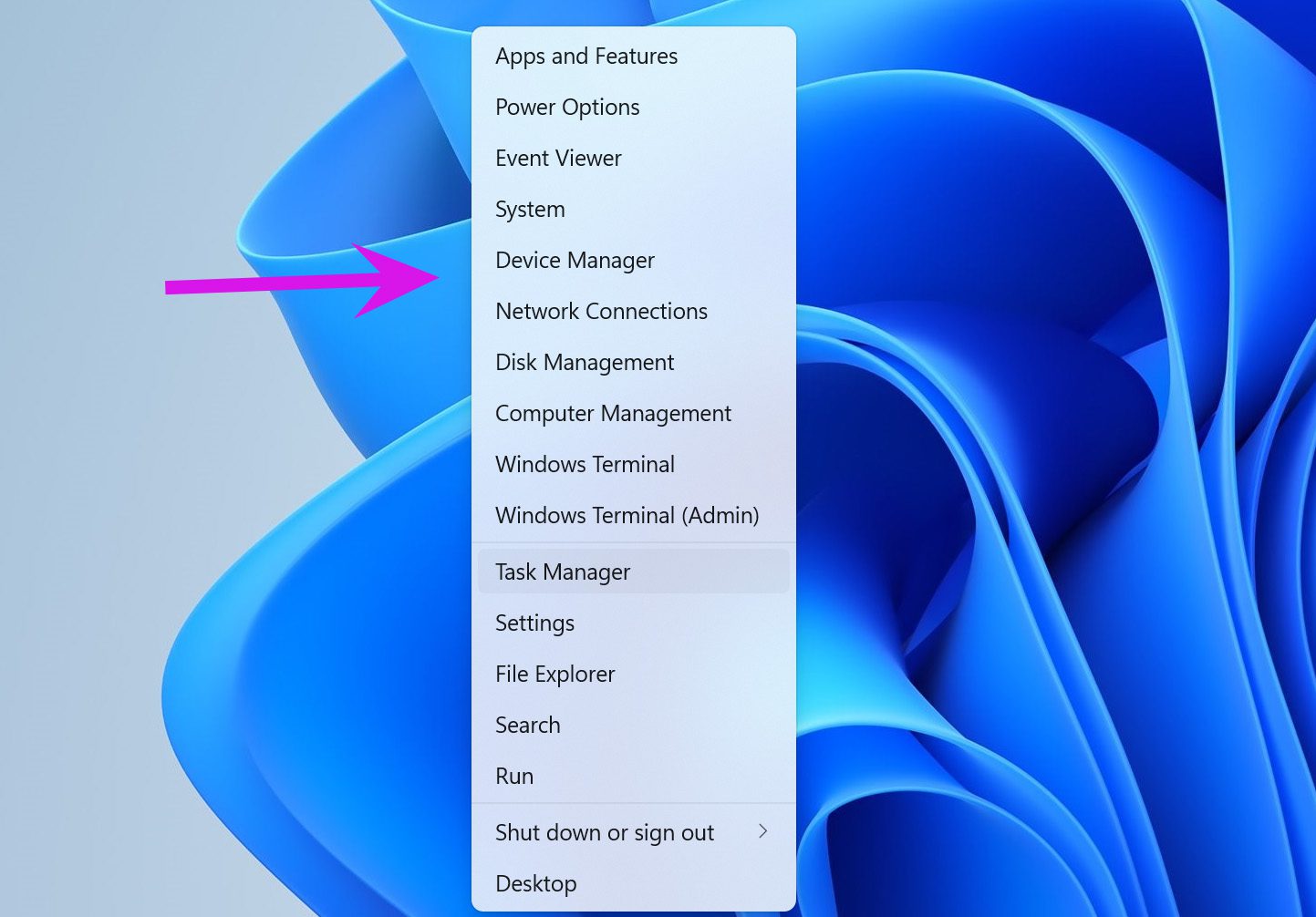
Step 2: Expand the Human Interface Devices menu from the Device Manager window > find HID-compliant touch screen > right-click on it.
Step 3: Select Disable device from the context menu. And confirm it.

Step 4: Again, right-click on the same option and select Enable device.
Reboot your computer and see if the touchscreen is working.
Fix 2: Reinstall Touchscreen Drivers
Corrupt HID-compliant touchscreen drivers might have messed up your laptop’s touchscreen function. To fix this, reinstall the required drivers and try again. Follow the steps below.
Step 1: Right-click the Start key and select Device Manager to open it.
Step 2: Expand the Human Interface Devices section > right-click on the HID-compliant touch screen.
Step 3: Select Uninstall device and confirm your decision.
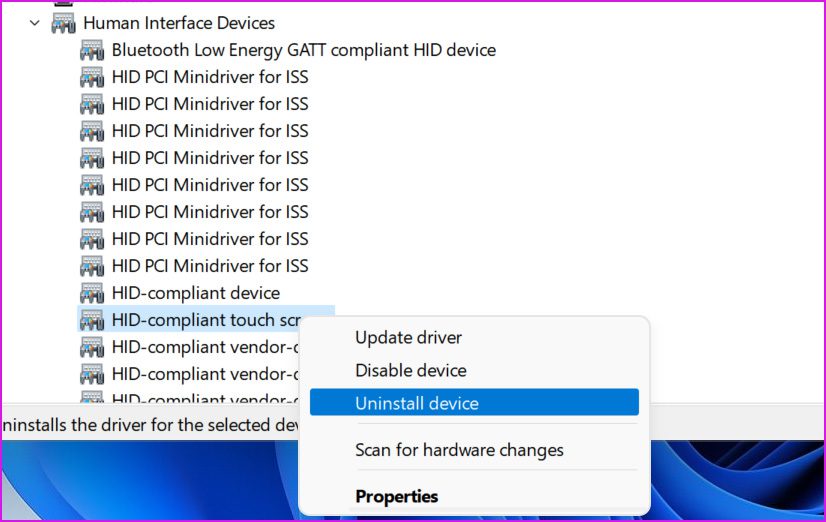
Restart the PC, and the OS will install the required drivers during reboot.
Fix 3: Run the Hardware and Devices Troubleshooter
Unfortunately, the hardware and devices troubleshooter isn’t available from the Windows Settings menu. You need to run it using Windows Terminal. Let us show you how.
Step 1: Right-click on the Windows key and open Windows Terminal.
Step 2: Type the command below and hit Enter.
msdt.exe -id DeviceDiagnostic

Step 3: Click Next and follow the wizard to complete the troubleshooting.
Fix 4: Calibrate Touchscreen or Reset to Default
If your laptop’s touchscreen suddenly stops working, calibrate it from the Control Panel menu.
Step 1: Press Windows + R, type control, and hit Enter to open the Control Panel.
Step 2: Change the View by option to Category > select Hardware and Sound.

Step 3: Scroll down and find Tablet PC Settings. Click on Calibrate the screen for pen or touch input.
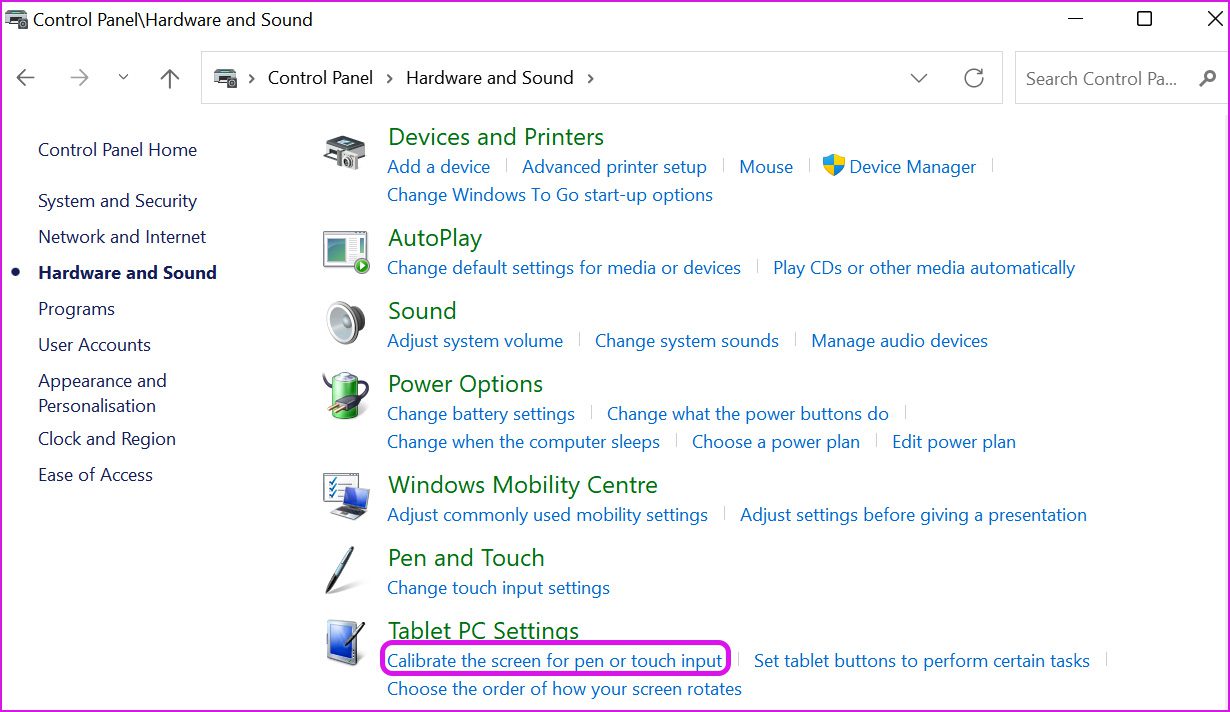
Step 4: Select Calibrate from the following menu.
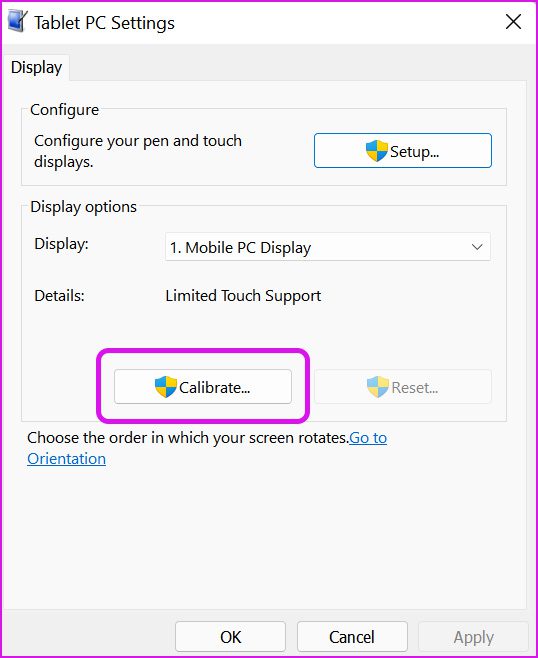
Step 5: The OS will ask whether you want to calibrate Pen input or Touch input. Select Touch input.
Select the crosshair whenever it appears on the display and complete the process.
Was this helpful?
Last updated on 29 May, 2024
2 Comments
Leave a Reply
Read Next
 3 Ways to Disable Touchscreen in Windows 11
Method 1: Disable Touchscreen Using Device Manager Device Manager on Windows lets you view and manage all your connected devices, such as keyboards, sound cards, webcams, and more.
3 Ways to Disable Touchscreen in Windows 11
Method 1: Disable Touchscreen Using Device Manager Device Manager on Windows lets you view and manage all your connected devices, such as keyboards, sound cards, webcams, and more.
 7 Ways to Fix Touchscreen Not Working On iPhone
While the iPhone is known for its robust design and quality, it doesn't mean it's free from problems.
7 Ways to Fix Touchscreen Not Working On iPhone
While the iPhone is known for its robust design and quality, it doesn't mean it's free from problems.
 8 Fixes for “Your Device Is Missing Important Security and Quality Fixes” on Windows
Is there anything more frustrating than seeing the "Your Device Is Missing Important Security and Quality Fixes" message when waiting for your Windows updates to complete?
8 Fixes for “Your Device Is Missing Important Security and Quality Fixes” on Windows
Is there anything more frustrating than seeing the "Your Device Is Missing Important Security and Quality Fixes" message when waiting for your Windows updates to complete?
 9 Fixes for Windows Subsystem for Android Not Working on Windows 11
Reminder: Windows Subsystem for Android and the Amazon App Store will no longer be available in the Microsoft Store after March 5, 2025.
9 Fixes for Windows Subsystem for Android Not Working on Windows 11
Reminder: Windows Subsystem for Android and the Amazon App Store will no longer be available in the Microsoft Store after March 5, 2025.
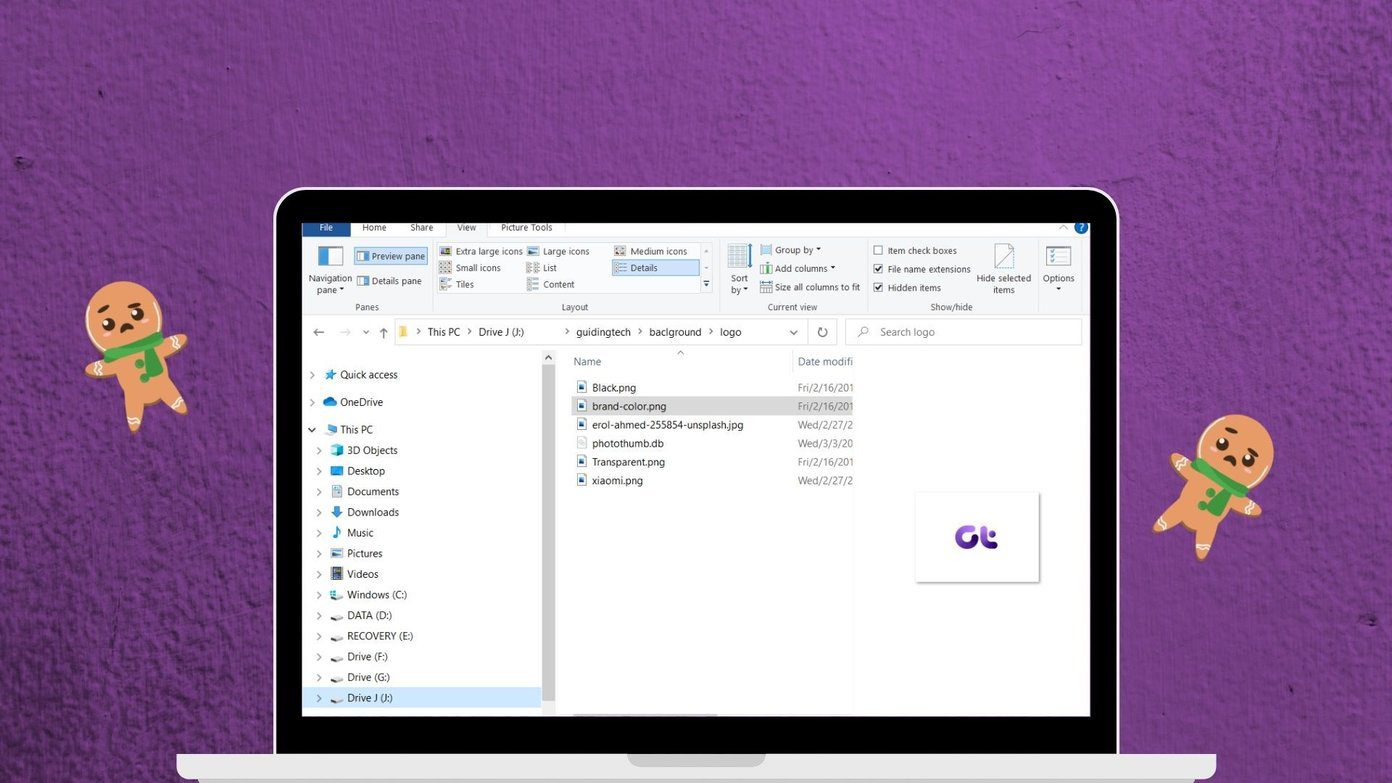 Top 8 Fixes for Preview Pane Not Working in Windows 10
Microsoft's Windows Explorer lets you take a peek at a file with the Preview Pane.
Top 8 Fixes for Preview Pane Not Working in Windows 10
Microsoft's Windows Explorer lets you take a peek at a file with the Preview Pane.
 3 Best Fixes for Windows 10 Autocorrect Not Working
Did you know that Windows 10 comes with an autocorrect tool built-in?
3 Best Fixes for Windows 10 Autocorrect Not Working
Did you know that Windows 10 comes with an autocorrect tool built-in?
 Top 7 Fixes for Outlook Notifications Not Working on Windows 10
How many times have you missed an important email when Outlook didn't send you a notification on Windows 10?
Top 7 Fixes for Outlook Notifications Not Working on Windows 10
How many times have you missed an important email when Outlook didn't send you a notification on Windows 10?
 4 Fixes for Audio Not Working in Microsoft Teams on Windows 11
Common Fixes Reboot Windows - Open the Start Menu, click Power in the bottom right, and select Restart.
4 Fixes for Audio Not Working in Microsoft Teams on Windows 11
Common Fixes Reboot Windows - Open the Start Menu, click Power in the bottom right, and select Restart.
The article above may contain affiliate links which help support Guiding Tech. The content remains unbiased and authentic and will never affect our editorial integrity.


Can’t find HID-Compliant touchsrcreen driver in device manager. Have also tried all suggestions I found online. None worked!
Sorry, you are not able to find the HID-Compliant touchscreen. Maybe this is hidden. You can try enabling Show Hidden Devices. Open the Device Manager, click the View menu, and click Show hidden devices.
Now, hopefully, you should see a HID-Compliant touchscreen.