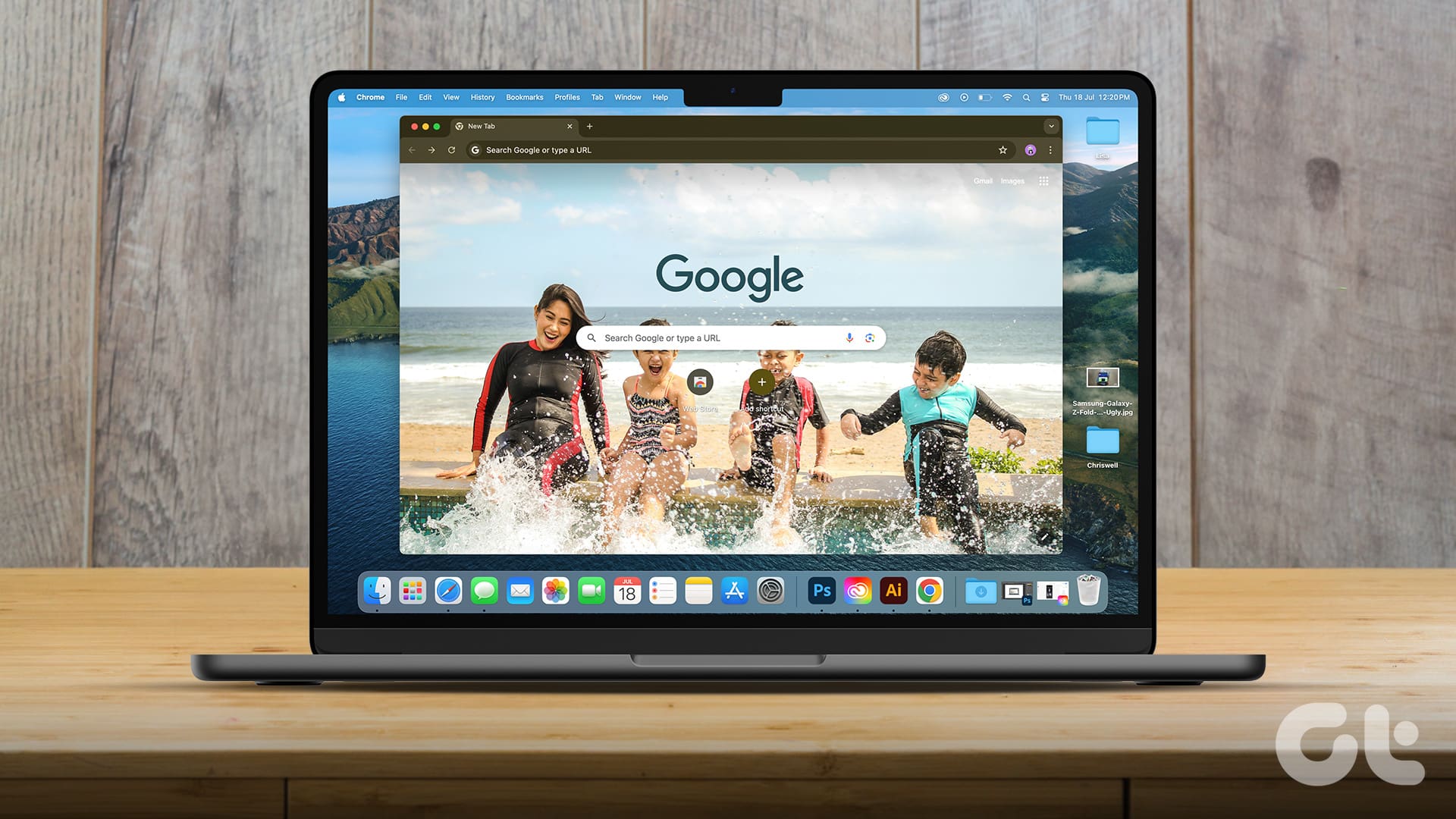
Method 1: Add or Remove Strikethrough on Desktop
Step 1: Launch Google Docs and highlight the text that needs the strikethrough.
Step 2: Click the Format menu > select Text > Strikethrough. You may also use the keyboard shortcut Alt + Shift + 5 on Windows or Command + Shift + X on Mac.

To undo the changes, press Alt + Shift + 5 or navigate Format > Text > Strikethrough again.
Method 2: Add or Remove Strikethrough on iPad
The steps on an iPad are simple since a Strikethrough icon is displayed at the top of the document. Follow the steps below.
Step 1: Open your Google Docs file.
Step 2: Highlight the text that needs a Strikethrough, then click on the Strikethrough icon at the top of the document.

Method 3: Add or Remove Strikethrough on Android or iOS Devices
On smartphones, strikethough is hidden within the Text menu. Follow the steps below to apply a Strikethrough.
Step 1: Launch the Google Docs file.
Step 2: Highlight the word or words for the strikethrough > tap the Text (A) icon at the top > click the Strikethrough icon.


You can now convert your document to an alternative file format or use it as you please.
Was this helpful?
Last updated on 29 May, 2024
Read Next
 How to Strikethrough on Discord on Desktop and Mobile
Method 1: Using Discord Options on Discord Web or Desktop Step 1: Launch the Discord desktop app on your Windows or Mac computer or open it on the web.
How to Strikethrough on Discord on Desktop and Mobile
Method 1: Using Discord Options on Discord Web or Desktop Step 1: Launch the Discord desktop app on your Windows or Mac computer or open it on the web.
 How to Add and Remove Line Numbers in Google Docs
How to Add Line Numbers in Google Docs You can add line numbers to the entire document or select sections in Google Docs.
How to Add and Remove Line Numbers in Google Docs
How to Add Line Numbers in Google Docs You can add line numbers to the entire document or select sections in Google Docs.
 How to Overlap Images or Text in Google Docs
Method 1: Overlap Images in Google Docs With Google Drawings In this method, you must first add your image as a drawing.
How to Overlap Images or Text in Google Docs
Method 1: Overlap Images in Google Docs With Google Drawings In this method, you must first add your image as a drawing.
 3 Easy Ways to Insert a Text Box In Google Docs
Because of its simple yet powerful interface, Google Docs has become the preferred option for many.
3 Easy Ways to Insert a Text Box In Google Docs
Because of its simple yet powerful interface, Google Docs has become the preferred option for many.
 How to Make and Customize Text Columns in Google Docs
How to Turn Text Into Columns in Google Docs By default, Google Docs's page setup is Pages.
How to Make and Customize Text Columns in Google Docs
How to Turn Text Into Columns in Google Docs By default, Google Docs's page setup is Pages.
 How to Change the Text Direction in Google Docs
Change the Text Direction in Google Docs Using a PC By default, when you type on the Google Docs canvas, the text direction goes from left to right.
How to Change the Text Direction in Google Docs
Change the Text Direction in Google Docs Using a PC By default, when you type on the Google Docs canvas, the text direction goes from left to right.
 3 Best Ways to Double Underline Text in Google Docs
Method 1: Using Paragraph Borders This option is best used to underline text in a paragraph.
3 Best Ways to Double Underline Text in Google Docs
Method 1: Using Paragraph Borders This option is best used to underline text in a paragraph.
 How to Add and Customize a Pie Chart in Google Docs
How to Insert Pie Charts in Google Docs There are two methods to add a pie chart in Google Docs.
How to Add and Customize a Pie Chart in Google Docs
How to Insert Pie Charts in Google Docs There are two methods to add a pie chart in Google Docs.
The article above may contain affiliate links which help support Guiding Tech. The content remains unbiased and authentic and will never affect our editorial integrity.