


How to Show Date, Time, and Weather on iPhone Home Screen
You can do so, in the following two ways.
Method 1. Add Widgets to Show Date, Time, and Weather
The Home Screen widget on iPhone comes in multiple sizes, you can pick one depending upon need and preference. Thankfully, widgets for all three apps (Clock, Calendar, and Weather) are available, and here’s how you can add them.
Step 1: Long-press on any empty space on your iPhone’s home screen until the icons start jiggling. Tap the Edit → Add Widget (iOS 18) or + icon (iOS 17) and earlier.
Step 2: Look for widgets from Clock.
Step 3: Here, you will see different styles of widgets. Swipe left or right to select the one you prefer. Tap + Add Widget for the widget you want.


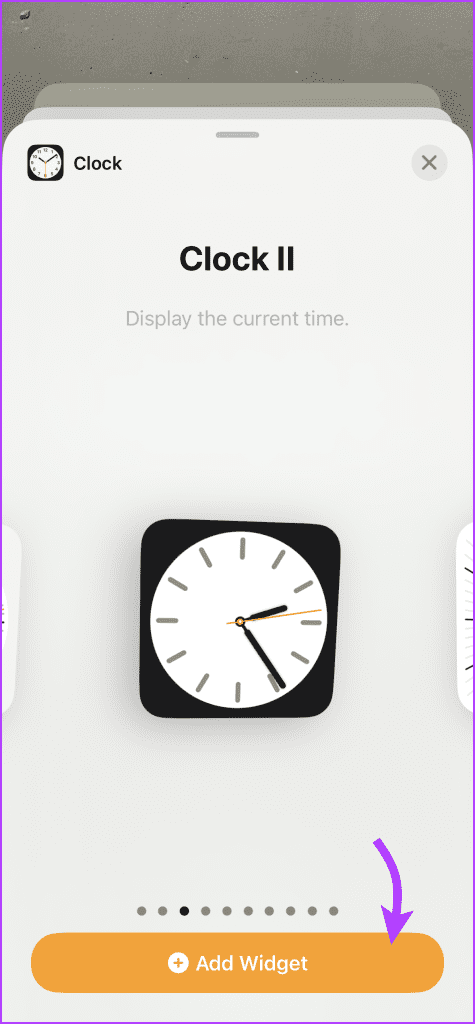
Repeat the steps 2 and 3 to add Calendar and Weather widgets. The widgets on the Home Screen will display the time, date, and current weather of your city. You can long-press any widget and select Edit to customize it.
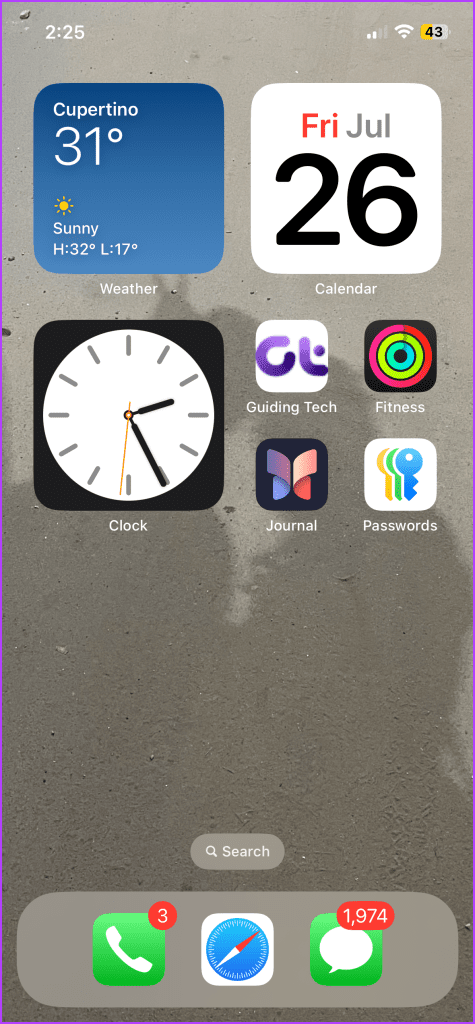
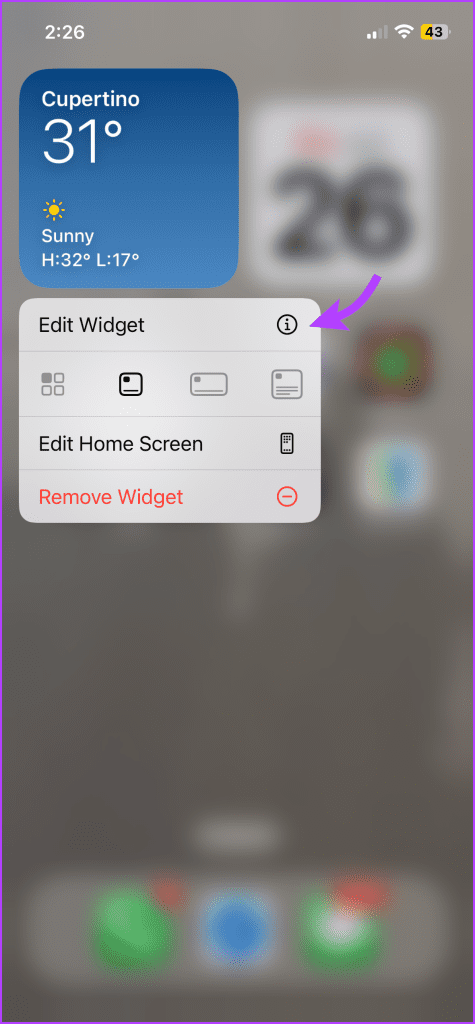
Tip: In case the widget shows a different time, learn how to fix the iPhone clock widget showing the wrong time.
If you don’t like the cluttered look of these three widgets on the screen, add a Smart Stack widget to your Home Screen to see the calendar or weather at appropriate times.
Method 2: Add App Icons For Clock And Calendar
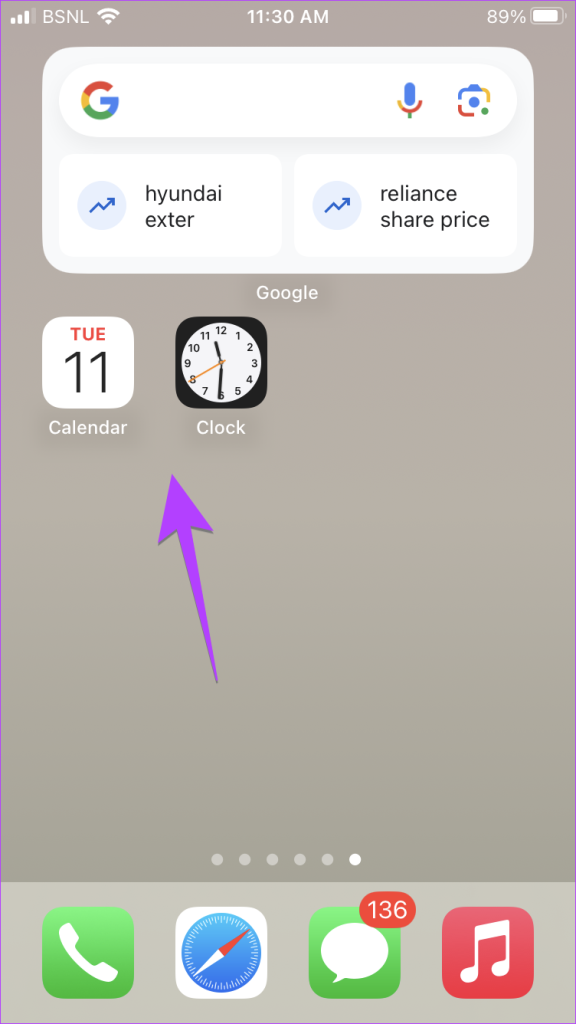
iPhones display the real-time date and time on the Clock and Calendar app icons by default. So, if you have these two icons on the Home Screen, you can quickly check the date and time.
If you have removed them, don’t worry you can add the icons back to the Home Screen in no time; here’s how.
Step 1: Open App Library. Tap the search bar at the top and search for Clock.
Step 2: Long-press on the Clock app icon and select ‘Add to Home Screen‘.
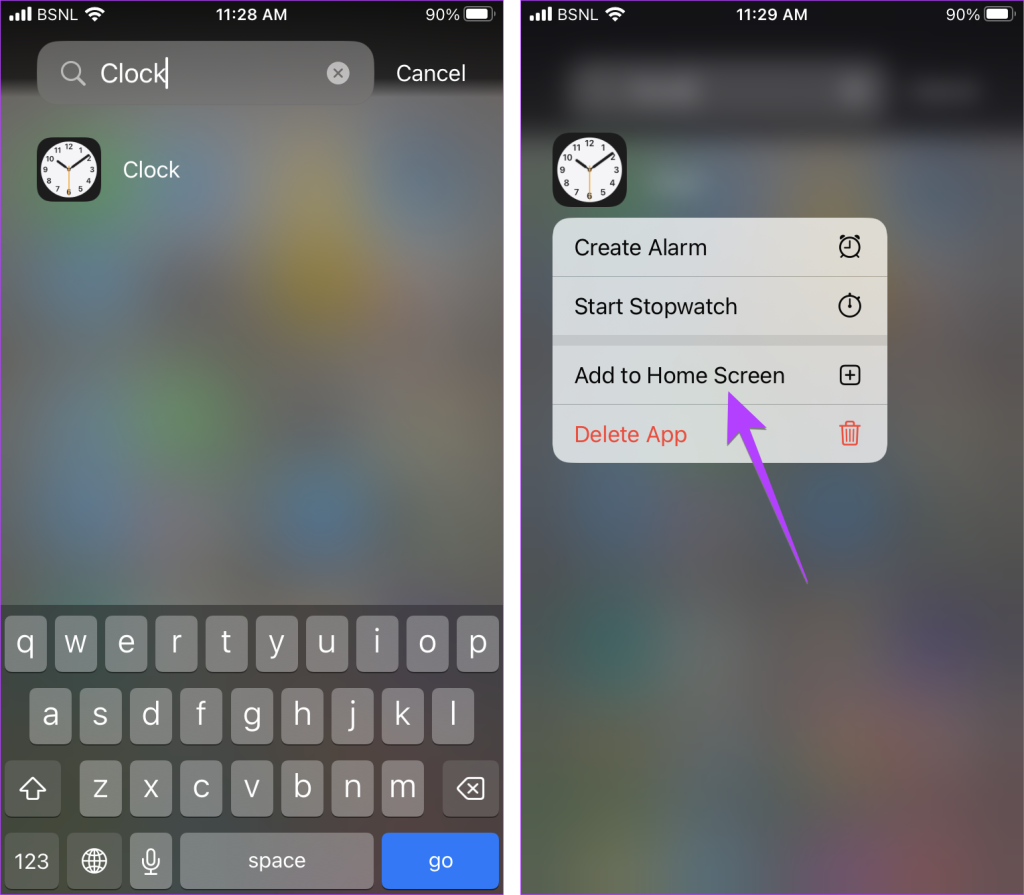
Note: If ‘Add to Home Screen’ doesn’t show up, simply hold and drag the app icon to your iPhone’s Home Screen.
Repeat steps 1-3 for the Calendar app in App Library and put it on your Home Screen. That’s it. The Clock and Calendar app icons will show up on your home screen, displaying the current date a
How to Show Date, Time, and Weather on Android Phone’s Home Screen
You can display the current date, time, and weather on your Android phone’s Home screen in the following ways:
Method 1: Add Widgets For Clock, Time, and Weather
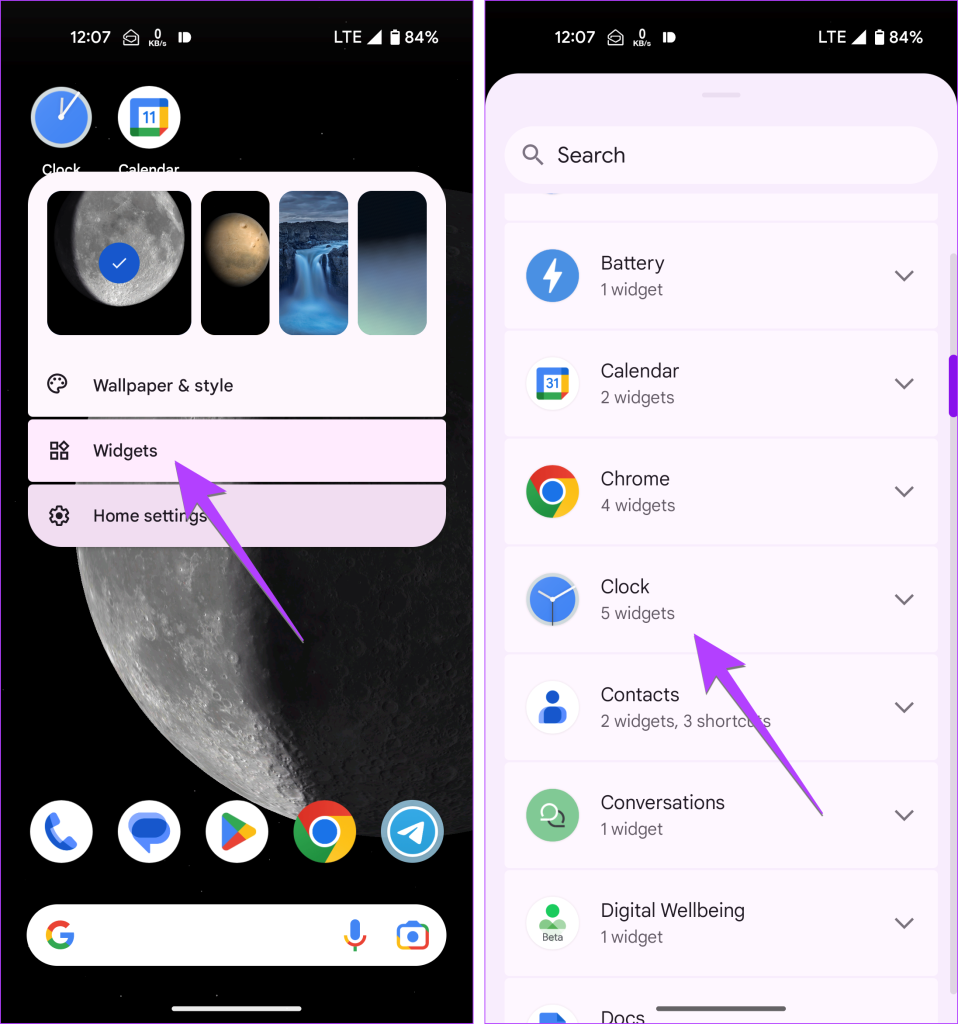
Step 1: Long-press on any empty space on your Android phone’s Home screen. Select Widgets from the menu that shows up.
Step 2: Scroll down and tap Clock to see the types of clock widgets available.
Step 3: Tap Add or hold and drag the preferred clock widget to the Home screen. You might be asked to select the clock face.
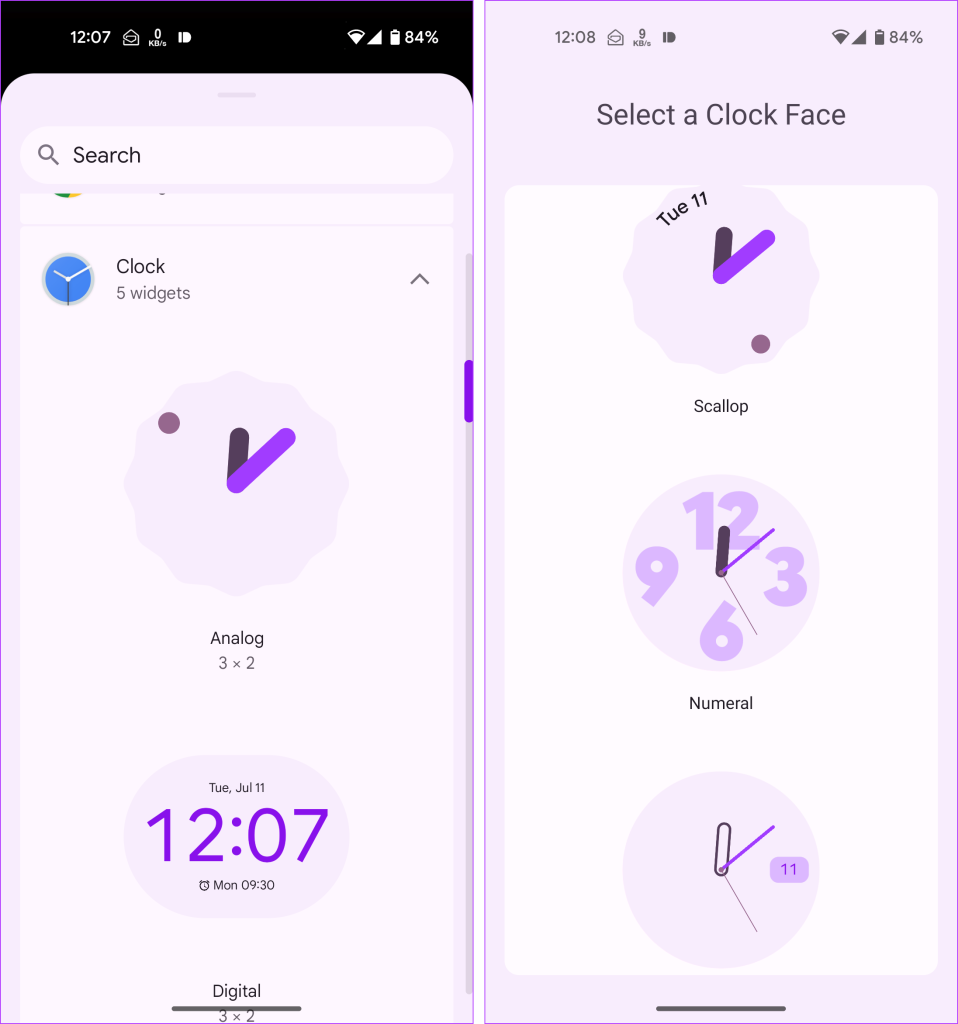
Some clock widgets also display the date along with the time. So, you can choose that one and avoid adding the Calendar widget. However, if you want it, repeat steps 1-3 and add a widget for Calendar and Weather.
Tip: Once the widget is added to the Home screen, long-press it and tap the edit (pencil) icon to customize the widget.
Method 2: Add The All-in-One Glance Widget
If you only want to see the day, date, and current temperature on your Home screen without the time, you can add the ‘At a Glance’ widget. For that, follow these steps:
Step 1: From your Home screen, long-press on any empty space. Then, tap Widgets in the menu.
Step 2: Expand the Google widget section. Then, hold and drag the At a Glance widget to your Home screen.
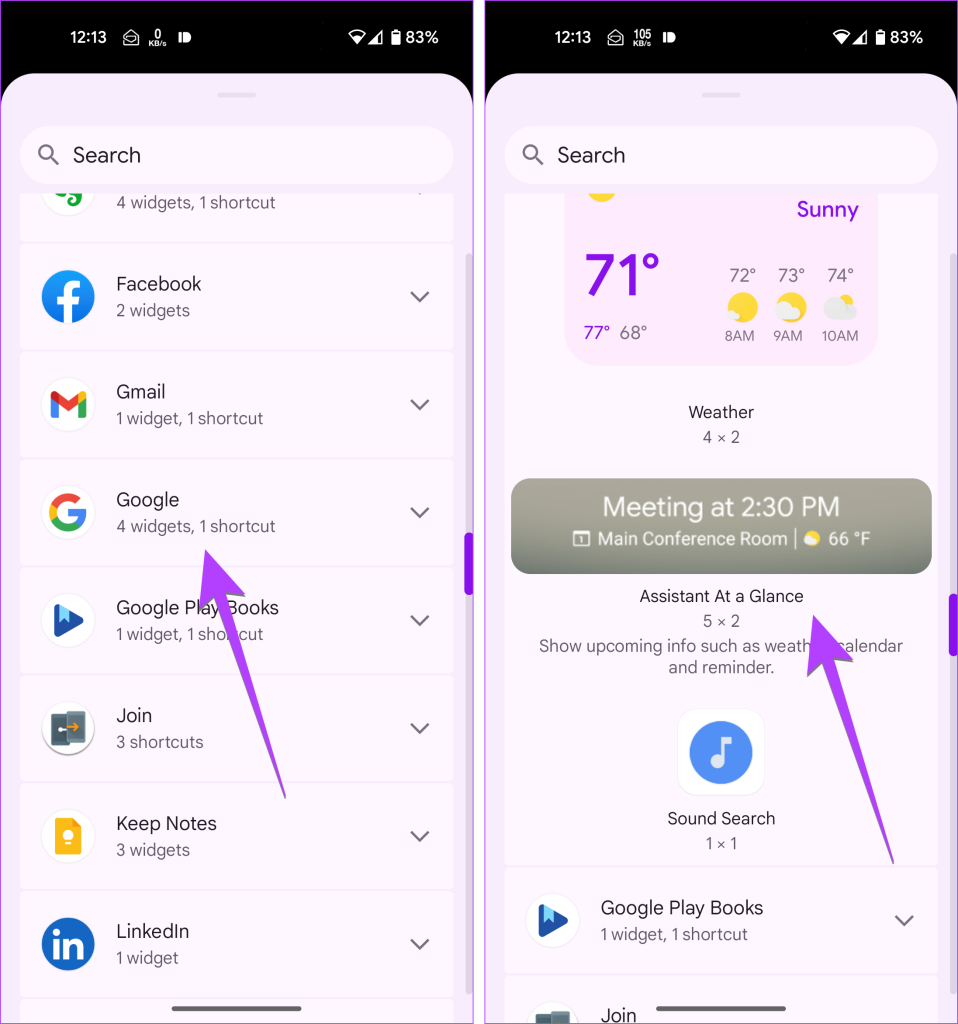
The widget shows the date and upcoming information such as calendar events, weather, and reminders.
Note: This widget doesn’t show time. If you face any issues with this widget, learn how to fix the At a Glance widget on Android.
Method 3: Add a Clock and Calendar App Icon
The Clock and Calendar app icons on Android phones show the current date and time. If you want a simplistic home page, you can add these app icons to display the date and time on the Home screen.
Step 1: Open the App Drawer on your Android phone.
Step 2: Long-press the Clock icon and drag it to the Home screen. Similarly, long-press the Calendar app icon and bring it to the Home screen.
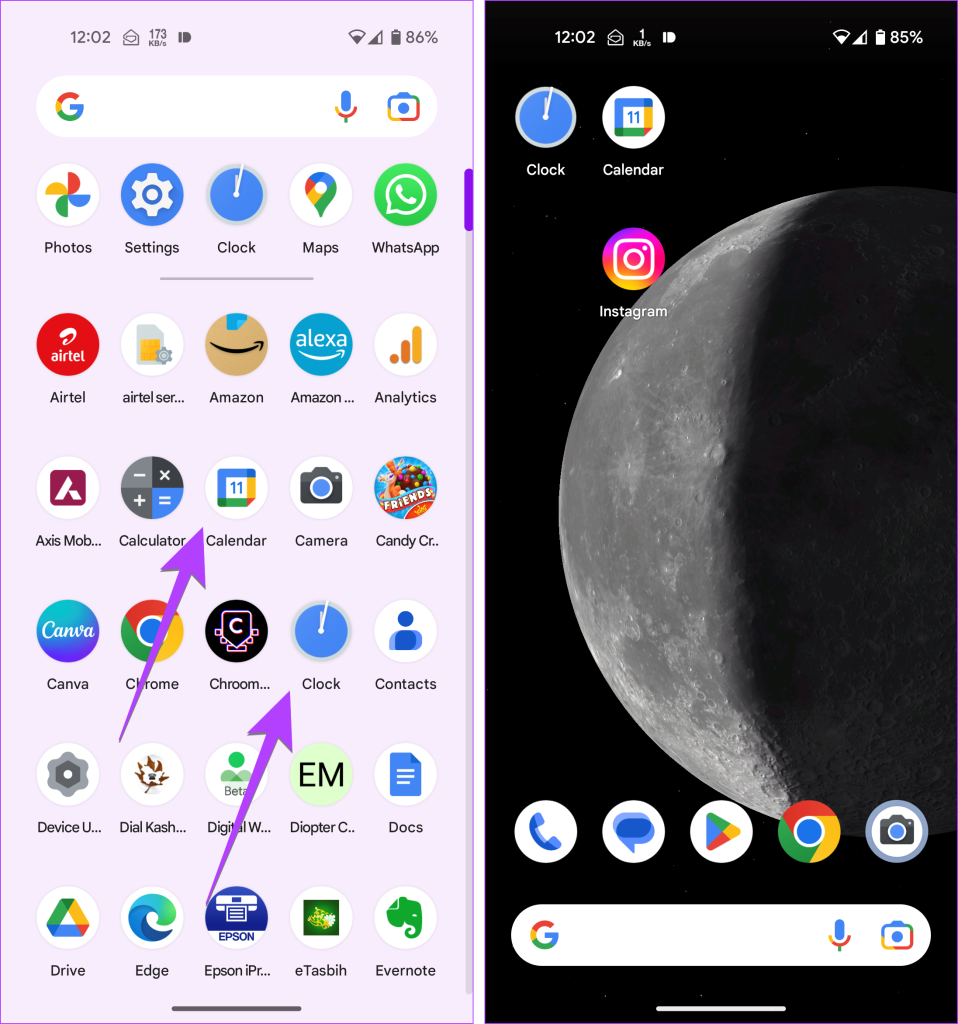
Tip: Keep these app icons at the top-left corner of the first page of your Home screen for faster access.
FAQs About Adding Clock and Weather to Home Screen
You cannot show the date in the status bar of your Android phone or iPhone.
To change the date and time on your iPhone, go to Settings > General > Date & time. Select Set Automatically or turn it off to set the time manually. On Android, go to Settings > System > Date & time. Likewise, on Samsung Galaxy phones, go to Settings > General Management > Date & time.
To display battery life in the status bar on your iPhone, go to Settings > Battery and enable the toggle next to Battery Percentage. On Android, go to Settings > Battery and turn on Battery Percentage.
Was this helpful?
Last updated on 12 August, 2024
Read Next
 3 Ways to Change Date Created, Date Modified, and Other Attributes on Windows
Potential Risks and Considerations of Modifying File Attributes Manually changing the creation and modification date of any file on Windows can be useful for better organizing your files, making them
3 Ways to Change Date Created, Date Modified, and Other Attributes on Windows
Potential Risks and Considerations of Modifying File Attributes Manually changing the creation and modification date of any file on Windows can be useful for better organizing your files, making them
 4 Fixes for Location Not Updating in Weather App on Samsung Galaxy Phones
Basic Fixes Switch to 5G: To get the most accurate weather data, we suggest switching to 5G network on your Samsung phone.
4 Fixes for Location Not Updating in Weather App on Samsung Galaxy Phones
Basic Fixes Switch to 5G: To get the most accurate weather data, we suggest switching to 5G network on your Samsung phone.
 How to Reset Home Screen Layout on Android Including Samsung Phones
Is your Android phone's home screen messed up?
How to Reset Home Screen Layout on Android Including Samsung Phones
Is your Android phone's home screen messed up?
 8 Ways to Add an App Back to Home Screen on iPhone and Android
Method 1: Look for the App Inside the Folders If an app has gone missing from your iPhone or Android phone, start by looking in the folders on your phone’s
8 Ways to Add an App Back to Home Screen on iPhone and Android
Method 1: Look for the App Inside the Folders If an app has gone missing from your iPhone or Android phone, start by looking in the folders on your phone’s
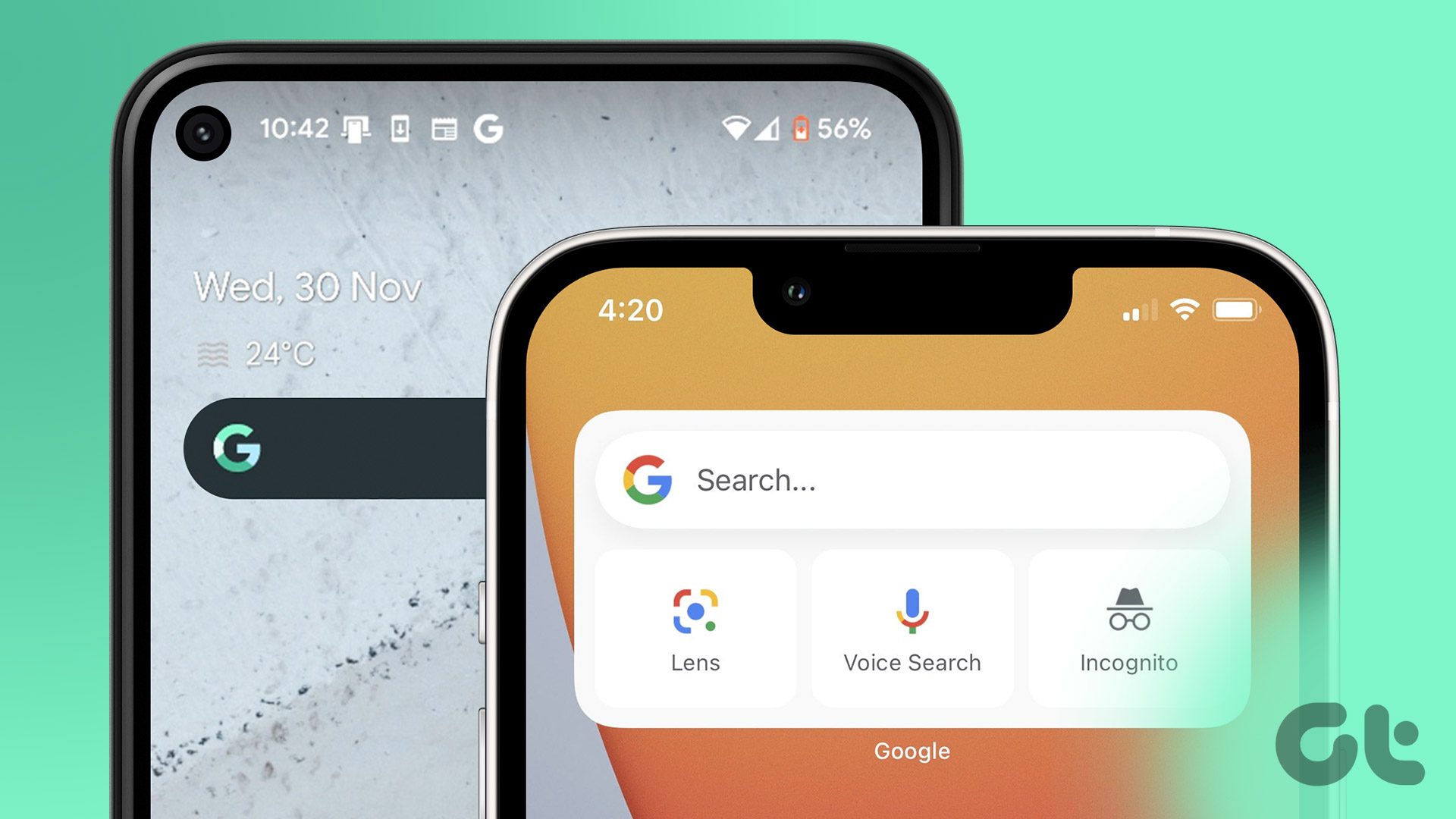 How to Add Google Search Bar to Home Screen on Android and iPhone
On Android Step 1: Tap and hold a space on your home screen, and tap on Widgets.
How to Add Google Search Bar to Home Screen on Android and iPhone
On Android Step 1: Tap and hold a space on your home screen, and tap on Widgets.
 Top 5 Ways to Add Date and Timestamp to Photos on Android
Over the last couple of iterations, the humble phone camera has evolved significantly.
Top 5 Ways to Add Date and Timestamp to Photos on Android
Over the last couple of iterations, the humble phone camera has evolved significantly.
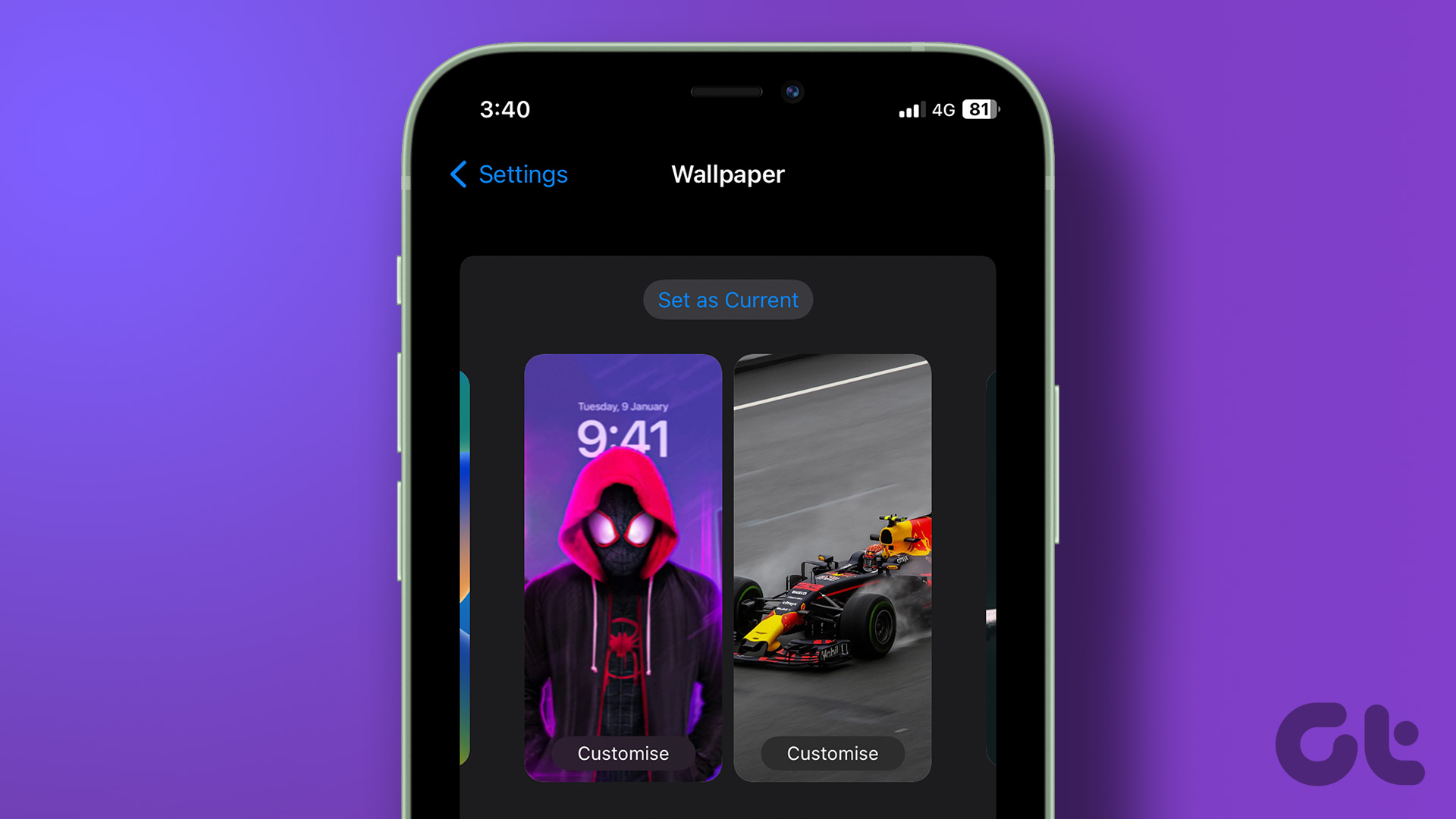 How to Set Different Lock Screen and Home Screen Wallpaper on iPhone
How to Add Different Wallpapers on iPhone Home Screen and Lock Screen Step 1: Open the Settings app > select Wallpaper.
How to Set Different Lock Screen and Home Screen Wallpaper on iPhone
How to Add Different Wallpapers on iPhone Home Screen and Lock Screen Step 1: Open the Settings app > select Wallpaper.
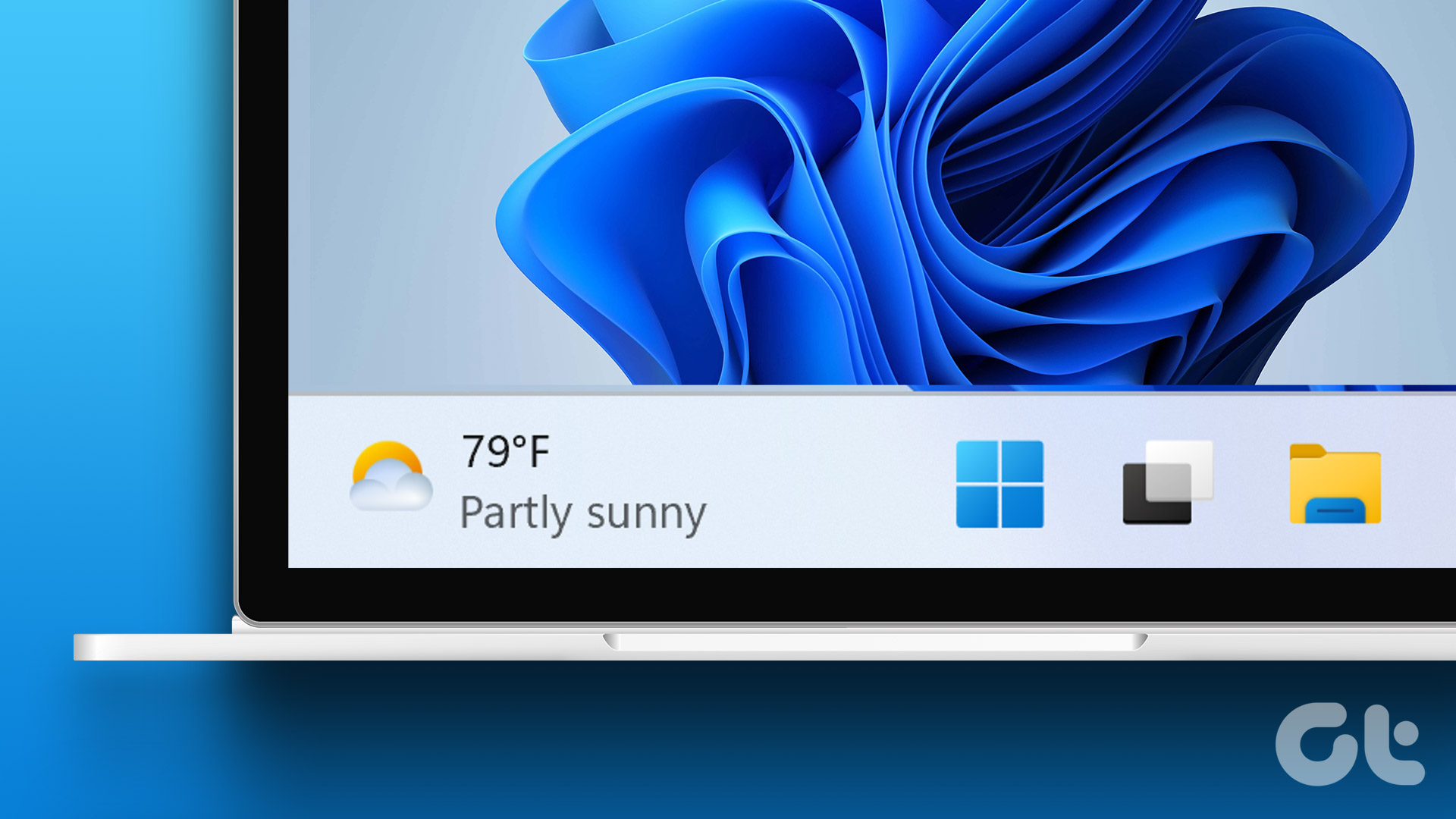 How to Add Weather Widget to Taskbar in Windows 11
Method 1: Turn on Widgets in Windows 11 The default widget icon on the latest version of the Windows 11 taskbar is the weather icon.
How to Add Weather Widget to Taskbar in Windows 11
Method 1: Turn on Widgets in Windows 11 The default widget icon on the latest version of the Windows 11 taskbar is the weather icon.
The article above may contain affiliate links which help support Guiding Tech. The content remains unbiased and authentic and will never affect our editorial integrity.

