Delete Amazon Search and Browsing History From Web
Search history is different from the browsing history. The former is the products/categories you searched for, while the latter is the products you browsed while shopping. Let’s show you how to clear both.
Delete Amazon Search History
Step 1: Go to the Amazon website and log in to your account.
Step 2: Click on the search bar. Your last search/searches will appear in the suggestions.
Step 3: Click on the X icon next to the search you want to delete.

Delete Amazon Browsing History
You can remove individual items or clear all items from your Amazon search history. Here’s how.
Step 1: Launch Amazon in your browser and log in.
Step 2: Click Browsing History from the top bar.
Step 3: To remove an individual item, click Remove from view from under the item.

Step 4: To remove the entire browsing history from Amazon, click Manage History from the right corner.
Step 5: Select Remove all items from view from the menu.

Delete Search and Browsing History From the Amazon App
Deleting the Amazon search history on the mobile app is similar to the browser version. However, the method for clearing Amazon’s browsing history differs a bit. Here are the steps for the same.
Remove Amazon Search History From the Mobile App
Step 1: Open the Amazon app on your iPhone or Android device.
Step 2: Tap the search bar and wait for a few seconds. A list of all your past searches on Amazon will appear.
Step 3: Tap X next to the search history you want to delete.
Delete Amazon Browsing History on the App
Step 1: In the Amazon app, tap the profile icon from the bottom of the page.
Step 2: Select Browsing History next to Keep Shopping for.
Step 3: To remove items individually, tap Remove from view next to the item.

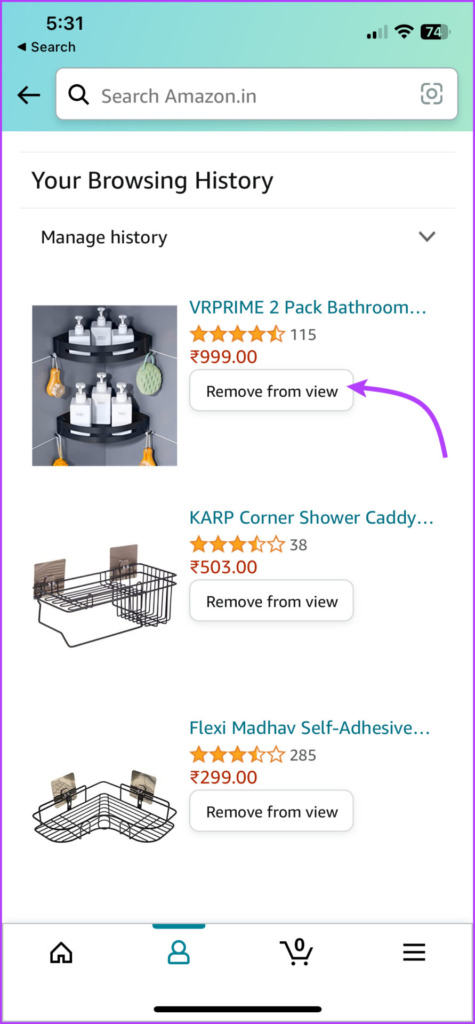
Step 4: To clear browsing history completely, tap the down arrow from the top.
Step 5: Click on Remove all items from view.
Step 6: Click on Remove all items from view again to confirm.
How to Remove the Keep Shopping for Section on Amazon
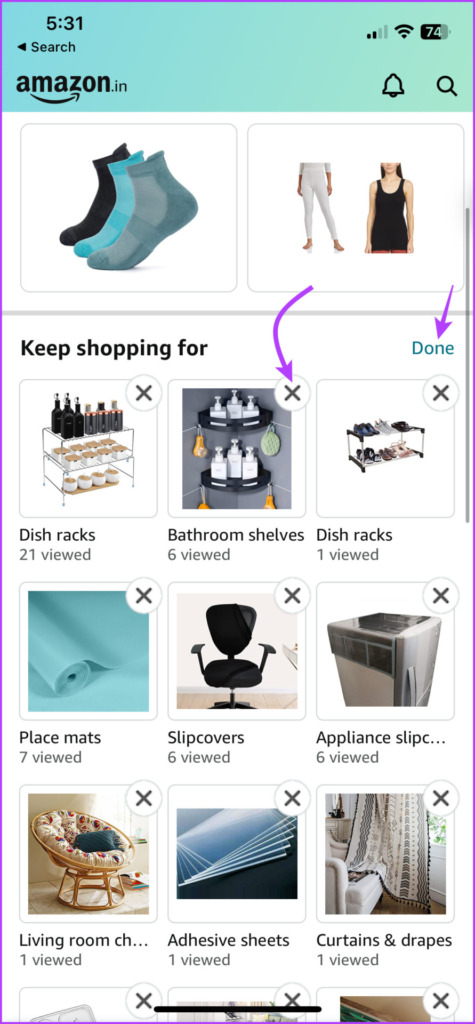
Step 1: Tap the profile icon in your Amazon app.
Step 2: Select Edit next to Keep shopping for.
Step 3: Tap the X next to the product category you want to remove from view and future suggestions.
Step 4: Tap Done to save the changes.

Was this helpful?
Last updated on 25 July, 2024
Read Next
 How to Clear Song History on Amazon Prime Music
While Amazon Music allows you to remove music from recently played history, they are still considered from recommendations.
How to Clear Song History on Amazon Prime Music
While Amazon Music allows you to remove music from recently played history, they are still considered from recommendations.
 Prime Video: Clear Continue Watching, Search, and Watch History
Clear Continue Watching on Amazon Prime Video The new Prime Video interface lacks an Edit button for managing its Continue Watching section.
Prime Video: Clear Continue Watching, Search, and Watch History
Clear Continue Watching on Amazon Prime Video The new Prime Video interface lacks an Edit button for managing its Continue Watching section.
 How to Clear File Explorer Search History in Windows 10
File Explorer on Windows 10 keeps track of all your searches to make it easy for you to search for the same files again.
How to Clear File Explorer Search History in Windows 10
File Explorer on Windows 10 keeps track of all your searches to make it easy for you to search for the same files again.
 How to Find and Download Amazon Order History
How to See All Your Amazon Orders on Desktop You can easily open Amazon on your desktop and access your orders, past and present.
How to Find and Download Amazon Order History
How to See All Your Amazon Orders on Desktop You can easily open Amazon on your desktop and access your orders, past and present.
 You Can’t Clear Spotify History: Here’s What You Can Do
How to Hide Your Spotify Listening History There is no official way to remove your Spotify history from your desktop or mobile phone.
You Can’t Clear Spotify History: Here’s What You Can Do
How to Hide Your Spotify Listening History There is no official way to remove your Spotify history from your desktop or mobile phone.
 A Guide to Using the Search Bar and Search Operators in Microsoft Outlook
How to Use the Microsoft Outlook Search Bar There are two ways to use the Microsoft Outlook Search bar.
A Guide to Using the Search Bar and Search Operators in Microsoft Outlook
How to Use the Microsoft Outlook Search Bar There are two ways to use the Microsoft Outlook Search bar.
 How to Clear Facebook Search Suggestions From Any Device
4 Ways to Clear Facebook Search Suggestions on iPhone or Android Facebook uses your search history to show better search results and suggestions.
How to Clear Facebook Search Suggestions From Any Device
4 Ways to Clear Facebook Search Suggestions on iPhone or Android Facebook uses your search history to show better search results and suggestions.
 How to Clear Instagram Search Suggestions on Android and iPhone
How to Delete a Single Instagram Search Suggestion If you only want to remove one entry from your search history on Instagram or remove individual entries manually, here's how to
How to Clear Instagram Search Suggestions on Android and iPhone
How to Delete a Single Instagram Search Suggestion If you only want to remove one entry from your search history on Instagram or remove individual entries manually, here's how to
The article above may contain affiliate links which help support Guiding Tech. The content remains unbiased and authentic and will never affect our editorial integrity.