No matter what device or method you’re using, as soon as you start watching shows on Netflix a new list of titles appears with the label Continue Watching. For some reason, even if you finish a show right to the very end, many shows end up just piling up in this list with no visible way to clear any of them. In this article, we want to show you how to clear “Continue Watching” on Netflix.

If you did not like a movie or a show you just began watching, you’d probably want to remove it from the recently watched list. Moreover, you might want to hide your viewing activity on Netflix. Especially, if you have other people who watch movies and shows using your profile.
Don’t worry – it is quite easy to clear the continue-watching list. We’ll show you how to do it on all of your devices – Android, iPhone, Windows, Mac, or even your smart TV.
Also Read: 7 Ways to Fix Continue Watching Not Showing on Netflix
Remove Movies or Shows From Continue Watching on Netflix: Windows, Mac, and Web
Here’s how you can remove movies and shows and clear the ‘Continue Watching’ list on the Netflix web app.
Step 1: Open Netflix, and scroll down until you find the ‘Continue Watching’ row.

Step 2: Hover your mouse on the title you want to remove. Click on the Remove icon.

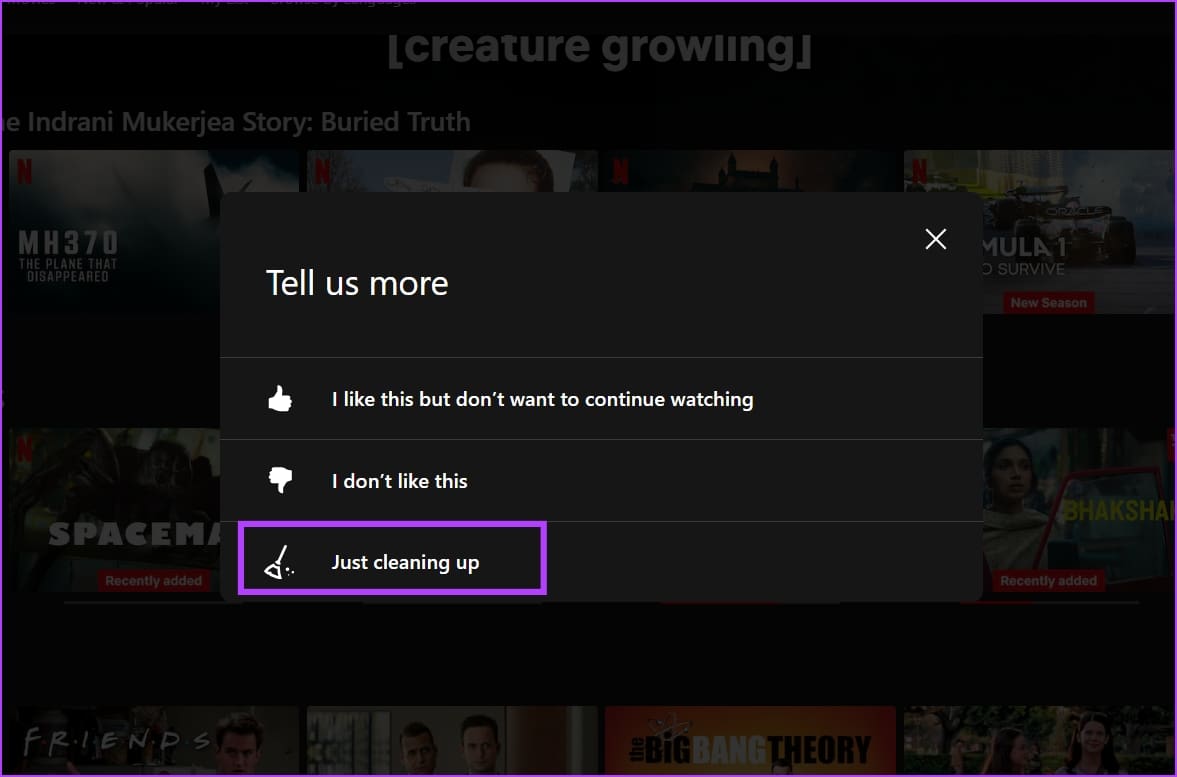
Step 3: You will have to confirm your action with a reason – you can simply click on the ‘Just cleaning up’ option.
There you go – this will remove the title from the ‘Continue Watching’ row on Netflix.
Get Rid of Continue Watching List on Netflix App: iPhone and Android
Here’s how you can get rid of items from the ‘Continue Watching’ list on the Netflix app for iPhone and Android.
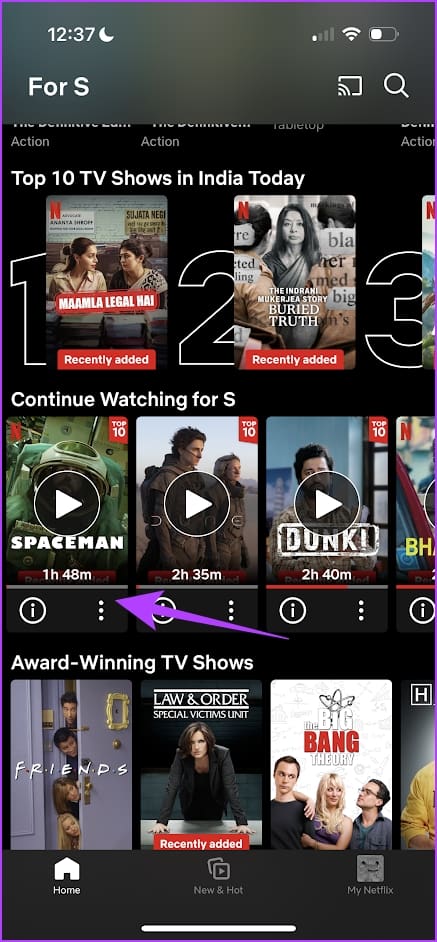
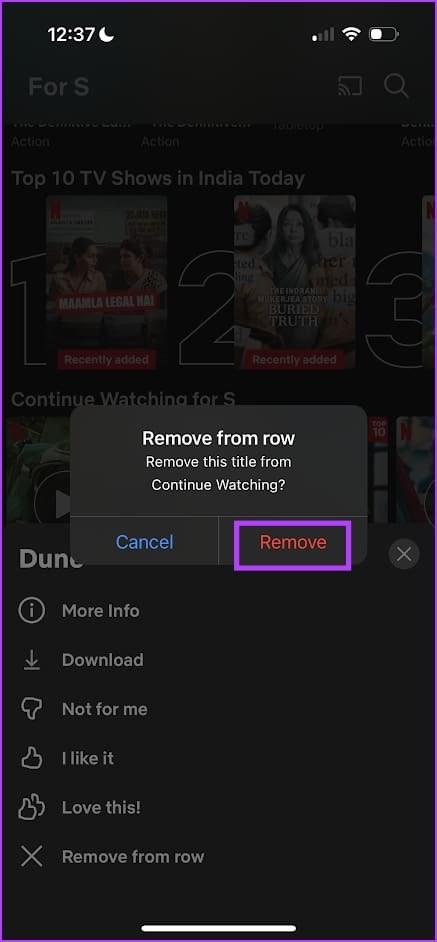
Step 1: Open the Netflix app, and scroll down to find the ‘Continue Watching’ row.
Step 2: Click on the three dots icon under the title you want to remove.
Step 3: Click on ‘Remove from row’.
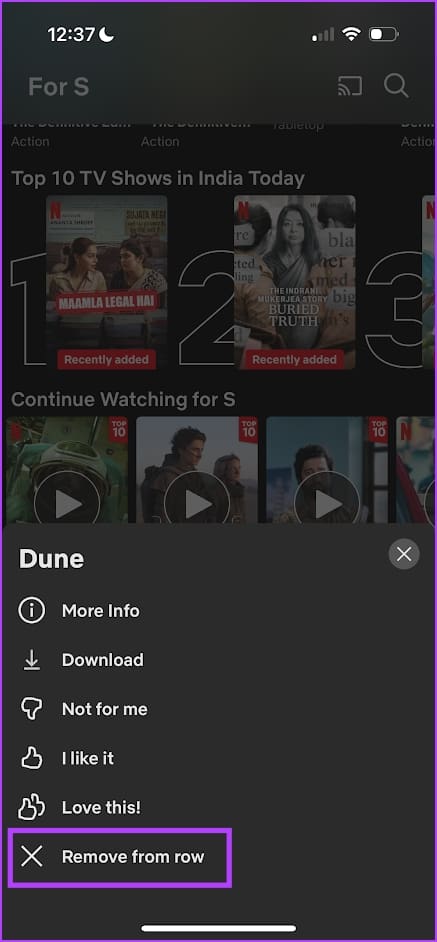
Step 4: Click on Remove once again. This will delete the movie or the TV show from ‘Continue Watching’.
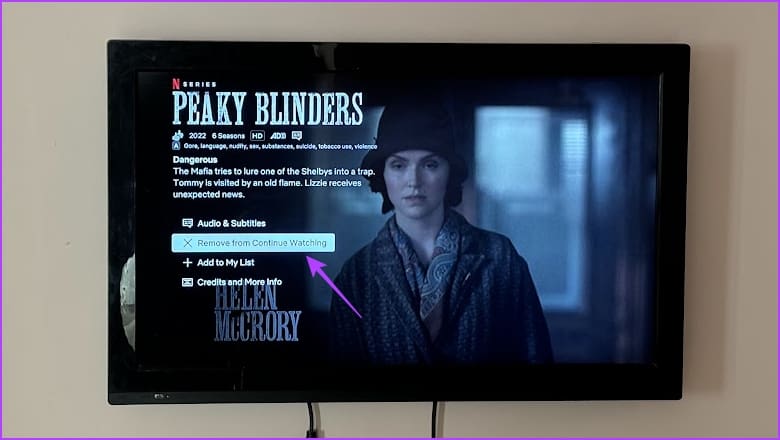
Clear Continue Watching List on Netflix Smart TV
Here’s how you can remove items from the ‘Continue Watching’ list on your smart TV. All you need to do is open the title, go down the list of options, and select ‘Remove from Continue Watching’.
How to Remove Content From Continue Watching via Your Profile: Clear the Entire List at Once
The above methods help you clear the ‘Continue Watching’ list one item at a time. If you’re looking to delete all of it at once, here’s how you can do it.
We have also written a detailed article on how to delete your Netflix viewing history – you can check that out to know more.
Step 1: Open the Accounts page on Netflix. Use the link below.
You can open the link in a web browser on your PC, Mac, Android, iPhone, or any other device.
Step 2: Select the profile for which you want to delete the viewing history.

Step 3: Tap on the Viewing activity.

Step 4: Tap on Hide All.
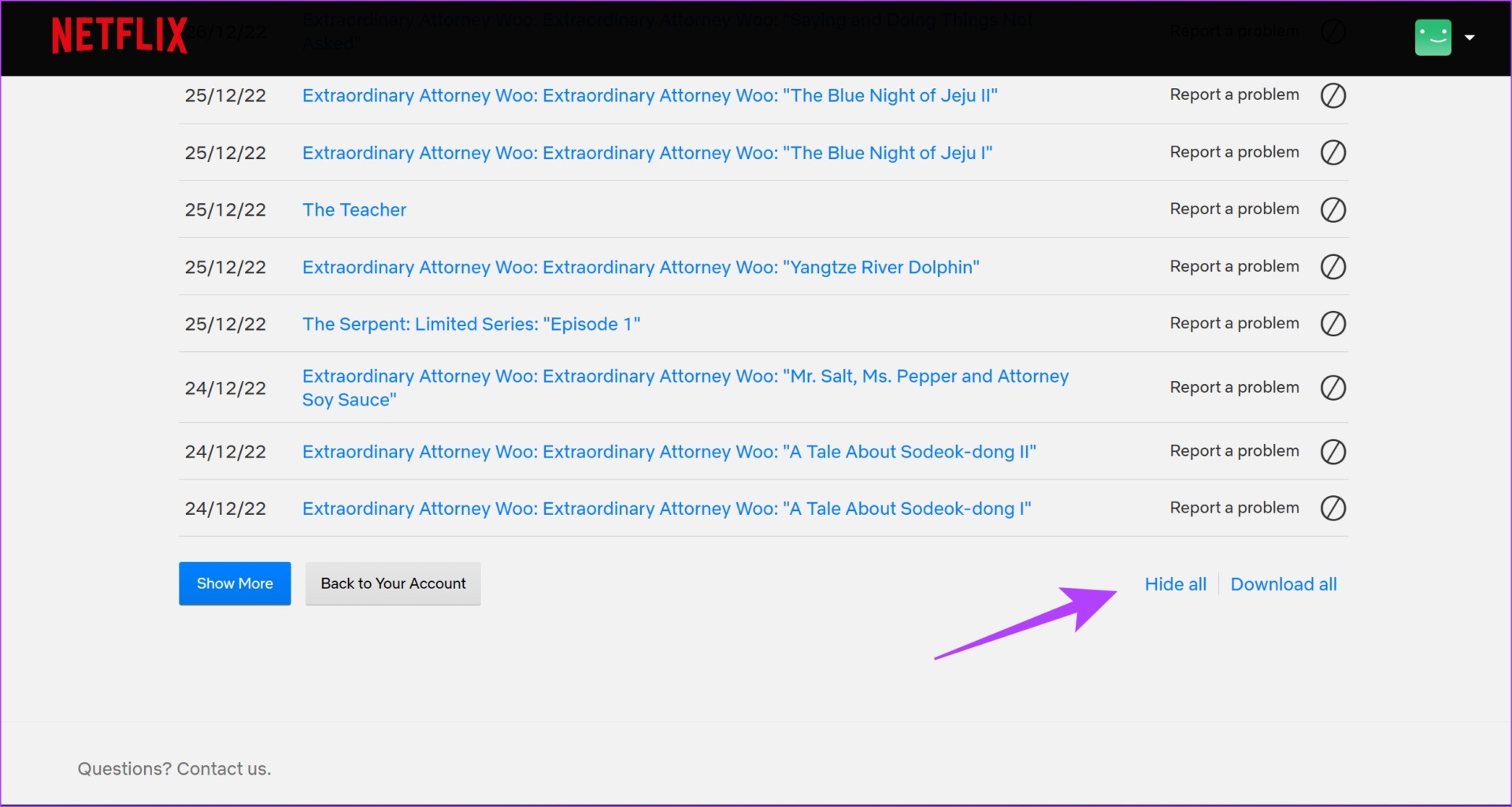
Step 5: Tap on ‘Yes. hide all my viewing activity to confirm.

If you have any further questions, you can take a look at the FAQ section below.
FAQs: Recently Watched TV Shows and Movies on Netflix
Unfortunately, you cannot remove the Continue Watching row itself on Netflix.
You cannot delete all items from Continue Watching at once on a Smart TV. You need to use Netflix on a web browser to do so.
You can remove Continue Watching from your profile instead.
Open Netflix on a web browser, and open the accounts page. Select the profile, and then go to Viewing Activity. Here, you can remove items from the list, and they will be removed from Continue Watching.
Yes, the changes will take place on the profile across all devices.
Yes, a new profile will not include any watch history. Therefore it will not contain any items in Continue Watching.
“Continue Watching” items on Netflix will disappear after a certain time if you don’t watch them, usually around a month or more
Also Read: How to Set Up Netflix Household
Clean Up Your Netflix App
We hope this article helps you remove items from the ‘Continue Watching’ section on Netflix. If you’re facing any problems doing so – do let us know in the comments section below. We’ll get back to you with a solution at the earliest!
Was this helpful?
Last updated on 23 August, 2024
Read Next
 3 Ways to Fix Continue Watching Not Showing on Netflix
Basic Fix: Scroll through the Netflix homepage: In all the other content Netflix pushes you to watch, it may happen so that the continue-watching pane may have been shifted underneath.
3 Ways to Fix Continue Watching Not Showing on Netflix
Basic Fix: Scroll through the Netflix homepage: In all the other content Netflix pushes you to watch, it may happen so that the continue-watching pane may have been shifted underneath.
 Prime Video: Clear Continue Watching, Search, and Watch History
Clear Continue Watching on Amazon Prime Video The new Prime Video interface lacks an Edit button for managing its Continue Watching section.
Prime Video: Clear Continue Watching, Search, and Watch History
Clear Continue Watching on Amazon Prime Video The new Prime Video interface lacks an Edit button for managing its Continue Watching section.
 How to Stop YouTube From Pausing and Asking if You Want to “Continue Watching”
If you’re watching a YouTube playlist or listening to it in the background, you may occasionally find the video automatically paused.
How to Stop YouTube From Pausing and Asking if You Want to “Continue Watching”
If you’re watching a YouTube playlist or listening to it in the background, you may occasionally find the video automatically paused.
 3 Ways to Fix Monitor Goes Black While Watching Netflix
Basic Fixes Disable G-SYNC in NVIDIA Control Panel: If your monitor is flickering or the screen goes black, disable G-SYNC in NVIDIA Control Panel.
3 Ways to Fix Monitor Goes Black While Watching Netflix
Basic Fixes Disable G-SYNC in NVIDIA Control Panel: If your monitor is flickering or the screen goes black, disable G-SYNC in NVIDIA Control Panel.
 Netflix Standard vs. Premium: Which Netflix Plan Is Best for You
Netflix Subscription Plans At a Glance While Netflix provides three plans in total, the Standard and Premium plans take the cake.
Netflix Standard vs. Premium: Which Netflix Plan Is Best for You
Netflix Subscription Plans At a Glance While Netflix provides three plans in total, the Standard and Premium plans take the cake.
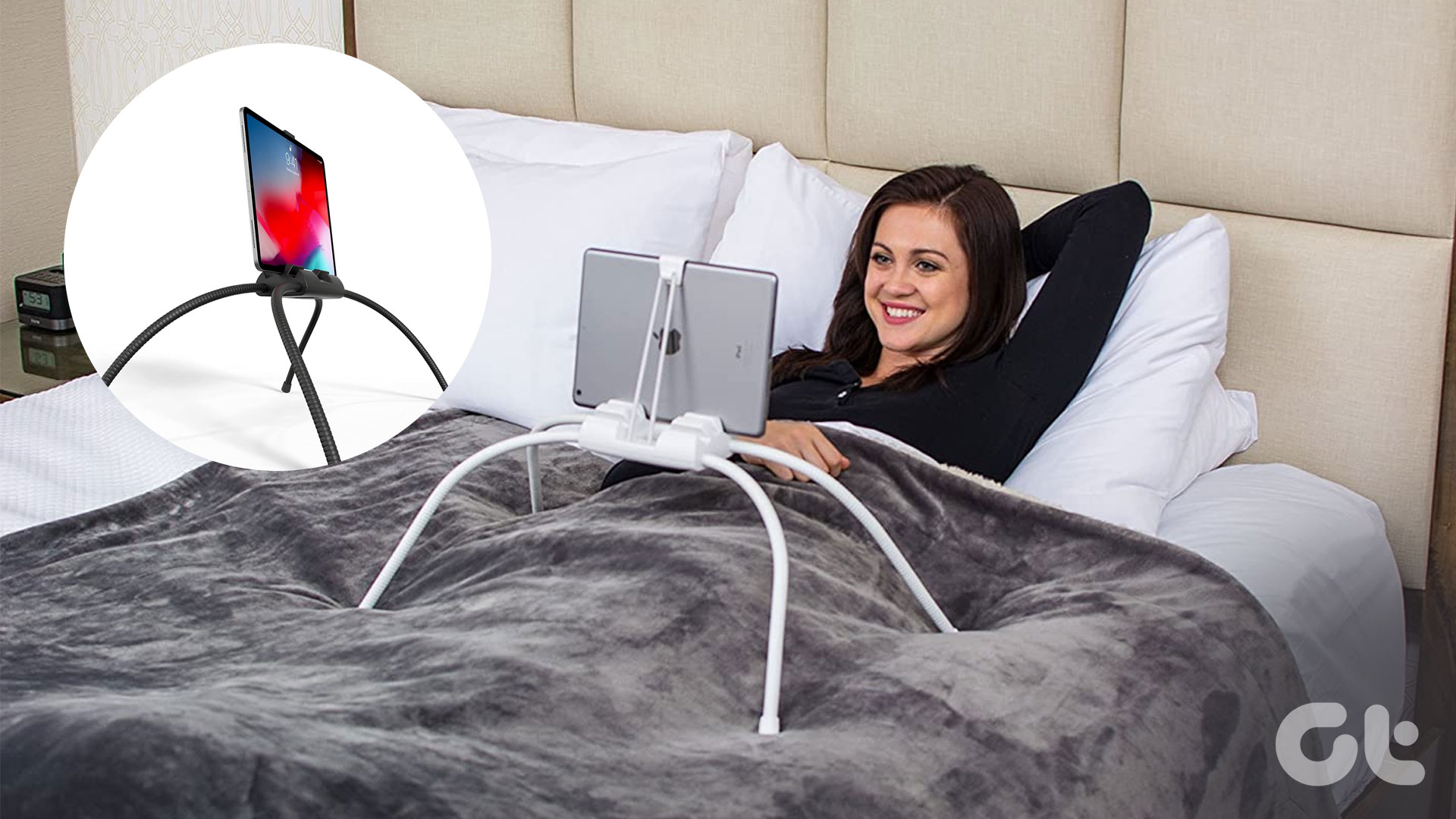 5 Best iPad Holders for Bed for Reading, Watching Movies, and More
Are you tired of holding your iPad awkwardly while trying to watch your favorite shows in bed?
5 Best iPad Holders for Bed for Reading, Watching Movies, and More
Are you tired of holding your iPad awkwardly while trying to watch your favorite shows in bed?
 How to Add or Delete a Netflix Profile on Mobile and Desktop
With the changes in Netflix's password-sharing policy, many people have been changing or canceling their plan altogether.
How to Add or Delete a Netflix Profile on Mobile and Desktop
With the changes in Netflix's password-sharing policy, many people have been changing or canceling their plan altogether.
 5 Ways to Fix Netflix Streaming in Low Quality on Android and iPhone
Common Fixes Check internet speed - I recommend at least 5Mbps to stream Netflix in high definition (HD) and a minimum of 25Mbps for Ultra HD and 4K video quality.
5 Ways to Fix Netflix Streaming in Low Quality on Android and iPhone
Common Fixes Check internet speed - I recommend at least 5Mbps to stream Netflix in high definition (HD) and a minimum of 25Mbps for Ultra HD and 4K video quality.
The article above may contain affiliate links which help support Guiding Tech. The content remains unbiased and authentic and will never affect our editorial integrity.