Basic Fixes
- Check the Apple account: Open Settings on the 2nd iPhone > Profile name > Choose the iPhone name > Remove from Account.
- Update iOS version: Open Settings > General > Software Update. Do this on both iPhones.
Why Am I Receiving the Same Text Messages on Two iPhones?
Apple devices can seamlessly sync data with each other. That’s partly why receiving the same text messages on two different iPhones can be a tad concerning. Here are some of the possible reasons why this is happening.
- You are using the same Apple ID on both the iPhones
- You have enabled Text Message Forwarding to other Apple devices signed in to your account.
- You need to enable sending iMessage via just your phone number on your primary iPhone.
Fix 1: Turn Off Text Message Forwarding
If you want to continue using the same Apple ID on two different iPhones, we suggest starting with disabling Text Message Forwarding. This feature allows you to receive text messages on multiple Apple devices at the same time.
Open Settings on your primary iPhone > Messages > SMS Forwarding > Tap the toggle next to the iPhone model to disable this feature.


Tip: You can also refer to our post if Text Message Forwarding is not showing up on your primary iPhone.
Fix 2: Turn Off Message Syncing on iCloud
If you want to continue using the same Apple ID but stop receiving the same text messages on two iPhones, we suggest disabling iCloud syncing for the Messages app on your secondary device.
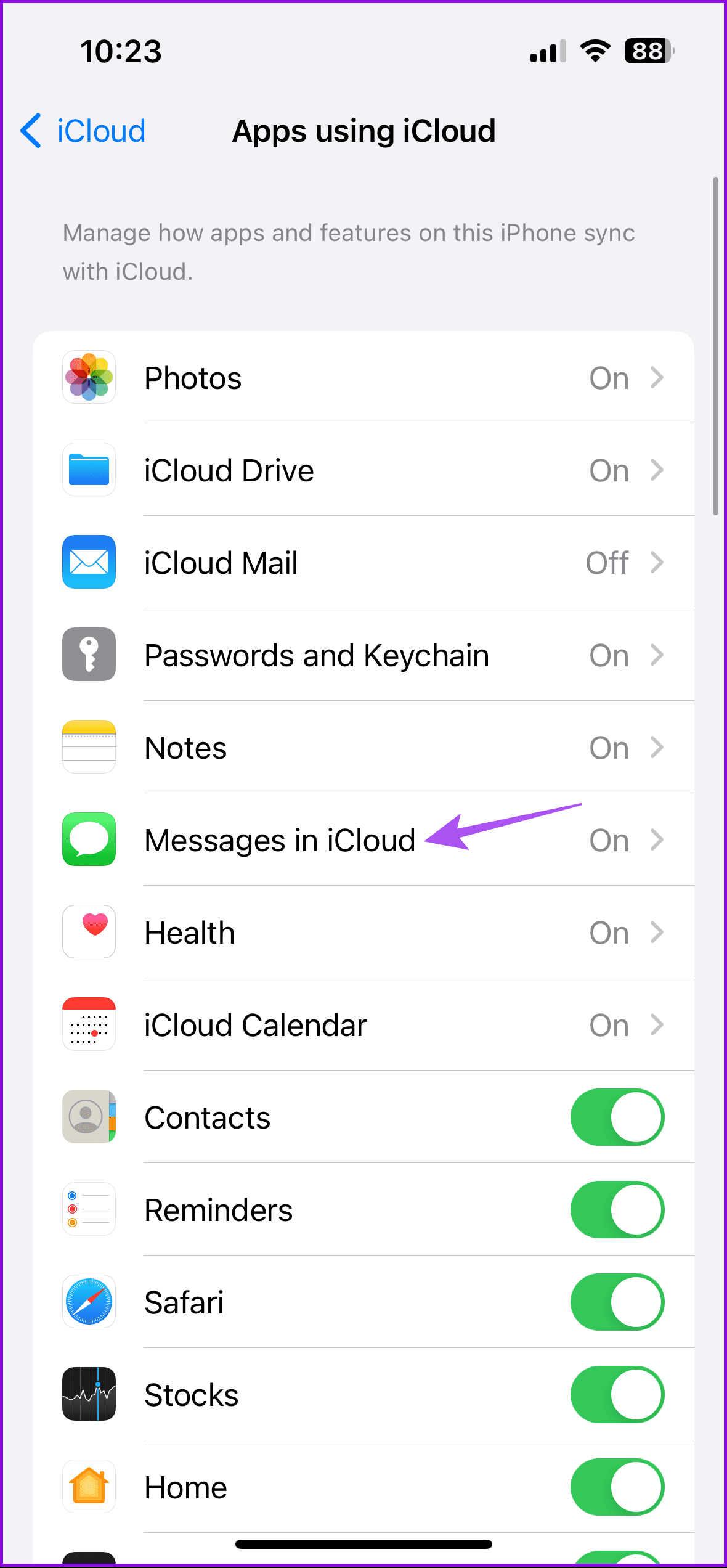
Step 1: Open Settings on the secondary iPhone > Apple account name > iCloud.
Step 2: Tap on Show All > Messages in iCloud > Turn off Use on this iPhone.

Fix 3: Choose Only Your iPhone Number for iMessage
Some users suggest selecting only your primary iPhone number for sending and receiving iMessage. If you send iMessage using your Apple ID, they will get synced between two iPhones signed in to the same account.
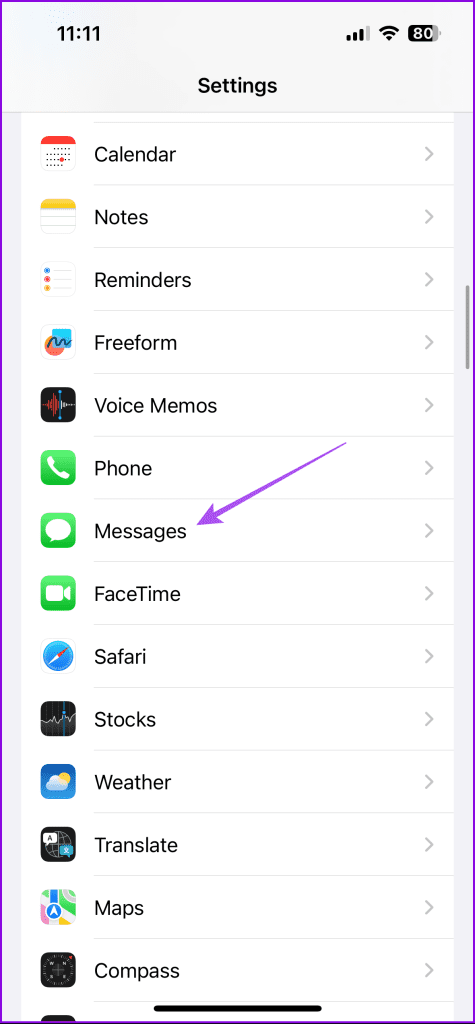
Open Settings on the primary iPhone > Messages > Send and Receive > Choose only your phone number.

Tip: You can also refer to our post if your iMessage is being sent from your email ID instead of your phone number.
Fix 4: Reset Network Settings
Our last suggestion is resetting the wireless network settings on your primary iPhone. This will restore the preferences for Mobile Data, Wi-Fi, and Bluetooth to default.
Open Settings > General > Transfer or Reset iPhone > Reset > Reset Network Settings.

Tip: You can also check out our post to learn how to unsync iPhone from iPad or another iPhone.
Was this helpful?
Last updated on 25 August, 2024
Read Next
 6 Fixes for Samsung Galaxy Phones Not Receiving Text Messages
Basic Fixes Check cellular network: Ensure that you have a working cellular network on your phone.
6 Fixes for Samsung Galaxy Phones Not Receiving Text Messages
Basic Fixes Check cellular network: Ensure that you have a working cellular network on your phone.
 Why Can’t I Receive Text Messages on My Android Phone?
Why You’re Unable to Receive Text Messages on Android Several factors can affect your Android phone's default messaging experience.
Why Can’t I Receive Text Messages on My Android Phone?
Why You’re Unable to Receive Text Messages on Android Several factors can affect your Android phone's default messaging experience.
 How to Block Websites on iPhone and iPad
How to Block Specific Sites on iPhone and iPad The Screen Time functionality lets you easily block websites using the built-in Web Content restrictions.
How to Block Websites on iPhone and iPad
How to Block Specific Sites on iPhone and iPad The Screen Time functionality lets you easily block websites using the built-in Web Content restrictions.
 5 Ways to Fix No Sound When Receiving Text on iPhone
Common Fixes Check the notification volume - Open the Settings app, tap Sounds & Haptics, and maximize the Ringtone and Alerts volume slider.
5 Ways to Fix No Sound When Receiving Text on iPhone
Common Fixes Check the notification volume - Open the Settings app, tap Sounds & Haptics, and maximize the Ringtone and Alerts volume slider.
 5 Fixes for iPhone Not Receiving Text Notifications
https://youtu.be/bmD4KSVPxfI Basic Fixes Force quit and relaunch Messages app: This will give the app a fresh start if it has been running in the background for some time now.
5 Fixes for iPhone Not Receiving Text Notifications
https://youtu.be/bmD4KSVPxfI Basic Fixes Force quit and relaunch Messages app: This will give the app a fresh start if it has been running in the background for some time now.
 6 Best MagSafe Ring Holders for iPhones
Phone rings and grips have become incredibly popular with iPhone owners.
6 Best MagSafe Ring Holders for iPhones
Phone rings and grips have become incredibly popular with iPhone owners.
 4 Ways to Fix WhatsApp Not Receiving Messages
Basic Fixes to Try Check for WhatsApp app update: Keeping apps updated helps ensure they receive critical security or bug updates as soon as possible.
4 Ways to Fix WhatsApp Not Receiving Messages
Basic Fixes to Try Check for WhatsApp app update: Keeping apps updated helps ensure they receive critical security or bug updates as soon as possible.
 3 Ways to Stop Receiving WhatsApp Messages Without Blocking
https://youtu.be/8PzB-2WkB8Q WhatsApp doesn’t have a privacy setting to stop messages from contacts unless blocked (which they might know about).
3 Ways to Stop Receiving WhatsApp Messages Without Blocking
https://youtu.be/8PzB-2WkB8Q WhatsApp doesn’t have a privacy setting to stop messages from contacts unless blocked (which they might know about).
The article above may contain affiliate links which help support Guiding Tech. The content remains unbiased and authentic and will never affect our editorial integrity.