Stories on Instagram are a great way to share the moments that you cherish, with your friends and followers. However, an issue that many users often face is finding Instagram stories blurry along with depreciated quality. If you are facing this issue too, this article will help you fix it.
If you find Instagram stories blurry, there could be various reasons for it. Not only will we help you understand the cause but also provide easy ways to troubleshoot this issue with our tried and tested solutions. Let’s jump right in.
What Makes Pictures on IG Stories Blurry
Generally, Instagram compresses the image quality before uploading it as a story. However, adding stickers, music, gifs, and other media ends up reducing the quality even further once you upload the story.
Besides, other finer details regarding the format or how you capture the image can affect the quality of your story. But don’t worry! Jump to the next section to troubleshoot this issue.
Basic Fixes
- Check network connection: Ensure there’s no problem with your Wi-Fi or cellular network.
- Check if Instagram is down: Check if Instagram is facing downtime. If yes, wait for the platform to be restored.
- Update Instagram: Update Instagram to the latest version on your Android or iOS device for a bug-free experience.
- Don’t add music to stories: Instagram has to maintain and upload stories under a certain size limit. So once you add music, stickers, or GIFs, the image quality might compromise and take a hit.
- Switch camera app: Compare the quality of the stories uploaded when captured on the default camera app of your phone and the Instagram camera. If you find a difference in quality, you know what to use next.
Fix 1: Enable High-Quality Uploads
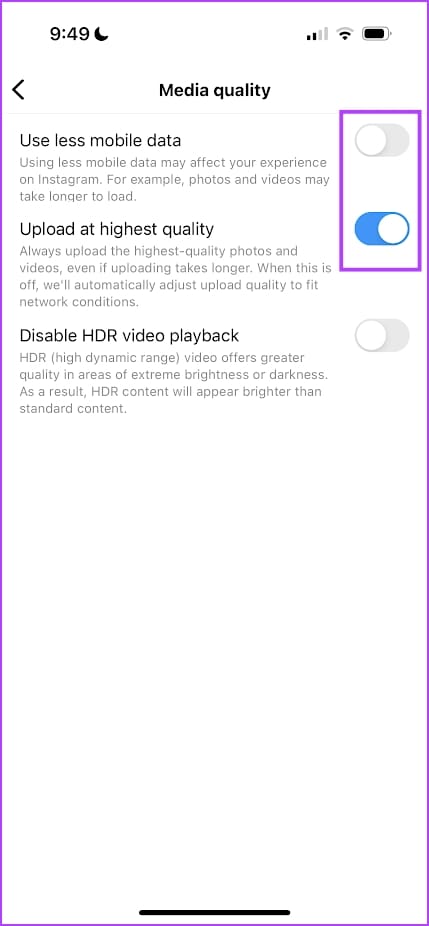
Do you know that Instagram has an in-built toggle to ensure high-quality uploads of media within the app?
- Go to Instagram Settings > Media Quality and turn on the toggle for Upload at highest quality.
- Alternatively, turn off less mobile data to let Instagram prioritize quality over data usage while uploading stories on cellular data.

Fix 2: Use the Right Format
Based on the dimensions, compression, and format of Instagram stories, you can tweak, or capture your image to ensure you get the best quality. Here are some tips to help you put this issue to rest.
- The optimum resolution for a story is 1080 x 1920, with a 9:16 aspect ratio.
- Ensure your image has at least or more than 72ppi.
- Try to upload verticle images or images where you don’t have to zoom in to fit the screen. (Hence, always use the 9:16 resolution).
Fix 3: Clear Instagram Cache
Clearing cache and junk files may resolve the issue with blurry stories. You can check our guide on what happens when you clear your cache on Instagram for a better understanding.
On Android
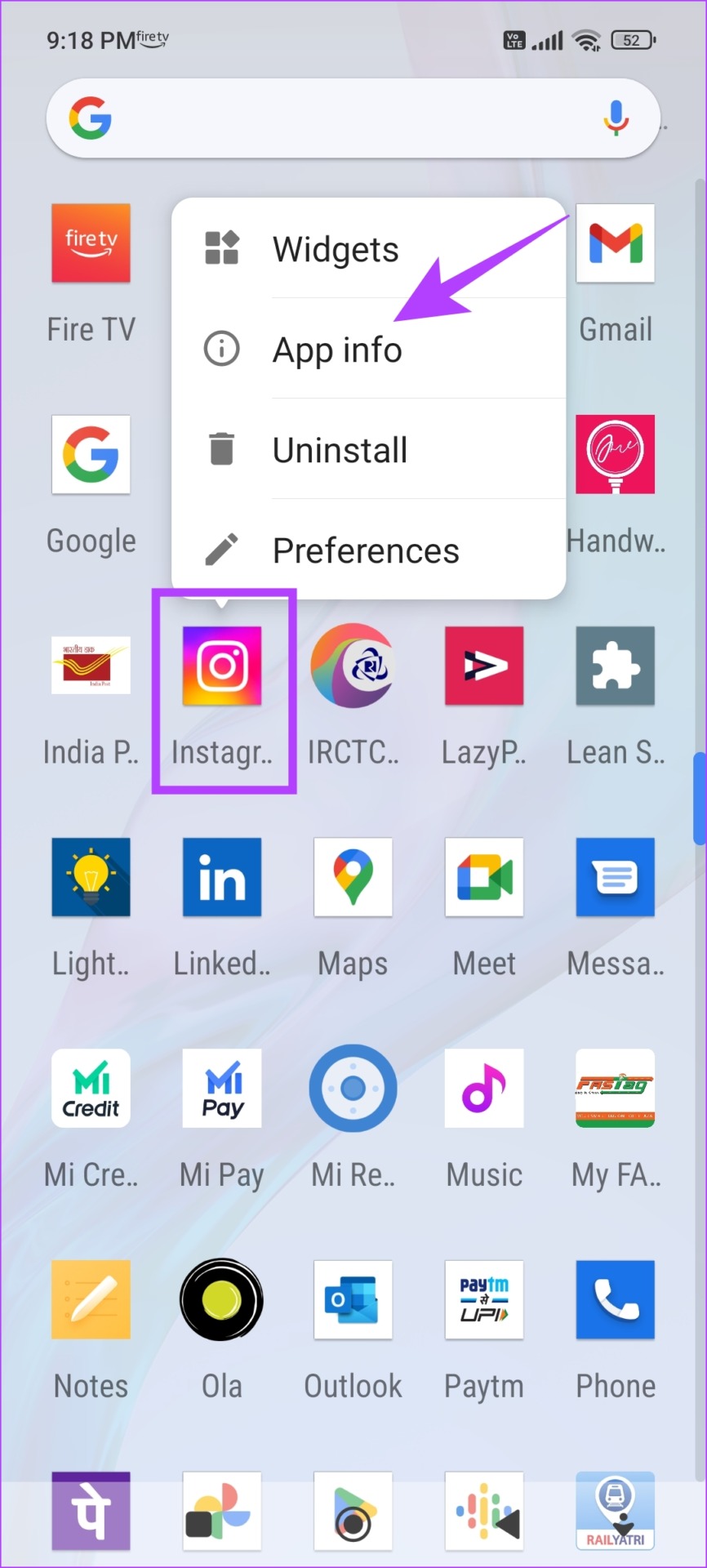
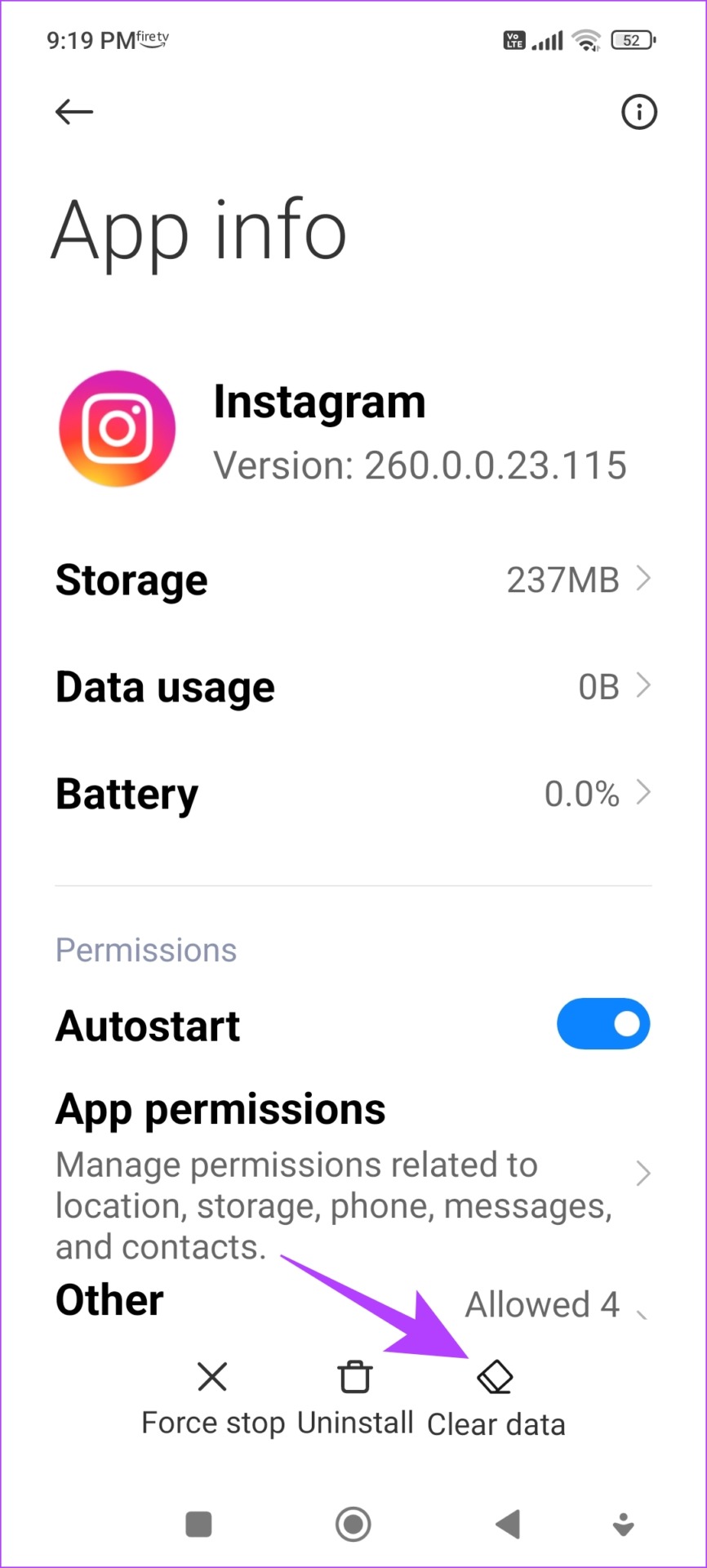
Step 1: Long-press the Instagram app on the home screen and tap on App info. Tap on Clear Data.
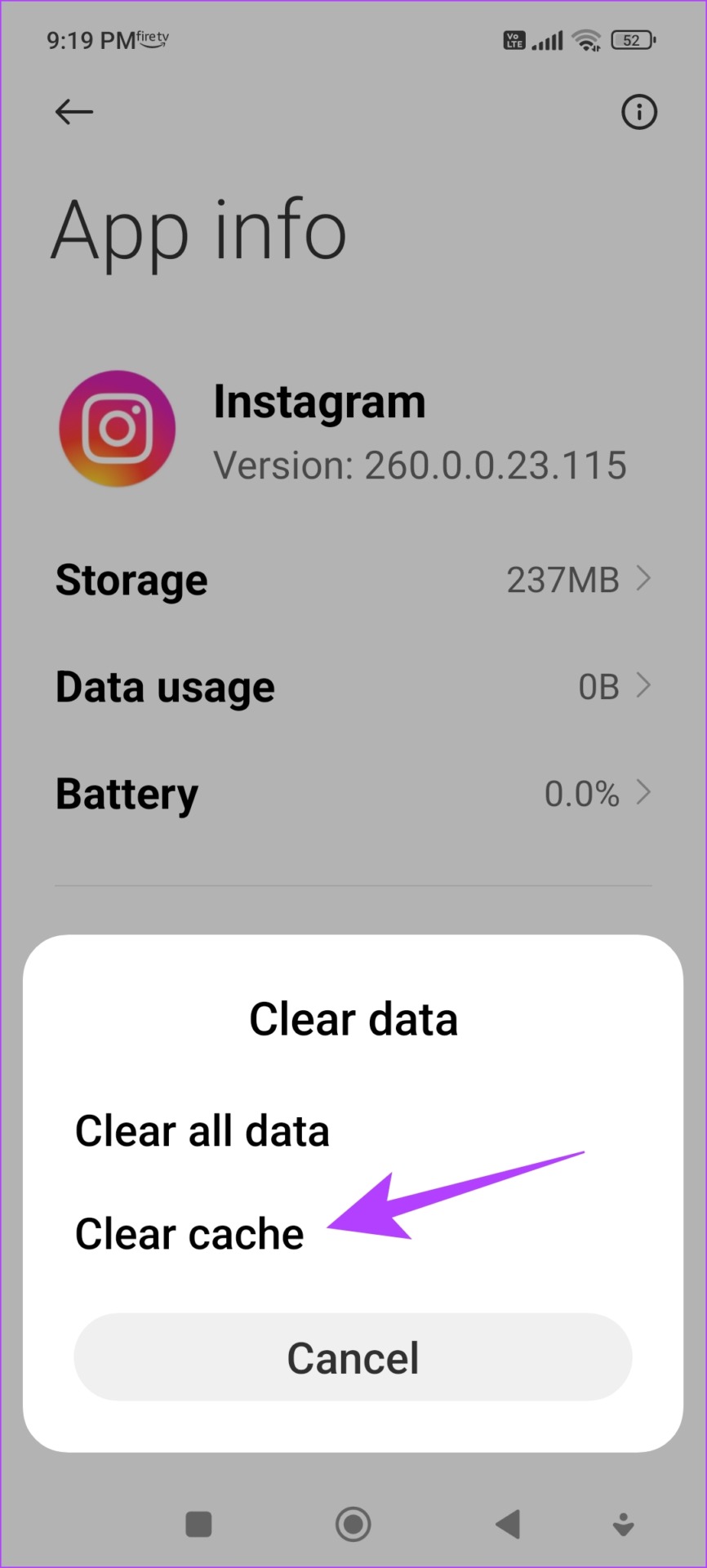
Step 2: Tap on Clear cache and select OK to confirm.
On iPhone
Offloading an application on your iPhone removes temporary data, including cache and junk files.
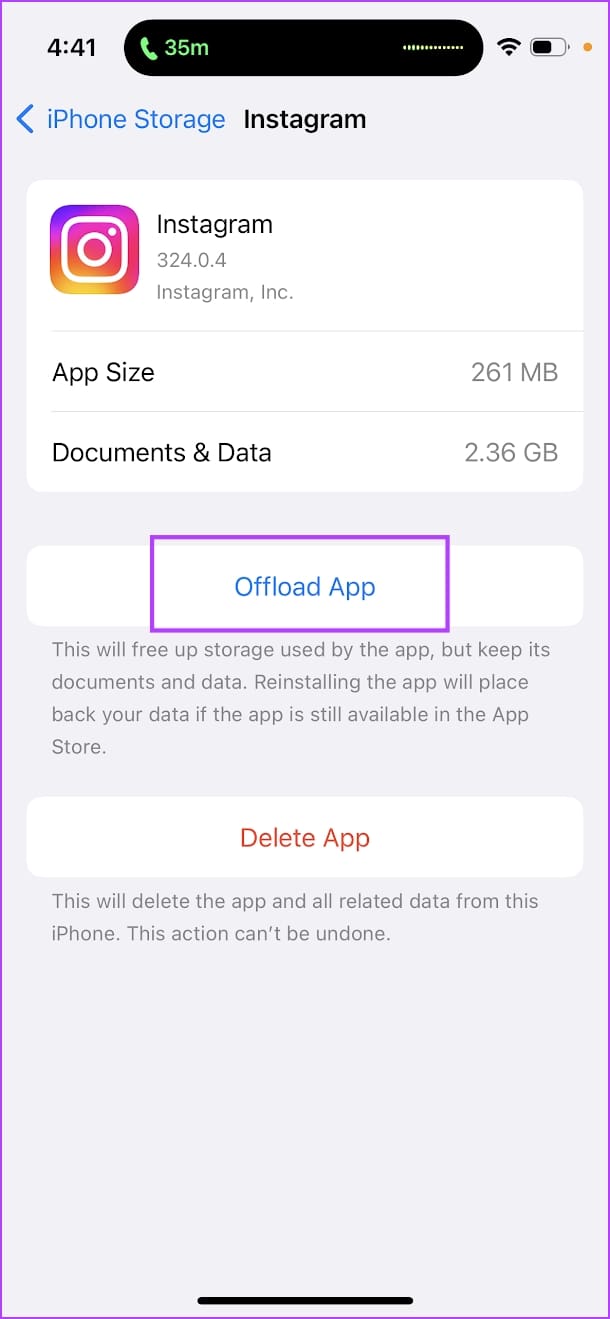
Step 1: Open the Settings app. Go to General -> iPhone Storage.
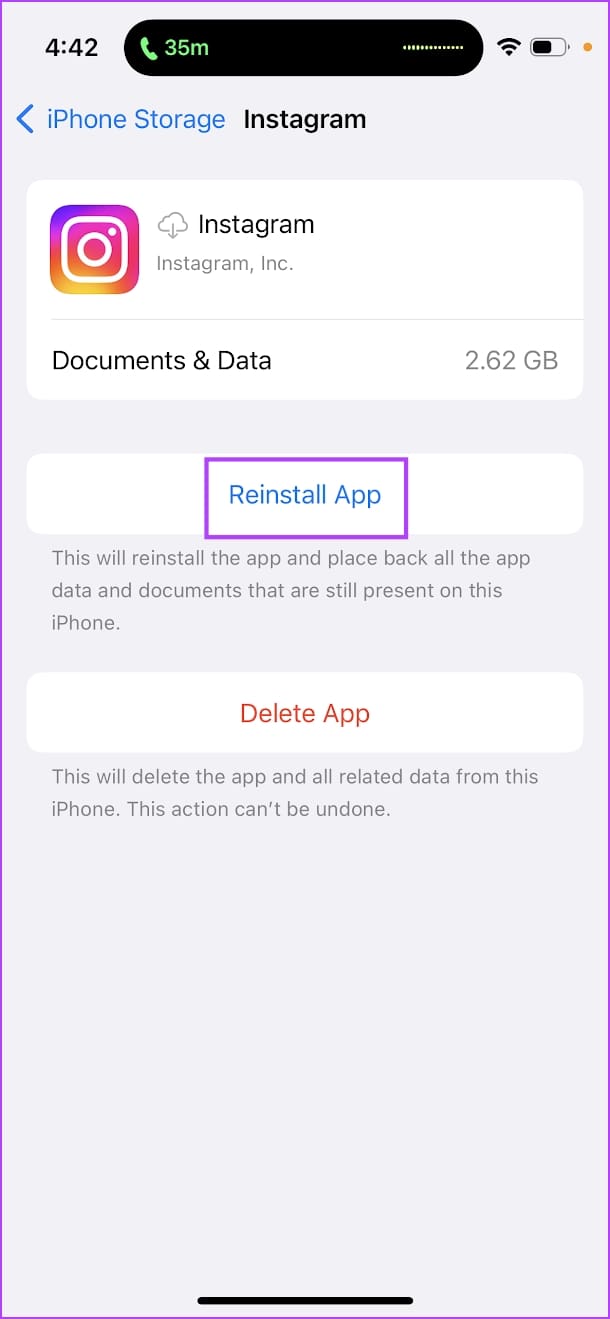
Step 2: Scroll down and select Instagram from the list. Select Offload App. Wait for the offloading to complete, then tap on the Reinstall App option.
Fix 4: Disable Data Saver on Device
Using any data saver settings on your device can restrict Instagram from uploading stories in the best quality.
On iPhone
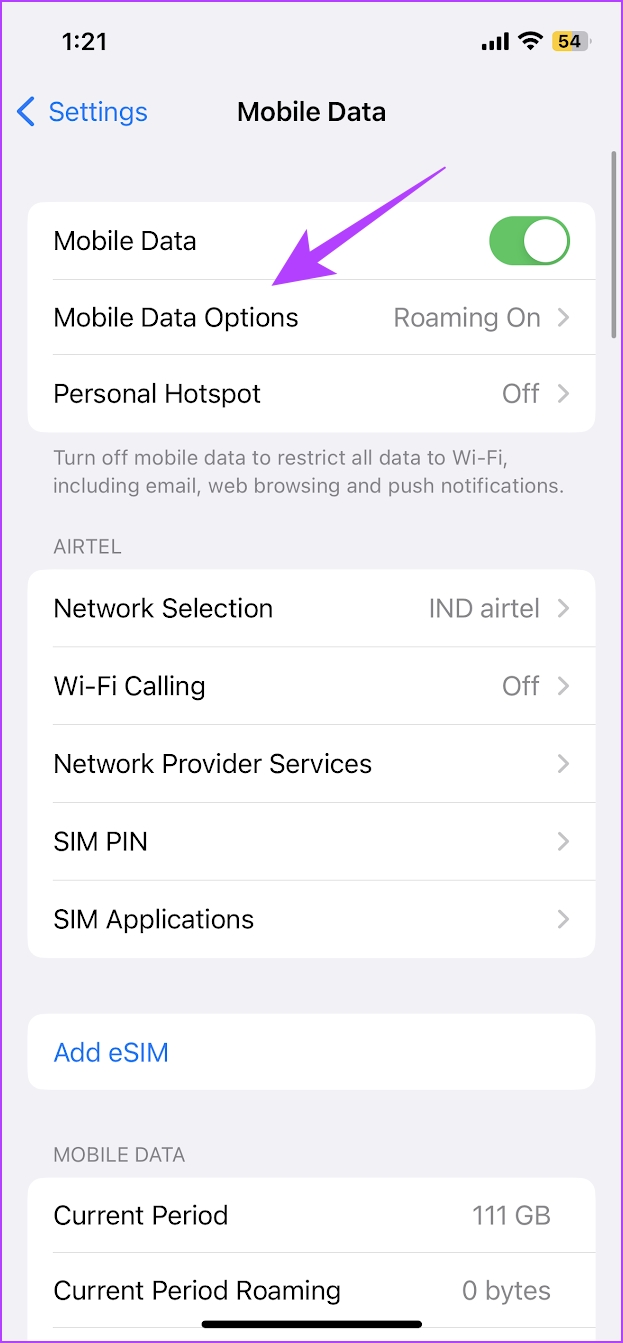
Step 1: Open Settings > tap on Cellular Data/Mobile data.
Step 2: Tap on Mobile Data Options (or Cellular Data Options).
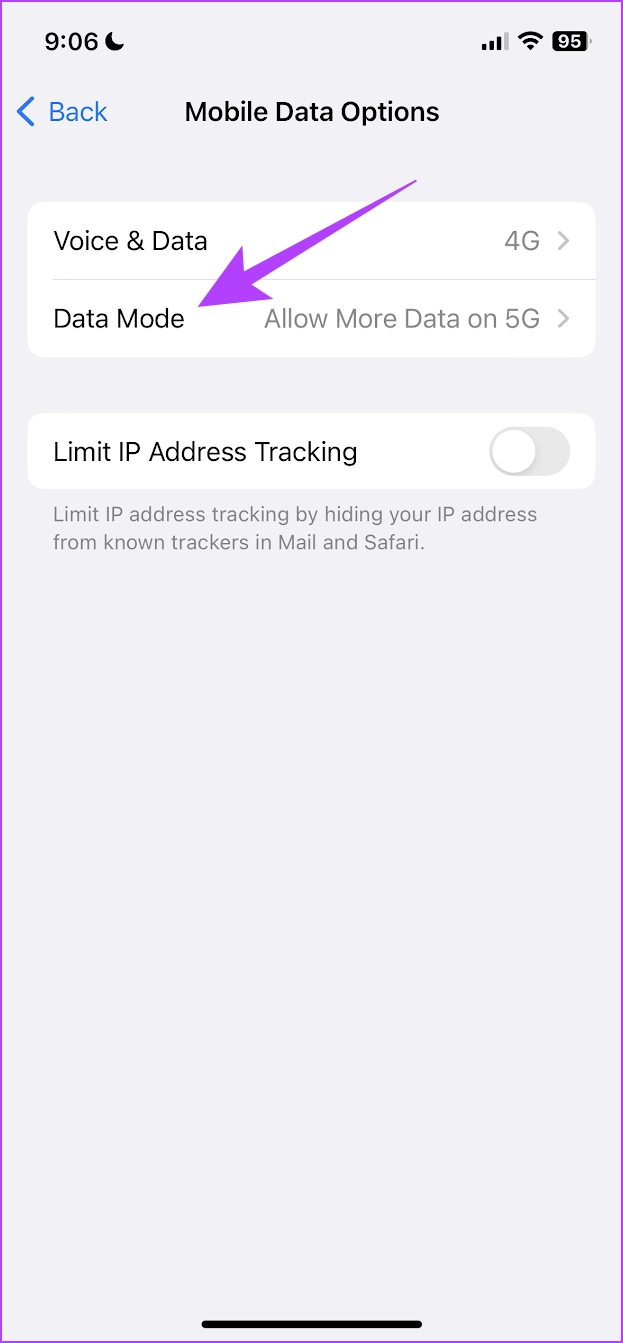
Step 3: Tap on Data Mode. Ensure you haven’t selected Low Data Mode. Select Allow More Data on 5G or Standard.

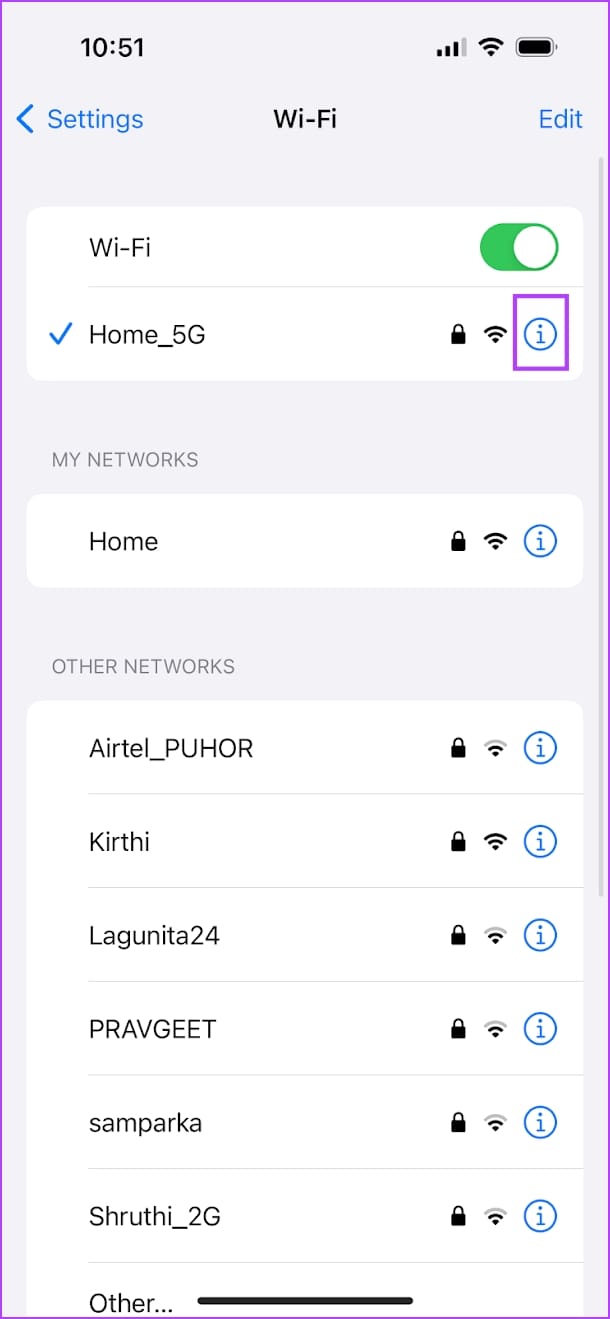
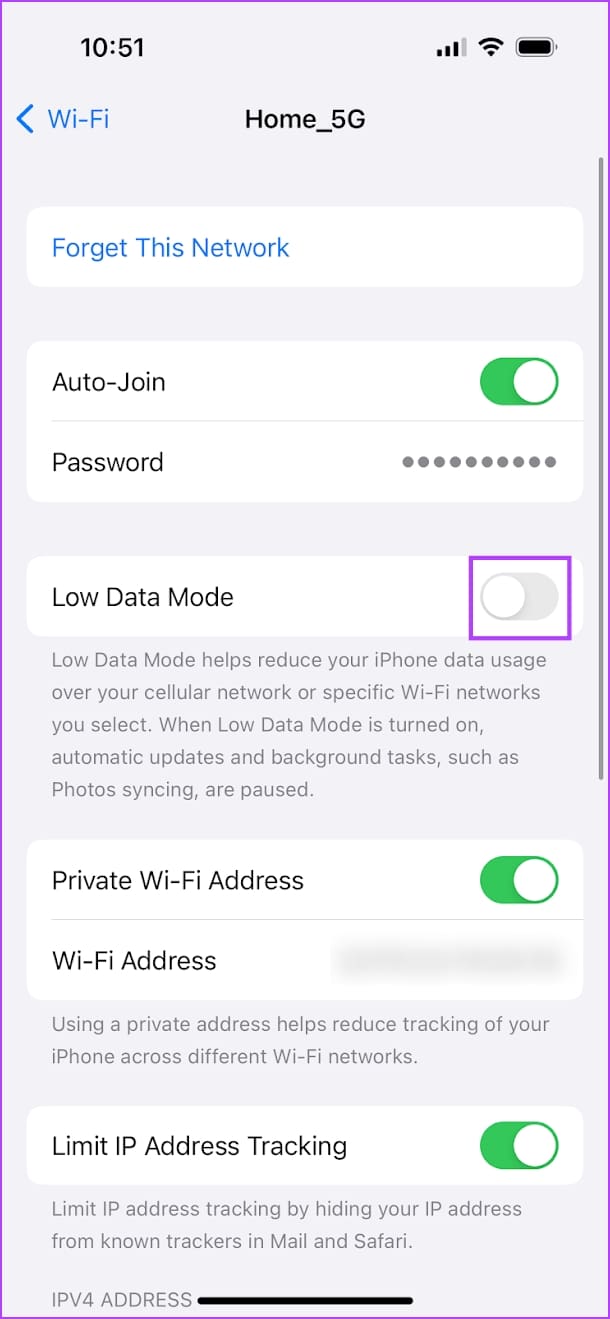
Additionally, ensure you’ve not enabled Low Data Mode for Wi-Fi networks as well. Open the Settings app > tap on Wi-Fi > tap on the info icon next to the connected network > turn off the toggle for Low Data Mode.
On Android
Open the Settings app > go to Network & Internet > ensure you have not enabled the toggle for Use Data Saver.


Was this helpful?
Last updated on 10 July, 2024
Read Next
 Why Are My Instagram Reels Blurry and How to Fix It
Why Do My Instagram Reels Look Blurry?
Why Are My Instagram Reels Blurry and How to Fix It
Why Do My Instagram Reels Look Blurry?
 3 Ways to Fix Blurry Text in Google Chrome
Fix 1: Disable Hardware Acceleration When you disable hardware acceleration, you offload graphics processing tasks from the computer's graphics card to the central processing unit, which is helpful if the
3 Ways to Fix Blurry Text in Google Chrome
Fix 1: Disable Hardware Acceleration When you disable hardware acceleration, you offload graphics processing tasks from the computer's graphics card to the central processing unit, which is helpful if the
 4 Ways to Fix Instagram Not Loading Stories
Basic Fixes: Restart the Instagram app: It's a good idea to completely close Instagram on your phone and reopen it to load stories.
4 Ways to Fix Instagram Not Loading Stories
Basic Fixes: Restart the Instagram app: It's a good idea to completely close Instagram on your phone and reopen it to load stories.
 9 Ways to Fix Videos Freezing on Instagram Stories and Posts
Ever since apps like Dubsmash and TikTok popularized short videos, popular social media apps have come up with alternatives for posting short-form content.
9 Ways to Fix Videos Freezing on Instagram Stories and Posts
Ever since apps like Dubsmash and TikTok popularized short videos, popular social media apps have come up with alternatives for posting short-form content.
 5 Ways to Fix Blurry Screen Issue on Windows 11
Fix 1: Change Display Resolution and Scale One of the most common causes of a blurry Windows 11 screen is the incorrect display resolution or scale.
5 Ways to Fix Blurry Screen Issue on Windows 11
Fix 1: Change Display Resolution and Scale One of the most common causes of a blurry Windows 11 screen is the incorrect display resolution or scale.
 Why Do Photos Get Blurry on WhatsApp Status: 3 Ways to Fix This
https://youtu.be/k2MGRKNamFQ Basic Fixes Switch to the stable version of WhatsApp: While beta versions give you early access to new features and cool tricks, they may also introduce several bugs and
Why Do Photos Get Blurry on WhatsApp Status: 3 Ways to Fix This
https://youtu.be/k2MGRKNamFQ Basic Fixes Switch to the stable version of WhatsApp: While beta versions give you early access to new features and cool tricks, they may also introduce several bugs and
 3 Ways to Fix Blurry Camera on Android Phones
Basic Fixes: Check camera lens for damage: If your device's camera lens is damaged or has scratches, it can cause photos to appear blurry on your Android phone.
3 Ways to Fix Blurry Camera on Android Phones
Basic Fixes: Check camera lens for damage: If your device's camera lens is damaged or has scratches, it can cause photos to appear blurry on your Android phone.
 5 Ways to Fix Blurry Home or Lock Screen Wallpaper on iPhone
Fix 1: Check if the Wallpaper Resolution Fits Your iPhone's Screen If you have downloaded a wallpaper, check its resolution and ensure that it matches the screen resolution of your
5 Ways to Fix Blurry Home or Lock Screen Wallpaper on iPhone
Fix 1: Check if the Wallpaper Resolution Fits Your iPhone's Screen If you have downloaded a wallpaper, check its resolution and ensure that it matches the screen resolution of your
The article above may contain affiliate links which help support Guiding Tech. The content remains unbiased and authentic and will never affect our editorial integrity.