Windows 11 PCs have several built-in features intended to improve performance. One of these is the Windows Health and Optimized Experiences Service, or [whesvc]. The service gathers local diagnostic data on Windows performance, which can help investigate performance issues and support certain optimization features.
While continuous improvements to your laptop’s battery performance and other features sound appealing, some Windows users find that the service can slow their computer down. Discover more about how the Windows Health and Optimized Experiences Service affects laptops and why you might want to disable it.
Windows Health and Optimized Experiences Service Explained
The service [whesvc] had some controversy surrounding it when it was first launched in 2025. Gamers were convinced it was tanking their performance, while conspiracy theorists determined the service was there to spy on laptop users.
Neither is strictly true. includes collecting local diagnostic information when Windows detects performance problems. So, yes, the service does collect data, but the available evidence does not establish that it routinely sends this information directly to Microsoft. Leaving [whesvc] active may help support Windows features that rely on it.
The performance-draining aspect is also only partially correct. At times, the service may cause high disk usage spikes, which can temporarily slow your laptop and impact performance. While these spikes rarely last longer than a few seconds, if you find that the performance drop is unacceptable, you can follow the steps below to disable the service.
Windows Health and Optimized Experiences Service Disable Guide: Step-by-Step
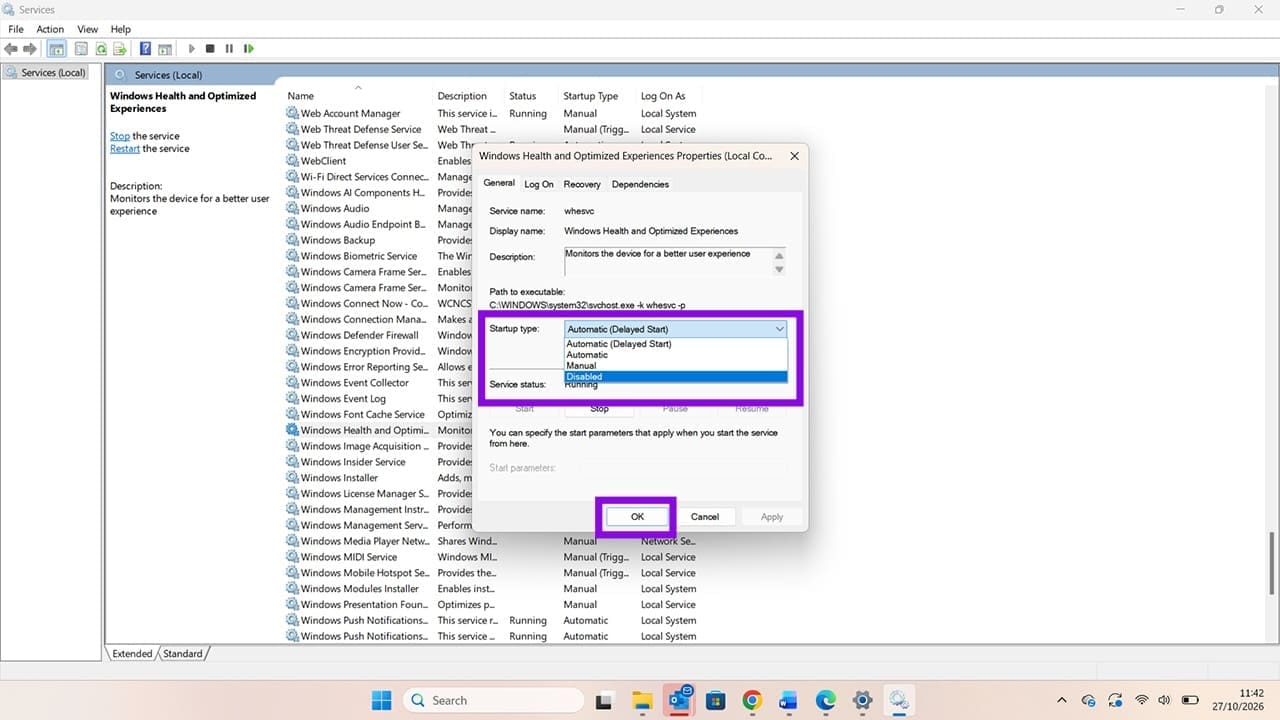
Step 1. Press the Windows + R keys to open the Run dialog. Type services.msc into the Run box and press “Enter.”

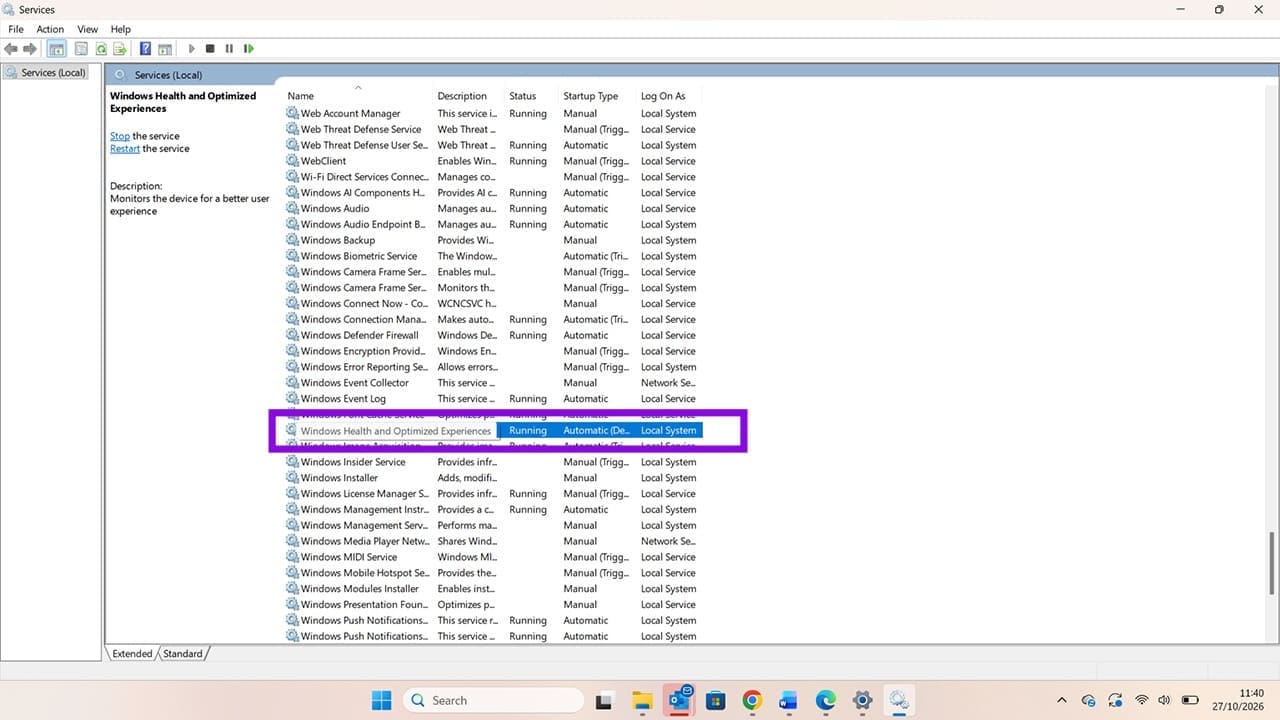
Step 2. Scroll down the list of services until you find “Windows Health and Optimized Experiences.”
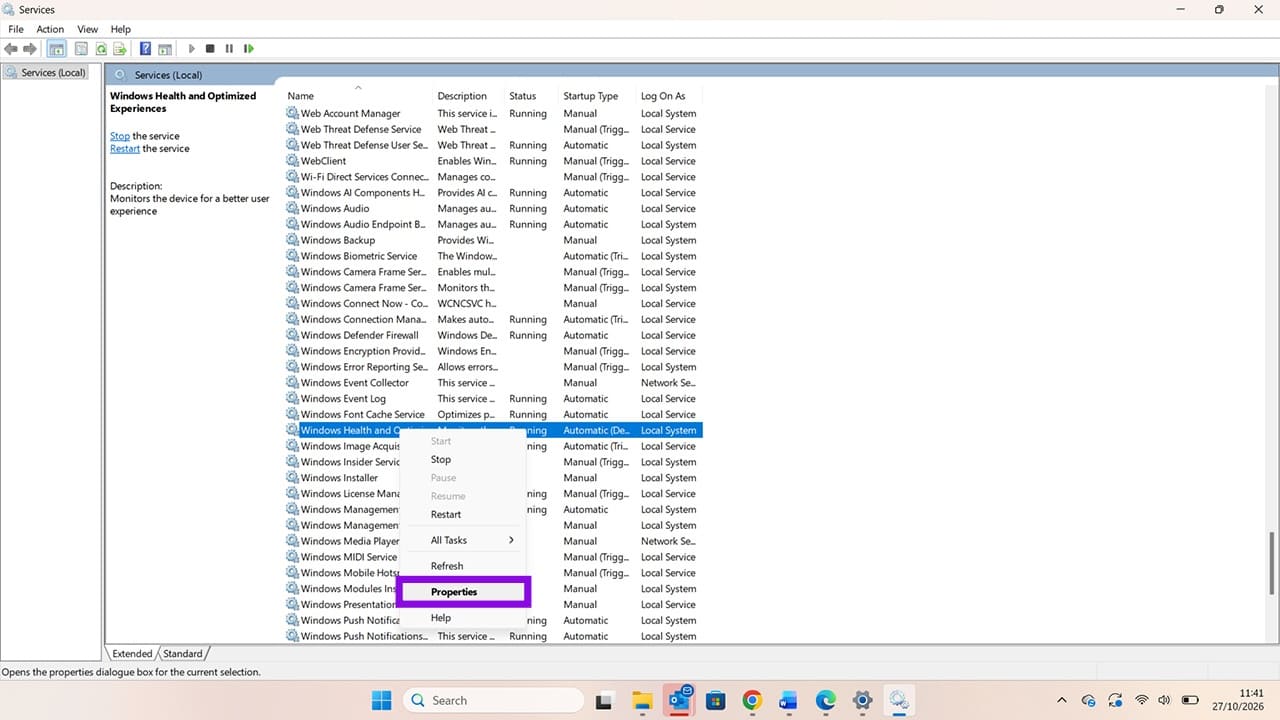
Step 3. Right-click on the service and select “Properties.”
Step 4. Click the drop-down arrow next to Startup type and change “Automatic (Delayed Start)” to “Disabled.” Click “Apply,” then “OK,” to confirm the change. This prevents the service from starting automatically when you switch on your laptop. You can change this back at a later date if necessary.
Windows Health and Optimized Experiences Service: Optimization Guide
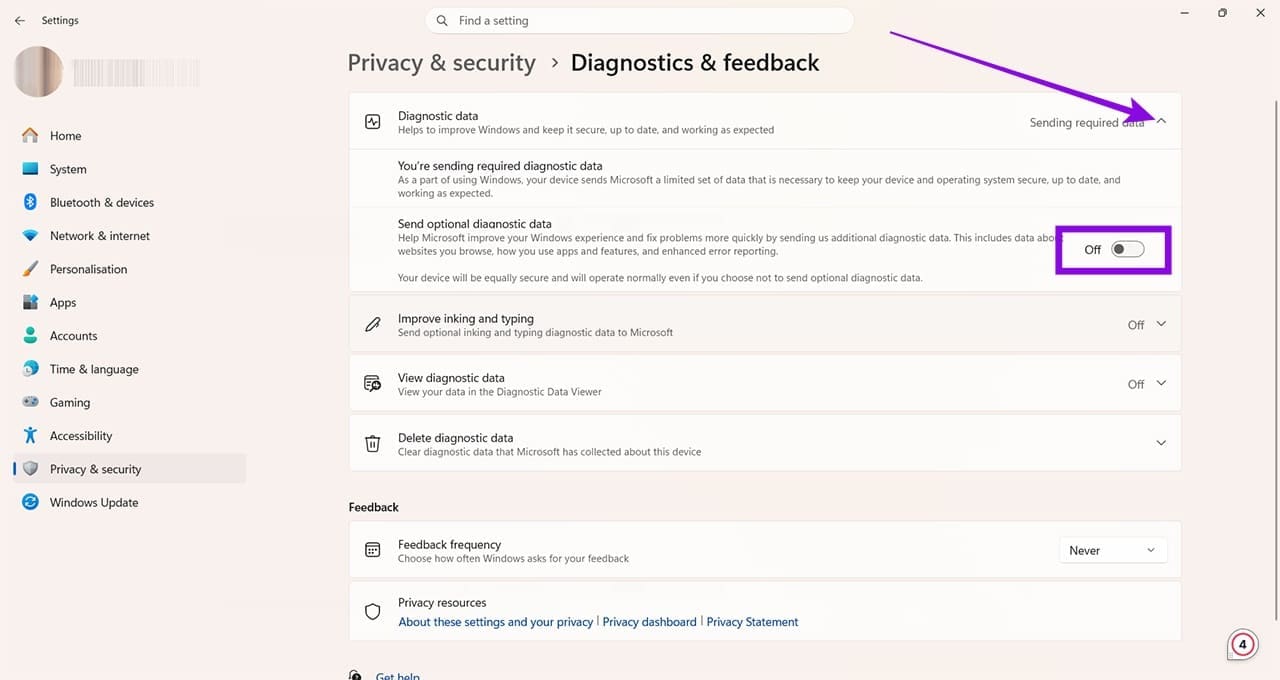
Step 1. If you want to keep the service running but want to minimize the impact it has on performance, you can try to limit the amount of data Microsoft collects and sends. Start by going to Settings > Privacy & security > Diagnostics & feedback.

Step 2. Under Diagnostic data, you can change “Send optional diagnostic data” to “Off” by clicking the button next to the option. This limits the optional diagnostic data Windows sends to Microsoft, but it does not necessarily improve your laptop’s performance or prevent the service from collecting local diagnostic information.
Was this helpful?
Last updated on 30 October, 2026
Read Next
 5 Ways to Check GPU Health on Windows
https://youtu.be/JGwJ-_hIzfg Method 1: Using Task Manager The Windows Task Manager can help you in checking GPU health.
5 Ways to Check GPU Health on Windows
https://youtu.be/JGwJ-_hIzfg Method 1: Using Task Manager The Windows Task Manager can help you in checking GPU health.
 Difference Between Process and Service in Windows 10: GT Explains
A few days ago, while I was busy writing a guide Chrome started lagging, and I had to open the Task Manager to kill the associated process.
Difference Between Process and Service in Windows 10: GT Explains
A few days ago, while I was busy writing a guide Chrome started lagging, and I had to open the Task Manager to kill the associated process.
 4 Ways to Fix “We Couldn’t Connect to the Update Service” Issue on Windows
Basic Fixes Restart PC: Restart your PC to fix temporary bugs and glitches.
4 Ways to Fix “We Couldn’t Connect to the Update Service” Issue on Windows
Basic Fixes Restart PC: Restart your PC to fix temporary bugs and glitches.
 How to Fix “Windows Installer Service Could Not Be Accessed” Error
Common Fixes Restart your PC: Press the Windows + X shortcut to open the Power User Menu, select Shut down or sign out, and click on Restart.
How to Fix “Windows Installer Service Could Not Be Accessed” Error
Common Fixes Restart your PC: Press the Windows + X shortcut to open the Power User Menu, select Shut down or sign out, and click on Restart.
 5 Fixes for “User Profile Service Failed the Sign-In” Error in Windows 11
Fix 1: Configure the User Profile Service If the User Profile Service on your PC is not set to run automatically, you could encounter the "User Profile Service failed the
5 Fixes for “User Profile Service Failed the Sign-In” Error in Windows 11
Fix 1: Configure the User Profile Service If the User Profile Service on your PC is not set to run automatically, you could encounter the "User Profile Service failed the
 How to Fix “Wireless AutoConfig Service Not Running” Issue on Windows 11
Basic Fixes Reboot PC: Press the Windows + X shortcut to open the Power User Menu, select Shut down or sign out, and click Restart.
How to Fix “Wireless AutoConfig Service Not Running” Issue on Windows 11
Basic Fixes Reboot PC: Press the Windows + X shortcut to open the Power User Menu, select Shut down or sign out, and click Restart.
 4 Ways to Stop Microsoft GameInput Service From Crashing Your Windows PC
Fix 1: Uninstall Microsoft GameInput One of the most effective ways to stop Microsoft GameInput from crashing your Windows 10 or 11 PC is to remove it.
4 Ways to Stop Microsoft GameInput Service From Crashing Your Windows PC
Fix 1: Uninstall Microsoft GameInput One of the most effective ways to stop Microsoft GameInput from crashing your Windows 10 or 11 PC is to remove it.
 How to Troubleshoot High CPU Use on Windows Cross Device Service
There are a lot of tasks and processes on a Windows 11 PC that constantly seem to be vying for attention and resources, and it’s only natural to want to
How to Troubleshoot High CPU Use on Windows Cross Device Service
There are a lot of tasks and processes on a Windows 11 PC that constantly seem to be vying for attention and resources, and it’s only natural to want to
The article above may contain affiliate links which help support Guiding Tech. The content remains unbiased and authentic and will never affect our editorial integrity.