

If you’re trying to purchase a game in the Steam Store, log in to your account, or try to download updates, you might have been stopped by an error screen with the code E502 L3. What does it mean, what causes this, and how is it fixed? That’s the topic of this article.
Read on, and we’ll show you how to fix Steam Error E502 L3.
What Causes This Error?
Steam Error E502 L3 is an error entirely related to network or connection problems. It might be caused by something on your side, but much more often it’s a Steam server issue and (hopefully) will be resolved soon. Therefore, the fixes involved will be related to restoring connectivity.
How to Fix Steam Error E502 L3
Below we’ve got a few troubleshooters to help you resolve, or at least investigate, this issue.
Check Your Connection
It might be obvious, but before anything else, check that your machine is connected to the internet, and all cables are attached. Try resetting your router and PC for good measure. If this doesn’t resolve it, move on to the other troubleshooters.
Check the Steam Servers
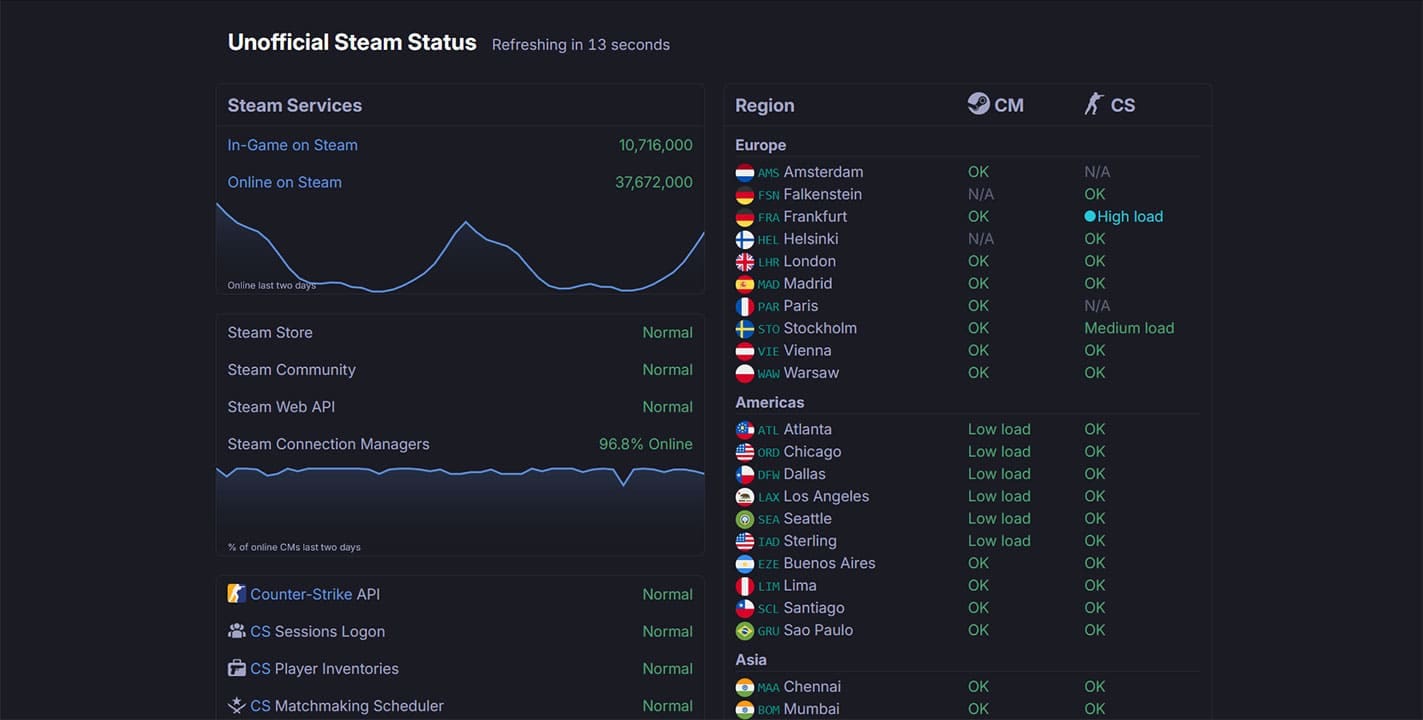
Seeing as the problem is typically on Steam’s side, it’s important to check the status of the servers in your region. You can do this via steamstat.us and check the status. Certain games will also have their servers visible.
In the Steam client itself, it can be helpful to periodically refresh the Store to see if the issue has been resolved. You can also try restarting Steam if the delay is going on for too long.
Check Your Firewall Settings
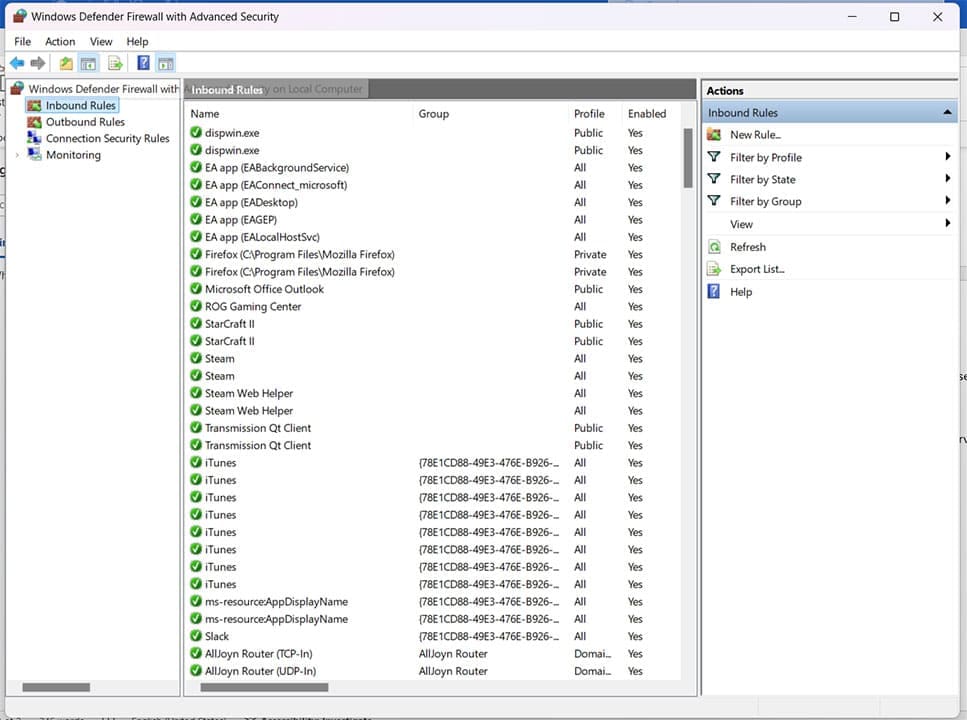
It might be your firewall keeping your Steam client from connecting to the servers. Ensure that whatever firewall you’re using has Steam cleared as an exception for Inbound Rules.
Disable Anti-Cheat Software
Steam doesn’t play well with anti-cheat software, and having software like PunkBuster installed can cause more issues than just E502 L3. If you have any cheat-busting programs installed, try disabling them if possible or uninstalling them completely to see if this resolves the access issue.
Reinstall Steam
While unlikely, the Steam client may have become corrupted and needs a fresh install to run properly once again. If the client has been acting up in other ways, it might be a good idea to reinstall it. Here’s what to do:
Step 1. Open Settings (Win + I) and click “Apps” in the sidebar.
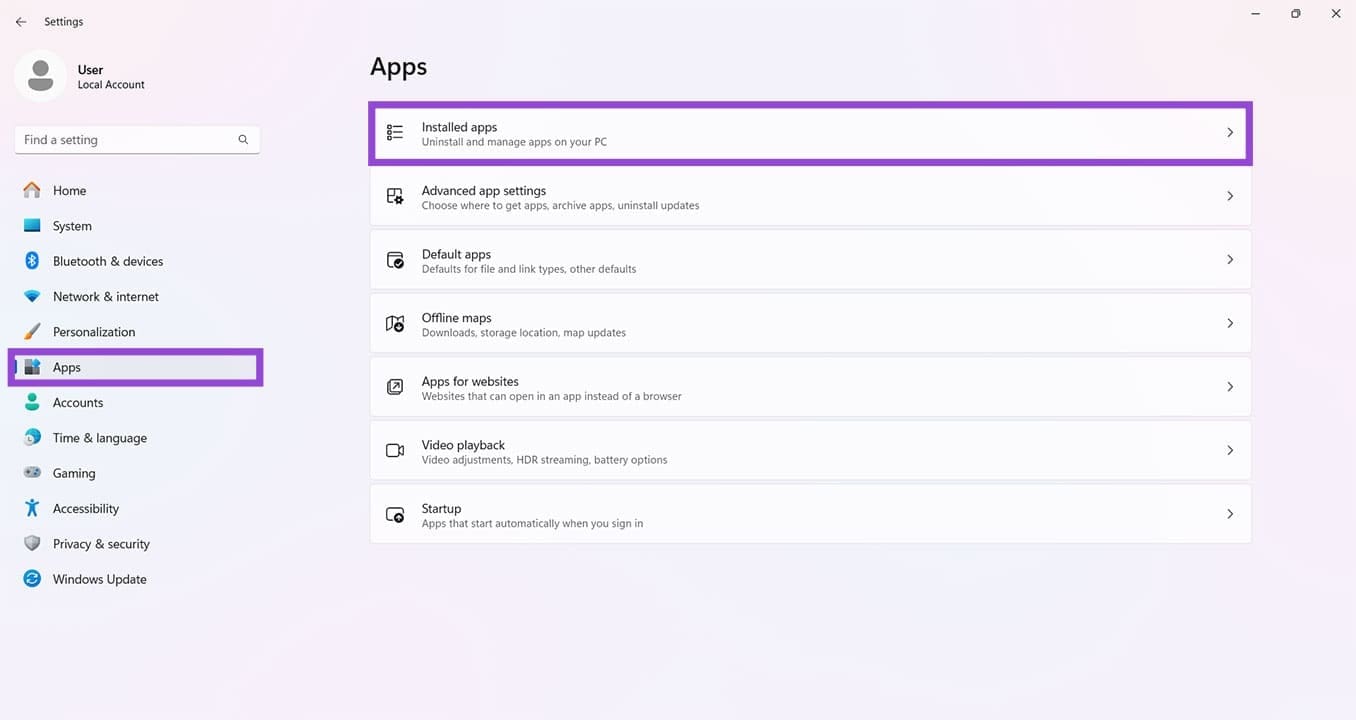
Step 2. Click “Installed apps.”
Step 3. Scroll down the list of apps until you reach Steam. Click the three dots next to the name.
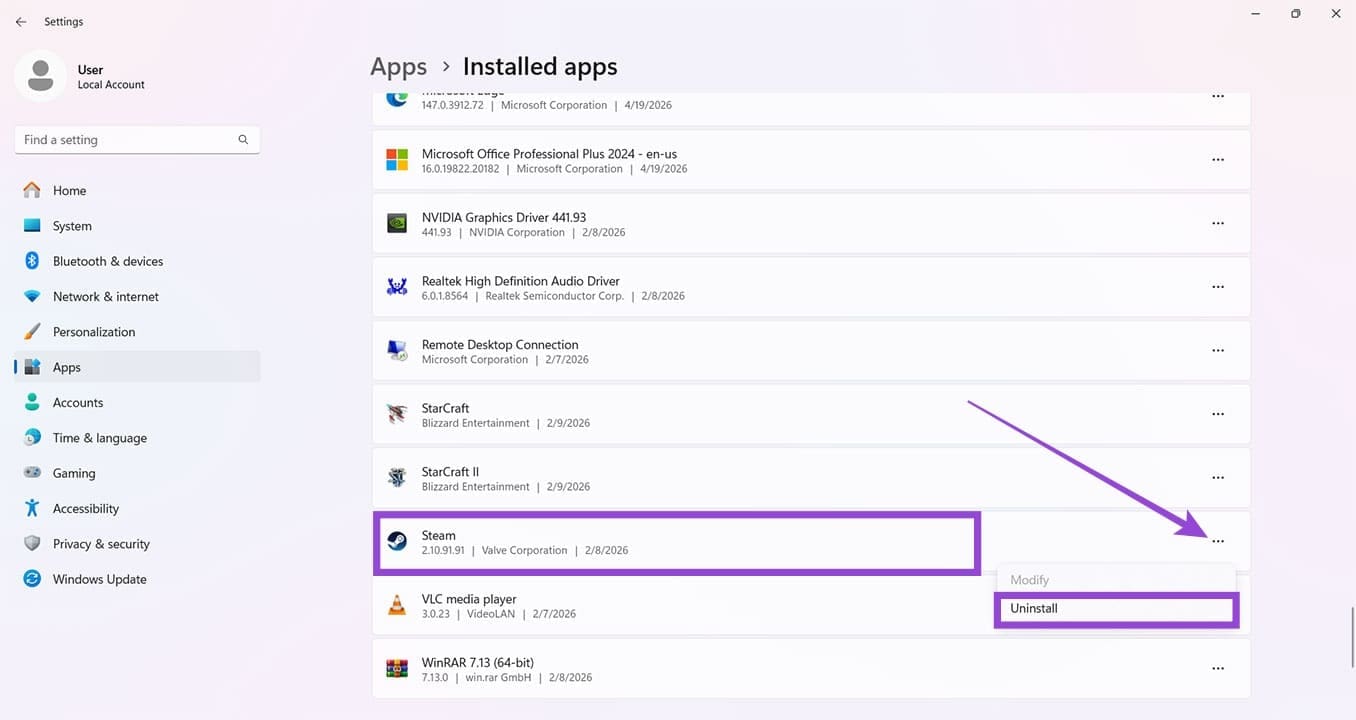
Step 4. Click “Uninstall” and follow the prompts.
Step 5. Restart your machine, then head to the Steam site to download the latest client.
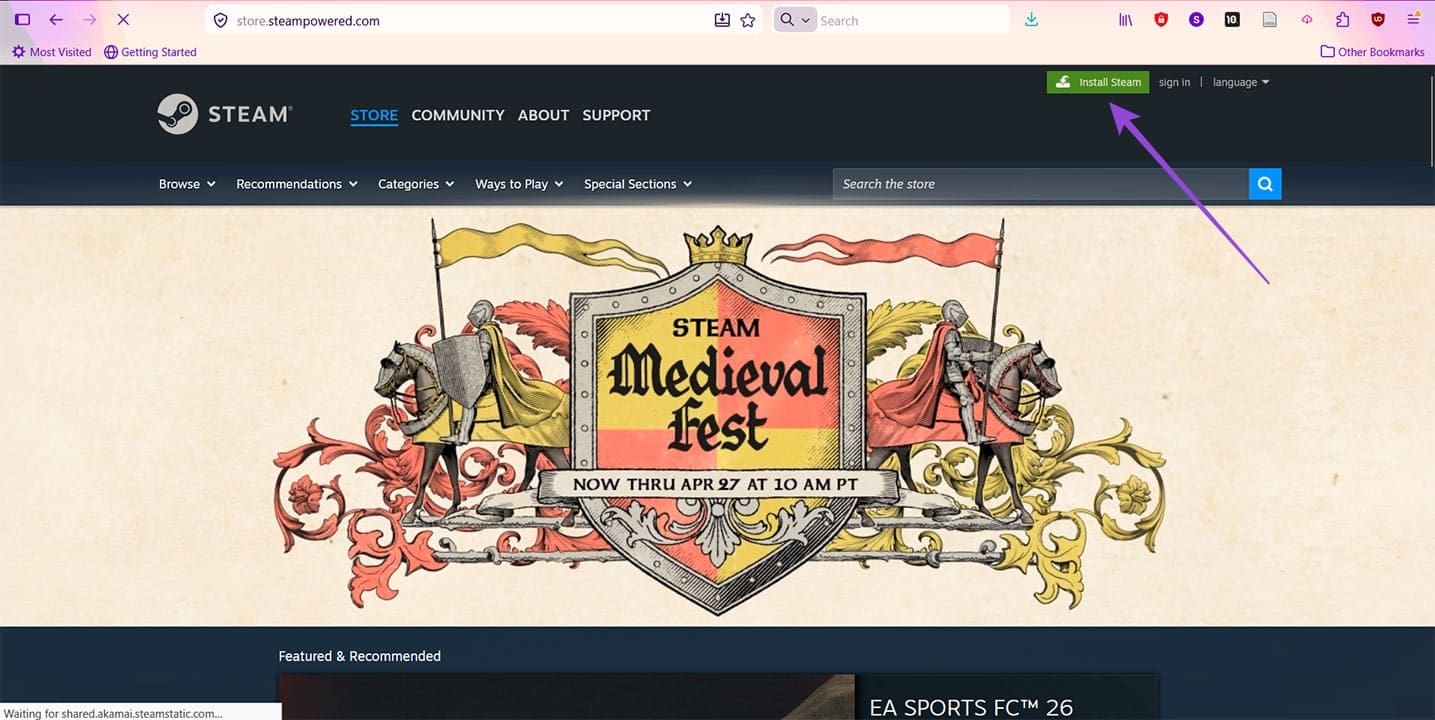
Step 6. Click “Install Steam” and follow the prompts.
Was this helpful?
Last updated on 30 April, 2026
Read Next
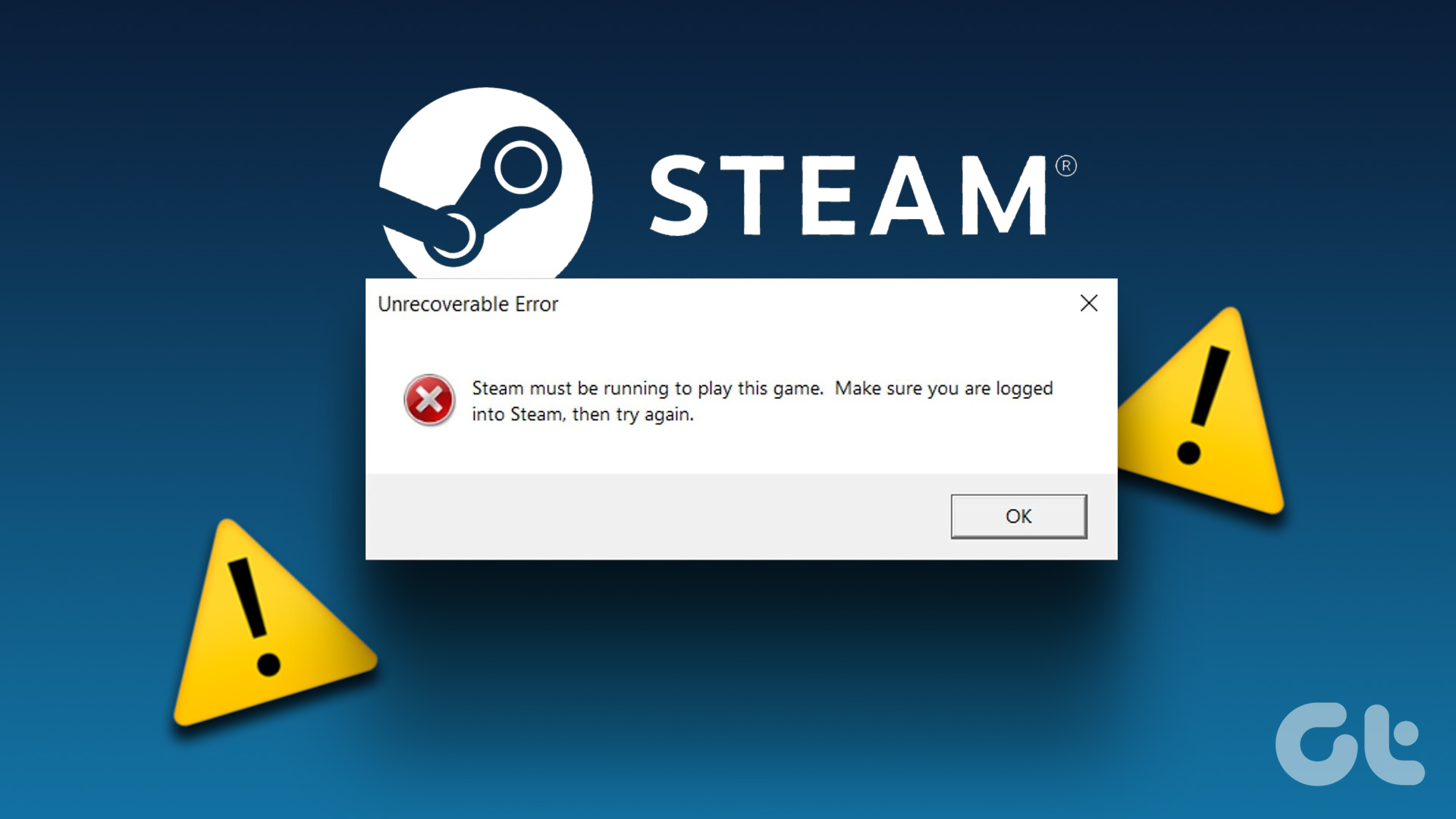 3 Ways to Fix “Steam Must be Running to Play This Game” Error
Basic Fixes: Ensure Steam is installed on your computer: If you play Steam games, ensure the client is installed on your computer.
3 Ways to Fix “Steam Must be Running to Play This Game” Error
Basic Fixes: Ensure Steam is installed on your computer: If you play Steam games, ensure the client is installed on your computer.
 6 Ways to Fix the “Missing File Privileges” Error in Steam for Windows
Fix 1: End the igfxEM Module Process The igfxEM process is a component of the Intel Graphic Executable Main Module.
6 Ways to Fix the “Missing File Privileges” Error in Steam for Windows
Fix 1: End the igfxEM Module Process The igfxEM process is a component of the Intel Graphic Executable Main Module.
 4 Ways to Fix the Login Error Code E84 in Steam for Windows
Switch to a different network connection: A slow or intermittent internet connection can also cause login errors in Steam.
4 Ways to Fix the Login Error Code E84 in Steam for Windows
Switch to a different network connection: A slow or intermittent internet connection can also cause login errors in Steam.
 3 Ways to Fix Content File Locked Error in Steam for Windows
Try Basic Fixes Run Steam as an administrator: If your Steam library folder lacks the necessary write permissions, you may encounter the 'content file locked' error.
3 Ways to Fix Content File Locked Error in Steam for Windows
Try Basic Fixes Run Steam as an administrator: If your Steam library folder lacks the necessary write permissions, you may encounter the 'content file locked' error.
 Top 5 Ways to Fix ‘Steam Stuck on Verifying Installation’ Error in Windows
Basic Fixes Check Your Internet Connection: As a starting point, it's important to ensure that your internet connection is working.
Top 5 Ways to Fix ‘Steam Stuck on Verifying Installation’ Error in Windows
Basic Fixes Check Your Internet Connection: As a starting point, it's important to ensure that your internet connection is working.
 6 Ways to Fix Not Enough Disk Space Error in Steam on Windows 11
Why Don’t I Have Enough Disk Space While Running Steam?
6 Ways to Fix Not Enough Disk Space Error in Steam on Windows 11
Why Don’t I Have Enough Disk Space While Running Steam?
 4 Ways to Fix Access Denied Error in Steam for Windows
Try Basic Fixes Check if Steam is down: Just like any other service, Steam is vulnerable to occasional server-side glitches.
4 Ways to Fix Access Denied Error in Steam for Windows
Try Basic Fixes Check if Steam is down: Just like any other service, Steam is vulnerable to occasional server-side glitches.
 6 Ways to Fix Failed to Load Web Page Error in Steam for Windows
Fix 1: Terminate Steam Processes and Reopen the App The "Failed to load web page" error in Steam can occur if one of the app processes is experiencing issues.
6 Ways to Fix Failed to Load Web Page Error in Steam for Windows
Fix 1: Terminate Steam Processes and Reopen the App The "Failed to load web page" error in Steam can occur if one of the app processes is experiencing issues.
The article above may contain affiliate links which help support Guiding Tech. The content remains unbiased and authentic and will never affect our editorial integrity.

