Things to Consider Before Turning Off iPhone’s Camera Shutter Sound
Let us quickly look at a few things you should consider before we proceed with the task at hand and turn off the camera shutter sounds for your iPhone.
- Due to privacy and safety reasons, devices sold in countries like Japan, South Korea, and the United Arab Emirates don’t have the option to disable camera shutter sounds. Trying to circumvent this rule might land you in legal trouble.
- Because disabling the shutter sound makes taking a picture silent, you should always inform the other party when taking a picture. This is especially true if you’re taking pictures of other people, known or unknown, in a public space.
- You might accidentally enable the camera sound. So, before taking any picture, always double-check and see if the shutter sound is off.
- Muting your device will turn off all sounds. So, re-enable them once the relevant pictures have been taken.
How to Disable Camera Click Sound on iPhone
With that out of the way, let us look at 6 workarounds to turn off the camera-click sound on your iPhone.
Method 1: Using Live Photos (Without Muting)
Using the Live Photo mode is one of the easiest ways to disable camera-click sound. To do this, open the Camera app and ensure Live Photo is enabled. Once you take a photo using Live Photos, your device records a short 3-second video. Scroll through the frames and select the perfect one.
Method 2: Using the Silent Switch on iPhone
You can use the ring/silent switch to disable the iPhone camera sound. Push this mute switch to silent (it will show orange). This will also silence all the notifications on your iPhone. So, be sure to pull the switch again after clicking the picture.
Method 3: Using Volume Slider
You can move the volume slider to zero on your iPhone to turn off system volume. This will turn off the camera shutter noise as well. To do this, open the Control Center and pull down the volume slider till the end. Now, take a picture without worrying about the shutter camera sound.
Method 4: Using Picture Feature While Recording
Besides taking photos using the Photos tab, you can also take photos while recording a video using the Camera app. To do this, open the Camera app, start recording, and use the camera option to take a picture without any sound. Here’s how to do it.
Step 1: Open the Camera app and select Video. Tap the record button to start the video recording.
Step 2: Tap the camera button to take pictures while the recording is ongoing. End the recording once done.

Method 5: Connecting iPhone to Earphones
Pairing your iPhone with your Bluetooth earphones can not only enhance your overall audio experience but also silence the shutter sound when taking pictures. You will, however, still hear the shutter sound in your connected earphones. To do this, enable Bluetooth on your iPhone and follow the below steps.
Step 1: Open Settings and tap on Bluetooth. Tap on the relevant device.
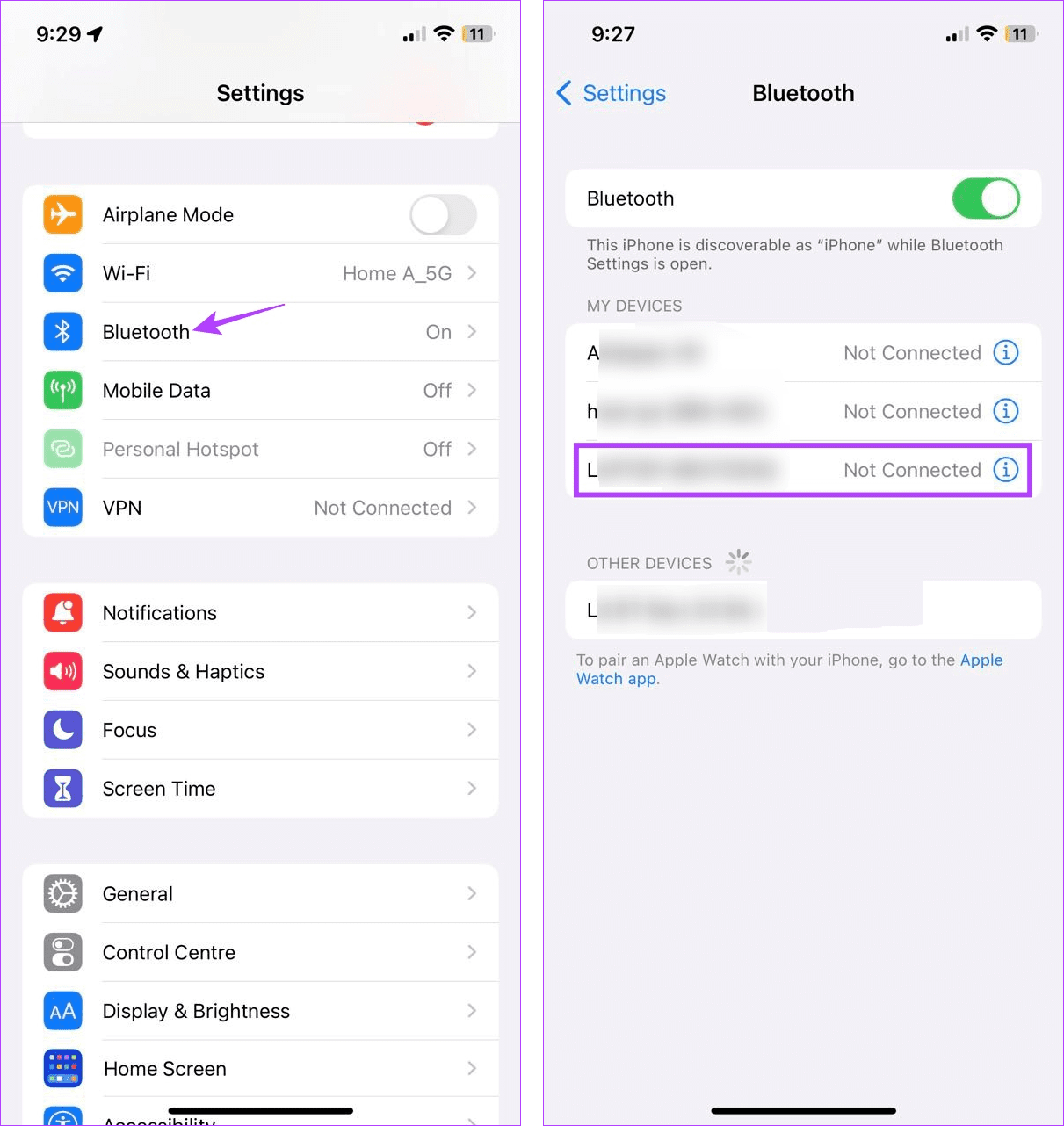
Once connected, open the Camera app and take pictures without the shutter sound. You can also check out our article if Bluetooth is not working on your iPhone.
Method 6: Setting up Automation
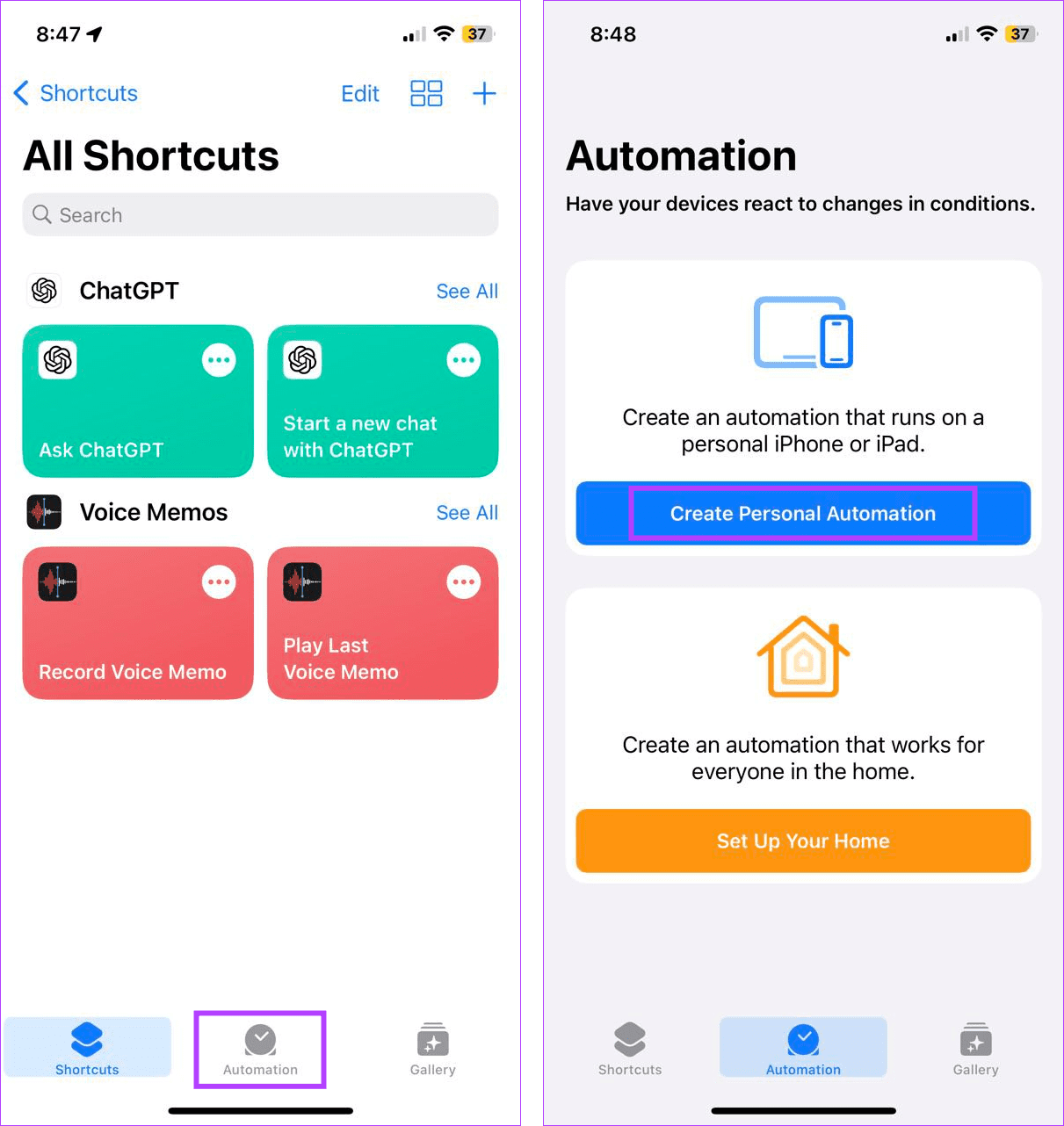
As the name suggests, Automation helps automate processes on your device. This can be anything from enabling grayscale at a specific time to automatically lowering the device volume whenever a particular app is opened. This way, you can automatically disable the camera-click sound. Here’s how to set it up.
Step 1: Open the Shortcuts app and tap on Automation. Tap on Create Personal Automation.
Step 2: Tap on App and ensure the Is Opened option is selected. Tap on Choose.

Step 3: Use the search bar and select the Camera app. Tap on Next.

Step 4: Tap on Add Action. Use the search bar to find and select Set Volume.
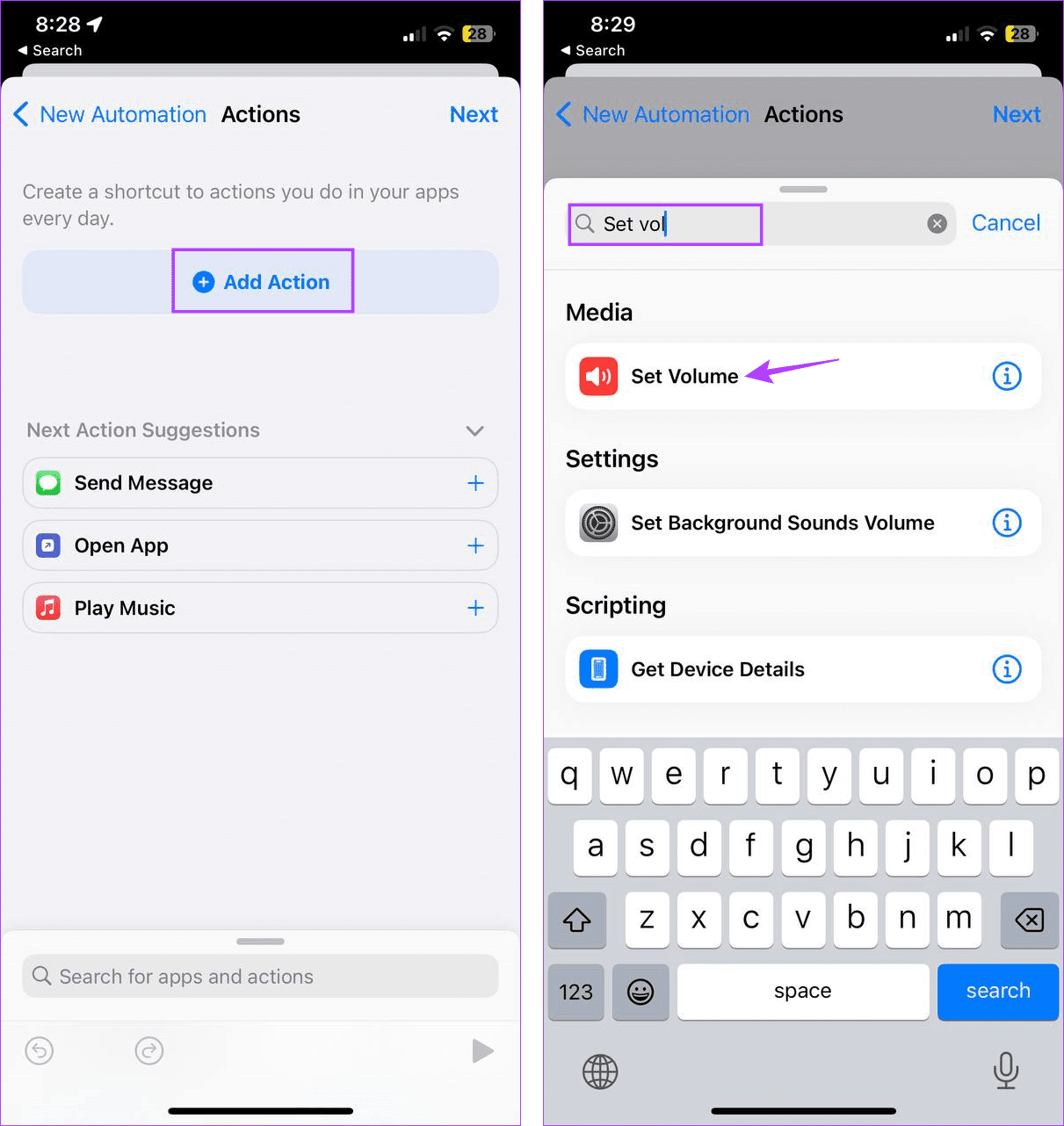
Step 5: Tap on the volume percentage. Use the slider to set the volume to 0. Tap on Next.
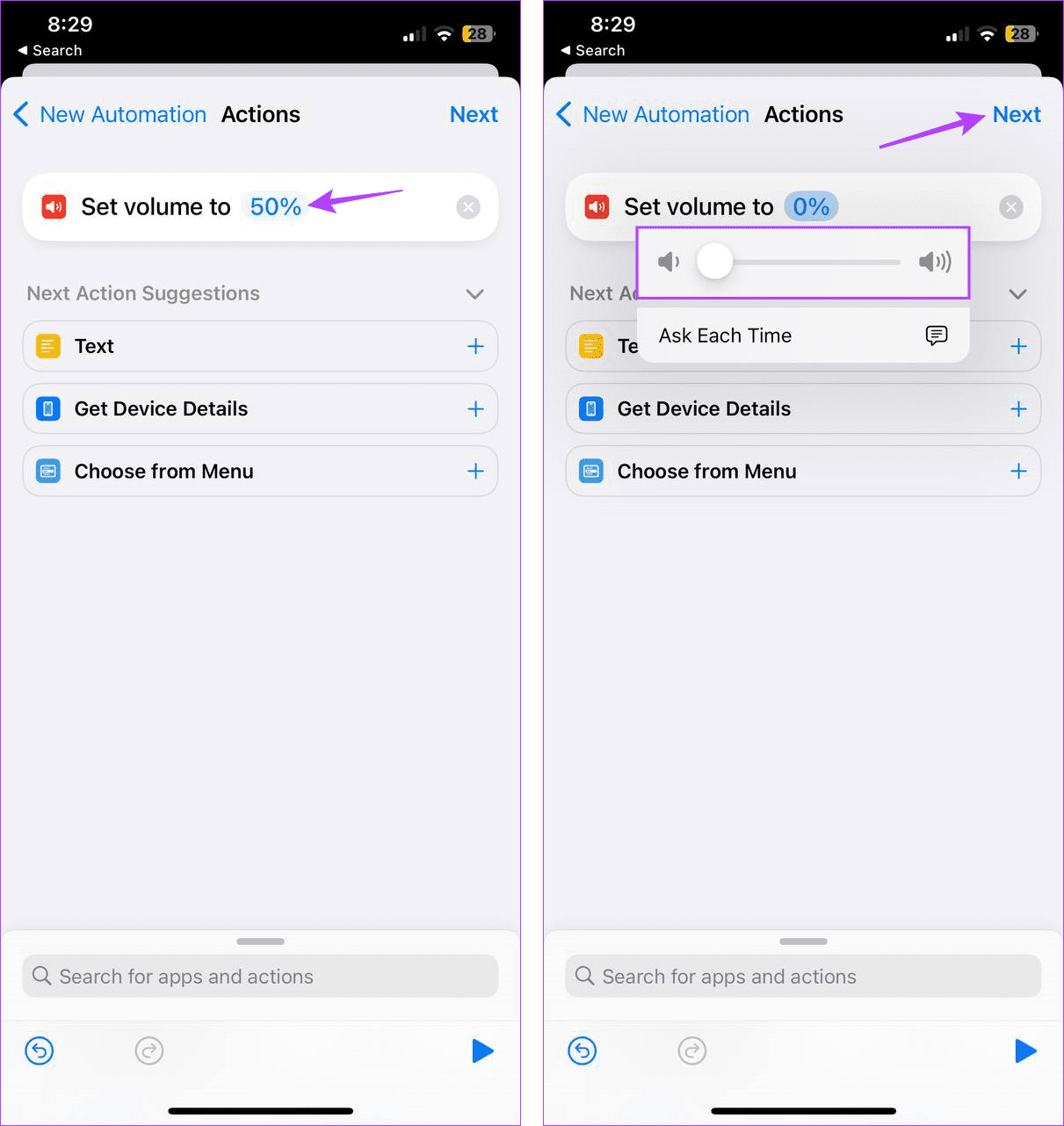
Step 6: Turn off the Ask Before Running toggle. Check the automation details and tap on Done.

This will create the Automation. Now, whenever you open the Camera app, the device volume will go to the set levels, turning off the shutter sound.
Tip: If the created shortcut is not running, check our guide on fixing Automation not working in Shortcuts app on iPhone
FAQs
Yes, you can always turn on the iPhone camera shutter sound again. To do that, follow the above methods and increase the sound or turn off mute/silent mode on your device.
Setting the device on silent or connecting it to Bluetooth earphones will disable the screenshot sounds via your device’s speaker.
Was this helpful?
Last updated on 28 July, 2024
Read Next
 3 Ways to Turn Off Camera Sound on Google Pixel Smartphones
Method 1: Disable Camera Sound in Settings Disabling the camera sound on a Google Pixel device is straightforward.
3 Ways to Turn Off Camera Sound on Google Pixel Smartphones
Method 1: Disable Camera Sound in Settings Disabling the camera sound on a Google Pixel device is straightforward.
 How to Turn Off Sent Message Sound on iPhone and Android
Notifications and sounds tell you about new messages, but some sounds, like the one when you send a message from your phone, may be unnecessary.
How to Turn Off Sent Message Sound on iPhone and Android
Notifications and sounds tell you about new messages, but some sounds, like the one when you send a message from your phone, may be unnecessary.
 Your iPhone Can Now Take Pictures Like a $10,000 Camera — Thanks to Leica’s New Camera App
Over the years, phones have become synonymous with pocket cameras.
Your iPhone Can Now Take Pictures Like a $10,000 Camera — Thanks to Leica’s New Camera App
Over the years, phones have become synonymous with pocket cameras.
 12 Efficient Ways to Fix iPhone Sound Not Working
Sound is an important aspect of your iPhone that alerts you of incoming calls and notifications, lets you groove to your favorite music, and do a lot more.
12 Efficient Ways to Fix iPhone Sound Not Working
Sound is an important aspect of your iPhone that alerts you of incoming calls and notifications, lets you groove to your favorite music, and do a lot more.
 5 Ways to Fix No Sound When Receiving Text on iPhone
Common Fixes Check the notification volume - Open the Settings app, tap Sounds & Haptics, and maximize the Ringtone and Alerts volume slider.
5 Ways to Fix No Sound When Receiving Text on iPhone
Common Fixes Check the notification volume - Open the Settings app, tap Sounds & Haptics, and maximize the Ringtone and Alerts volume slider.
 3 Ways to Fix Video Sound Not Working on iPhone
Basic Fixes: Check iPhone volume levels: You can use the volume up button on your iPhone to turn up the device volume to max.
3 Ways to Fix Video Sound Not Working on iPhone
Basic Fixes: Check iPhone volume levels: You can use the volume up button on your iPhone to turn up the device volume to max.
 5 Ways to Fix iPhone Alarm Going off but No Sound Issue
https://youtu.be/MNH-PL3LSMo Basic Fixes: Check iPhone volume: If your device's volume is not set to max, the culprit might be your iPhone's volume controls.
5 Ways to Fix iPhone Alarm Going off but No Sound Issue
https://youtu.be/MNH-PL3LSMo Basic Fixes: Check iPhone volume: If your device's volume is not set to max, the culprit might be your iPhone's volume controls.
 3 Ways to Fix iPhone Camera Keeps Freezing
Basic Fixes Restart iPhone: A simple restart fixes most issues affecting your iPhone.
3 Ways to Fix iPhone Camera Keeps Freezing
Basic Fixes Restart iPhone: A simple restart fixes most issues affecting your iPhone.
The article above may contain affiliate links which help support Guiding Tech. The content remains unbiased and authentic and will never affect our editorial integrity.