

Try Basic Fixes
- Try another image or video: Uploading another image or video will help verify whether the issue is related to the specific media file. You can also try posting a written status update to see if that works.
- Check if WhatsApp is down: Issues with WhatsApp’s servers can also result in such errors. You can visit a website like Downdetector to see if others face similar issues.
- Update WhatsApp: If the issue is occurring due to an outdated app build or bugs, updating the app should help fix it. Head to the Play Store (Android) or App Store (iPhone) to update WhatsApp and see if that helps.
Fix 1: Check the File Format
If the image or video you’re trying to share is in an unsupported format or if it’s too large, you might encounter a “Couldn’t Send” error while uploading it.
For instance, if your video is in an unsupported format, you’ll need to convert it into one of the supported formats, such as MP4, MKV, or MOV, and then upload it again.
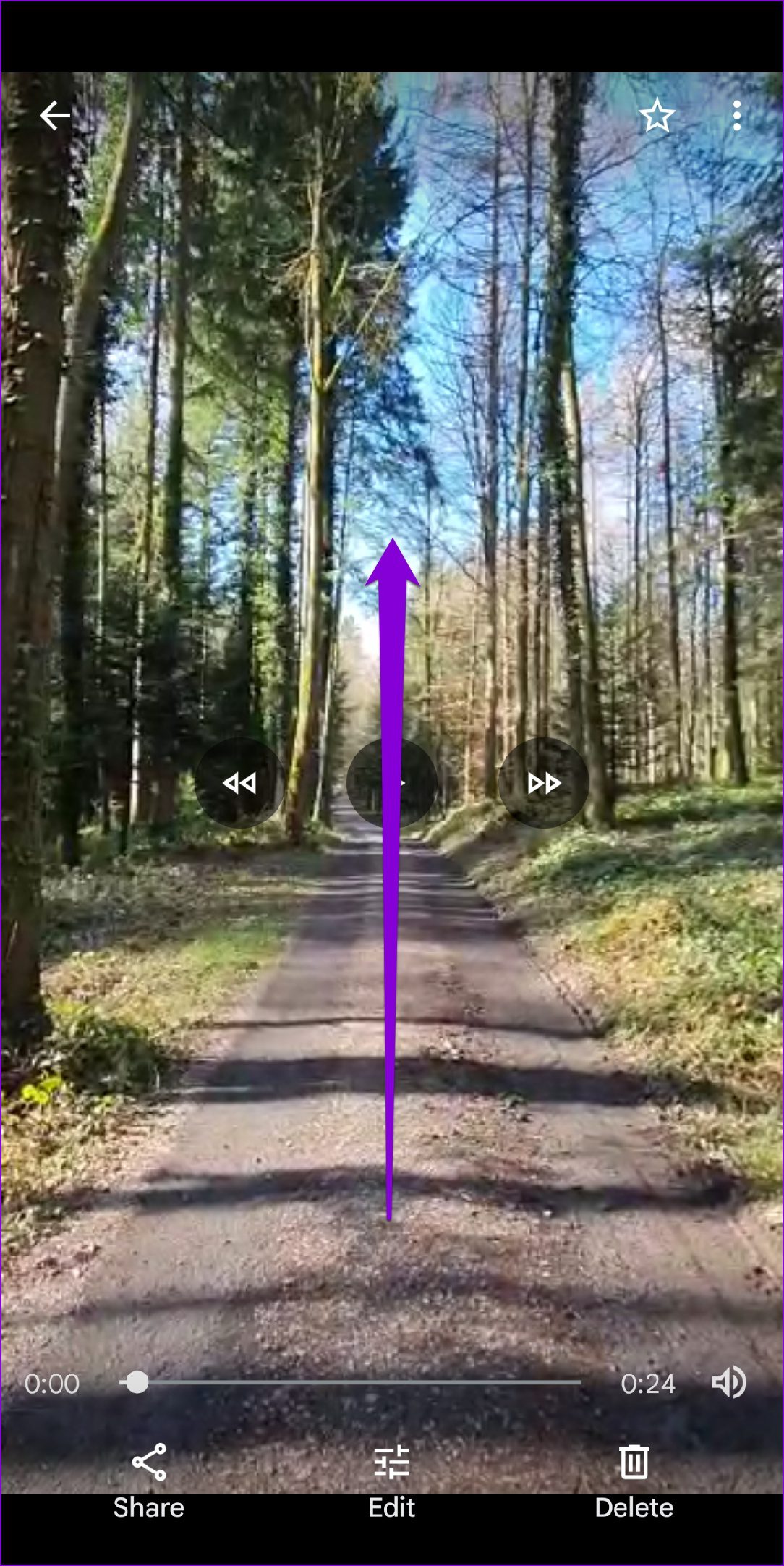
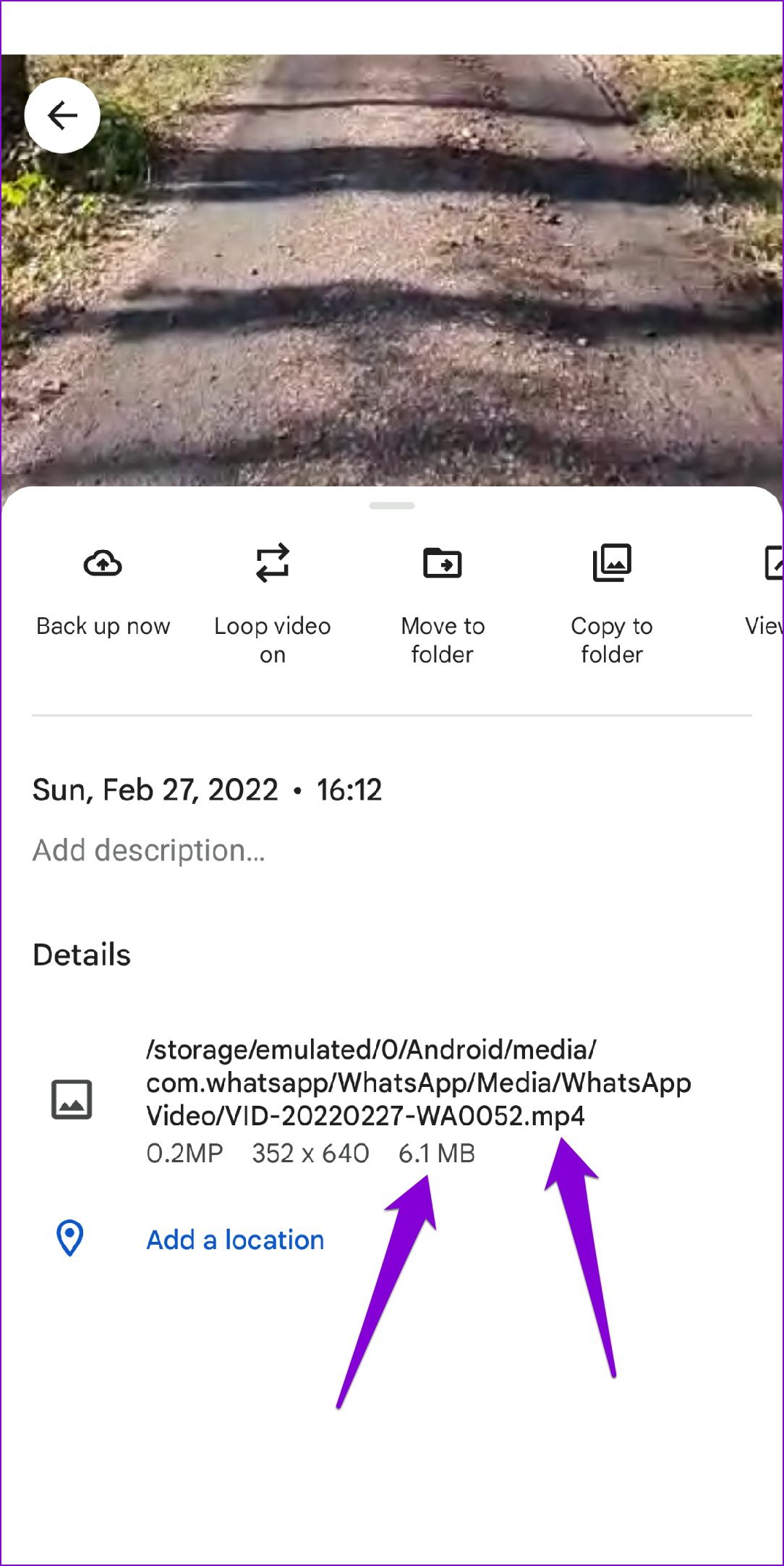
To check the format of a video on Android, open it in the Google Photos app and swipe up to view its format and size.
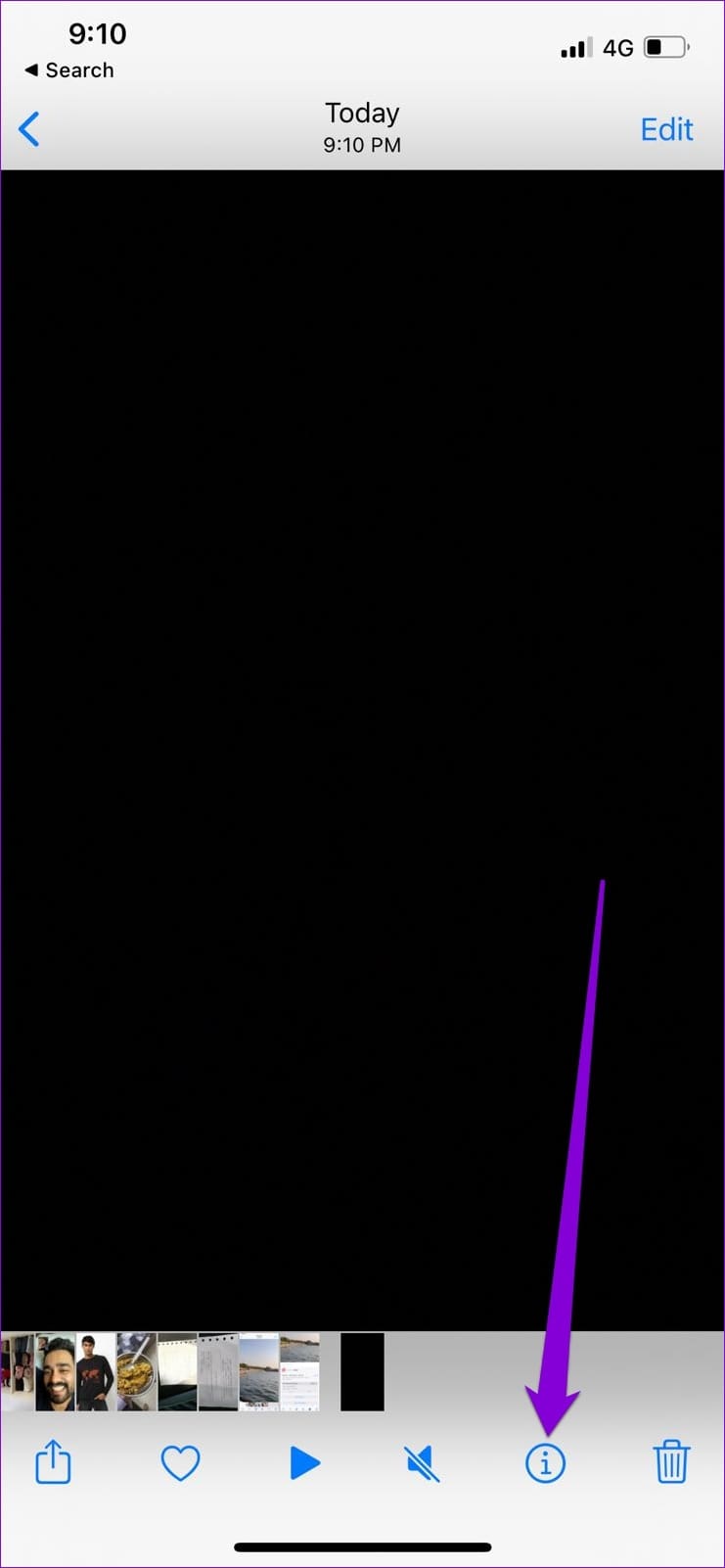
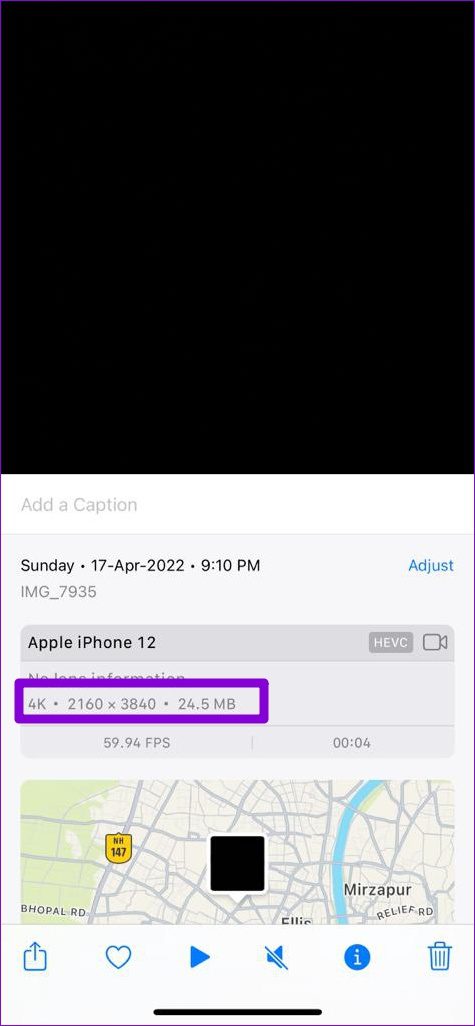
Similarly, if you’re using an iPhone, open your video in the Photos app. Tap the info button at the bottom and check the video size and format.
Fix 2: Check App Permissions
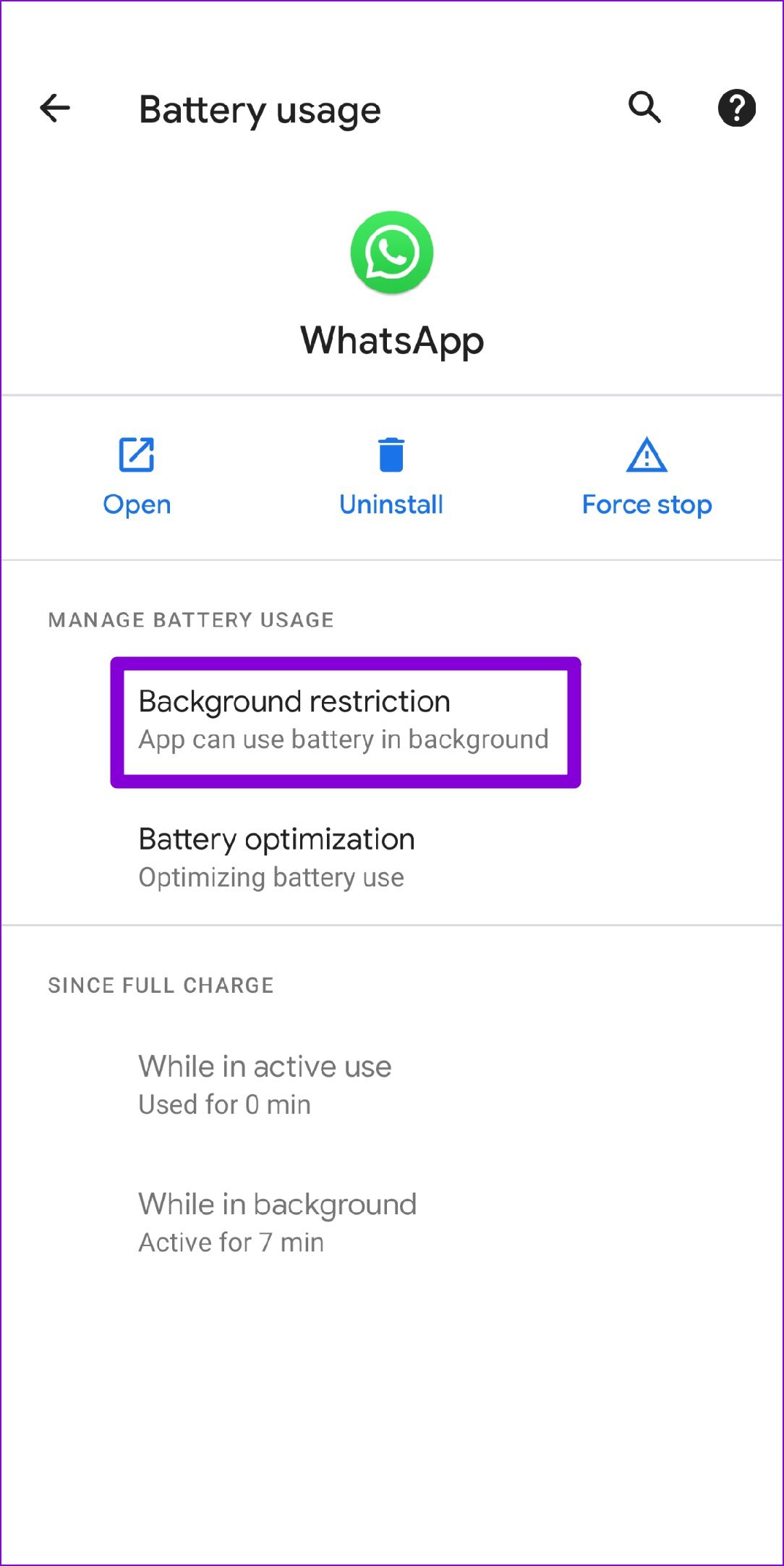
Have you denied WhatsApp permission to use mobile data in the background or restricted its battery usage? If so, your phone may suspend the uploading process once you minimize the app. Here’s how you can fix that.
Android
Step 1: Long-press the WhatsApp icon and select App info from the menu that appears.
Step 2: Go to Mobile Data & Wi-Fi. Toggle on the switches next to Background data and Unrestricted data usage.
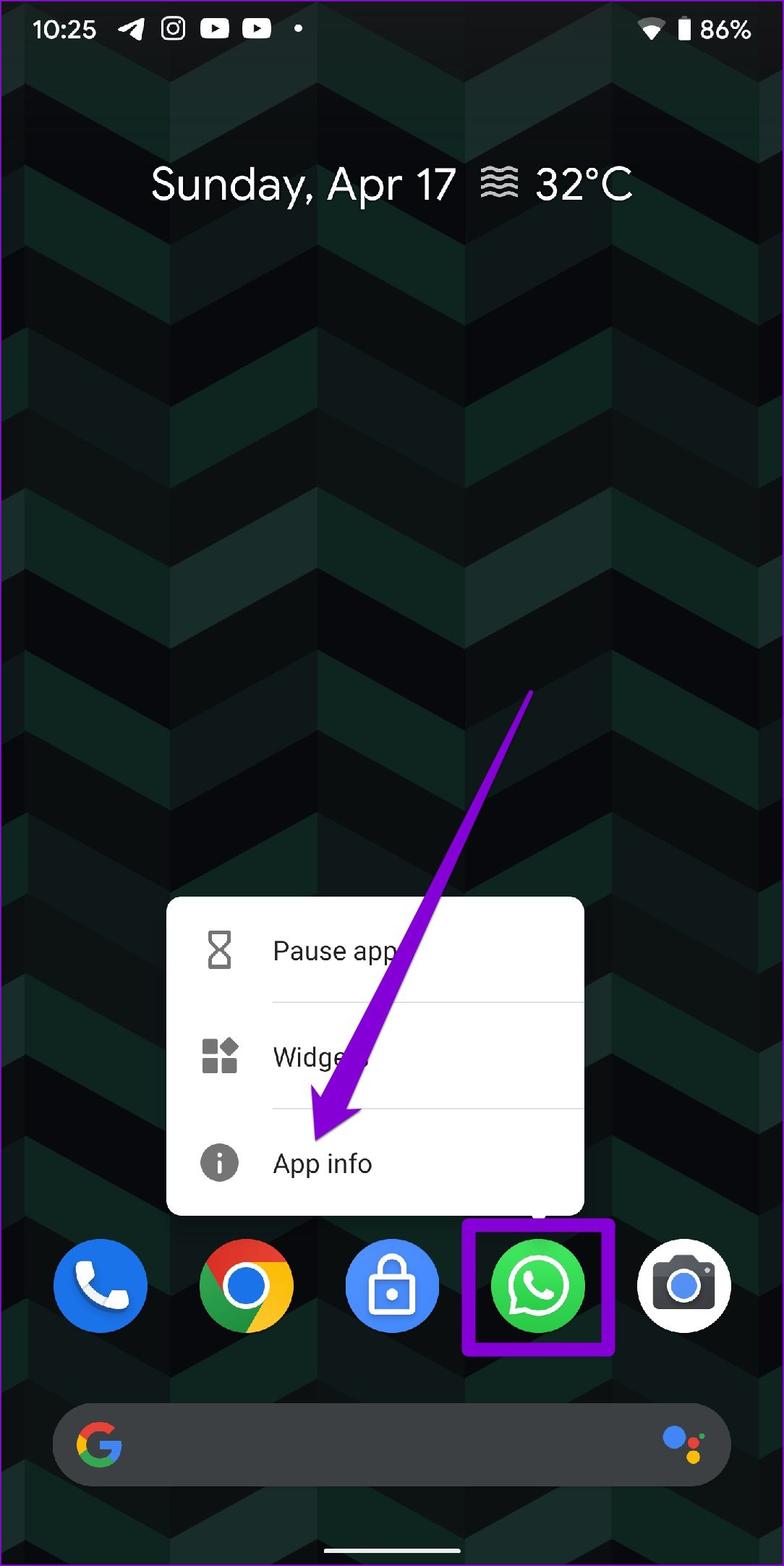
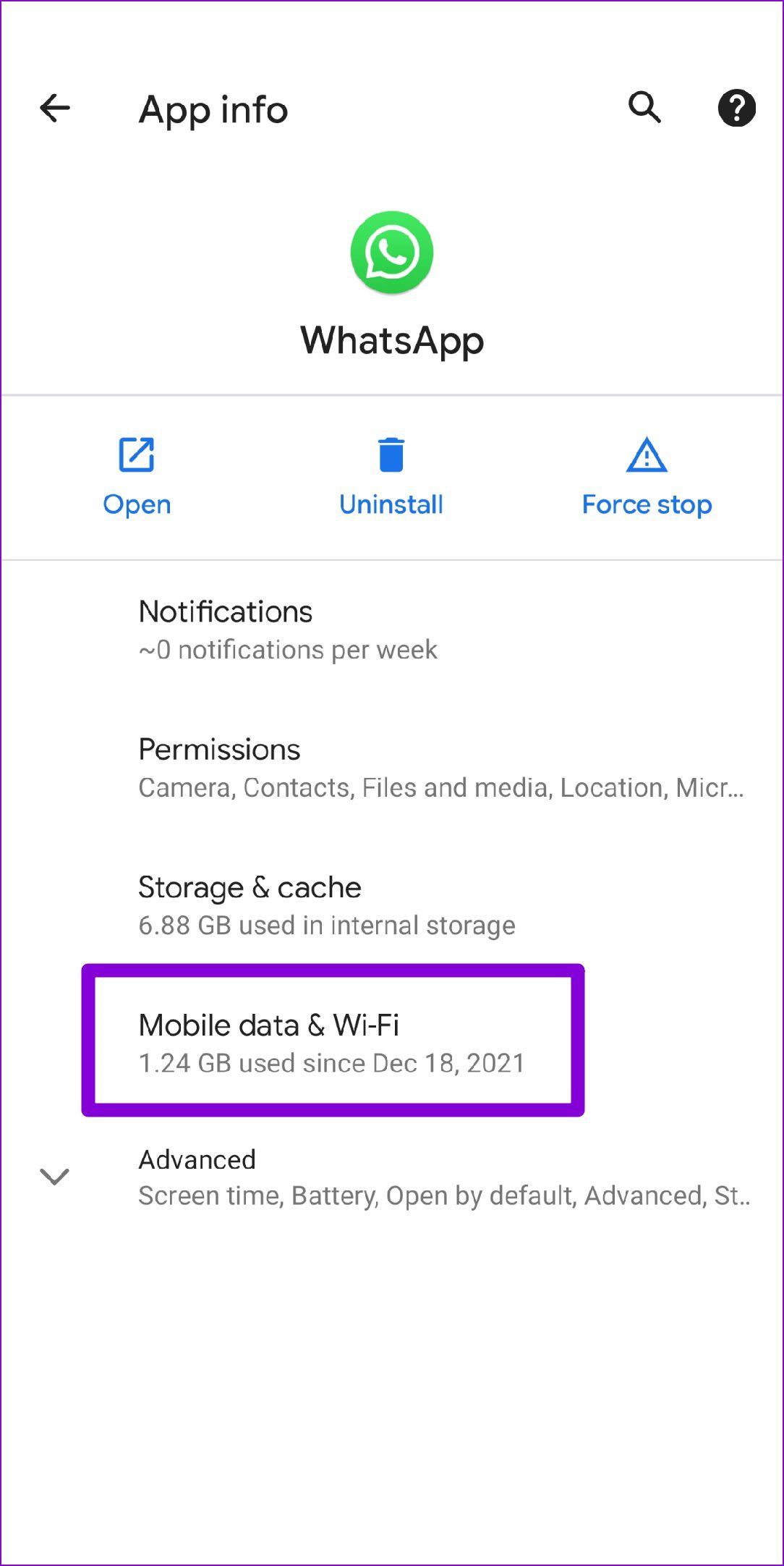
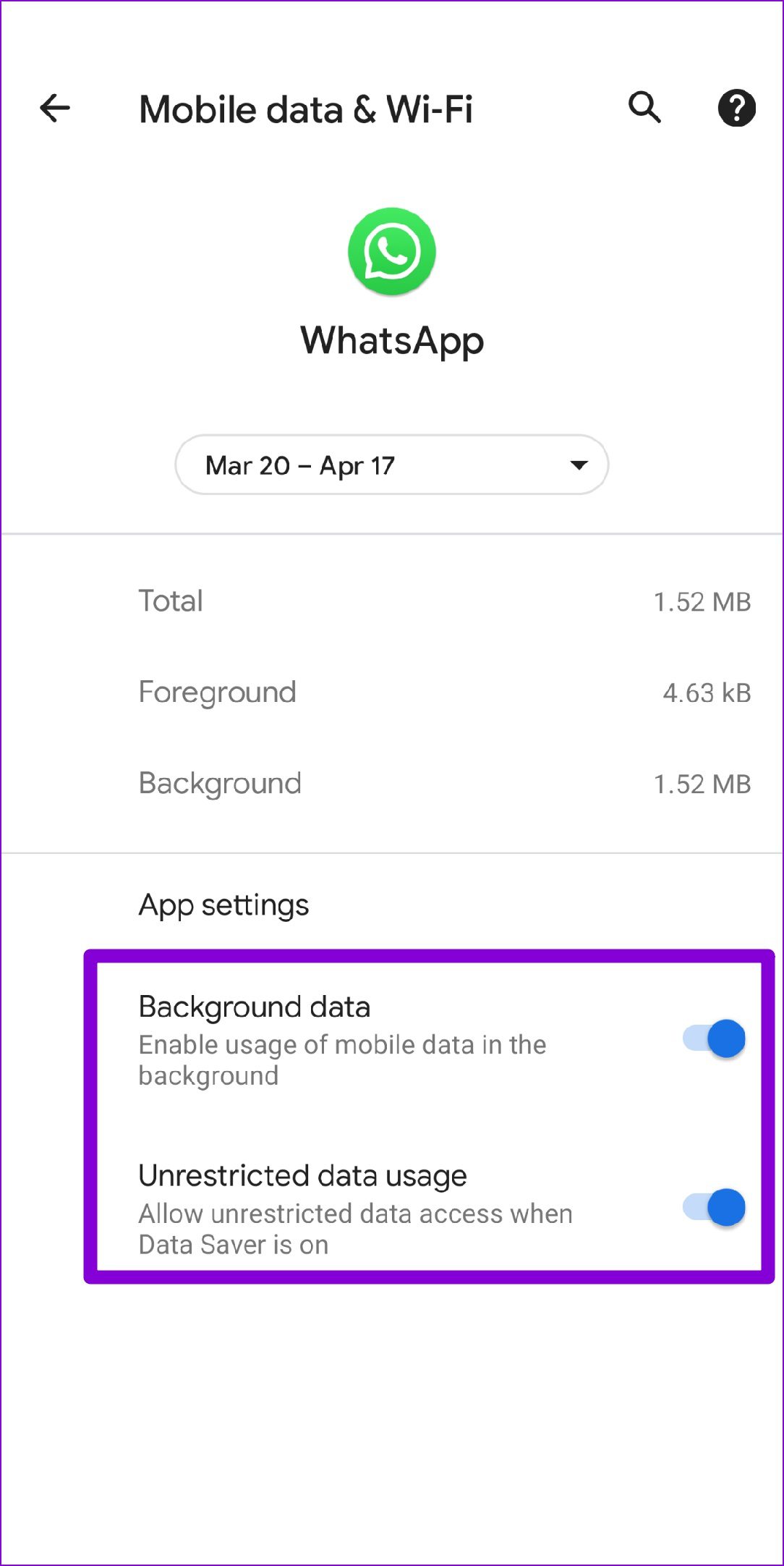
Step 3: Return to the app info page, tap on Battery, and remove any restrictions.
iPhone
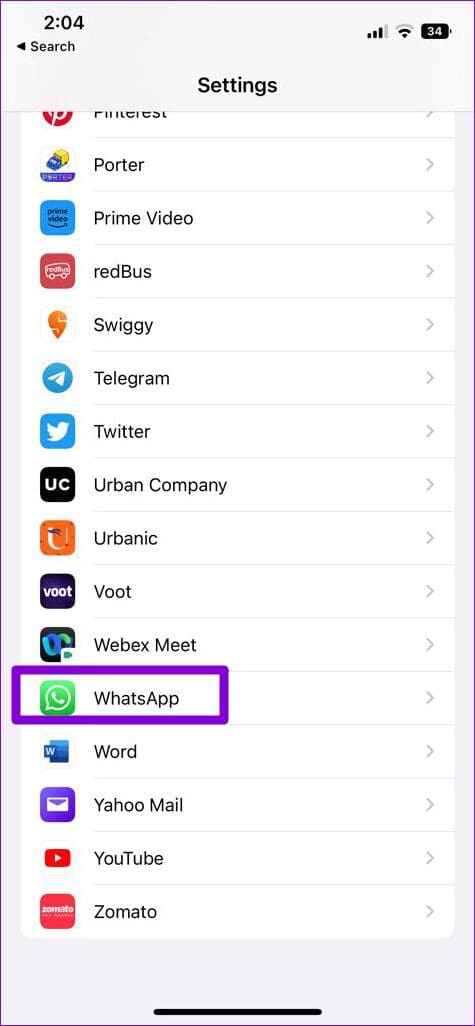
Step 1: Open Settings on your iPhone and scroll down to tap on WhatsApp.
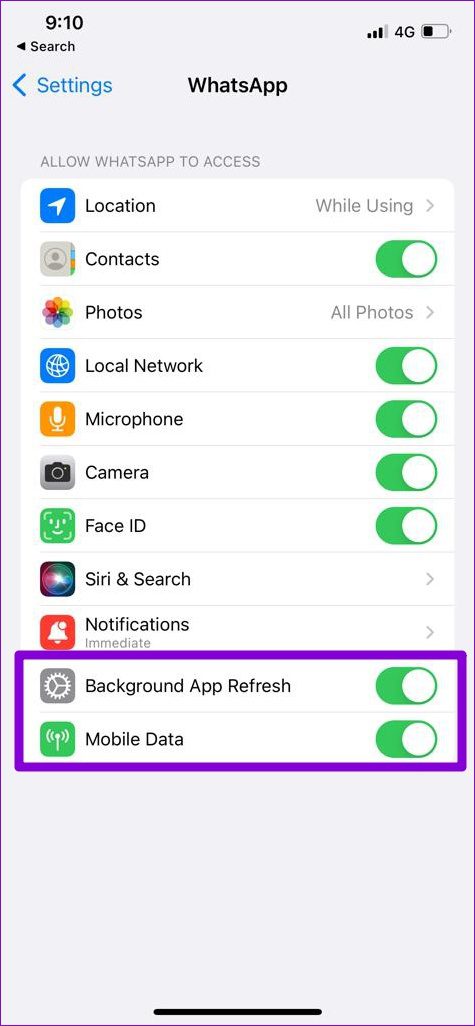
Step 2: Enable the toggles next to Mobile Data and Background App Refresh.
Fix 3: Change WhatsApp Status Visibility Settings
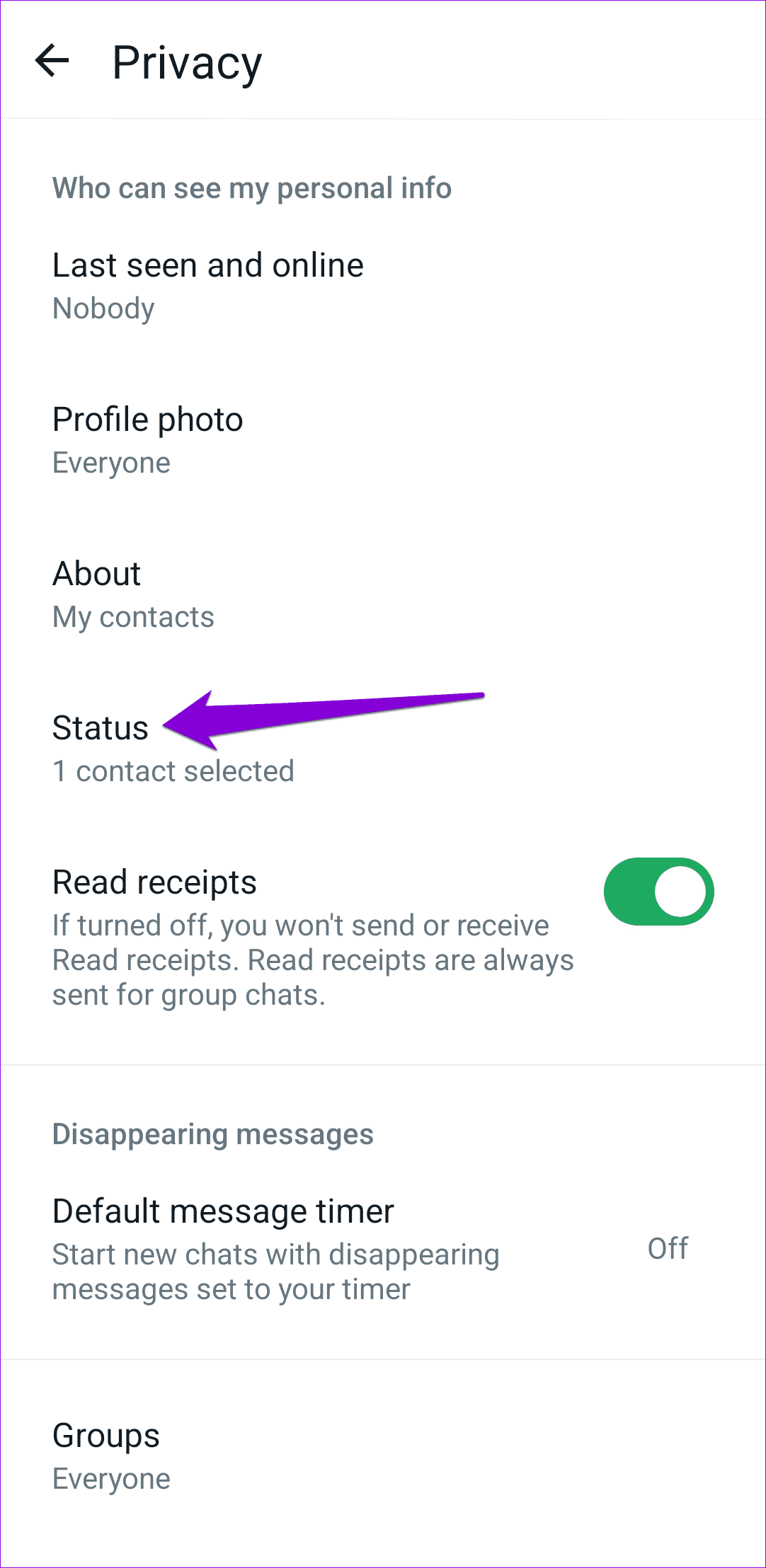
At times, WhatsApp may keep asking you to reupload the status if you’ve set the visibility to specific contacts only. You can temporarily set WhatsApp status visibility to “My Contacts” and see if that solves the issue.
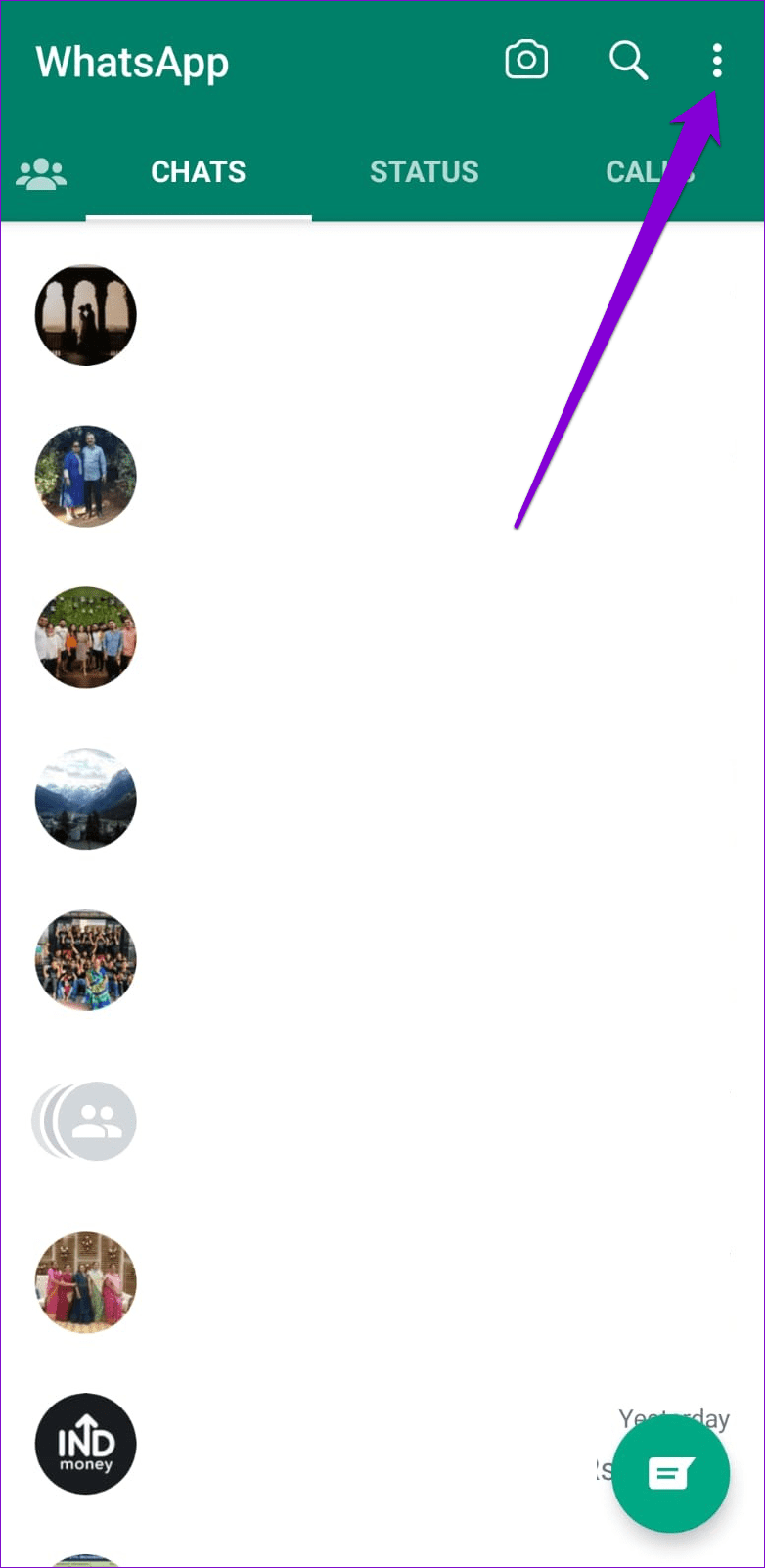
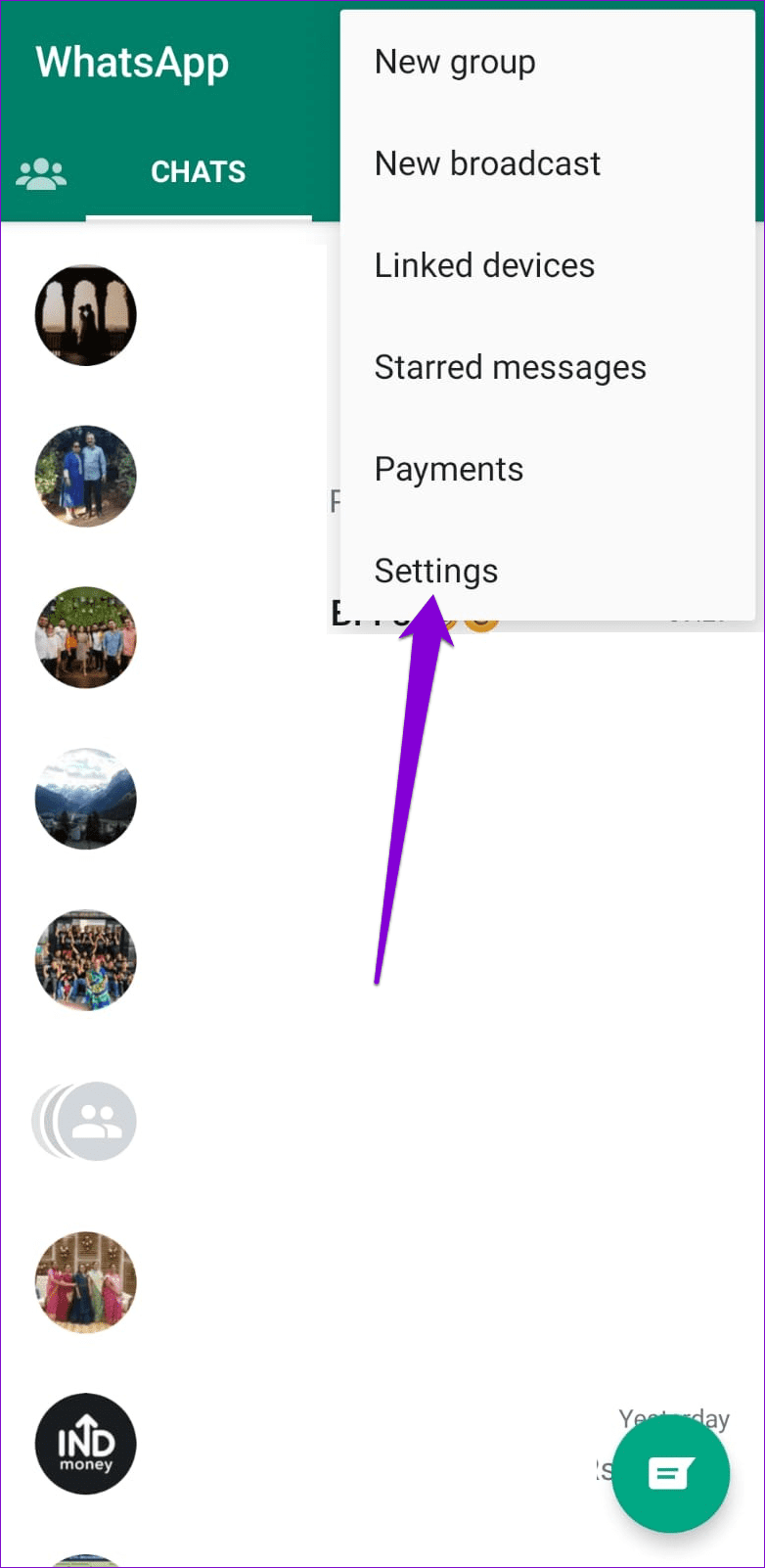
Step 1: Open WhatsApp, tap the three-dot menu icon in the top right corner and select Settings.
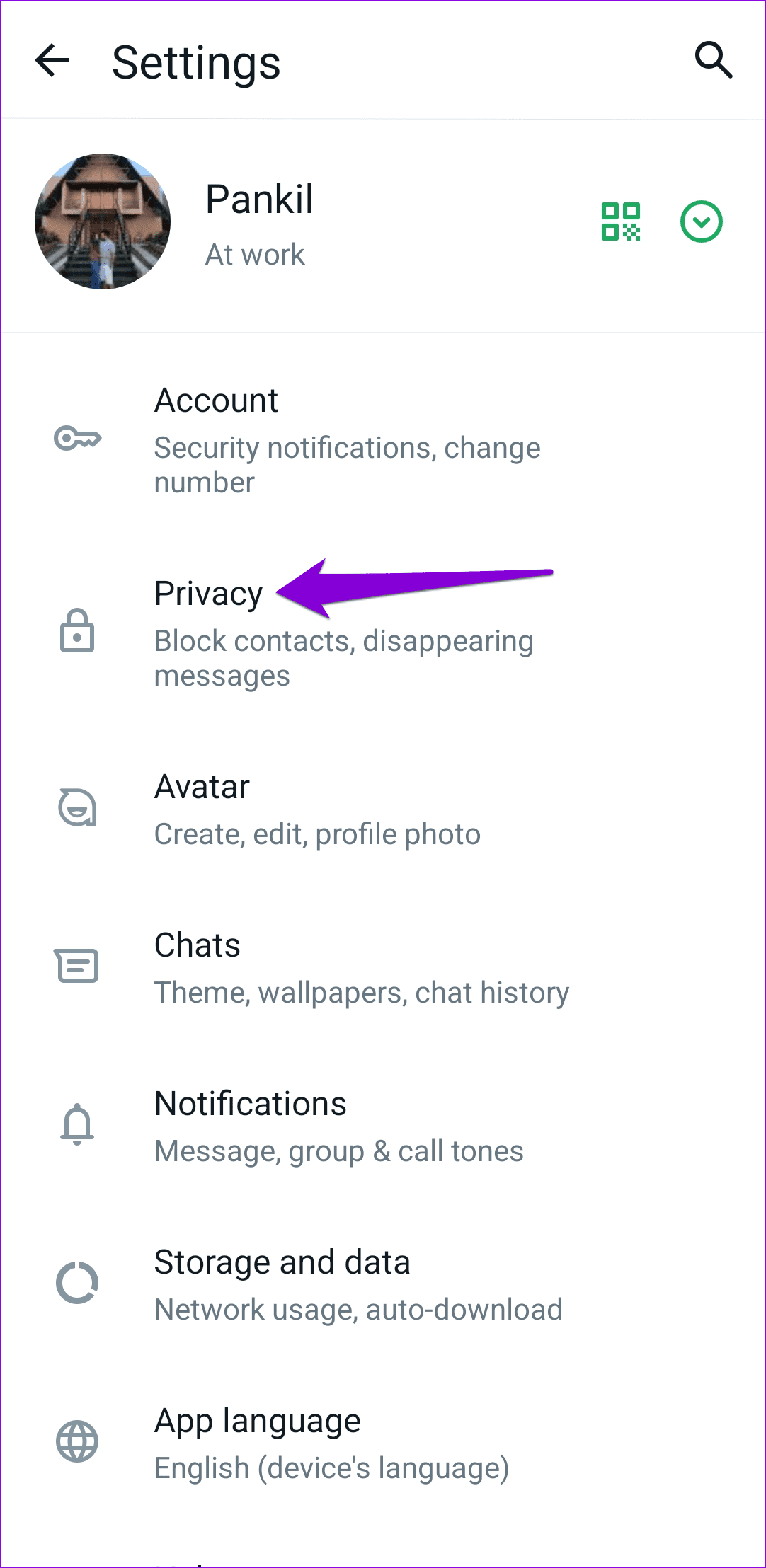
Step 2: Go to Privacy > Status and select My contacts.

Fix 4: Correct the Date and Time on Your Phone
WhatsApp relies on the date and time on your phone to connect and sync data with its server. If your phone is set to an incorrect date or time, WhatsApp might fail to connect with its server and throw the “Can’t send this video. Choose a different video and try again” error.
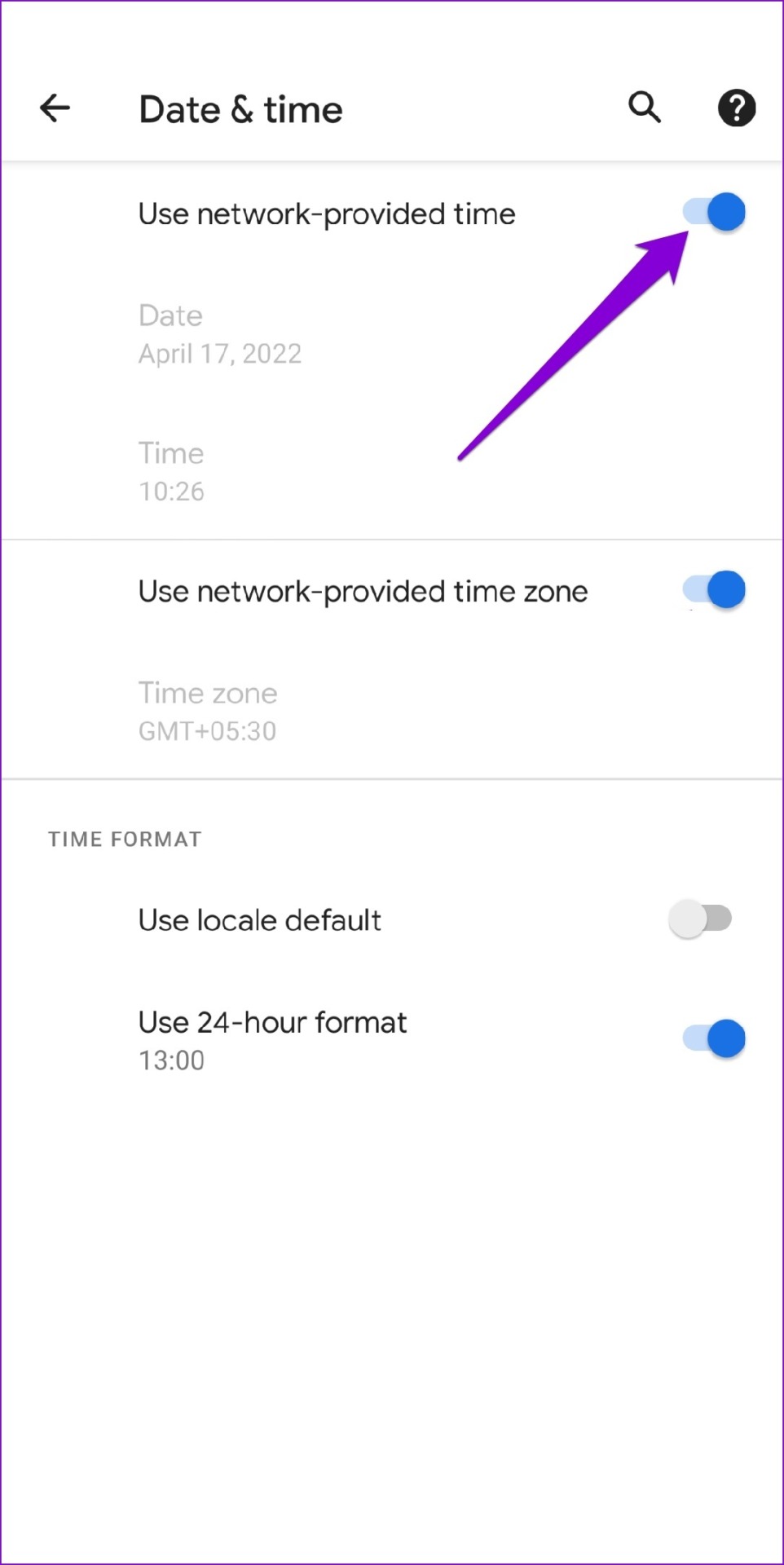
To fix this, you can configure your phone to use network-provided time. Here’s how.
Android
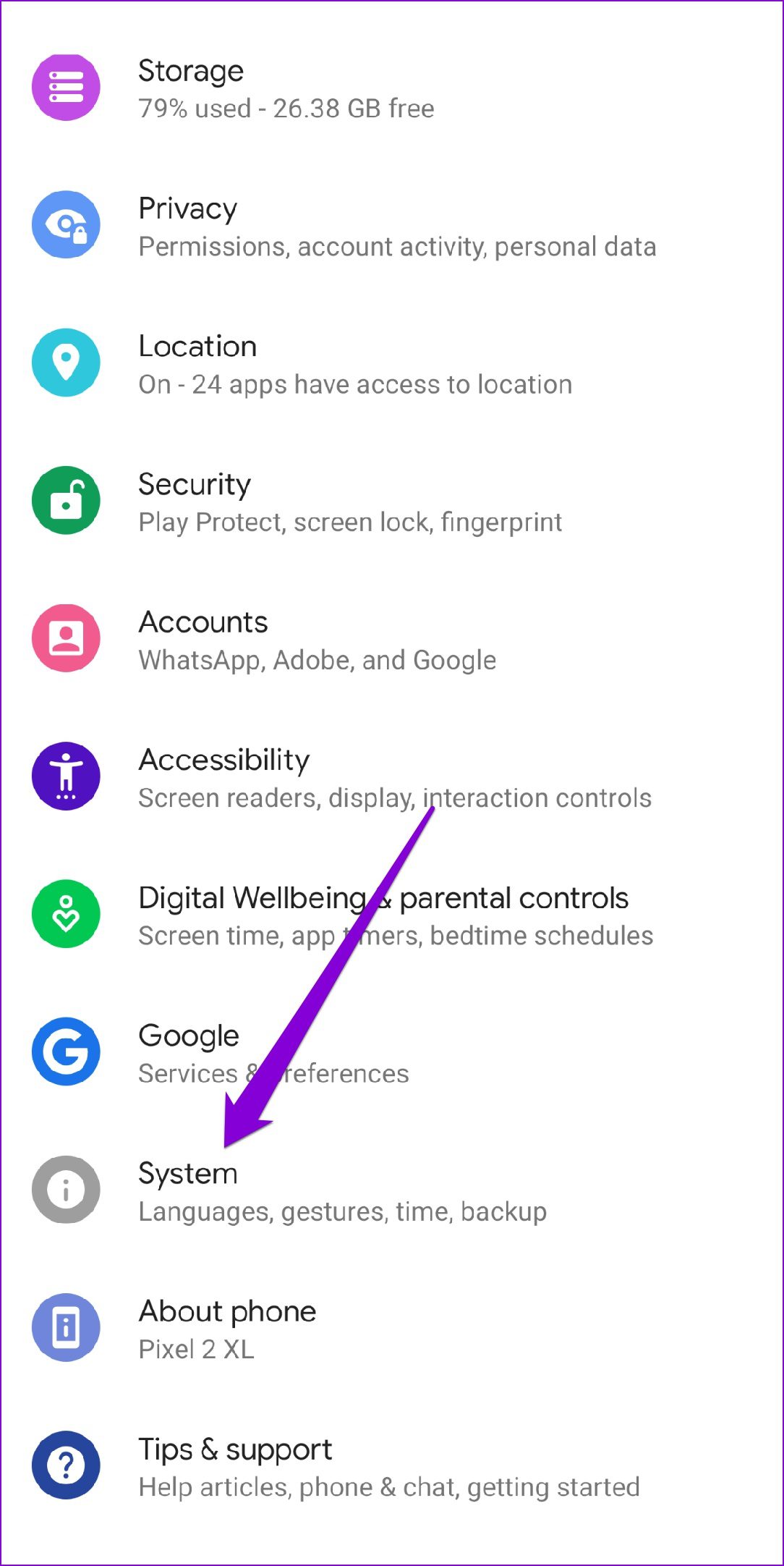
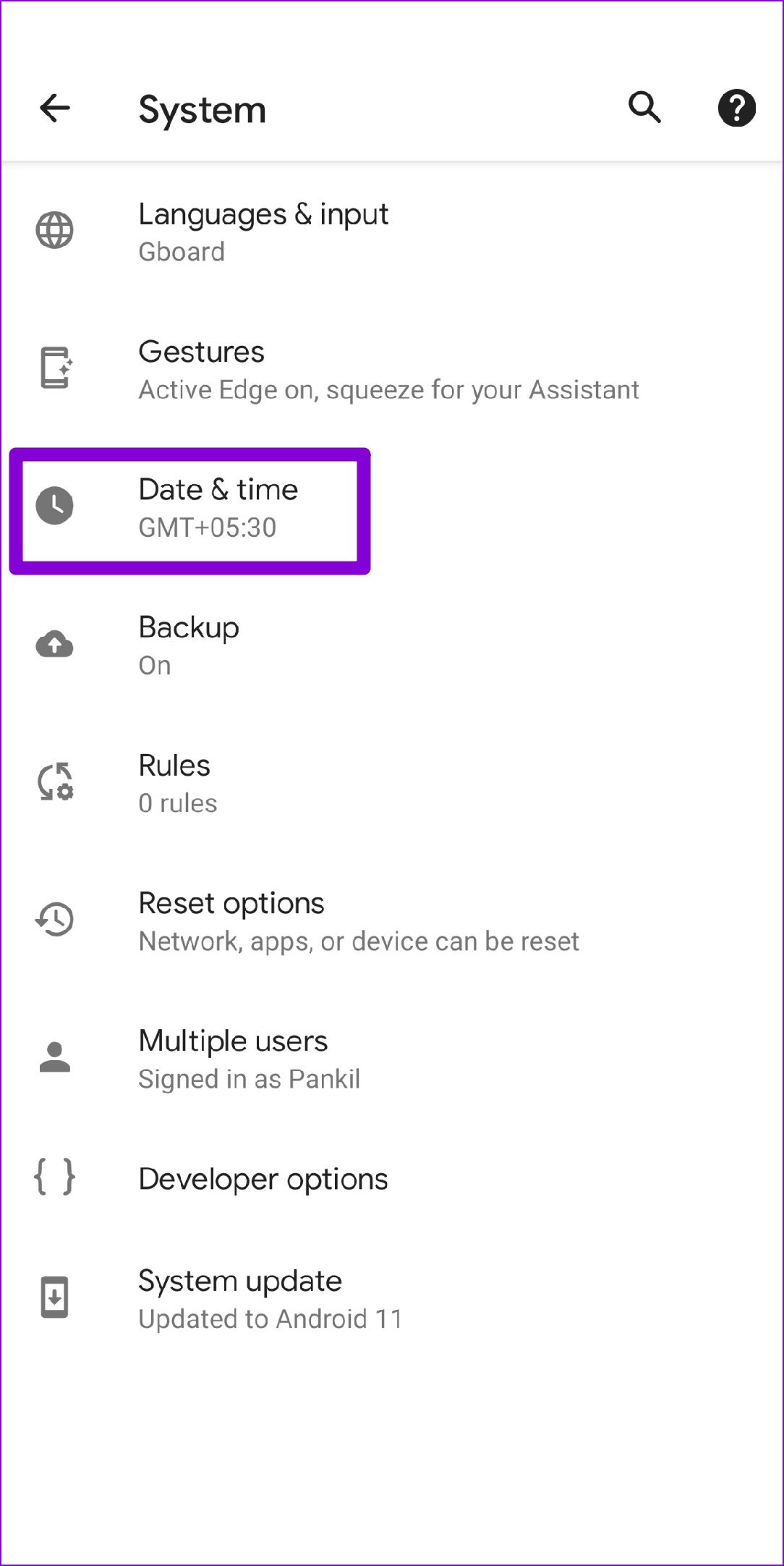
Step 1: Open the Settings app on your Android and navigate to System.
Step 2: Tap on the Date and time option and toggle on the switches next to Use network-provided time.
iPhone
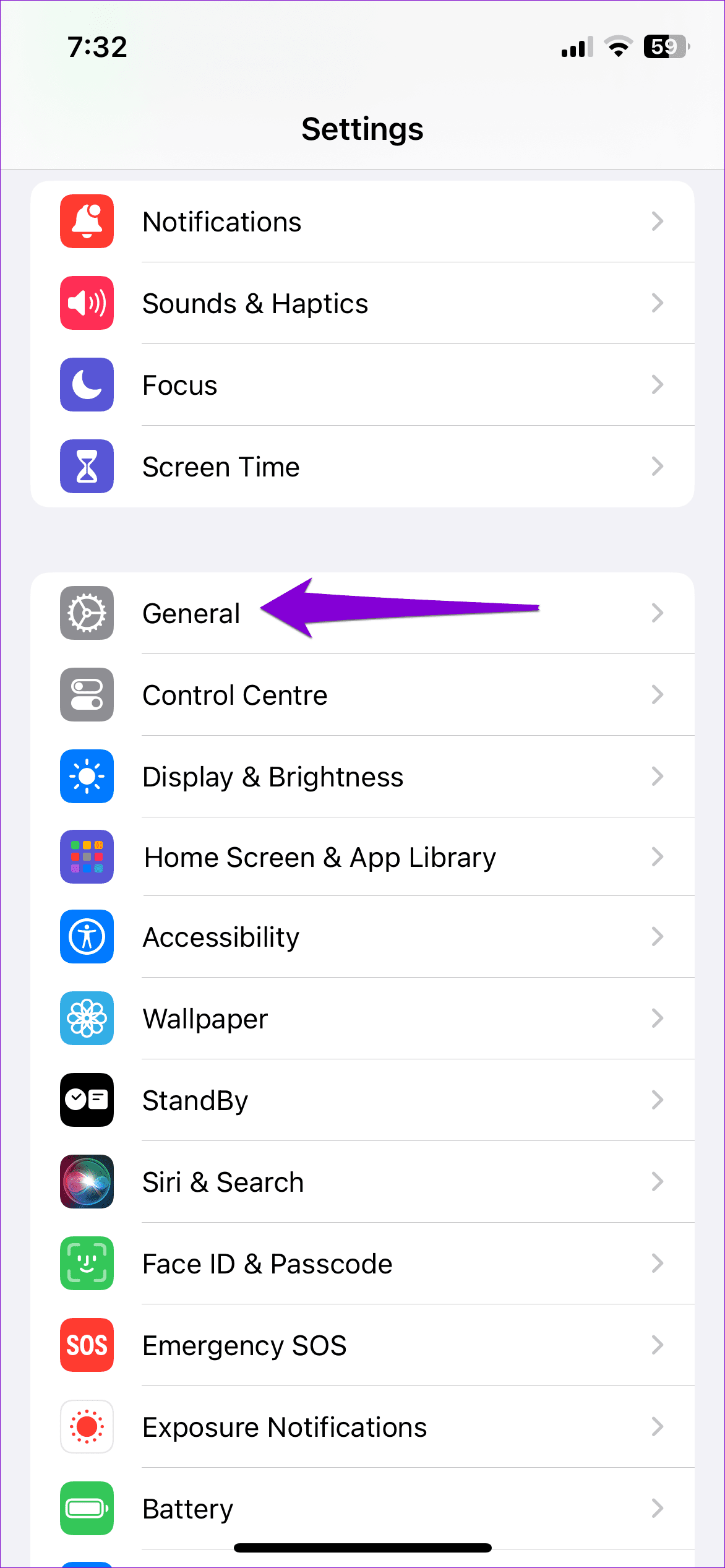
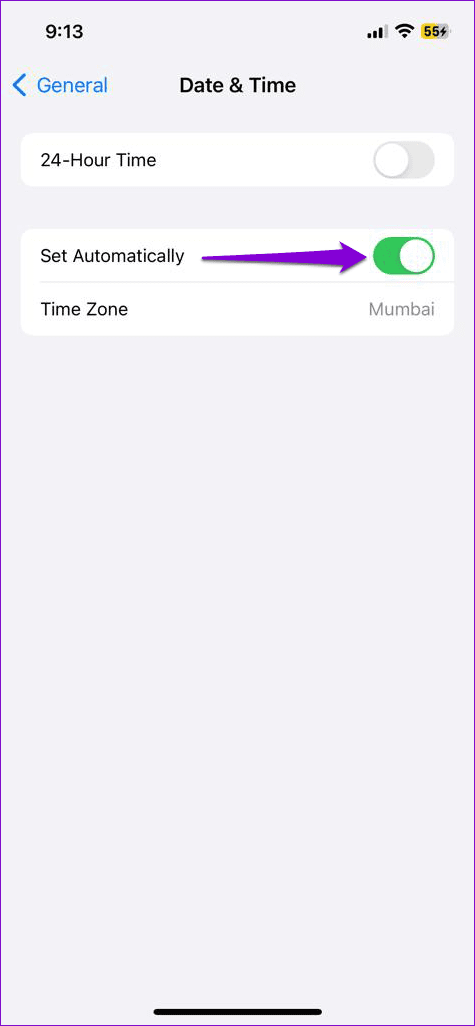
Step 1: Launch the Settings app on your iPhone and navigate to General.
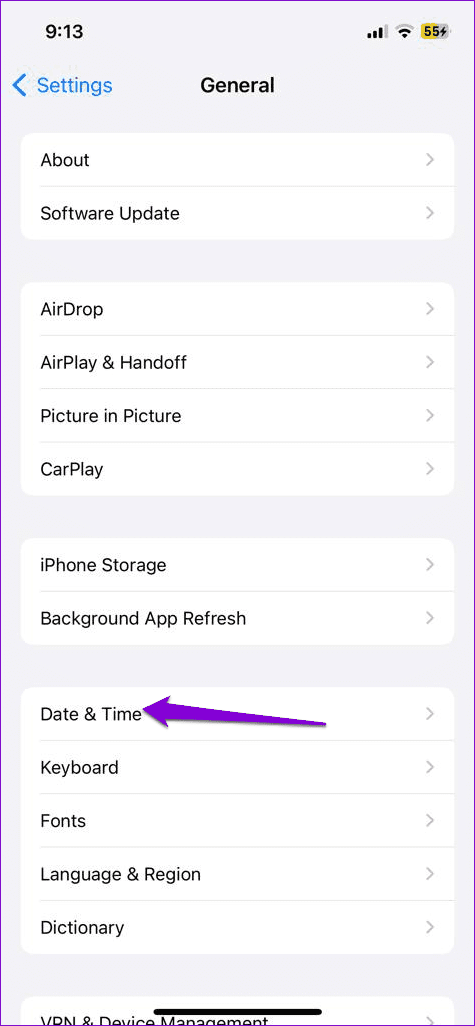
Step 2: Tap on Date & Time. Toggle on the switch next to Set Automatically.
Fix 5: Clear WhatsApp Cache (Android)
Another reason why WhatsApp may fail to function properly is if the existing cache data collected by the app has become old or corrupted. To fix this, you’ll need to clear WhatsApp’s cache data using these steps:
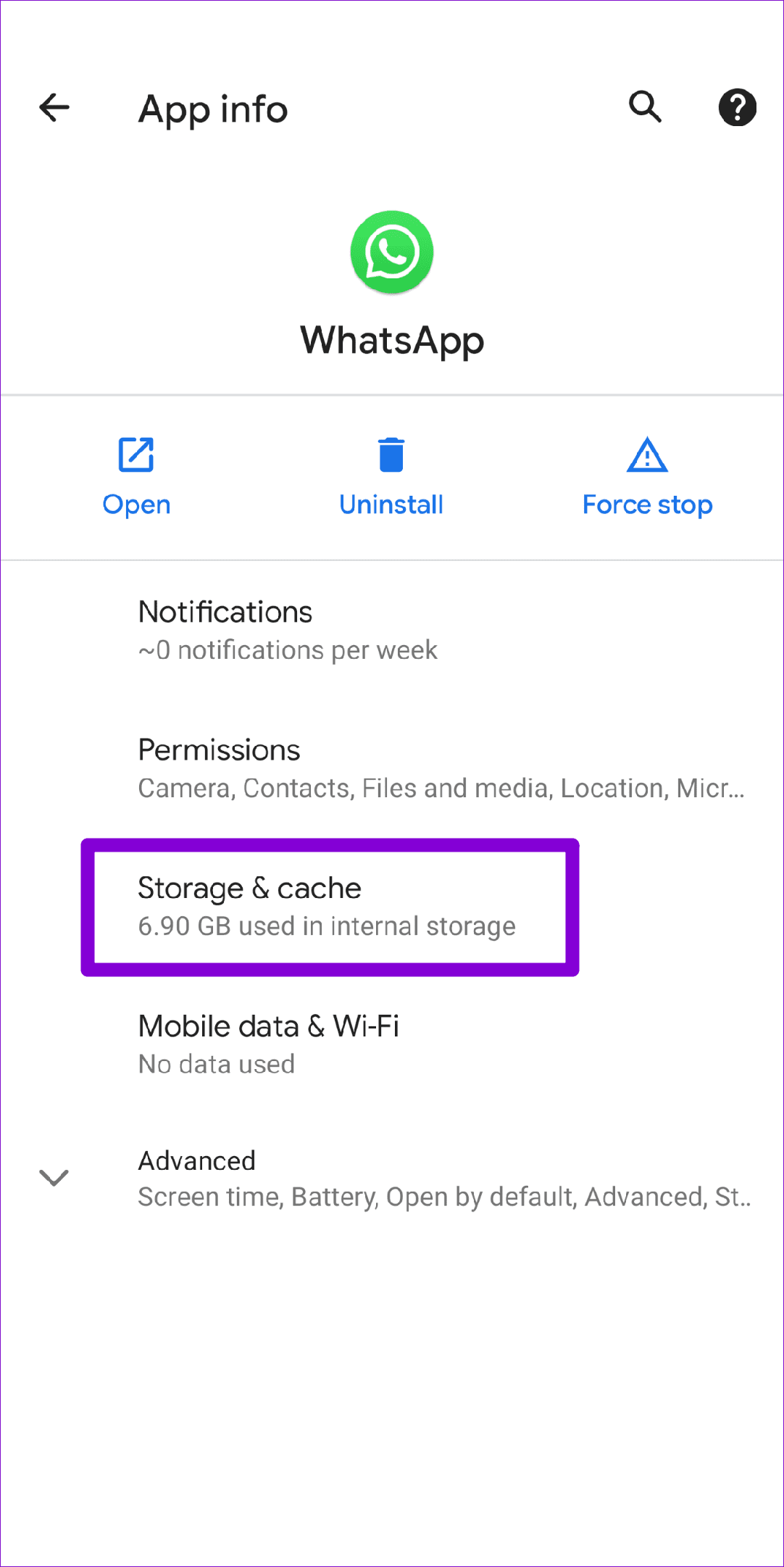
Step 1: Long-press the WhatsApp icon and select App info from the menu that appears.
Step 2: Go to Storage & cache and tap on the Clear cache option.
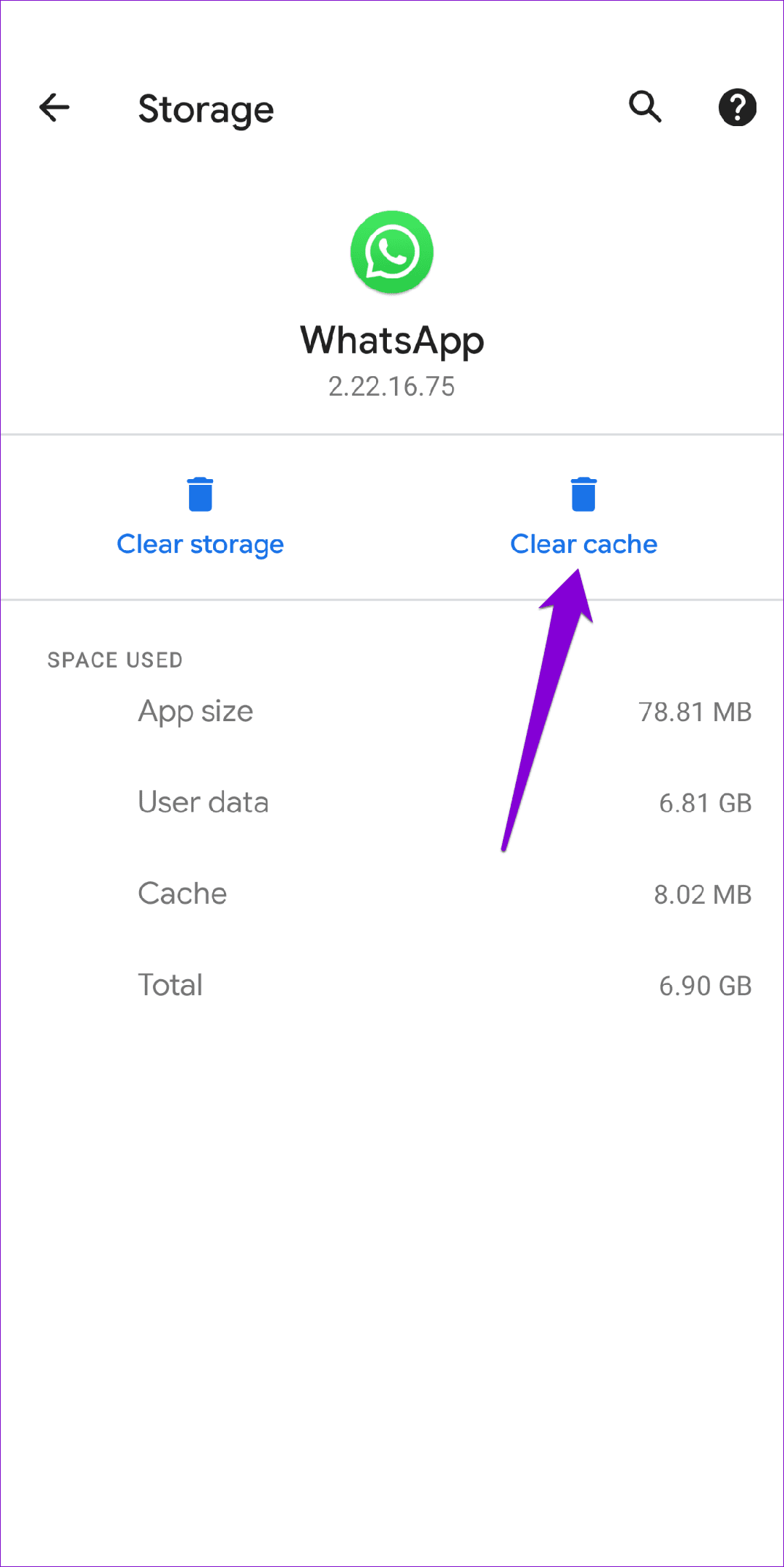
After that, force-stop WhatsApp and reopen it. Then, try uploading the status one more time.
Was this helpful?
Last updated on 24 July, 2024
6 Comments
Leave a Reply
Read Next
 Why Do Photos Get Blurry on WhatsApp Status: 3 Ways to Fix This
https://youtu.be/k2MGRKNamFQ Basic Fixes Switch to the stable version of WhatsApp: While beta versions give you early access to new features and cool tricks, they may also introduce several bugs and
Why Do Photos Get Blurry on WhatsApp Status: 3 Ways to Fix This
https://youtu.be/k2MGRKNamFQ Basic Fixes Switch to the stable version of WhatsApp: While beta versions give you early access to new features and cool tricks, they may also introduce several bugs and
 5 Ways to Fix WhatsApp Status Not Loading on Android and iPhone
Try Basic Fixes Check if WhatsApp is down: Services like WhatsApp can experience server outages at times.
5 Ways to Fix WhatsApp Status Not Loading on Android and iPhone
Try Basic Fixes Check if WhatsApp is down: Services like WhatsApp can experience server outages at times.
 3 Ways to Fix Unable to Send Multiple Documents on WhatsApp on Android
Basic Fixes: Check document size: WhatsApp allows you to send documents only up to 2GB.
3 Ways to Fix Unable to Send Multiple Documents on WhatsApp on Android
Basic Fixes: Check document size: WhatsApp allows you to send documents only up to 2GB.
 8 Best Ways to Fix iMessage Needs to Enabled to Send This Message Error
Apple's iMessage is the exclusive messaging service separating iOS from Android.
8 Best Ways to Fix iMessage Needs to Enabled to Send This Message Error
Apple's iMessage is the exclusive messaging service separating iOS from Android.
 How to Upload WhatsApp Status Videos of More Than 30 Seconds
How to Upload WhatsApp Status of More Than 30 seconds WhatsApp now allows you to upload video status for up to 60 seconds for your contacts.
How to Upload WhatsApp Status Videos of More Than 30 Seconds
How to Upload WhatsApp Status of More Than 30 seconds WhatsApp now allows you to upload video status for up to 60 seconds for your contacts.
 2 Fixes for No Sound in WhatsApp Status on iPhone
Basic Fixes Disable silent mode: Starting with the basic solution, you should disable Silent Mode on your iPhone to hear the WhatsApp Status video sound.
2 Fixes for No Sound in WhatsApp Status on iPhone
Basic Fixes Disable silent mode: Starting with the basic solution, you should disable Silent Mode on your iPhone to hear the WhatsApp Status video sound.
 5 Ways to See WhatsApp Status Without Being Seen
Method 1: Turning off Read Receipts Read receipts help you know who has seen your message, status, story, etc., on WhatsApp.
5 Ways to See WhatsApp Status Without Being Seen
Method 1: Turning off Read Receipts Read receipts help you know who has seen your message, status, story, etc., on WhatsApp.
 4 Ways to Send Photos as Documents on WhatsApp Using iPhone
If you have recently started using WhatsApp on your iPhone, sending photos as documents can seem slightly more challenging than on Android, but worry not.
4 Ways to Send Photos as Documents on WhatsApp Using iPhone
If you have recently started using WhatsApp on your iPhone, sending photos as documents can seem slightly more challenging than on Android, but worry not.
The article above may contain affiliate links which help support Guiding Tech. The content remains unbiased and authentic and will never affect our editorial integrity.

Non of the tips worked for me at all ????
Still WhatsApp status is not uploading
its still not uploading
Status send ni ho raha hai
Perfect. The tip about date and time worked for me. Thank you so muchhhhh ????
Am using teckno spark 8 c but my phone fails to upload videos on status