

Fix 1: Restart the Windows Explorer Process
Windows Explorer is a system process that handles the graphical user interface (GUI) for several utilities, including the taskbar. If this process encounters any problems, it can affect your ability to use the search bar. Try restarting the Windows Explorer process to see if that fixes the problem.
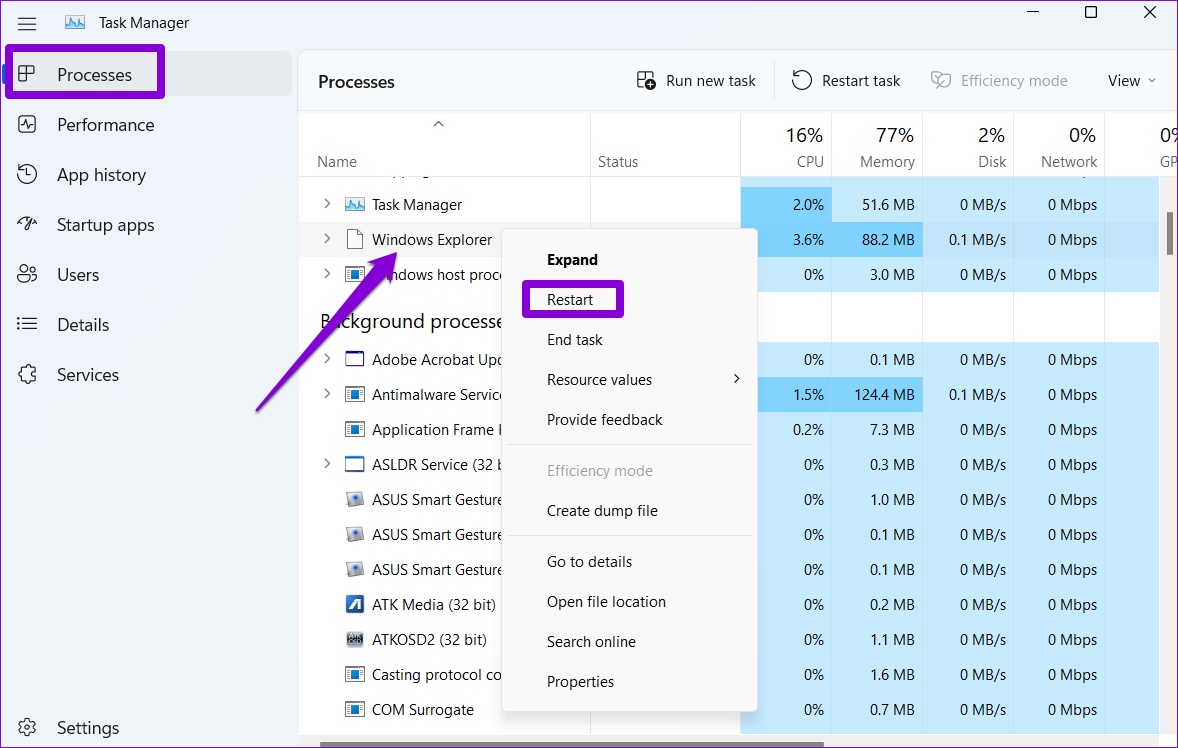
Press Ctrl + Shift + Esc to open the Task Manager. In the Processes tab, locate Windows Explorer. Right-click on it and select Restart.
Fix 2: Run the CTF Loader
The CTF (Collaborative Translation Framework) loader allows you to switch between various input languages. Naturally, if the process is not running, you might have trouble typing in the search bar.
To fix this, press the Windows key + R to launch the Run command. Type the following command and press Enter.
C:\Windows\system32\ctfmon.exe
If running the CTF Loader solves your problem, configure it to launch automatically at startup. To do so, use these steps:
Step 1: Press the Windows key + R to open the Run dialog box. Type C:\Windows\system32\ in the Open field and press Enter.
Step 2: In the System32 folder that opens, locate the ctfmon.exe file. Right-click on it and select Show more options.

Step 3: Select Send to > Desktop (create shortcut).

Step 4: Press the Windows key + R to open the Run command again. Type shell:startup and press Enter.
Step 5: Drag and drop the ctfmon.exe – Shortcut from your desktop to the startup folder.

Fix 3: Restart Windows Search Service
The Windows Search service is a background program responsible for content indexing, property caching, and delivering search results for files, emails, and more. If the service fails to start correctly, it can cause the Windows search bar to malfunction. You can try restarting the Windows Search service to see if that helps.
Step 1: Press the Windows key + R to launch the Run command, type services.msc, and press Enter.
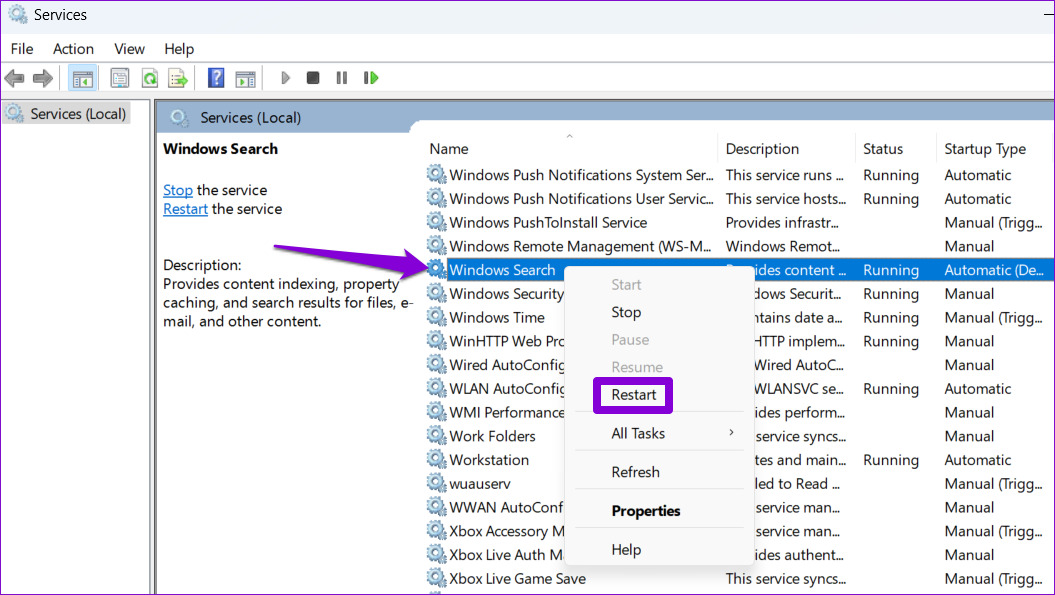
Step 2: In the Services window, scroll down to locate Windows Search. Right-click on it and select Restart.
Fix 4: Run the SFC and DISM Scans
Search issues on Windows can also arise due to corrupt or damaged system files. To repair problematic system files on your PC, try running the SFC (System File Checker) and DISM (Deployment Image Servicing and Management) scans.
Step 1: Right-click on the Start icon and select Terminal (Admin) from the resulting menu.

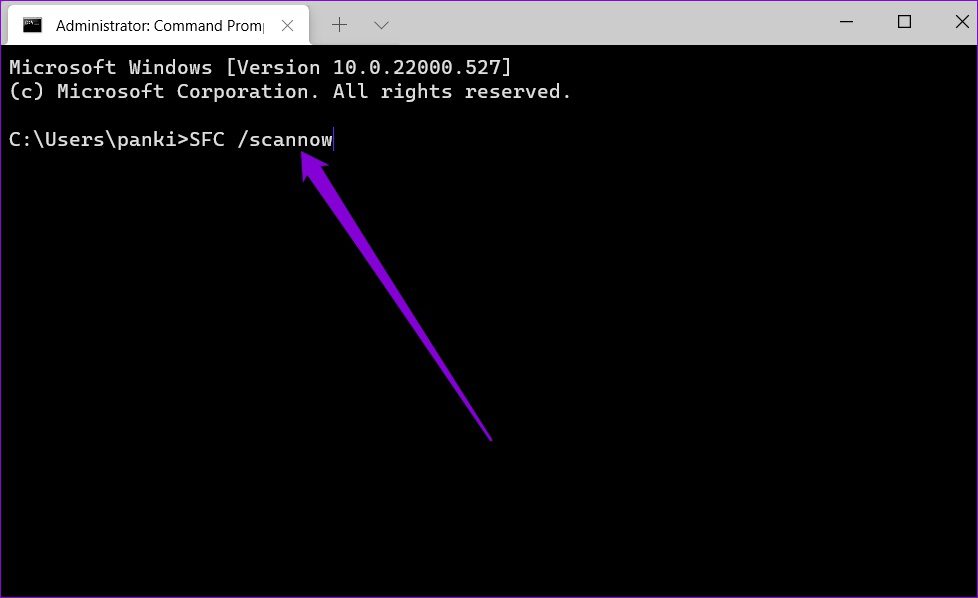
Step 2: Paste the command mentioned below and press Enter.
sfc /scannow
Step 3: Run the following commands one by one to execute the DISM scan:
DISM /Online /Cleanup-Image /CheckHealth
DISM /Online /Cleanup-Image /ScanHealth
DISM /Online /Cleanup-Image /RestoreHealth

Restart your PC after the scan is complete and then try using the search bar again.
Fix 5: Re-Register Microsoft Store Apps
At times, issues with the default apps on Windows can also lead to such abnormalities. You can try re-registering the default apps on your PC to see if that solves your problem.
Step 1: Open the Start menu, type Windows PowerShell, and click on Run as administrator.

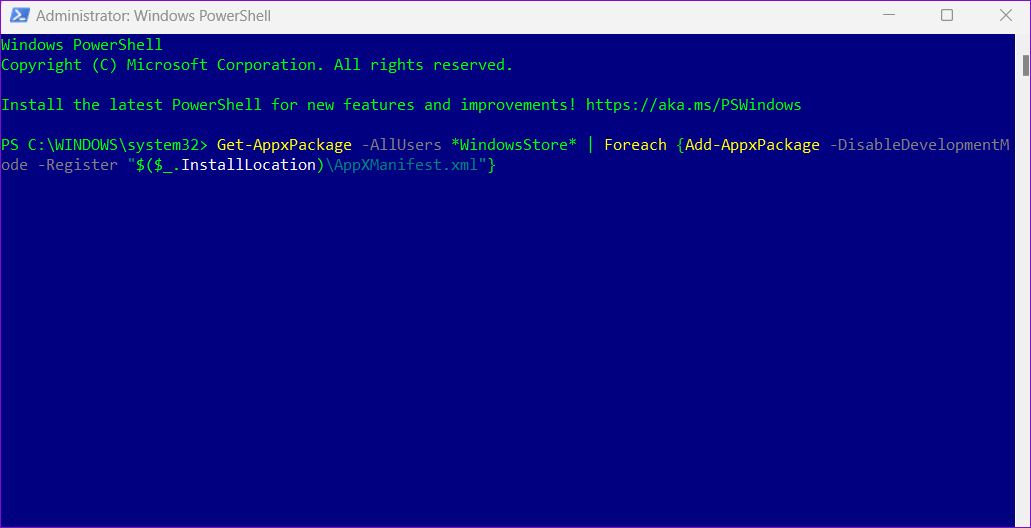
Step 2: In the PowerShell window, paste the following command and press Enter.
Get-AppxPackage -AllUsers WindowsStore | Foreach {Add-AppxPackage -DisableDevelopmentMode -Register "$($_.InstallLocation)\AppXManifest.xml"}
Restart your PC after this and check if the issue is still there.
Fix 6: Rebuild the Search Index
If the search index library on your PC is corrupt or inaccessible, you might have trouble using the Windows search bar. To fix this, you must rebuild the search index on your PC. Note that this process can take anywhere from a few minutes to several hours, depending on your system and the amount of data.
Step 1: Press the Windows key + R to open the Run dialog box. Type control.exe srchadmin.dll in the text field and hit Enter.
Step 2: Click the Advanced button.
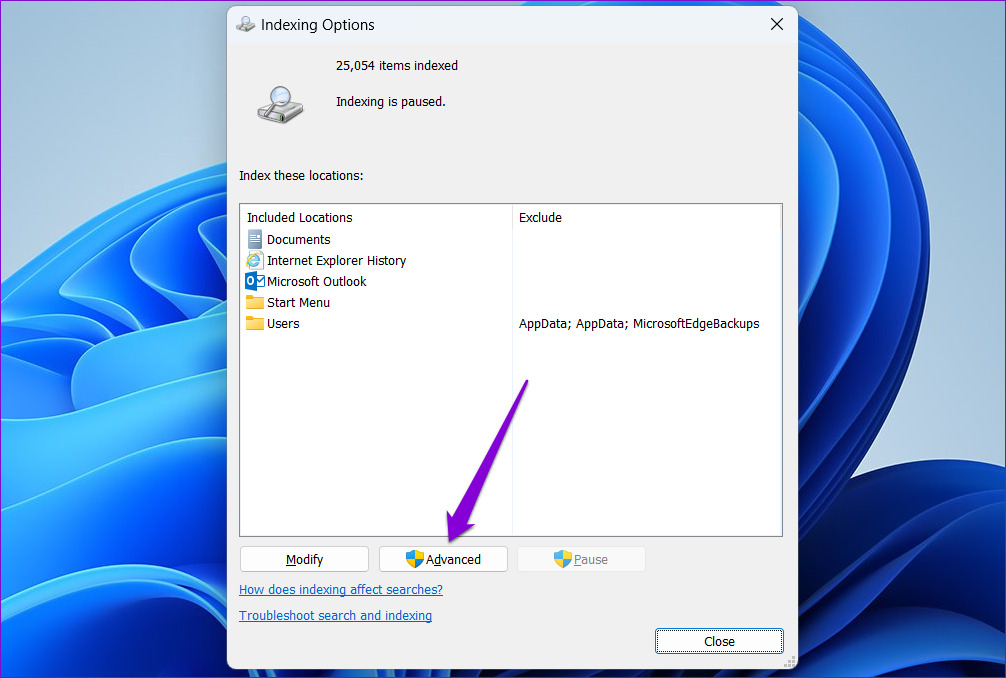
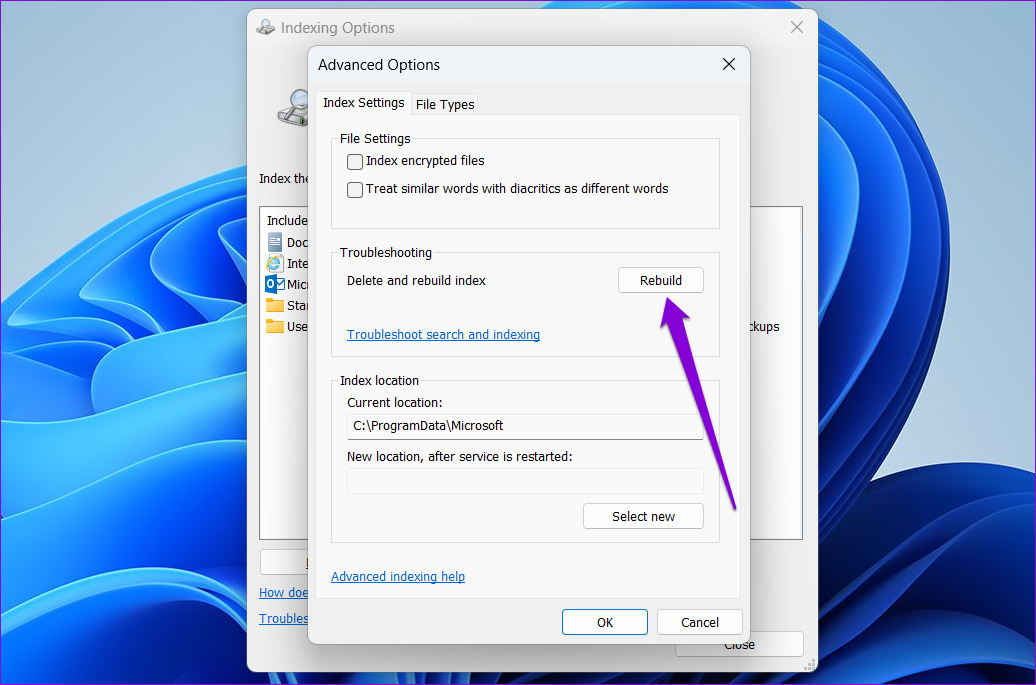
Step 3: Click the Rebuild button under Troubleshooting.
Fix 7: Reset Your PC
If you still can’t type into the Windows search bar at this point, your only option is to reset all the settings on Windows and start over. Don’t worry; it’s possible to reset Windows 11 without losing your data. Here’s how to go about it.
Step 1: Press the Windows key + I to open the Settings app > head to System > Recovery.
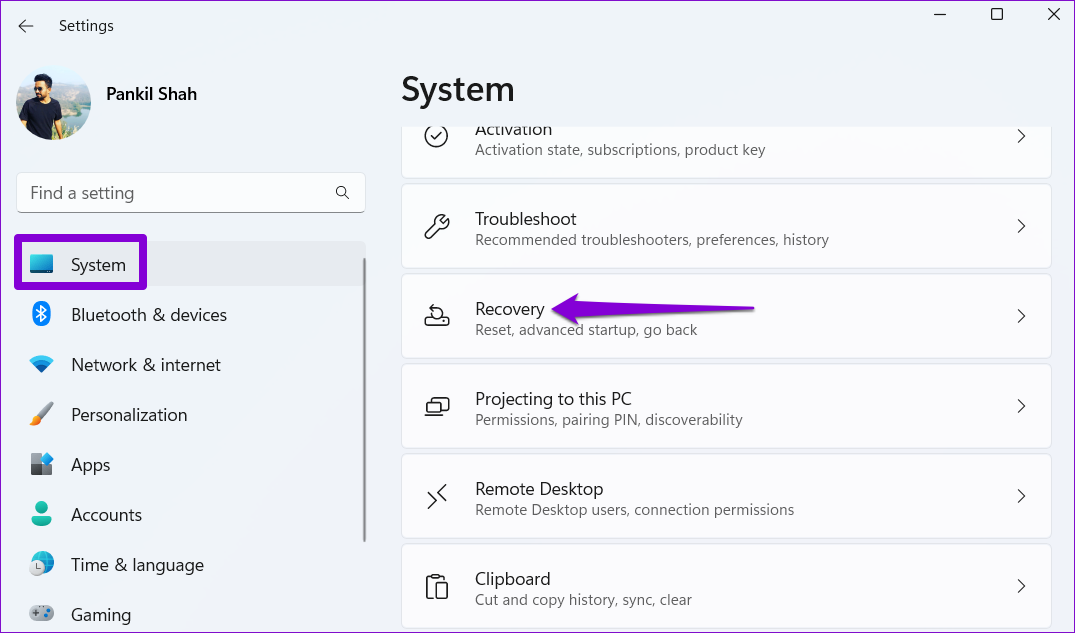
Step 2: Click the Reset PC button.

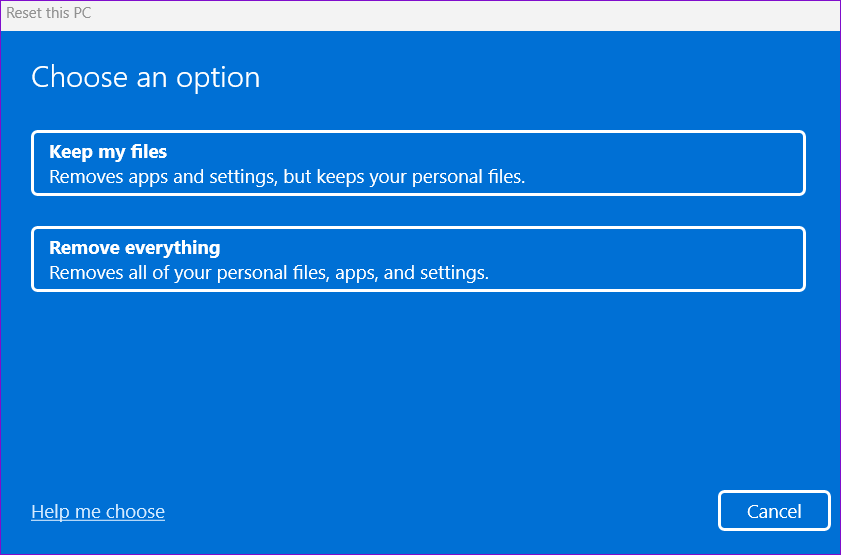
Step 3: Select the Keep my files option and follow the on-screen prompts to finish resetting Windows 11.
After Windows 11 resets everything, you should be able to type into the Windows search bar as before.
Was this helpful?
Last updated on 14 August, 2024
1 Comment
Leave a Reply
Read Next
 A Guide to Using the Search Bar and Search Operators in Microsoft Outlook
How to Use the Microsoft Outlook Search Bar There are two ways to use the Microsoft Outlook Search bar.
A Guide to Using the Search Bar and Search Operators in Microsoft Outlook
How to Use the Microsoft Outlook Search Bar There are two ways to use the Microsoft Outlook Search bar.
 8 Ways to Fix Windows Search Bar Is Missing Issue
Windows 10 came with a lot of tweaks under the hood.
8 Ways to Fix Windows Search Bar Is Missing Issue
Windows 10 came with a lot of tweaks under the hood.
 5 Best Ways to Fix Google Search Bar Widget Missing in Android
Google is still the king of search engines.
5 Best Ways to Fix Google Search Bar Widget Missing in Android
Google is still the king of search engines.
 4 Fixes for Google Search Bar or Widget Not Working on Android
Basic Fixes: Restart your phone: Temporary glitches in the Google app can cause the search bar or widget not to work properly.
4 Fixes for Google Search Bar or Widget Not Working on Android
Basic Fixes: Restart your phone: Temporary glitches in the Google app can cause the search bar or widget not to work properly.
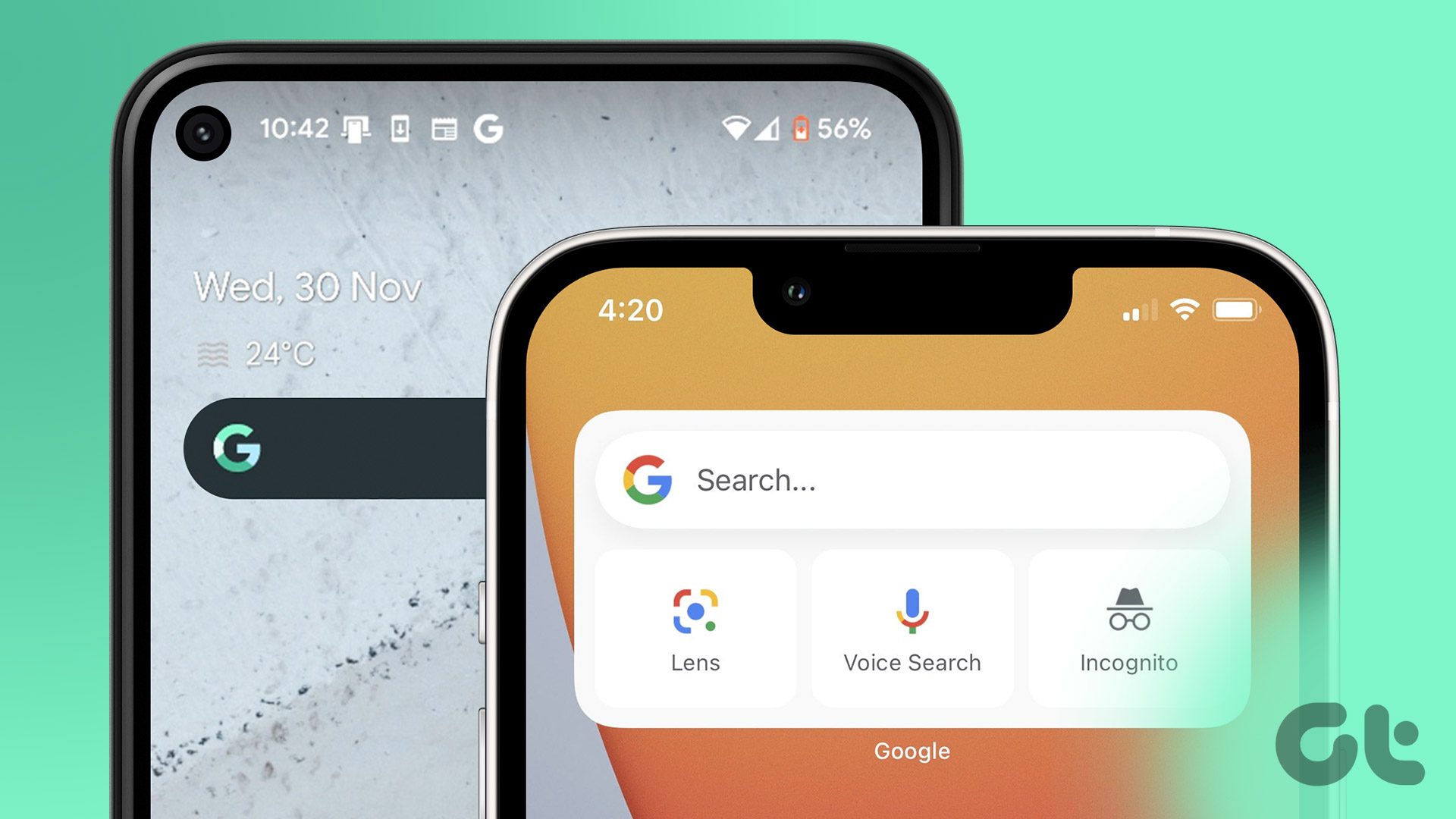 How to Add Google Search Bar to Home Screen on Android and iPhone
On Android Step 1: Tap and hold a space on your home screen, and tap on Widgets.
How to Add Google Search Bar to Home Screen on Android and iPhone
On Android Step 1: Tap and hold a space on your home screen, and tap on Widgets.
 What Is Search Google or Type a URL
In the vast world of the Internet, where information is easily accessible, and we can connect with a few clicks, searching has become a key part of exploring.
What Is Search Google or Type a URL
In the vast world of the Internet, where information is easily accessible, and we can connect with a few clicks, searching has become a key part of exploring.
 5 Ways to Fix Xbox Game Bar Not Working on Windows 11
Fix 1: Enable Xbox Game Bar in Windows Settings If you can't launch the Xbox Game Bar from your connected game controller on Windows 11, head to Windows Settings to
5 Ways to Fix Xbox Game Bar Not Working on Windows 11
Fix 1: Enable Xbox Game Bar in Windows Settings If you can't launch the Xbox Game Bar from your connected game controller on Windows 11, head to Windows Settings to
 5 Ways to Check RAM Type in PC on Windows 10 and Windows 11
Method 1: Check the PC or Laptop Model From the Manufacturer's Site If you use a pre-built rig from a PC maker or have a laptop, the first course of
5 Ways to Check RAM Type in PC on Windows 10 and Windows 11
Method 1: Check the PC or Laptop Model From the Manufacturer's Site If you use a pre-built rig from a PC maker or have a laptop, the first course of
The article above may contain affiliate links which help support Guiding Tech. The content remains unbiased and authentic and will never affect our editorial integrity.


thanks for this dude.