Basic Fixes:
- Enable Num Lock on the keyboard: Most keyboards come with a dedicated Num Lock key. When you disable it, the number pad stops working. So, check whether you need to re-enable the Num Lock key to start typing numbers.
- Clean the physical keys: If the number pad keys are filled with dust particles, you might face issues. So, clean around the keys and dislodge any such debris. Then, try using the number pad again.
- Check for keyboard damage: If you accidentally damage your keyboard, you might end up with a broken number pad. In this case, you might need to replace the keyboard with a wired or wireless keyboard.
- Use the on-screen keyboard: If you’re waiting on a new keyboard or are intermittently facing issues when using the number pad on your device, you can use the on-screen keyboard as a replacement.
Fix 1: Turn off Mouse Keys
When you enable mouse keys on Windows 11, you can use the numeric keypad to move your mouse pointer. However, this can cause the number pad to not work properly on your Windows 11 device. So, here’s how you can disable mouse keys.
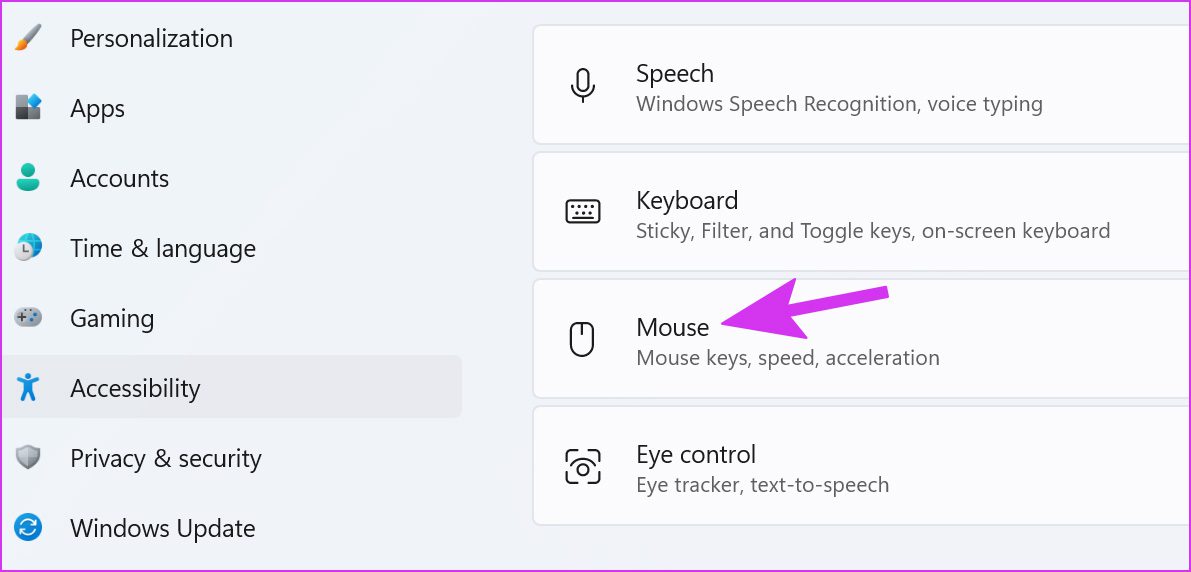
Step 1: Use the Windows + I key to open Settings and go to Accessibility. Click on Mouse.
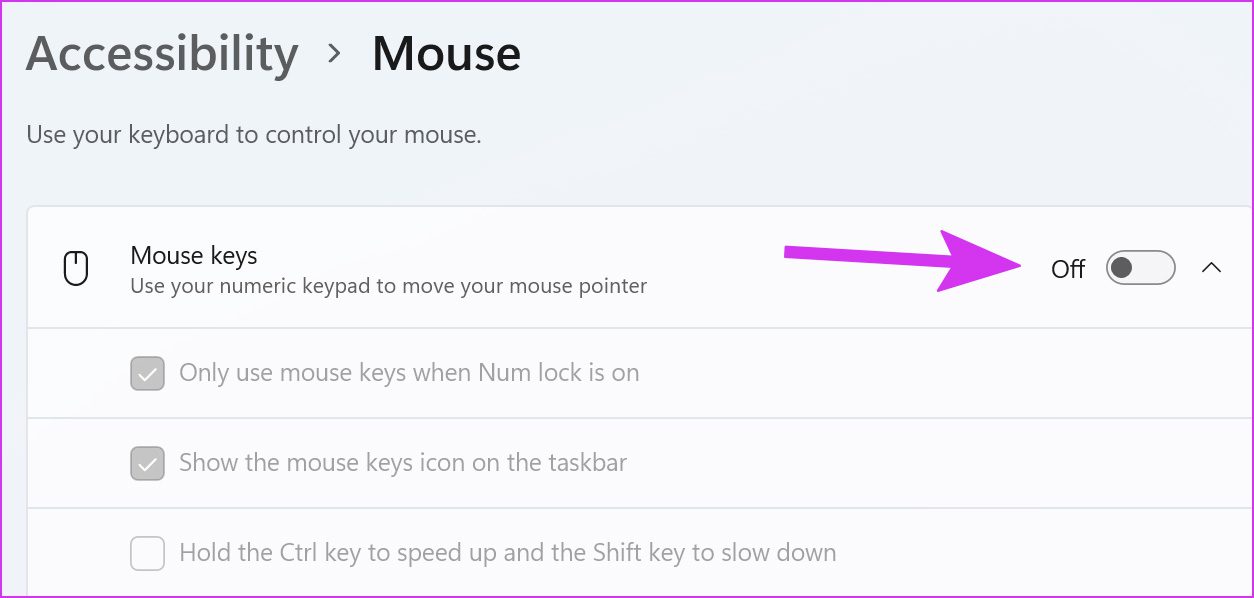
Step 2: Disable the Mouse keys toggle.
Fix 2: Update Keyboard Drivers
The latest Windows 11 update might have developed incompatibility with your device’s keyboard drivers. You need to download the latest keyboard drivers to ensure it stays compatible. Follow the steps below to do it.
Step 1: Open Device Manager and click on Keyboards. Right-click your keyboard and select Update driver.

Step 2: Select Search automatically for drivers. Wait for the driver updates to install and check.

Fix 3: Run Keyboard Troubleshooter
If the number pad has stopped working suddenly, you can run the keyboard troubleshooter and fix the issue. Here’s how to do it.
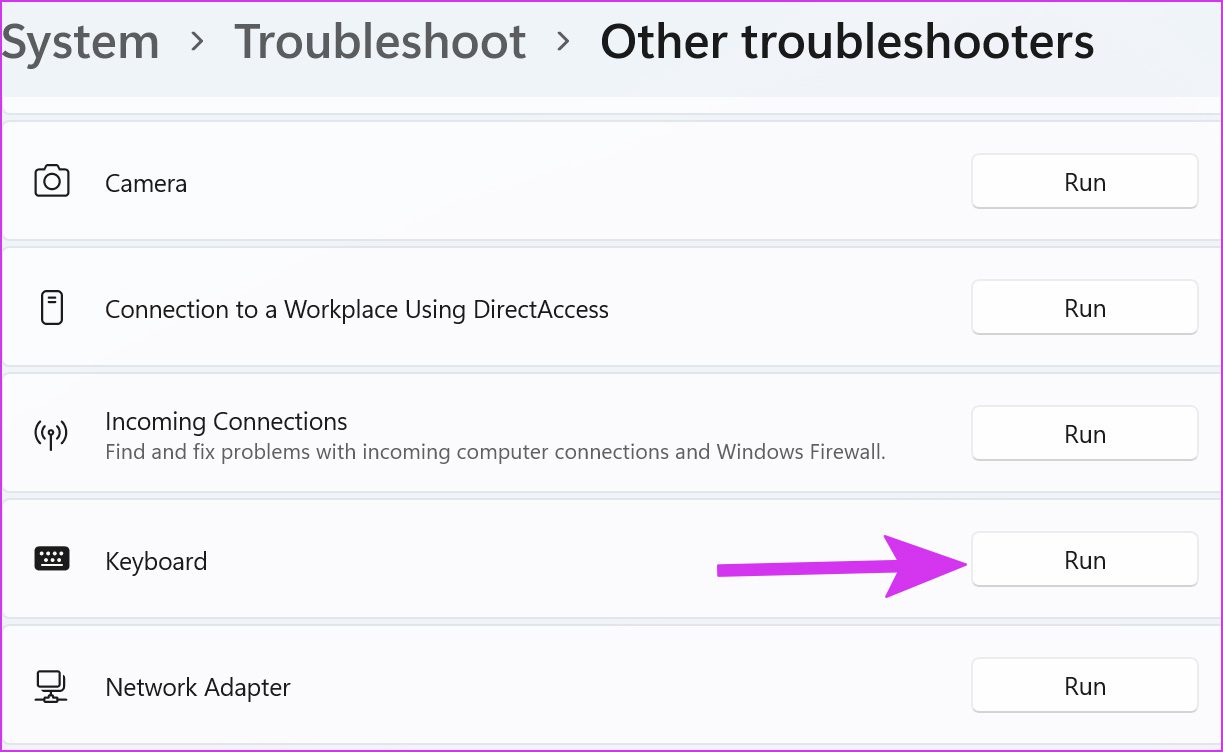
Step 1: Open Settings and go to System. Select Troubleshoot and click on Other troubleshooters.

Step 2: Go to Keyboard and click on Run. Wait for the troubleshooter to run and check the results.
Fix 4: Reinstall Keyboard Drivers
If you didn’t find any update for the keyboard’s drivers, then you can reinstall the ones on your computer. First, you’ll need to uninstall the old keyboard drivers and reinstall the latest ones again. Here’s how to do it.
Step 1: Open Device Manager and click on Keyboards. Right-click your keyboard and select Uninstall device.

Confirm when prompted. Then, restart your computer and the system will reinstall the required drivers. Once done, try using the number pad again to check.
Was this helpful?
Last updated on 19 August, 2024
Read Next
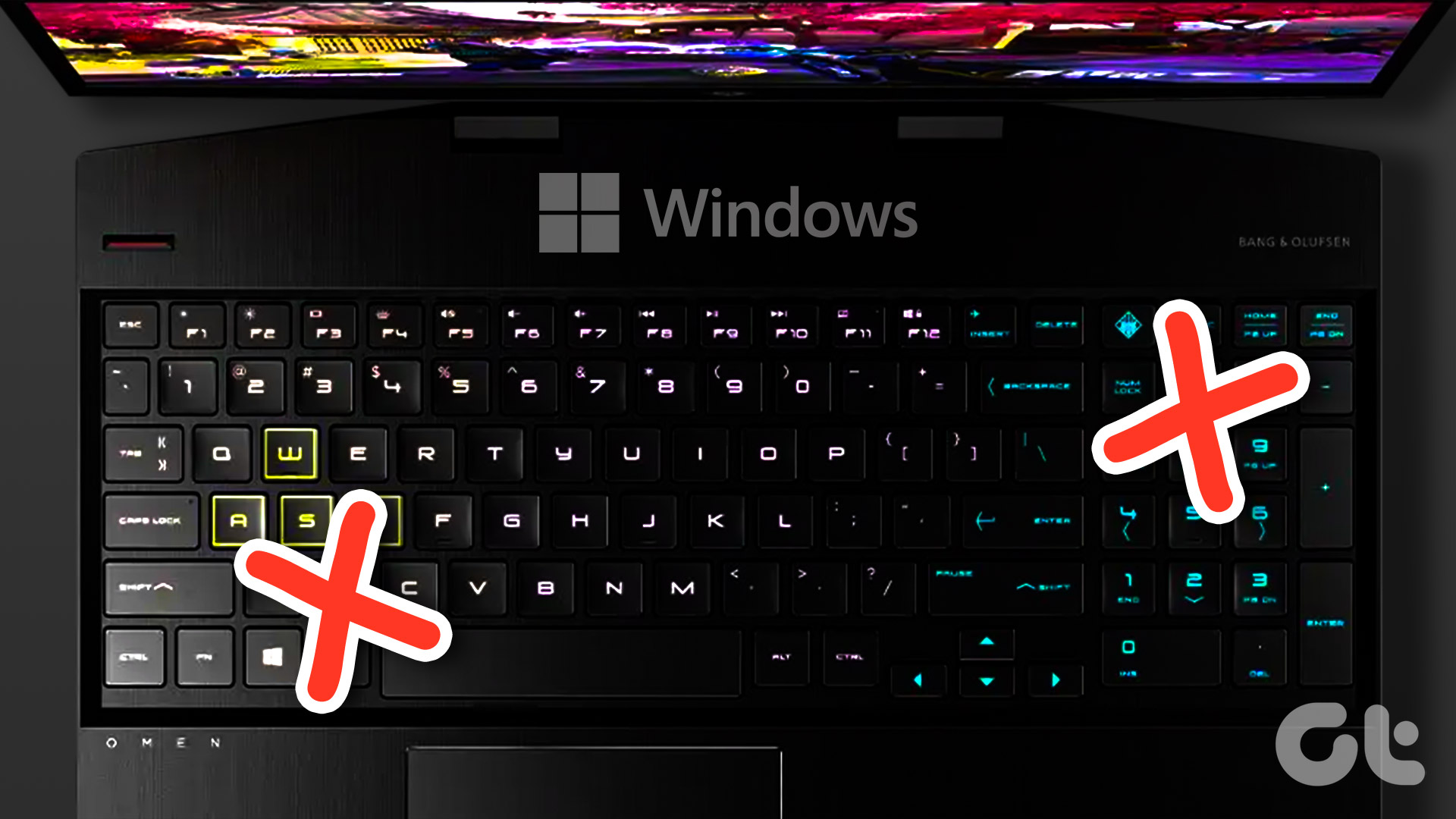 3 Best Ways to Fix Keyboard Backlight Not Working on Windows 10 and Windows 11
Try Basic Fixes Toggle the keyboard backlight using the hotkey: You can use a key combination to quickly enable or disable the keyboard backlight on your Windows 11 PC.
3 Best Ways to Fix Keyboard Backlight Not Working on Windows 10 and Windows 11
Try Basic Fixes Toggle the keyboard backlight using the hotkey: You can use a key combination to quickly enable or disable the keyboard backlight on your Windows 11 PC.
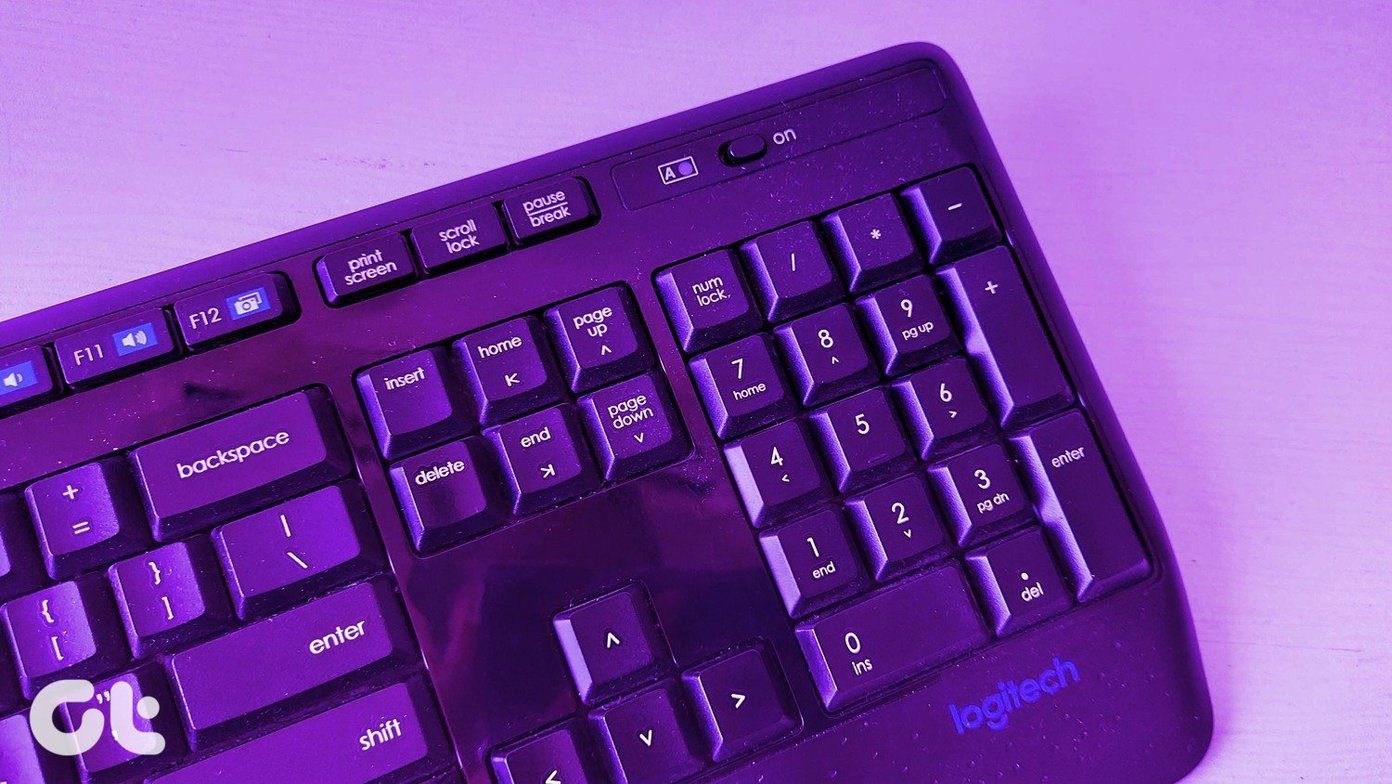 5 Ways to Fix Windows 10 Keyboard Special Characters Not Working
Have you struggled to enter an email ID on your Windows 10 computer?
3 Ways to Fix Mouse and Keyboard Not Working in Windows
Basic Fixes Restart PC: A simple restart can refresh the system memory, clear temporary glitches, and reload device drivers, fixing issues caused by outdated or corrupted files.
5 Ways to Fix Windows 10 Keyboard Special Characters Not Working
Have you struggled to enter an email ID on your Windows 10 computer?
3 Ways to Fix Mouse and Keyboard Not Working in Windows
Basic Fixes Restart PC: A simple restart can refresh the system memory, clear temporary glitches, and reload device drivers, fixing issues caused by outdated or corrupted files.
 5 Ways to Fix Keyboard Not Working on Windows 11
Basic Fixes Check the keyboard connection: Ensure the keyboard connection wire isn't loose.
5 Ways to Fix Keyboard Not Working on Windows 11
Basic Fixes Check the keyboard connection: Ensure the keyboard connection wire isn't loose.
 3 Ways to Fix Keyboard Function Keys Not Working on Windows 11/10
Fix 1: Confirm Shortcut Keys Don't Disable Function Keys Keyboards with an Fn key allow two sets of actions on the function keys.
3 Ways to Fix Keyboard Function Keys Not Working on Windows 11/10
Fix 1: Confirm Shortcut Keys Don't Disable Function Keys Keyboards with an Fn key allow two sets of actions on the function keys.
 4 Ways to Fix Keyboard Shortcuts Not Working on Windows 11
Preliminary Fixes Disable Game Mode: Gaming keyboards often have special modes that disable keyboard shortcuts.
4 Ways to Fix Keyboard Shortcuts Not Working on Windows 11
Preliminary Fixes Disable Game Mode: Gaming keyboards often have special modes that disable keyboard shortcuts.
 4 Ways to Fix On-Screen Keyboard Not Working on Windows 11
Fix 1: Enable On-Screen Keyboard The on-screen keyboard may fail to open on Windows if you have previously disabled it from the Settings app.
4 Ways to Fix On-Screen Keyboard Not Working on Windows 11
Fix 1: Enable On-Screen Keyboard The on-screen keyboard may fail to open on Windows if you have previously disabled it from the Settings app.
 How to Hide Android On-Screen Keyboard When Using External Keyboard
Google understands that multiple users connect physical keyboards to their Android devices.
How to Hide Android On-Screen Keyboard When Using External Keyboard
Google understands that multiple users connect physical keyboards to their Android devices.
The article above may contain affiliate links which help support Guiding Tech. The content remains unbiased and authentic and will never affect our editorial integrity.