


Basic Fixes:
- Use Airplane Mode: Enabling and disabling Airplane Mode helps reset the network connectivity on your iPhone. This can be helpful whenever you face network issues on your iPhone.
- Reinsert SIM: If you have been using the same SIM card for years, it might get corrupted due to wear and tear. In this case, get a new SIM card from your carrier. Or, use the SIM ejector tool and reinsert the SIM card to ensure it is properly seated in the slot.
- Restart your iPhone: Press and quickly release the volume up button. Then, press and quickly release the volume down button. Finally, press the power button until the Apple logo appears. Once you force restart your iPhone, try making calls again.
- Check for iOS updates: Carriers bundle the latest updates with iOS builds. You should connect your iPhone to a robust Wi-Fi network and install the newest iOS software. This can help fix any software-related issues.
Fix 1: Check Your Current Mobile Plan
Pre-paid users should check the remaining voice call minutes left on their plan. You should top up your number with another plan and get extra minutes. If you are a post-paid user, pay your bill before the due date to avoid suspension of services. Additionally, ensure your carrier is not facing an outage.
Fix 2: Enable VoLTE and Turn 5G on or Off
When enabled, VoLTE ensures your calls go through the LTE network. This can help resolve any call-related issues and also enhance your call quality. Additionally, you can also enable or disable 5G as required. Here’s how to do it.
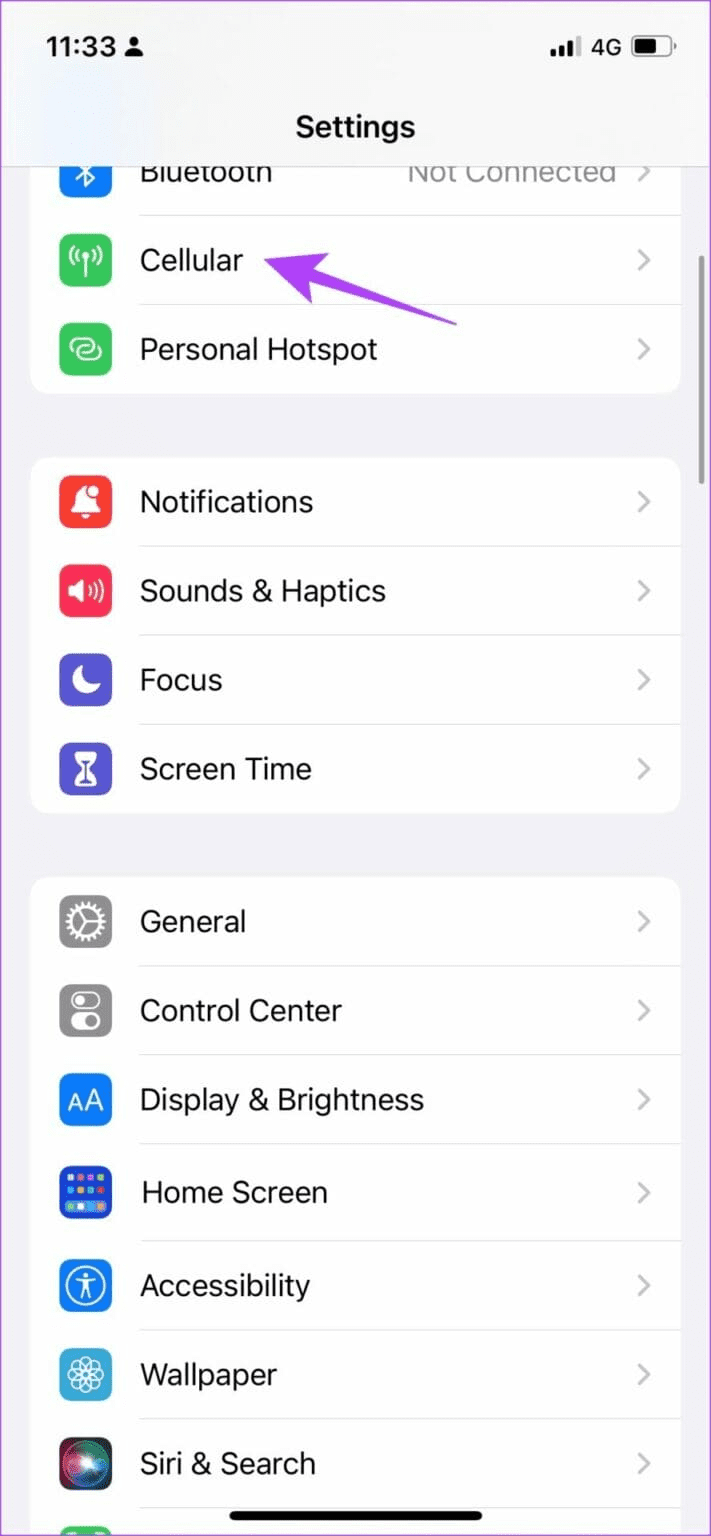
Step 1: Open Settings and tap on Cellular. Tap on Cellular Data Options.
Step 2: Turn on the VoLTE toggle and switch between 5G and 4G as required.


Also Read: How to fix iPhone not receiving call issue
Fix 3: Update Carrier Settings
Your carriers usually bundle the updates with iOS. But when you travel to another country and insert a local SIM, you may need to update carrier settings on your iPhone. You can also do this if you have recently moved to a new carrier. Here’s how to do it.
Step 1: Open General and tap on About.
Step 2: Go to Network Provider and tap on the carrier name. Wait for the details to be updated.


Fix 4: Reset Network Settings
A network glitch might mess up carrier connectivity on your iPhone. Instead of wasting hours fixing everything by yourself, you can use the iPhone Settings menu and reset network settings on your iPhone. This will not delete device data but will get rid of all custom network settings. Here’s how to do it.
Step 1: Open Settings and tap on General. Tap on Transfer or Reset iPhone.
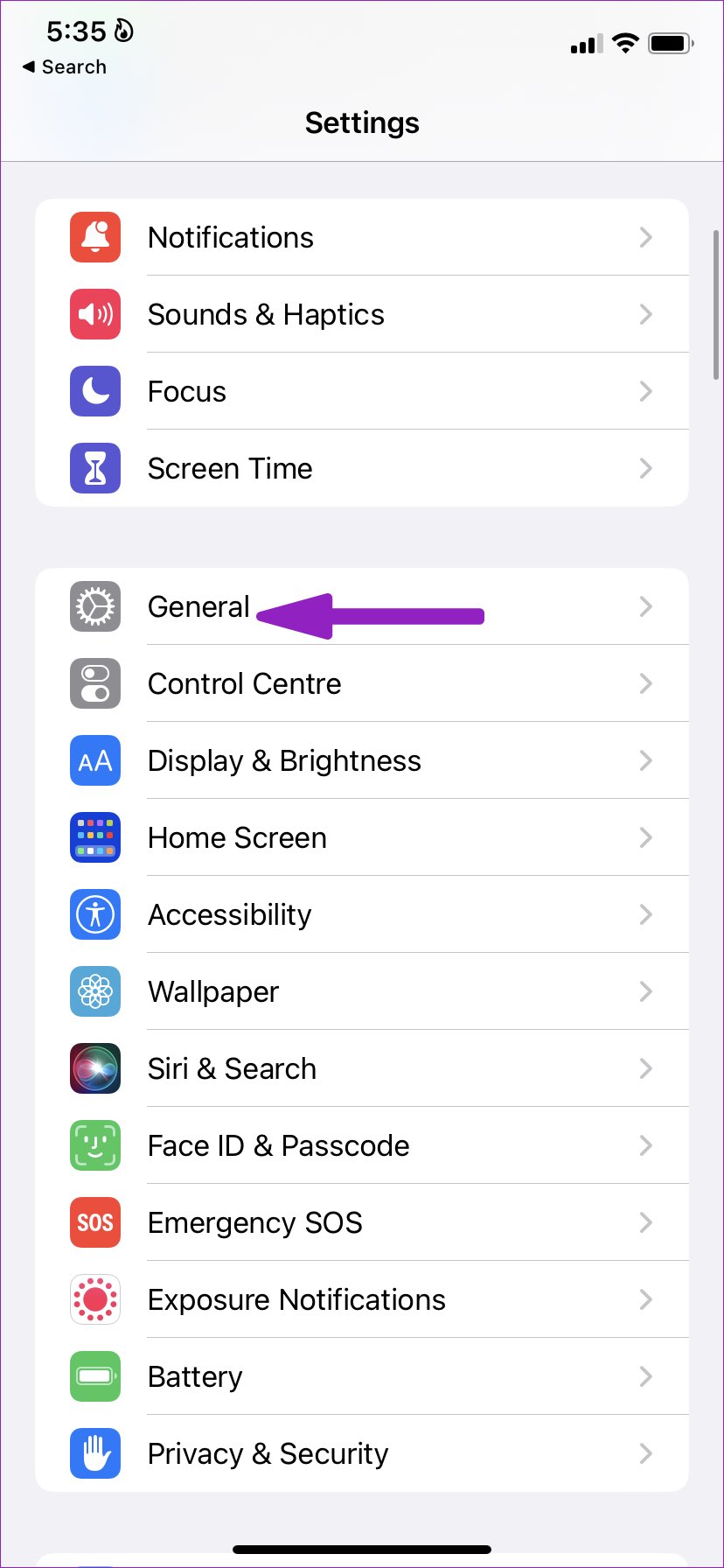

Step 2: Select Reset and tap on Reset Network Settings.


Wait for the reset process to finish. Then, try making calls again from your iPhone to check if the issue has been fixed.
Was this helpful?
Last updated on 08 July, 2024
1 Comment
Leave a Reply
Read Next
 5 Ways to Fix Android Phone Not Making Calls But Can Text
Basic Fixes Eject and re-insert SIM: Eject the SIM card from your phone, and insert it again - doing this can refresh the network connection.
5 Ways to Fix Android Phone Not Making Calls But Can Text
Basic Fixes Eject and re-insert SIM: Eject the SIM card from your phone, and insert it again - doing this can refresh the network connection.
 How to Fix iPhone Making Calls Randomly on Its Own
Basic Fixes Disconnect Bluetooth devices: If you accidentally press the dedicated call button on your Bluetooth accessory, your iPhone may place random calls.
How to Fix iPhone Making Calls Randomly on Its Own
Basic Fixes Disconnect Bluetooth devices: If you accidentally press the dedicated call button on your Bluetooth accessory, your iPhone may place random calls.
 5 Fixes for Android Not Making or Receiving Calls
Before you begin, restart your Android device and ensure you have an active plan that supports outgoing calls.
5 Fixes for Android Not Making or Receiving Calls
Before you begin, restart your Android device and ensure you have an active plan that supports outgoing calls.
 3 Ways to Fix iPad Making Static Noise or Buzzing Sound
Why Is My iPad Making Buzzing Sound?
3 Ways to Fix iPad Making Static Noise or Buzzing Sound
Why Is My iPad Making Buzzing Sound?
 How to Find and Fix Windows 10 Making Random Sounds
Recently, when I was working on my Windows 10 laptop, I heard some random ding sounds coming from the speaker.
How to Find and Fix Windows 10 Making Random Sounds
Recently, when I was working on my Windows 10 laptop, I heard some random ding sounds coming from the speaker.
 3 Ways to Fix Unable to Answer Calls on iPhone
Common Fixes Force restart your iPhone: Press and quickly release Volume Up, followed by the Volume Down buttons.
3 Ways to Fix Unable to Answer Calls on iPhone
Common Fixes Force restart your iPhone: Press and quickly release Volume Up, followed by the Volume Down buttons.
 3 Best Ways to Fix iPhone Calls Not Ringing on Mac
Basic Fixes Connect devices with the same Wi-Fi: Such features work only when your Apple devices are connected to the same Wi-Fi network.
3 Best Ways to Fix iPhone Calls Not Ringing on Mac
Basic Fixes Connect devices with the same Wi-Fi: Such features work only when your Apple devices are connected to the same Wi-Fi network.
 3 Ways to Fix Telegram Calls Not Switching to Speaker on iPhone
Common Fixes Check volume levels - Go to Settings > Sounds & Haptics and maximize the Ringtone and Alerts volume slider.
3 Ways to Fix Telegram Calls Not Switching to Speaker on iPhone
Common Fixes Check volume levels - Go to Settings > Sounds & Haptics and maximize the Ringtone and Alerts volume slider.
The article above may contain affiliate links which help support Guiding Tech. The content remains unbiased and authentic and will never affect our editorial integrity.

Thanks for this logical, stepwise set of tests and resets. Worked my way thru to ‘Reset network settings’ and bingo – now it works.