Try Basic Fixes
- Free up storage space: The Google Play Store may not download or update apps on your Samsung device if there is not enough storage space. To avoid this, keep at least 1GB of free storage on your device.
- Disable VPN: If you use a VPN connection to download apps that aren’t available in your country, it could trigger errors such as “No connection” on the Play Store. You can disable your VPN connection momentarily and see if that solves your problem.
Fix 1: Clear Play Store Cache
As you continue to use the Google Play Store to search, download, and update apps, it collects cache data to reduce loading times and save bandwidth. However, if the existing cache data has become corrupted or inaccessible, the Play Store might not work as expected on your Samsung phone or tablet. Here’s how to fix that.
Step 1: Long-press on the Play Store icon and tap the info icon from the menu.
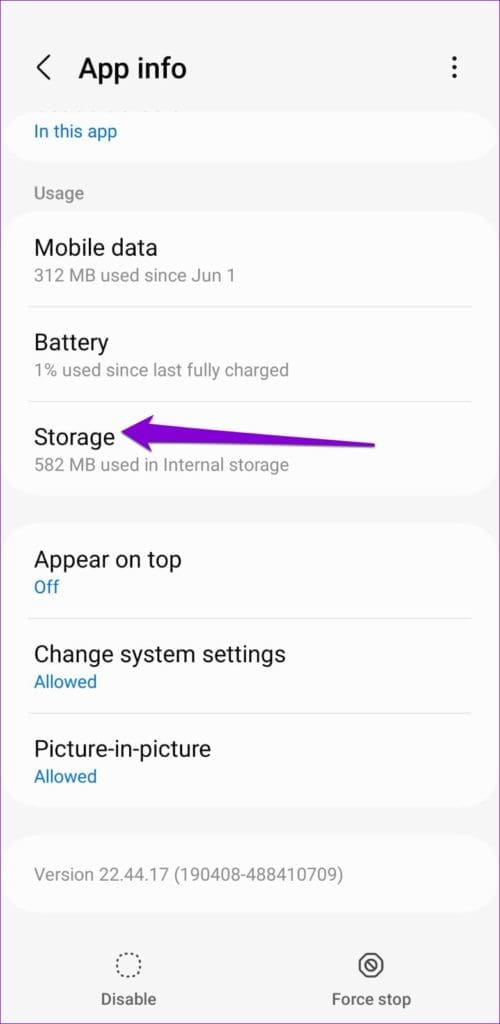
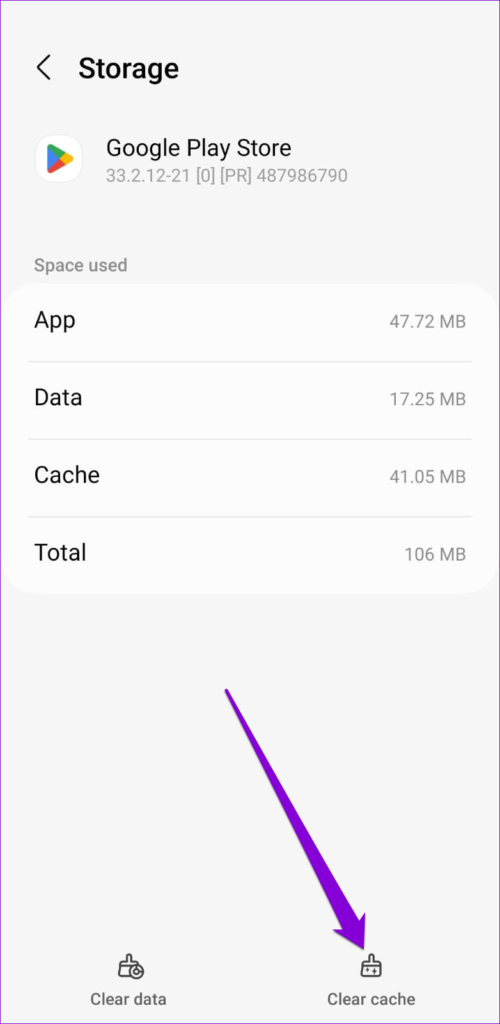
Step 2: Go to Storage > tap Clear cache at the bottom.

Fix 2: Uninstall Play Store Updates
Such issues can also occur if the installation of a recent Play Store update has gone wrong. To fix this, uninstall all the Play Store updates from your device and install them again. Here’s how:
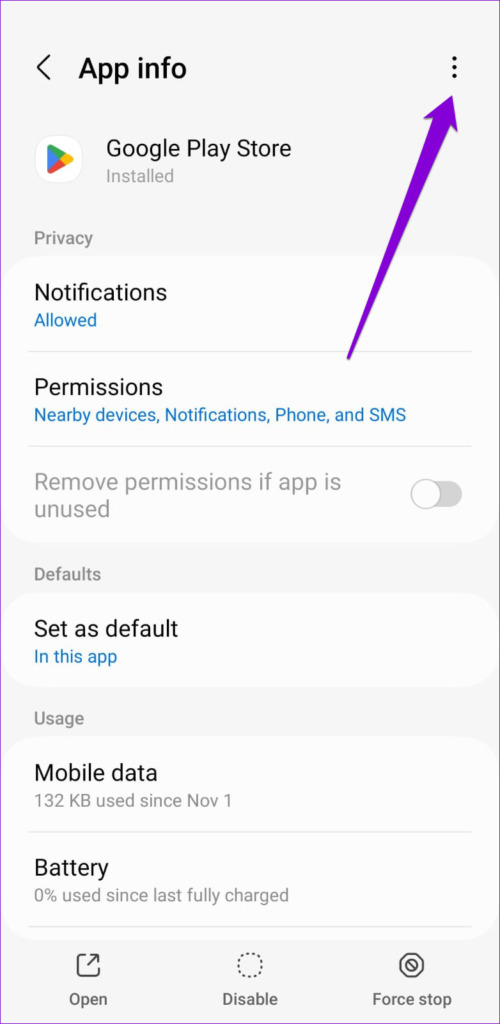
Step 1: Long-press the Play Store icon on your phone and tap the info icon from the resulting menu.
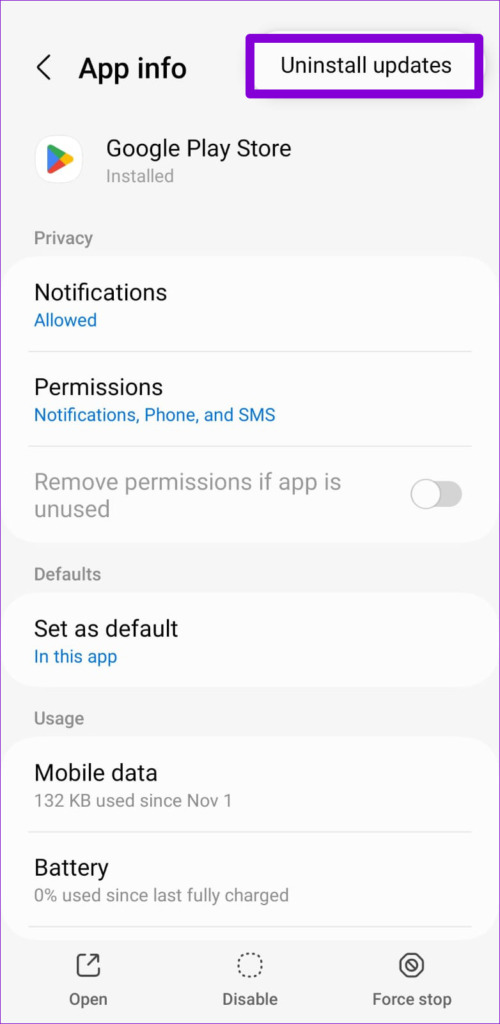
Step 2: Tap the three-dot menu icon at the top right and select Uninstall updates.
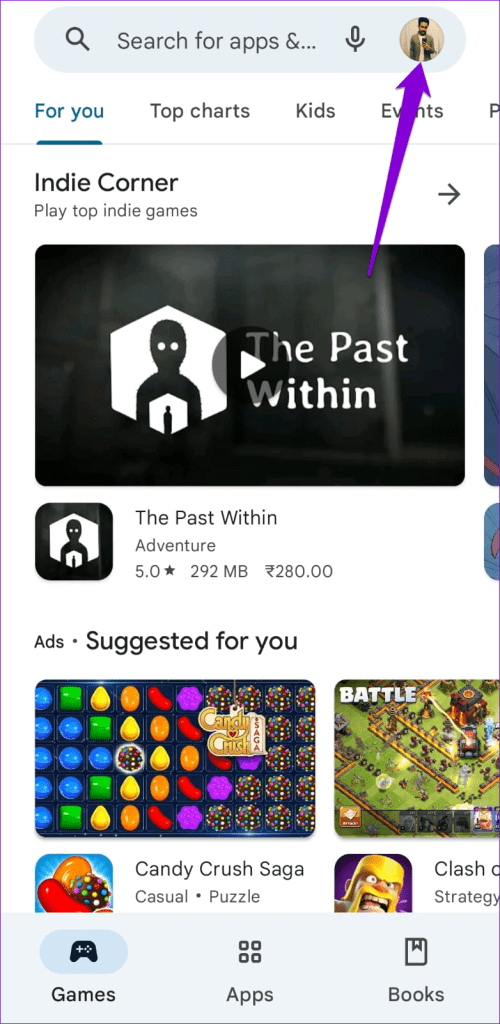
Step 3: Once removed, open the Play Store > tap the profile icon at the top right > select Settings.
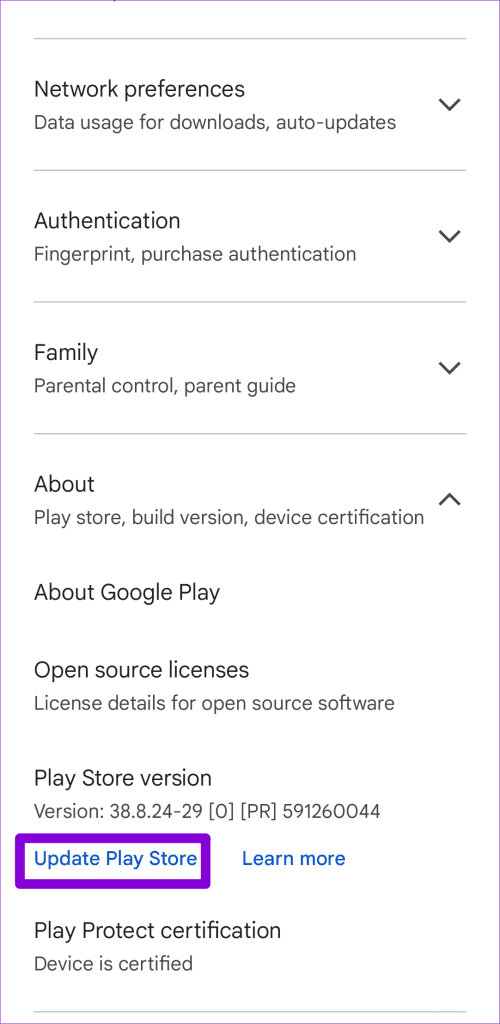
Step 4: Expand About > tap Update Play Store.

Fix 3: Reset the Download Manager
Download Manager is a system app that handles various download tasks behind the scenes. If there’s an issue with this app, you might experience difficulties when downloading or updating apps via the Play Store.
To fix this, reset the Download Manager app using these steps:
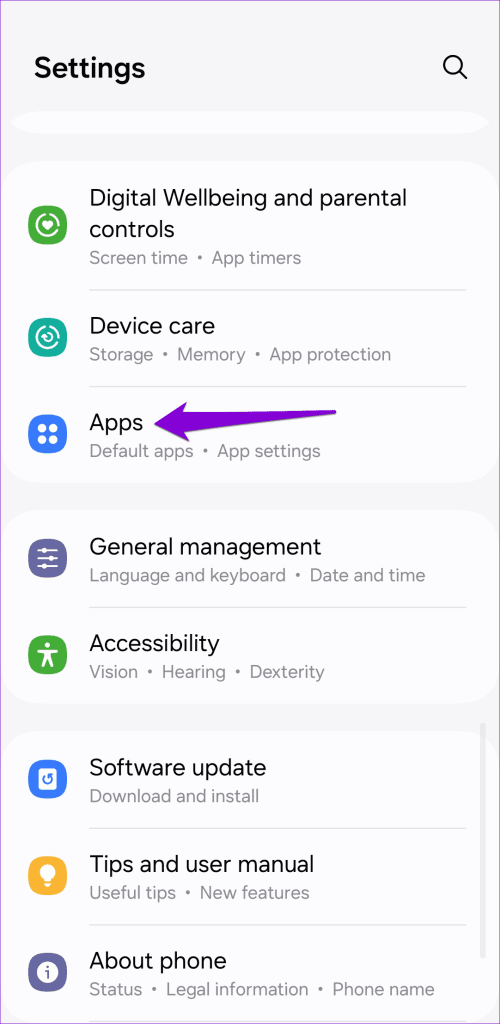
Step 1: Launch the Settings app on your phone > navigate to Apps.
Step 2: Tap the filter and sort icon > toggle on Show system apps.
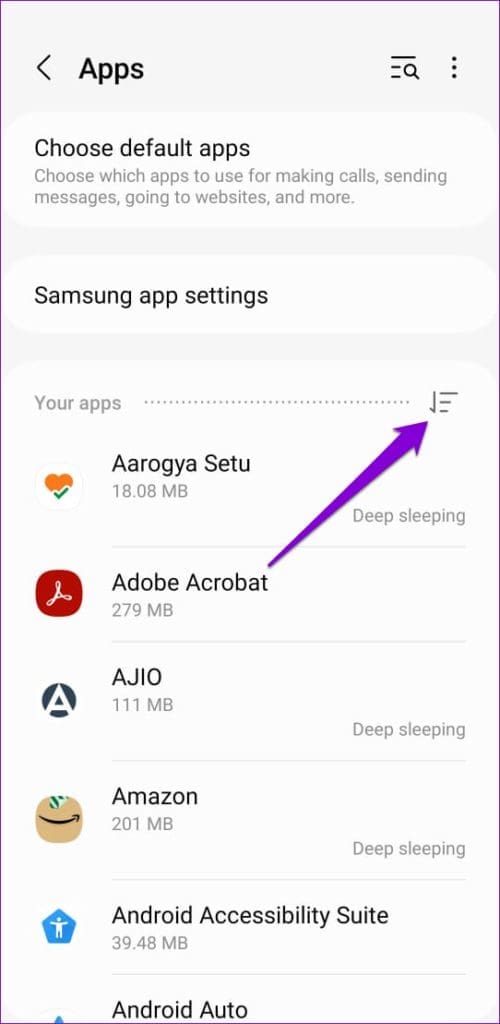
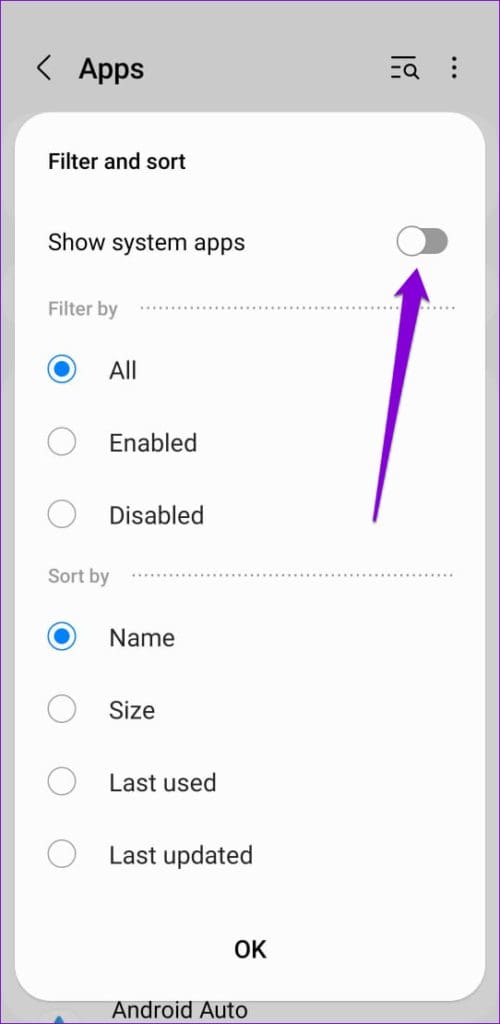
Step 3: Scroll down to tap on Download Manager > select Storage > tap Clear data.
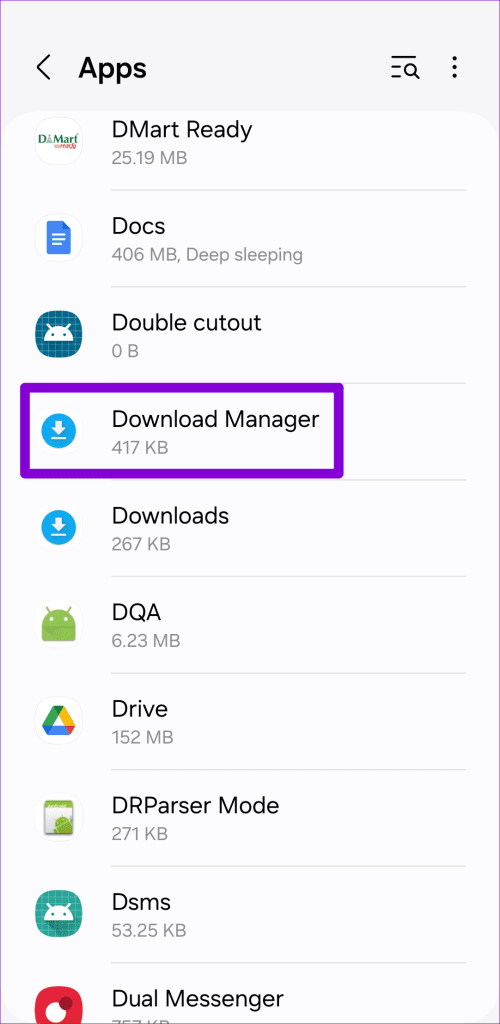
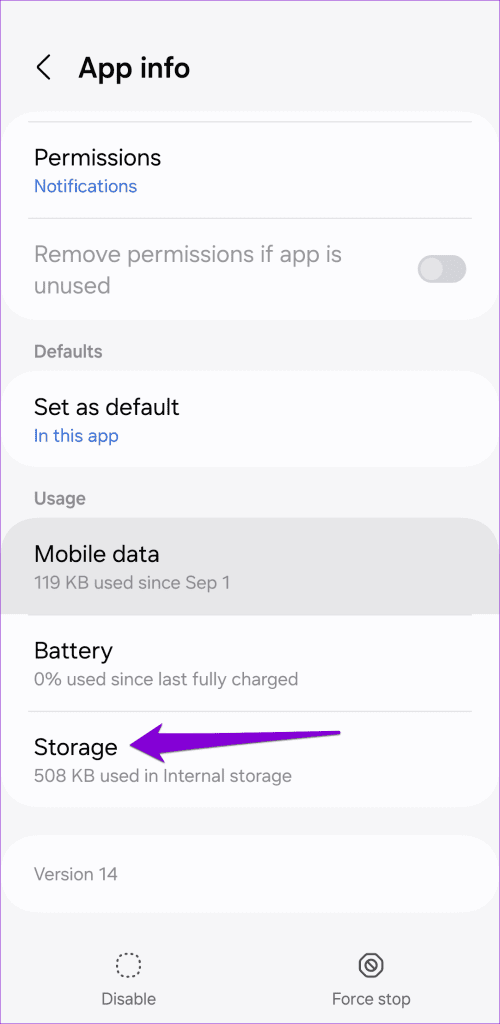

The Download Manager app should start automatically. Following that, check if the Play Store works as expected on your Samsung device.
Fix 4: Reset Google Play Services
Google Play Services on your phone facilitates the smooth operation of the Play Store by handling app purchases, downloads, and installations. If there’s an issue with Google Play Services, the Play Store may misbehave and not function as expected. You can try resetting Google Play Services on your phone to see if that restores normalcy.
Step 1: Open the Settings app > navigate to Apps.
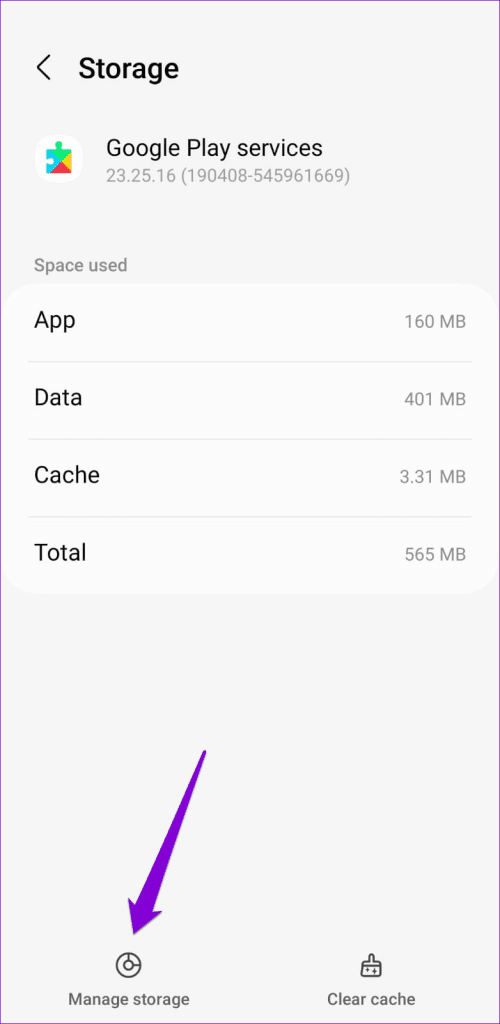
Step 2: Scroll down to find and tap on Google Play services > select Storage.
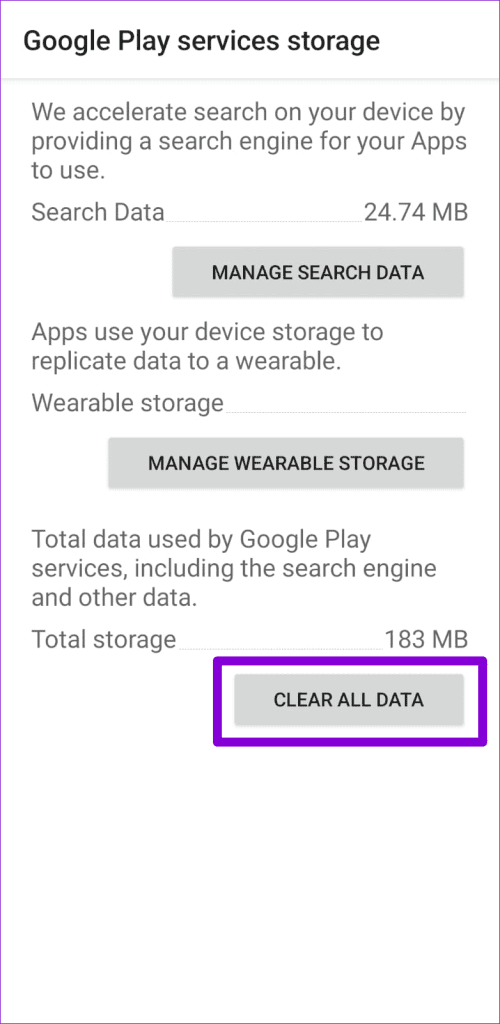
Step 3: Tap on Manage Storage at the bottom > hit Clear All Data.

Fix 5: Check the System Date and Time
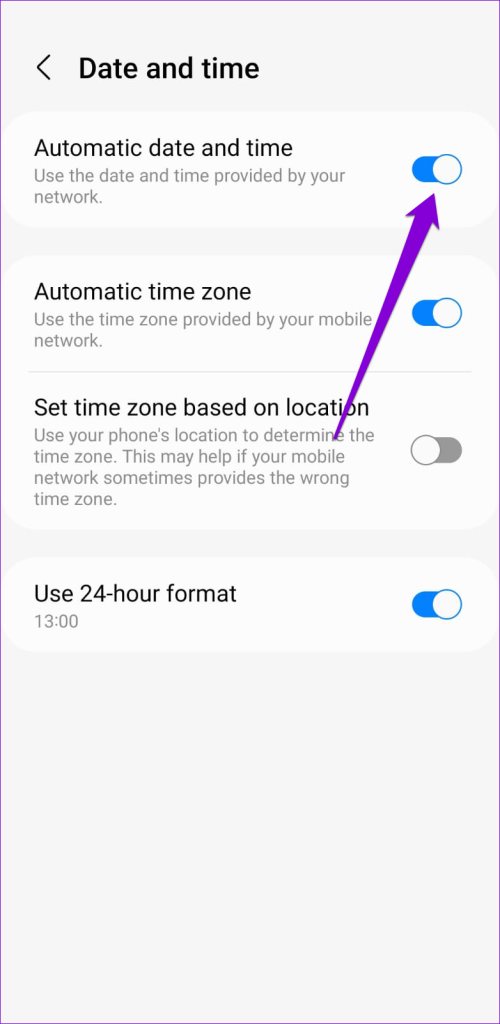
If your device is set to an incorrect date or time, apps and services, including the Play Store, might have trouble communicating with the server. You can avoid such issues by configuring your Samsung phone or tablet to use the network-provided time.
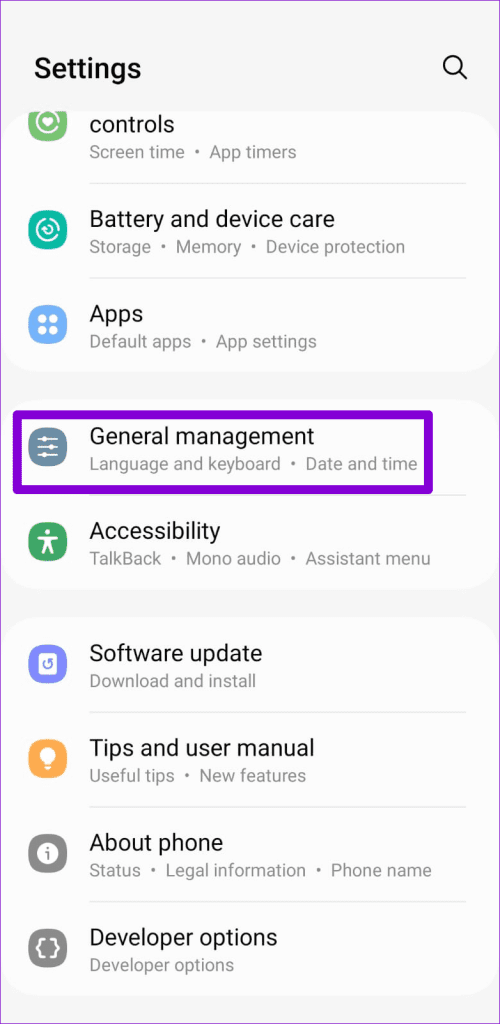
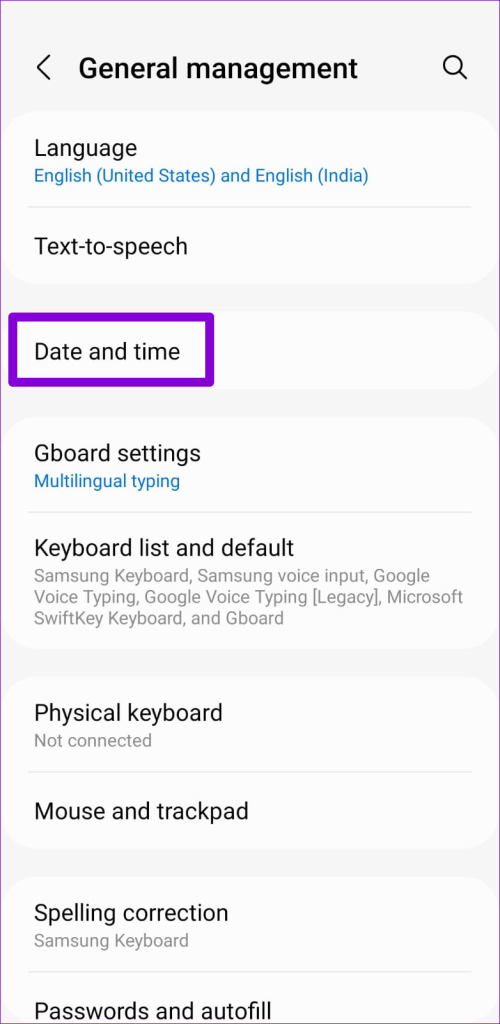
Step 1: Open the Settings menu > go to General Management > Date and time.
Step 2: Enable the toggle for Automatic date and time.
Fix 6: Remove and Re-Add Your Google Account
Another thing you can do is remove your Google account from your phone and add it back. This should help resolve any authentication issues causing the Play Store to malfunction on your Samsung Galaxy phone or tablet.
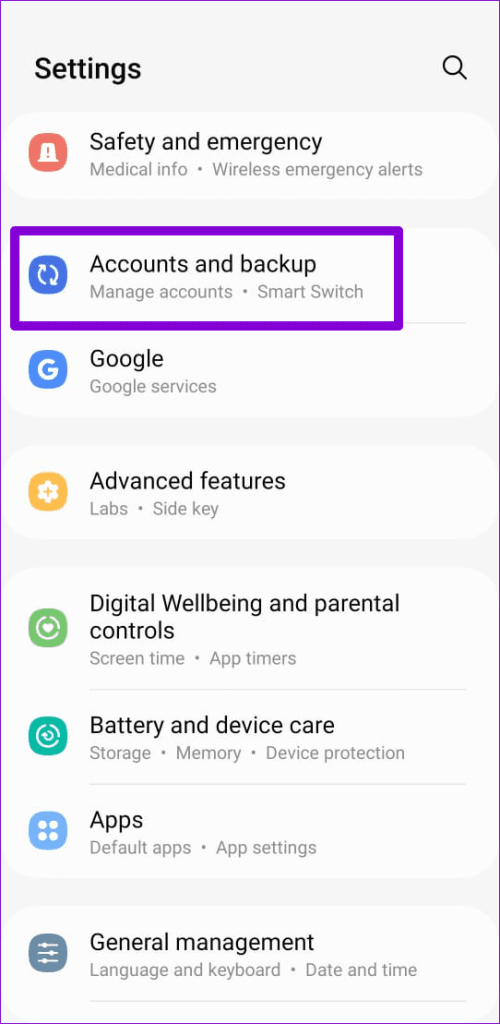
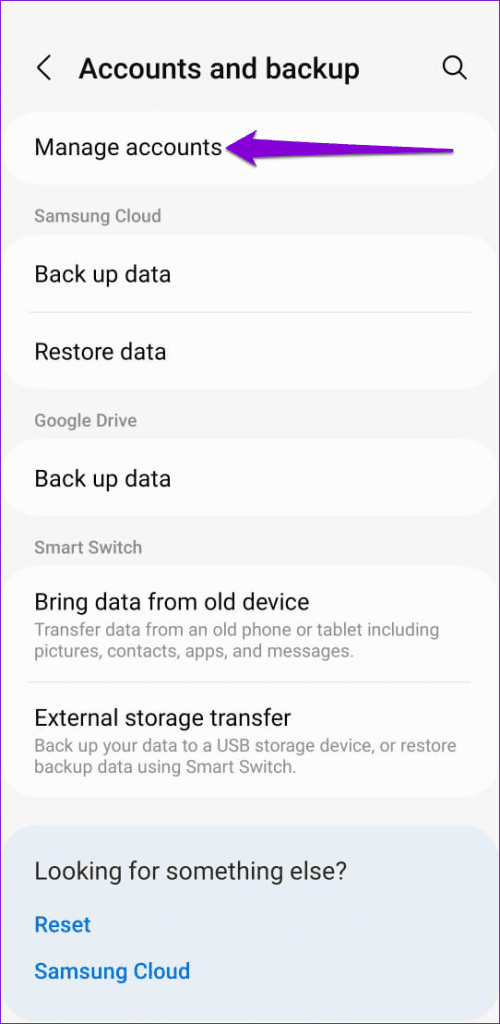
Step 1: Open the Settings app > head to Accounts and backup > Manage accounts.
Step 2: Select your Google account from the list.

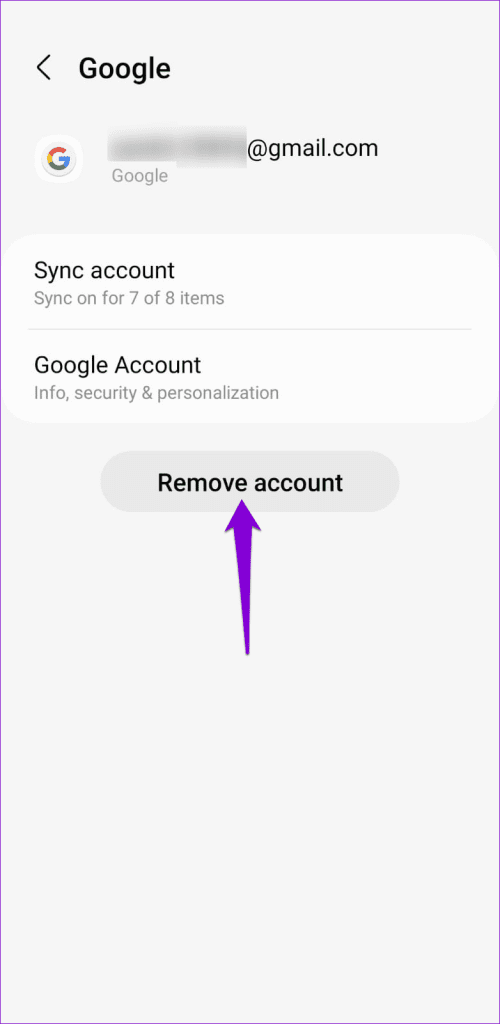
Step 3: Tap on Remove account > select Remove account again.
Step 4: Return to the Accounts page and select Add account to sign in with your Google account. Then, try using the Play Store again.


Was this helpful?
Last updated on 07 August, 2024
Read Next
 11 Best Ways to Free Up Storage on Samsung Phones and Tablets
Android phones come with two different types of storage spaces – internal and external.
11 Best Ways to Free Up Storage on Samsung Phones and Tablets
Android phones come with two different types of storage spaces – internal and external.
 5 Fixes for Samsung Health App Not Tracking Steps
Basic Fixes Ensure that step counter is enabled: Open the Health app > Tap on Steps > Three dots in the top-right corner > Check and ensure that the step
5 Fixes for Samsung Health App Not Tracking Steps
Basic Fixes Ensure that step counter is enabled: Open the Health app > Tap on Steps > Three dots in the top-right corner > Check and ensure that the step
 Top 10 Fixes for Vibration Not Working in Samsung Galaxy Phones
Even if you keep ringer volume at a high level, you might miss calls when you are in a loud environment.
Top 10 Fixes for Vibration Not Working in Samsung Galaxy Phones
Even if you keep ringer volume at a high level, you might miss calls when you are in a loud environment.
 Top 9 Ways to Fix Google Assistant Not Working in Samsung Galaxy Phones
Bixby, Samsung's digital assistant, comes pre-loaded for Galaxy phones despite the popularity of Google Assistant.
Top 9 Ways to Fix Google Assistant Not Working in Samsung Galaxy Phones
Bixby, Samsung's digital assistant, comes pre-loaded for Galaxy phones despite the popularity of Google Assistant.
 Top 5 Fixes for Cannot Change Country in Google Play Store
Setting the right country in the Play Store is very important since it determines the content you see in the Store.
Top 5 Fixes for Cannot Change Country in Google Play Store
Setting the right country in the Play Store is very important since it determines the content you see in the Store.
 4 Fixes for Location Not Updating in Weather App on Samsung Galaxy Phones
Basic Fixes Switch to 5G: To get the most accurate weather data, we suggest switching to 5G network on your Samsung phone.
4 Fixes for Location Not Updating in Weather App on Samsung Galaxy Phones
Basic Fixes Switch to 5G: To get the most accurate weather data, we suggest switching to 5G network on your Samsung phone.
 How to Fix Google Play Store Not Working on Mobile Data
Basic Fixes Check Data Plan: First, ensure you have enough mobile data balance on your data plan.
How to Fix Google Play Store Not Working on Mobile Data
Basic Fixes Check Data Plan: First, ensure you have enough mobile data balance on your data plan.
 4 Fixes for Samsung Galaxy Store Not Downloading Apps
https://youtu.be/fOETHrOCh5M Basic Fixes Switch to Wi-Fi: Starting with internet speeds, we suggest switching from mobile data to Wi-Fi.
4 Fixes for Samsung Galaxy Store Not Downloading Apps
https://youtu.be/fOETHrOCh5M Basic Fixes Switch to Wi-Fi: Starting with internet speeds, we suggest switching from mobile data to Wi-Fi.
The article above may contain affiliate links which help support Guiding Tech. The content remains unbiased and authentic and will never affect our editorial integrity.