


Fix 1: Disable Hardware Acceleration
When you disable hardware acceleration, you offload graphics processing tasks from the computer’s graphics card to the central processing unit, which is helpful if the problem is triggered by GPU issues. Follow the steps below.
Step 1: Launch Google Chrome.
Step 2: Type the address below into the address bar and hit Enter.
chrome://settings/system
Step 3: Toggle off the option for Use hardware acceleration when available.
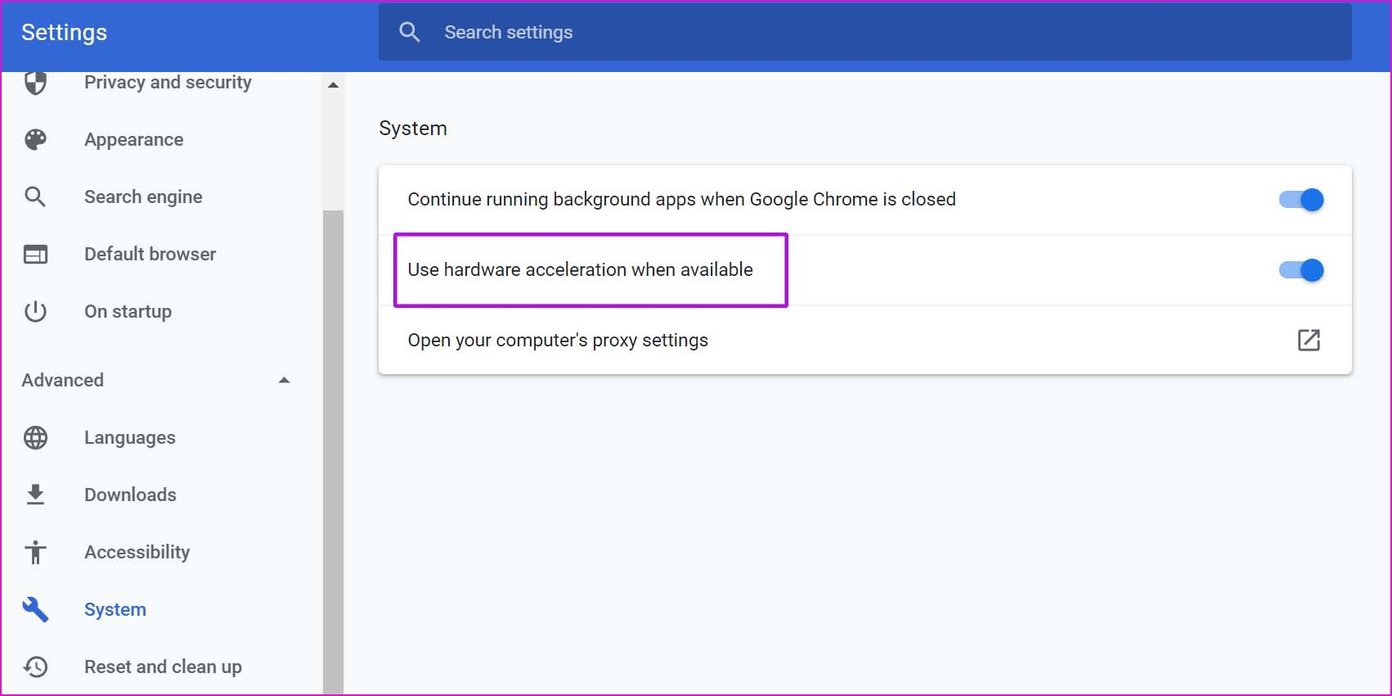
Step 4: Restart Google Chrome, and you won’t notice blurry font in the browser.
Fix 2: Use ClearType Text Tuner
Windows has a built-in ClearType text tuner tool to help users adjust the font style and appearance on a laptop or PC.
Step 1: Click the Magnifying lens in the taskbar, type cleartype, and click the ClearType option.

Step 2: Click the Next button > click on Next again in the subsequent Windows.

Step 3: Follow the on-screen commands to complete the survey. The OS will then adjust the font style throughout the system to make the text easier to read.
Fix 3: Update Font Settings From Google Chrome
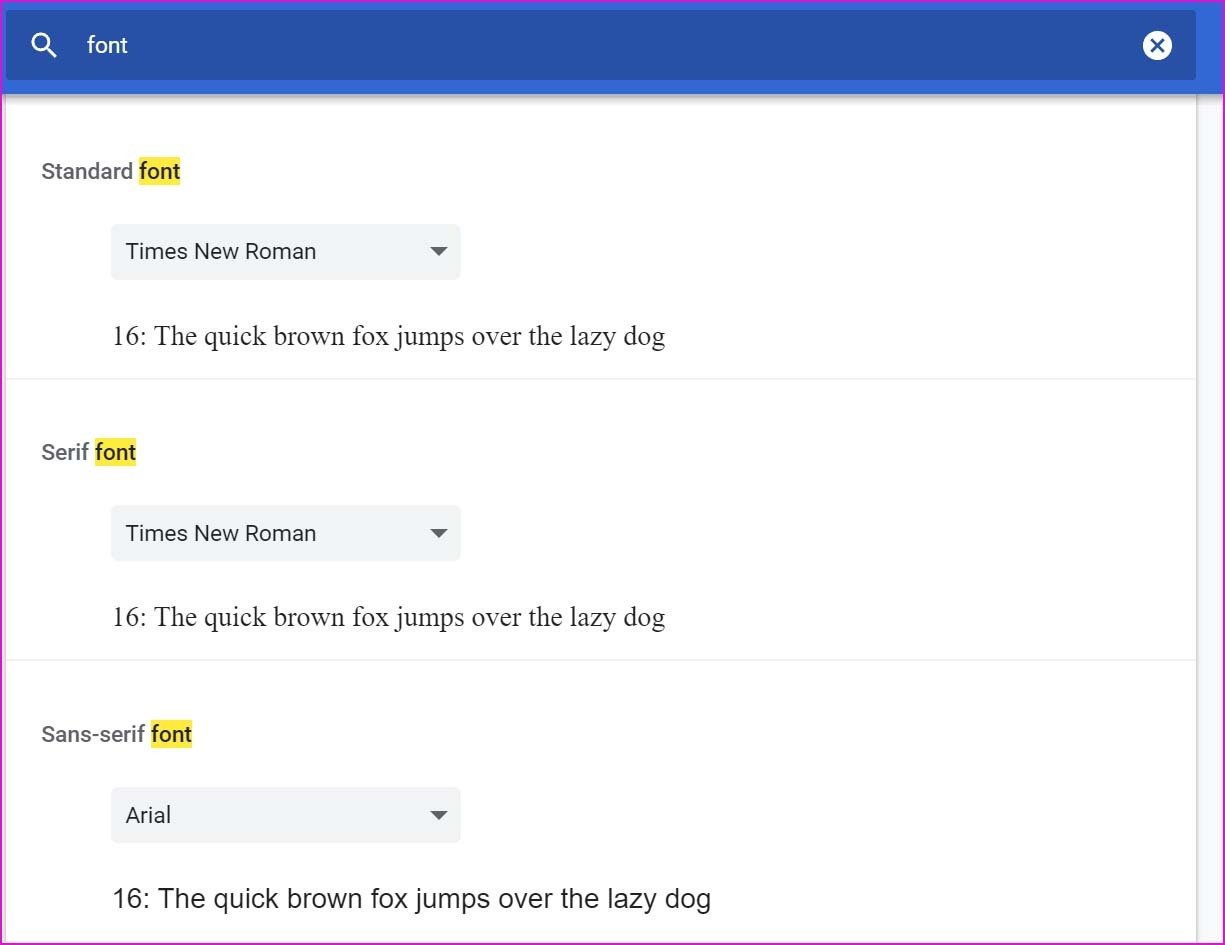
Google Chrome offers a default font customization menu from Settings. Here’s how to use and customize the font to your liking.
Step 1: Launch Google Chrome.
Step 2: Type the address below into the address bar and hit Enter.
chrome://settings/fonts
Step 3: From the same menu, check font size and select different font styles. Pick one that suits your eyes better and close the Settings menu.
Was this helpful?
Last updated on 28 May, 2024
3 Comments
Leave a Reply
Read Next
 A Complete Guide to Fixing Blurry Text in Windows 10
Microsoft’s Windows 10 operating system enjoys a comfortable lead over the rivals in the desktop OS market share.
A Complete Guide to Fixing Blurry Text in Windows 10
Microsoft’s Windows 10 operating system enjoys a comfortable lead over the rivals in the desktop OS market share.
 4 Ways to Fix Blurry Stories on Instagram
Stories on Instagram are a great way to share the moments that you cherish, with your friends and followers.
4 Ways to Fix Blurry Stories on Instagram
Stories on Instagram are a great way to share the moments that you cherish, with your friends and followers.
 Why Are My Instagram Reels Blurry and How to Fix It
Why Do My Instagram Reels Look Blurry?
Why Are My Instagram Reels Blurry and How to Fix It
Why Do My Instagram Reels Look Blurry?
 5 Ways to Fix Blurry iMessage Photos and Videos
Before you begin, ensure there's no problem with network connectivity on your iPhone, and restart your iPhone to fix temporary bugs.
5 Ways to Fix Blurry iMessage Photos and Videos
Before you begin, ensure there's no problem with network connectivity on your iPhone, and restart your iPhone to fix temporary bugs.
 5 Ways to Fix Blurry Screen Issue on Windows 11
Fix 1: Change Display Resolution and Scale One of the most common causes of a blurry Windows 11 screen is the incorrect display resolution or scale.
5 Ways to Fix Blurry Screen Issue on Windows 11
Fix 1: Change Display Resolution and Scale One of the most common causes of a blurry Windows 11 screen is the incorrect display resolution or scale.
 Why Do Photos Get Blurry on WhatsApp Status: 3 Ways to Fix This
https://youtu.be/k2MGRKNamFQ Basic Fixes Switch to the stable version of WhatsApp: While beta versions give you early access to new features and cool tricks, they may also introduce several bugs and
Why Do Photos Get Blurry on WhatsApp Status: 3 Ways to Fix This
https://youtu.be/k2MGRKNamFQ Basic Fixes Switch to the stable version of WhatsApp: While beta versions give you early access to new features and cool tricks, they may also introduce several bugs and
 3 Ways to Fix Blurry Camera on Android Phones
Basic Fixes: Check camera lens for damage: If your device's camera lens is damaged or has scratches, it can cause photos to appear blurry on your Android phone.
3 Ways to Fix Blurry Camera on Android Phones
Basic Fixes: Check camera lens for damage: If your device's camera lens is damaged or has scratches, it can cause photos to appear blurry on your Android phone.
 5 Ways to Fix Blurry Home or Lock Screen Wallpaper on iPhone
Fix 1: Check if the Wallpaper Resolution Fits Your iPhone's Screen If you have downloaded a wallpaper, check its resolution and ensure that it matches the screen resolution of your
5 Ways to Fix Blurry Home or Lock Screen Wallpaper on iPhone
Fix 1: Check if the Wallpaper Resolution Fits Your iPhone's Screen If you have downloaded a wallpaper, check its resolution and ensure that it matches the screen resolution of your
The article above may contain affiliate links which help support Guiding Tech. The content remains unbiased and authentic and will never affect our editorial integrity.

The only thing that ended up working for me was disabling hardware acceleration – my fonts were blurry in Chrome with it enabled!
Thanks, that’s the only thing that worked for me as well!
Number 6 is the one that is made the font in gmail somewhat better but it’s still not all the way clear.