

Fix 1: Disable Browser Extensions
Third-party extensions in Chrome can sometimes prevent Gmail from loading properly. When that happens, Gmail may take longer than expected to load emails or fail to do so entirely. To verify this, you can try disabling all the third-party extensions in Chrome and loading Gmail again.
To disable extensions in Chrome, type in chrome://extensions in the address bar at the top and press Enter. Then, use the toggles to disable all the extensions.

After disabling all the extensions, try loading Gmail. If it works, you can enable all the extensions one by one to isolate the culprit.
Fix 2: Reset Site Permissions for Gmail
Misconfigured site permissions can also prevent certain Gmail features from working correctly in Chrome. For instance, if you’ve disallowed notification permissions for Gmail, Chrome may fail to send alerts for new emails and messages. To avoid such issues, you can try resetting site permissions for Gmail.
Open Google Chrome and navigate to Gmail. Tap the padlock icon on the left of the address bar and click on Reset permissions from the resulting menu.

Fix 3: Enable JavaScript
If you’ve disabled JavaScript in Chrome, you may encounter errors while using Gmail, especially while signing in. To fix it, you can enable JavaScript in Chrome by following the steps below.
In Google Chrome, type chrome://settings/content/javascript in the URL bar and hit Enter. Then, select the Sites can use JavaScript option.

Further, ensure that Gmail isn’t added under the “Not allowed to use JavaScript” section. Then, try using Gmail again to see if it works fine.
Fix 4: Clear Browsing Data
Existing cache and cookies stored by Chrome can also prevent websites from loading correctly at times. Hence, it’s always a good idea to clear browsing data whenever you encounter any issues.
Step 1: Press Ctrl + Shift + Delete on your keyboard to open the Clear Browsing Data panel.
Step 2: Use the drop-down menu next to Time range to select All time. Tick the Cookies and other site data and Cached images and files checkboxes. Then, hit the Clear data button.

Fix 5: Reset Google Chrome
You should consider resetting Chrome to its default settings if everything else fails. Do note that this will remove all of your extensions, pinned tabs, and browsing data from Chrome.
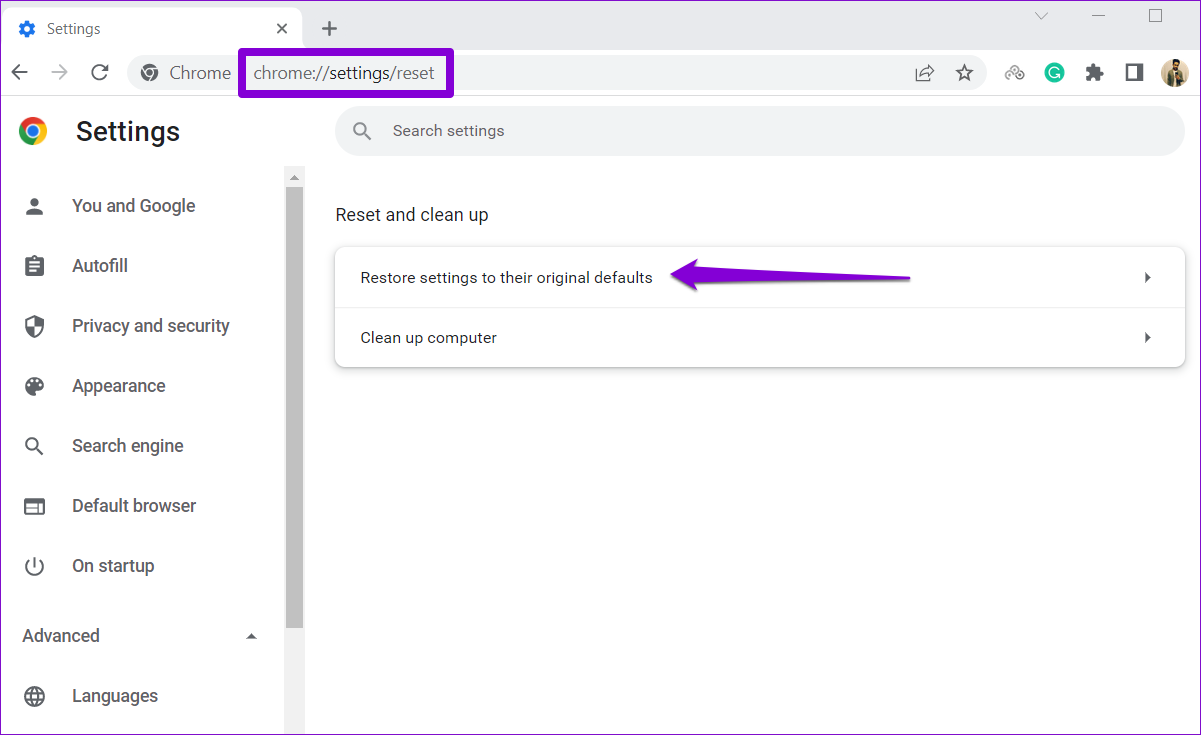
Step 1: Launch Chrome, type in chrome://settings/reset in the address bar up top, and press Enter. Then, click on Restore settings to their original defaults.
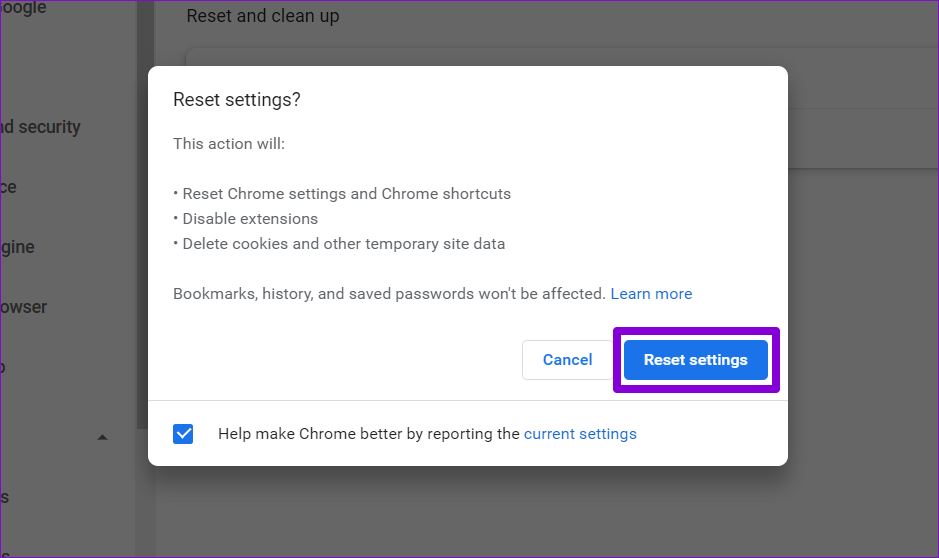
Step 2: On the confirmation pop-up box, choose Reset Settings to continue.
Was this helpful?
Last updated on 26 June, 2024
1 Comment
Leave a Reply
Read Next
 Top 7 Ways to Fix Gmail Notifications Not Working in Chrome on Windows 10
Notifications make things easy to tend to an update, especially the email app.
Top 7 Ways to Fix Gmail Notifications Not Working in Chrome on Windows 10
Notifications make things easy to tend to an update, especially the email app.
 6 Ways to Fix Keyboard Shortcuts Not Working in Gmail
Fix 1.
6 Ways to Fix Keyboard Shortcuts Not Working in Gmail
Fix 1.
 5 Ways to Fix Spell Check Not Working in Gmail
Fix 1: Make Sure Spell Check Is Enabled This may seem obvious, but it's worth double-checking that you haven't accidentally turned off the spell check feature in Gmail.
5 Ways to Fix Spell Check Not Working in Gmail
Fix 1: Make Sure Spell Check Is Enabled This may seem obvious, but it's worth double-checking that you haven't accidentally turned off the spell check feature in Gmail.
 4 Ways to Fix Gmail Not Working in Safari for Mac and iPad
Basic Fixes Check date and time: There can be a delay in receiving emails in Gmail if the date and time are inaccurate on your Mac or iPad.
4 Ways to Fix Gmail Not Working in Safari for Mac and iPad
Basic Fixes Check date and time: There can be a delay in receiving emails in Gmail if the date and time are inaccurate on your Mac or iPad.
 5 Best Ways to Fix Google Chrome Translate Not Working
https://youtu.be/OYo1Caq10A0 Preliminary Fixes Disable Extensions: Sometimes, browser extensions can interfere with the functionality of Google Chrome, including the translation feature.
5 Best Ways to Fix Google Chrome Translate Not Working
https://youtu.be/OYo1Caq10A0 Preliminary Fixes Disable Extensions: Sometimes, browser extensions can interfere with the functionality of Google Chrome, including the translation feature.
 3 Ways to Fix Google Chrome Not Working With VPN
Basic Fixes Use another VPN server: Most VPN apps have hundreds of servers.
3 Ways to Fix Google Chrome Not Working With VPN
Basic Fixes Use another VPN server: Most VPN apps have hundreds of servers.
 Top 6 Ways to Fix Gmail Notifications Not Working on iPhone
Gmail is so popular that even iPhone users prefer it.
Top 6 Ways to Fix Gmail Notifications Not Working on iPhone
Gmail is so popular that even iPhone users prefer it.
 4 Ways to Fix Gmail Not Working on iPhone
Try Basic Fixes Restart your iPhone: It's a good idea to restart your iPhone first.
4 Ways to Fix Gmail Not Working on iPhone
Try Basic Fixes Restart your iPhone: It's a good idea to restart your iPhone first.
The article above may contain affiliate links which help support Guiding Tech. The content remains unbiased and authentic and will never affect our editorial integrity.

None of these things worked. 🙁 I am sooo discouraged, I’ve been trying to get my email for my business for six hours.e.