- Close the Discord app on your PC: If you have Discord open on your computer, notifications may appear there first instead of on your phone. This can give the false impression that the Discord app on your Android or iPhone is not sending notifications. To avoid this, close the Discord app or browser tab on your PC and see if that helps.
- Turn off DND or Focus mode: When you enable Do Not Disturb mode, your Android or iPhone turns off notifications from apps, including Discord. Hence, it’s best to turn it off.
- Update the Discord app: Running an outdated version of the Discord app can also cause such issues. Therefore, update the Discord app by heading over to the Play Store or App Store.
Fix 1: Check Discord Notification Settings
Another thing you should do is verify Discord’s in-app settings to ensure notifications aren’t turned off from there. Here’s how to check.
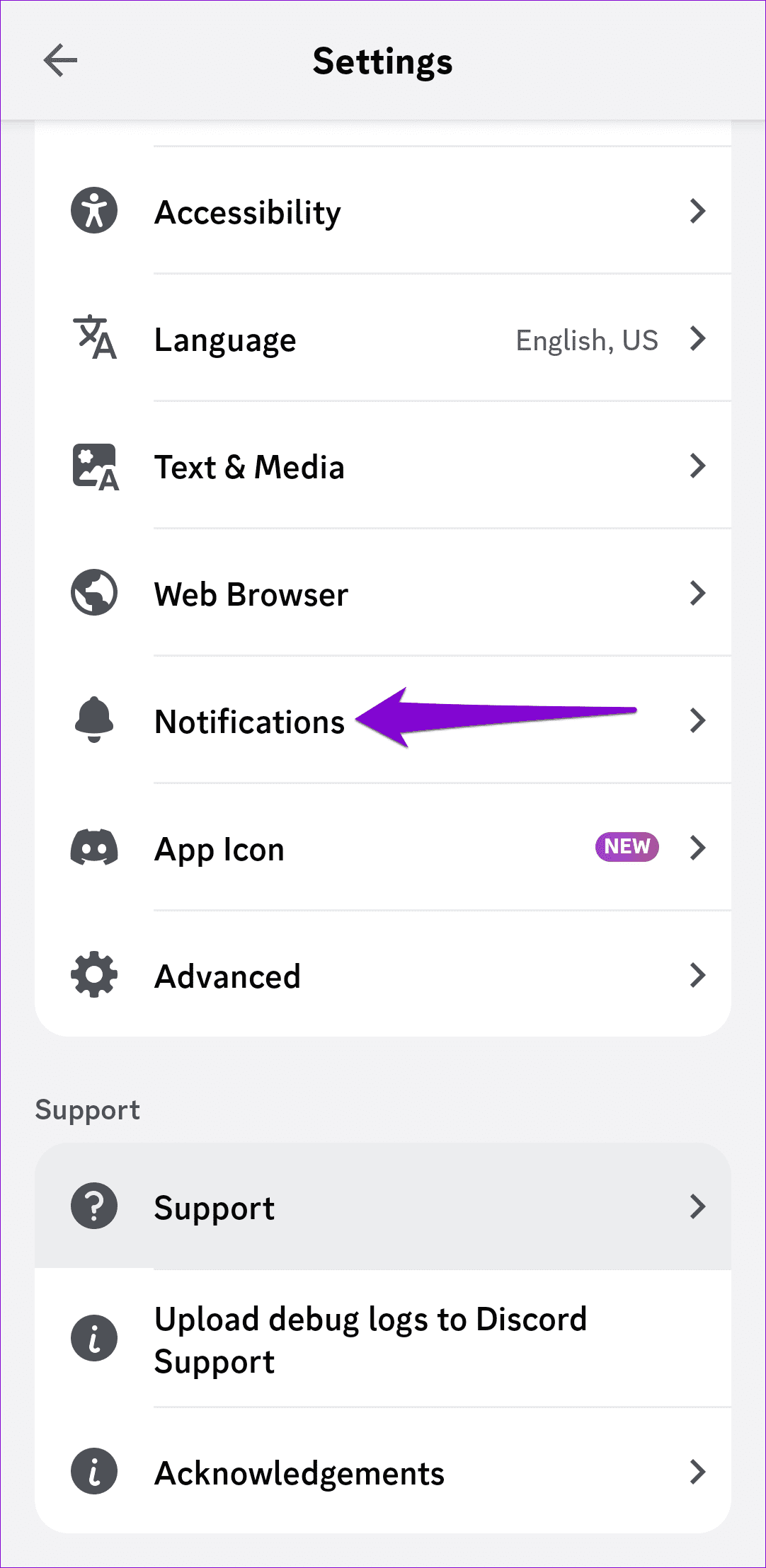
Step 1: Open the Discord app, switch to the profile tab, and tap the gear icon in the top right corner.
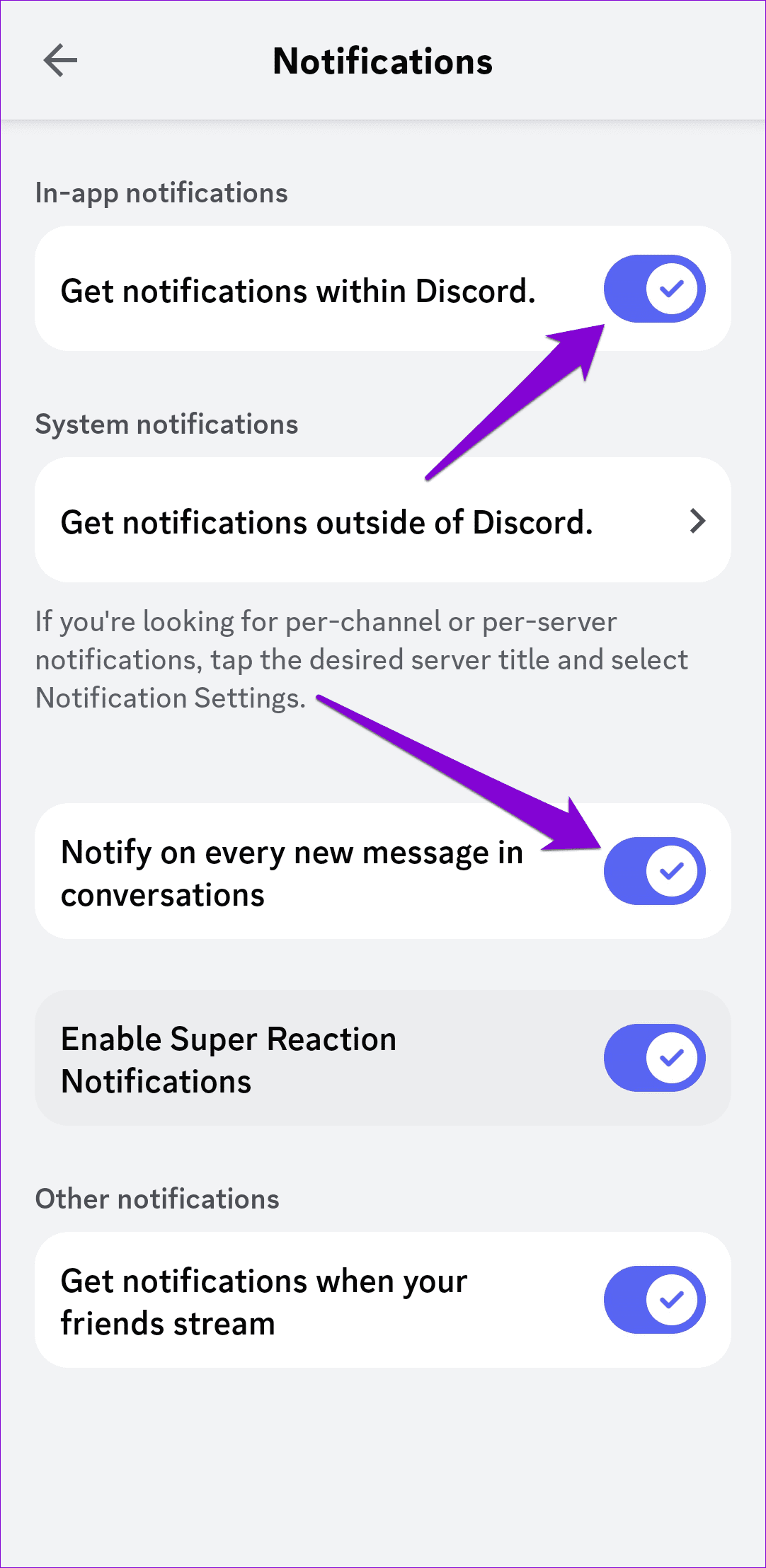
Step 2: Scroll down to tap on Notifications and enable all the toggles in the following menu.

Fix 2: Enable Notification Permission for Discord
Next, check the notification settings on your phone to ensure Discord has the necessary permissions to display notifications. Here’s how to go about it.
On Android
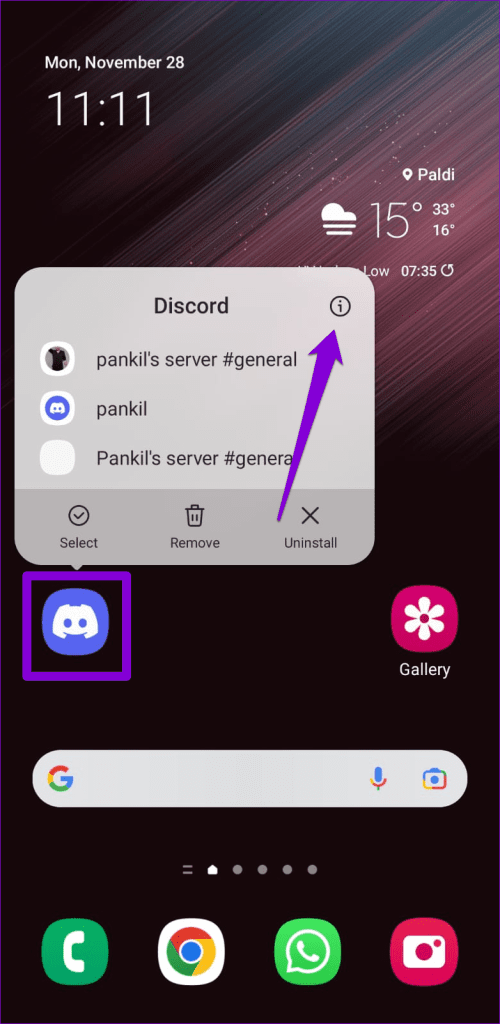
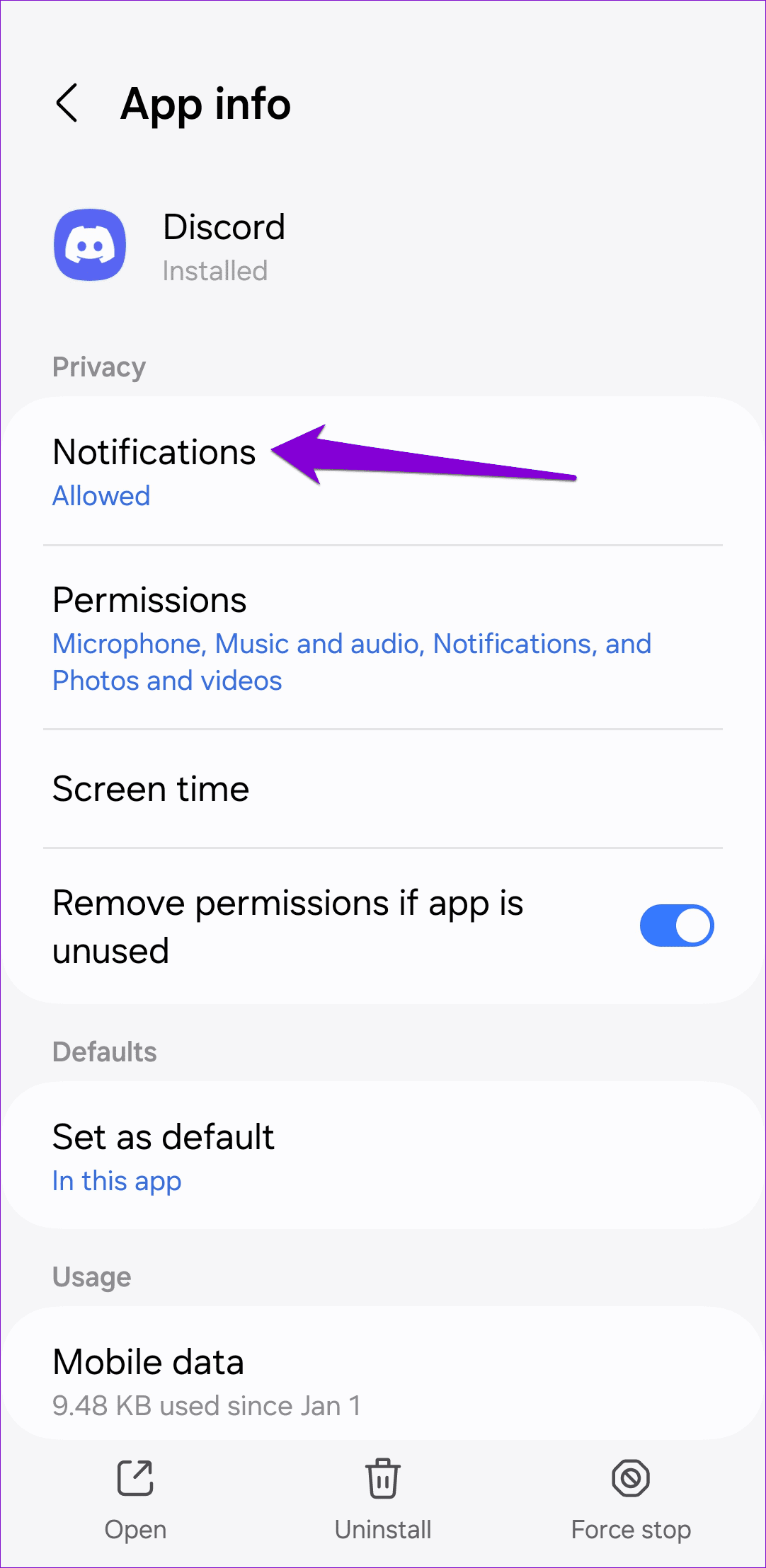
Step 1: Long-press the Discord app icon and tap the info icon from the menu.
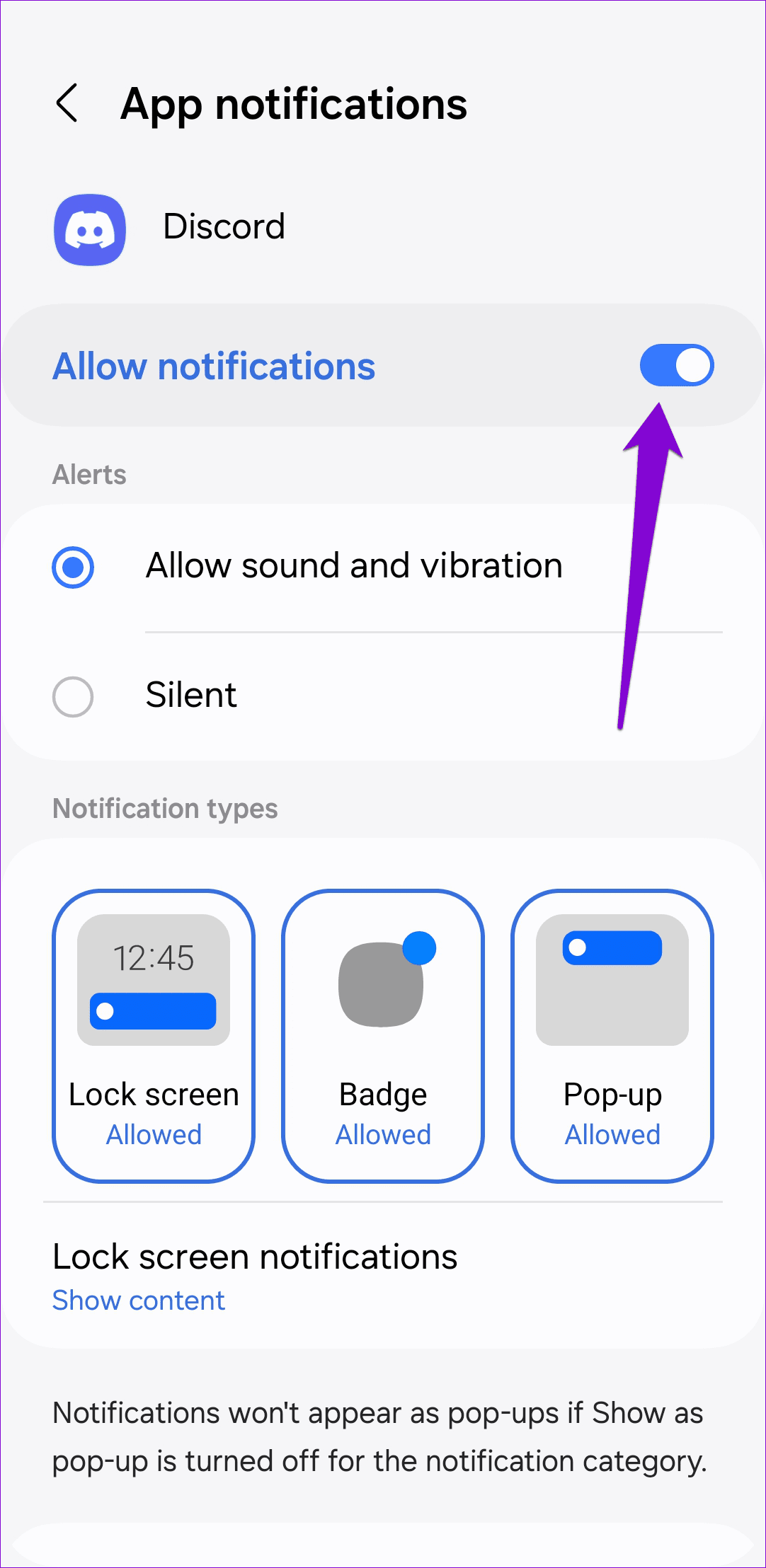
Step 2: On the app info page, go to Notifications > enable the Allow notifications option.
On iPhone
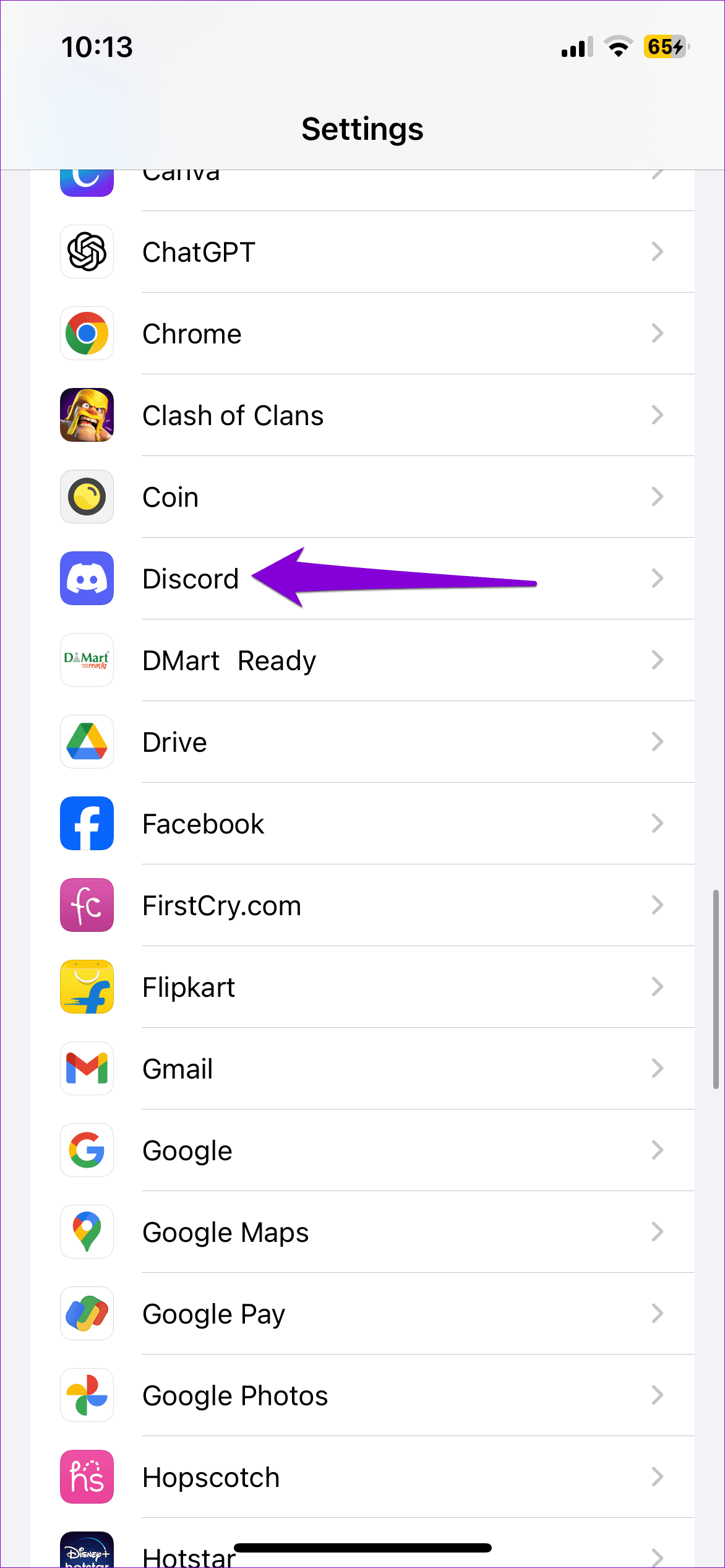
Step 1: Launch the Settings app > scroll down to tap on Discord.
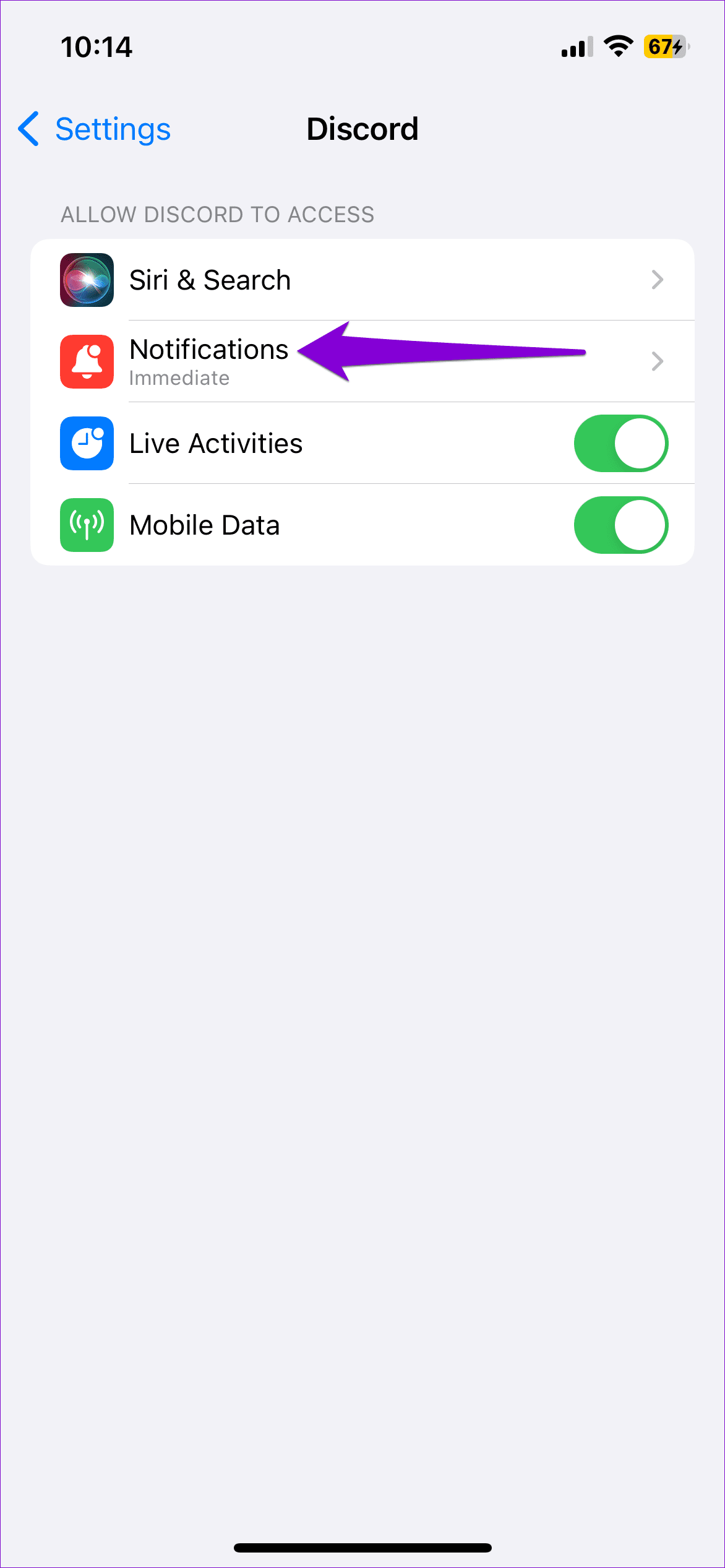
Step 2: Go to Notifications > toggle on Allow Notifications. Ensure that the checkboxes for the Lock Screen, Notification Center, and Banners are enabled.

Fix 3: Check Server Notifications Settings
If the Discord app is not showing notifications only for a specific server, you may have accidentally muted it. Here’s how to unmute it.
Step 1: Launch the Discord app on your Android or iPhone.
Step 2: Select the server you’re having issues with. Tap the three-dot menu icon at the top and select Notifications.
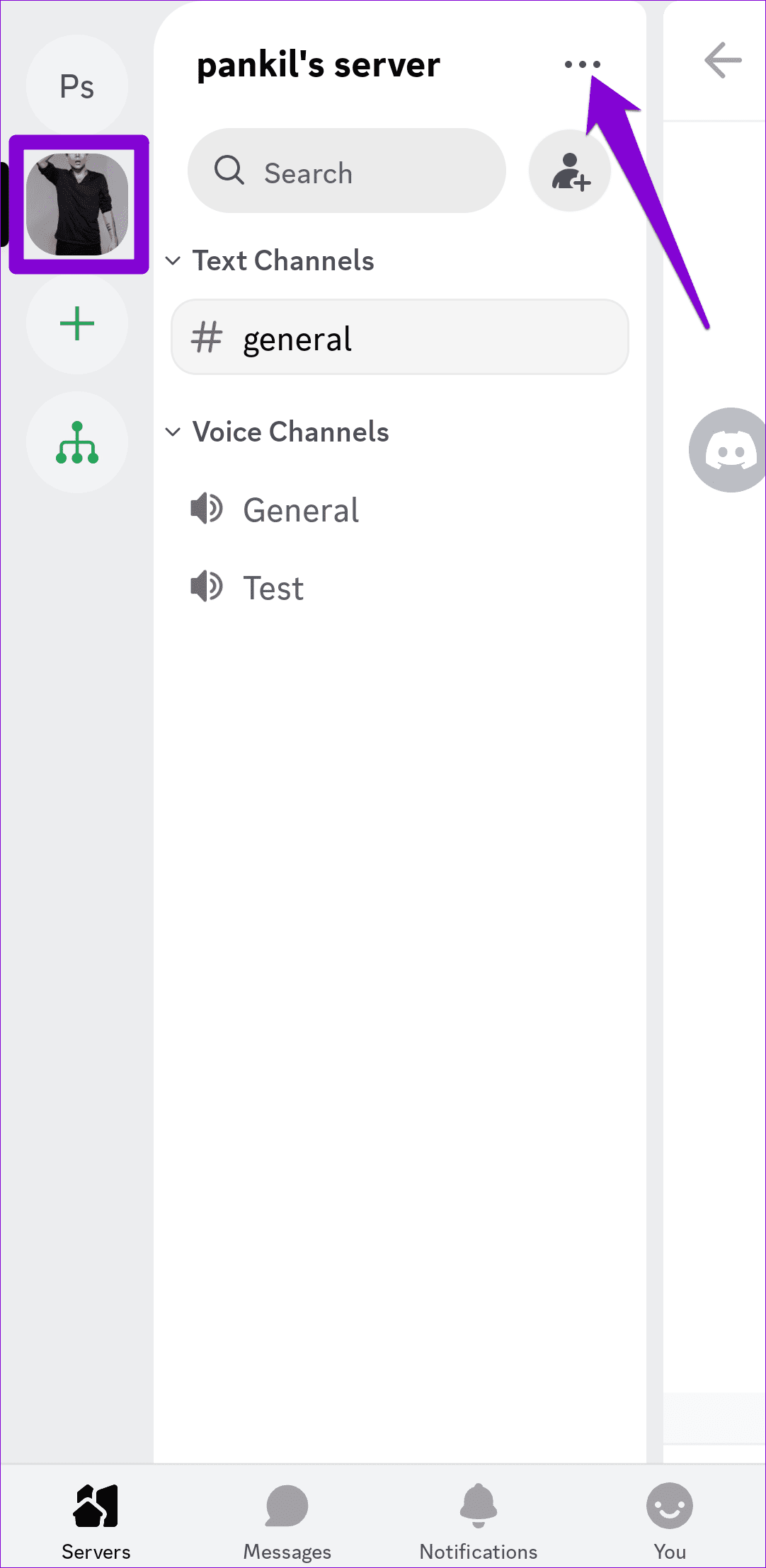

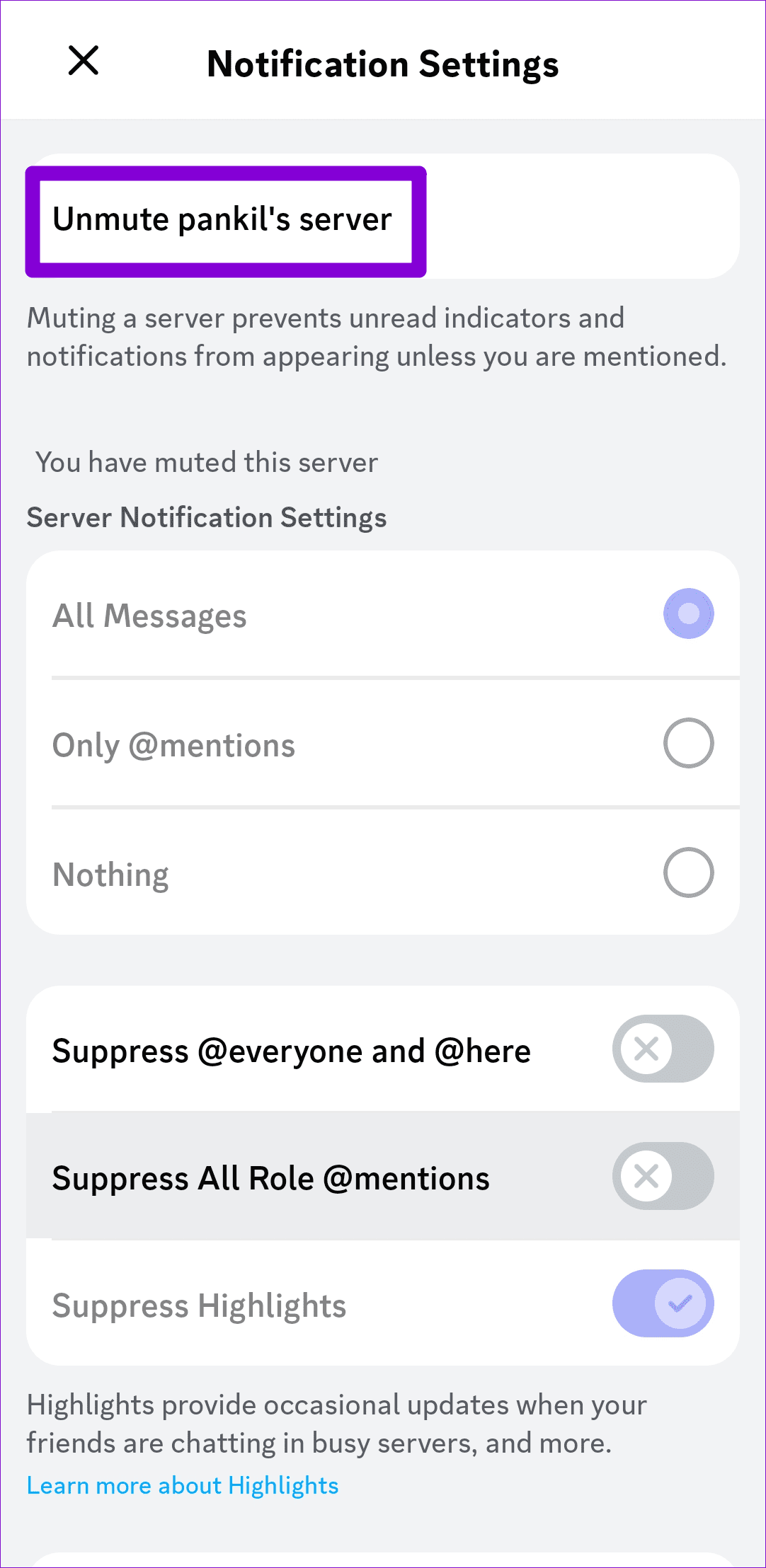
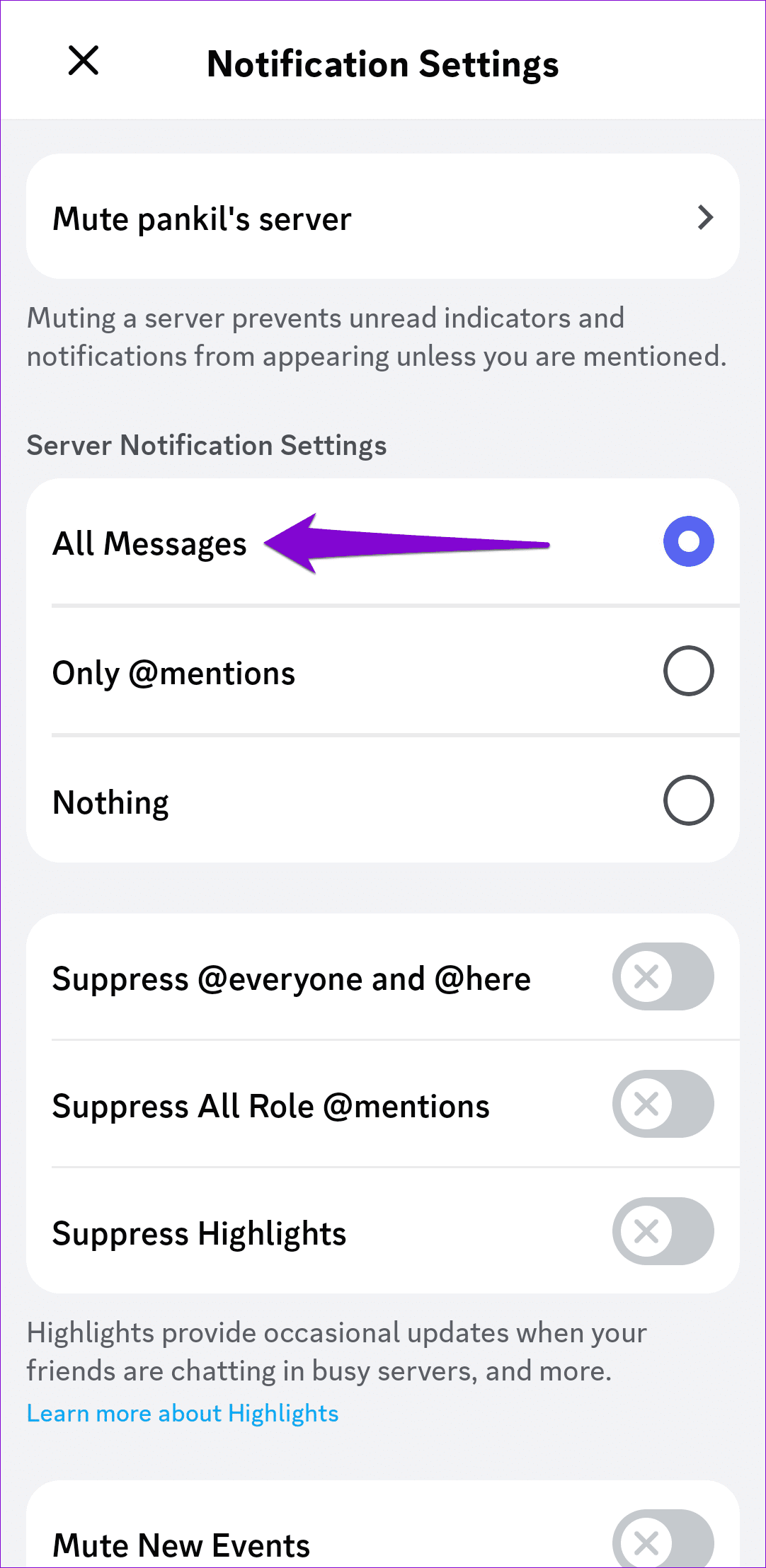
Step 3: Tap the unmute option at the top and select All Messages.
Fix 4: Unmute Your DMs
Is the Discord app not sending notifications for your DMs? If so, you may need to unmute them. To do so, open the Discord app and switch to the Messages tab. Your muted conversations should appear grayed out. Long-press on a chat and select Unmute Conversation to start receiving notifications.

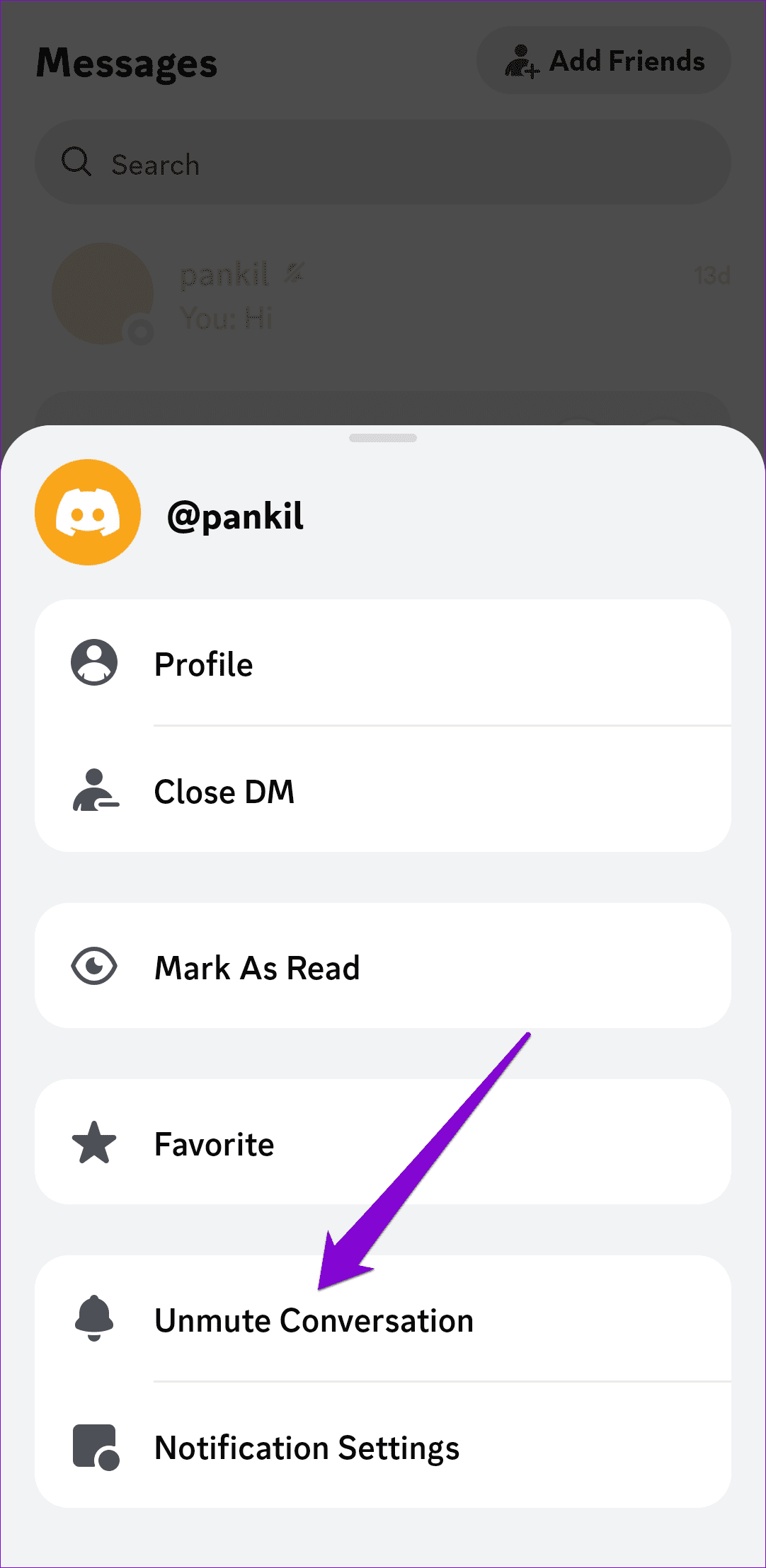
Repeat this to unmute all the conversations and check if the issue is still there.
Fix 5: Enable Mobile Data for Discord (iPhone)
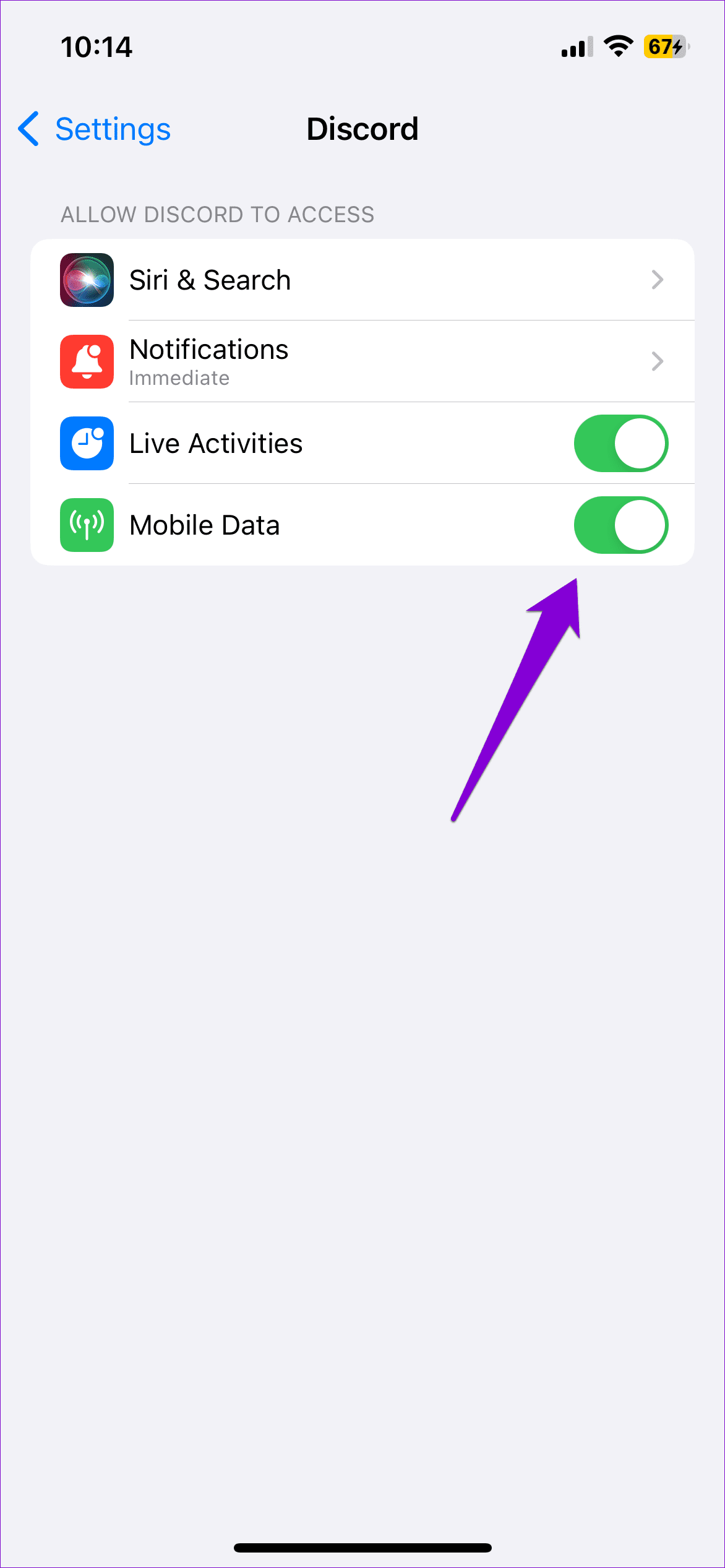
On iOS, you can enable or disable mobile data permission for each app individually. If you have inadvertently disallowed mobile data access for the Discord app, notifications will not work when you’re not using Wi-Fi. To avoid this, enable mobile data permission for Discord using these steps:
Step 1: Open the Settings app on your iPhone.
Step 2: Scroll down to tap on Discord and enable the toggle for Mobile Data.
Fix 6: Allow Discord to Run in the Background (Android)
Another reason you may not receive Discord notifications on your phone is that the app isn’t allowed to work in the background. Here’s how to change that.
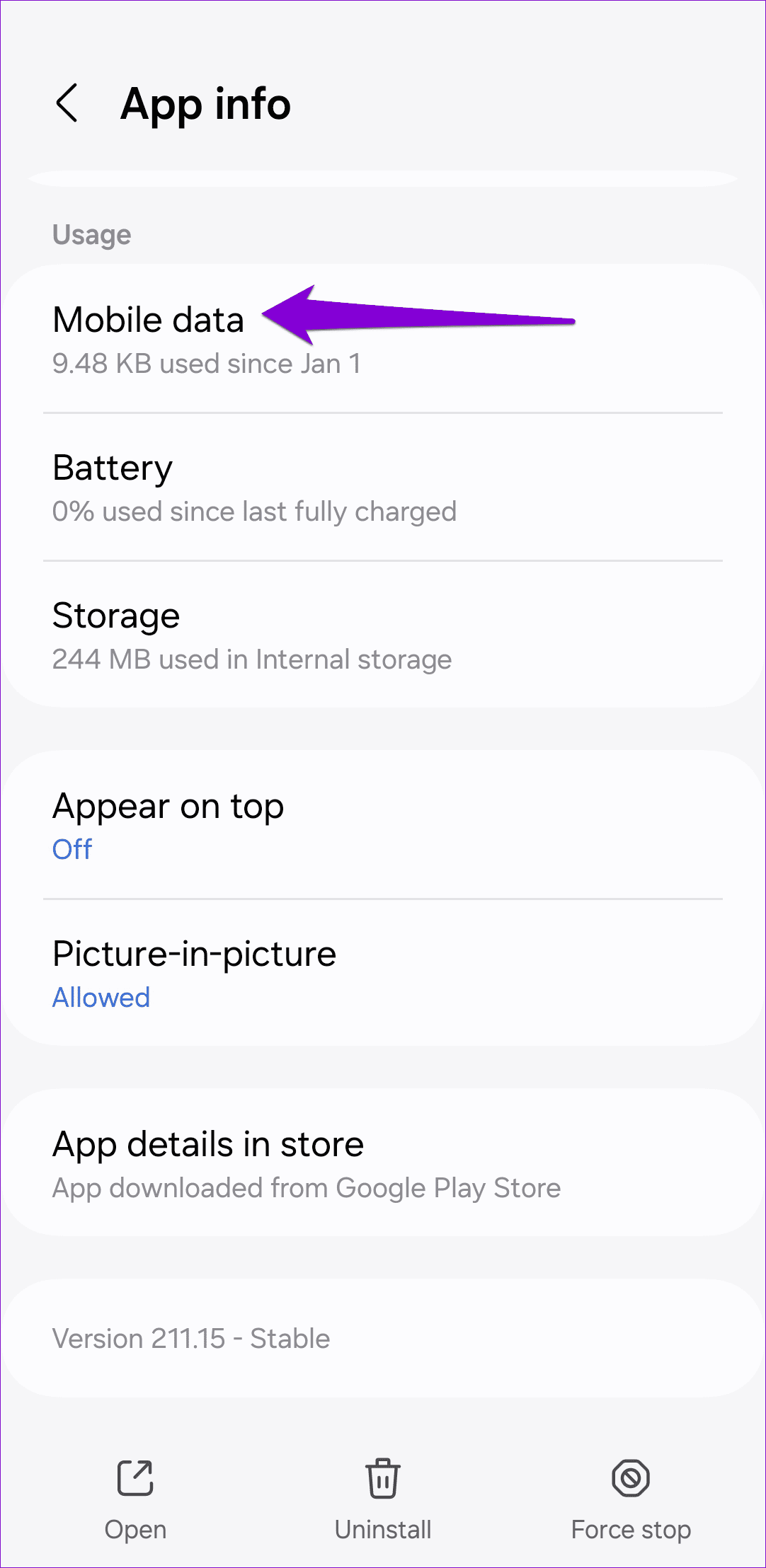
Step 1: Long-press the Discord app icon and tap the info icon from the resulting menu.
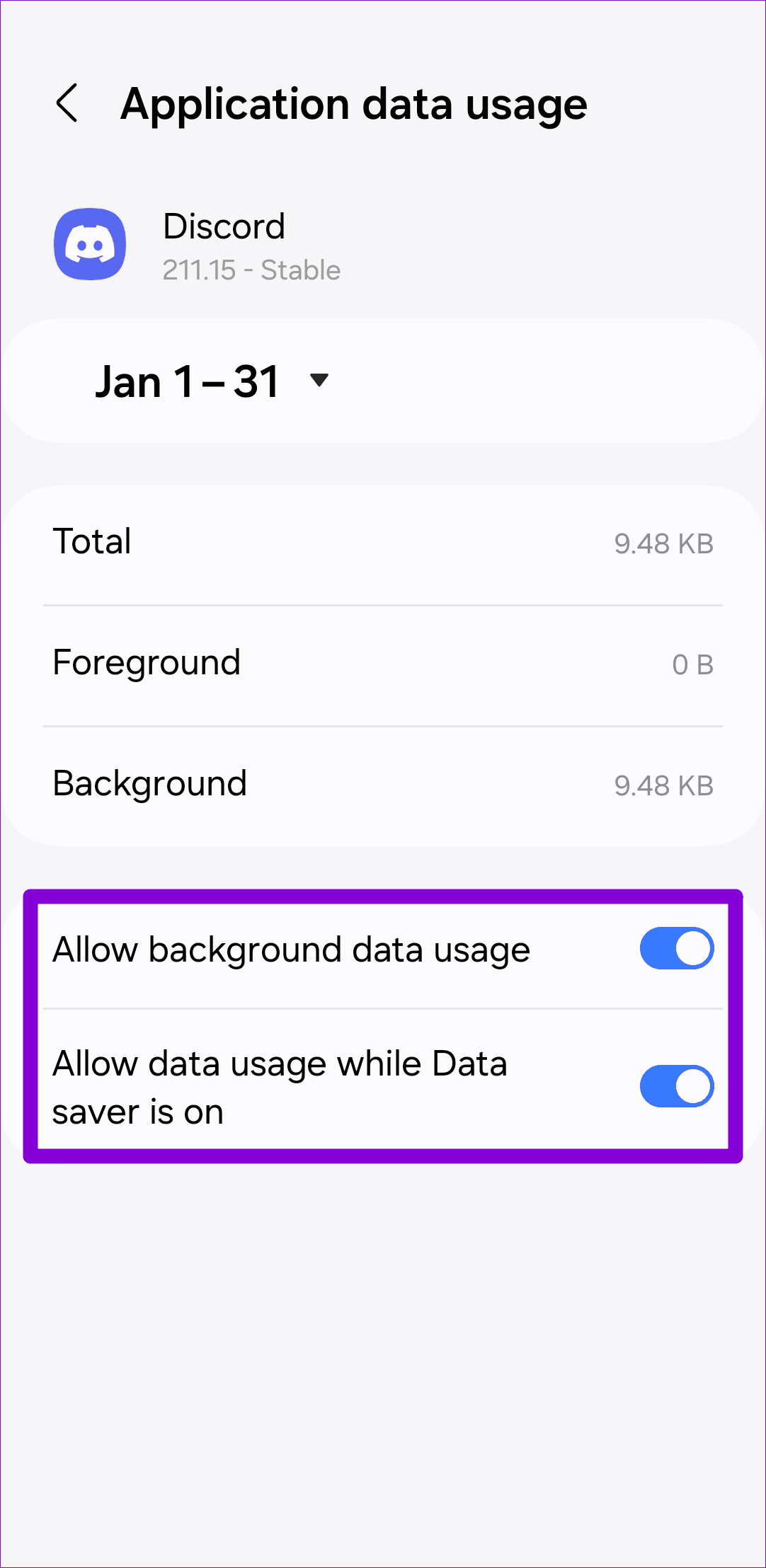
Step 2: Go to Mobile data and enable the toggles next to Allow background data usage and Allow data usage while Data saver is on.
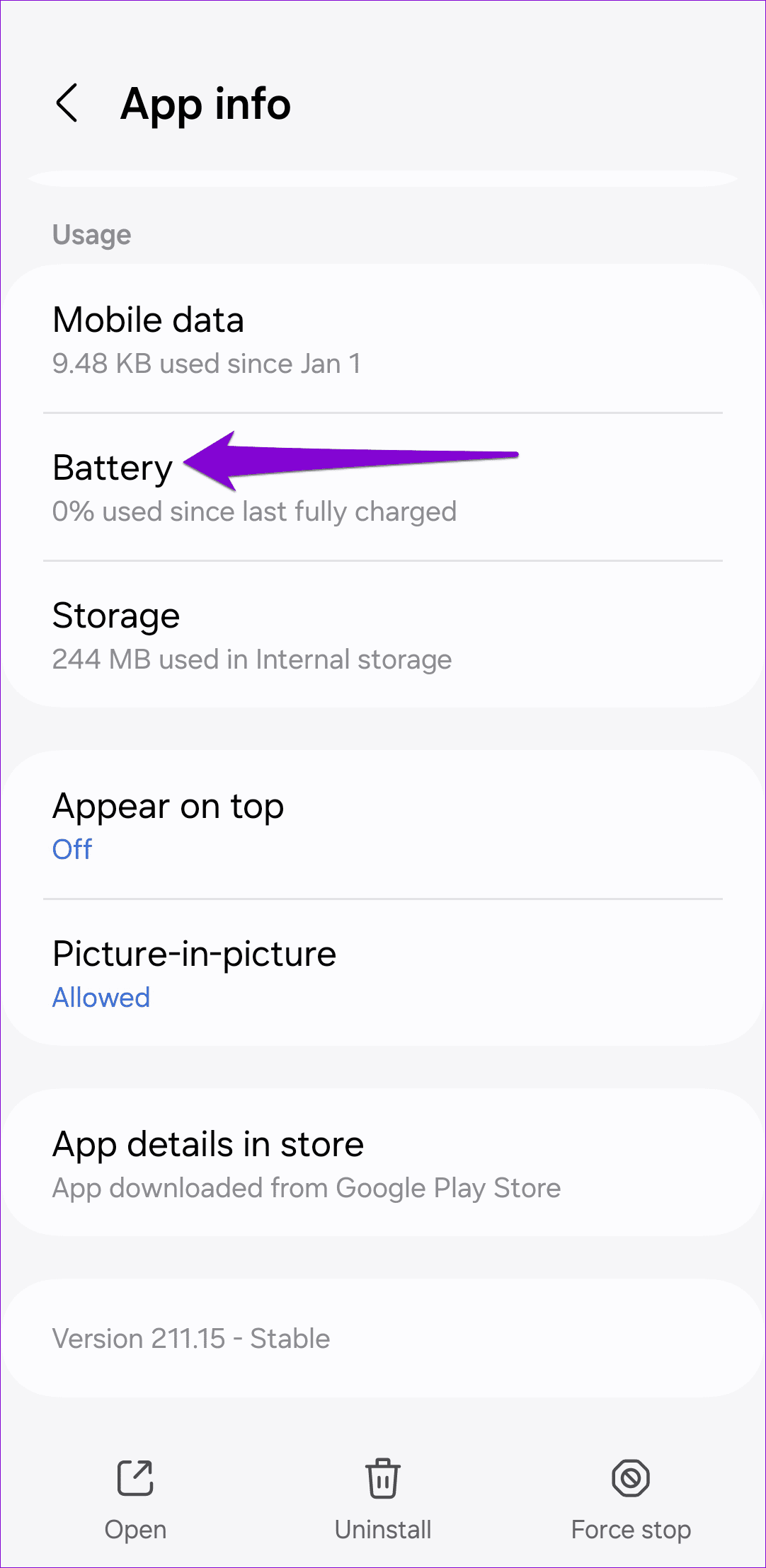
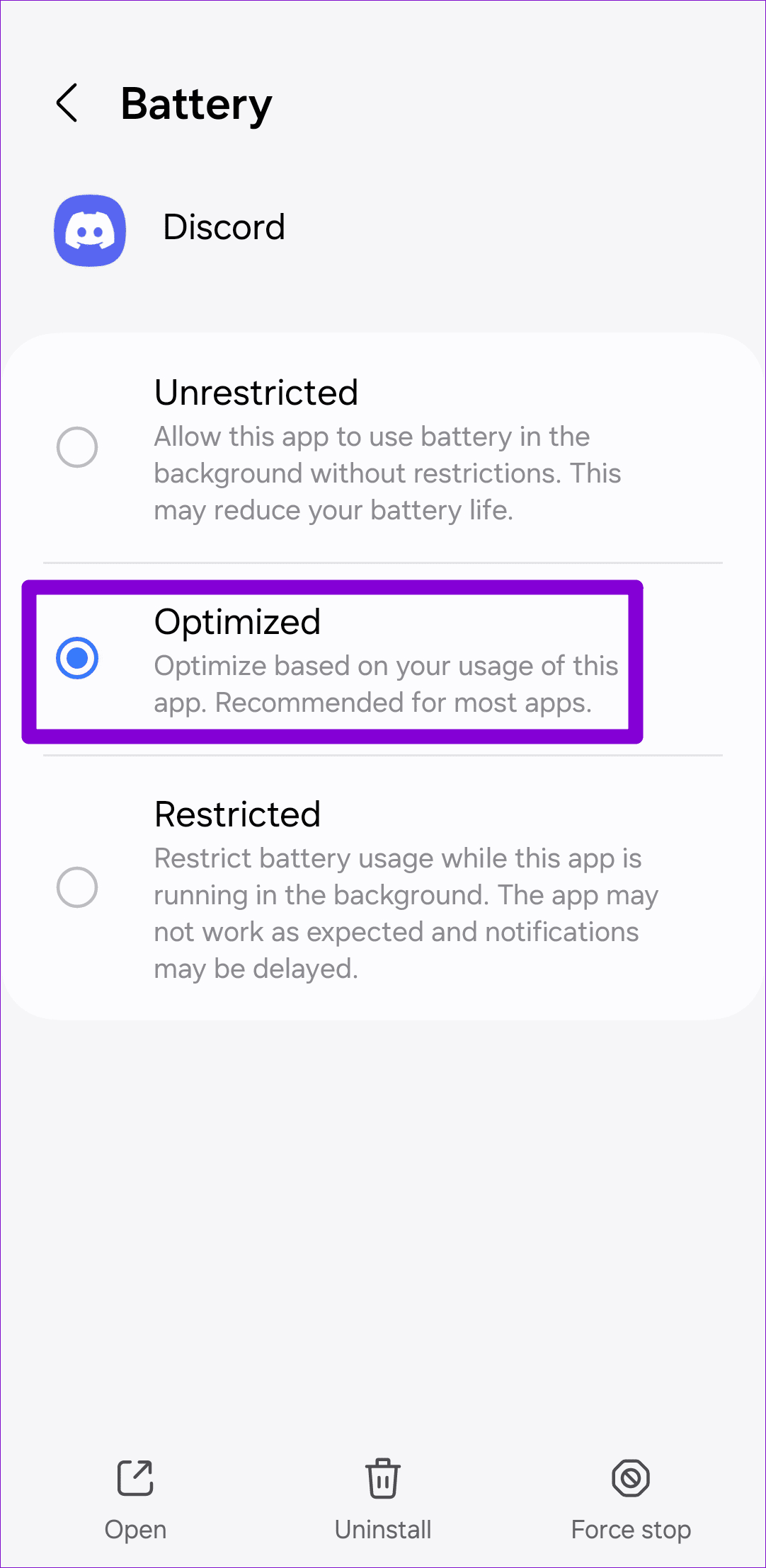
Step 3: Return to the app info page and tap on Battery. Then, select Optimized or Unrestricted from the following menu.
Was this helpful?
Last updated on 14 August, 2024
Read Next
 5 Ways to Fix Discord Mic Not Working on Android and iPhone
https://youtu.be/24cdhNs1yIU Try Basic Fixes Disconnect any Bluetooth devices: Make sure your phone isn't connected to any Bluetooth devices.
5 Ways to Fix Discord Mic Not Working on Android and iPhone
https://youtu.be/24cdhNs1yIU Try Basic Fixes Disconnect any Bluetooth devices: Make sure your phone isn't connected to any Bluetooth devices.
 4 Ways to Fix TikTok Notifications Not Working on iPhone and Android
Preliminary Fixes Disable Do Not Disturb: If your phone is on DND, you don’t receive notifications from TikTok and other apps.
4 Ways to Fix TikTok Notifications Not Working on iPhone and Android
Preliminary Fixes Disable Do Not Disturb: If your phone is on DND, you don’t receive notifications from TikTok and other apps.
 How to Play Discord Games Using Discord Activities
What Are Discord Games?
How to Play Discord Games Using Discord Activities
What Are Discord Games?
 4 Ways to Fix Snapchat Notifications Not Working on Android
Try These Fixes First Restart your phone: The first thing to do is restart your phone.
4 Ways to Fix Snapchat Notifications Not Working on Android
Try These Fixes First Restart your phone: The first thing to do is restart your phone.
 4 Ways to Fix Discord Connection Issues on Android and iPhone
Try These Basic Fixes Check if Discord is down: If its server is having problems, Discord may encounter connection issues.
4 Ways to Fix Discord Connection Issues on Android and iPhone
Try These Basic Fixes Check if Discord is down: If its server is having problems, Discord may encounter connection issues.
 4 Fixes for Discord App Not Working on Android and iPhone
Try Basic Fixes Force close and reopen the app: Discord may sometimes encounter issues while opening or running on your phone, causing it to malfunction.
4 Fixes for Discord App Not Working on Android and iPhone
Try Basic Fixes Force close and reopen the app: Discord may sometimes encounter issues while opening or running on your phone, causing it to malfunction.
 4 Ways to Fix Screen Share Not Working on Discord
Try Basic Fixes Switch to windowed mode: It's important to know that Discord only supports screen sharing for apps and games that are windowed.
4 Ways to Fix Screen Share Not Working on Discord
Try Basic Fixes Switch to windowed mode: It's important to know that Discord only supports screen sharing for apps and games that are windowed.
 2 Ways to Fix Discord Not Working on Wi-Fi
Basic Fixes: Restart the Router and Try Again: Try power cycling the router by turning it off, unplugging it, waiting a few minutes, plugging it back in, and attempting to
2 Ways to Fix Discord Not Working on Wi-Fi
Basic Fixes: Restart the Router and Try Again: Try power cycling the router by turning it off, unplugging it, waiting a few minutes, plugging it back in, and attempting to
The article above may contain affiliate links which help support Guiding Tech. The content remains unbiased and authentic and will never affect our editorial integrity.