Basic Troubleshooting
- Check your notification settings: Ensure that Messenger notifications are enabled in your device settings. Go to Settings → app (messenger) → allow notifications.
- Is your internet connection stable?: Delayed notifications can be caused by a slow or unstable network. Check the connection speed and stability and remedy it accordingly.
- Update or reinstall Messenger: An outdated version of Messenger can cause issues with bugs and delayed notifications. For smoother operation, it’s wise to update or reinstall Facebook Messenger.
Fix 1. Enable Background Access For Facebook Messenger
On iPhone
Step 1: Open the Settings app > scroll to Messenger.
Step 2: Enable the Background App Refresh toggle from the menu.


On Android
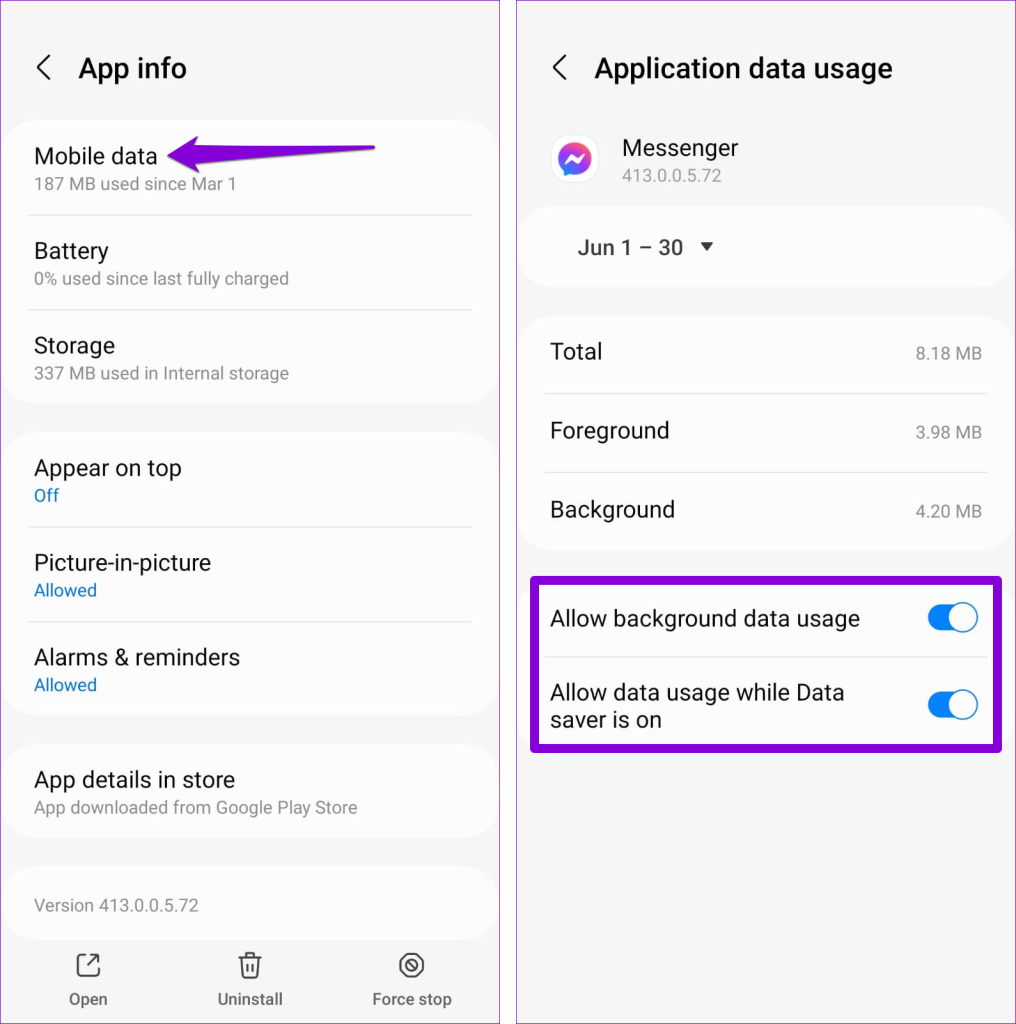
Step 1: Long-press the Messenger app icon > tap the info icon from the pop-up menu.
Step 2: Here, go to Mobile data > enable the toggles for Allow background data usage and Allow data usage while Data saver is on.
Fix 2. Remove Messenger From Notifications Summary (iPhone)
Our devices incorporate multiple features to help us manage notifications like Notification Summary, DND, Modes and Routines, Focus modes, etc. However, these could also be the culprit behind delayed notifications in Facebook Messenger.
So, firstly, check these settings and disable them or excuse Messenger from them. When you add Messenger to the Notifications Summary, you won’t receive instant notifications from the app. Instead, you will only get alerts during the set time.
Follow the steps below to remove Messenger from the Scheduled Summary.
Step 1: Open Settings on your iPhone > scroll to Notifications.
Step 2: Tap Scheduled Summary.
Step 3: Here, scroll down and toggle off Messenger from the app list.


You can skip the step if the scheduled summary isn’t enabled on your iPhone.
Fix 3. Disable Messenger’s DND Mode
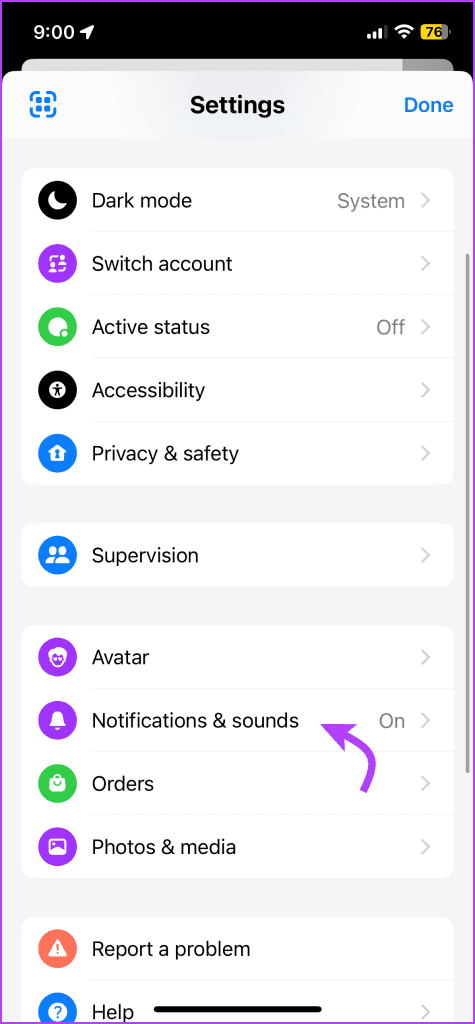
Facebook Messenger offers a built-in DND mode that’ll stop all notifications from disturbing you. Check if the setting is enabled and toggle it off.
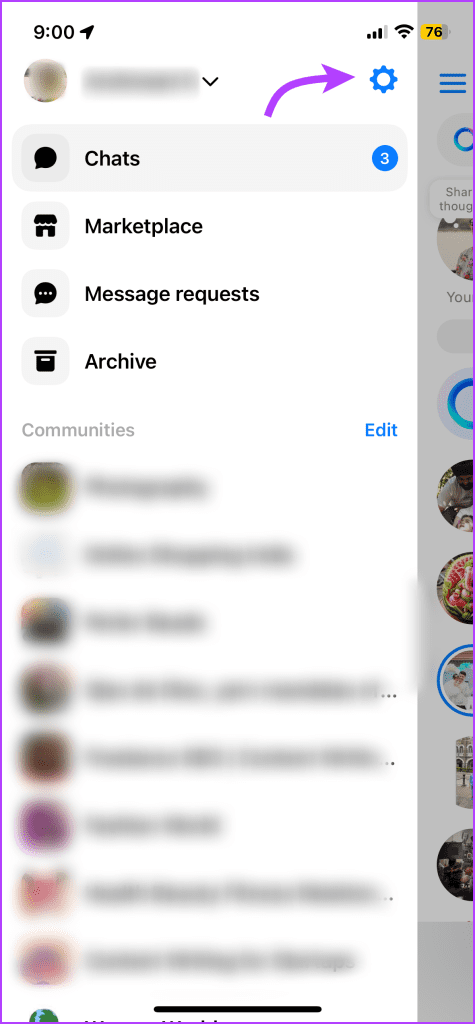
Step 1: Launch the Messenger app > tap the three-horizontal line (menu icon) > gear icon.
Step 2: Select Notifications & sounds > toggle off DND if enabled.

Fix 4. Disable Message Reminder in Messenger Settings
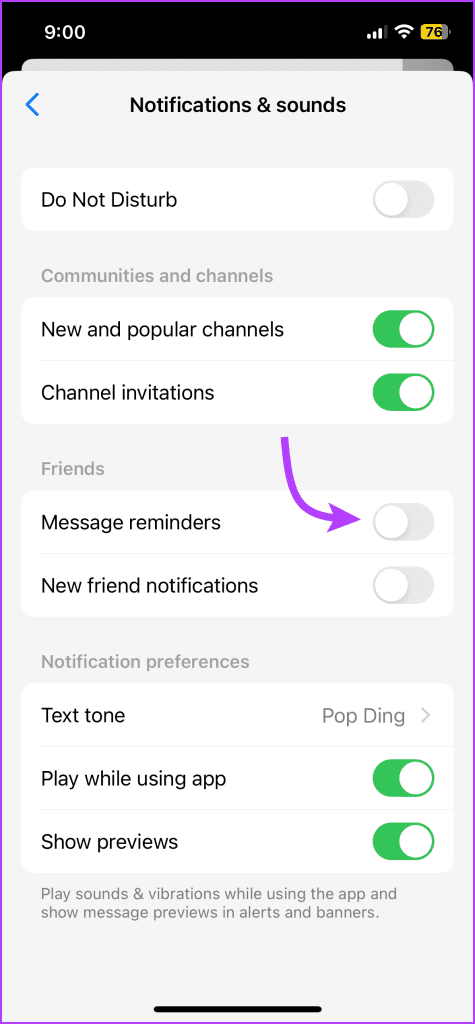
Another Messenger setting that could delay notifications is Message Reminder. While it is designed to remind you about missed messages, the feature can also double as DND.
If you run a page, it can be used to set up call hours. Any notifications outside of these hours are muted or delayed. So, try turning the feature off and see if your notifications return to normal.
Step 1: Go to Messenger → three-horizontal line → gear icon.
Step 2: Tap Notifications & sound > toggle off Message reminders.
Fix 5. Disable Battery Optimization (Android)
The One UI Android skin on Samsung phones comes with a battery optimization trick that tunes the app’s performance based on usage. For example, if you haven’t used Messenger for a long time, battery optimization will kick in, and you might receive delayed notifications from the app.
You must give Messenger unrestricted access to let it function normally.
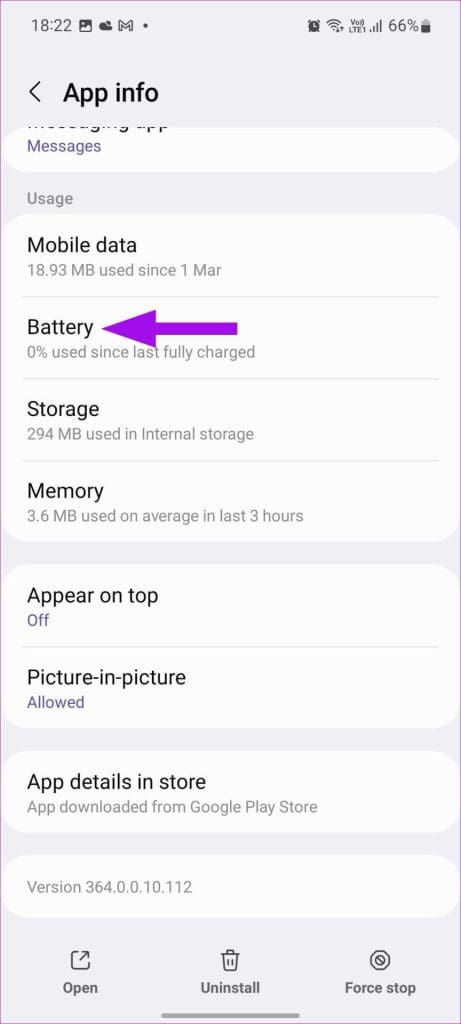
Step 1: Long-press the Messenger app icon. Tap the app info menu.
Step 2: Tap Battery.
Step 3: Select the radio button beside Unrestricted. The Messenger will run in the background without issues.

Fix 6. Disable Messenger’s Data Saver Mode (Android)
The Facebook Messenger Android app also has a built-in data saver mode to compress images and videos to save internet data. It may interfere with receiving messages as well.
Note: The feature is only available for the Messenger app on Android. So, this step is only for Android users.
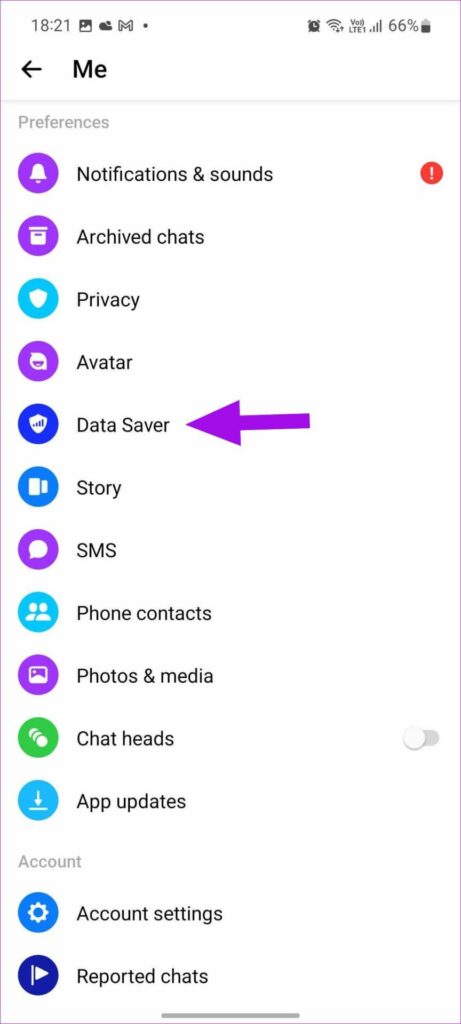
Step 1: Open the Facebook Messenger app on Android.
Step 2: Tap the profile picture at the top. Next, select the gear icon to reveal options.
Step 3: Open the Data Saver menu and disable it.

Fix 7. Turn off Your Phone’s Data Saver Mode
Now that you know how to disable data saver mode in Messenger, disable the system-wide data saver mode on iPhone and Android.
On iPhone
Step 1: Launch the Settings app > go to the Mobile/Cellular Data menu > select your primary SIM card.
Step 2: Disable the Low Data Mode toggle.


On Android
Step 1: Open Settings > tap Connections or Mobile Data (the menu option may carry a different label on your Android).
Step 2: Select Data usage > disable the Data saver from the following menu.


Messenger not sending notifications on time defeats the purpose of using such IM (instant messaging) apps in the first place. Hopefully, these tricks helped you resolve the issue.
Was this helpful?
Last updated on 31 July, 2024
Read Next
 6 Ways to Fix Delayed Instagram Notifications
Basic Fixes: Check Instagram status: When Instagram servers face an outage, you face delays in receiving real-time notifications.
6 Ways to Fix Delayed Instagram Notifications
Basic Fixes: Check Instagram status: When Instagram servers face an outage, you face delays in receiving real-time notifications.
 6 Ways to Fix Delayed WhatsApp Notifications on iPhone
Fix 1: Disable Low Data Mode While using a metered network connection or a mobile hotspot, your iPhone will automatically enable Low Data Mode.
6 Ways to Fix Delayed WhatsApp Notifications on iPhone
Fix 1: Disable Low Data Mode While using a metered network connection or a mobile hotspot, your iPhone will automatically enable Low Data Mode.
 4 Ways to Fix Delayed Notifications on iPhone
Common Fixes Disable Focus Mode: An active Focus mode suppresses real-time notifications to save you from distractions.
4 Ways to Fix Delayed Notifications on iPhone
Common Fixes Disable Focus Mode: An active Focus mode suppresses real-time notifications to save you from distractions.
 5 Ways to Fix Delayed Notifications on Samsung Galaxy Phones
Common Fixes Turn off Power saver - This mode disables background tasks, syncing, and other activities to save battery, creating notification delays.
5 Ways to Fix Delayed Notifications on Samsung Galaxy Phones
Common Fixes Turn off Power saver - This mode disables background tasks, syncing, and other activities to save battery, creating notification delays.
 4 Ways to Fix Delayed WhatsApp Notifications on Android
https://youtu.be/2HV0Hl2epgk Try Basic Fixes Update WhatsApp: Your WhatsApp notifications might not work as expected if you’re using an outdated or buggy version of the app.
4 Ways to Fix Delayed WhatsApp Notifications on Android
https://youtu.be/2HV0Hl2epgk Try Basic Fixes Update WhatsApp: Your WhatsApp notifications might not work as expected if you’re using an outdated or buggy version of the app.
 5 Ways to Fix Delayed Gmail Notifications on Android
Try Basic Fixes Check Do Not Disturb schedules: On Android, you can schedule Do Not Disturb mode to turn on automatically and pause notifications for specific time periods.
5 Ways to Fix Delayed Gmail Notifications on Android
Try Basic Fixes Check Do Not Disturb schedules: On Android, you can schedule Do Not Disturb mode to turn on automatically and pause notifications for specific time periods.
 3 Ways to Fix Delayed Telegram Message Notifications on iPhone
Try These Things First Disable Low Data Mode: The first thing to do is turn off Low Data Mode on your iPhone.
3 Ways to Fix Delayed Telegram Message Notifications on iPhone
Try These Things First Disable Low Data Mode: The first thing to do is turn off Low Data Mode on your iPhone.
 5 Fixes for Facebook Messenger Notifications Not Working on Mobile
Try Basic Fixes Turn Off the battery saver mode: When you enable battery saver mode on your phone, it limits certain background activities to reduce power consumption.
5 Fixes for Facebook Messenger Notifications Not Working on Mobile
Try Basic Fixes Turn Off the battery saver mode: When you enable battery saver mode on your phone, it limits certain background activities to reduce power consumption.
The article above may contain affiliate links which help support Guiding Tech. The content remains unbiased and authentic and will never affect our editorial integrity.