Try Basic Fixes
- Update all apps: Running outdated apps can sometimes cause problems. Hence, update all your apps from the Microsoft Store before trying other things.
- Install Windows updates: Windows updates typically add new features, security improvements, and, bug fixes. If the app not opening issue is limited to the current Windows 11 build your PC is running, installing newer updates should help.
- Scan for malware: If your Windows PC is infected with malware or a virus, it could misbehave and refuse to open your apps. To check for this possibility, run a full system scan using Windows Defender or a third-party antivirus program you trust.
Fix 1: Repair or Reset Problematic Apps
If you have trouble opening a select few apps, such as Microsoft Store, Outlook, Photos, and others, try repairing such problematic apps on Windows 11. Here’s how.
Step 1: Press the Windows key + I to open the Settings app and head to Apps > Installed apps.
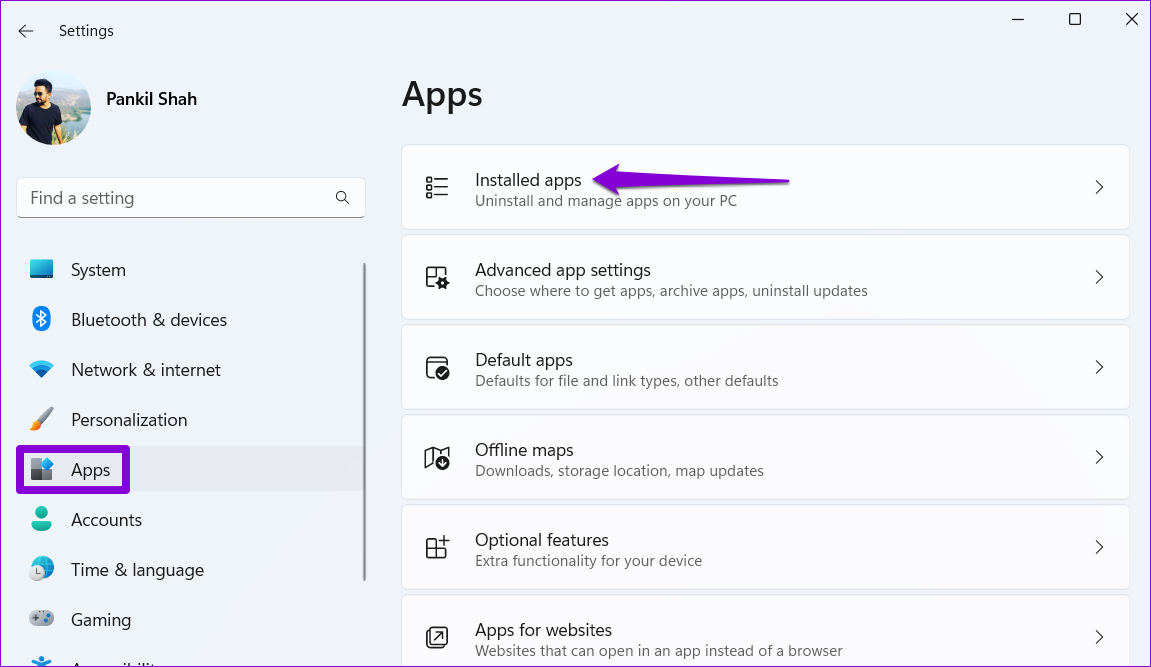
Step 2: Locate the problematic app on the list. Click the three-dot menu icon next to it > select Advanced options.

Step 3: Scroll down to the Reset section and click the Repair button.
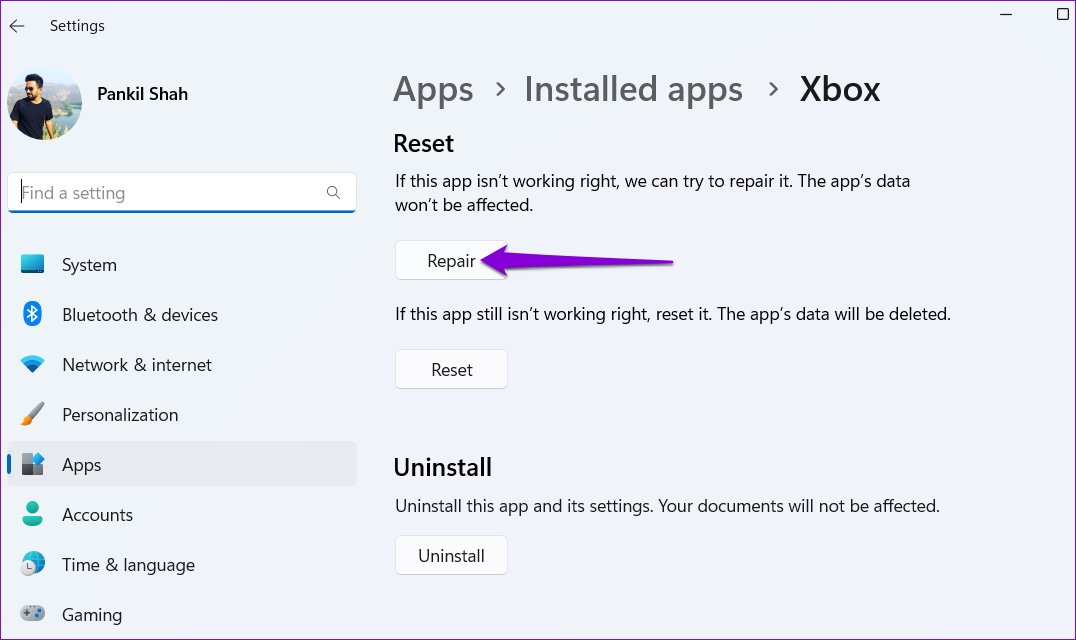
If repairing the app doesn’t work, try resetting the app from the same menu.
Fix 2: Check Windows Services
Another reason apps and programs might not open is that the Application Identity or Windows Update services aren’t running on your Windows 11 PC. Here’s how to start those services manually.
Step 1: Press the Windows key + R to open the Run dialog box, type services.msc, and press Enter.
Step 2: Scroll to locate Windows Update and check if the service is running. If it isn’t, right-click on it and select Start from the menu.

Step 3: Similarly, start or restart the Application Identity service on the list.

Fix 3: Clear the Microsoft Store Cache
At times, issues with the Microsoft Store can lead to faulty installations or the failure to update apps. This can result in many problems, including the one discussed here. You can try resetting the Microsoft Store cache to see if that improves the situation.
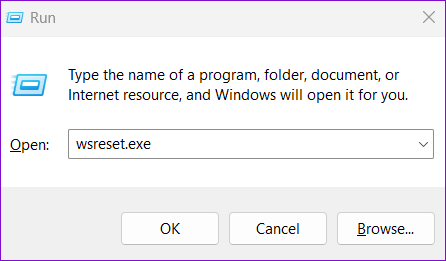
Step 1: Press the Windows key + R to open the Run dialog box.
Step 2: In the Open field, type WSReset.exe and press Enter.
Fix 4: Re-Register Windows Apps
Re-registering Microsoft Store apps on your system effectively fixes issues with them. So, if clearing the Microsoft Store cache proves ineffective, use these steps to re-register your apps.
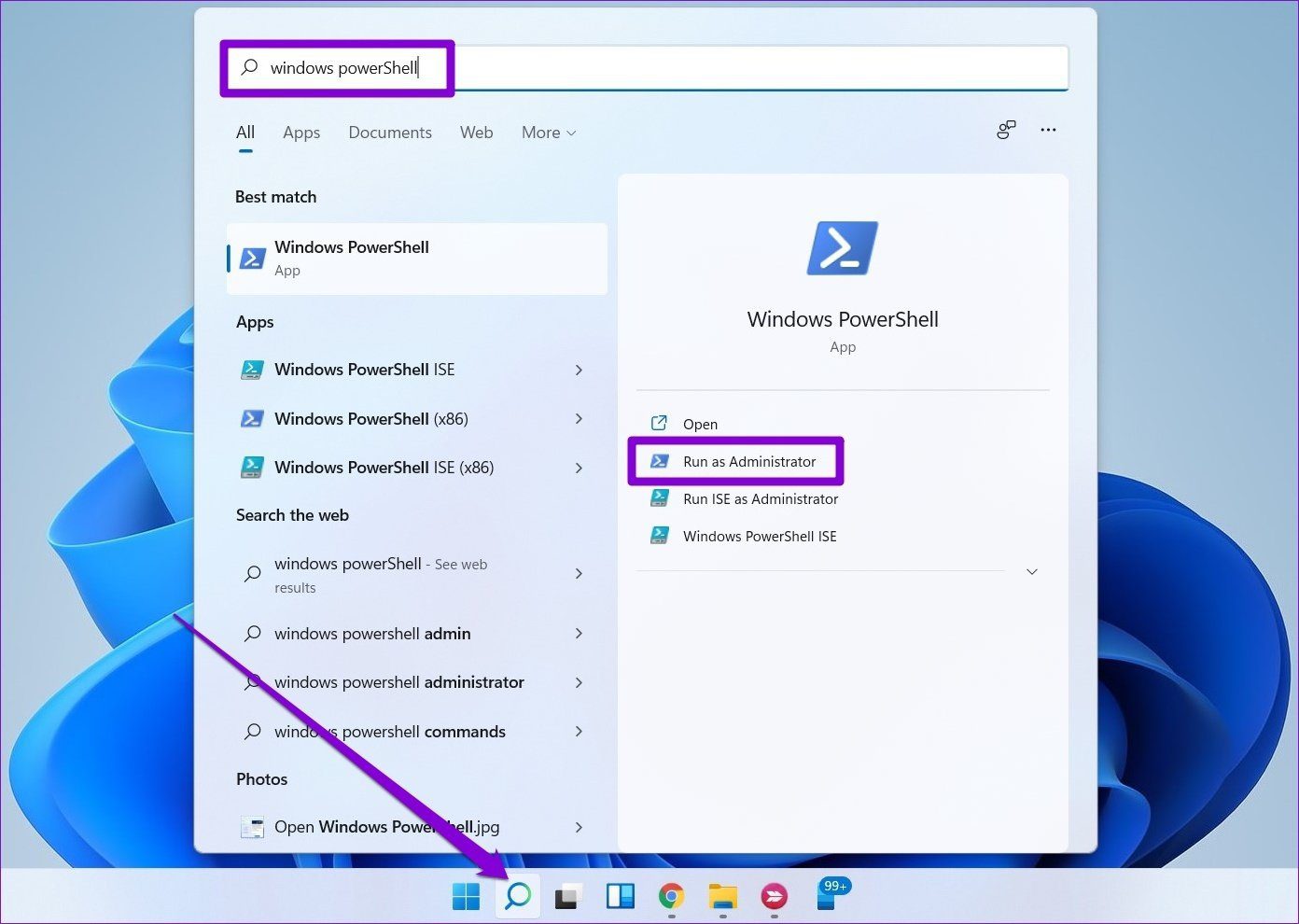
Step 1: Click the search icon on the taskbar, type windows powershell, and select Run as Administrator.
Step 2: In the console, type the command given below and press Enter.
Get-AppXPackage -AllUsers | Foreach {Add-AppxPackage -DisableDevelopmentMode -Register “$($_.InstallLocation)AppXManifest.xml"}

Fix 5: Run the SFC and DISM Scans
Corrupted or damaged system files can disrupt Windows processes and prevent apps from opening. Luckily, Windows includes some handy tools—SFC (System File Checker) and DISM (Deployment Image Servicing and Management)—that can help you repair any corrupt system files. Here’s how to run them.
Step 1: Right-click on the Start icon and select Terminal (Admin) from the resulting menu.

Step 2: Type the following command and press Enter.
sfc /scannow
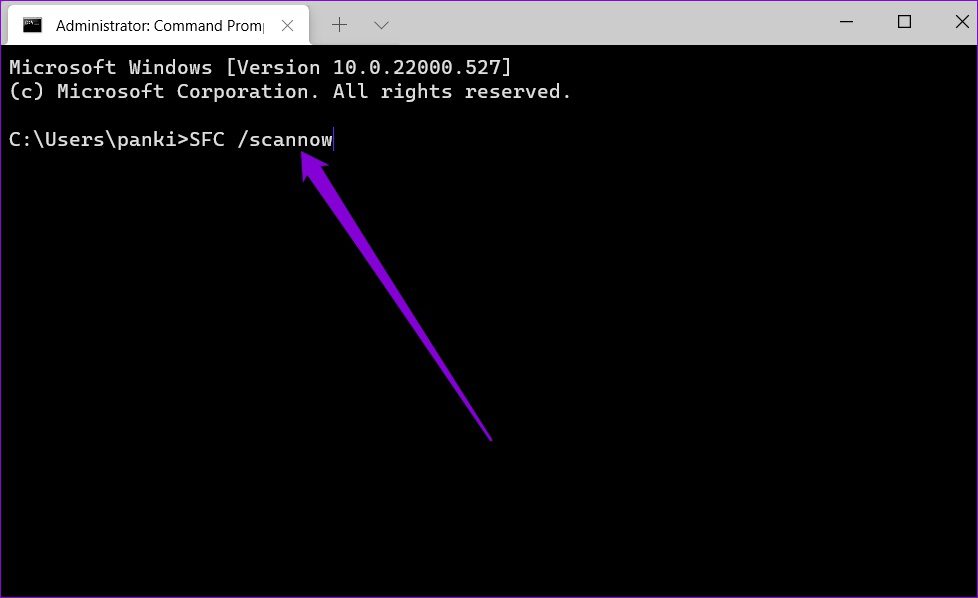
Step 3: Run the following commands one by one and press Enter after each one to run the DISM scan.
DISM /Online /Cleanup-Image /CheckHealth
DISM /Online /Cleanup-Image /ScanHealth
DISM /Online /Cleanup-Image /RestoreHealth

Restart your PC one more time and try to open your apps again.
Fix 6: Modify Registry Files
Misconfigured registry entries on your Windows PC can also prevent apps and programs from opening. To fix this, you must manually change the registry files.
Step 1: Click the search icon on the taskbar, type registry editor, and select Run as administrator.

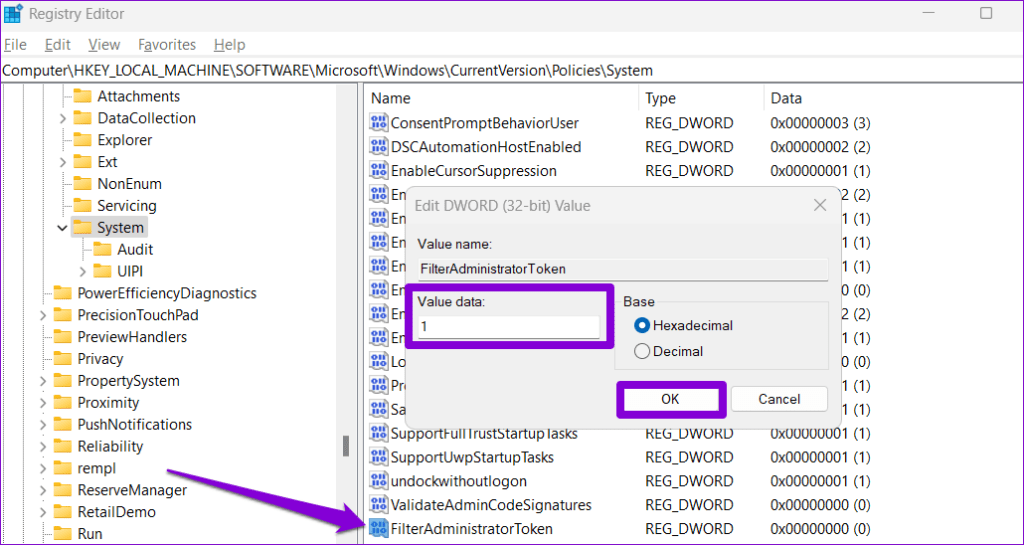
Step 2: Paste the following path in the address bar at the top and press Enter to quickly navigate to the System key.
HKEY_LOCAL_MACHINE\SOFTWARE\Microsoft\Windows\CurrentVersion\Policies\System
Step 3: In the right pane, locate the FilterAdministratorToken entry. If you can’t find it, right-click on the System key > select New > DWORD (32-bit) Value. Then, name it FilterAdministratorToken.

Step 4: Double-click the newly created DWORD > set its Value data to 1 > click OK.
Restart your PC and see if you can open apps and programs after that.
Fix 7: Create a New User Account
Problems with your current user account can also lead to such issues. This can happen if the user account files are corrupted. If so, you can create and switch to a new user account. Here’s how to do it.
Step 1: Press the Windows key + I to launch the Settings app.
Step 2: Switch to the Accounts tab and click on Other users.
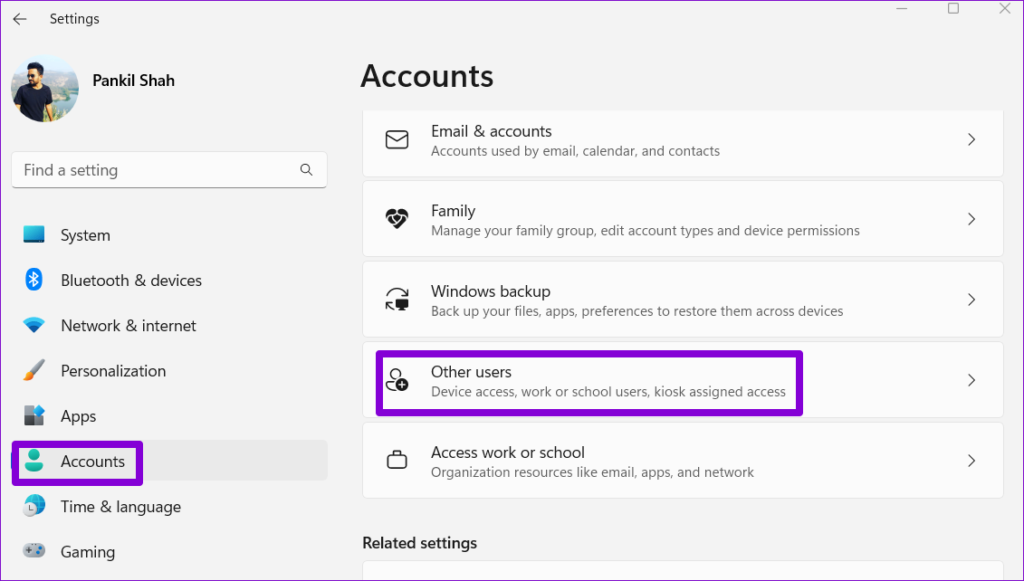
Step 3: Click the Add account button.

Step 4: Enter your email and follow the on-screen prompts to create a new user account.
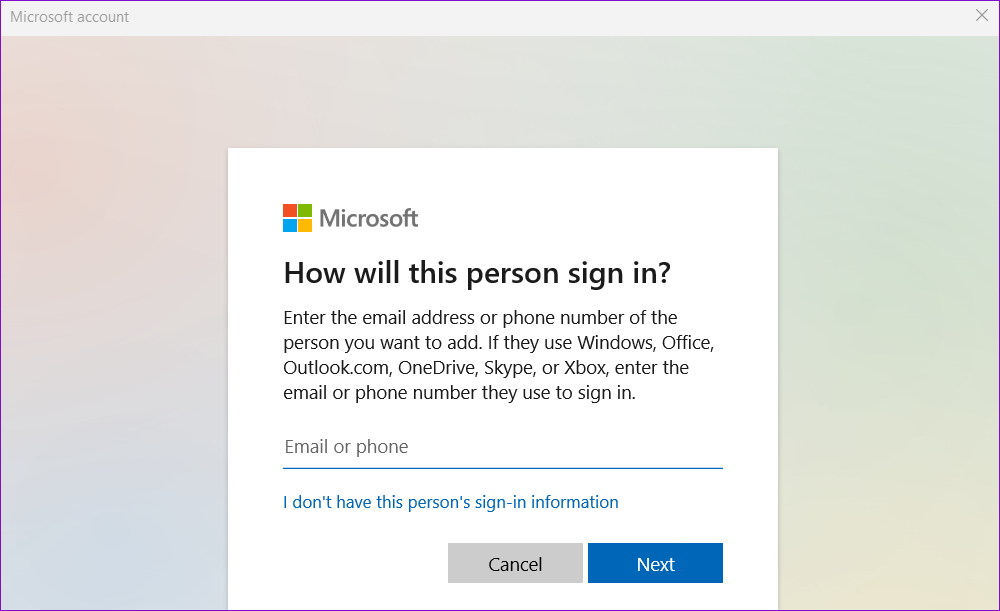
Once created, switch to the newly created user account and see if you can open apps after that.
Was this helpful?
Last updated on 01 August, 2024
Read Next
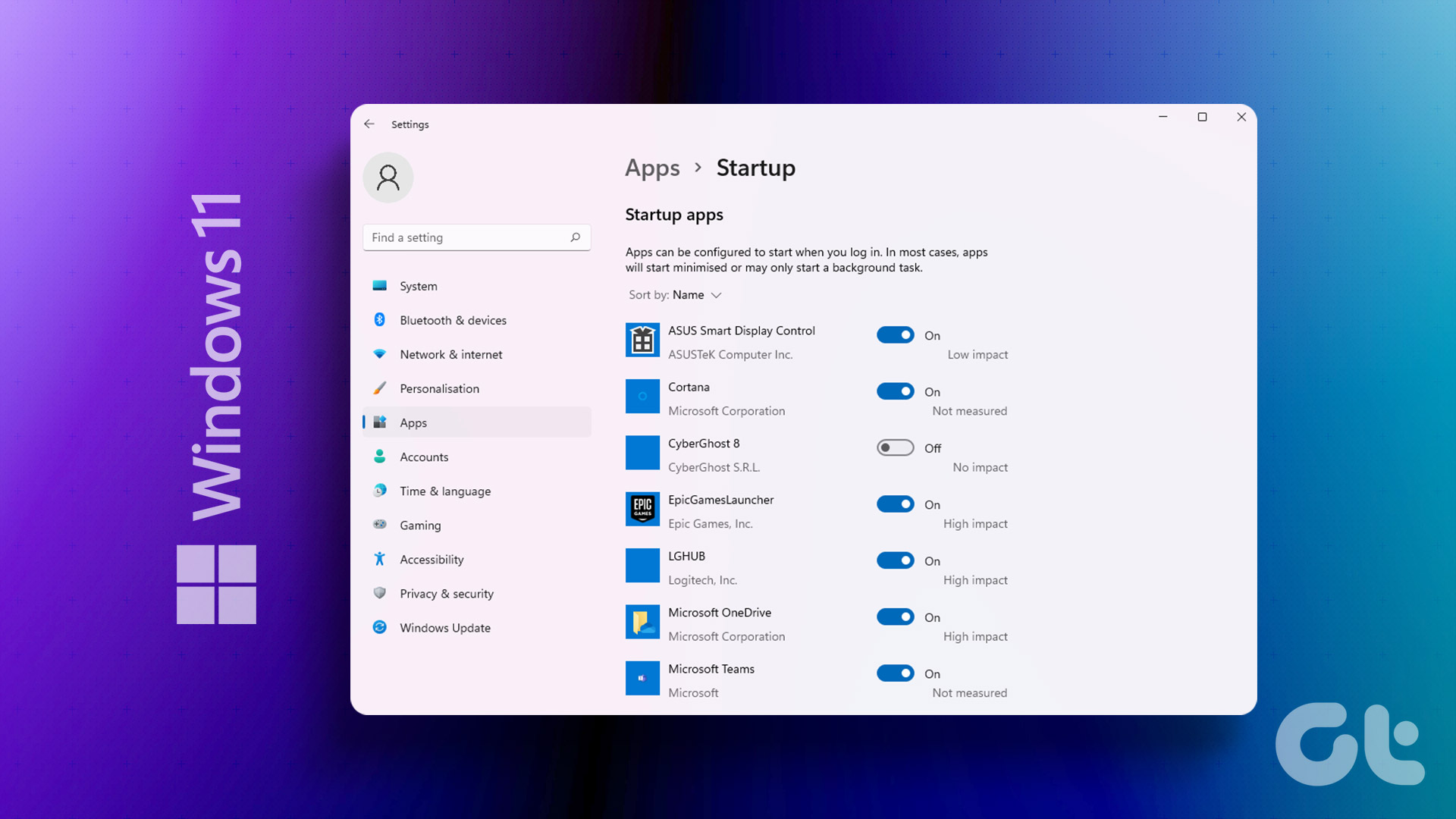 4 Ways to Stop Apps From Opening at Startup in Windows 11
Method 1: Remove Startup Programs via Windows Settings Probably the easiest way to disable or manage startup apps in Windows 11 is via the Settings app.
4 Ways to Stop Apps From Opening at Startup in Windows 11
Method 1: Remove Startup Programs via Windows Settings Probably the easiest way to disable or manage startup apps in Windows 11 is via the Settings app.
 2 Ways to Fix Discord Not Opening on Windows 10 and Windows 11
Try Basic Fixes End Discord processes: Press Ctrl + Shift + Esc to launch the Task Manager.
2 Ways to Fix Discord Not Opening on Windows 10 and Windows 11
Try Basic Fixes End Discord processes: Press Ctrl + Shift + Esc to launch the Task Manager.
 6 Ways to Fix Windows Security Not Opening or Working on Windows 11
Try Basic Fixes Uninstall any third-party antivirus program: Third-party antivirus programs can sometimes interfere with the Windows Security app and prevent it from opening on your Windows 11 PC.
6 Ways to Fix Windows Security Not Opening or Working on Windows 11
Try Basic Fixes Uninstall any third-party antivirus program: Third-party antivirus programs can sometimes interfere with the Windows Security app and prevent it from opening on your Windows 11 PC.
 4 Ways to Fix Firefox Not Opening on Windows 10 and Windows 11
Fix 1: Force Close Firefox Processes Sometimes, Firefox processes may become unresponsive on your PC, resulting in such issues.
4 Ways to Fix Firefox Not Opening on Windows 10 and Windows 11
Fix 1: Force Close Firefox Processes Sometimes, Firefox processes may become unresponsive on your PC, resulting in such issues.
 4 Ways to Fix Windows Terminal Not Opening on Windows 11
Fix 1: Ensure Windows Terminal Is Not Disabled If you cannot launch Windows Terminal via the Start menu or Run dialog box, ensure the app is not disabled on your
4 Ways to Fix Windows Terminal Not Opening on Windows 11
Fix 1: Ensure Windows Terminal Is Not Disabled If you cannot launch Windows Terminal via the Start menu or Run dialog box, ensure the app is not disabled on your
 3 Ways to Fix Apps Not Opening on iPhone
Why Some Apps Are Not Working on My iPhone Here are the top factors affecting app performance and functionality on iPhone.
3 Ways to Fix Apps Not Opening on iPhone
Why Some Apps Are Not Working on My iPhone Here are the top factors affecting app performance and functionality on iPhone.
 Top 8 Ways to Fix File Explorer Not Opening on Windows 10
File Explorer is an integral part of Windows 10 OS.
Top 8 Ways to Fix File Explorer Not Opening on Windows 10
File Explorer is an integral part of Windows 10 OS.
 3 Ways to Fix Chrome Not Opening on Windows 11
Try Basic Fixes Force close Chrome using Task Manager and try again: Press Ctrl + Shift + Esc to open the Task Manager.
3 Ways to Fix Chrome Not Opening on Windows 11
Try Basic Fixes Force close Chrome using Task Manager and try again: Press Ctrl + Shift + Esc to open the Task Manager.
The article above may contain affiliate links which help support Guiding Tech. The content remains unbiased and authentic and will never affect our editorial integrity.