

Fix 1: Update the Problematic Driver
If a driver is incompatible, Windows may fail to load it. In most cases, you can fix such issues by merely updating the driver. Hence, you should start with that.
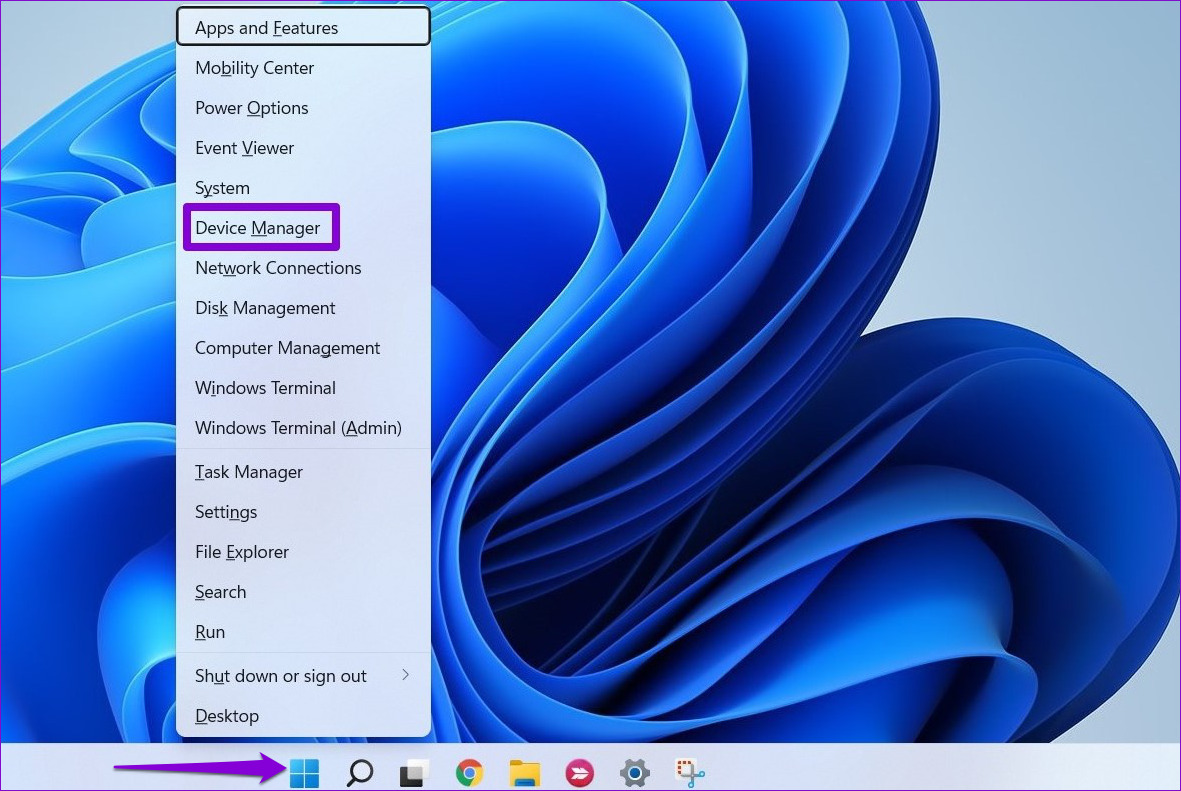
Step 1: Right-click the Start icon and select Device Manager from the list.
Step 2: Locate the problematic driver, right-click on it, and select Update driver.
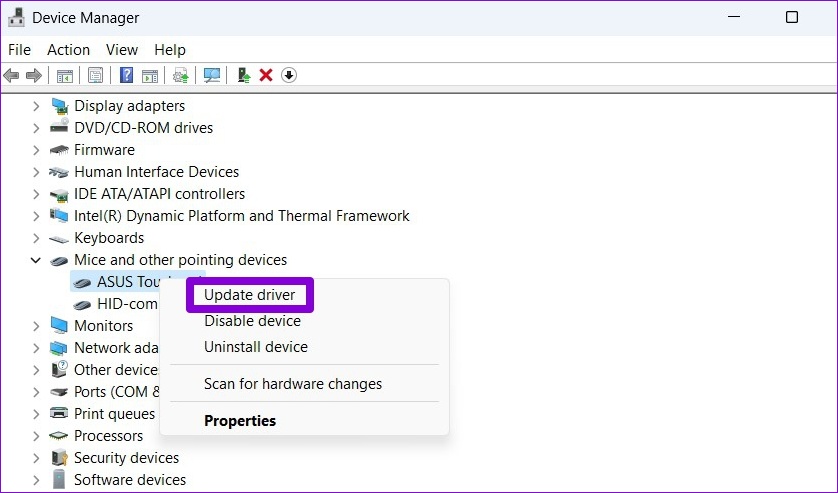
After that, follow the on-screen instructions to finish updating the driver and see if the error appears again.
Fix 2: Roll Back to the Previous Driver
If the “A driver cannot load on this device” message only started appearing after a recent driver update, you can try reverting to the previous version of the driver. Here’s how.
Step 1: Right-click the Start icon and select Device Manager from the list.
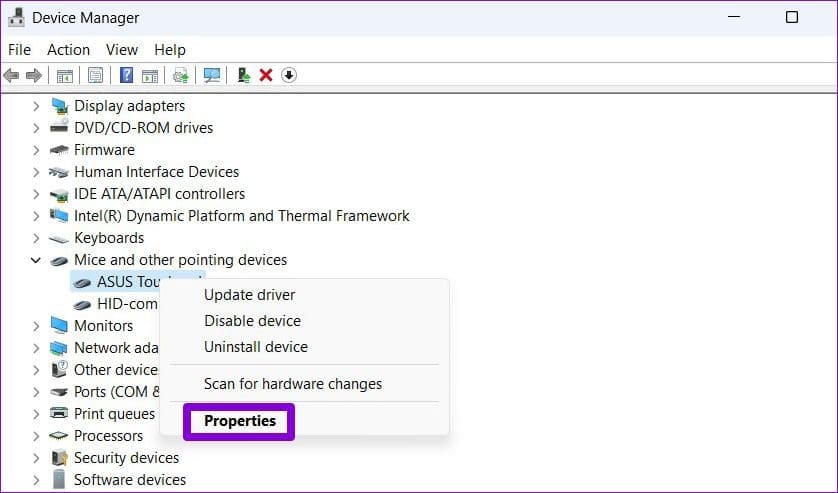
Step 2: Locate the troublesome driver, right-click on it, and select Properties.
Step 3: Under the Driver tab, click Roll Back Driver.
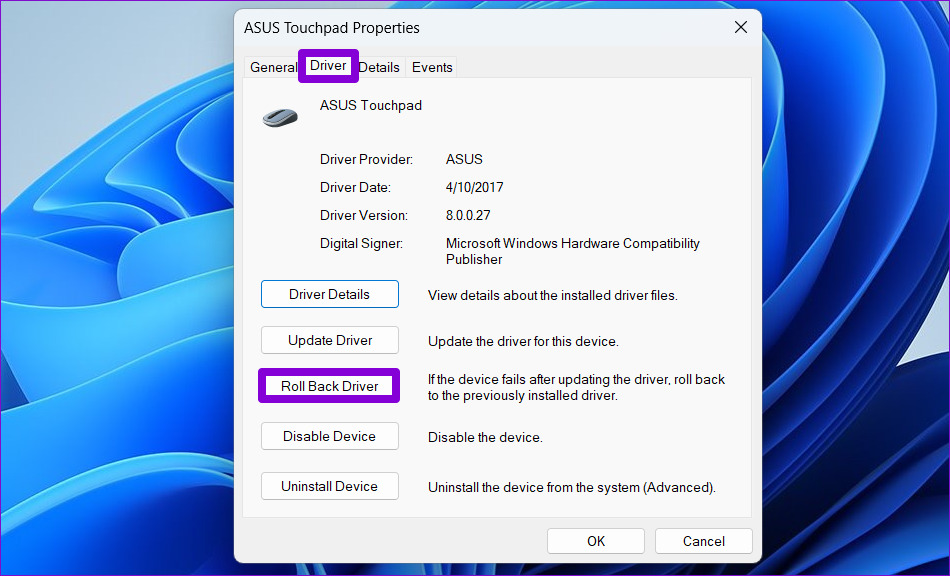
Step 4: Select a reason for the rollback and click on Yes to continue.
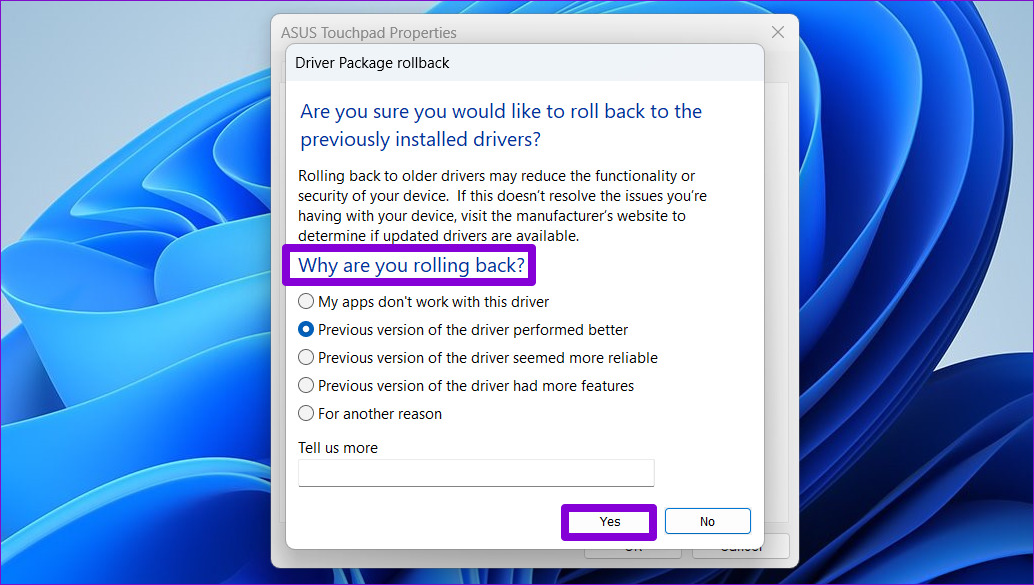
When you restart your computer, Windows will restore the previous version of the driver to fix the “A driver cannot load on this device” error.
Fix 3: Turn Off Memory Integrity in Windows Security
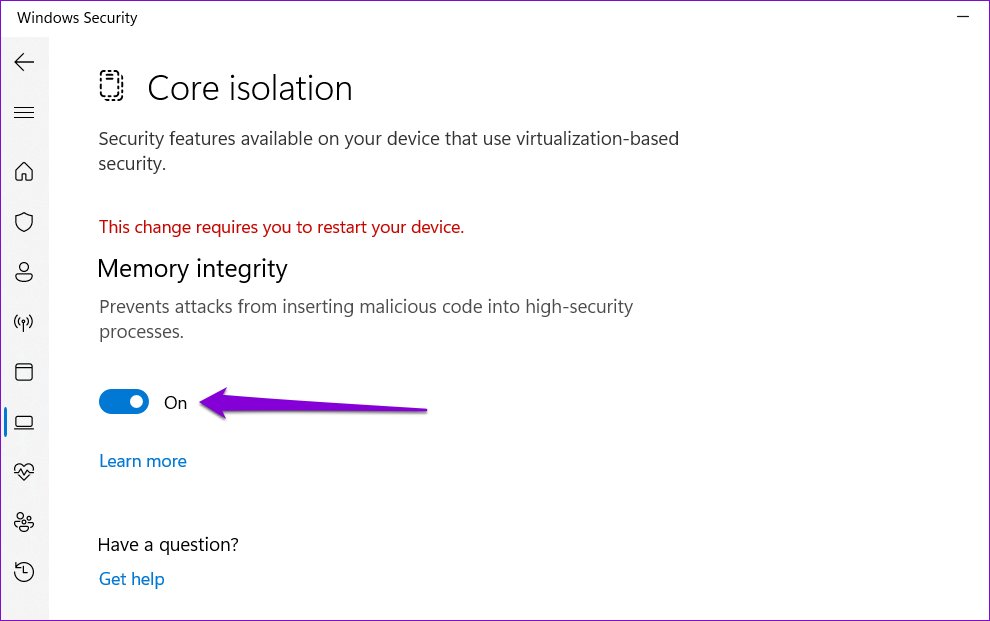
Memory Integrity is a feature in Windows Security that may prevent a driver from loading at times. Microsoft recommends that you disable the Memory Integrity feature to get rid of it.
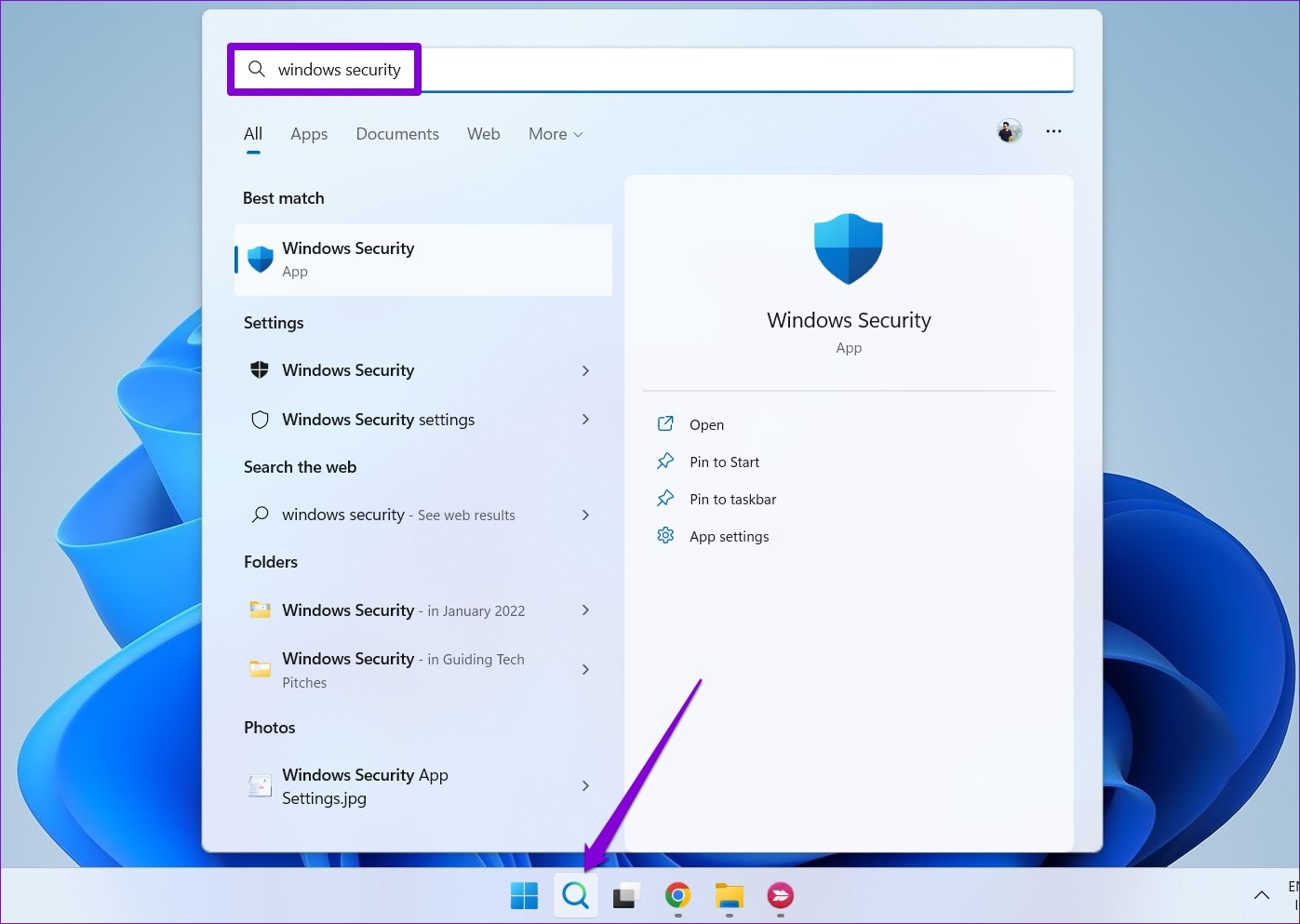
Step 1: Click the search icon on the taskbar, type in Windows security and press Enter.
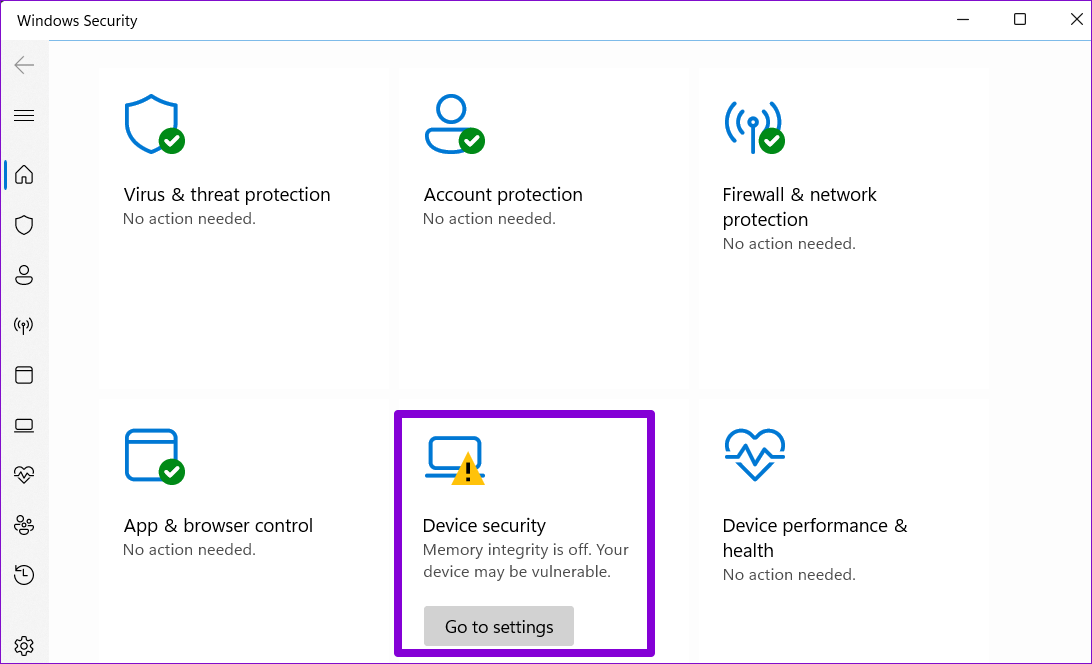
Step 2: Go to Device security.
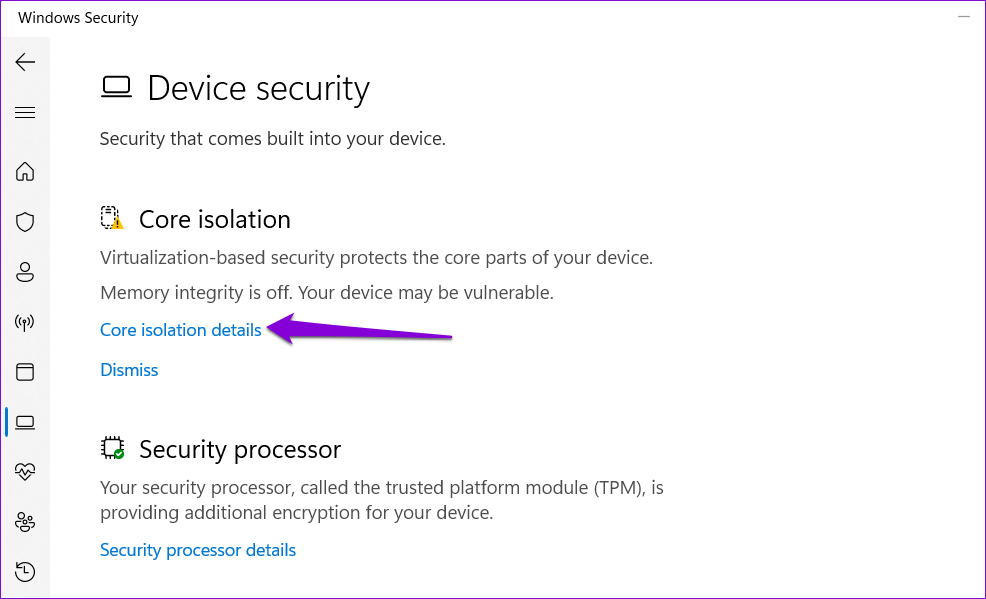
Step 3: Click on Core isolation details.
Step 4: Toggle off the Memory integrity option.
Fix 4: Delete the UpperFilters and LowerFilters Registry Values
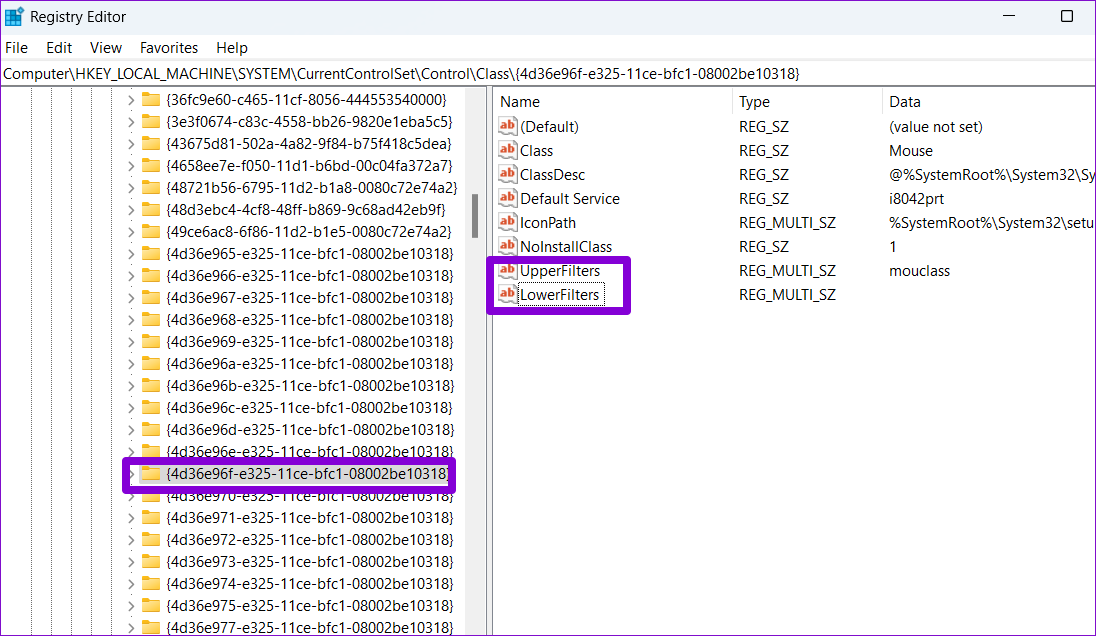
Such an error could also appear when some of the registry entries associated with the device are corrupt. Specifically, UpperFilters and LowerFilters are the two keys that you need to delete to get rid of this error.
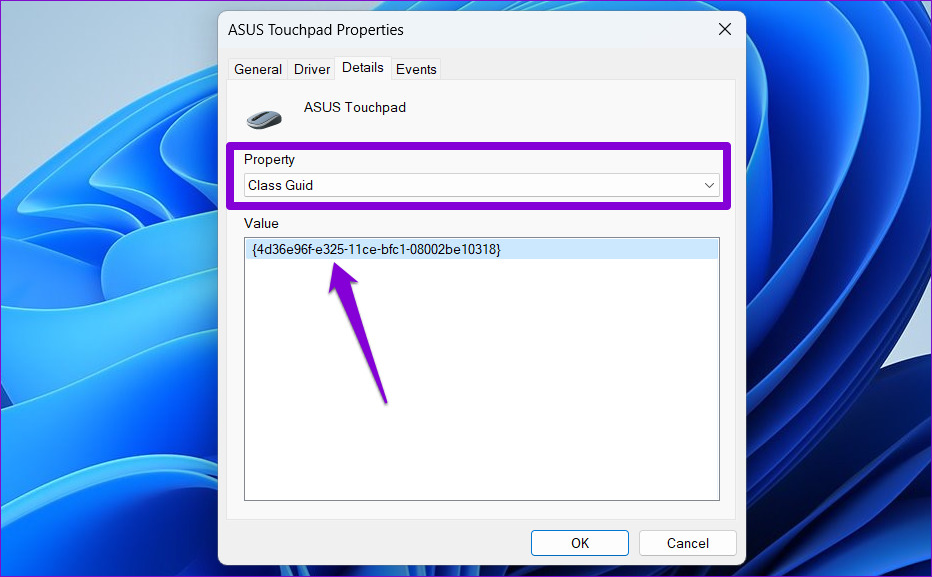
To do this, you first need to know the correct class GUID (Globally Unique Identifier) of the relevant device in question. Here’s how to find it.
Step 1: Right-click the Start icon and select Device Manager from the list.
Step 2: Right-click the problematic driver (for this guide, we’re checking ASUS TouchPad driver) and select Properties.
Step 3: Switch to the Details tab and use the drop-down menu under Property to select Class GUID. Then, note down the value that appears in the box.
After that, delete the UpperFilters and LowerFilters registry values associated with the device by following the steps below.
Step 1: Press the Windows key + R to open the Run dialog. Type in regedit and press Enter.
Step 2: In the Registry Editor window, paste the following path in the address bar at the top to navigate to the Class key.
HKEY_LOCAL_MACHINE\SYSTEM\CurrentControlSet\Control\Class
Step 3: Inside the Class key, locate the class GUID noted earlier. On your right, you’ll see the UpperFilters and LowerFilters values. In some cases, you may only see either of the two values, which is perfectly normal.
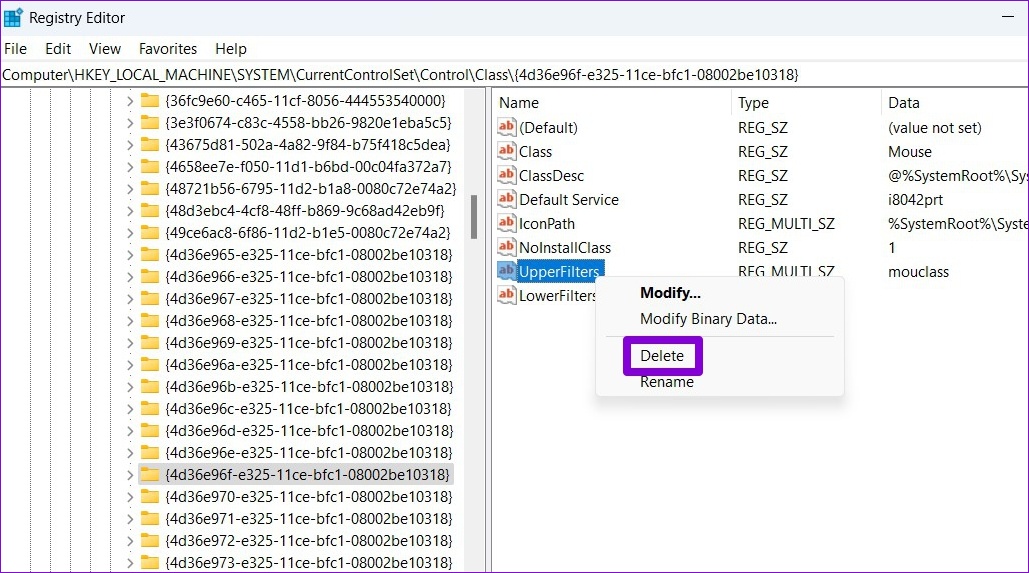
Step 4: Right-click on UpperFilters and select Delete. Repeat this step to delete the LowerFilters entry as well.
Restart your PC after this and check to see if the error appears again.
Fix 5: Perform System Restore
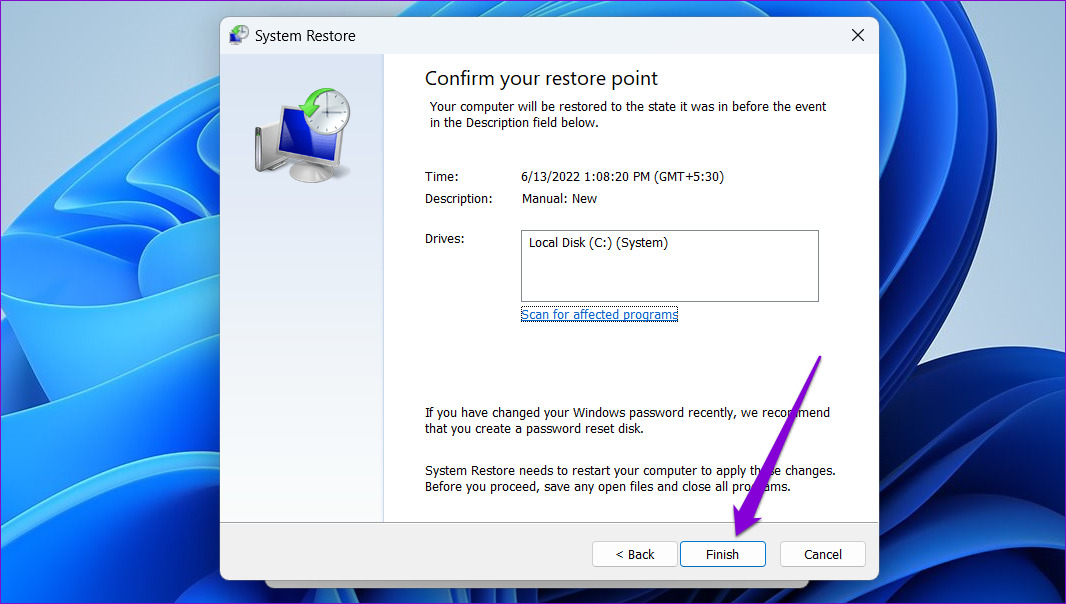
There’s a chance that a recent change made to the system settings or a newly installed program is interfering with the driver and preventing it from loading. Performing a system restore will allow you to undo those changes by reverting to a point before the error first appeared.
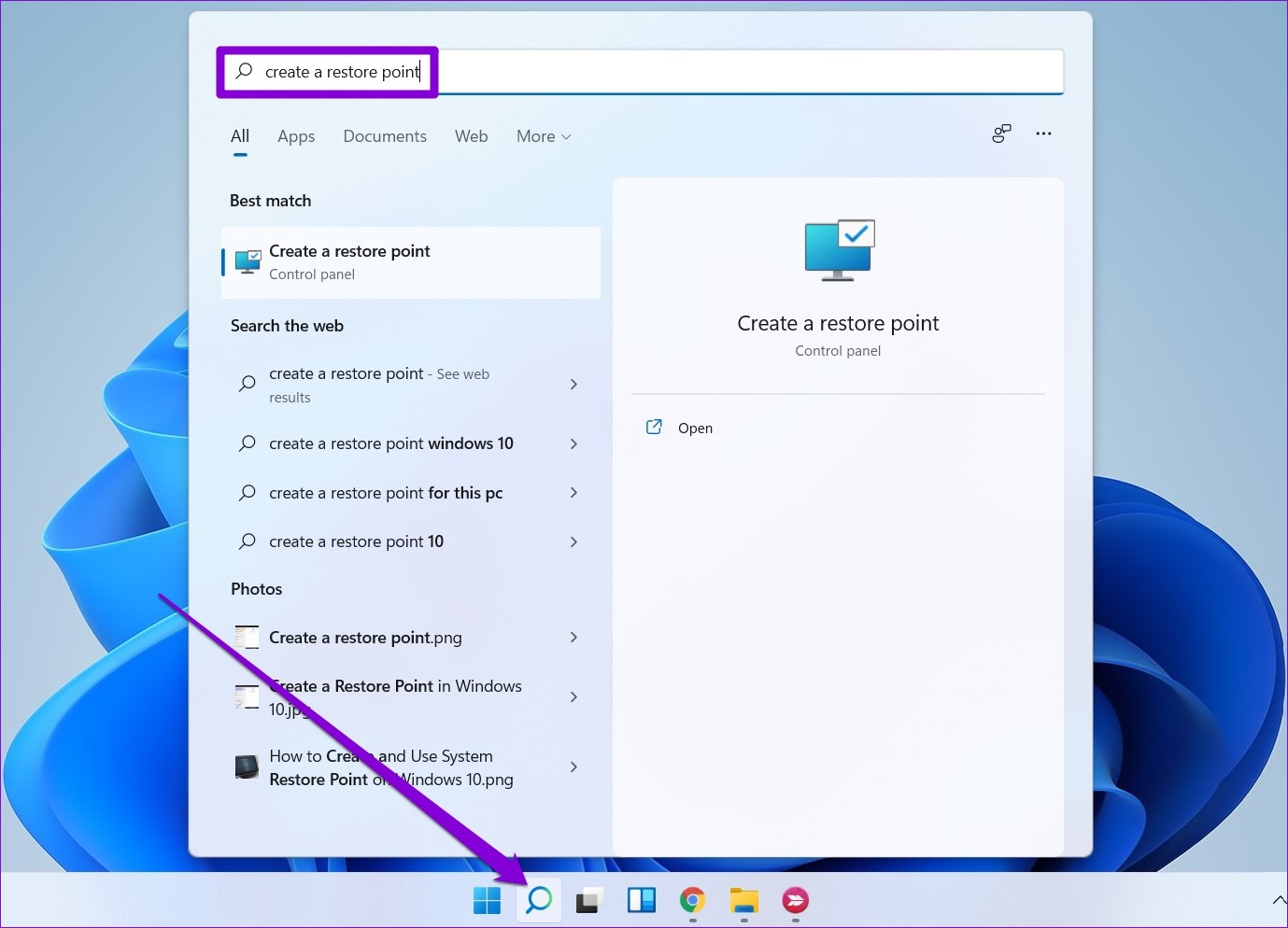
Step 1: Open the search menu, type in create a restore point and press Enter.
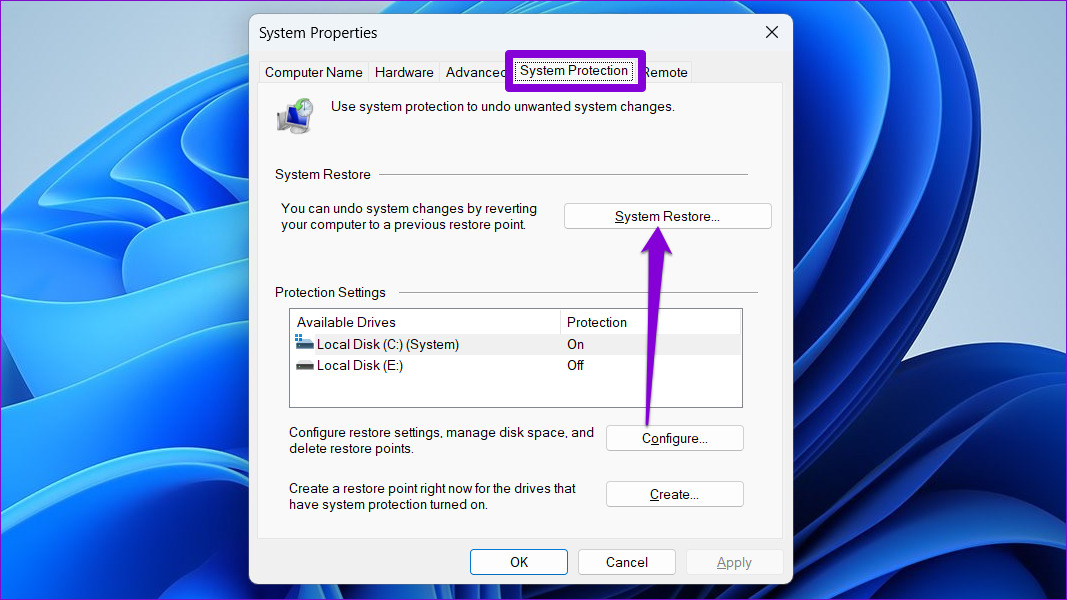
Step 2: Under the System Protection tab, click the System Restore button.
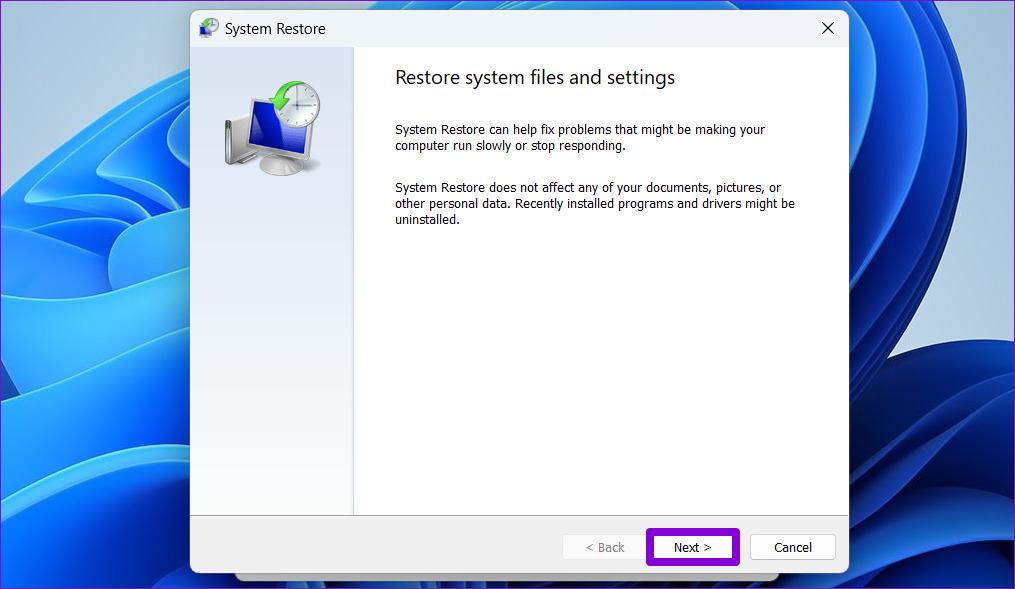
Step 3: Click Next.
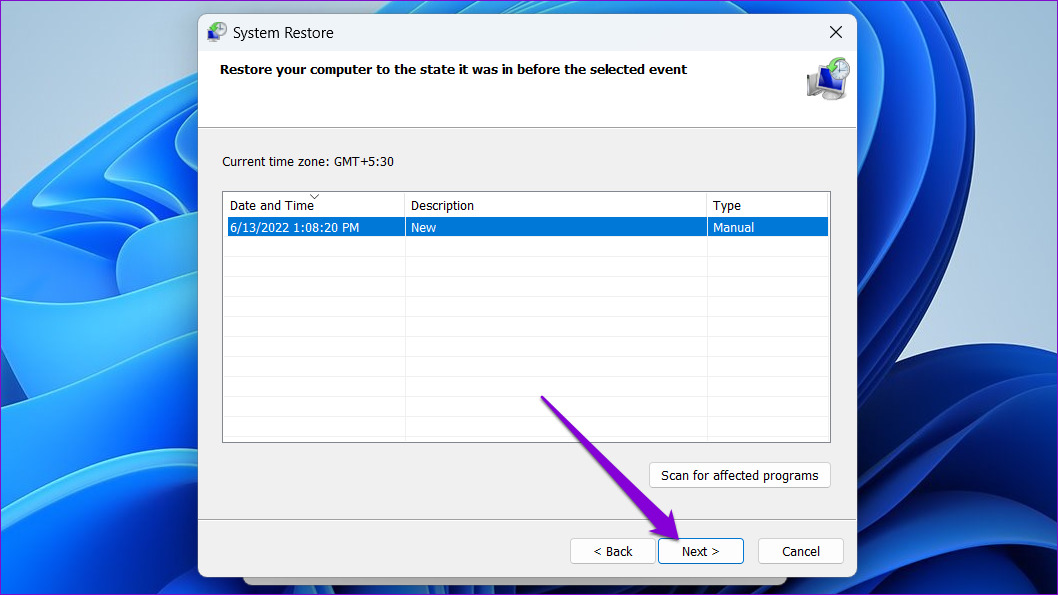
Step 4: Select the restore point before the error first occurred. Then, hit Next.
Step 5: Review all the details and hit Finish.
Was this helpful?
Last updated on 21 June, 2024
Read Next
 4 Ways to Fix Graphics Device Driver Error Code 22 on Windows
Fix 1: Enable and Update the Graphics Driver You may see error code 22 on Windows if you have previously disabled the graphics driver or if it's outdated.
4 Ways to Fix Graphics Device Driver Error Code 22 on Windows
Fix 1: Enable and Update the Graphics Driver You may see error code 22 on Windows if you have previously disabled the graphics driver or if it's outdated.
 6 Ways to Fix Failed to Load Web Page Error in Steam for Windows
Fix 1: Terminate Steam Processes and Reopen the App The "Failed to load web page" error in Steam can occur if one of the app processes is experiencing issues.
6 Ways to Fix Failed to Load Web Page Error in Steam for Windows
Fix 1: Terminate Steam Processes and Reopen the App The "Failed to load web page" error in Steam can occur if one of the app processes is experiencing issues.
 5 Ways to Fix “Unable to Load Photo” Error on iPhone
Try Basic Fixes Free up storage space: A lack of storage space could prevent your iPhone from loading photos from the cloud.
5 Ways to Fix “Unable to Load Photo” Error on iPhone
Try Basic Fixes Free up storage space: A lack of storage space could prevent your iPhone from loading photos from the cloud.
 3 Ways to Fix Discord Messages Failed to Load Error
Basic Fixes Force Restart Discord: You can force quit Discord on your PC or Mac using Task Manager or Activity Monitor.
3 Ways to Fix Discord Messages Failed to Load Error
Basic Fixes Force Restart Discord: You can force quit Discord on your PC or Mac using Task Manager or Activity Monitor.
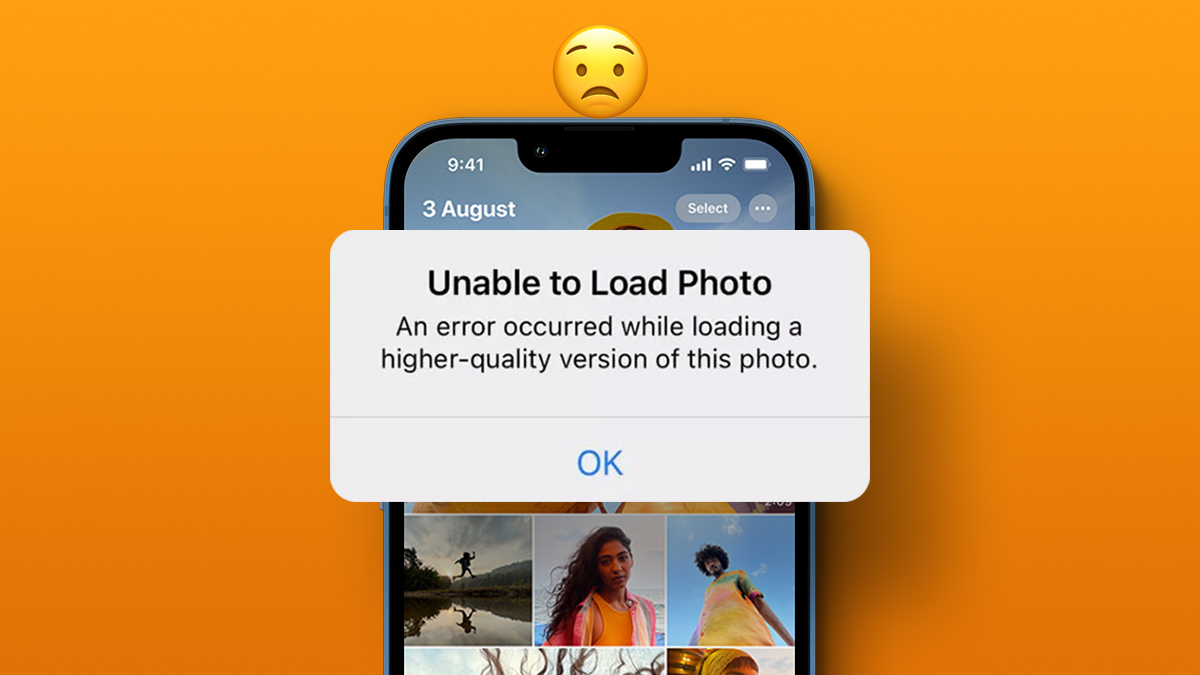 4 Ways to Fix Unable to Load Video or Photo Error on iPhone
Basic Fixes Turn off Low Power Mode: Unless your iPhone is running really low on battery, it's best to turn off Low Power Mode since it limits background activities like
4 Ways to Fix Unable to Load Video or Photo Error on iPhone
Basic Fixes Turn off Low Power Mode: Unless your iPhone is running really low on battery, it's best to turn off Low Power Mode since it limits background activities like
 4 Fixes for “Failed to Load Module” Error on Twitch
Try Basic Fixes Ensure Twitch servers are working: Before trying anything, it's a good idea to ensure that the Twitch servers are working.
4 Fixes for “Failed to Load Module” Error on Twitch
Try Basic Fixes Ensure Twitch servers are working: Before trying anything, it's a good idea to ensure that the Twitch servers are working.
 5 Ways to Fix Printer Driver Is Unavailable Error on Windows 11
Fix 1: Run the Printer Troubleshooter Windows 11 includes several troubleshooters that can help you fix common system-level issues.
5 Ways to Fix Printer Driver Is Unavailable Error on Windows 11
Fix 1: Run the Printer Troubleshooter Windows 11 includes several troubleshooters that can help you fix common system-level issues.
 Top 10 Ways to Fix ‘Display Driver Failed to Start’ Error in Windows 10 and 11
Display drivers facilitate communication between the Windows operating system (or any OS) with your GPU.
Top 10 Ways to Fix ‘Display Driver Failed to Start’ Error in Windows 10 and 11
Display drivers facilitate communication between the Windows operating system (or any OS) with your GPU.
The article above may contain affiliate links which help support Guiding Tech. The content remains unbiased and authentic and will never affect our editorial integrity.

