Common Fixes
- Check your Wi-Fi network: Ensure your device is connected to a good internet connection. Test your connection speed online.
- Check Snapchat server status: Use Downdetector to check an active Snapchat server outage.
- Lock Snapchat in the background on Android: Swipe up from the bottom to switch apps, tap the app title, and select Lock.
- Switch to the 5GHz Wi-Fi frequency: Connecting to the 5GHz Wi-Fi frequency offers you better internet speed and a long range.
- Contact ISP to unblock Snapchat – If Snapchat works on cellular data but fails to open on Wi-Fi, ask your internet service provider to unblock Snapchat.
- Update Snapchat – Open the Google Play Store or Apple App Store, search Snapchat, and tap Update.
Fix 1: Disable Low Data Mode (iOS)
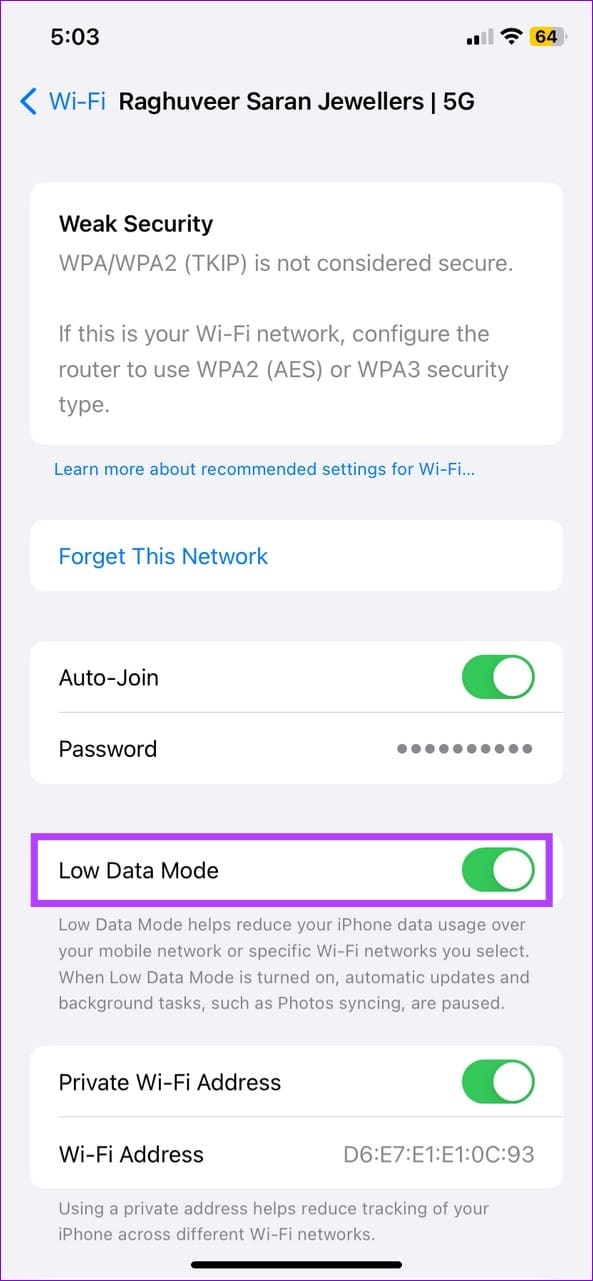
When low data mode is enabled, iOS restricts all background app activities to limit Wi-Fi usage, creating refreshing issues with the Snapchat app. Turn it off to resolve the Snapchat not working issue.
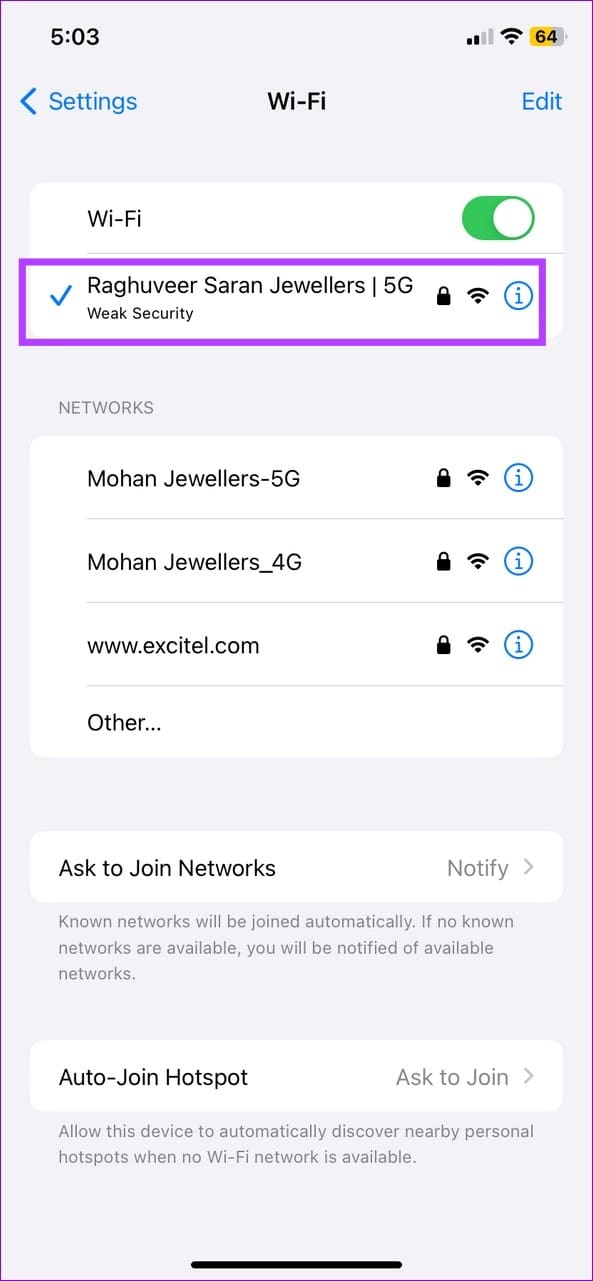
Step 1: Open the Settings app > tap Wi-Fi > select your connected network.
Step 2: Toggle off Low Data Mode.

Fix 2: Set Wi-Fi Connection as Unmetered (Android)
Android phones analyze the connected network to determine if it is metered. If yes, the system limits the background activity, causing problems for apps like Snapchat. Set your Wi-Fi connection as unmetered to solve the issue.
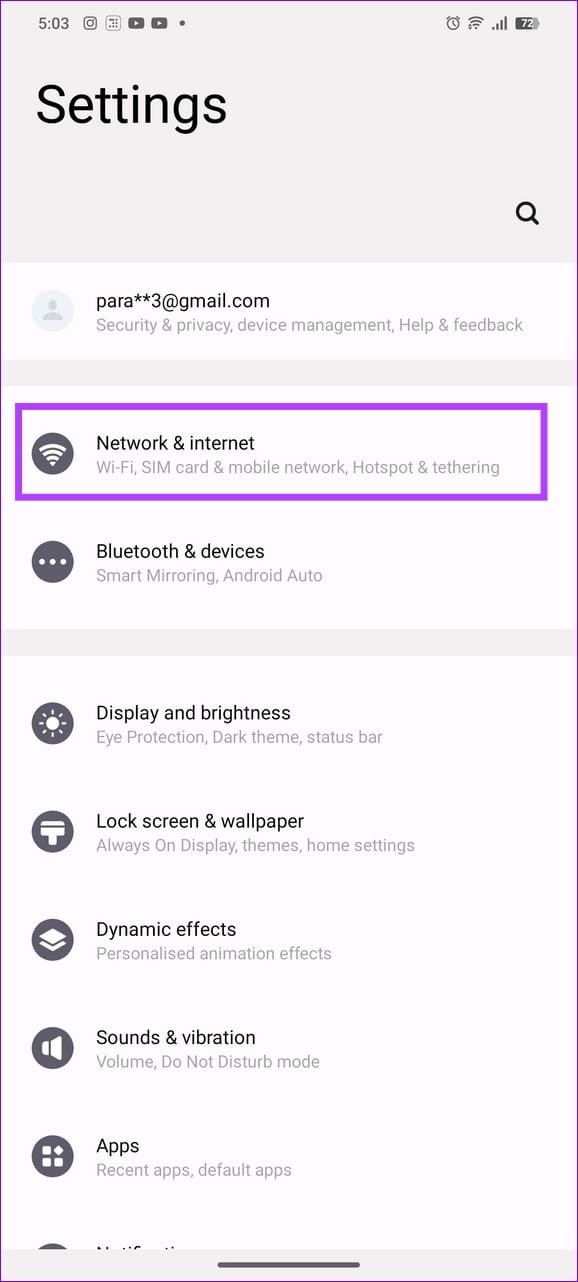
Step 1: Open Android Settings > select Network & internet > tap Wi-Fi.
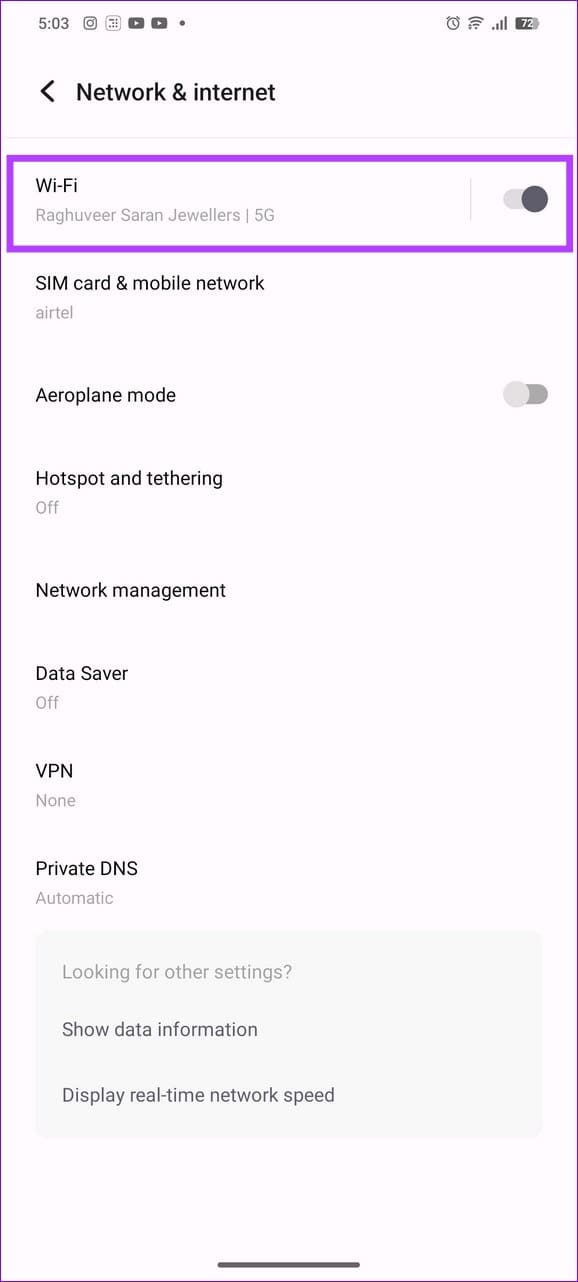
Step 2: Pick your connected network > select Whether the Wi-Fi is metered by data > set it to Treat as unmetered.


Fix 3: Force Stop Snapchat
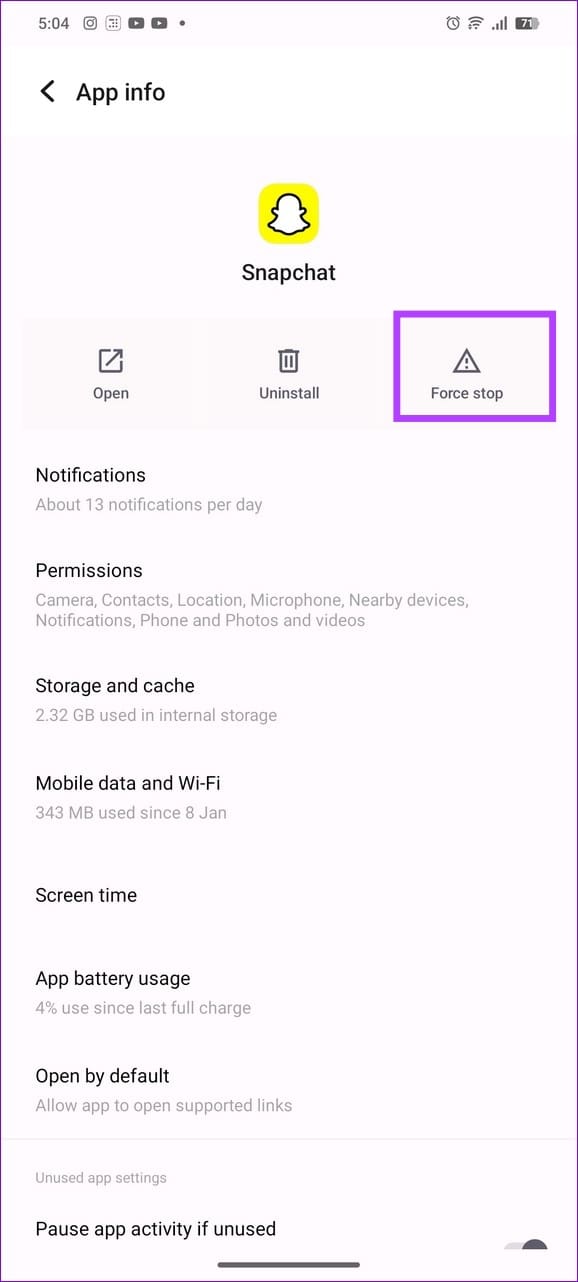
Force closing Snapchat refreshes the app to fix glitches causing issues in running it on Wi-Fi.
Swipe up from the bottom to switch apps on your Android or iOS device and slide up the Snapchat card to force close it. Alternatively, head to Android Settings > Apps > Snapchat > tap Force stop.

Fix 4: Clear the Snapchat Cache
Corrupt cache files are a common underlying culprit behind Snapchat’s failure to work properly on Wi-Fi. Clear them manually to restore Snapchat access on Wi-Fi.
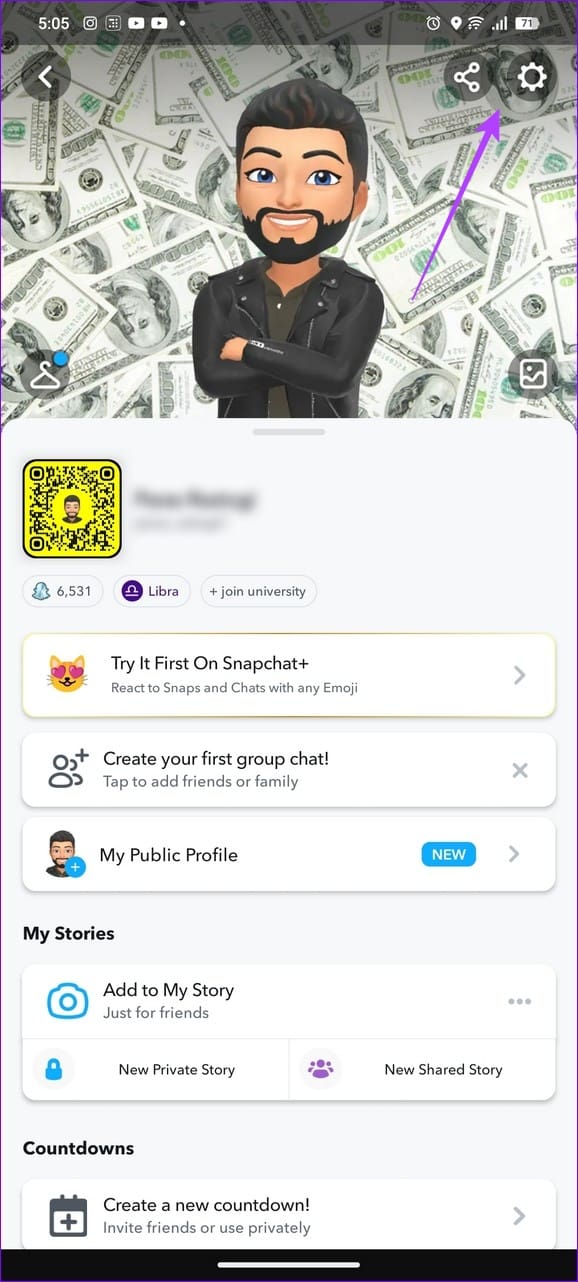
Step 1: Tap your Snapchat avatar at the top left > select the Gear icon to open settings.

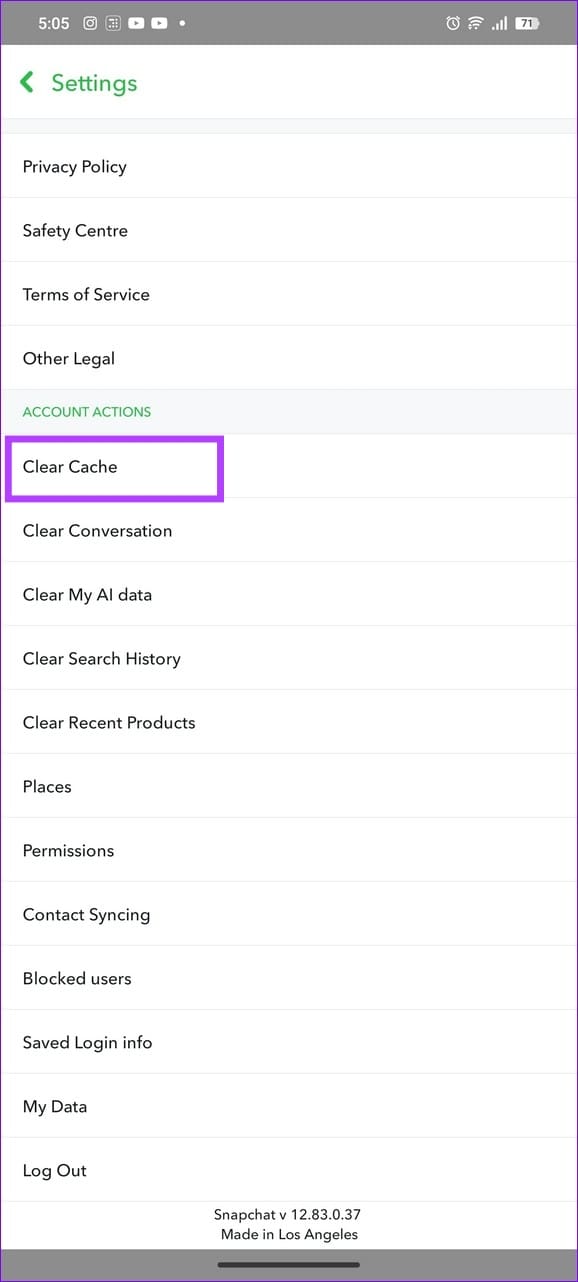
Step 2: Scroll to the bottom and tap Clear Cache under Account Actions. Tap Continue when prompted to confirm your action.

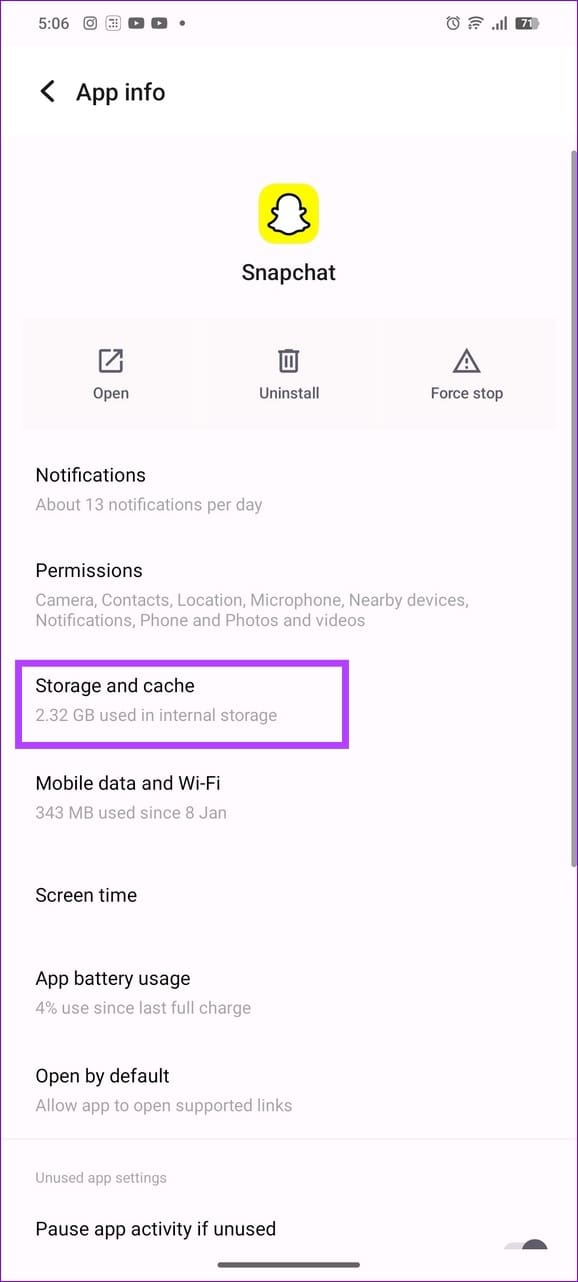
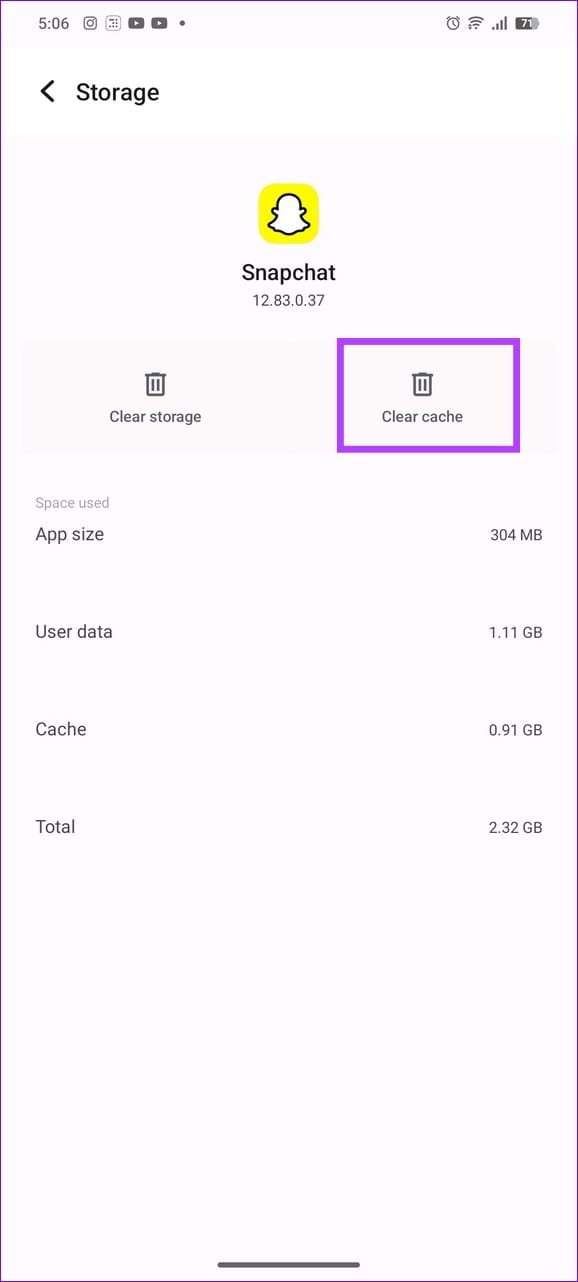
Step 3: Additionally, open the Snapchat app settings on Android under Settings > Apps > select Storage and cache > tap Clear cache.
Fix 5: Reset Network Settings
If nothing works, reset the network settings on your smartphone to fix Snapchat not working on Wi-Fi.
On Android
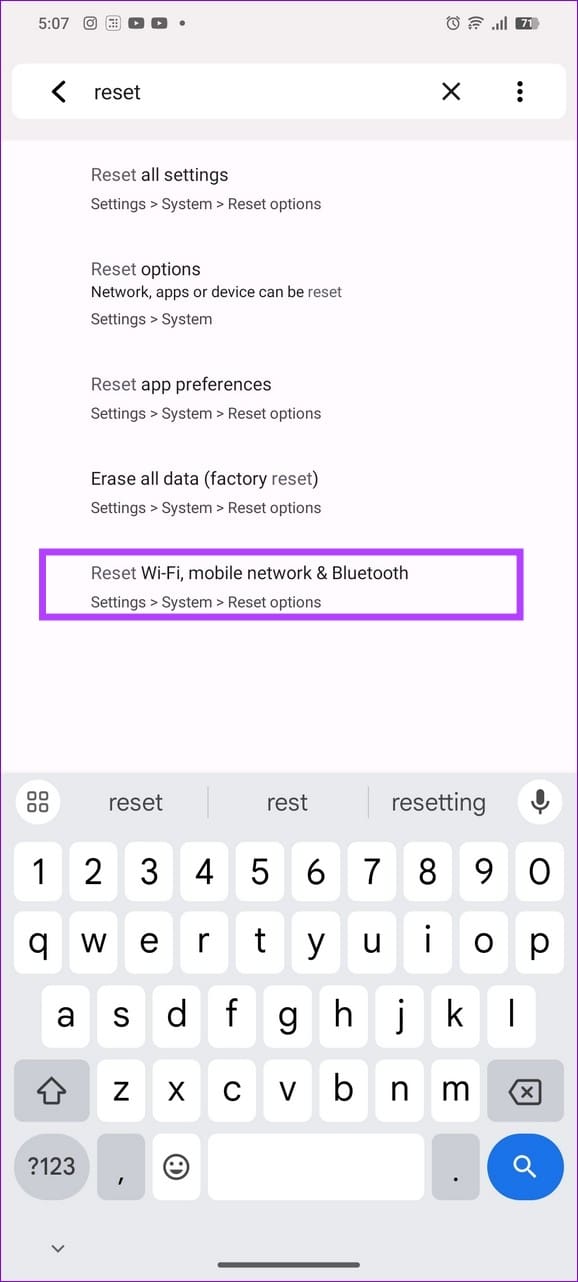
Step 1: Open Android settings > search Reset > tap Reset Wi-Fi, mobile network & Bluetooth.
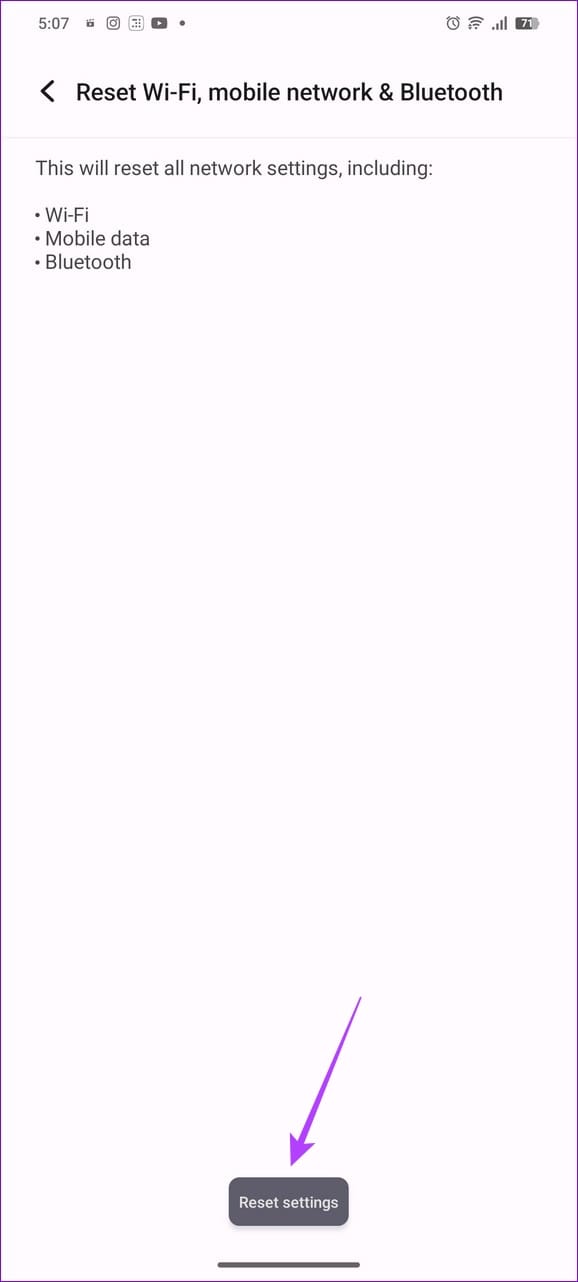
Step 2: Tap Reset network > select Reset settings.

On iOS
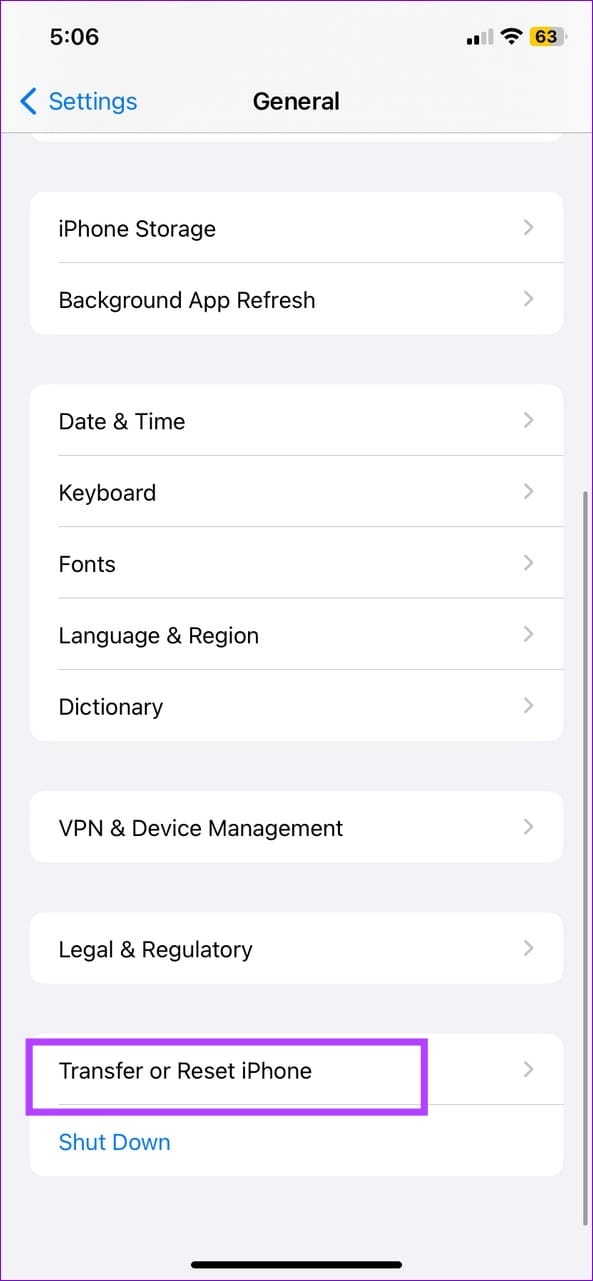
Step 1: Open General settings on your iPhone > select Transfer or Reset iPhone.
Step 2: Tap Reset > select Reset Network Settings. Confirm by providing your device passcode.


Was this helpful?
Last updated on 21 May, 2024
Read Next
 4 Ways to Fix Snapchat Notifications Not Working on Android
Try These Fixes First Restart your phone: The first thing to do is restart your phone.
4 Ways to Fix Snapchat Notifications Not Working on Android
Try These Fixes First Restart your phone: The first thing to do is restart your phone.
 4 Ways to Fix Snapchat My AI Not Working or Showing on Mobile App
Why Can’t I Add My AI on Snapchat?
4 Ways to Fix Snapchat My AI Not Working or Showing on Mobile App
Why Can’t I Add My AI on Snapchat?
 5 Ways to Fix Snapchat Notification Sound Not Working
Basic Fixes Disable the silent profile: Press the Volume Up physical button on your Android phone and tap the sound profile icon to disable the silent mode.
5 Ways to Fix Snapchat Notification Sound Not Working
Basic Fixes Disable the silent profile: Press the Volume Up physical button on your Android phone and tap the sound profile icon to disable the silent mode.
 3 Ways to Fix Snapchat Sound Not Working on App
Basic Fixes: Double-check if the Snap or Story has sound: We recommend checking if the Snap or Story you’re viewing has sound.
3 Ways to Fix Snapchat Sound Not Working on App
Basic Fixes: Double-check if the Snap or Story has sound: We recommend checking if the Snap or Story you’re viewing has sound.
 4 Ways to Fix Snapchat Notifications Not Working on iPhone
Basic Fixes Enable Background App Refresh for Snapchat: It allows Snapchat to refresh its feed in the background, providing you with real-time notifications.
4 Ways to Fix Snapchat Notifications Not Working on iPhone
Basic Fixes Enable Background App Refresh for Snapchat: It allows Snapchat to refresh its feed in the background, providing you with real-time notifications.
 5 Ways to Fix Snapchat Voice Notes Not Working
Fix 1: Check App Permissions Snapchat requires access to your phone's microphone to record Voice Notes.
5 Ways to Fix Snapchat Voice Notes Not Working
Fix 1: Check App Permissions Snapchat requires access to your phone's microphone to record Voice Notes.
 3 Ways to Fix Snapchat Not Sending Snaps
Try Basic Fixes Check if Snapchat is down: Snapchat may fail to send snaps if its servers are down.
3 Ways to Fix Snapchat Not Sending Snaps
Try Basic Fixes Check if Snapchat is down: Snapchat may fail to send snaps if its servers are down.
 4 Ways to Fix Snapchat Not Sending a Security Code
Basic Fixes: Check Snapchat server status: If Snapchat's servers are not working properly, it can cause the security code not to come through.
4 Ways to Fix Snapchat Not Sending a Security Code
Basic Fixes: Check Snapchat server status: If Snapchat's servers are not working properly, it can cause the security code not to come through.
The article above may contain affiliate links which help support Guiding Tech. The content remains unbiased and authentic and will never affect our editorial integrity.