

It’s good to feel in control of your PC at all times. So, if something like your Task View keeps popping up at random times, then you’re definitely frustrated and looking for answers. In this article, we’ll be exploring the whys and looking at some troubleshooters to get it back under control.
What Causes This Problem?
Why does Task View keep popping up? There are a few causes of an erratic Task View, some caused by software and some by you without even knowing. Major reasons include:
- A recent Windows update or software change
- Your touchpad or gesture controls were activated accidentally
- A keyboard glitch or stuck keys
- Third-party apps or overlays
- Driver issues
Let’s take a look at some potential fixes to help out.
Task View Keeps Popping Up – Fixes to Try
If you’re tired of an erratic Task View, we’ve got some troubleshooters below to help:
Check Your Keyboard and Devices
A very easy first check is to see that none of the keys on your keyboard are stuck down. Particularly, check the Win key and Tab key, which are both part of the shortcut to open Task View. It also happens that sometimes keyboards behave erratically on their own, without anything pressed down. Try unplugging and reattaching your keyboard and restarting your machine to confirm this isn’t the case.
If you have any other controllers such as drawing tablets or game pads, ensure that they are unplugged too.
Control Your Touchpad Controls
If you’re a laptop user, your touchpad and its gesture controls could also be accidentally triggered when typing or brushing your hand over it. You can either disable the touchpad entirely if using an external mouse, or just gesture controls. Here’s how:
Step 1. Open “Settings” (Win + I) and click “Bluetooth & devices” in the sidebar.

Step 2. Scroll down and choose “Touchpad.”
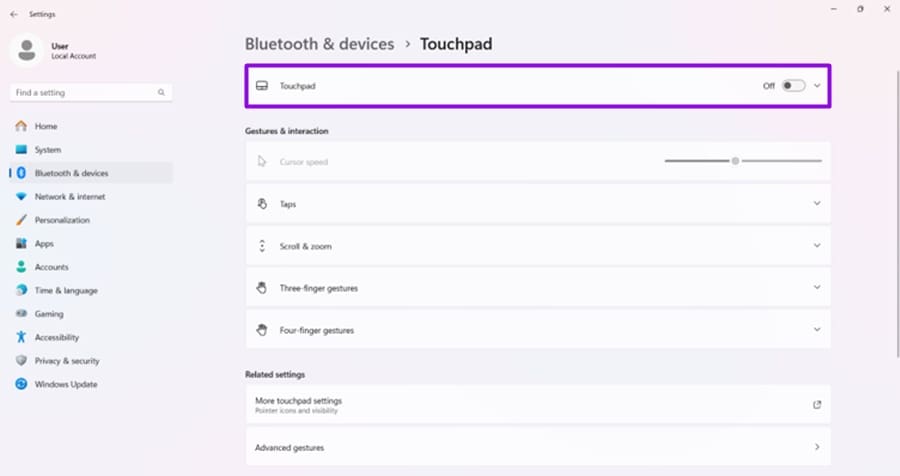
Step 3. To turn off the touchpad, simply toggle the slider to “Off.”
Step 4. To adjust gesture controls, click the different presets to see what swiping or tapping in a direction does. By default, “Three finger gestures” is set to open Task View on swiping up.
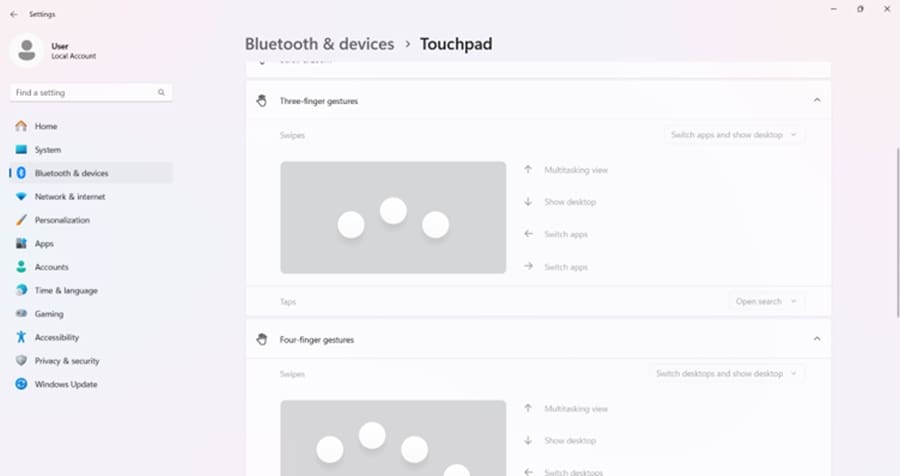
Step 5. Click the dropdown at the top right, and select “Nothing” from the list. The gesture should now be disabled, even if the touchpad is on.
Fix via the Registry
If you aren’t having luck with Task View and would rather disable it entirely, you can do so via the Registry. Just be sure not to change anything else while doing so, or your system may become unstable:
Step 1. Open the Run dialog with Windows + R, type “regedit,” and press “Enter.” Approve the User Account Control prompt if necessary.
Step 2. In the Registry, navigate to “HKEY_CURRENT_USER\Software\Microsoft\Windows\CurrentVersion\Explorer\Advanced” in the top address bar.
Step 3. Find “ShowTaskViewButton.” If it doesn’t exist, create a new DWORD (32-bit) Value with that name.
Step 4. Double-click “ShowTaskViewButton” and set its value to “0.”
Step 5. Click “OK” to finalize.
Step 6. Restart Windows Explorer or sign out and back in for the change to take effect.
Update Windows
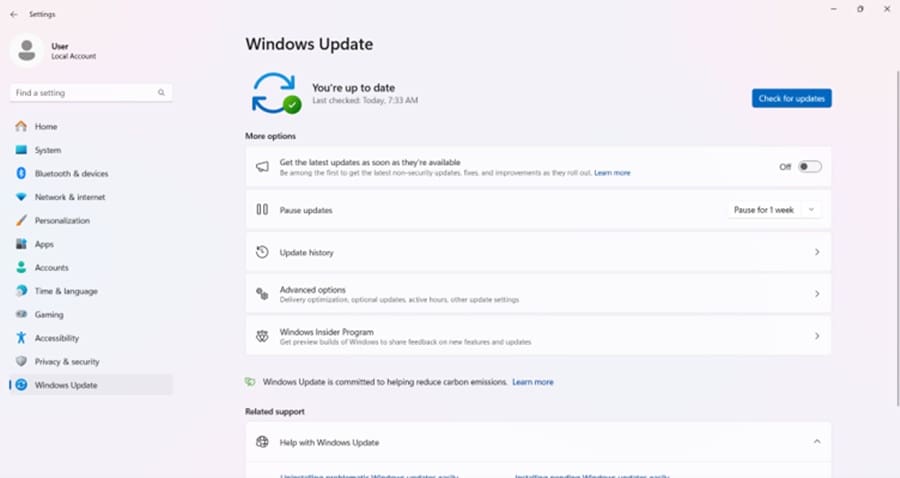
If the problem only started after a recent update, it might be your OS to blame. Patches are normally released quickly for minor bugs, so it’s a good idea to do this for your PC. Head to “Settings” (Win + I) and click “Windows Update” in the sidebar. Click the “Check for updates” button and install any new ones that pop up.
Was this helpful?
Last updated on 28 August, 2026
Read Next
 6 Ways to Fix PowerShell Keeps Popping Up on Windows 11
Fix 1: Prevent PowerShell From Running at the Startup A common reason why Windows PowerShell may keep opening on startup is if you have previously set it as a startup
6 Ways to Fix PowerShell Keeps Popping Up on Windows 11
Fix 1: Prevent PowerShell From Running at the Startup A common reason why Windows PowerShell may keep opening on startup is if you have previously set it as a startup
 4 Ways to Fix Command Prompt Keeps Popping Up in Windows 11
Try Basic Fixes Scan for malware: Command Prompt's unusual behavior could be due to a malware or virus infection.
4 Ways to Fix Command Prompt Keeps Popping Up in Windows 11
Try Basic Fixes Scan for malware: Command Prompt's unusual behavior could be due to a malware or virus infection.
 3 Fixes for “How to Get Help in Windows” Keeps Popping Up
Try Basic Fixes Check if the F1 key is stuck: The F1 key on Windows serves as a shortcut to access the help page for the active program or window.
3 Fixes for “How to Get Help in Windows” Keeps Popping Up
Try Basic Fixes Check if the F1 key is stuck: The F1 key on Windows serves as a shortcut to access the help page for the active program or window.
 Snipping Tool Keeps Popping Up in Windows 11 Fix
It’s useful to have a tool that makes grabbing screenshots a piece of cake.
Snipping Tool Keeps Popping Up in Windows 11 Fix
It’s useful to have a tool that makes grabbing screenshots a piece of cake.
 Volume Bar Keeps Popping Up in Windows? Here’s How to Fix It
It’s expected that the Windows 11 volume bar will appear every time you make an adjustment to your volume, or mute or unmute things, but if it refuses to go
Volume Bar Keeps Popping Up in Windows? Here’s How to Fix It
It’s expected that the Windows 11 volume bar will appear every time you make an adjustment to your volume, or mute or unmute things, but if it refuses to go
 6 Ways to Fix Windows 11 Keeps Rebooting Randomly
Basic Fixes Check the CPU temperature: If your PC's processor runs at abnormally high temperatures, it may automatically reboot your system to cool it down.
6 Ways to Fix Windows 11 Keeps Rebooting Randomly
Basic Fixes Check the CPU temperature: If your PC's processor runs at abnormally high temperatures, it may automatically reboot your system to cool it down.
 6 Fixes for Samsung Galaxy Watch Keeps Vibrating Randomly
Fix 1: Turn off Bluetooth Connection Alerts One of the primary reasons your Galaxy smartwatch vibrates randomly is the Bluetooth disconnection alerts.
6 Fixes for Samsung Galaxy Watch Keeps Vibrating Randomly
Fix 1: Turn off Bluetooth Connection Alerts One of the primary reasons your Galaxy smartwatch vibrates randomly is the Bluetooth disconnection alerts.
 Task View Not Opening in Windows 11? Try These Fixes
The Task View not showing Windows 11 users their open apps can be a bit difficult to troubleshoot.
Task View Not Opening in Windows 11? Try These Fixes
The Task View not showing Windows 11 users their open apps can be a bit difficult to troubleshoot.
The article above may contain affiliate links which help support Guiding Tech. The content remains unbiased and authentic and will never affect our editorial integrity.

