It’s expected that the Windows 11 volume bar will appear every time you make an adjustment to your volume, or mute or unmute things, but if it refuses to go away after a second or two, things can get annoying pretty fast. If your Windows volume bar keeps popping up unexpectedly or refuses to go away, then this article is for you. We’ll be looking at some fixes.
Windows Volume Bar Keeps Popping Up – Fixes to Try
If your volume bar is overstaying its welcome, we’ve got some troubleshooters to help you out:
Restart Your Machine
A quick and easy fix is to simply restart your machine. Erratic behavior by Windows, like memory leaks, can be fixed with a quick reboot. It should be your first course of action.
Run the Audio Troubleshooter
Windows 11 troubleshooters are a lot more powerful than they’ve been given credit for. If you aren’t sure exactly why the volume bar keeps popping up, Windows 11 has its own built-in solution. Here’s how to use it:
Step 1. Open “Settings” (Win + I) and click “System” in the sidebar.
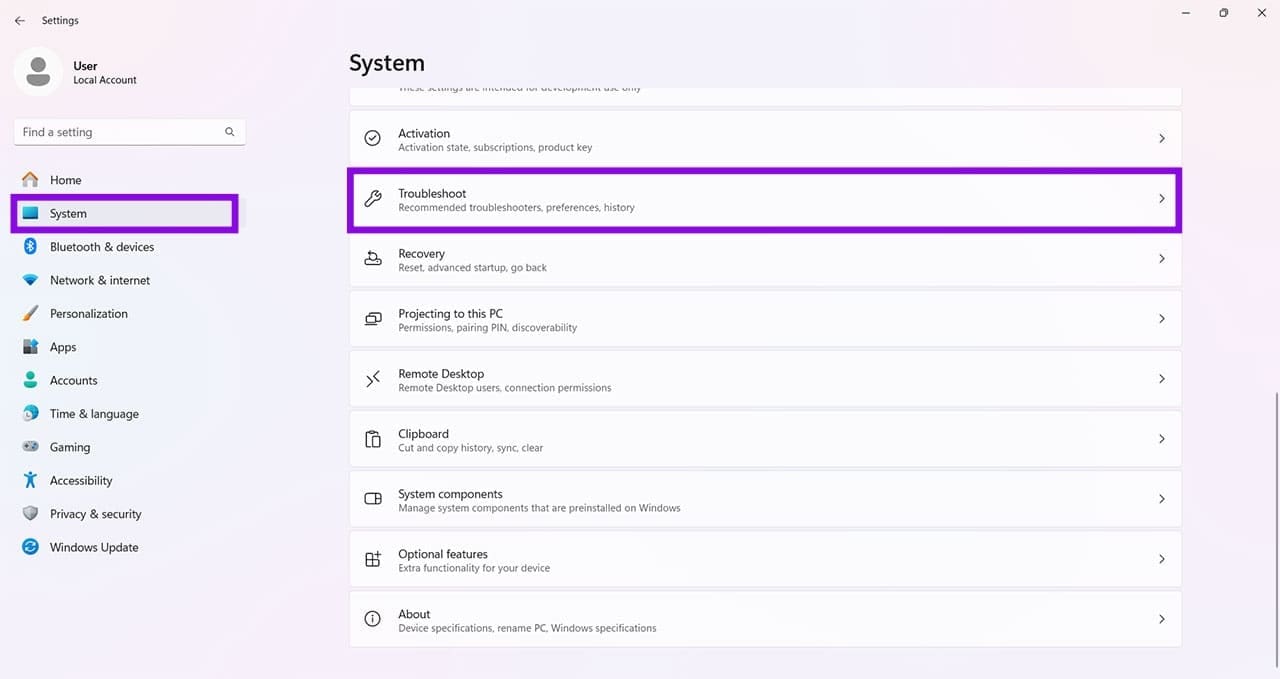
Step 2. Scroll down to “Troubleshoot” and click it.
Step 3. Click “Other troubleshooters.”
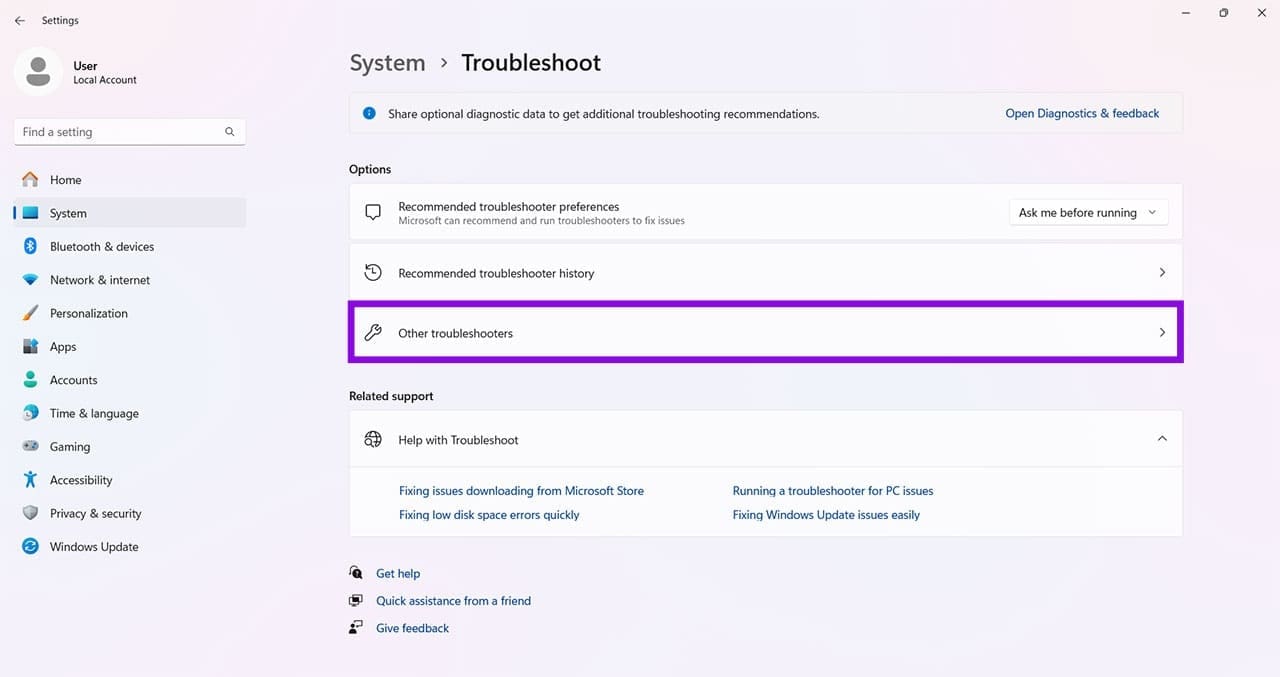
Step 4. Click “Run” next to “Playing Audio” (or follow the instructions in the “Get Help” app if your Windows version uses the newer troubleshooting method).
Update Your Machine
Sometimes, outdated software can clash with hardware or newer software on your machine. Since Windows handles the volume overlay by default, ensure that your operating system is fully up to date. You can check for updates in “Settings,” under “Windows Update.” Install any available updates and restart your machine once completed.

Check for Stuck Keys
A very quick check should be your keyboard. If any keys (especially those that control the volume) are stuck or have something pressing down on them, then this can cause the volume bar to pop up unexpectedly.
Unplug Audio Devices
Sometimes external devices, such as headphones, speakers, and even a mouse, can keep sending signals to your PC that have the volume bar popping up or never going away. Another quick check you can do when this happens is to unplug as many external devices as possible. If the bar disappears, then plug in hardware one by one until you find the culprit.
Close Third-Party Audio Programs
Third-party extensions and apps can boost your audio in fantastic ways, but can also clash with certain Windows functions. Try closing any third-party audio software and see if this resolves the volume bar issue.
Start in Clean Boot
If you suspect other third-party programs are responsible for this annoying error, then starting in a clean boot can confirm this by allowing you to disable some or all of them on startup. Here’s how to do so:
Step 1. Open “Run Dialog” (Win + R) and type “msconfig” before clicking “Enter.”
Step 2. Click the “Services” tab.
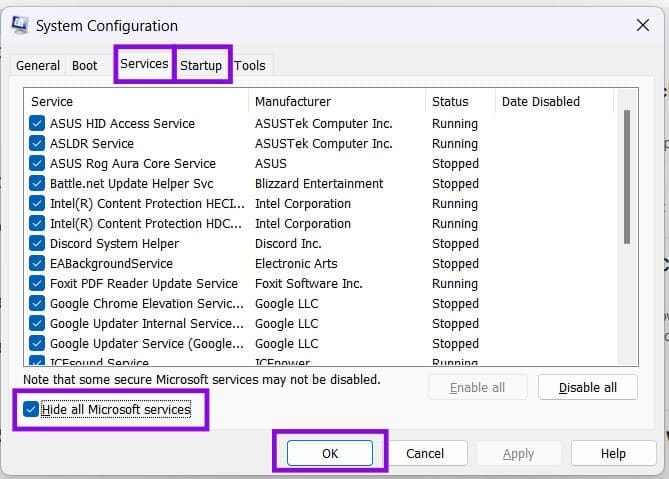
Step 3. Check “Hide all Microsoft services” and disable any third-party ones you feel are interfering, audio services especially. Disable them all if you want.
Step 4. Open the Startup tab and click “Open Task Manager.”
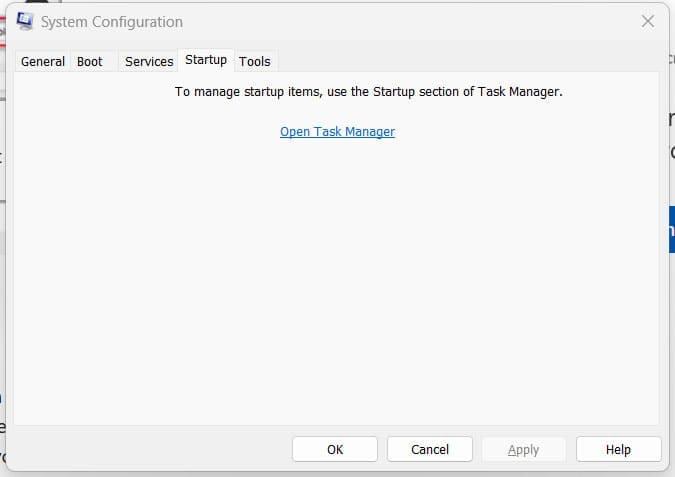
Step 5. Disable any startup items you suspect may be causing the issue.
Step 6. Close Task Manager, click “OK” in System Configuration, and restart your PC.
Was this helpful?
Last updated on 30 June, 2026
Read Next
 6 Ways to Fix PowerShell Keeps Popping Up on Windows 11
Fix 1: Prevent PowerShell From Running at the Startup A common reason why Windows PowerShell may keep opening on startup is if you have previously set it as a startup
6 Ways to Fix PowerShell Keeps Popping Up on Windows 11
Fix 1: Prevent PowerShell From Running at the Startup A common reason why Windows PowerShell may keep opening on startup is if you have previously set it as a startup
 4 Ways to Fix Command Prompt Keeps Popping Up in Windows 11
Try Basic Fixes Scan for malware: Command Prompt's unusual behavior could be due to a malware or virus infection.
4 Ways to Fix Command Prompt Keeps Popping Up in Windows 11
Try Basic Fixes Scan for malware: Command Prompt's unusual behavior could be due to a malware or virus infection.
 Snipping Tool Keeps Popping Up in Windows 11 Fix
It’s useful to have a tool that makes grabbing screenshots a piece of cake.
Snipping Tool Keeps Popping Up in Windows 11 Fix
It’s useful to have a tool that makes grabbing screenshots a piece of cake.
 3 Fixes for “How to Get Help in Windows” Keeps Popping Up
Try Basic Fixes Check if the F1 key is stuck: The F1 key on Windows serves as a shortcut to access the help page for the active program or window.
3 Fixes for “How to Get Help in Windows” Keeps Popping Up
Try Basic Fixes Check if the F1 key is stuck: The F1 key on Windows serves as a shortcut to access the help page for the active program or window.
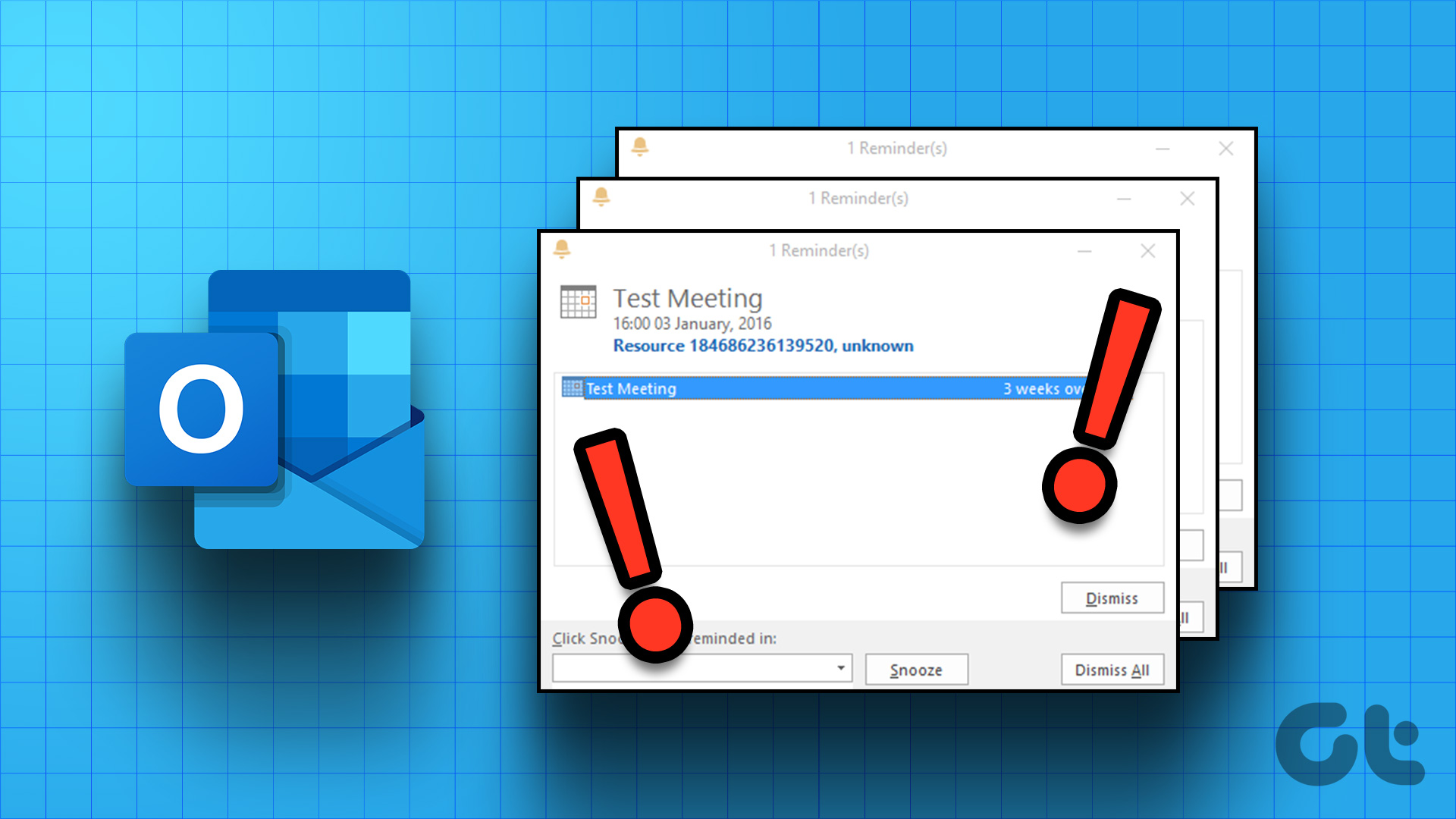 5 Ways to Fix Outlook Reminders Not Popping Up in Windows
Fix 1: Check Microsoft Outlook Reminder Settings The first thing you'll need to do is review the Outlook reminder settings to ensure they are configured correctly.
5 Ways to Fix Outlook Reminders Not Popping Up in Windows
Fix 1: Check Microsoft Outlook Reminder Settings The first thing you'll need to do is review the Outlook reminder settings to ensure they are configured correctly.
 3 Ways to Fix Volume Level Keeps Going Up or Down on iPhone
Try These Basic Fixes Remove the phone case: If your iPhone's case remains pressed against one of the volume buttons, the volume level can increase or decrease.
3 Ways to Fix Volume Level Keeps Going Up or Down on iPhone
Try These Basic Fixes Remove the phone case: If your iPhone's case remains pressed against one of the volume buttons, the volume level can increase or decrease.
 How to Stop Google Translate From Popping Up in Apps
Stop Live Translation on Android You can stop the Live Translation feature for a specific language or disable it entirely from popping up across different Android apps.
How to Stop Google Translate From Popping Up in Apps
Stop Live Translation on Android You can stop the Live Translation feature for a specific language or disable it entirely from popping up across different Android apps.
 7 Ways to Fix Low Volume on Windows 11
https://youtu.be/1snNqM2ZcwI Try Basic Fixes Check the volume mixer: Right-click the speaker icon on the taskbar and select the Open volume mixer option.
7 Ways to Fix Low Volume on Windows 11
https://youtu.be/1snNqM2ZcwI Try Basic Fixes Check the volume mixer: Right-click the speaker icon on the taskbar and select the Open volume mixer option.
The article above may contain affiliate links which help support Guiding Tech. The content remains unbiased and authentic and will never affect our editorial integrity.