The Task View not showing Windows 11 users their open apps can be a bit difficult to troubleshoot. Usually, something is interfering with the taskbar or Windows Explorer, but the feature itself shouldn’t break outright. Here’s what to do with Task View Windows 11 not working.
Fix 1 – Check Whether the Button Is Simply Turned Off
Windows 11 lets you hide the Task View button, but the underlying feature should work.
Step 1. Right-click an empty area of the taskbar and select “Taskbar settings.”
Step 2. Under “Taskbar items,” find the “Task View” toggle and turn it on.

Click on the icon to check if it works.
Fix 2 – Restart Windows Explorer
Task View may stop responding if Windows Explorer becomes unstable or unresponsive – for example, because of resource oveuse or another error
Step 1. Open Task Manager.
Step 2. On the “Processes” tab, sort by name and find “Windows Explorer.” If you don’t have a File Explorer tab open, it will be listed in Windows processes instead.
Step 3. Right-click on it and select “Restart.”
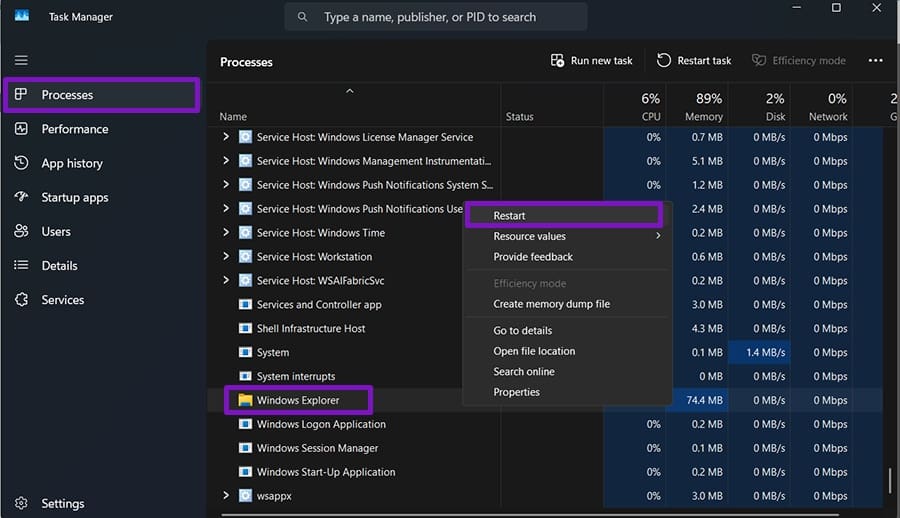
Step 4. The taskbar and desktop icons will flicker but should return within a few seconds.
Step 5. Try to open Task View again.
Fix 3 – Close Your Virtual Desktops if Task View Not Showing Windows 11
Virtual desktops accumulate over time, and having a very large number of them may slow Task View or make it less responsive. However, the underlying system that manages desktop creation and deletion should work.
Step 1. Press “Win + Ctrl + F4” to close the desktop you are currently on. Your open windows will move to the next desktop.
Step 2. Repeat until you’ve closed the unneeded virtual desktops, then test Task View again.
Fix 4 – Install Pending Windows Updates
Windows 11 might’ve shipped an update that inadvertently caused Task View or a utility used by it to not load properly. This is usually quickly fixed, so a subsequent update should work.
Step 1. Go to Windows Update.
Step 2. Click “Check for updates” and install any remaining updates.
Step 3. If updates are paused, resume them first.
Step 4. Restart and test Task View again.
Fix 5 – Repair System Files
Corrupted system files and components might break Task View. You can force Windows to retry installing them.
Step 1. Type “cmd” into the search bar and select “Run as administrator.”
Step 2. Run the following and wait for it to finish:
sfc /scannow
Step 3. Use the following command.
DISM /Online /Cleanup-Image /RestoreHealth
Fix 6 – Remove Third-Party Taskbar Tools
Utilities that redesign the taskbar to look like an older version might write over or disable parts of the new toolbar like Task View. Go to the official website or support page of your tool and check it for updates, or disable it entirely and try to run Task View again.
Fix 7 – Test a New User Account
If nothing above helps, the fault may be confined to your Windows profile rather than the installation.
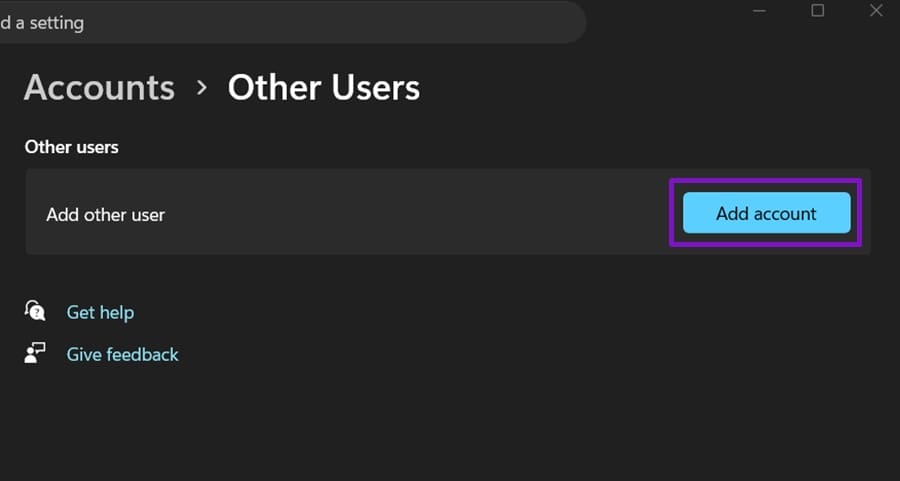
Step 1. Go to “Settings,” then to “Accounts.” Go to “Other users” and click on “Add account.”
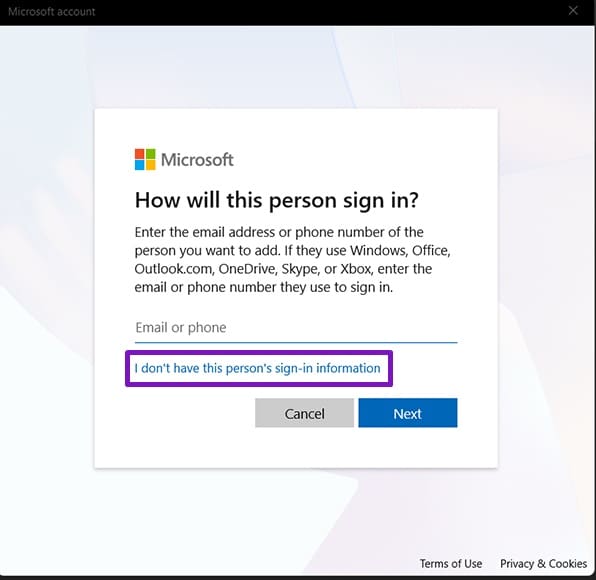
Step 2. Select “I don’t have this person’s sign-in information,” then “Add a user without a Microsoft account.”
Step 3. Create an account, sign out, and sign in to the new one.
Step 4. Test Task View there. If it works in the new profile, move your personal files and settings to the new account.
Was this helpful?
Last updated on 07 August, 2026
Read Next
 7 Best Windows 10 Task View Settings and Tips in 2020
Microsoft continues to pump Windows 10 with exciting new features and elements with each new update.
7 Best Windows 10 Task View Settings and Tips in 2020
Microsoft continues to pump Windows 10 with exciting new features and elements with each new update.
 How to Disable Task View in Windows 10 Completely
The Task View feature in Windows 10 is a boon for power users.
How to Disable Task View in Windows 10 Completely
The Task View feature in Windows 10 is a boon for power users.
 Wi-Fi Driver Keeps Uninstalling Automatically – 7 Fixes to Try
If your Wi-Fi driver uninstalled itself, you might not be able to see the corresponding adapter in Device Manager or the network icon on your toolbar.
Wi-Fi Driver Keeps Uninstalling Automatically – 7 Fixes to Try
If your Wi-Fi driver uninstalled itself, you might not be able to see the corresponding adapter in Device Manager or the network icon on your toolbar.
 Game Icons Won’t Display on Desktop – Fixes to Try for Steam
If your Steam desktop icons blank, this is usually a graphics-only issue.
Game Icons Won’t Display on Desktop – Fixes to Try for Steam
If your Steam desktop icons blank, this is usually a graphics-only issue.
 Can’t Save Excel Files on Mac? Try These 3 Fixes
Basic Fixes Check internet connectivity. If your Mac experiences internet issues, Microsoft Excel will remain stuck in the ‘Saving’ status.
Can’t Save Excel Files on Mac? Try These 3 Fixes
Basic Fixes Check internet connectivity. If your Mac experiences internet issues, Microsoft Excel will remain stuck in the ‘Saving’ status.
 LinkedIn Notifications Not Working – Try These Fixes
LinkedIn has gone dark.
LinkedIn Notifications Not Working – Try These Fixes
LinkedIn has gone dark.
 6 Fastest Browsers for Windows 11 You Should Try
How Did We Test Each Browser on Windows 11 To find the best and fastest browsers for Windows 11, we installed multiple browsers and tested each on popular benchmarking tools.
6 Fastest Browsers for Windows 11 You Should Try
How Did We Test Each Browser on Windows 11 To find the best and fastest browsers for Windows 11, we installed multiple browsers and tested each on popular benchmarking tools.
 How to Fix “Try Connecting Your Device” Bluetooth Error on Windows 11
Using Bluetooth to connect any device to your Windows PC frees you from the constraints of wires.
How to Fix “Try Connecting Your Device” Bluetooth Error on Windows 11
Using Bluetooth to connect any device to your Windows PC frees you from the constraints of wires.
The article above may contain affiliate links which help support Guiding Tech. The content remains unbiased and authentic and will never affect our editorial integrity.