If your Steam desktop icons blank, this is usually a graphics-only issue. The games in question will still launch when you double-click them, but the shortcut itself will be the default white. There are a few main causes, usually due to how Windows stores icons, so go through the following troubleshooting steps to fix Steam game icons not showing up on the desktop.
Fix 1 – Restart Windows Explorer for Steam Desktop Icons Blank
Explorer is the program that draws every icon on the desktop. But when it freezes, Explorer may display the default blank icon.
Step 1. Right-click the Start button on the toolbar and select “Task Manager.”
Step 2. Locate Windows Explorer under “Processes,” then right-click it and choose “Restart.”

Step 3. The taskbar and desktop will disappear, so just wait a few seconds.
Alternatively, you can use “End task” instead, but this will remove the toolbar, too (so you shouldn’t delete the Task Manager). For the desktop to come back, you need to click “Run new task” in Task Manager, type in “explorer.exe,” and hit “OK.”
Fix 2 – Rebuild the Windows Icon Cache
Windows caches icons in a separate database file that’s used as a cache. This can be deleted to force it to find the source icons.
Step 1. Hit “Win + R,” type in “%localappdata%\Microsoft\Windows\Explorer,” and hit “Enter.”
Step 2. Look for files named “iconcache_16.db,” “iconcache_32.db,” and so on. Select them all.

Step 3. Delete them. Windows will keep any file currently in use, so decline the prompt if it refuses to delete the file.
Step 4. Restart Explorer or the PC entirely.
Fix 3 – Recreate the Shortcut From Steam
If the shortcut file itself is broken, you need to use Steam to repair it.
Step 1. Delete the blank shortcut from your desktop.
Step 2. Open the Steam client and go to the Library tab at the top.
Step 3. Right-click the game, select “Manage,” then “Add desktop shortcut.”

Step 4. Check if the new shortcut displays properly.
Fix 4 – Check the .url File Default Program
Steam desktop shortcuts often use the steam:// protocol, which Windows passes to the Steam client. If another program is assigned to open those files, Steam might stop rendering shortcuts for them.
Step 1. Open “Settings” and go to “Apps,” then “Default apps.”
Step 2. Scroll to the bottom and select “Choose defaults by file type.”

Step 3. Search for “.url” and set it to your browser if it is listed as unassigned or set to an unexpected app. Then, restart the PC.
In some cases, the .url extension won’t even appear in that list. In that case, go back to the “Default apps” section and make sure that your browser is listed as the handler for HTTP and HTTPS.

Fix 5 – Reverify Game Files
If you get Steam desktop icons blank for only one game, you need to verify that the game has all its files (which can disappear if game files are missing or corrupted).
Step 1. Open the Steam Library section.
Step 2. Right-click the affected game and select “Properties.”
Step 3. Go to “Installed Files” on the left.
Step 4. Click “Verify integrity of game files” and let it finish.

Fix 6 – Point the Shortcut at the Icon Manually
Steam also downloads a .ico file for each game and stores them all in one folder. You can use this to create a manual reference.
Step 1. Right-click the blank shortcut and select “Properties.”
Step 2. On the “Web Document” tab (or the “Shortcut” tab for a .lnk file), click “Change Icon.”
Step 3. Browse to “C:\Program Files (x86)\Steam\steam\games” and look through the .ico files there.
Step 4. Pick the matching icon and click on “Open,” then click on “Apply” and “OK” to exit all other dialogs while saving the changes.

The filenames in that folder are hashes rather than game names, so you’ll need to identify them by thumbnail.
Fix 7 – Fix Library Folders After Moving Games
When moving games around, you should always use Steam’s dedicated “move storage” option for game Properties. If you’ve moved the folder manually, you’ll need to make Steam find the game.
Step 1. In Steam, click on the Steam icon on the top-left, then go to “Settings” and choose “Storage.”
Step 2. Use the drive dropdown and select “Add Drive” to register the folder your games were moved to. Set it as the default if that is where new installs should go.

Step 3. Restart Steam.
Step 4. Recreate the desktop shortcuts using another fix.
Was this helpful?
Last updated on 07 August, 2026
Read Next
 How to Hide and Unhide Some Desktop Icons on Windows 10
You might want to hide some apps icons from your Windows PC if you share them with your family or kids.
How to Hide and Unhide Some Desktop Icons on Windows 10
You might want to hide some apps icons from your Windows PC if you share them with your family or kids.
 How to Fix Desktop Icons Disappearing on Windows 11
Basic Fixes Run a malware scan: Malware is a common source of corruption that may lead to this icon issue.
How to Fix Desktop Icons Disappearing on Windows 11
Basic Fixes Run a malware scan: Malware is a common source of corruption that may lead to this icon issue.
 How to Make Desktop Icons Smaller on Windows 11
Are you looking to customize your Windows 11 desktop?
How to Make Desktop Icons Smaller on Windows 11
Are you looking to customize your Windows 11 desktop?
 What are Green Check Marks on Desktop Icons and How to Remove Them
What Do Green Check Marks on Desktop Icons Mean Green check marks on your desktop files, folders, and shortcuts indicate that they are successfully backed up to your Microsoft OneDrive
What are Green Check Marks on Desktop Icons and How to Remove Them
What Do Green Check Marks on Desktop Icons Mean Green check marks on your desktop files, folders, and shortcuts indicate that they are successfully backed up to your Microsoft OneDrive
 How to Change Font Color on Desktop Icons (Windows 11)
You might want to learn how to change font color on desktop icons Windows 11 if you have a hard time reading the text in its default color, or just
How to Change Font Color on Desktop Icons (Windows 11)
You might want to learn how to change font color on desktop icons Windows 11 if you have a hard time reading the text in its default color, or just
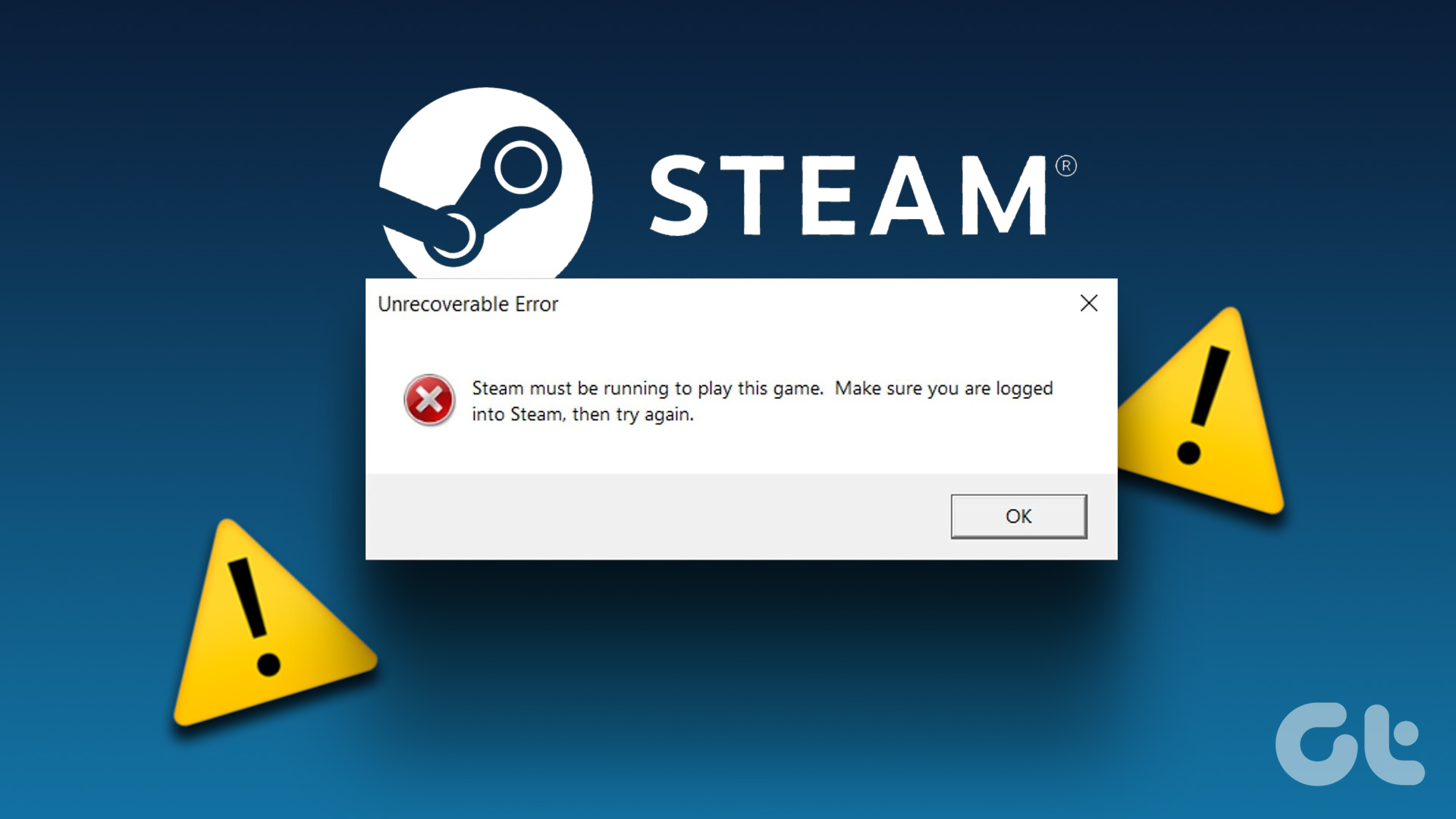 3 Ways to Fix “Steam Must be Running to Play This Game” Error
Basic Fixes: Ensure Steam is installed on your computer: If you play Steam games, ensure the client is installed on your computer.
3 Ways to Fix “Steam Must be Running to Play This Game” Error
Basic Fixes: Ensure Steam is installed on your computer: If you play Steam games, ensure the client is installed on your computer.
 Steam Game Is Installed on PC But Not Showing in The App – How to Fix
If you have a Steam game not showing on the app, trying to open it manually might not actually do anything if the client doesn’t recognize the application.
Steam Game Is Installed on PC But Not Showing in The App – How to Fix
If you have a Steam game not showing on the app, trying to open it manually might not actually do anything if the client doesn’t recognize the application.
 7 Best Ways to Fix Kindle for PC Desktop App Won’t Open on Windows
Many users prefer the Kindle app on their desktop for reading eBooks.
7 Best Ways to Fix Kindle for PC Desktop App Won’t Open on Windows
Many users prefer the Kindle app on their desktop for reading eBooks.
The article above may contain affiliate links which help support Guiding Tech. The content remains unbiased and authentic and will never affect our editorial integrity.